


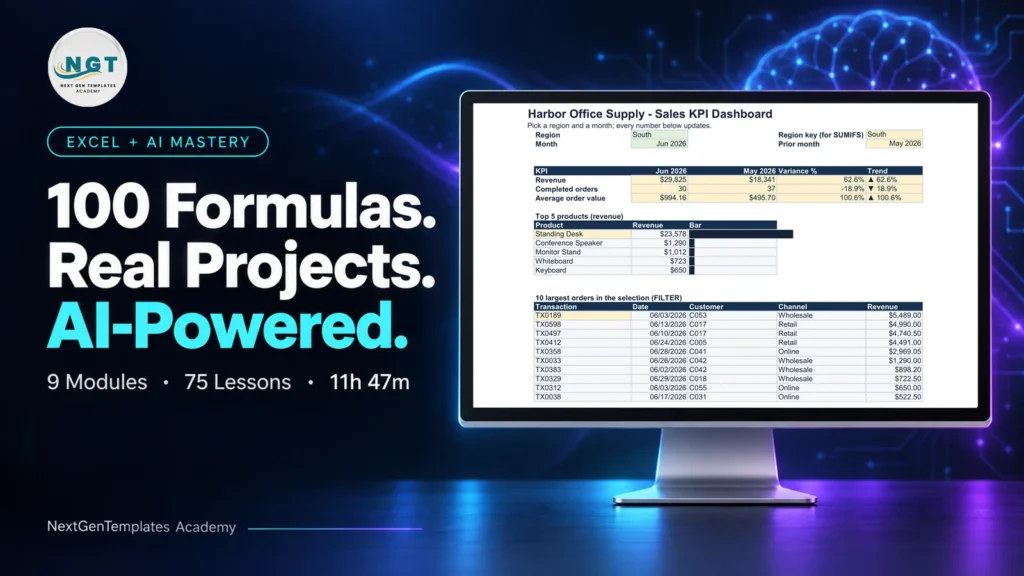
The Excel VBA based Application with SQL database connects the familiar Excel interface to an SQL database for data storage, retrieval and manipulation. It is built for businesses and organizations that manage large datasets, such as customer records or inventory data. You can add, update, delete and query records without leaving Excel, and VBA automates the repetitive work.
The tool links your Excel spreadsheets to an SQL database, so data entry, updates and queries happen in one place. Records are stored in SQL for better performance and data security, and you keep working in Excel’s user-friendly interface.

Key Features of the Excel VBA Based Application with SQL Database
- Excel SQL integration: Connect your Excel spreadsheets directly to an SQL database for real-time data updates and retrieval.
- Powerful data management: Add, update and delete records in the SQL database using simple Excel forms.
- SQL query support: Run custom SQL queries in Excel to retrieve, manipulate and display data on the sheet.
- Secure data storage: Store large datasets in an SQL database for better performance and data security.
- Automated data handling: Automate data import/export and query operations with VBA to save time and effort.
- User-friendly interface: An intuitive Excel interface lets you work with SQL databases without deep technical knowledge.
Why You’ll Love This Excel Database Management Tool
- Efficient data management: Handle large datasets by using SQL’s power while working in Excel.
- Easy data entry and updates: Use Excel’s familiar interface to add and modify records in your SQL database.
- Automated data entry and time-consuming tasks: Automate data entry, updates and queries to reduce the time spent on manual processes.
- Real-time data sync: Keep your data up to date with syncing between Excel and SQL.
- Enhanced data security: Store sensitive data securely in an SQL database while keeping Excel’s flexibility.
What’s Inside
| Component | What it does |
|---|---|
| SQL integration | Connects Excel to an SQL database for efficient data management. |
| Easy-to-use forms | User-friendly Excel forms to add, modify or delete records in the SQL database. |
| Custom SQL queries | Fetch data based on your requirements and display it directly in Excel. |
| Data synchronization | Automatically syncs data between Excel and SQL for up-to-date information. |
| Automation features | Automates common tasks like importing/exporting data, running reports or updating records. |
The download is an Excel file with VBA code and SQL database integration.
Who It’s For
This tool suits anyone who manages large-scale data in Excel and wants the storage and querying power of SQL:
- Data Analysts
- Business Owners
- Database Administrators
- Project Managers
- Sales Teams
- Inventory Managers
- Marketing Professionals
How to Use the Excel VBA Based Application with SQL Database
- Download the template: Get the Excel file with VBA code and SQL database integration, then unzip it.
- Enable macros: Make sure macros are enabled before use. Our tutorial explains how: https://www.pk-anexcelexpert.com/4-easy-ways-to-enable-macros-in-excel-vba/
- Connect to the SQL database: Set up the connection between Excel and your SQL database using the provided credentials.
- Enter and manage data: Use the Excel forms to add, update or delete records in the database.
- Run SQL queries: Run custom SQL queries in Excel to retrieve and display data.
- Automate data operations: Use VBA to automate data imports, exports and queries.
Click here to read the detailed blog post
Watch the step-by-step video tutorial:
Visit our YouTube channel for step-by-step video tutorials: Youtube.com/@PKAnExcelExpert
Frequently Asked Questions
What does the Excel VBA based Application with SQL database do?
It connects Excel to an SQL database so you can add, update, delete and query records from Excel forms. Data is stored in SQL and kept in sync with Excel.
Do I need technical knowledge to use it?
No deep technical knowledge is needed. The tool uses an intuitive Excel interface and simple forms. You do need to set up the database connection using the provided credentials.
Can I run my own SQL queries in Excel?
Yes. The tool supports custom SQL queries to fetch, manipulate and display data in Excel based on your requirements.
Do I need to enable macros?
Yes. The application is VBA based, so after downloading and unzipping the file, enable macros before use. The tutorial link in the steps above shows four easy ways to do this.
What kind of data can I manage with it?
It is designed for large datasets, such as customer records, inventory data or any large-scale dataset your business manages.
What tasks can be automated?
VBA automates data import/export, query operations, running reports and updating records. This cuts down on manual work and repeated data entry.
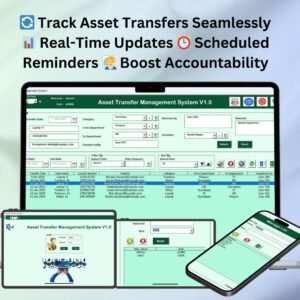
Also check our Asset Transfer Management System V1.0
Last updated: October 2026
Compatibility and Requirements
- Needs Microsoft Excel desktop on Windows with macros enabled. It does not run in Excel for the web, Google Sheets or on mobile.
- You connect it to your own SQL database using your connection credentials.
- Microsoft explains macro settings in Enable or disable macros in Microsoft 365 files.
Related Excel VBA Database Templates
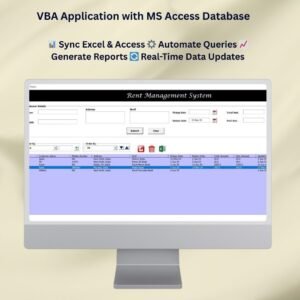
- VBA Application with MS Access Database: the same idea with an Access database
- Employee Database Tracker in Excel: a ready-made employee database
- Advanced Inventory Management System V1.0: a full Excel VBA inventory system
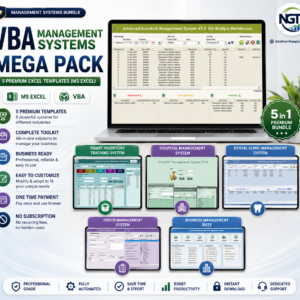
- VBA Management Systems Mega Pack: 5 premium VBA systems in one bundle
Browse all Excel VBA tools or the Excel utilities.














Reviews
There are no reviews yet.