

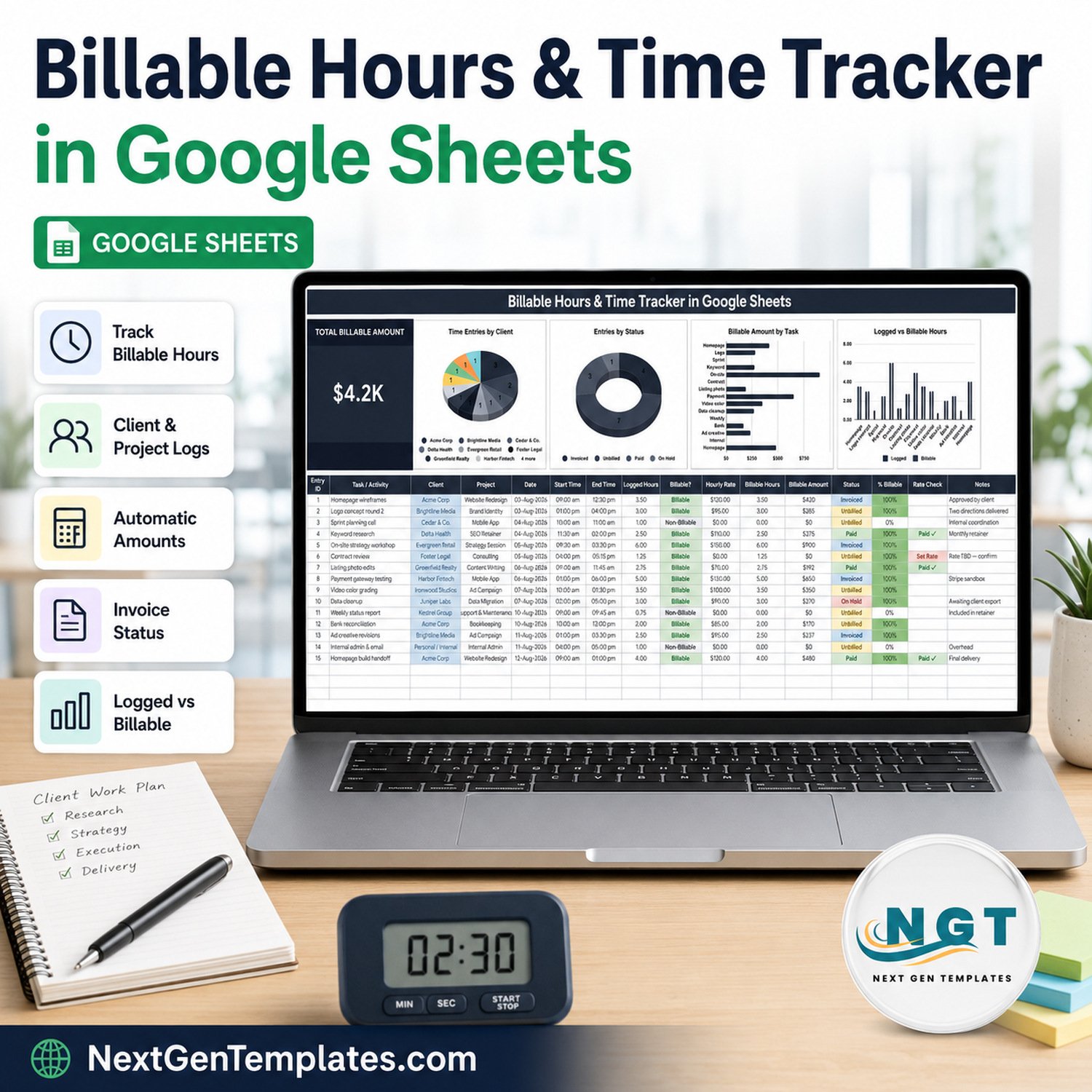

Every unbilled hour you forget to write down is money you have already spent. This billable hours time tracker in Google Sheets turns a plain work log into an invoice-ready ledger: type the task, the client, the start time and the end time, and the sheet works out logged hours, billable hours, the amount owed and whether you have been paid. The sample file ships with 15 worked entries across 12 clients, 16 columns of which 6 calculate themselves, 4 live charts and one headline card that reads $4.2K Total Billable Amount straight from the log. Built by NextGenTemplates, whose YouTube channels reach 300K+ subscribers and whose catalogue runs past 2,000 templates. One payment, no subscription, no seat licences: your download is a PDF holding a “Make a copy” link, so the file lands in your own Google Drive in about a minute and stays yours.Billable Hours & Time Tracker in Google Sheets

Key Features of the Billable Hours & Time Tracker in Google Sheets
- One headline card – Total Billable Amount. It adds the Billable Amount column for every row in the log, so the number moves the moment you type an end time or change a rate.Billable Hours & Time Tracker in Google Sheets
- Start and end times, not a stopwatch. Logged Hours is a formula on the two times you type, and it handles an entry that runs past midnight instead of returning a negative number.Billable Hours & Time Tracker in Google Sheets
- Six self-calculating columns. Entry ID, Logged Hours, Billable Hours, Billable Amount, % Billable and Rate Check are all formulas. You only ever type nine fields.
- Rate Check catches the expensive mistake. Any row marked Billable with no Hourly Rate is flagged Set Rate in red, so a two-hour job never quietly invoices at zero.
- Billable vs non-billable is explicit. The Billable? column splits paid work from internal admin, and the % Billable column shows the split per row at a glance.Billable Hours & Time Tracker in Google Sheets
- A three-step money trail. Status moves Unbilled to Invoiced to Paid, with On Hold for work a client has parked.
- Four charts wired straight to the columns. Time Entries by Client, Entries by Status, Billable Amount by Task and Logged vs Billable Hours read rows 16-1000 with the built-in Aggregate option – there are no hidden helper tables to break.
- Dropdowns that grow with you. Client, Project, Billable? and Status pull from the List tab, rows 2-500. Add a new client there and it appears in the dropdown immediately.
- Your colours, your currency. The palette lives in a single constants block in the script, and the currency is ordinary cell formatting, so you can switch from $ to Rs, Euro or Pound in two clicks.Billable Hours & Time Tracker in Google Sheets
What’s Inside the Billable Hours & Time Tracker
The billable hours time tracker ships as four tabs, with no macro or add-on to install:
- Tracker tab. The title banner, the Total Billable Amount card, the four charts and the entry table. The 16 columns are Entry ID, Task / Activity, Client, Project, Date, Start Time, End Time, Logged Hours, Billable?, Hourly Rate, Billable Hours, Billable Amount, Status, % Billable, Rate Check and Notes.Billable Hours & Time Tracker in Google Sheets
- List tab. The source of every dropdown – clients, projects, the Billable? choices and the four Status values. This is the only place you maintain them.Billable Hours & Time Tracker in Google Sheets
- How to Use tab. A one-screen guide covering entry, the automatic columns, the billing cycle, the dropdowns and the ten-second step that turns the dropdowns into coloured chips.
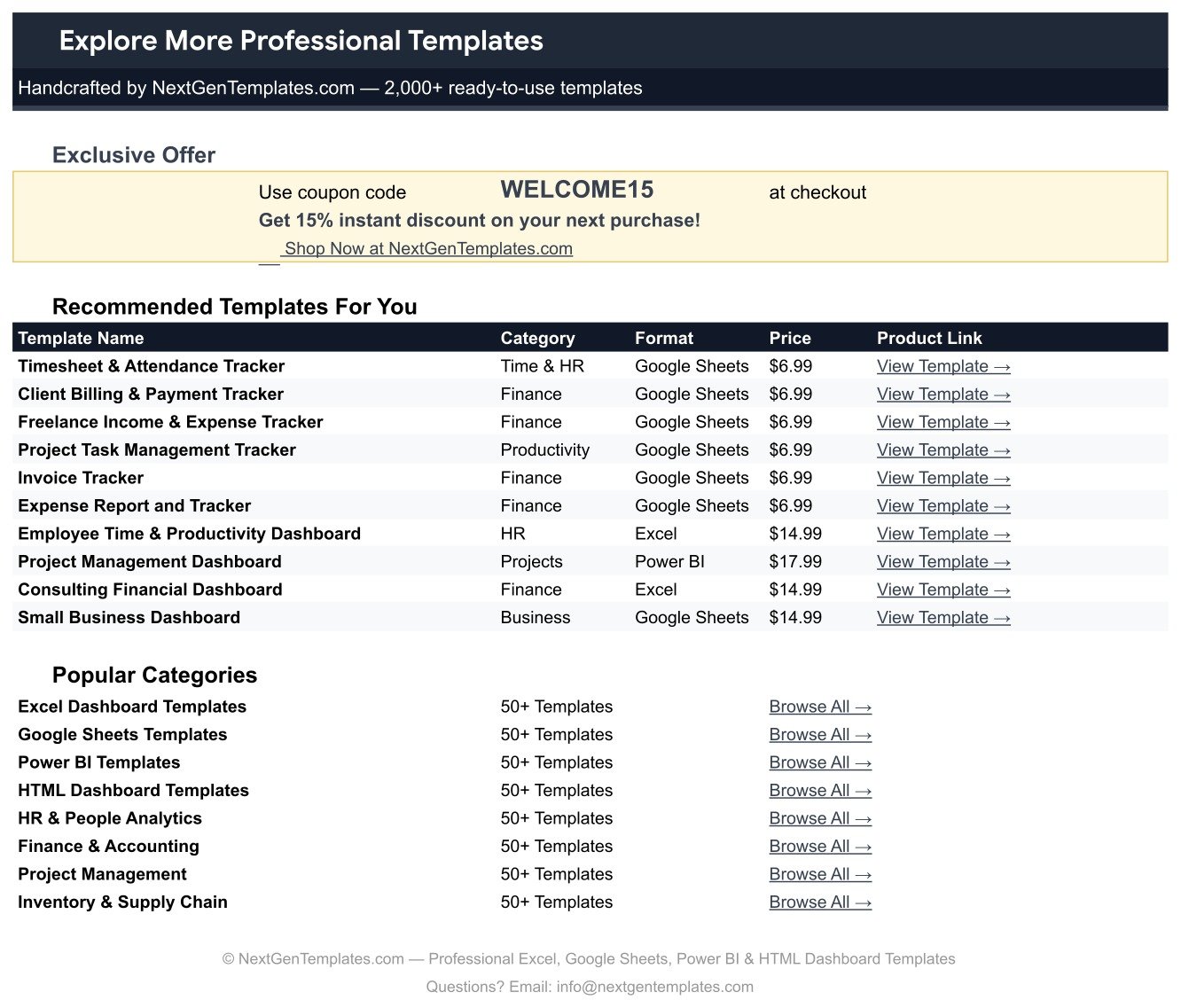
- Explore More Templates tab. A shortlist of related NextGenTemplates files and a 15% coupon code.
The sample data is deliberately realistic: 15 entries dated 3-12 August across clients such as Acme Corp, Brightline Media, Delta Health, Foster Legal and Harbor Fintech, on projects including Website Redesign, SEO Retainer, Mobile App, Consulting and Bookkeeping. Four entries are already Invoiced, three are Paid, one is On Hold, and three are marked Non-Billable so you can see exactly how internal time behaves.Billable Hours & Time Tracker in Google Sheets
Billable Hours Time Tracker in Google Sheets vs. Excel vs. Paid Time-Tracking SaaS – Where This Fits
| This Google Sheets tracker | An Excel timesheet workbook | Harvest / Toggl-style SaaS | |
|---|---|---|---|
| Cost | $6.99 once | Usually free or a few dollars, plus Office | Commonly $10-$15 per user per month |
| Platform | Google Sheets, any browser | Desktop Excel | Web app plus mobile app |
| Setup time | About a minute – open the PDF, click Make a copy | Minutes, once the file is downloaded | An hour or more with account, projects and rates |
| Real-time team collaboration | Yes, native Google Sheets sharing | Only through OneDrive co-authoring | Yes |
| Mobile access | Google Sheets mobile app | Limited | Yes, with a timer |
| Customisable fields | Fully – it is your spreadsheet | Fully | Only what the plan exposes |
| Share with a link | Yes | No | Yes |
| Year-1 cost at 5 users | $6.99 | Cost of Office licences | Roughly $600-$900 |
| Stopwatch / timer button | No – you type start and end times | No | Yes |
| Generates invoices | No – it tracks invoice status | No | Yes on most plans |
| Who owns the data | You, in your own Drive | You | The vendor, until you export |
Read the last two rows honestly. If you need a phone timer and a generated invoice PDF, buy the SaaS. If what you actually lose money on is remembering the work, this file fixes that for the price of a coffee.
Who This Template Is For – and Who It’s Not For
A good fit: freelancers and independent consultants billing several clients by the hour; two-to-ten person design, marketing, development and bookkeeping studios; solicitors, coaches and accountants who bill in blocks; anyone who currently keeps hours in a notebook, a chat thread or their head.
Not a good fit: teams that need a phone timer running in the background; agencies that must produce numbered invoices, tax lines and payment links from the same system; payroll, where you need approvals, overtime rules and statutory records; and any workflow needing per-client rate cards applied automatically, because Hourly Rate is typed per row here rather than looked up. It is also a live-to-date log, not a period report – the card and the charts cover every row in the sheet, not a month you pick.
How to Use the Billable Hours & Time Tracker
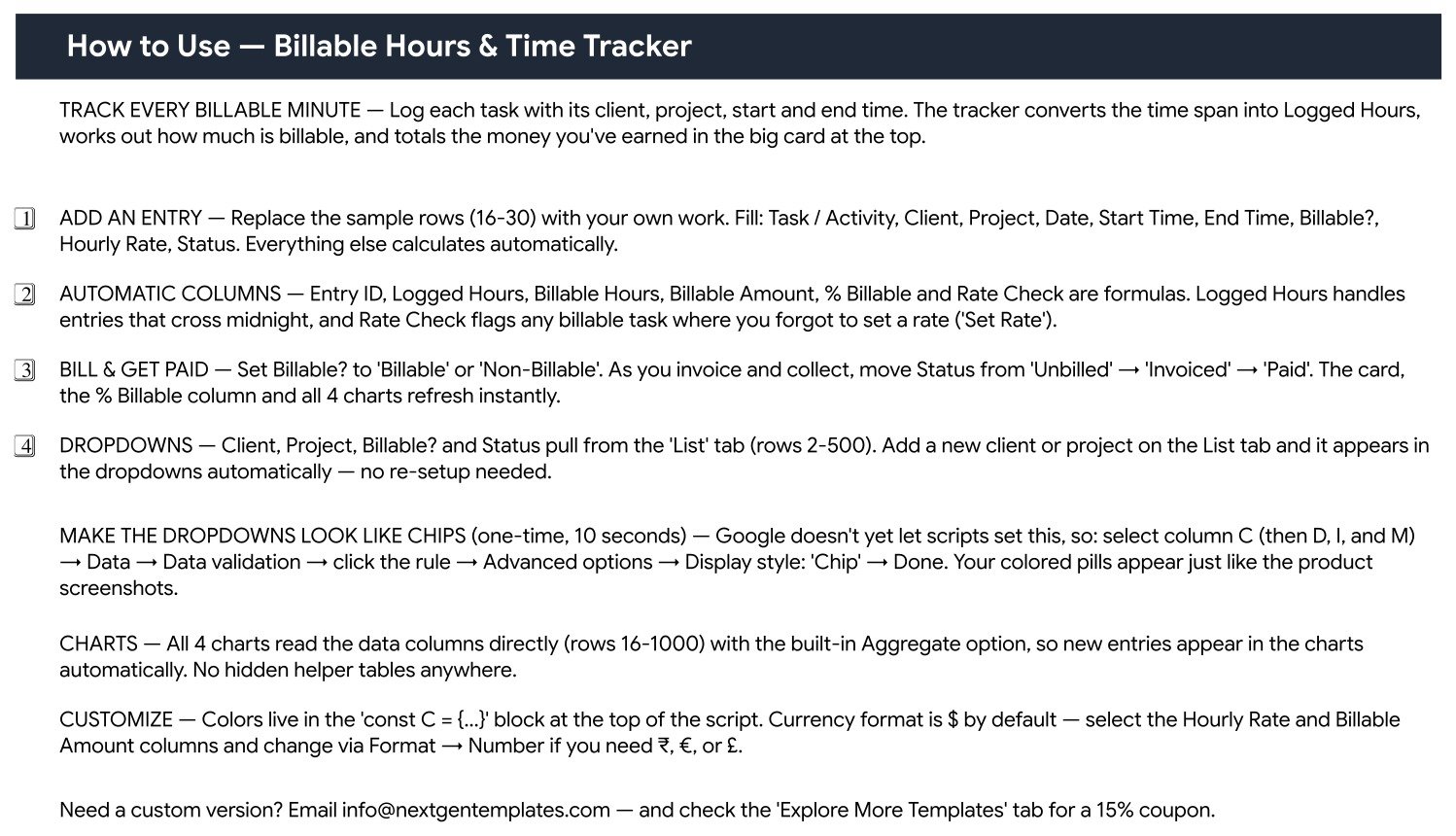
- Make your copy. Open the PDF in your download and click the “Make a copy” link. The file is created in your own Google Drive.
- Load the List tab first. Put your real clients and projects in rows 2-500. Every dropdown reads from here, so five minutes now saves typing later.
- Clear the sample. Replace sample rows 16-30 with your own work. Fill only Task / Activity, Client, Project, Date, Start Time, End Time, Billable?, Hourly Rate and Status.
- Let the formulas run. Entry ID, Logged Hours, Billable Hours, Billable Amount, % Billable and Rate Check fill themselves, and the card and charts refresh as you type.
- Turn the dropdowns into chips (once, ten seconds). Select column C, then Data, Data validation, click the rule, Advanced options, Display style: Chip. Repeat for D, I and M. Apps Script cannot set this, which is why it is a manual step – see Google’s data validation guide.
- Work the billing cycle. Raise your invoice, set Status to Invoiced, and switch it to Paid when the money lands. Sort or filter by Status to see what is still owed.
Real-World Use Cases
Maya, freelance brand designer. Two retainers and three project clients. She logs each session as she finishes it, keeps Non-Billable rows for pitching and admin, and at month end filters Status to Unbilled – the Total Billable Amount card tells her what to invoice before she opens her billing app.
Ravi, four-person development studio. Everyone works in the same shared copy. The Logged vs Billable Hours chart is his weekly check: when a project’s grey bar towers over the billable one, the scope has drifted and it is time for a conversation with the client.
Elena, bookkeeping practice. She bills at three different rates. The Rate Check column is the safety net – she once invoiced 11 hours of on-site work at zero, and now nothing leaves the sheet flagged Set Rate.
Frequently Asked Questions
How do I get the file after buying?
Your download is a PDF. It holds the “Make a copy” link – one click creates your own editable copy in your Google Drive. Nothing is installed and the original stays untouched.
Is there a start/stop timer?
No. You type a start time and an end time and the sheet does the arithmetic, including entries that cross midnight. If a background timer is essential to you, a paid time-tracking app is the better buy.
Can more than one person log time in it?
Yes. Share the copy the way you share any Google Sheet. Everyone types into the same table and the card and charts update for all of them at once.
Will the charts pick up my new rows?
Yes. All four charts read the data columns directly for rows 16 to 1000 using the built-in Aggregate option, so new entries appear without touching a single chart setting.
Can I change the currency from dollars?
Yes. Select the Hourly Rate and Billable Amount columns and use Format, then Number. The symbol is ordinary cell formatting, not a hard-coded value.
Does it create invoices?
No. It records where each entry sits in the billing cycle – Unbilled, Invoiced, Paid or On Hold – and totals what is owed. Producing the invoice document itself stays in your invoicing tool.
Why do my dropdowns look like plain text?
The coloured chip look is a display setting Google does not let a script apply. Step 5 above turns it on for columns C, D, I and M in about ten seconds.
About the Author
Built by PK – Microsoft Certified Professional with 15+ years of Excel, Google Sheets, and Power BI experience. Founder of NextGenTemplates, reaching 300K+ subscribers across YouTube channels. Every template is hand-built and tested before release.
Explore Related Templates
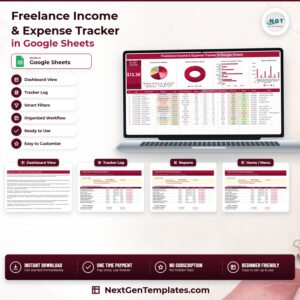
- Freelance Income & Expense Tracker in Google Sheets – the money side of the same business: what came in, what went out, what is left.
- Expense Report and Tracker in Google Sheets – for the reimbursable costs that sit alongside billed time.
- Employee Timesheet for Billable Hours in Google Sheets – a per-employee timesheet layout if you need attendance rather than a client log.
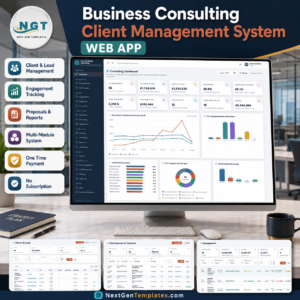
- Business Consulting Client Management System Web App – when a shared spreadsheet is no longer enough and you want logins and roles.
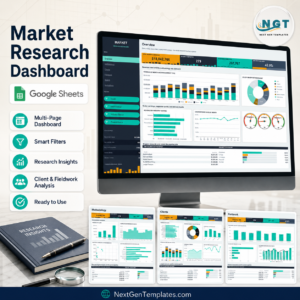
- Market Research Dashboard in Google Sheets – a bigger reporting layout in the same Google Sheets family.
Browse everything in Google Sheets templates or the full Trackers category.
Stop guessing what you are owed. Add this billable hours time tracker to your cart, copy it into your Drive in the next five minutes, and log today’s work before you forget it. One payment, yours to keep, no seats to renew.
Watch the step-by-step video Demo:
Last updated: September 2026.











Reviews
There are no reviews yet.