

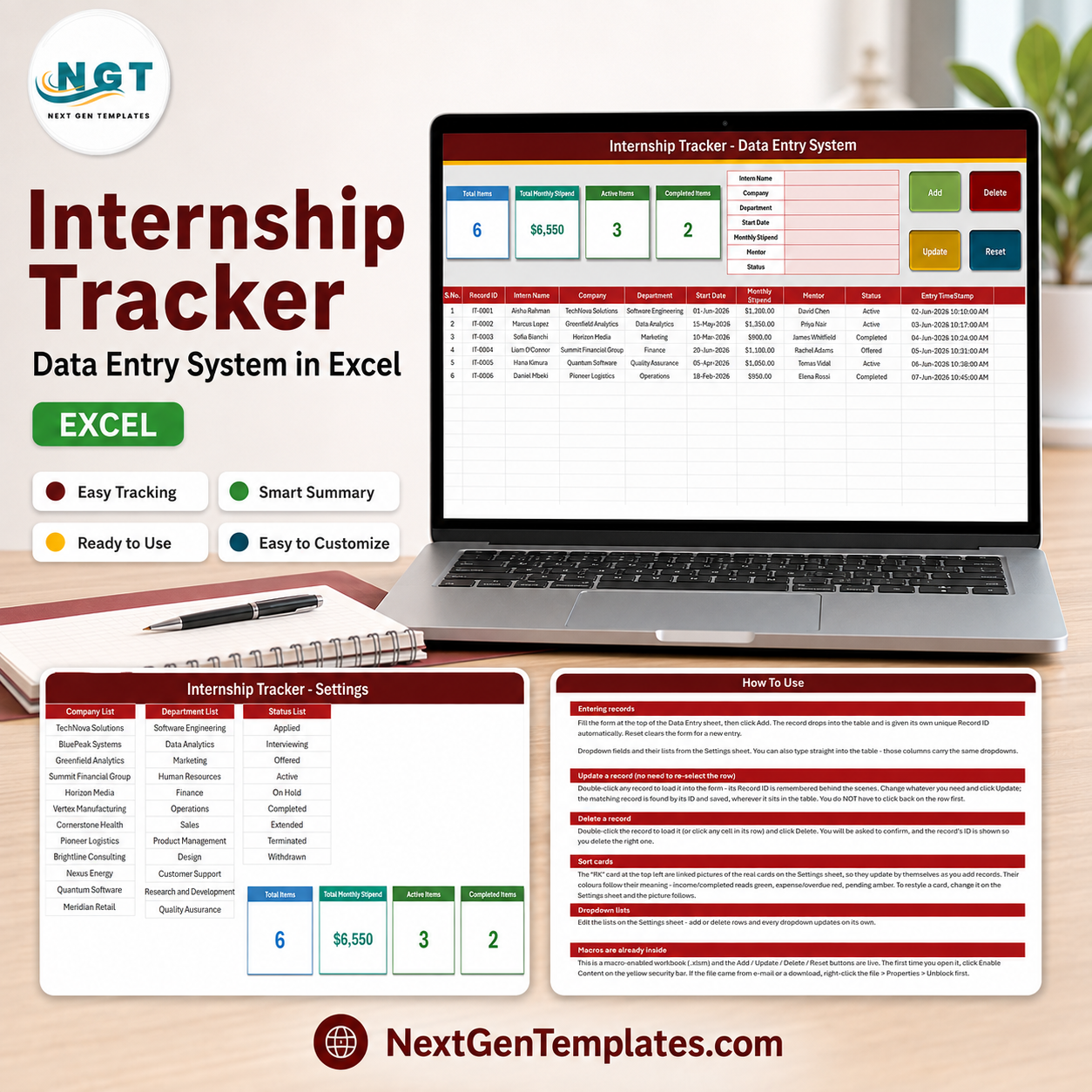

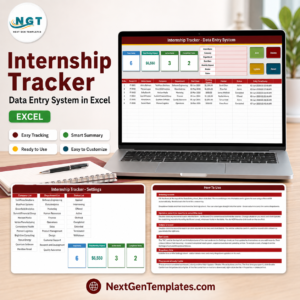
The Internship Tracker Data Entry System in Excel is a four-sheet macro-enabled workbook that files one intern at a time through a seven-field form and drops the record into a ten-column table with its own IT-0001 style Record ID and an automatic entry timestamp. Four live stat cards sit above the form – Total Interns, Total Monthly Stipend, Active Interns and Completed Interns – and recalculate straight from the records. Built by PK, a Microsoft Certified Professional, and hand-tested before release. Instant download, lifetime access, no subscription, and support if the workbook does not work as this page describes.
Key Features of the Internship Tracker Data Entry System in Excel
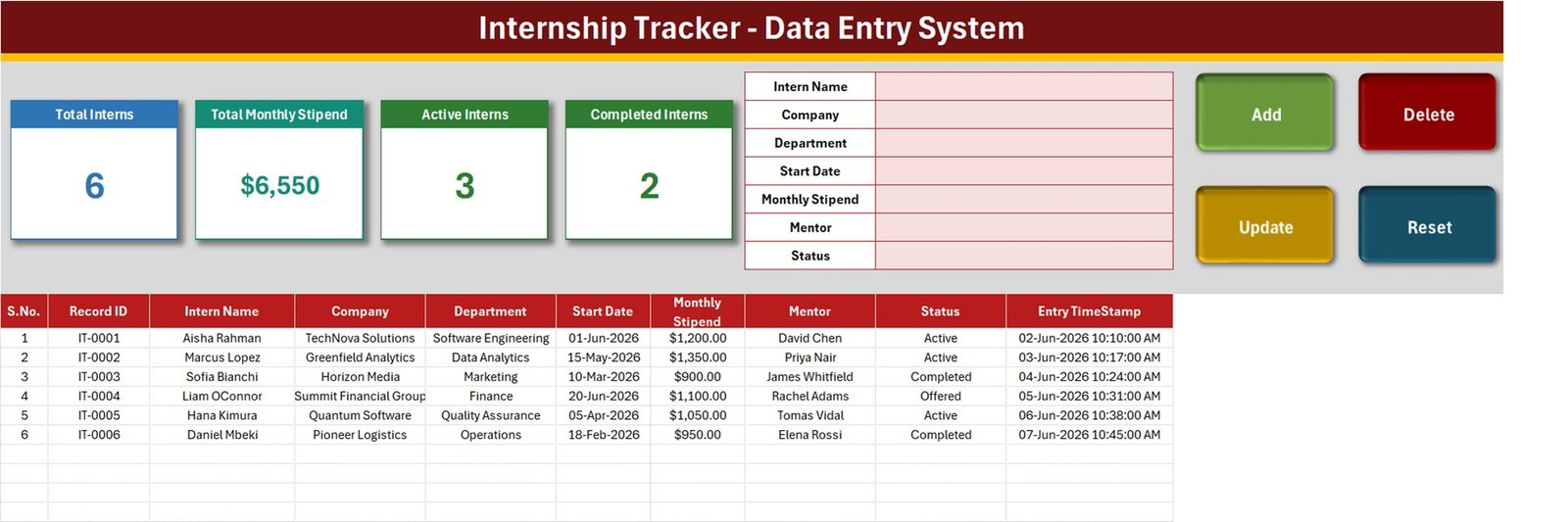
- Seven-field entry form – Intern Name, Company, Department, Start Date, Monthly Stipend, Mentor and Status, stacked down the middle of the Data Entry sheet.
- Four VBA buttons – Add (green), Delete (red), Update (gold) and Reset (teal). They run real macros named
Add_Record,Update_Record,Delete_RecordandReset_Form, so the file has to be opened in Excel for Windows with content enabled. - Automatic Record ID – every intern is filed as IT-0001, IT-0002 and onward, so two interns with the same name never collide.
- Entry TimeStamp column – the date and time the row was created is written for you, in dd-mmm-yyyy hh:mm:ss AM/PM, separately from the Start Date you type.
- Update by ID, not by row – double-click any record to pull it back into the form; the macro remembers its Record ID in a hidden cell and finds the row again wherever it has been sorted to.
- Four live stat cards – Total Interns, Total Monthly Stipend, Active Interns and Completed Interns, driven by COUNTA, SUM and two COUNTIFs over the records table. Read the honest note further down on what these cards do and do not count.
- Three dropdown lists you own – 12 companies, 12 departments and 9 internship statuses, all edited on the Setting sheet.
- 199 pre-formatted record rows – rows 15 to 213 already carry the dropdowns, the dd-mmm-yyyy date format, the currency format on the stipend and the timestamp format.
- Delete asks first – the confirmation box names the Record ID it is about to remove.
- A How To Use sheet inside the file – six short sections, so nobody has to come back to this page to remember how Update works.
What’s Inside the Internship Tracker Data Entry System in Excel
The download is a ZIP containing one macro-enabled workbook, Internship_Tracker_System.xlsm (about 70 KB). It has exactly four sheets and no other files.
1. Data Entry. The working sheet. A deep-red title banner, the four stat cards, the seven-field form, the Add / Delete / Update / Reset buttons, and below them the records table: S.No., Record ID, Intern Name, Company, Department, Start Date, Monthly Stipend, Mentor, Status, Entry TimeStamp. Six sample interns ship with it – Aisha Rahman on Software Engineering at TechNova Solutions, Marcus Lopez on Data Analytics at Greenfield Analytics, Sofia Bianchi in Marketing at Horizon Media, Liam OConnor in Finance at Summit Financial Group, Hana Kimura in Quality Assurance at Quantum Software and Daniel Mbeki in Operations at Pioneer Logistics – so you can watch Add, Update and Delete work before you clear them out.
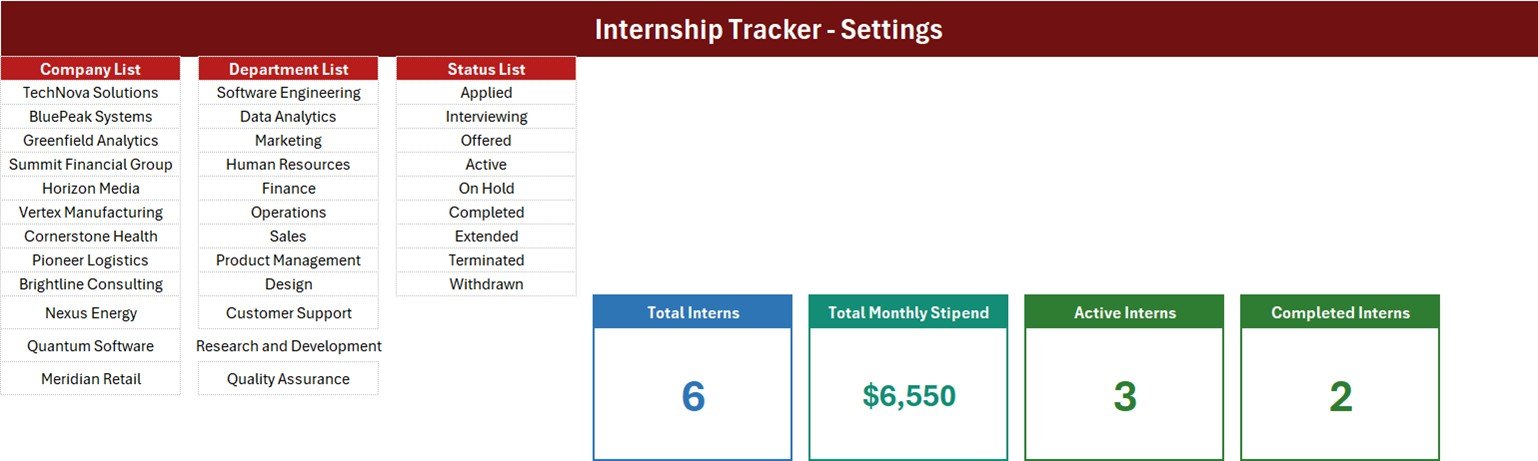
2. Setting. Three editable lists and the four real stat cards. Company List ships with TechNova Solutions, BluePeak Systems, Greenfield Analytics, Summit Financial Group, Horizon Media, Vertex Manufacturing, Cornerstone Health, Pioneer Logistics, Brightline Consulting, Nexus Energy, Quantum Software and Meridian Retail. Department List holds Software Engineering, Data Analytics, Marketing, Human Resources, Finance, Operations, Sales, Product Management, Design, Customer Support, Research and Development and Quality Assurance. Status List is Applied, Interviewing, Offered, Active, On Hold, Completed, Extended, Terminated and Withdrawn. Replace any of them with your own host companies, teams and stages and every dropdown follows.
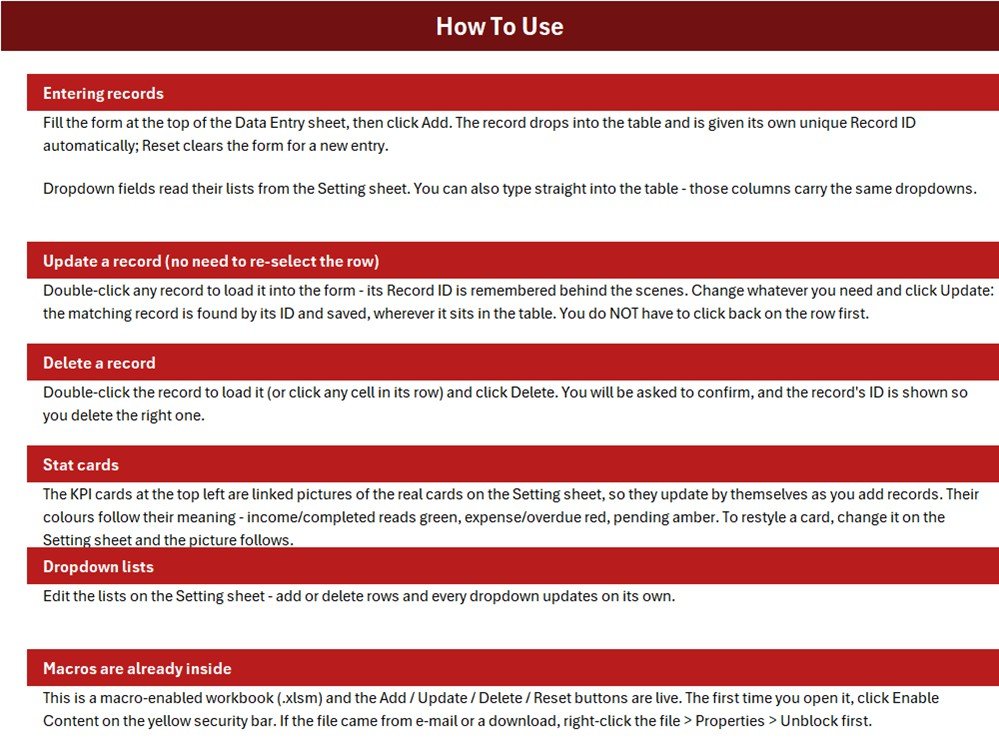
3. Instructions. The sheet whose banner reads How To Use – six sections covering entering records, updating without re-selecting the row, deleting, how the stat cards work, editing the dropdown lists, and enabling macros.
4. Get More Templates. Links back to the NextGenTemplates store.
What This Workbook Is Not
This is an intern register, not an internship management platform, and the page you are reading is written from the file itself rather than from a marketing brief.
- There is no end date. The table records Start Date and nothing else about the calendar – no expected end date, no duration in weeks, no days-remaining column and no alert when an internship is about to finish.
- Total Monthly Stipend is an unfiltered SUM.
Setting!I13 = SUM('Data Entry'!$G$15:$G$1048576)adds every Monthly Stipend in the table regardless of Status. On the shipped sample data the card reads $6,550, but only the three Active interns account for $3,600 of that – the rest belongs to two Completed interns and one who is still at Offered. Treat the card as “stipend recorded”, not “payroll this month”. - Only two of the nine statuses have a card. Active Interns and Completed Interns are COUNTIFs; Applied, Interviewing, Offered, On Hold, Extended, Terminated and Withdrawn are counted nowhere. That is why 3 + 2 does not reconcile to Total Interns 6 on the sample data.
- Total Interns counts the Intern Name column.
Setting!G13 = COUNTA('Data Entry'!$C$15:$C$1048576)counts column C, not the Record ID in column B, so a row saved without a name is stored but never counted. Repointing it at column B is a one-cell edit. - The stipend card hides cents. The Total Monthly Stipend cell is formatted
"$"#,##0while the table column is"$"#,##0.00, so a total of $6,550.40 would render as $6,550 on the card. - The three dropdown ranges are fixed, and all three are exactly full. CompanyList is Setting!$A$3:$A$14 (12 of 12), DepartmentList is $C$3:$C$14 (12 of 12) and StatusList is $E$3:$E$11 (9 of 9). The How To Use sheet says the lists update on their own – a 13th company typed under the list will not reach the dropdown until the range is widened in Formulas > Name Manager. Replacing an existing entry works immediately; adding a new one does not.
- No stipend paid to date and no cost of the cohort. Monthly Stipend is a single monthly figure per intern; nothing multiplies it by the months served or accumulates what has actually been paid.
- No mentor, department or company summary. There is no count of how many interns a mentor is carrying, no per-department breakdown and no charts anywhere in the file – one table and four counts.
- No documents, evaluations, attendance or timesheets. No resume or offer-letter attachments, no performance or feedback scores, no daily attendance, no conversion-to-hire field and no email or reminders.
- Windows desktop Excel only, one file and one editor at a time, 199 pre-formatted rows out of the box.
Internship Tracker Data Entry System in Excel vs. a Google Sheets Form vs. Internship Management Software – Where This Fits
| This Excel system | A Google Sheets form | Internship / HR software | |
|---|---|---|---|
| Cost | $6.99 once | Free, build it yourself | $15-$100 per month |
| Platform | Excel for Windows, desktop | Browser, any device | Browser, sometimes mobile |
| Setup time | About 10 minutes to swap the three lists | Hours of building | Days, plus onboarding |
| Unique ID and timestamp per intern | Yes, automatic | Build it yourself | Yes |
| Tracks internship end date or duration | No – Start Date only | Build it yourself | Yes |
| Stipend paid to date, payroll export | No – one monthly figure per intern | Build it yourself | Yes |
| Evaluations, feedback, conversion to hire | No | Build it yourself | Yes |
| Resume and offer-letter attachments | No | Link them yourself | Yes |
| Two people entering at once | No – one file, one editor | Yes | Yes |
| Works on a phone | No – the VBA buttons need the desktop app | Yes | Usually |
| Owns its own data file | Yes – one .xlsm you keep | In your Google account | In the vendor’s system |
| Year-1 cost | $6.99 | $0 | $180-$1,200 |
Who This Template Is For – and Who It’s Not For
It is for the one person who actually keeps the intern list: an HR generalist at a 20-200 person company running a handful of interns at a time, a college placement or training-and-placement officer recording who went where, an agency co-ordinator placing students with host companies, or a department head who wants to know which of his interns are Active and who is mentoring them. One person, one file, on a Windows PC.
It is not for anyone who needs end dates and duration alerts, stipend paid to date, evaluation scores, attendance, resume or offer-letter storage, or a conversion-to-full-time pipeline – none of that is in the file. It is not for two co-ordinators entering at the same time, and it is not for phones or Excel for the web. If you want charts, trends and KPI reporting across a whole internship programme rather than a register of interns, start with the Internship Program KPI Dashboard in Excel instead. If it is the applications ahead of the internship you need to track, the Internship Application Tracker in Excel is the one to look at.
How to Use the Internship Tracker Data Entry System in Excel
- Unzip the download and open the .xlsm in Excel on Windows. Click Enable Content on the yellow bar. If the file came by e-mail, right-click it first, choose Properties and tick Unblock.
- Go to the Setting sheet and replace the three lists with your own host companies, departments and internship stages. Keep the counts the same where you can – the ranges are fixed at 12, 12 and 9, so a longer list needs the named range widened in Name Manager.
- Back on Data Entry, delete the six sample interns once you have seen the buttons work.
- Fill the form and click Add. The intern lands in the table with an IT-style Record ID and a timestamp; Reset clears the form for the next one.
- To correct a record, double-click its row, edit the form and click Update. To remove one, load it and click Delete, then confirm the Record ID shown.
- Move interns through the Status column as they progress – Applied to Interviewing to Offered to Active, and finally Completed. Watch the four cards recalculate, remembering that Total Monthly Stipend adds every row whatever its status.
Real-World Use Cases
An HR generalist at a 60-person software company. Eight to twelve interns a semester across Software Engineering, Data Analytics and Design. Each one is added the day the offer is accepted with Status set to Offered, flipped to Active on the first day, and to Completed at the end. The Active Interns card is the number she quotes in the Monday management call.
A college training-and-placement officer. He records every student against the host company and mentor, keeps Status on Applied or Interviewing while the placement is being negotiated, and filters the Company column to see how many students each employer has taken this year.
An agency placing interns with client firms. The co-ordinator uses Monthly Stipend as the agreed figure per placement and the Mentor column for the client-side supervisor, then sorts by Start Date to see who is joining next week. Anyone who drops out is set to Withdrawn or Terminated rather than deleted, so the history survives.
Frequently Asked Questions
Do I have to enable macros?
Yes. Add, Update, Delete and Reset are VBA. Without macros enabled the buttons do nothing, though you can still type directly into the table because those columns carry the same dropdowns.
Will it work on a Mac, on Excel for the web, or in Google Sheets?
It is built and tested for Microsoft Excel on Windows desktop. Excel for the web does not run these macro buttons, and Google Sheets cannot run VBA at all.
Does it track the internship end date or how many weeks are left?
No. Start Date is the only date field on the record, and there is no duration, end date or days-remaining column anywhere in the workbook. If you need one, add a column of your own beside the table – the form and its four buttons will keep working on the seven fields they know.
Why does Total Monthly Stipend look higher than what I am paying this month?
Because it sums the Monthly Stipend of every row regardless of Status. On the sample data it reads $6,550, while the three Active interns account for $3,600 – the balance belongs to two Completed interns and one at Offered. Filter or subtotal the Monthly Stipend column by Status when you want the current month’s cost.
Why do the Active and Completed cards not add up to Total Interns?
Because only two of the nine statuses have a card. Applied, Interviewing, Offered, On Hold, Extended, Terminated and Withdrawn are counted nowhere, so on the sample data 3 Active plus 2 Completed leaves one intern at Offered unaccounted for in the cards.
How many interns can it hold?
Rows 15 to 213 are pre-formatted and validated, which is 199 records out of the box. You can carry on past row 213, but you would need to extend the data validation yourself.
Can I add my own companies or departments to the dropdowns?
You can replace any of the twelve companies, twelve departments or nine statuses on the Setting sheet freely. Adding a thirteenth needs one extra step: the named ranges CompanyList (A3:A14), DepartmentList (C3:C14) and StatusList (E3:E11) are fixed and all three are exactly full, so widen the one you need in Formulas > Name Manager or the new entry will not appear in the dropdown.
Can I add fields such as college, phone number or a supervisor rating?
You can add columns to the table by hand and type into them. The form and its four buttons stay at the seven fields shown unless the VBA behind them is edited.
What happens if I sort the table?
Nothing breaks. Update and Delete match on Record ID rather than row position, which is exactly why the ID exists. The S.No. column is a simple row-position number and is rewritten as records are added and removed.
Can I change the stat cards?
Yes. The four cards on the Data Entry sheet are linked pictures of the real cards in row 12 and 13 of the Setting sheet, so editing the formula or the colour there updates the picture. That is also where you would repoint Total Interns at the Record ID column, or narrow Total Monthly Stipend to Active interns only with a SUMIF.
Does it store resumes, offer letters or evaluation scores?
No. There are no attachments, no document links, no feedback or performance ratings and no conversion-to-hire field. This is the register of who is interning where, under whom, on what stipend, at what stage.
About the Author
Built by PK – Microsoft Certified Professional with 15+ years of Excel, Google Sheets, and Power BI experience. Founder of NextGenTemplates, reaching 300K+ subscribers across YouTube channels. Every template is hand-built and tested before release.
Explore Related Templates
- Internship Application Tracker in Excel – the applications stage that runs ahead of this register.
- Internship Program KPI Dashboard in Excel – charts, trends and KPI reporting over a whole programme.
- Internship Program KPI Dashboard in Power BI – the same scorecard for a Power BI shop.
- Internship Application Tracker in Google Sheets – browser-based, if several co-ordinators need to type at once.
- Meeting Minutes Data Entry System in Excel – the same form-and-register pattern for another HR record.
- Browse every Excel VBA tool in the store.
Add the Internship Tracker Data Entry System in Excel to your cart and your first intern will be on the register, with a Record ID and a timestamp, about ten minutes after the download finishes. Instant download, lifetime access, free bug fixes to this file. A full sheet-by-sheet walkthrough is on the blog: Internship Tracker Data Entry System in Excel.
Watch the step-by-step video Demo:
Last updated: 2 September 2026.
Compatibility and Requirements
- Works in Microsoft Excel desktop on Windows with macros enabled. It does not run in Excel for the web, Google Sheets or mobile apps.
- Add, Update, Delete and Reset are VBA macros, so click Enable Content when Excel asks. Microsoft explains the steps in Enable or disable macros in Microsoft 365 files.































Reviews
There are no reviews yet.