

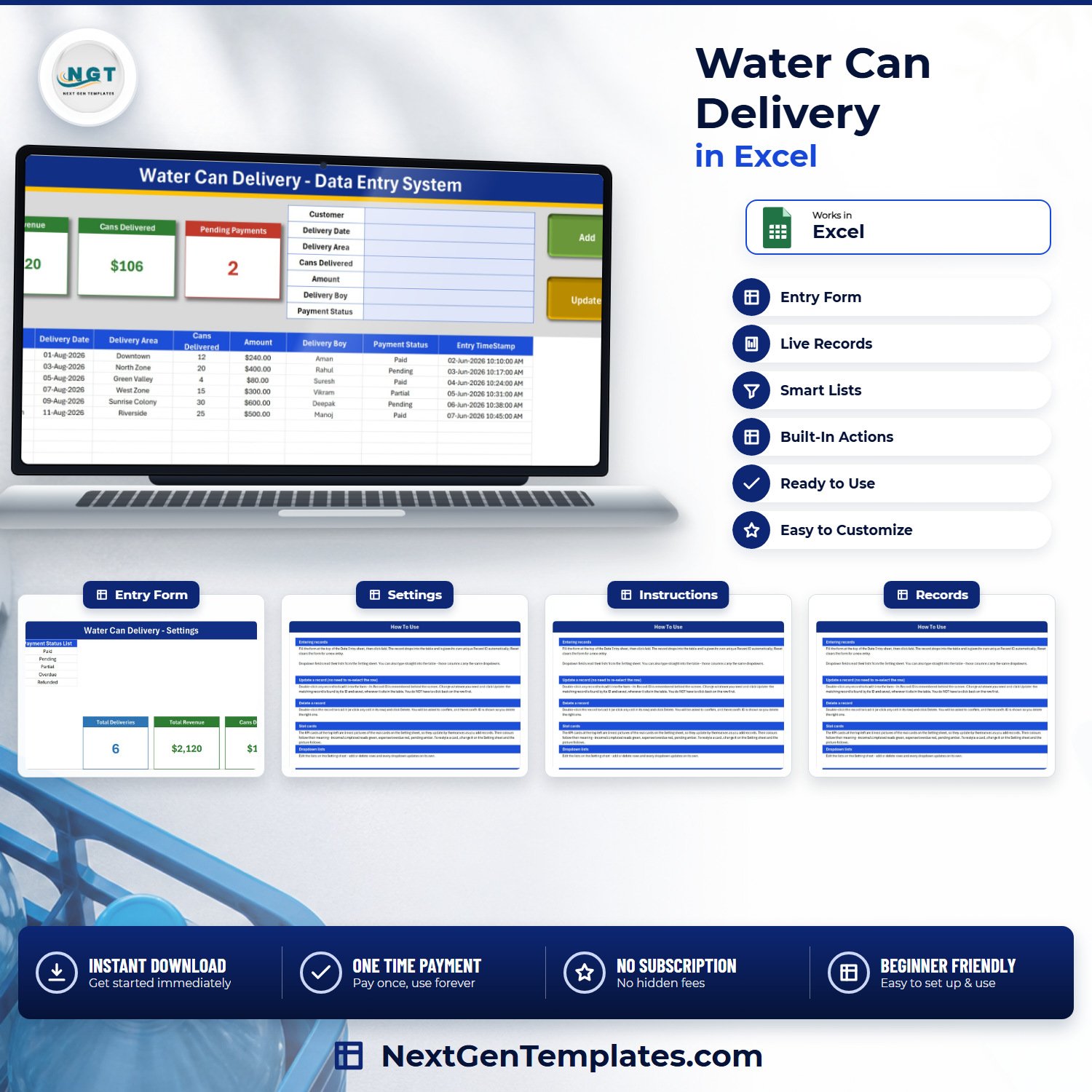

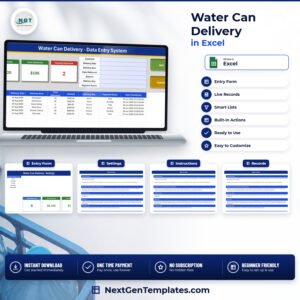
The Water Can Delivery Data Entry System in Excel is a four-sheet macro-enabled workbook that records every 20-litre can that leaves your plant, one delivery at a time. Seven entry fields, a twelve-area delivery zone list, a ten-name delivery boy list and a five-value payment status list are already built and editable. Four live stat cards sit above the form. Every delivery gets its own automatic ID (WCD-0001, WCD-0002, and so on) and its own entry timestamp, so the day book is auditable rather than approximate. It runs entirely on your own PC – no account, no subscription, no cloud sync, no per-driver fee. Download it once and it is yours; if it is not what you expected, our refund policy applies.
Key Features of the Water Can Delivery Data Entry System in Excel
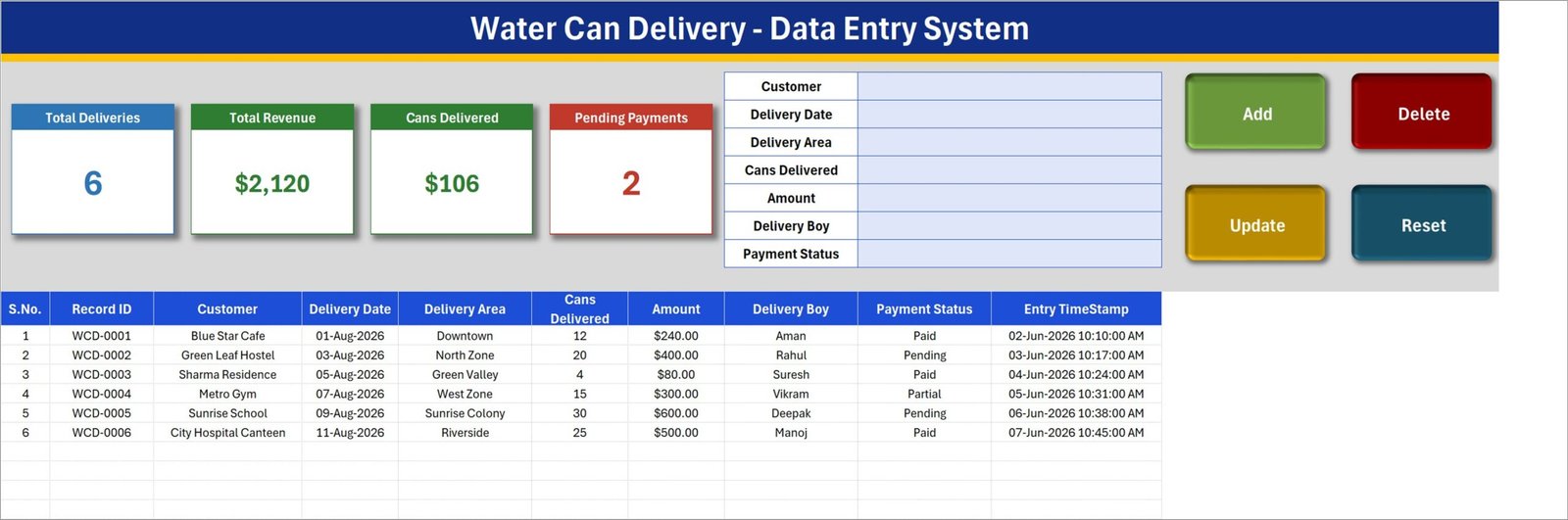
- Ten-column delivery record – S.No., Record ID, Customer, Delivery Date, Delivery Area, Cans Delivered, Amount, Delivery Boy, Payment Status and Entry TimeStamp.
- Automatic Record IDs – every row is stamped WCD-0001 upward by the Add macro, so two customers both called “Sharma Residence” never get confused.
- Four one-click macro buttons – Add, Update, Delete and Reset. Double-click any row to pull it back into the form; the workbook remembers which Record ID you loaded, so Update finds the right row wherever it sits in the table.
- Four live stat cards – Total Deliveries, Total Revenue, Cans Delivered and Pending Payments. They are linked pictures of real formula cells on the Setting sheet, so they refresh as you type. Read the FAQ below before you rely on them: two of the four count something narrower than their label suggests.
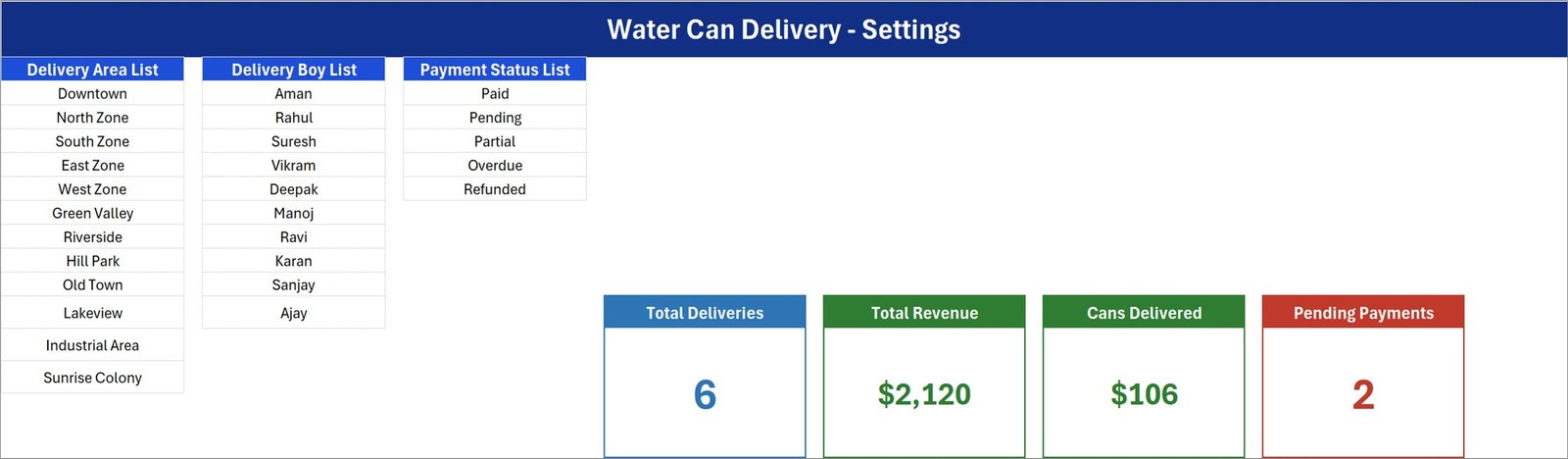
- Twelve delivery areas ready to use – Downtown, North Zone, South Zone, East Zone, West Zone, Green Valley, Riverside, Hill Park, Old Town, Lakeview, Industrial Area and Sunrise Colony.
- Ten delivery staff ready to use – Aman, Rahul, Suresh, Vikram, Deepak, Manoj, Ravi, Karan, Sanjay and Ajay.
- Five payment statuses – Paid, Pending, Partial, Overdue and Refunded.
- Cans and money on the same row – so a month of route work adds up in two columns instead of a spiral notebook in the van.
- Entry TimeStamp on every row – the date and time the record was saved, kept separate from the Delivery Date it describes, which is what makes a disputed delivery arguable.
- Four sheets – Data Entry, Setting, Instructions and Get More Templates.
What’s Inside the Water Can Delivery Data Entry System in Excel
The download is a single .xlsm workbook with four sheets. There is no separate user manual – the Instructions sheet is the manual.
- Data Entry – the working sheet. Four stat cards top-left, the seven-field form top-centre, the four macro buttons top-right, and the delivery table from row 15 down.
- Setting – the Delivery Area List, Delivery Boy List and Payment Status List, plus the four real KPI cards that the Data Entry pictures are linked to.
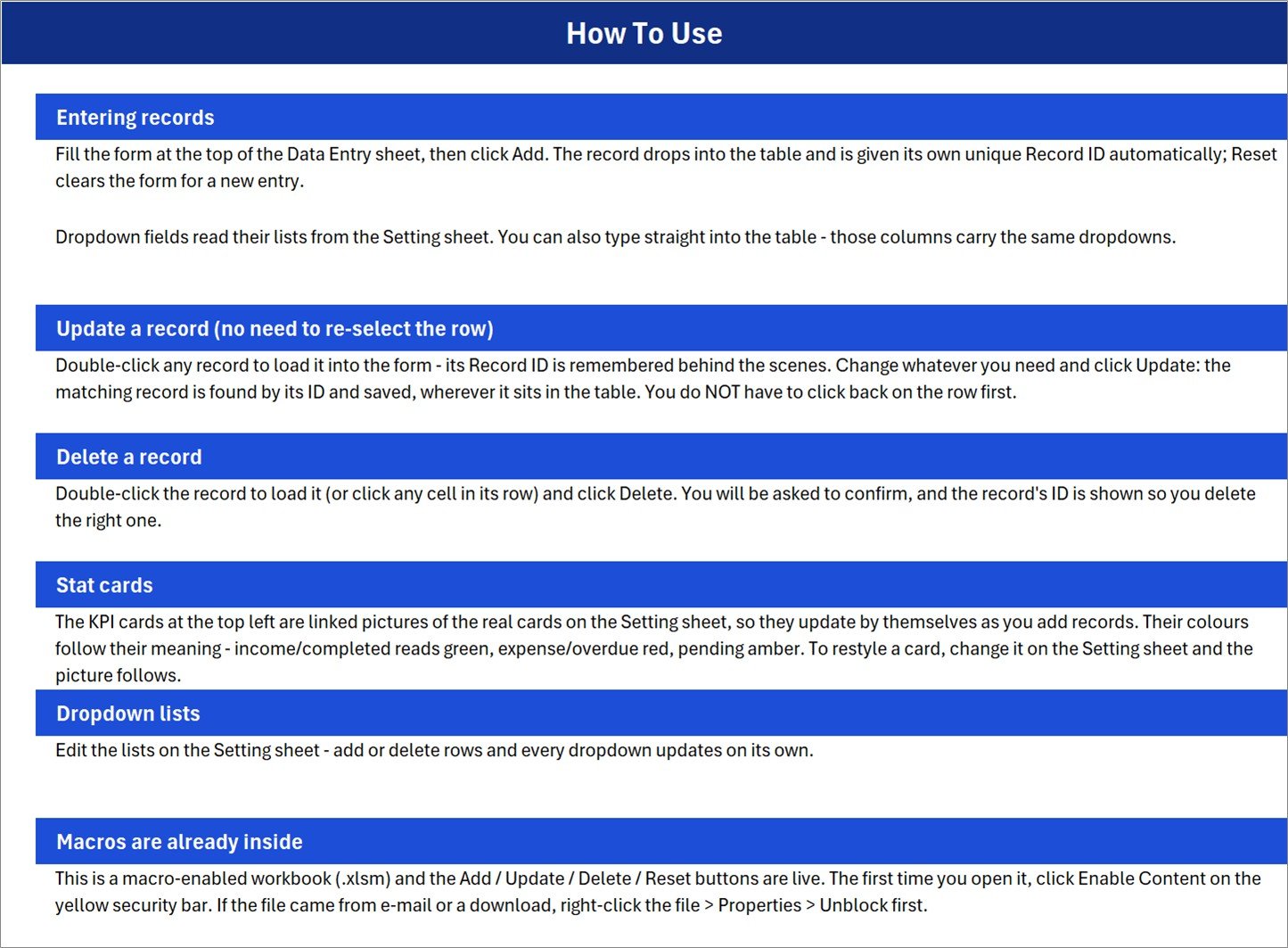
- Instructions – a “How To Use” page covering entering records, updating without re-selecting a row, deleting safely, the stat cards, the dropdown lists and enabling macros.
- Get More Templates – links back to the NextGenTemplates catalogue.
Water Can Delivery in Excel vs. a Google Sheets Log vs. Subscription Delivery Software – Where This Fits
| This Excel system | A Google Sheets log | Subscription delivery software | |
|---|---|---|---|
| Cost | One payment, no renewal | One payment, no renewal | Roughly $15-$60 per month, often per driver |
| Platform | Excel for Windows desktop, macros on | Browser, any device | Web plus a driver phone app |
| Setup time | Under 5 minutes – unblock, enable macros, edit three lists | Under 5 minutes | Account, route import, driver onboarding |
| One-click Add / Update / Delete | Yes – four VBA buttons | No – you type into the grid | Yes |
| Driver app and GPS proof of delivery | No | No | Yes |
| Route optimisation | No | No | Yes |
| Automatic invoicing and payment reminders | No – you record the status, it sends nothing | No | Yes |
| Empty-can / deposit reconciliation | No – cans out are recorded, cans back are not | Only if you build it | Usually yes |
| Real-time team collaboration | No – single user, one file | Yes | Yes |
| Works with no internet | Yes | No | No |
| Where the data lives | On your own PC | In your Google Drive | On the vendor’s servers |
Who This Template Is For – and Who It’s Not For
It fits a single water plant or depot filling twenty to two hundred cans a day; a distributor running two to ten delivery staff on fixed area routes; a bottled-water franchise that needs a dated record of who delivered what to which customer; an office or society manager reconciling the supplier’s monthly bill against what actually arrived; and anyone currently keeping the day book in a notebook and the money in their head.
It does not fit anyone who needs a driver phone app, GPS proof of delivery or route optimisation – this workbook never leaves the desk. It does not raise invoices, send payment reminders or take payments. It does not track empty cans returned, deposits held or bottle-deposit liability; the Cans Delivered column records cans out, and nothing records cans back. It is not multi-user – one person, one file, one PC at a time. It makes no water-quality, testing or regulatory-compliance record of any kind. And because the Add, Update, Delete and Reset buttons are VBA, it needs Microsoft Excel on Windows desktop; Excel for the web, Excel for Mac and the mobile apps cannot run them.
How to Use the Water Can Delivery Data Entry System in Excel
- Right-click the downloaded file, choose Properties and tick Unblock, then open it and click Enable Content on the yellow bar. Without macros the four buttons do nothing.
- Open the Setting sheet and edit the three lists to match your business – swap “Green Valley” for your own colony names, replace the ten driver names, delete the statuses you will never use. If you need more rows than the lists already hold, see the FAQ below: you must widen the named range as well as type the new row.
- Delete the six sample rows (WCD-0001 to WCD-0006) once you have looked at them.
- Fill the form: Customer, Delivery Date, Delivery Area, Cans Delivered, Amount, Delivery Boy, Payment Status. Click Add. The row lands in the table with its own Record ID and timestamp.
- When a customer pays, double-click their row, change Payment Status to Paid and click Update. To remove a row, load it and click Delete – you are asked to confirm and shown the ID first.
- Watch the four cards. They recalculate as you go; nothing needs refreshing.
Real-World Use Cases
Ramesh, a single water plant with three vans. Each driver hands in a slip at the end of the route. Ramesh types the six or seven deliveries per van into the form, picks the area and the driver from the dropdowns, and by 8pm the day book is closed. Because Delivery Boy is a dropdown he can sort the table by driver and settle cash with each of them from the same screen.
Anita, distributor for a residential township. She works by area, not by driver. Filtering the Delivery Area column to “Sunrise Colony” gives her every can that went into the colony this month, which is what the society’s committee asks for when the bill is queried.
Vikas, chasing payment. He filters Payment Status to Pending and Partial and works the list on the phone on Friday afternoons. The Pending Payments card gives him the headline number before he starts; the Amount column gives him the figure to quote.
Frequently Asked Questions
Does Total Revenue only count money I have actually collected?
No, and this is the single most important thing to understand before you buy. Total Revenue is an unfiltered SUM of the whole Amount column – it ignores Payment Status entirely. In the six shipped sample rows it shows $2,120, which is everything billed. Of that, only $820 is on rows marked Paid; $1,000 is Pending and $300 is Partial. So the card is “total value delivered”, not “cash in hand”. If you want collected-only revenue, one SUMIF on the Payment Status column gives it.
Do the four cards add up to the total number of deliveries?
No. There is only one status card – Pending Payments – and it is a COUNTIF for the single value “Pending”. The Payment Status list has five values, so Paid, Partial, Overdue and Refunded rows are counted in Total Deliveries and in no card at all. In the sample that is Pending 2 against a Total Deliveries figure of 6, with 3 Paid and 1 Partial uncarded. The counts are individually correct; they were simply never built to reconcile. Adding COUNTIF cards for the other four statuses on the Setting sheet takes about a minute each.
What exactly does Total Deliveries count?
It is a COUNTA over the Customer column, not over the Record ID column. Every row added through the form has a customer name, so in normal use the number is right. But a row typed straight into the table without a customer name is stored, keeps its place, and is never counted. Pointing that one formula on the Setting sheet at the Record ID column instead makes the card count every saved row.
Why does the Cans Delivered card show a dollar sign?
Because it inherited the currency format of the Total Revenue card next to it. The figure itself is correct – 106 is the true sum of the Cans Delivered column across the six sample rows – it is simply displayed as $106 instead of 106. Select the card’s source cell on the Setting sheet and set the number format to General or Number and the dollar sign goes; the linked picture on the Data Entry sheet follows automatically.
The Instructions sheet says the dropdowns update on their own. Do they?
Only when you remove or rename entries. Adding a new one needs a second step, and this is worth knowing on day one. The three dropdowns are driven by fixed-size named ranges that are already exactly full: Delivery Area covers Setting!A3:A14 with all 12 areas used, Delivery Boy covers C3:C12 with all 10 names used, and Payment Status covers E3:E7 with all 5 statuses used. Type a thirteenth area in A15 and it will not appear in any dropdown. The fix is one dialog: Formulas > Name Manager, select Delivery_AreaList, extend the range to cover the new rows, click OK. Do the same for Delivery_BoyList and Payment_StatusList. Give yourself spare rows once and you never touch it again.
How many rows do the dropdowns cover?
The Delivery Area, Delivery Boy and Payment Status dropdowns are applied to rows 15 to 214 – 200 records. The stat-card formulas already read the whole column, so deliveries past row 214 are still counted and totalled; you only need to drag the data validation down if you want the dropdowns themselves to continue past record 200.
Does it track empty cans coming back, or deposits?
No. The workbook records cans delivered and money billed. There is no returns column, no deposit ledger and no can-balance-per-customer figure. If empty-can reconciliation is the reason you are shopping, add a column of your own or look at a stock-register style template instead.
Do I need macros enabled?
Yes. This is a macro-enabled .xlsm workbook and the Add, Update, Delete and Reset buttons are VBA. Click Enable Content on the yellow security bar the first time you open it. If the file arrived by e-mail or download, right-click it, choose Properties and tick Unblock first, or Excel will open it in Protected View and the buttons will not run.
Can I use it on a Mac or on my phone?
You can open and read the file anywhere, but the four buttons need Microsoft Excel on Windows desktop. Everything else – the table, the lists, the cards, the dropdowns – behaves as ordinary Excel.
About the Author
Built by PK – Microsoft Certified Professional with 15+ years of Excel, Google Sheets, and Power BI experience. Founder of NextGenTemplates, reaching 300K+ subscribers across YouTube channels. Every template is hand-built and tested before release.
Explore Related Templates
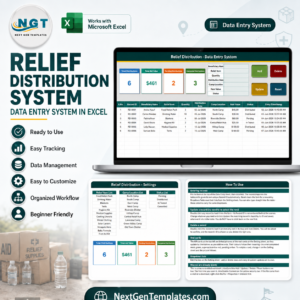
- Relief Distribution Data Entry System in Excel – the same form-and-table build, aimed at goods handed out at camps rather than sold on a route.
- Bar Stock Register Data Entry System in Excel – the stock-side sibling, if what you actually need to count is what came back.
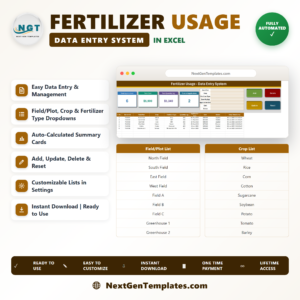
- Fertilizer Usage Data Entry System in Excel – quantity-plus-cost logging by plot instead of by customer.
- Courier & Parcel Delivery Management System Web App – the multi-user step up, when one file on one PC stops being enough.
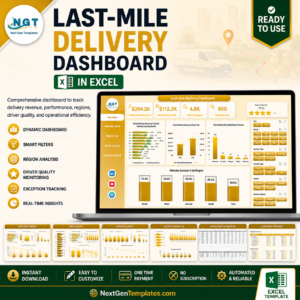
- Last-mile Delivery Dashboard in Excel – analytics rather than a day book, once you have a year of deliveries to look at.
- Browse all Excel trackers and Excel VBA tools.
Read the full walkthrough, with screenshots of all three working sheets and the formulas behind each card, on PK-AnExcelExpert.com.
Buy the Water Can Delivery Data Entry System in Excel once and keep the file forever. Add it to your cart above and close today’s day book in the next five minutes.
Last updated: 31 August 2026.
Watch the demo video:
Compatibility and Requirements
- Works in Microsoft Excel desktop on Windows with macros enabled. The Add, Update, Delete and Reset buttons are VBA, so the file does not run in Excel for the web, Google Sheets or mobile apps.
- Click Enable Content on the yellow security bar when you first open the file. Microsoft explains the setting in Enable or disable macros in Microsoft 365 files.
More Water Can Delivery Questions
How many sheets does the workbook have?
Four sheets: Data Entry, Setting, Instructions and Get More Templates.
Which fields do I fill in for each delivery?
Seven fields: Customer, Delivery Date, Delivery Area, Cans Delivered, Amount, Delivery Boy and Payment Status. The Record ID (WCD-0001 and up) and the Entry TimeStamp are added automatically when you click Add.
Can I change the delivery areas, delivery staff and payment statuses?
Yes. Edit the three lists on the Setting sheet. Twelve areas, ten delivery staff names and five payment statuses are already in place.
Is there a Power BI or dashboard version for water businesses?
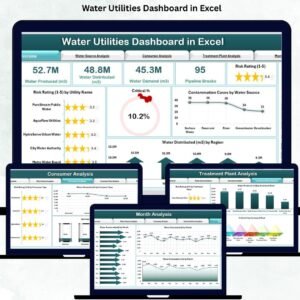
Yes. The Water Utilities Dashboard in Power BI and the Water Utilities Dashboard in Excel cover water utility reporting.
Related Water and Delivery Templates
- Water Utilities Dashboard in Excel: reporting for water utility operations
- Water sales KPI Dashboard in Excel: sales KPIs for a water business
- Water Supply KPI Dashboard in Excel: supply KPIs in Excel
- Supplier Delivery Schedule Calendar in Excel: a calendar for planning deliveries
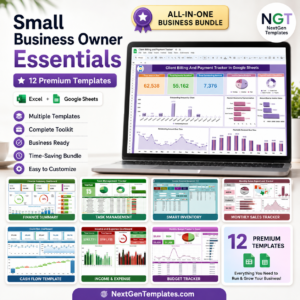
- Small Business Owner Essentials: 12 templates for owners in one download
Browse all Excel trackers and Excel VBA tools.


Reviews
There are no reviews yet.