

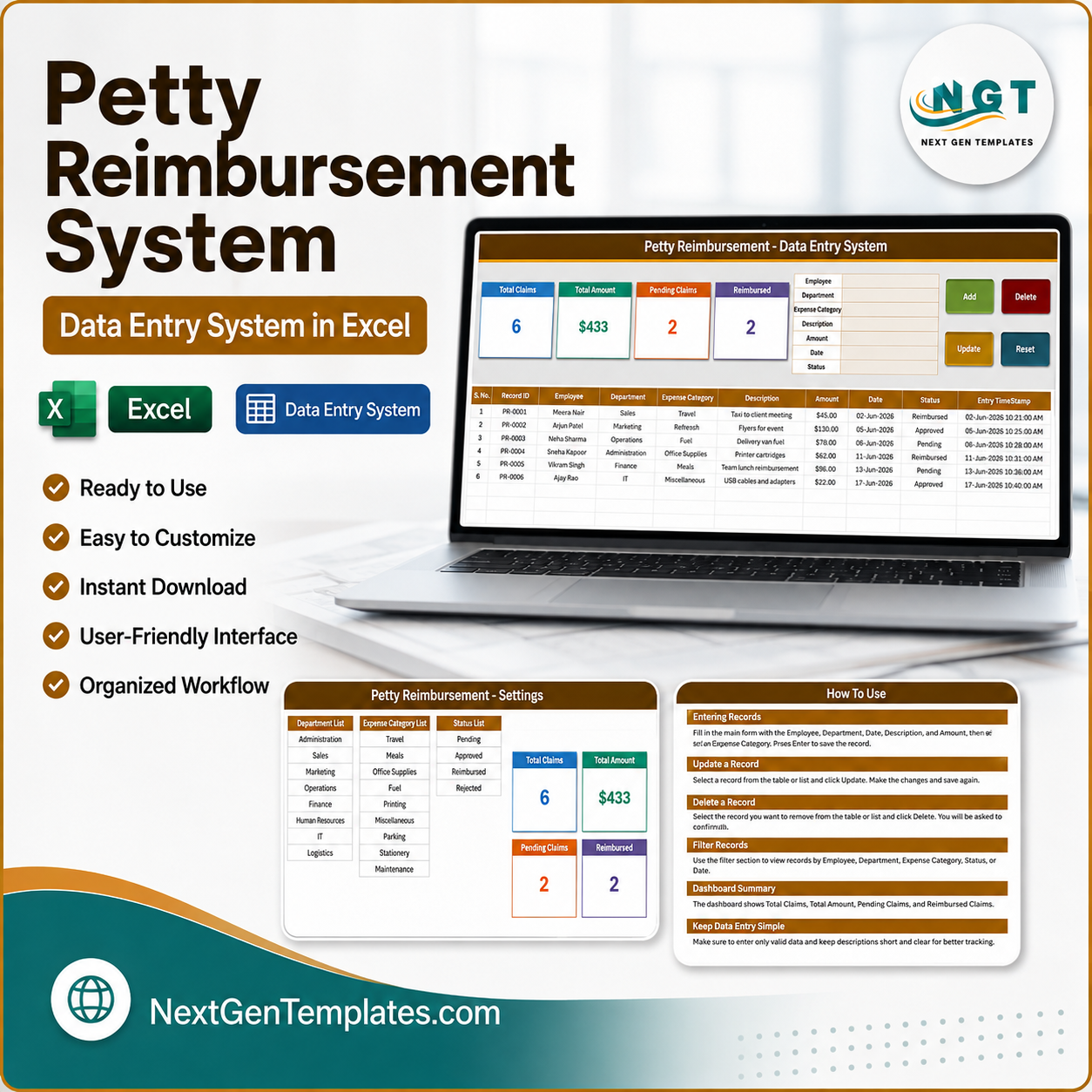
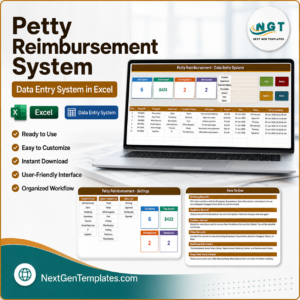
The Petty Reimbursement Data Entry System in Excel logs employee expense claims through a 7-field VBA form, shows 4 live KPI cards, and moves every claim through 4 statuses – Pending, Approved, Reimbursed and Rejected. The records table carries 10 columns, and each claim is stamped with its own Record ID in PR-0001 format plus an entry timestamp, so the same receipt is never paid twice. Setup takes under 5 minutes: unzip, enable macros, clear the sample rows and start logging.
🌍 Join 8,400+ teams in 40+ countries using NextGenTemplates to replace paid SaaS tools with one-time-purchase Excel, Google Sheets, Power BI and HTML templates.
✅ Instant download · One-time payment · No subscription · No per-user fees · Lifetime access
⚠️ Please read before buying: this is a macro-enabled workbook (.xlsm) for desktop Microsoft Excel on Windows or Mac. You must click Enable Content the first time you open it, or the Add, Update, Delete and Reset buttons will not run. Excel for the web and Google Sheets do not run VBA, so the buttons will not work there. Every figure in the screenshots below is sample data supplied for demonstration.
🔑 Key Features of the Petty Reimbursement Data Entry System in Excel
🔹 A real data-entry form, not a spreadsheet row. The Data Entry sheet puts seven fields – Employee, Department, Expense Category, Description, Amount, Date and Status – in one block beside four colour-coded buttons. You fill the form and click Add; the claim drops into the table below and the form clears for the next one.
🔹 Add, Update, Delete and Reset are VBA macros. Double-click any claim in the table and it loads straight back into the form with its Record ID remembered behind the scenes. Change what you need, click Update, and the matching claim is found by ID and saved wherever it sits in the table – you never have to re-select the row first.
🔹 Four KPI cards that update themselves. Total Claims, Total Amount, Pending Claims and Reimbursed sit across the top of the Data Entry sheet. They are linked pictures of the master cards on the Setting sheet, so they recalculate as records are added and you can restyle them in one place.
🔹 Unique Record IDs and entry timestamps. Every claim is issued a sequential ID such as PR-0001 and an Entry TimeStamp column recording exactly when it was logged – the two things a paper petty cash book never gives you, and the reason duplicate reimbursements get caught.
🔹 Ten expense categories and eight departments preloaded. Travel, Meals, Office Supplies, Fuel, Postage, Printing, Refreshments, Parking, Stationery and Miscellaneous cover ordinary out-of-pocket spending; Administration, Sales, Marketing, Operations, Finance, Human Resources, IT and Logistics cover who spent it. Both lists are yours to edit.
🔹 A four-stage status flow. Pending, Approved, Reimbursed and Rejected let you see at a glance which claims are still waiting on a decision and which have already been paid back.
📦 What’s Inside the Petty Reimbursement Data Entry System in Excel
The workbook ships with four sheets. Three are shown below; the fourth, Get More Templates, is a short links page pointing at the rest of the Excel template library.
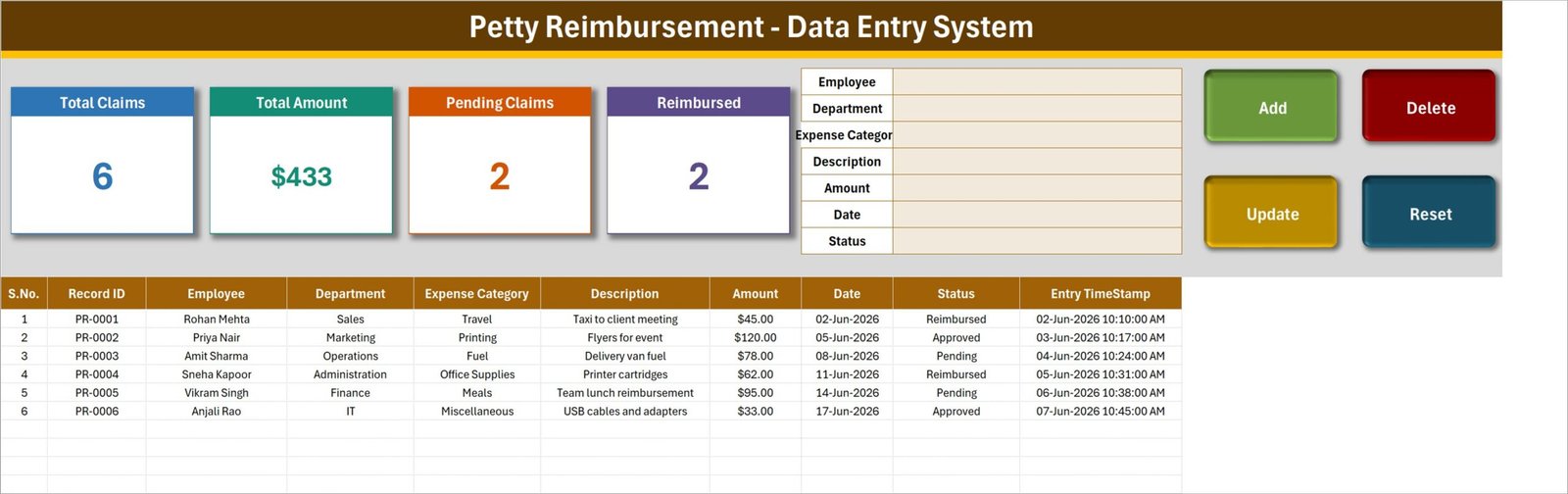
Sheet 1: Data Entry
The working screen. Four KPI cards – Total Claims, Total Amount, Pending Claims and Reimbursed – run along the top, the seven-field claim form sits to their right, and the Add, Update, Delete and Reset buttons are stacked on the far right. Below them the records table holds ten columns: S.No., Record ID, Employee, Department, Expense Category, Description, Amount, Date, Status and Entry TimeStamp.
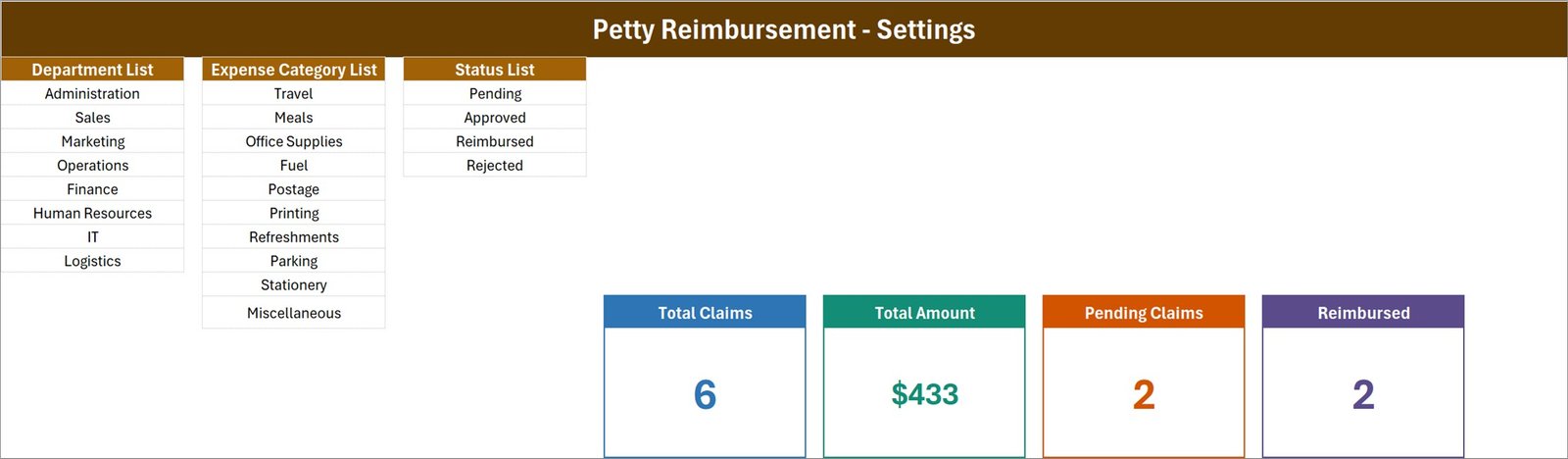
Sheet 2: Setting
Three master lists drive every dropdown on the form – Department List (8 entries), Expense Category List (10 entries) and Status List (Pending, Approved, Reimbursed, Rejected). The four master KPI cards live here too; the cards on the Data Entry sheet are linked pictures of these, so restyling one restyles both.
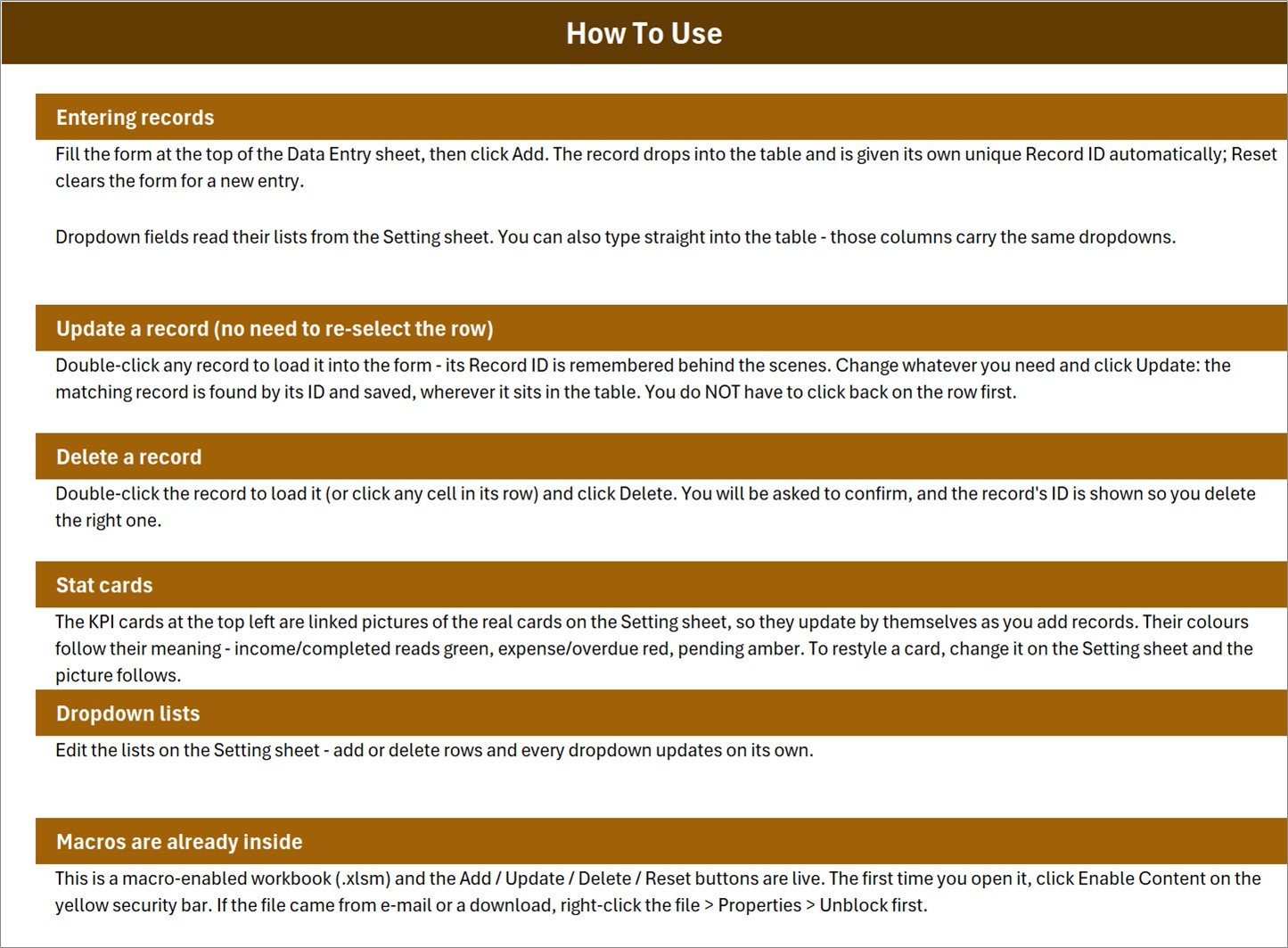
Sheet 3: Instructions (How To Use)
A six-section guide built into the workbook: entering records, updating a record without re-selecting the row, deleting with an ID confirmation prompt, how the stat cards work, how to edit the dropdown lists, and how to enable the macros on first open.
📊 Petty Reimbursement Data Entry System vs. a Google Sheets Expense Form vs. Expensify / Zoho Expense
| Feature | Petty Reimbursement Data Entry System in Excel | Google Sheets expense form | Expensify / Zoho Expense |
|---|---|---|---|
| Cost | $6.99 one-time ✅ | Free, but you build it | $5-20 per user per month |
| Platform | Desktop Excel (.xlsm) | Browser, any device | Browser and mobile app |
| Setup time | Under 5 minutes ✅ | 2-4 hours to build from scratch | 1-2 days plus policy configuration |
| Add / Update / Delete buttons | Built in as VBA macros ✅ | Apps Script you write yourself | Included |
| Automatic record ID and timestamp | Yes, PR-0001 format ✅ | Formula workaround | Included |
| Works offline | Yes ✅ | Limited | No |
| Real-time team collaboration | No – single-file workbook | Yes ✅ | Yes ✅ |
| Receipt photo capture | No | No | Yes ✅ |
| Year-1 cost at 5 users | $6.99 total ✅ | $0 plus your build time | $300-1,200 |
For a small office that just needs its petty cash claims logged, categorised and marked reimbursed – without paying per person every month – the Petty Reimbursement Data Entry System in Excel sits in the sweet spot.
👥 Who This Template Is For – and Who It’s Not For
✅ This template is built for:
- Office administrators and finance assistants at 5-100 person companies who handle petty cash by hand today
- Small business owners who reimburse staff for taxi fares, printing, fuel and office supplies out of a cash float
- School, clinic and NGO administrators who need a claim log with a clear approved / reimbursed status
- Anyone comfortable in desktop Excel who wants a form-driven log instead of typing into raw rows
❌ This template is NOT for:
- Teams who need several people entering claims at the same time – it is a single Excel file, not a shared database
- Mac or Windows users who only have Excel for the web, or who work in Google Sheets – the VBA buttons will not run
- Companies that need receipt photo capture, card feeds, mileage GPS or an approval workflow with e-mail routing
- Anyone needing built-in tax treatment or statutory reporting – this template records and reports your own figures, nothing more
⚙️ How to Use the Petty Reimbursement Data Entry System in Excel
- Unzip and unblock. Right-click the downloaded file, choose Properties and tick Unblock if the option appears, then unzip.
- Open in desktop Excel and click Enable Content on the yellow security bar. The Add, Update, Delete and Reset buttons need macros to run.
- Open the Setting sheet and edit the Department List, Expense Category List and Status List to match your own organisation. Every dropdown updates on its own.
- Delete the six sample claims from the records table on the Data Entry sheet so you start from a clean log.
- Fill the form and click Add. The claim drops into the table with its own Record ID and entry timestamp; Reset clears the form for the next one.
- Double-click any claim to edit it, change what you need and click Update. You do not have to click back on the row first.
- Mark claims Reimbursed as you pay them and watch the Pending Claims and Reimbursed cards move.
💼 Real-World Use Cases
Meera runs the front office at a 25-person design studio. Staff pay for taxis, courier charges and coffee runs out of pocket and hand her the receipts. She logs each one against the person and department, leaves it Pending until her manager signs off, then flips it to Reimbursed on payout day – and the Pending Claims card tells her at a glance how much cash she still owes the team.
Daniel manages a small chain of three clinics. Each site sends him fuel, printing and refreshment claims weekly. Because every claim carries a Record ID and a timestamp, a receipt submitted twice is easy to spot, and the Total Amount card gives him a running figure for the month without building a single pivot table.
Priya administers a community NGO with a small cash float. She uses the Expense Category List to split spending across Travel, Postage, Stationery and Miscellaneous, then filters the records table by category when the committee asks where the float went last quarter.
❓ Frequently Asked Questions
Do I need to enable macros to use the Petty Reimbursement Data Entry System in Excel?
Yes. The Petty Reimbursement Data Entry System in Excel is a macro-enabled .xlsm workbook, and the Add, Update, Delete and Reset buttons are VBA macros. Click Enable Content on the yellow security bar the first time you open it. If you downloaded it, right-click the file, choose Properties and tick Unblock first.
Will this work in Google Sheets or Excel for the web?
No. Neither Google Sheets nor Excel for the web runs VBA, so the four buttons in the Petty Reimbursement Data Entry System in Excel will not work there. You need desktop Microsoft Excel on Windows or Mac. The data still opens and reads fine, but the form automation will be inactive.
How many claims can the Petty Reimbursement Data Entry System hold?
There is no artificial cap in the Petty Reimbursement Data Entry System in Excel. The records table grows down the sheet as you add claims and is limited only by Excel itself, which allows over one million rows per worksheet. Practical office use rarely comes close.
Can I change the departments and expense categories?
Yes. Open the Setting sheet in the Petty Reimbursement Data Entry System in Excel and edit the Department List, Expense Category List or Status List. Add or delete rows and every dropdown on the entry form updates automatically – no formulas or macros to touch.
How long does setup take?
Under five minutes. Unzip the Petty Reimbursement Data Entry System in Excel, enable macros, edit the three lists on the Setting sheet to match your organisation, delete the six sample rows, and you are logging live claims.
How does this compare to Expensify or Zoho Expense?
Expensify and Zoho Expense add receipt photo capture, card feeds and multi-step approval routing for roughly $5-20 per user per month. The Petty Reimbursement Data Entry System in Excel costs $6.99 once, works offline and needs no accounts – but it is a single-file log, not a collaborative platform.
Does the template calculate tax or handle accounting entries?
No. The Petty Reimbursement Data Entry System in Excel records and reports the claim figures you enter – amounts, categories, departments and statuses. It makes no tax calculations and no accounting or compliance judgements. Check the treatment of any expense with your own accountant.
👤 About the Author
Built by PK – Microsoft Certified Professional with 15+ years of Excel, Google Sheets and Power BI experience. Founder of NextGenTemplates, reaching 300K+ subscribers across YouTube channels (@PK-AnExcelExpert, @NextGenTemplates, @NeoTechNavigators). Every template is hand-built and tested before release.
🔗 Explore Related Templates
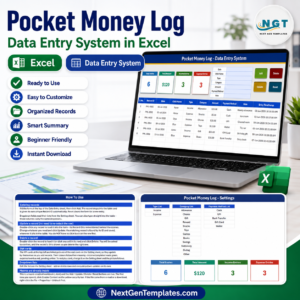
- Pocket Money Log Data Entry System in Excel – the same form-and-KPI build for personal cash spending.
- Employee Document Data Entry System in Excel – pair it with the reimbursement log to keep staff paperwork in one place.
- Class Schedule Data Entry System in Excel – another VBA entry system from the same family.
- Tax Deduction and Receipt Tracker in Google Sheets – a browser-based alternative if you need shared access.
- Browse the full range of Financial Tools templates and Excel VBA Tools.
📖 Click here to read the Detailed Blog Post
🎥 Visit our YouTube channel for step-by-step video tutorials
👉 YouTube.com/@NextGenTemplates
📅 Last updated: August 2026











Reviews
There are no reviews yet.