

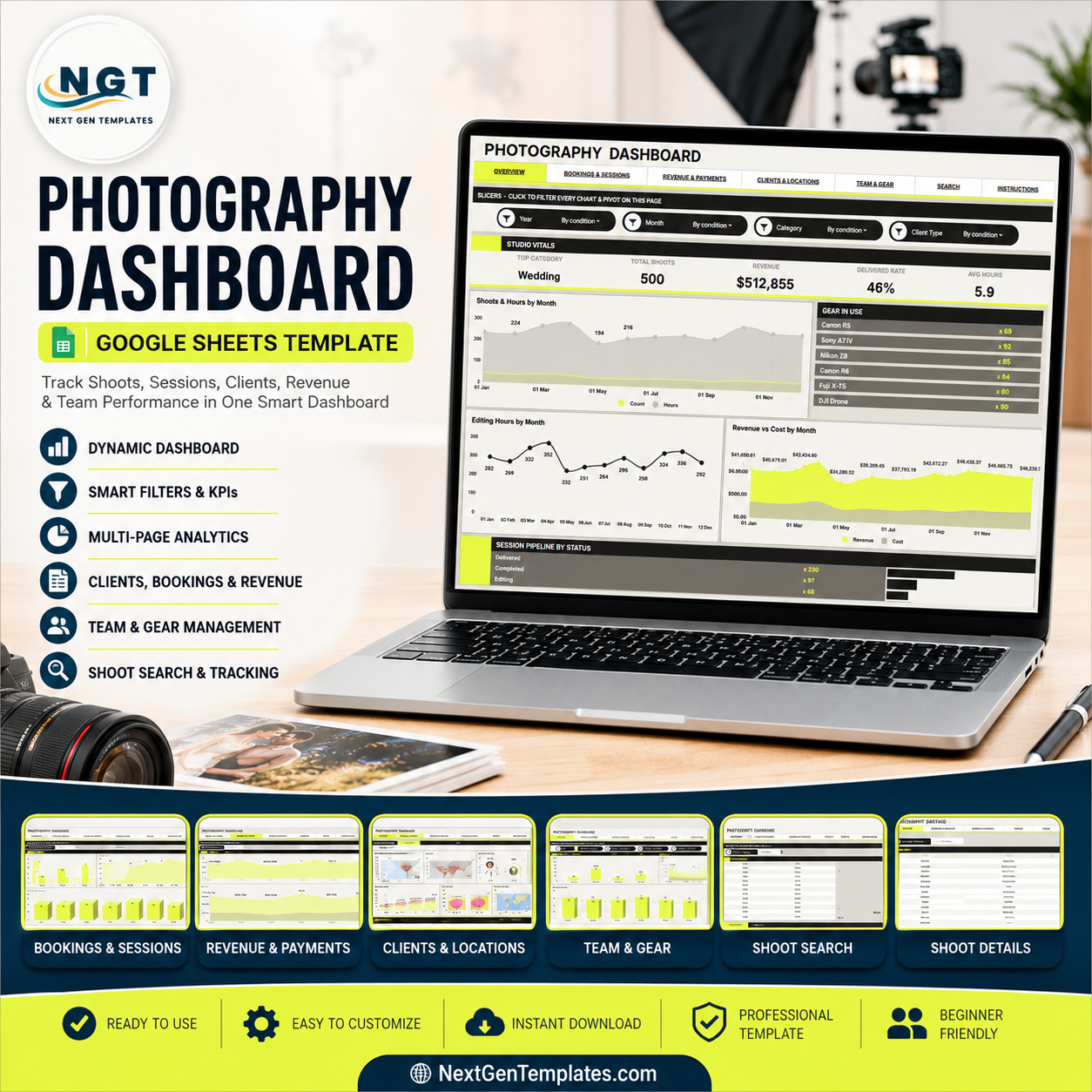

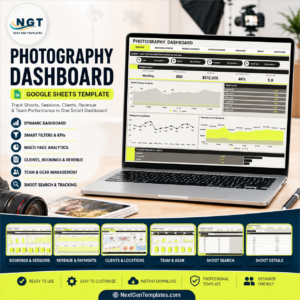
The U.S. Bureau of Labor Statistics projects about 12,700 photographer openings each year from 2024 to 2034, while photographer employment grows 2 percent. The Photography Dashboard in Google Sheets helps studios, freelancers, and creative service teams turn shoot, revenue, cost, delivery, client, location, team, and gear records into a 7-tab reporting workbook. It includes 5 headline cards, 17 chart views, slicers, a Search Sheet, and a Data Sheet. Built by PK, whose spreadsheet training reaches 300K+ subscribers, this one-time purchase keeps reporting inside your own Google Drive with no monthly dashboard software fee.
Key Features of Photography Dashboard in Google Sheets
- 7 practical sheet tabs: Overview, Bookings & Sessions, Revenue & Payments, Clients & Locations, Team & Gear, Search Sheet, and Data Sheet.
- 5 overview cards: Top Category, Total Shoots, Revenue, Delivered Rate, and Avg Hours give a fast read on business activity.
- 17 ready-made analysis views: Review shoots, hours, gear usage, editing workload, revenue, cost, client type, location, photographer, and session pipeline.
- Multiple slicers: Filter pages quickly during weekly reviews, photographer meetings, or monthly client delivery checks.
- Search Sheet lookup: Pick a Shoot ID and see the full record in one place without scrolling through the raw data.
- Editable Data Sheet: Replace sample rows with your own shoot records in the same structure so the dashboard stays reusable.
- Google Drive workflow: Copy the sheet, share with your team, and control permissions from your own Google account.
What’s Inside the Photography Dashboard in Google Sheets
1 – Overview Page
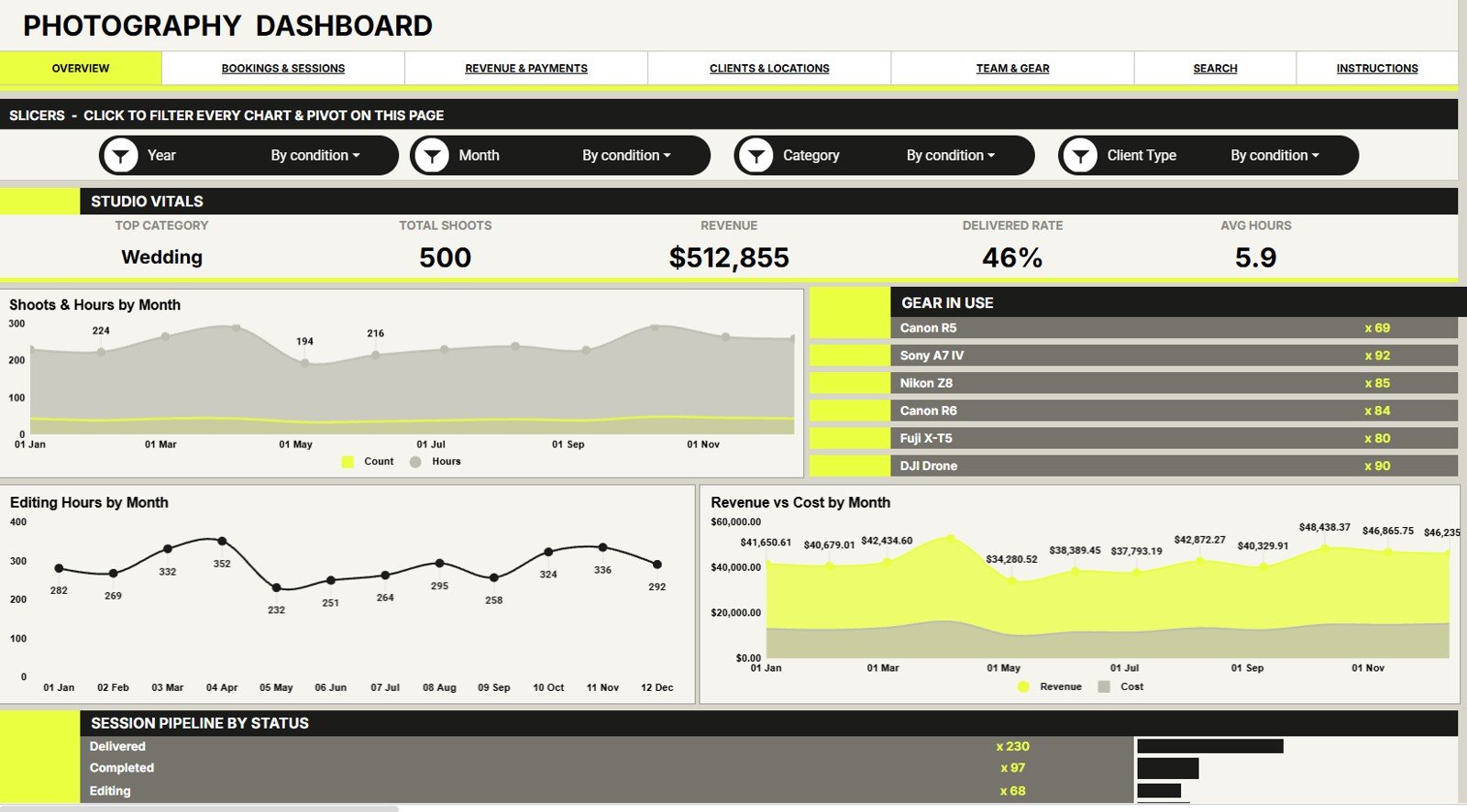
The Overview page is the high-level control page for the full photography operation. Cards show Top Category, Total Shoots, Revenue, Delivered Rate, and Avg Hours, while slicers help users narrow the dashboard quickly.
Shoots and Hours by Month: This chart compares shoot volume with working hours over time. It helps you spot busy months and check whether workload is growing faster than booking count.
Gear in Use by Gear: This view shows how often each gear type appears in shoot records. It supports equipment planning, rental decisions, and gear maintenance review.
Editing Hours by Month: This chart highlights post-production workload by month. It helps managers see whether editing capacity matches the shooting calendar.
Revenue and Cost by Month: This chart compares monthly income with cost. It helps separate high-volume months from profitable months.
Session Pipeline by Status: This chart groups shoots by pipeline status. It helps users see completed, pending, delivered, cancelled, or in-progress work at a glance.
Photography Dashboard in Google Sheets
2 – Bookings & Sessions
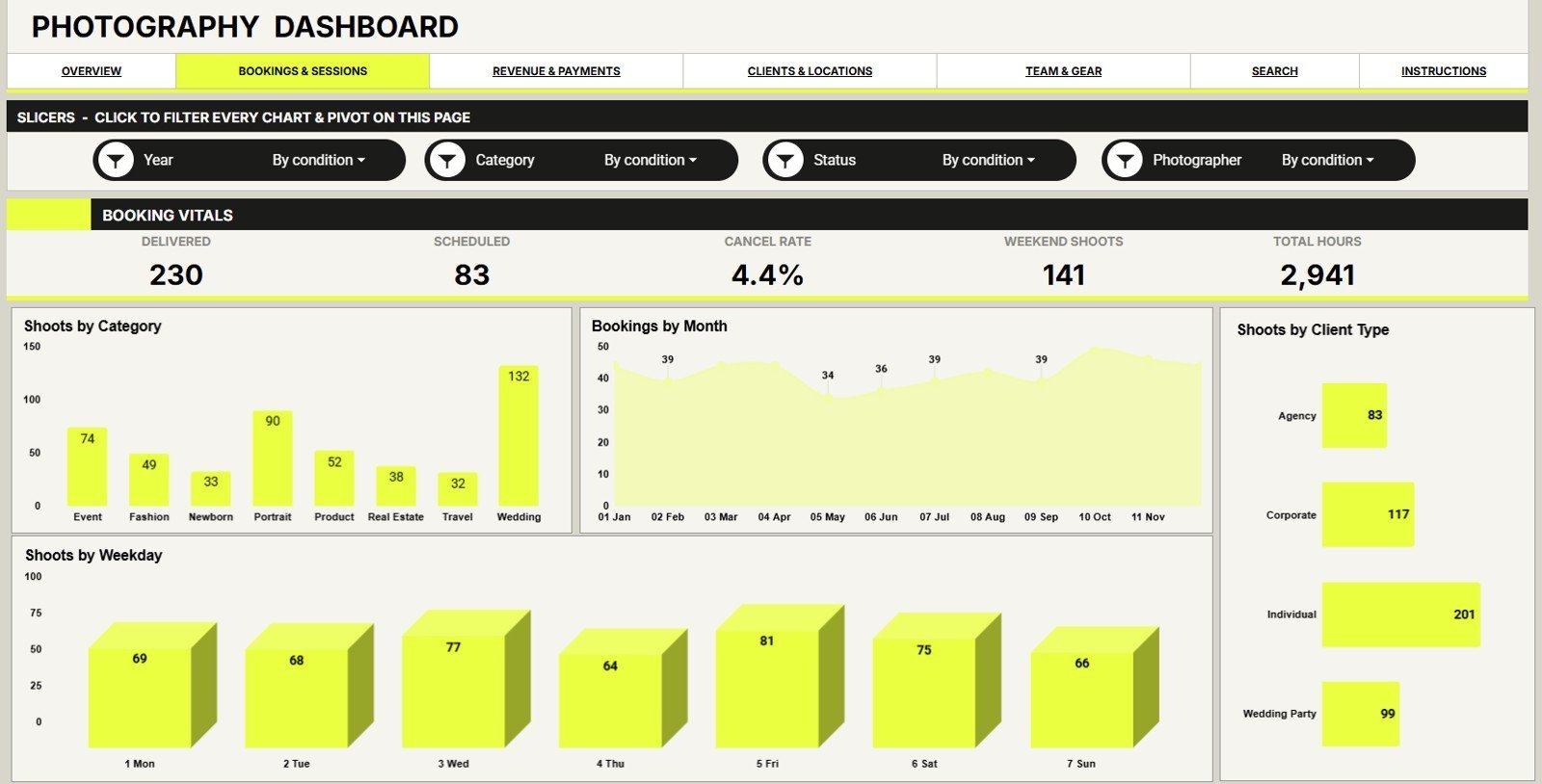
This tab focuses on booking mix and session behavior. It includes Shoots by Category, Bookings by Month, Shoots by Client Type, and Shoots by Weekday so you can understand demand from several angles.
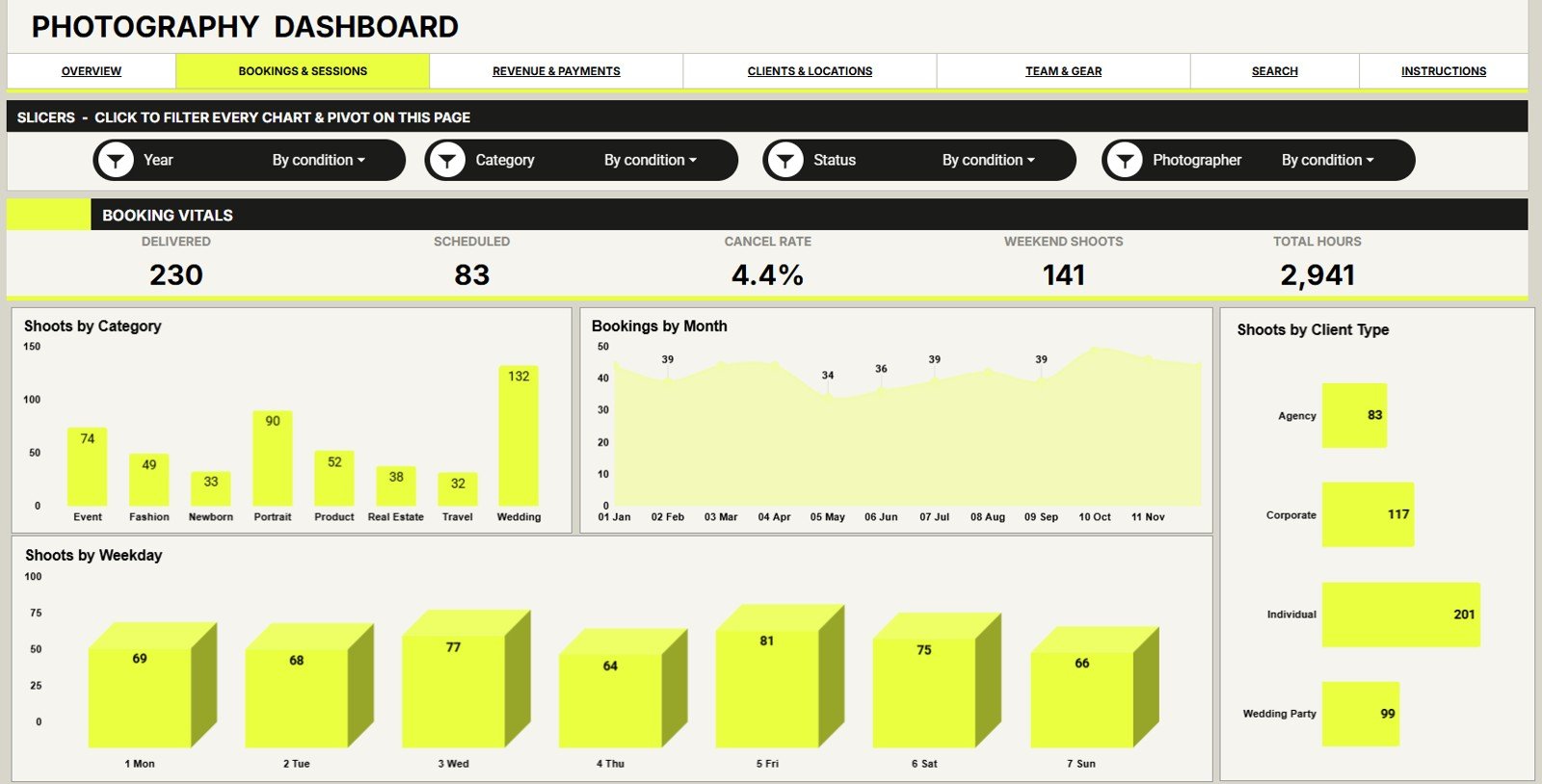
Bookings & Sessions
3 – Revenue & Payments
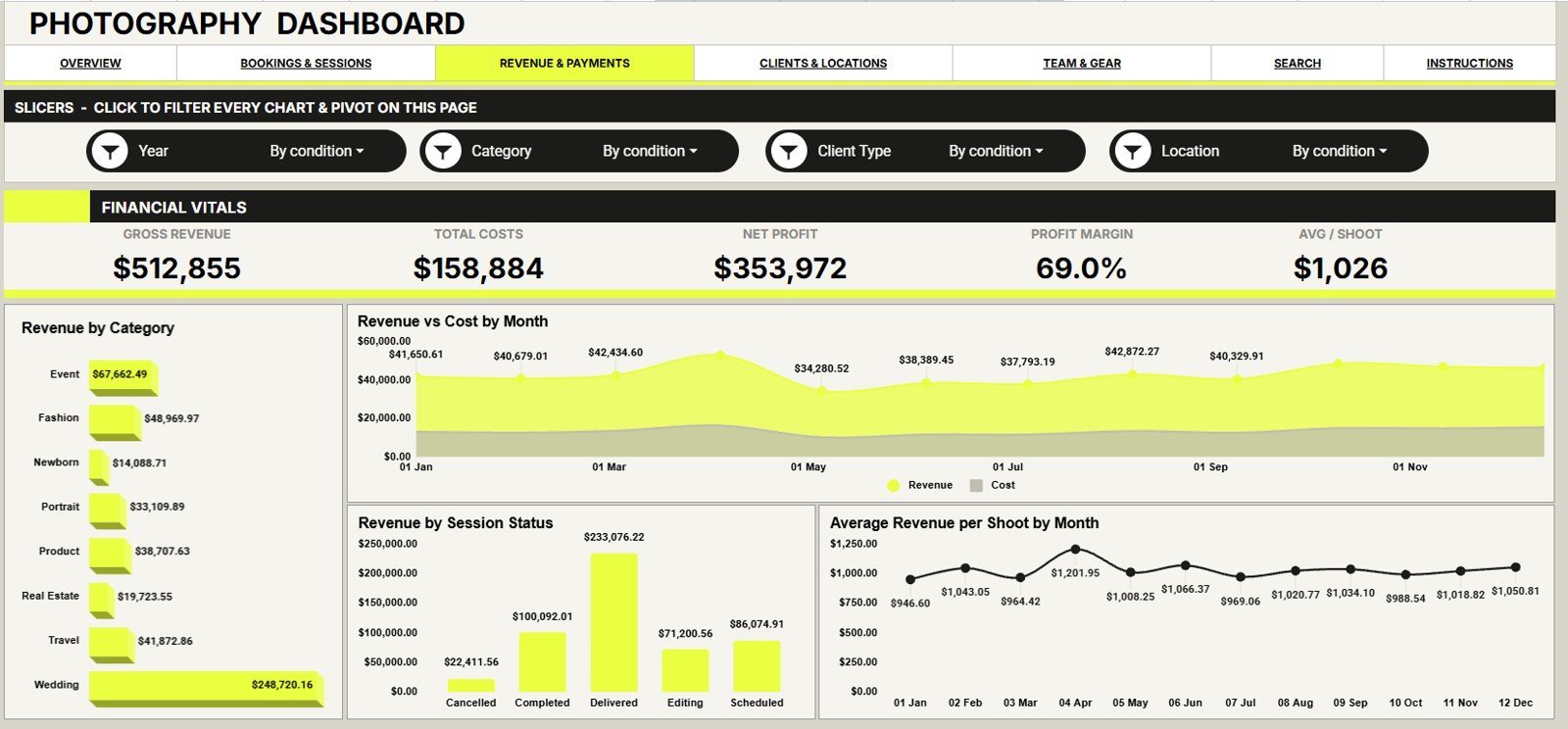
The Revenue & Payments tab helps review where money is coming from and how session status affects revenue. It includes Revenue by Category, Revenue and Cost by Month, Revenue by Session Status, and Average Revenue per Shoot by Month.
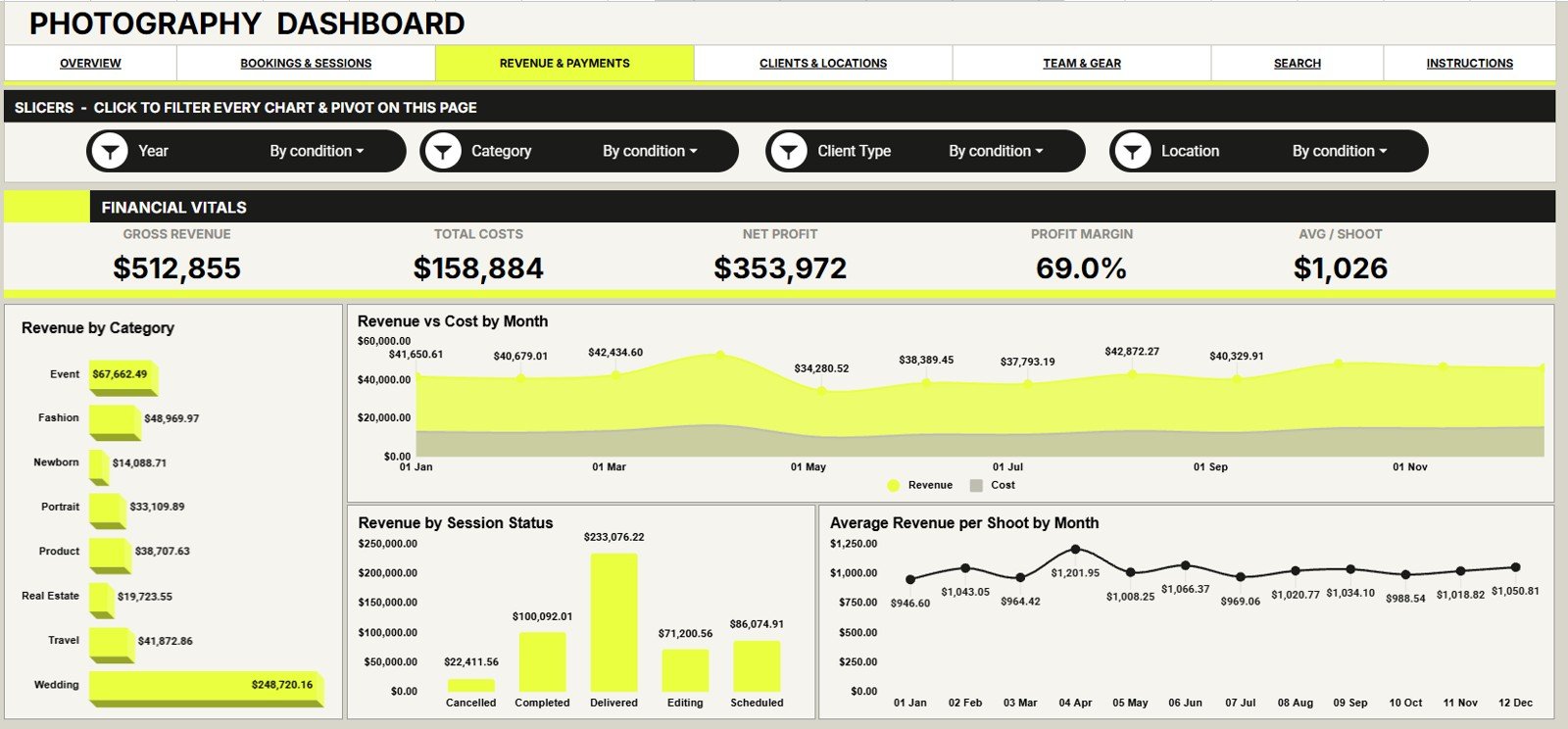
Revenue & Payments
4 – Clients & Locations
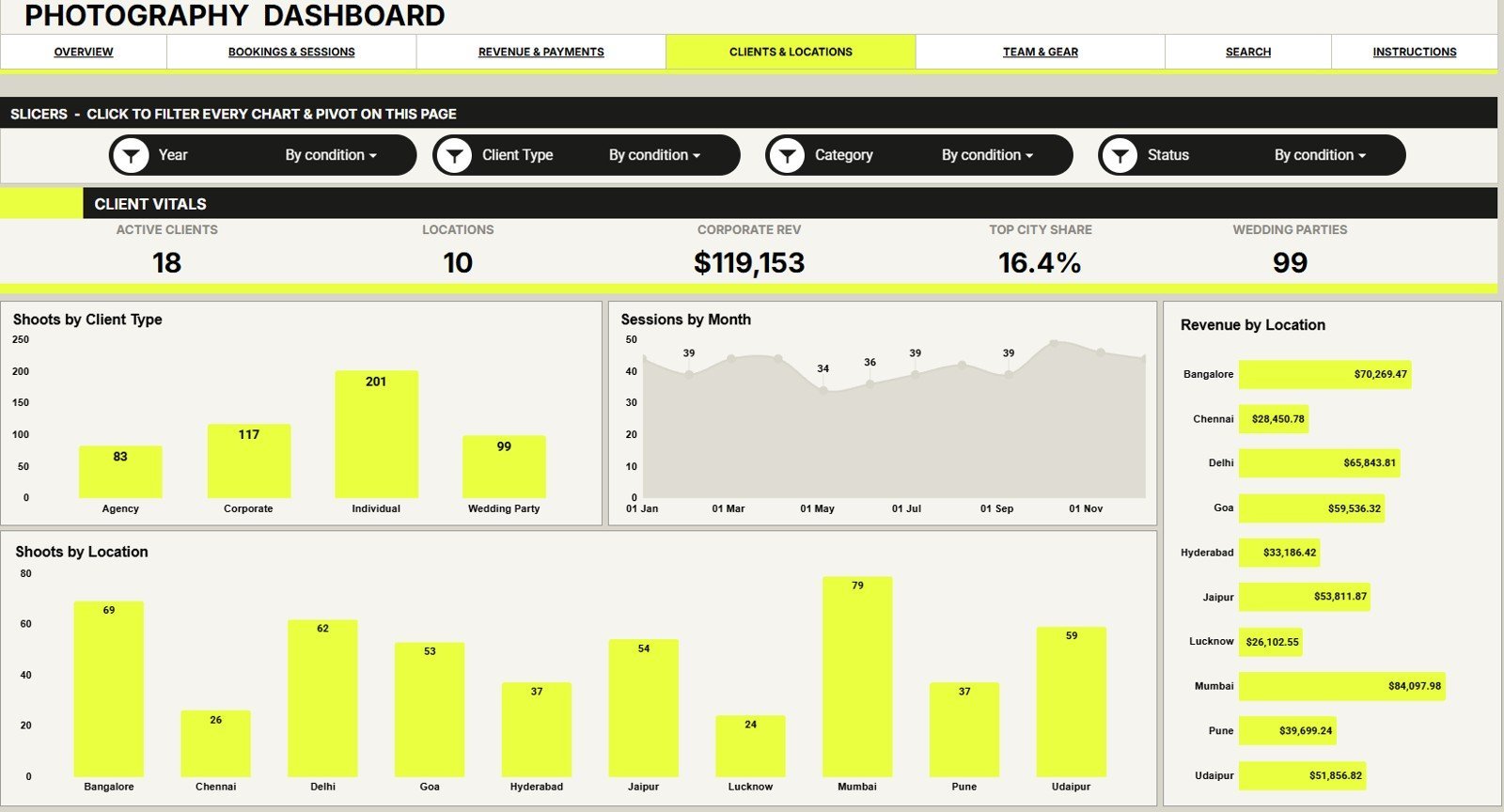
The Clients & Locations tab shows client mix and location performance. It includes Shoots by Client Type, Sessions by Month, Revenue by Location, and Shoots by Location to help plan local marketing and travel decisions.
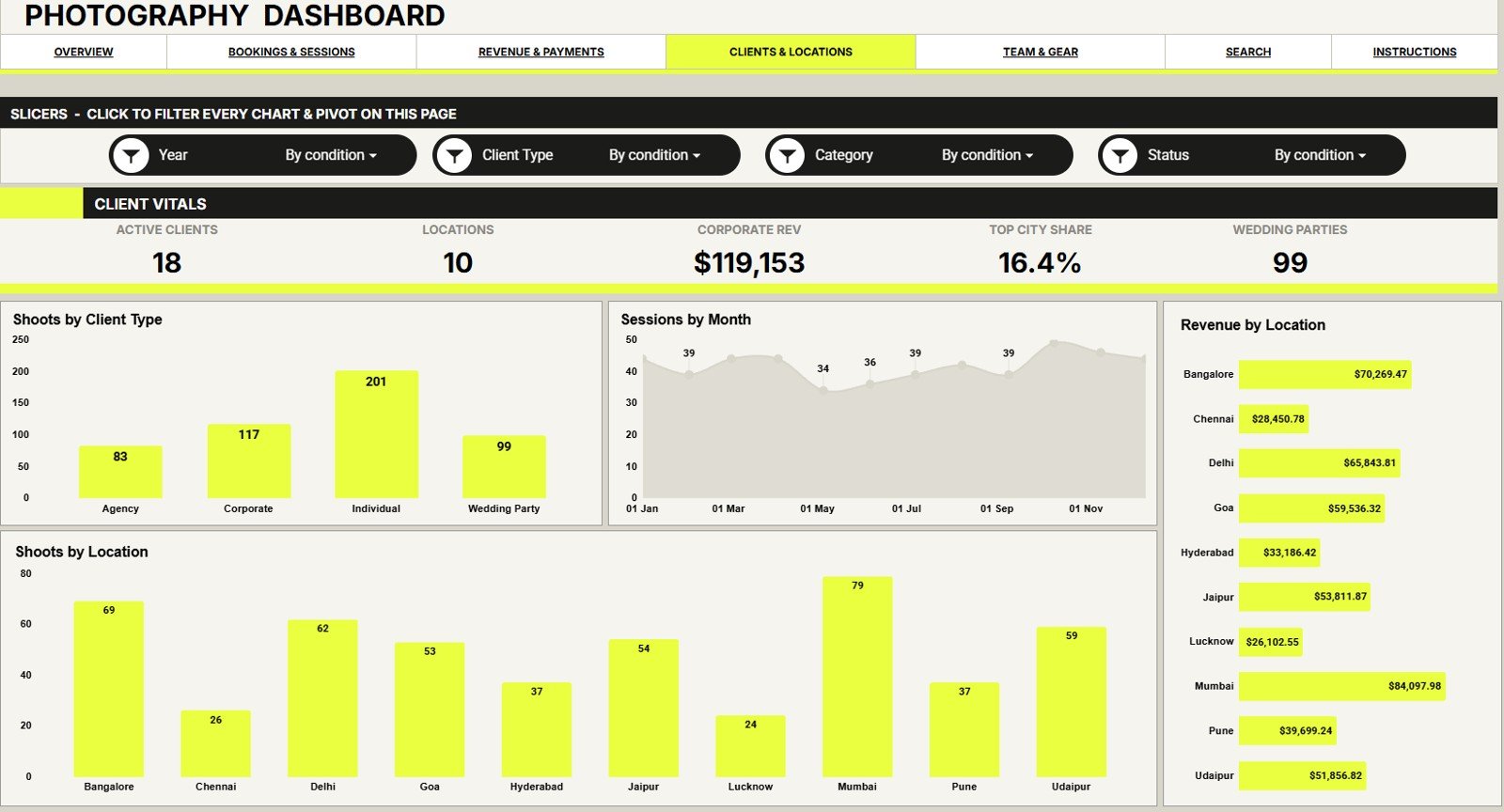
Clients & Locations
5 – Team & Gear
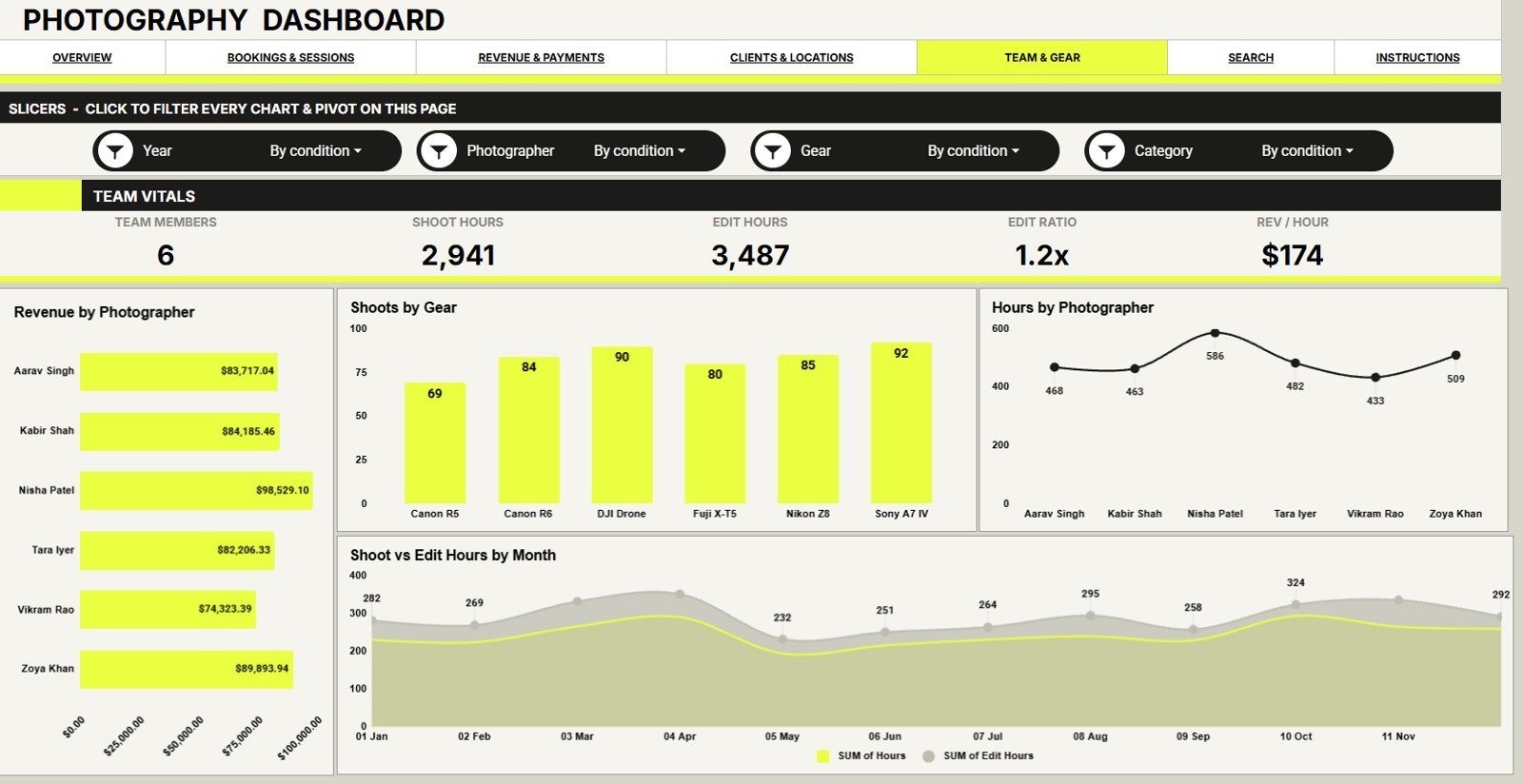
The Team & Gear tab connects photographer output with equipment and hours. It includes Revenue by Photographer, Shoots by Gear, Hours by Photographer, and Shoot Hours and Edit Hours by Month.
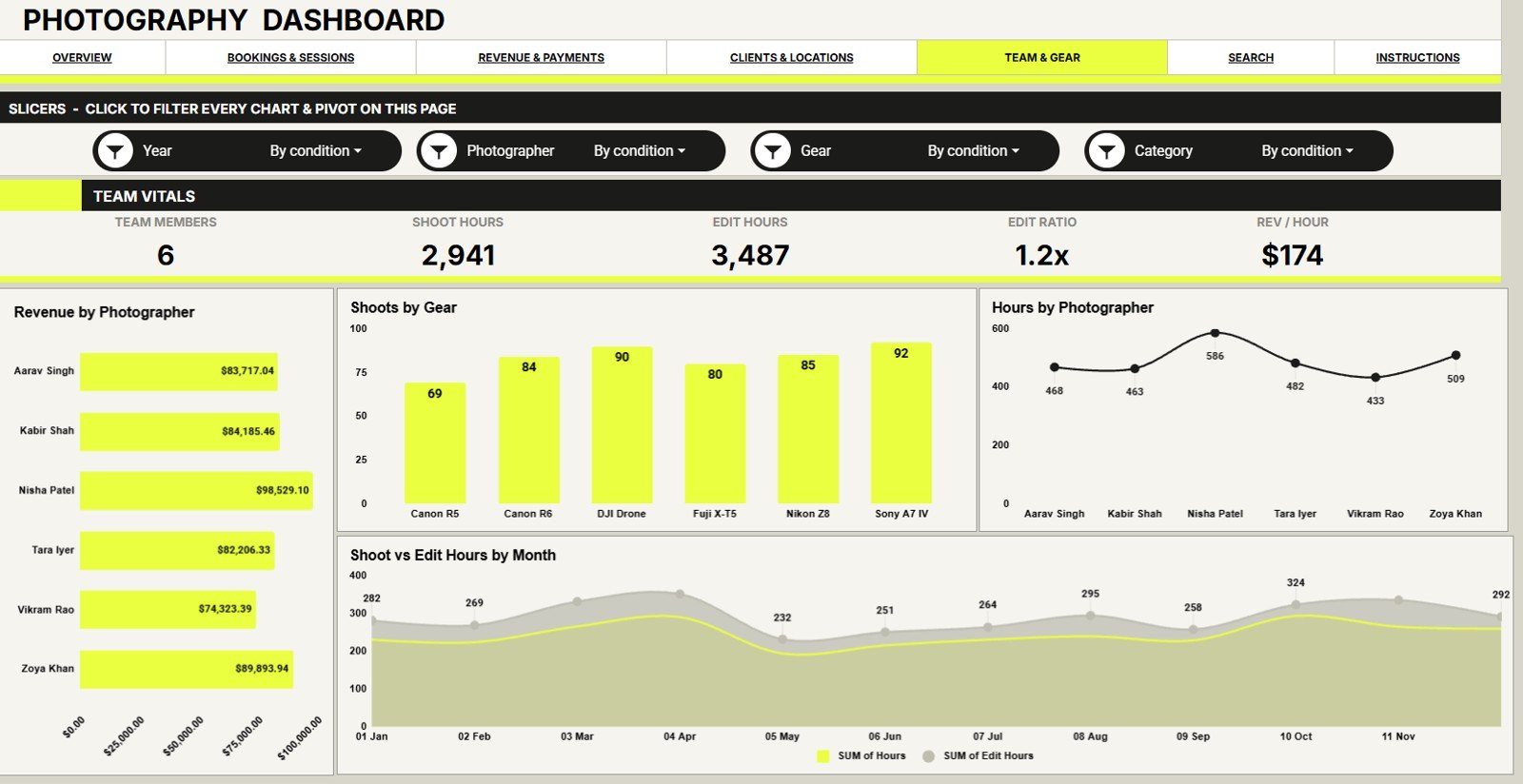
Team & Gear
6 – Search Sheet Tab
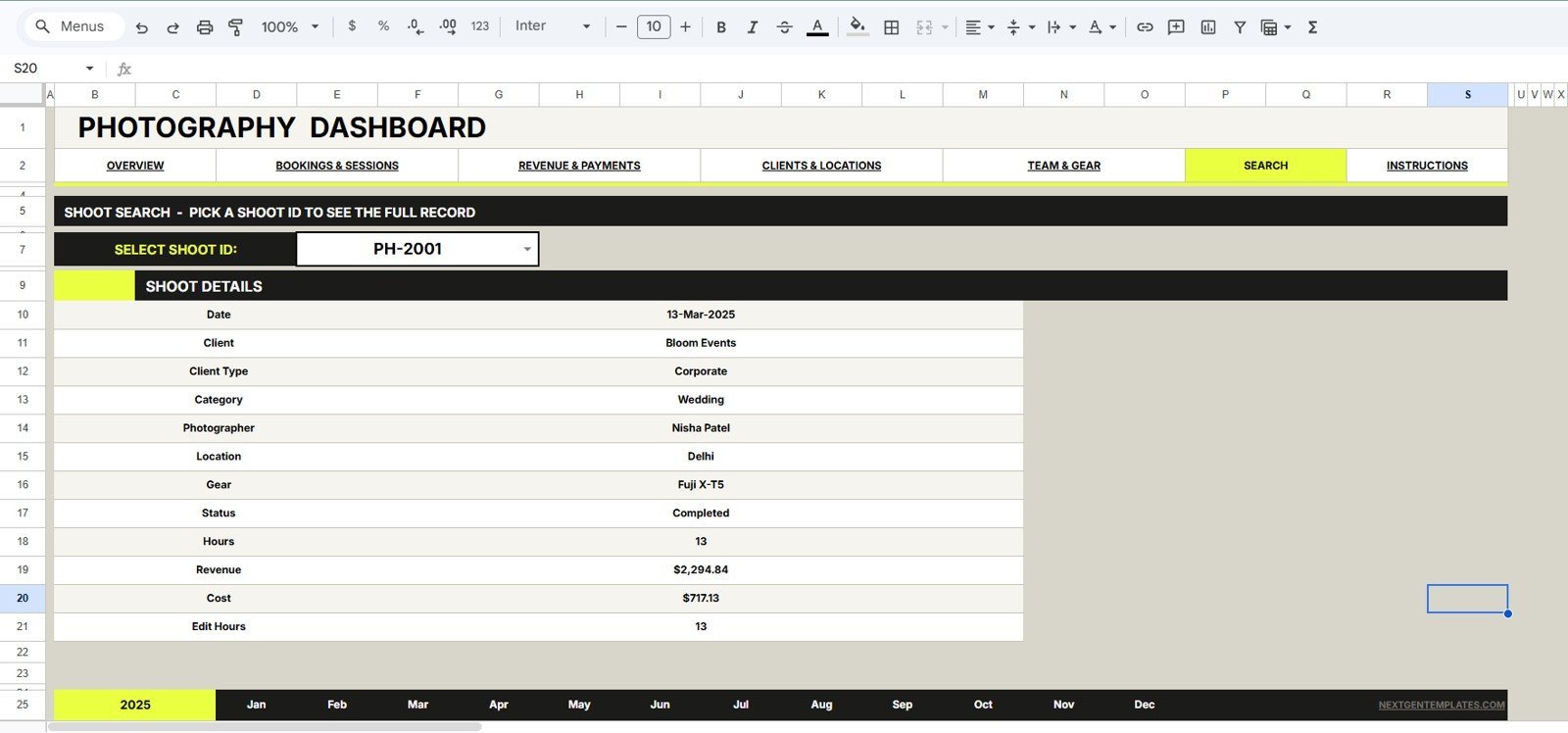
The Search Sheet lets you pick a Shoot ID and review the full shoot record in one place. It returns date, client, client type, category, photographer, location, gear, status, hours, revenue, cost, and edit hours.
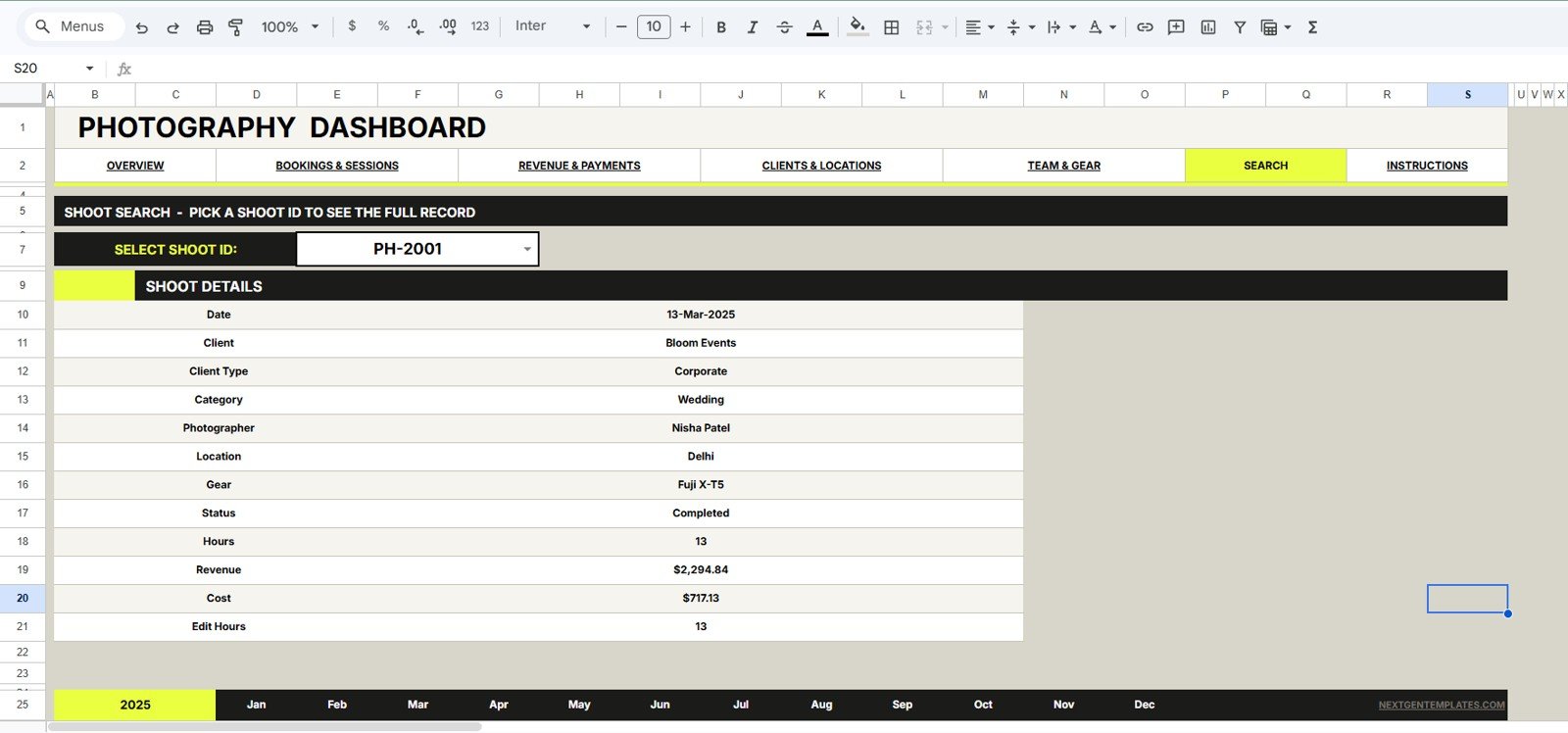
Search Sheet tab
7 – Data Sheet Tab
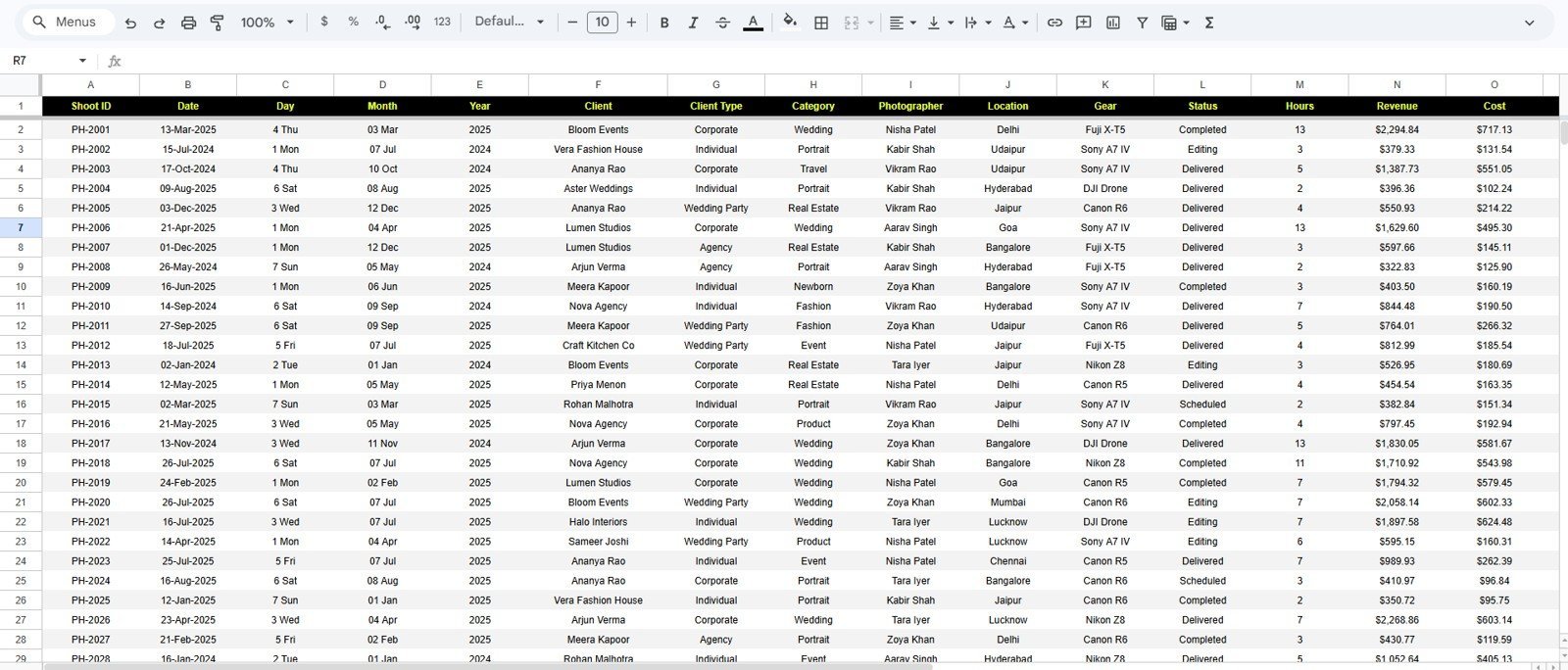
The Data Sheet is where you add your own photography records in the same format as the sample rows. Keeping the format consistent helps cards, charts, slicers, and Search Sheet lookup continue to work correctly.
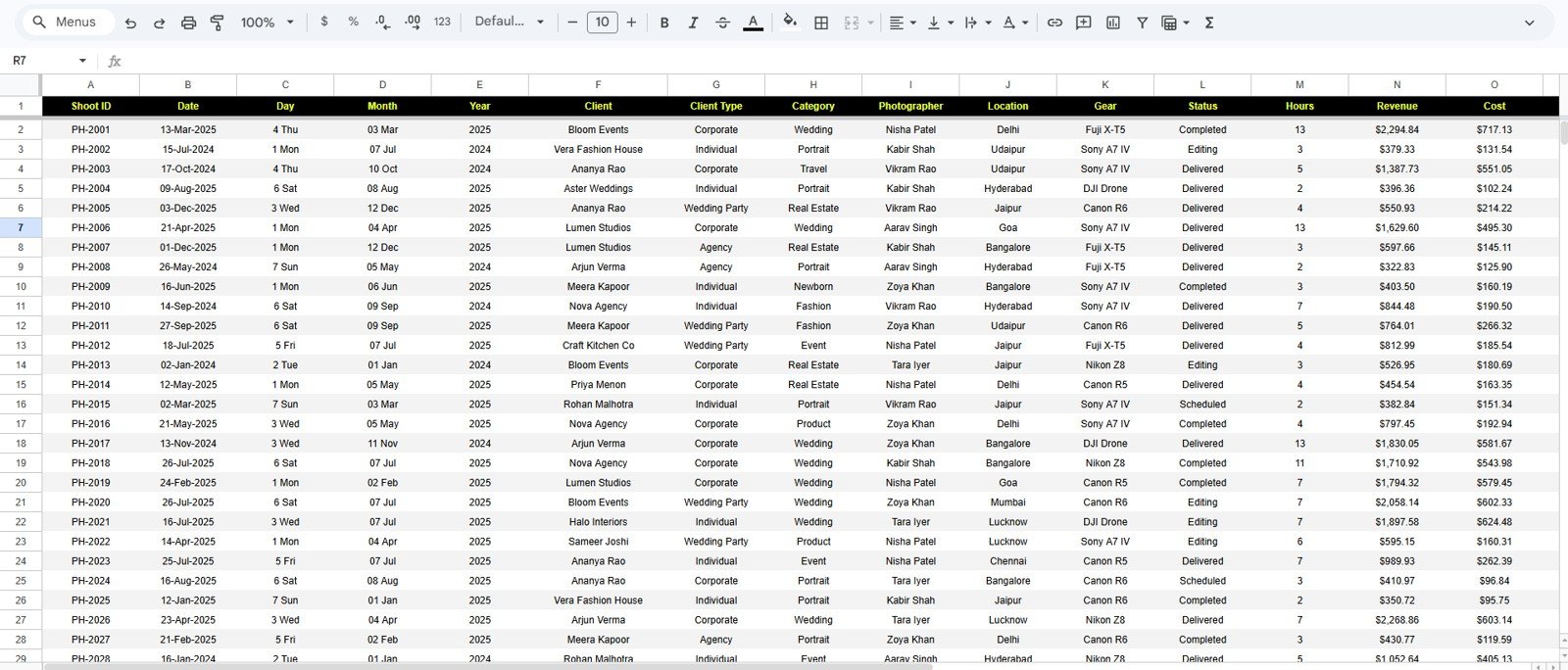
Data Sheet tab
Photography Dashboard in Google Sheets vs. Microsoft Excel Dashboard vs. Paid CRM/SaaS – Where This Fits
| Feature | This Google Sheets dashboard | Microsoft Excel dashboard | Paid CRM/SaaS |
|---|---|---|---|
| Cost | $9.99 one-time sale price | One-time template cost or Microsoft subscription | Monthly or annual subscription |
| Platform | Google Sheets in Google Drive | Excel desktop or web | Vendor-hosted cloud app |
| Setup time | Copy the Sheet and replace sample data | Open workbook and refresh pivots | Account setup and workflow configuration |
| Real-time team collaboration | Native Google Drive sharing | Best with OneDrive or SharePoint | Usually included by seat |
| Mobile access | Google Sheets app or browser | Excel app with some limits | Usually included |
| Customizable fields | Editable sheet rows, labels, and charts | Editable workbook structure | Limited by vendor plan |
| Share with link | Yes, through Google Drive permissions | Yes, through Microsoft sharing | Usually login based |
| Year-1 cost at 5 users | $9.99 template price | Template cost plus licensing if needed | Often hundreds of dollars per year |
| Shoot ID lookup | Included Search Sheet | Requires workbook design | Usually included |
| Photography-specific charts | Built around shoots, gear, editing, clients, and revenue | Depends on template | Often broad CRM reporting |
Who This Template Is For – and Who It’s Not For
Best for: freelance photographers, portrait studios, wedding teams, event photographers, commercial photography teams, creative agencies, studio managers, and operations assistants who already track shoot work in spreadsheets.
Not the right fit for: teams that need contracts, online galleries, proposal automation, invoicing, payment processing, email automation, or a full client portal inside the same system. This is an analytics and lookup dashboard, not a full photography CRM.
How to Use the Photography Dashboard in Google Sheets
- Open the included PDF guide after purchase and create your own Google Sheets copy.
- Go to the Data Sheet tab and replace the sample rows with your shoot records.
- Keep the same column format for date, client, client type, category, photographer, location, gear, status, hours, revenue, cost, and edit hours.
- Review the Overview page first for high-level cards and monthly trends.
- Use Bookings & Sessions, Revenue & Payments, Clients & Locations, and Team & Gear for deeper analysis.
- Use the Search Sheet when one Shoot ID needs quick review.
Real-World Use Cases
Maya, a wedding photographer: reviews Revenue and Cost by Month before opening new weekend slots. She can see when bookings are high but margins need attention.
Jordan, a portrait studio owner: checks Shoots by Client Type and Revenue by Location before planning local campaigns. The dashboard helps him focus promotions where demand is already strongest.
Priya, a studio operations lead: compares Hours by Photographer and Editing Hours by Month to balance assignments. She uses the Search Sheet when a client asks for a specific shoot update.
Frequently Asked Questions
Does this template work only in Google Sheets?
Yes. This version is designed for Google Sheets and is meant to be copied into your own Google Drive.
What records should I enter in the Data Sheet?
Enter one row per shoot using the same format, including date, client, client type, category, photographer, location, gear, status, hours, revenue, cost, and edit hours.
Does it include a Search Sheet?
Yes. Pick a Shoot ID to see the full shoot record in one place without filtering the raw Data Sheet manually.
Can my team collaborate in the file?
Yes. Since it runs in Google Sheets, you can share the file through Google Drive with view, comment, or edit access.
Can I customize the charts?
Yes. You can adjust labels, chart colors, ranges, and formulas if you are comfortable editing Google Sheets dashboards.
Is this a CRM replacement?
No. It is best used as a reporting dashboard alongside your booking, invoicing, contract, or gallery workflow.
About the Author
Built by PK – Microsoft Certified Professional with 15+ years of Excel, Google Sheets, and Power BI experience. Founder of NextGenTemplates, reaching 300K+ subscribers across YouTube channels. Every template is hand-built and tested before release.
Explore Related Templates
- Photography Business Dashboard in Google Sheets
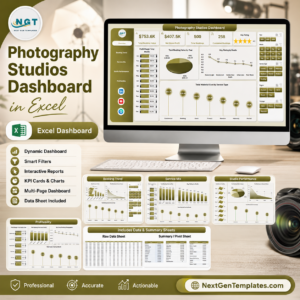
- Photography Studios Dashboard in Excel
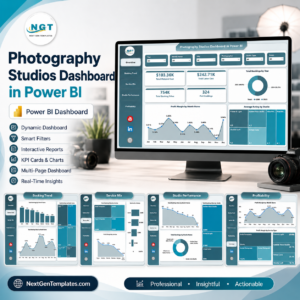
- Photography Studios Dashboard in Power BI
- Photography Business KPI Dashboard in Google Sheets
- Browse Google Sheets Dashboard Templates
- Browse all Google Sheets Templates
Read the detailed blog post for Photography Dashboard in Google Sheets
Watch the step-by-step video Demo:
Download the Photography Dashboard in Google Sheets to track shoots, hours, revenue, cost, delivery rate, clients, locations, team workload, and gear usage in one editable workbook.
Last updated: July 29, 2026
Compatibility and Requirements
- Works in Google Sheets. You need a free Google account and a web browser.
- You can also open the file in the Google Sheets app. Google explains how to get started in Google Docs Editors Help: Get started with Google Sheets.















Reviews
There are no reviews yet.