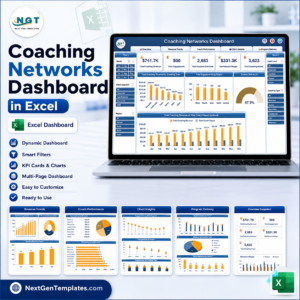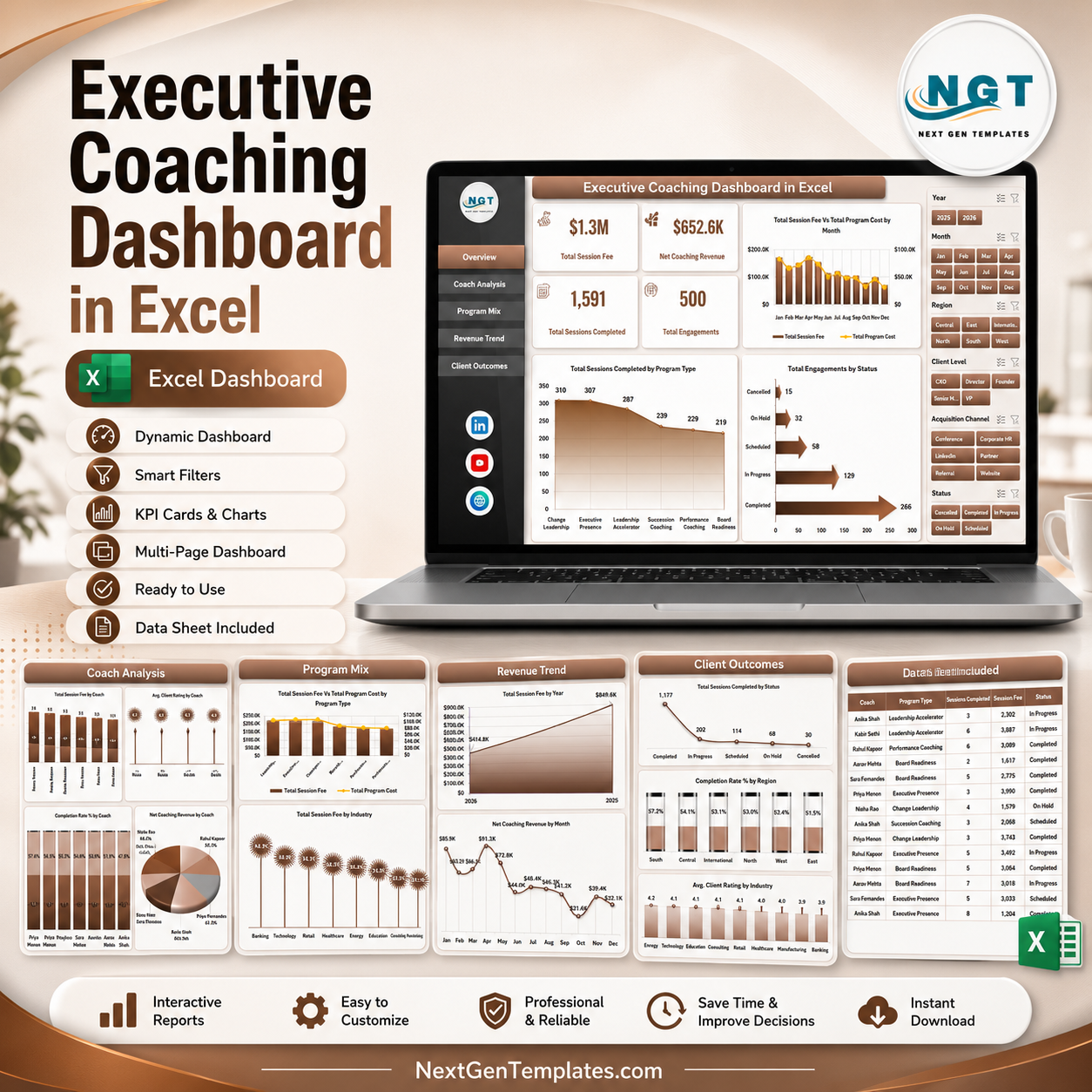


Executive Coaching Dashboard in Excel gives coaches, HR leaders, and leadership development teams a ready reporting workbook with 7 worksheet tabs, 4 headline cards, 18+ chart views, and slicer-based filtering for sessions, revenue, program cost, program mix, coach performance, client outcomes, industries, regions, and acquisition channels. For $17.99 one-time, you get an editable Microsoft Excel dashboard that works with your own coaching engagement data, without a monthly coaching SaaS subscription. Built by PK, Microsoft Certified Professional with 15+ years of Excel experience and 300K+ YouTube subscribers, this template is designed for practical reporting, fast customization, and manual review before client or management meetings.
Key Features of Executive Coaching Dashboard in Excel
- 7 worksheet tabs covering Overview, Coach Analysis, Program Mix, Revenue Trend, Client Outcomes, Data, and Support.
- 4 executive cards for Total Session Fee, Net Coaching Revenue, Total Sessions Completed, and Total Engagements.
- 18+ chart views for monthly revenue, program type, coach performance, acquisition channel, client level, industry, region, and status analysis.
- Multiple slicers on analysis pages help you filter the dashboard quickly without rebuilding formulas.
- Structured Data sheet lets you replace sample records with your own coaching program data in the same column format.
- Pivot-driven Support sheet keeps the dashboard dynamic; update the Data sheet and use Refresh All to update pivots and charts.
- Editable Excel workbook so users can adjust colors, formulas, fields, charts, and pages as needed.
What’s Inside the Executive Coaching Dashboard in Excel
1. Overview Page
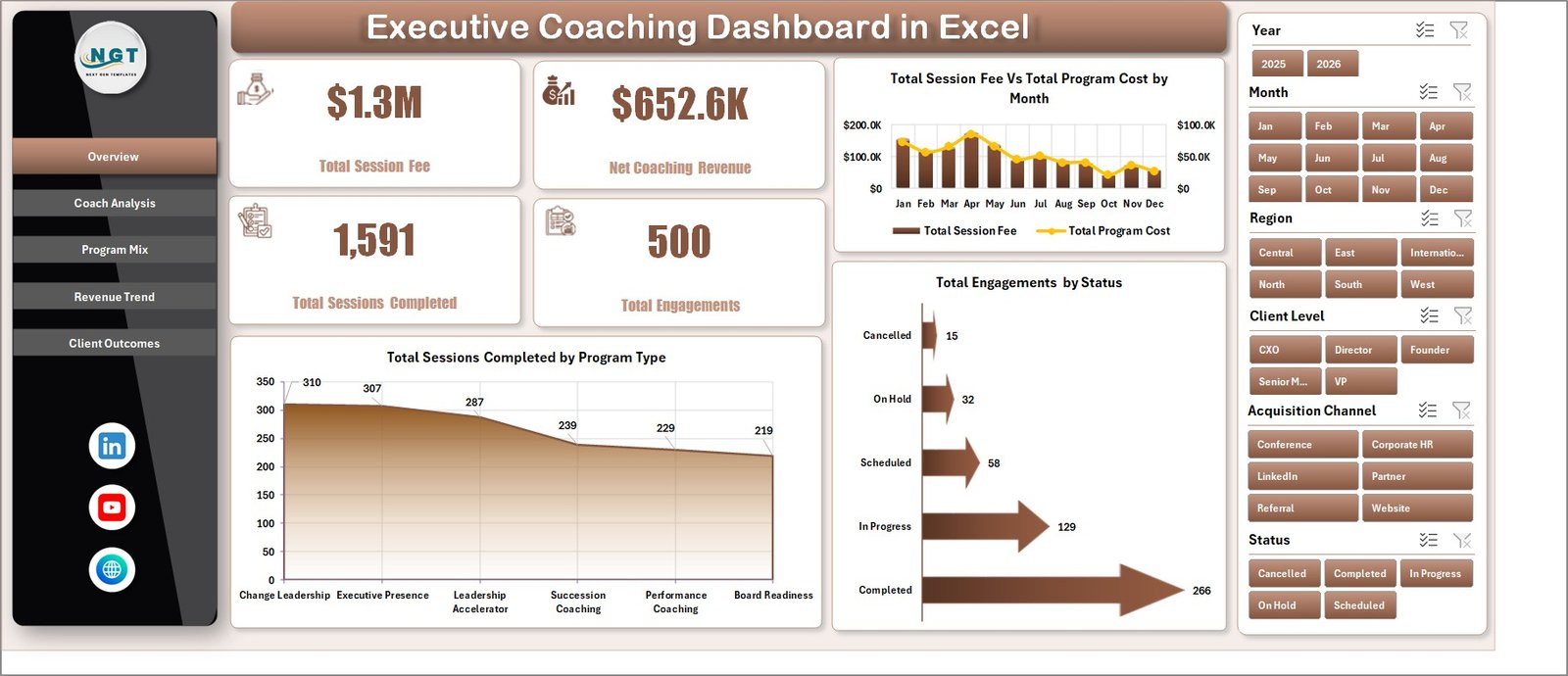
The Overview Page gives leadership teams a high-level summary of coaching activity and financial performance. The KPI cards show Total Session Fee, Net Coaching Revenue, Total Sessions Completed, and Total Engagements so users can quickly understand program scale and value.
Total Session Fee Vs Total Program Cost by Month: This chart compares monthly fee income with program cost. It helps identify months where coaching activity is profitable and months where cost control may need attention.
Total Sessions Completed by Program Type: This visual shows which coaching programs produce the most completed sessions. It helps HR teams and coaching providers understand demand across executive, leadership, transition, and development programs.
Total Engagements by Status: This chart summarizes engagements by current status. It helps teams separate active, completed, paused, and pending engagements for faster pipeline and delivery review.
2. Coach Analysis
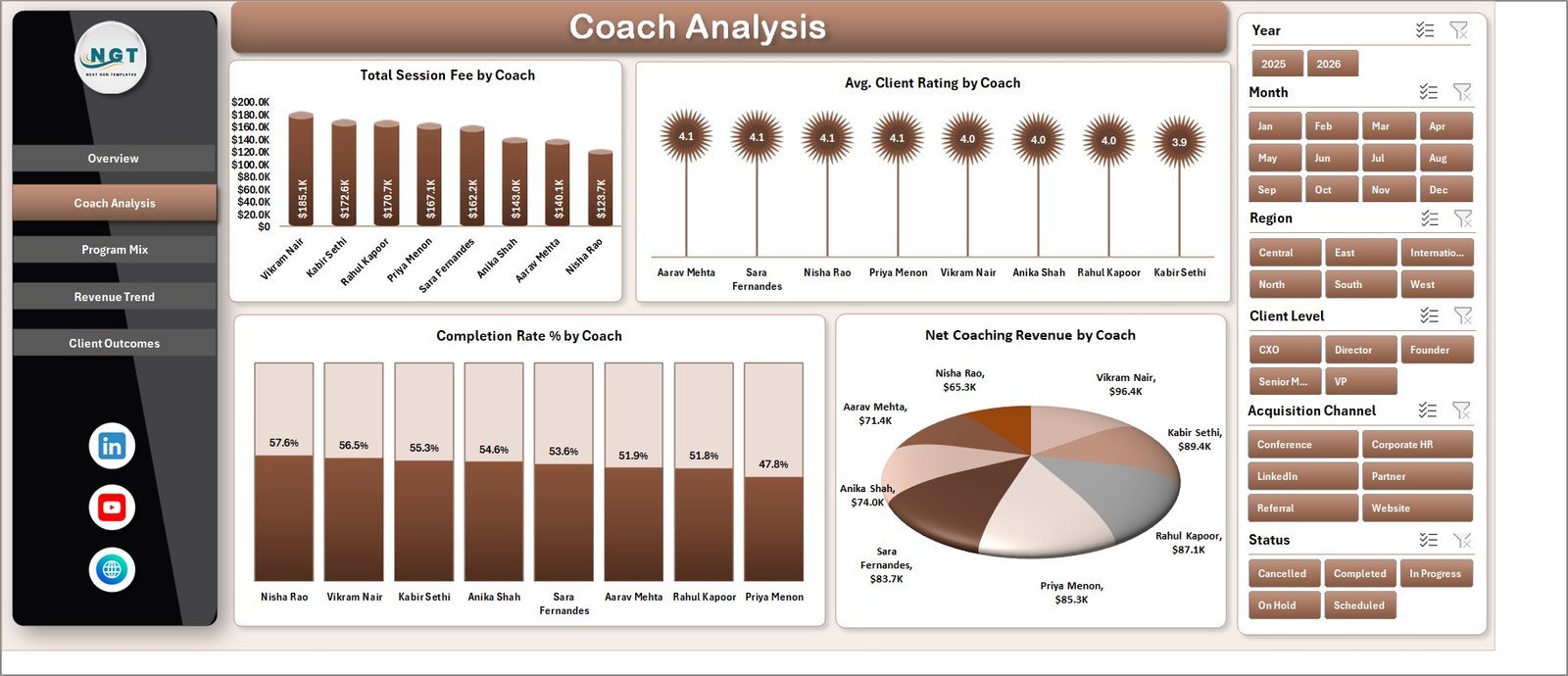
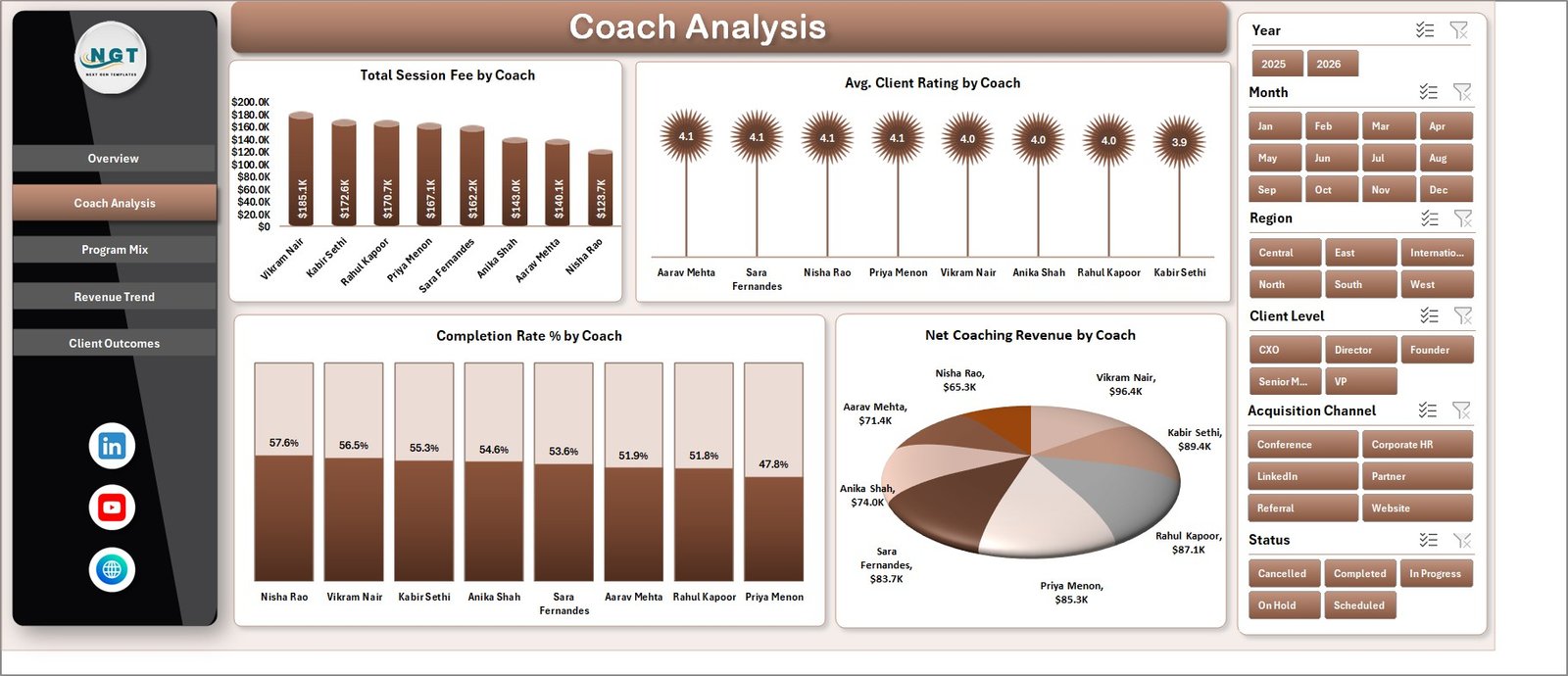
The Coach Analysis tab compares performance across individual coaches. It includes Total Session Fee by Coach, Avg. Client Rating by Coach, Completion Rate % by Coach, and Net Coaching Revenue by Coach so managers can identify top contributors and coaching quality trends.
3. Program Mix
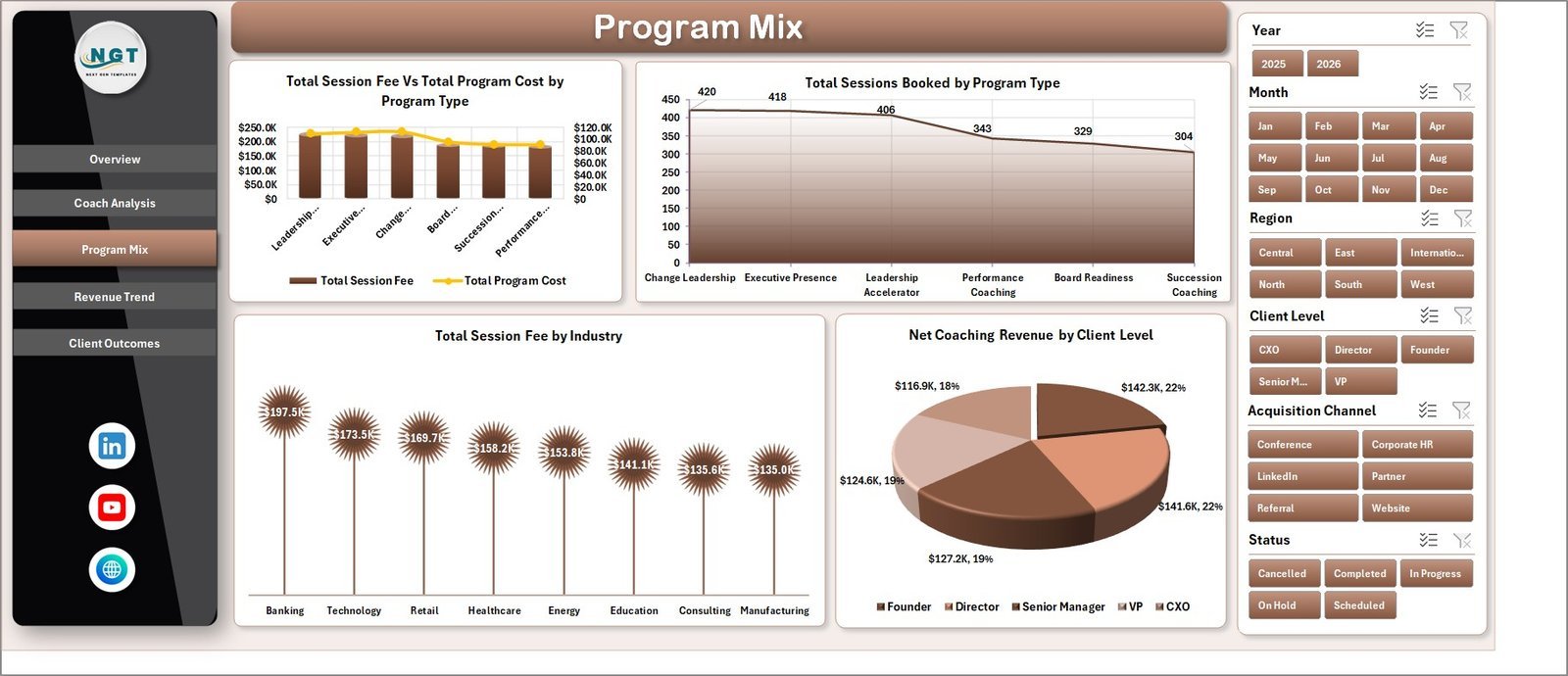
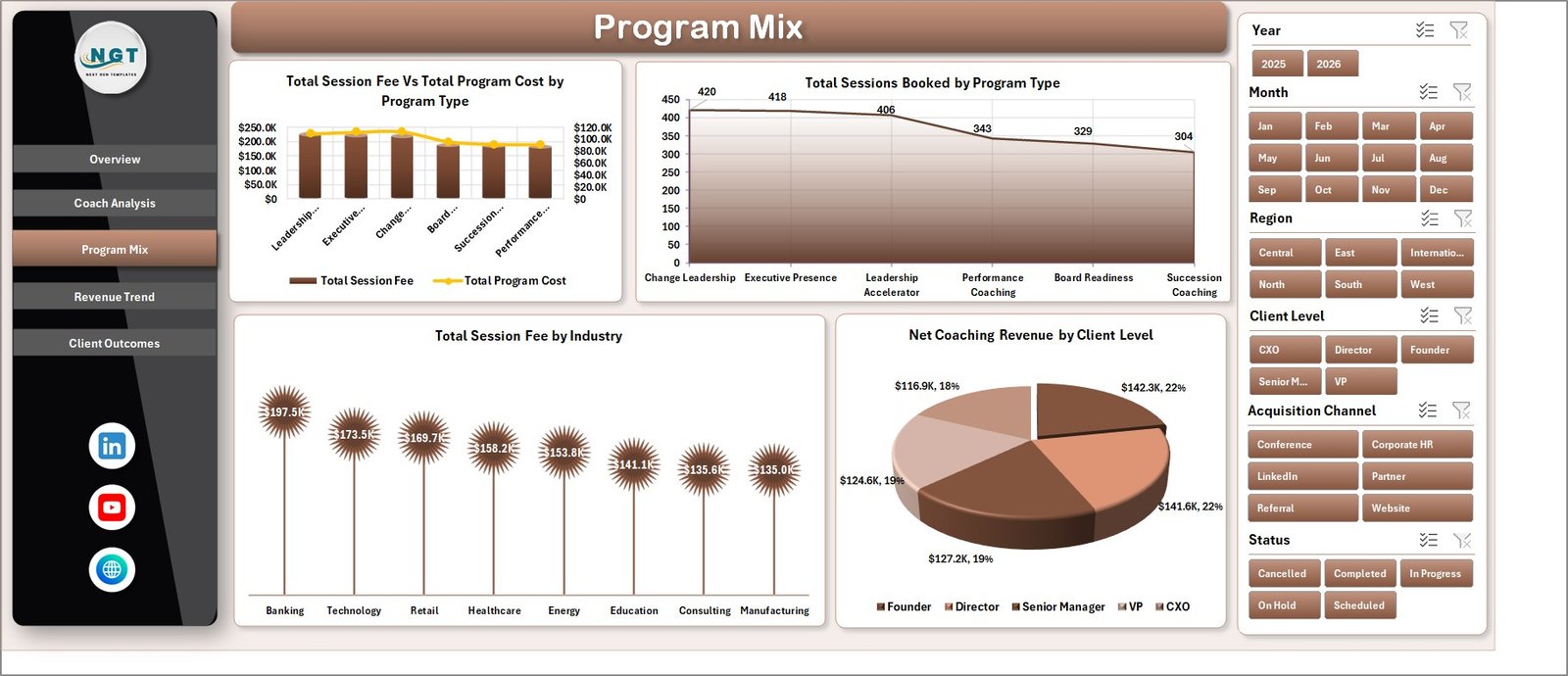
The Program Mix tab explains where coaching demand and revenue are coming from. It includes Total Session Fee Vs Total Program Cost by Program Type, Total Sessions Booked by Program Type, Total Session Fee by Industry, and Net Coaching Revenue by Client Level.
4. Revenue Trend
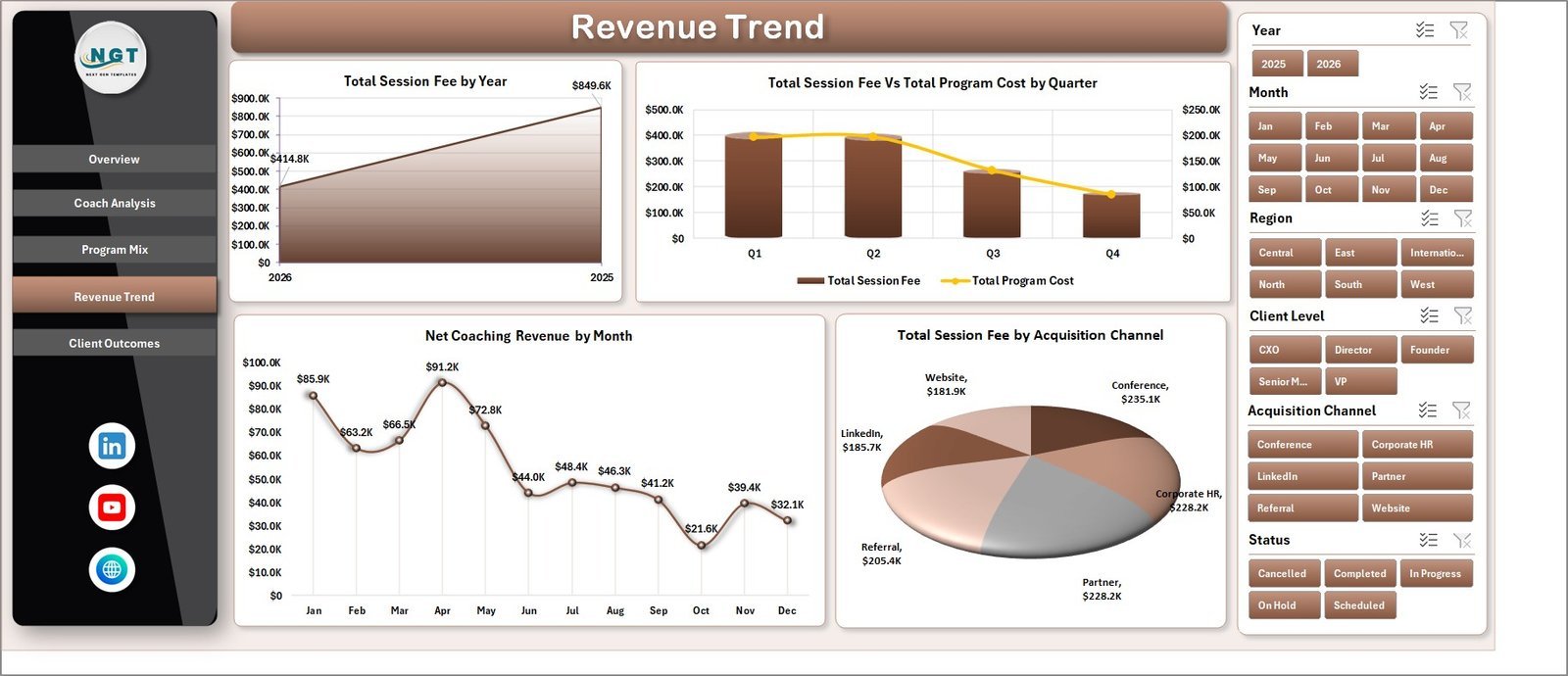
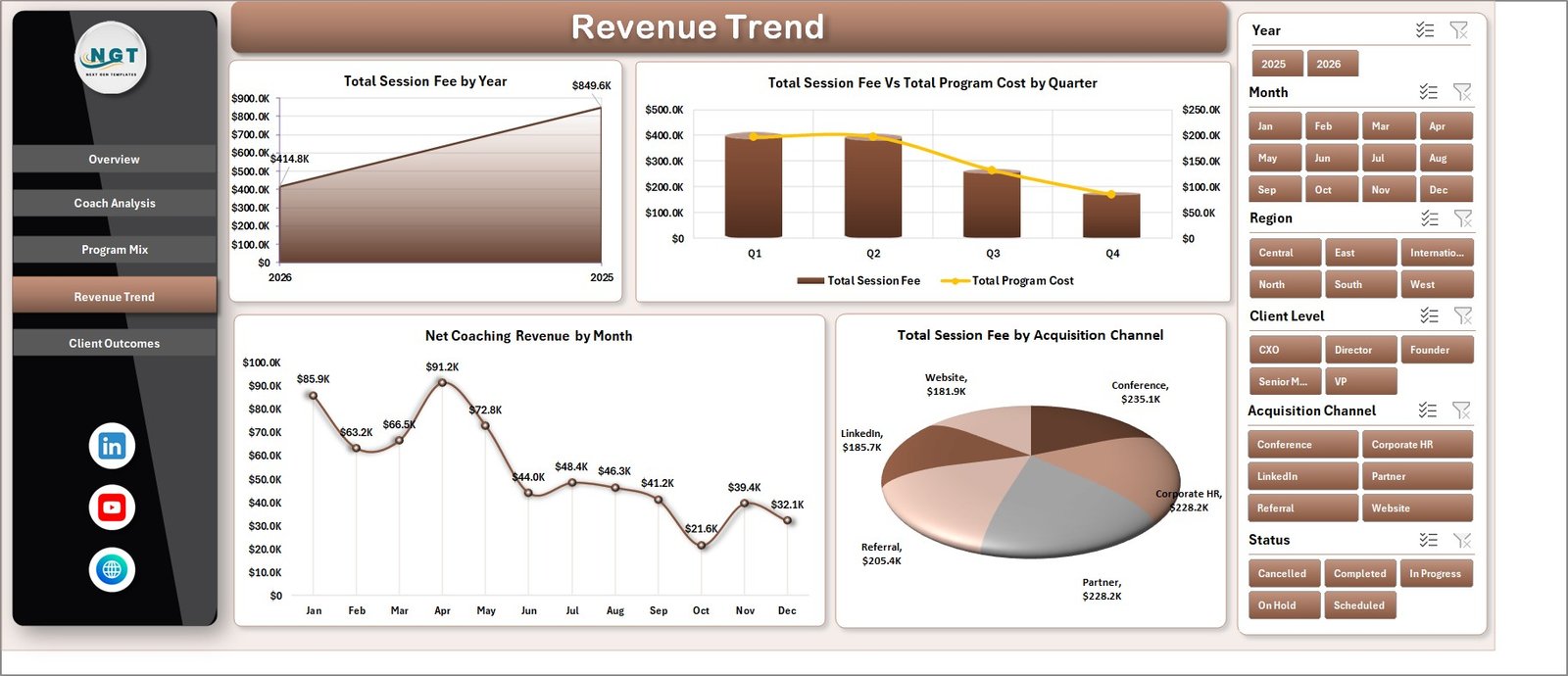
The Revenue Trend tab focuses on financial movement over time. It shows Total Session Fee by Year, Total Session Fee Vs Total Program Cost by Quarter, Net Coaching Revenue by Month, and Total Session Fee by Acquisition Channel for strategic revenue review.
5. Client Outcomes
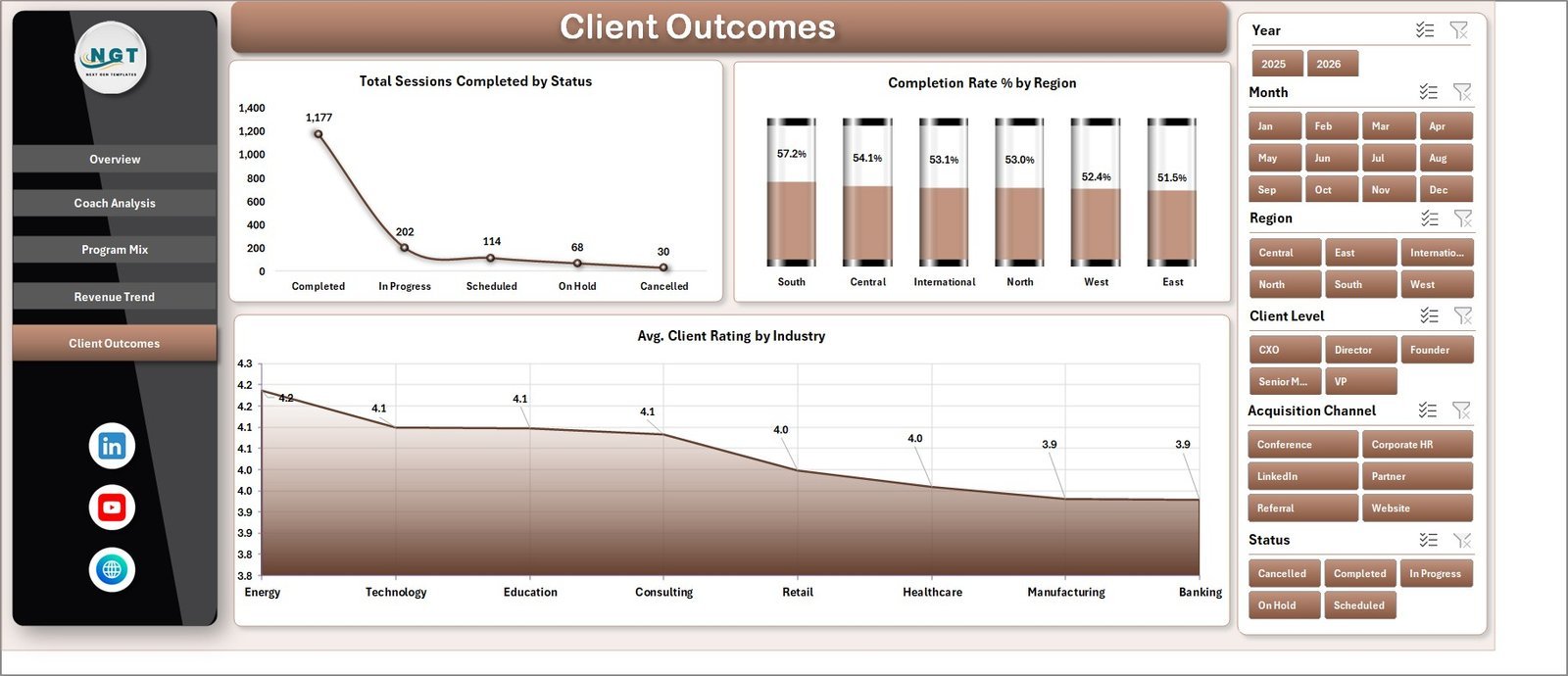
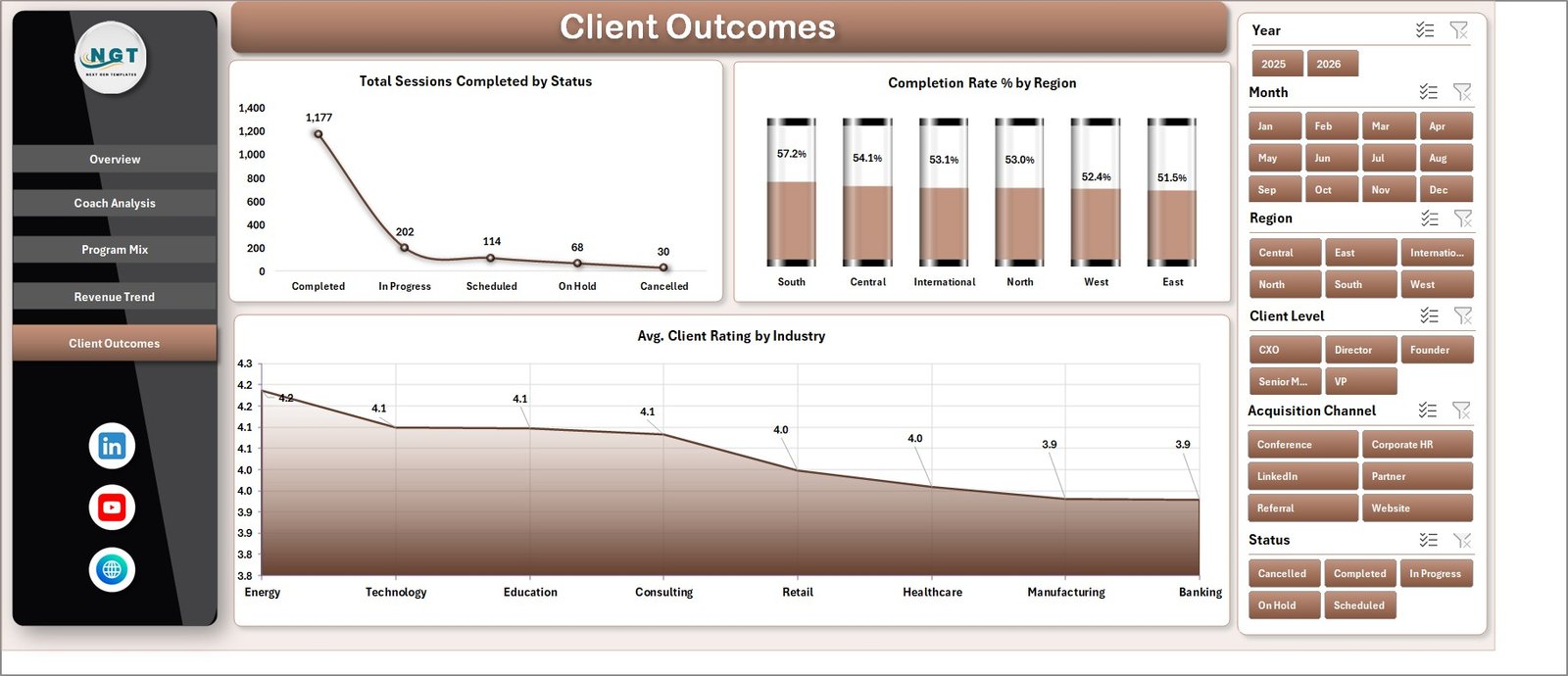
The Client Outcomes tab helps review delivery progress and client experience. It includes Total Sessions Completed by Status, Completion Rate % by Region, and Avg. Client Rating by Industry to connect activity with outcomes.
6. Data Sheet Tab
The Data sheet is where you add or replace the source data in the same structured format. Once your records are updated, the dashboard pages can refresh from this single data table.

7. Support Sheet
The Support sheet contains the pivot tables used to build the dashboard dynamically. After updating the Data sheet, go to the Data tab in the Excel Ribbon and click Refresh All; you can keep this support sheet hidden during normal use.

Executive Coaching Dashboard in Excel vs. Google Sheets vs. Paid CRM/SaaS – Where This Fits
| Feature | This Excel Dashboard | Google Sheets Alternative | Paid Coaching CRM/SaaS |
|---|---|---|---|
| Cost | $17.99 one-time | One-time template or manual build | Monthly or annual subscription |
| Platform | Microsoft Excel | Browser-based spreadsheet | Vendor cloud platform |
| Setup time | Replace sample data and refresh | Copy sheet and adapt formulas | Onboarding and configuration |
| Real-time team collaboration | Limited unless using OneDrive | Built in | Usually built in |
| Mobile access | Requires Excel app or cloud file | Browser/mobile app | Vendor app or browser |
| Customizable fields | Fully editable workbook | Fully editable sheet | Limited by vendor settings |
| Share with link | Available with OneDrive/SharePoint | Built in | Login controlled |
| Coaching revenue analytics | Built across multiple tabs | Requires template setup | Depends on plan |
| Year-1 cost at 5 users | $17.99 plus any Microsoft licensing | Low one-time cost | Often hundreds or thousands |
Who This Template Is For – and Who It’s Not For
This template is for executive coaches, leadership development consultants, HR business partners, talent development managers, coaching firms, L&D teams, and business analysts who need a clear Excel-based view of coaching sessions, fees, costs, coach performance, program mix, revenue trends, and client outcomes.
It is not a client portal, appointment booking system, payment processor, learning management system, or live CRM replacement. It works best when your coaching records are already available in structured rows and columns.
How to Use the Executive Coaching Dashboard in Excel
- Download and unzip the Excel dashboard package.
- Open the workbook in Microsoft Excel.
- Go to the Data sheet and replace the sample data with your own coaching records.
- Keep the same column structure so pivots and charts continue working.
- Go to the Data tab in the Excel Ribbon and click Refresh All.
- Use slicers and page tabs to review overview, coach, program, revenue, and outcome analysis.
Real-World Use Cases
Meera, HR director: Meera uses the Overview and Client Outcomes tabs before quarterly leadership reviews to show completed sessions, coaching revenue, completion rate, and client rating patterns.
Daniel, coaching firm owner: Daniel uses Coach Analysis to compare session fees, net revenue, client ratings, and completion rates by coach before allocating new client engagements.
Asha, L&D analyst: Asha uses Program Mix and Revenue Trend to understand which coaching programs, industries, client levels, and acquisition channels create the strongest results.
Frequently Asked Questions
What does the Executive Coaching Dashboard in Excel track?
It tracks session fee, program cost, net coaching revenue, completed sessions, engagements, program type, status, coach, client rating, completion rate, industry, client level, region, month, quarter, year, and acquisition channel.
Do I need advanced Excel skills?
No. You mainly replace sample data in the Data sheet and click Refresh All. Advanced users can still edit pivots, charts, formulas, and formatting.
Can I add my own coaches and programs?
Yes. Add your own coaches, program types, industries, regions, and client levels in the Data sheet while keeping the same field structure.
Does the dashboard update automatically?
The dashboard uses pivot tables and charts. After changing the source data, use Excel’s Refresh All command to update the pivots and visuals.
Can I hide the Support sheet?
Yes. The Support sheet contains pivot tables for the dashboard. You can keep it hidden once the workbook is set up.
Is this different from the Executive Coaching KPI Dashboard?
Yes. This dashboard focuses on coaching sessions, revenue, program mix, coach analysis, revenue trends, and client outcomes. The Executive Coaching KPI Dashboard in Excel is a KPI target-versus-actual style workbook.
About the Author
Built by PK – Microsoft Certified Professional with 15+ years of Excel, Google Sheets, and Power BI experience. Founder of NextGenTemplates, reaching 300K+ subscribers across YouTube channels. Every template is hand-built and tested before release.
Explore Related Templates
- Executive Coaching KPI Dashboard in Excel
- KPI Dashboard Library (Excel)
- Consultant’s Toolkit
- Browse Excel Dashboard Templates
Download the Executive Coaching Dashboard in Excel and turn coaching engagement records into clear revenue, coach performance, program mix, and client outcome reporting.
Last updated: June 10, 2026.