

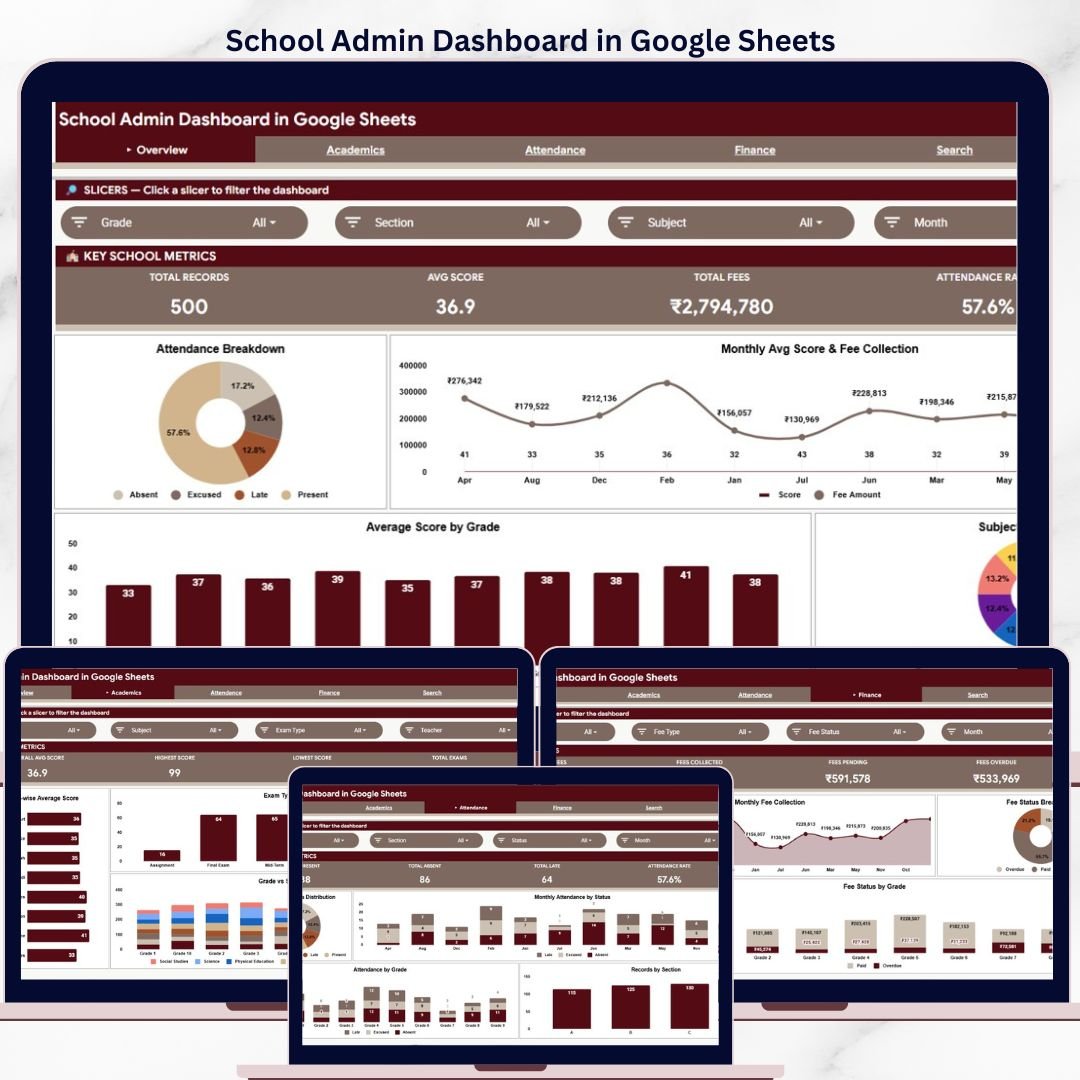
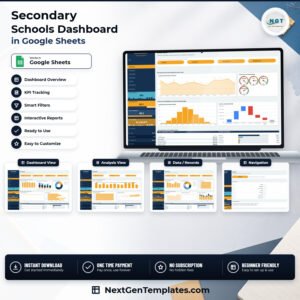
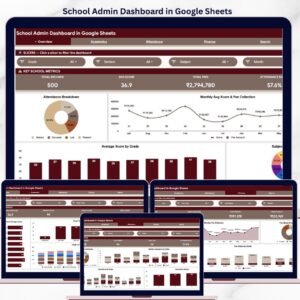
The School Admin Dashboard in Google Sheets tracks 4 KPIs across 6 interactive pages, with 16+ pre-built charts, slicer-driven filters, and a Student Record Lookup. Setup takes under 10 minutes — just replace the sample data on the Data sheet and every chart, card, and filter updates automatically.
🌍 Join 8,400+ teams in 40+ countries using NextGenTemplates to replace paid SaaS tools with one-time-purchase Excel, Google Sheets, Power BI, and HTML templates.
✅ Instant download · One-time payment · No subscription · No per-user fees · Lifetime access
Overview Page
🔑 Key Features of the School Admin Dashboard in Google Sheets
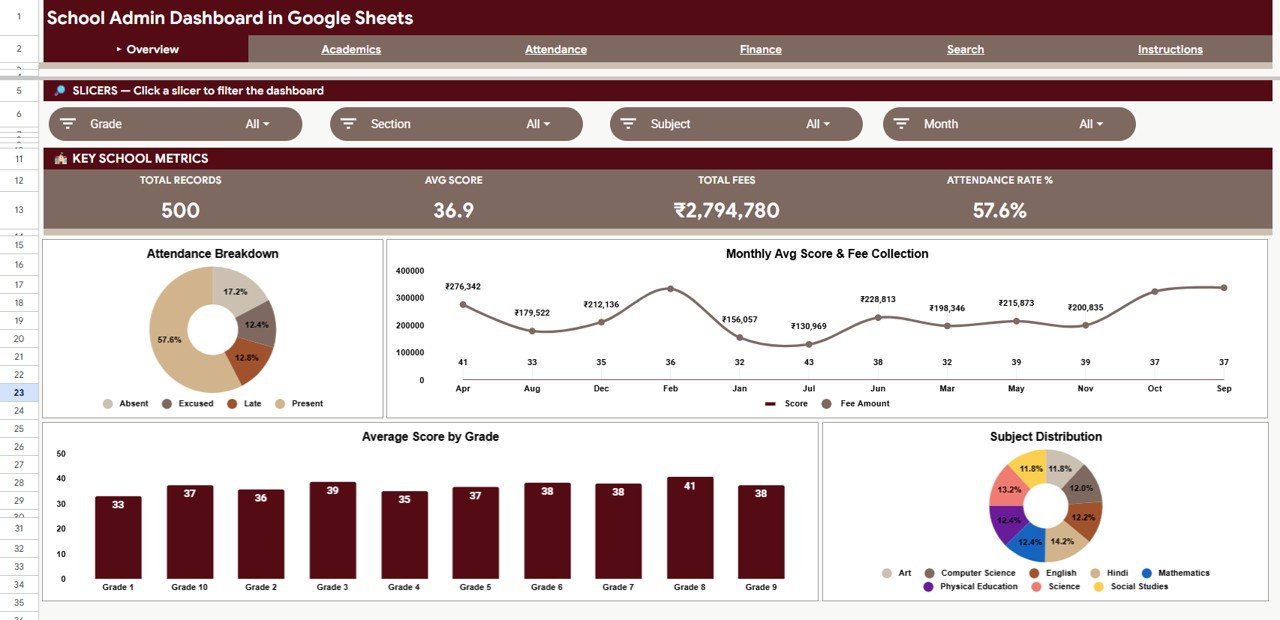
📊 4 KPI cards on the Overview page — Total Records, Avg Score, Total Fees, and Attendance Rate % refresh instantly when a slicer is changed or new data is entered on the Data sheet.
📈 16+ charts spread across 4 analysis pages — The Overview page shows Attendance Breakdown by Status, Monthly Avg Score and Fee Collection by Month, Average Score by Grade, and Subject Distribution by Subject. The Academics, Attendance, and Finance pages add 12 more focused charts covering exam-type performance, teacher-level metrics, grade-level fee status, and section-wise attendance records.
🎯 Slicer-driven filtering across all pages — Multiple slicers on the Overview page let you filter the entire dashboard by grade, section, subject, attendance status, or fee type. Results update across all connected charts in real time.
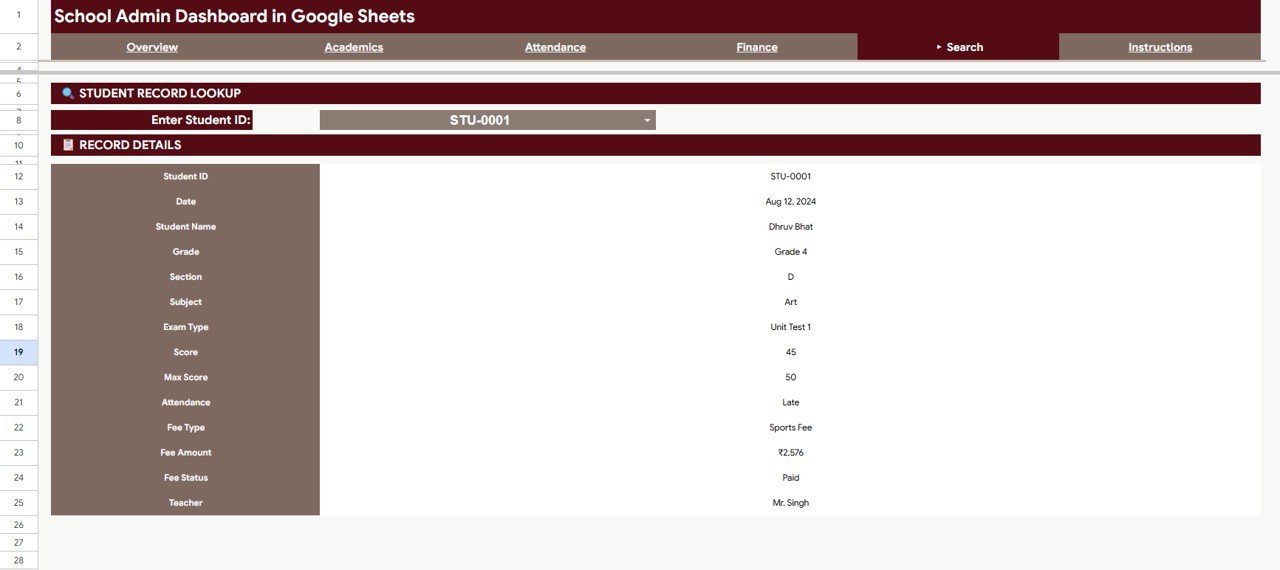
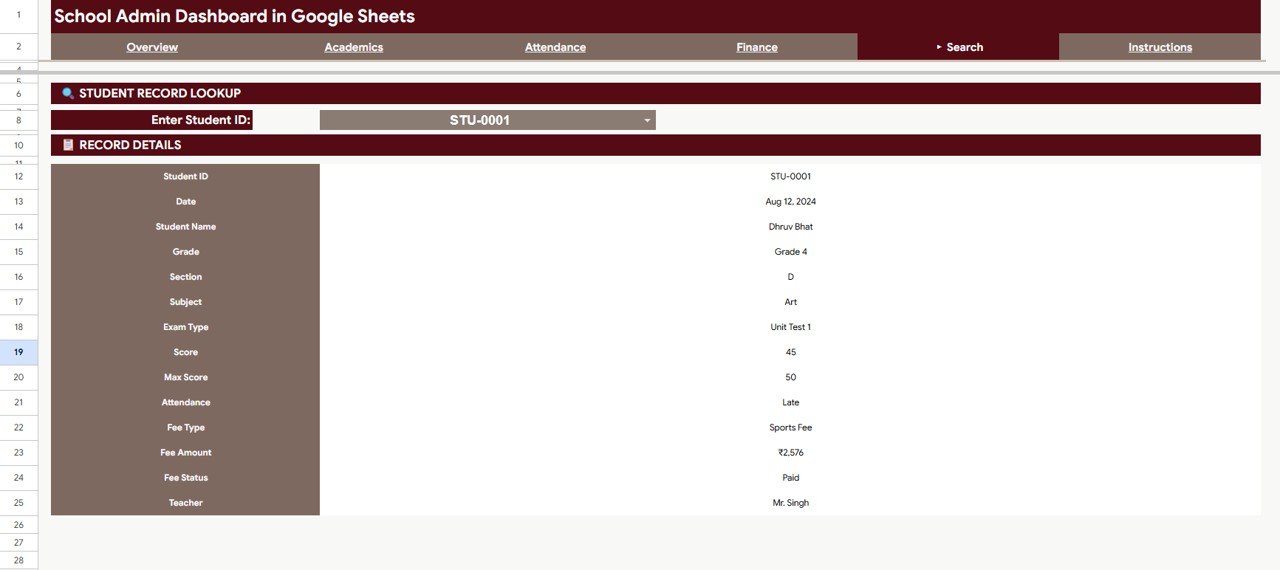
🔍 Student Record Lookup on the Search sheet — Enter any Student ID and the dashboard instantly pulls up the complete record: Date, Student Name, Grade, Section, Subject, Exam Type, Score, Max Score, Attendance, Fee Type, Fee Amount, Fee Status, and Teacher. No formulas to edit — just type and search.
💻 Works in any browser — Built entirely in Google Sheets with no macros, add-ons, or desktop software. All you need is a free Google account. Share with your team via a link and collaborate in real time.
If you manage school data across academics, attendance, and finances, this dashboard brings everything into one place. Explore more Google Sheets Dashboard Templates in our collection.
📦 What’s Inside the School Admin Dashboard in Google Sheets
The dashboard is organized into 6 sheet tabs. The Overview page displays 4 KPI cards — Total Records, Avg Score, Total Fees, and Attendance Rate % — alongside 4 charts: Attendance Breakdown by Status, Monthly Avg Score and Fee Collection by Month, Average Score by Grade, and Subject Distribution by Subject. Multiple slicers at the top let you filter results across every chart on this page.
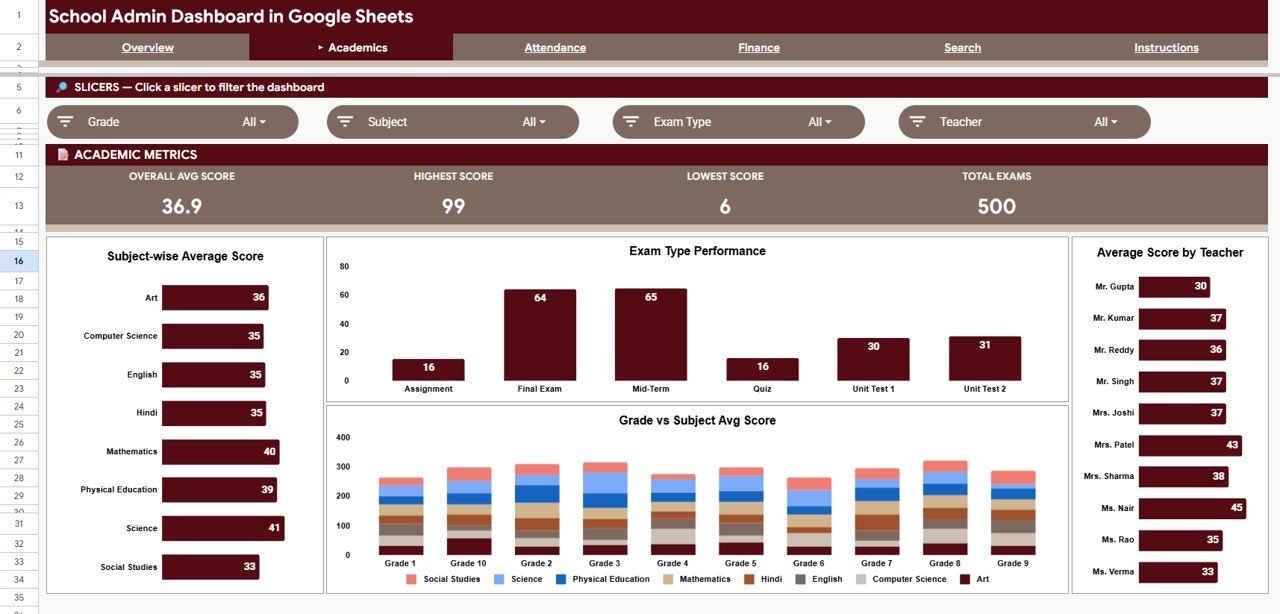
Academics Page
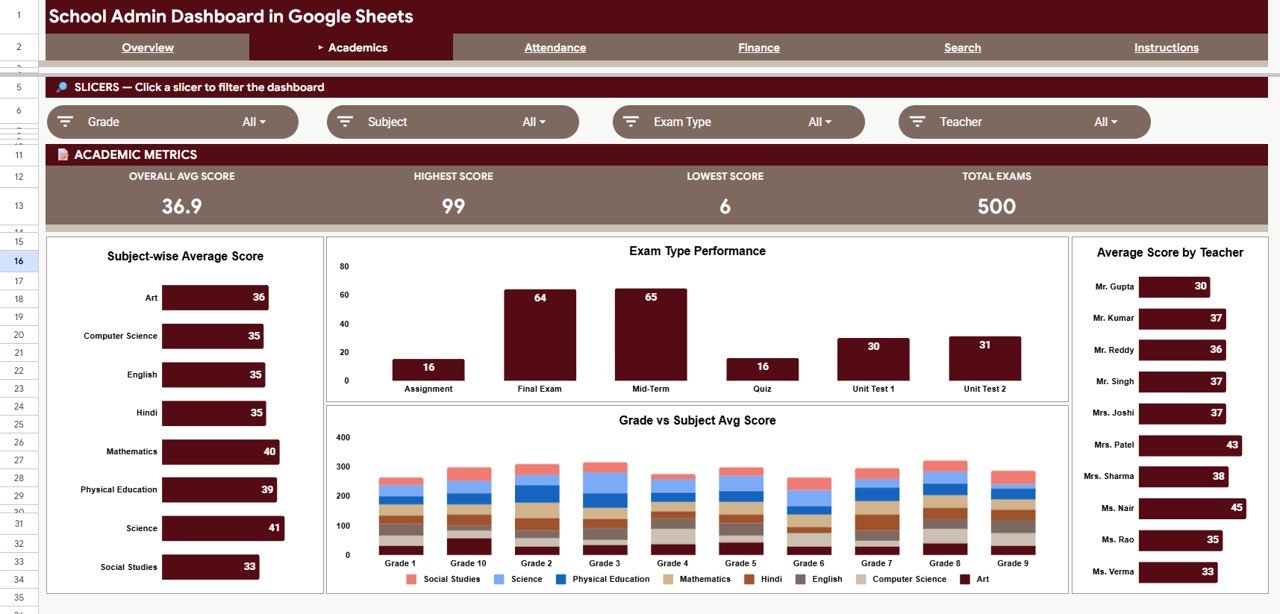
The Academics page breaks down student performance with 4 charts: Subject-wise Average Score by Subject, Exam Type Performance by Exam Type, Grade vs Subject Avg Score by Grade, and Average Score by Teacher. This page helps principals and coordinators identify which subjects, grades, and teachers need attention.
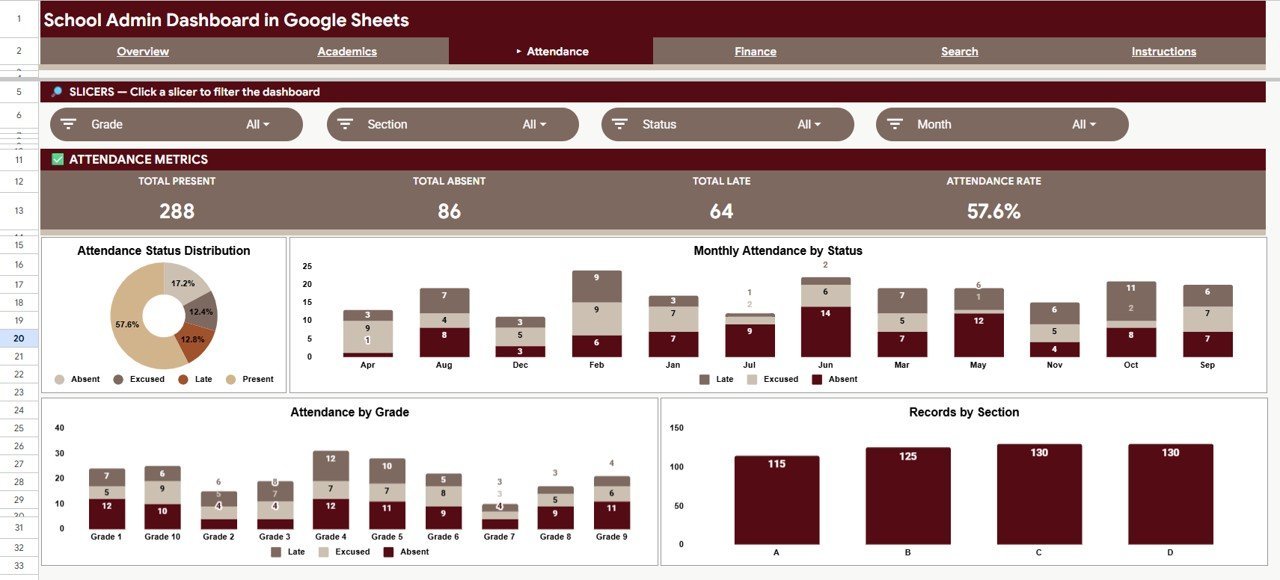
Attendance Page
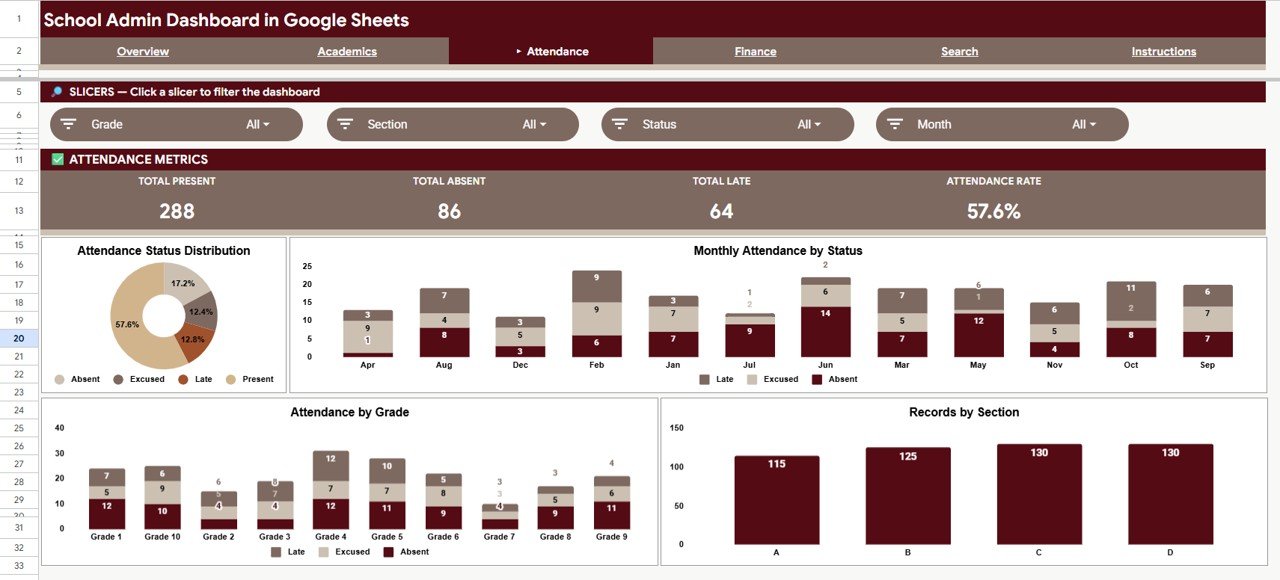
The Attendance page visualizes attendance patterns through 4 charts: Attendance Status Distribution by Status, Monthly Attendance by Status, Attendance by Grade, and Records by Section. Track present, absent, and late trends across months, grades, and sections at a glance.
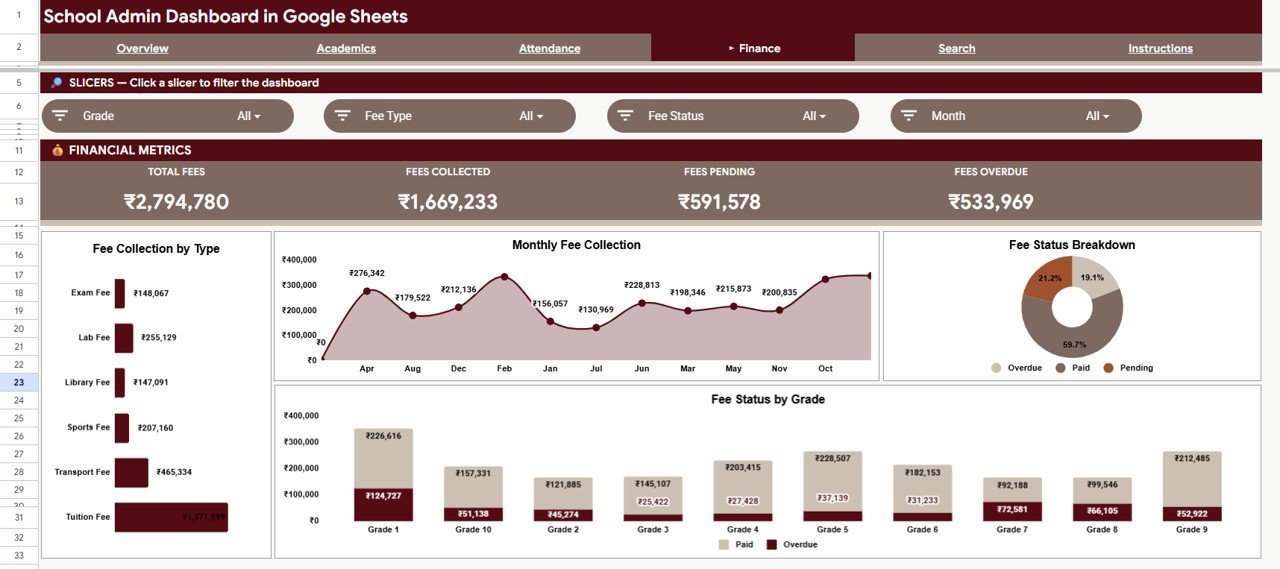
Finance Page
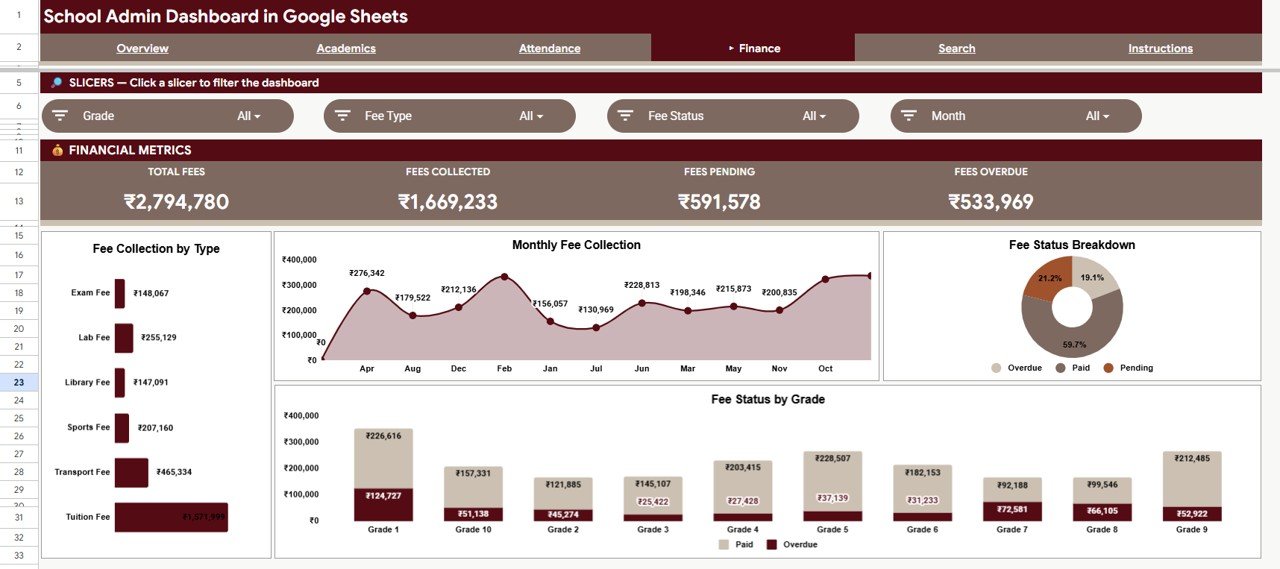
The Finance page tracks school fee collection with 4 charts: Fee Collection by Type, Monthly Fee Collection by Month, Fee Status Breakdown by Status, and Fee Status by Grade. Identify overdue fees, track monthly trends, and compare fee statuses across grades instantly.
Search Sheet
The Search sheet provides a Student Record Lookup. Enter a Student ID and the dashboard instantly pulls up the complete record — Date, Student Name, Grade, Section, Subject, Exam Type, Score, Max Score, Attendance, Fee Type, Fee Amount, Fee Status, and Teacher.
Data Sheet
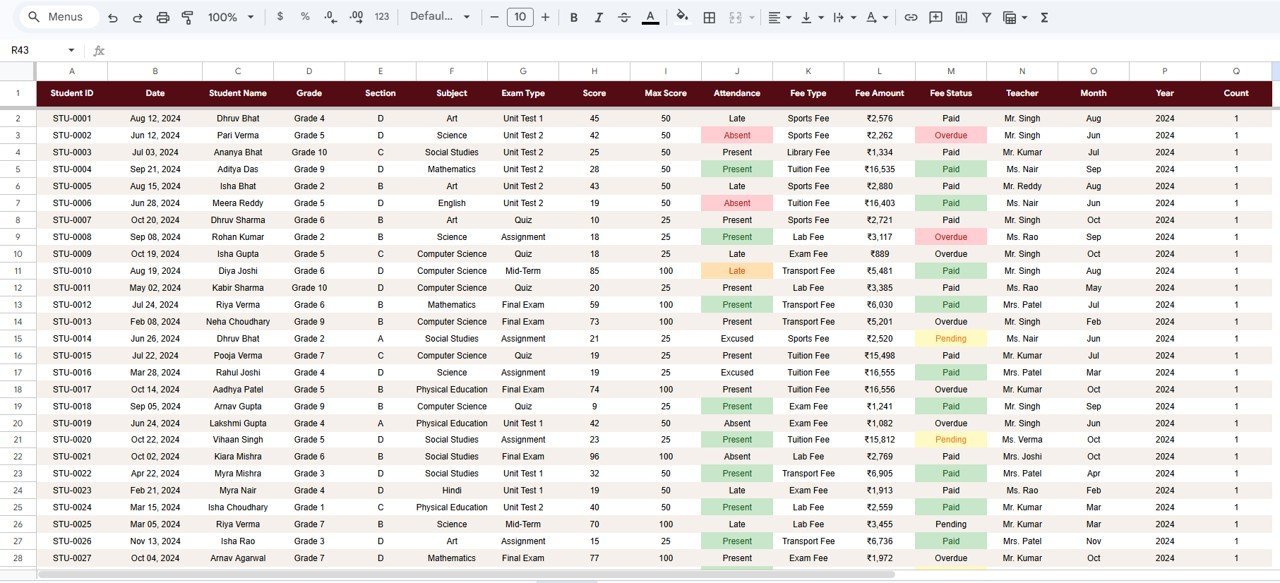
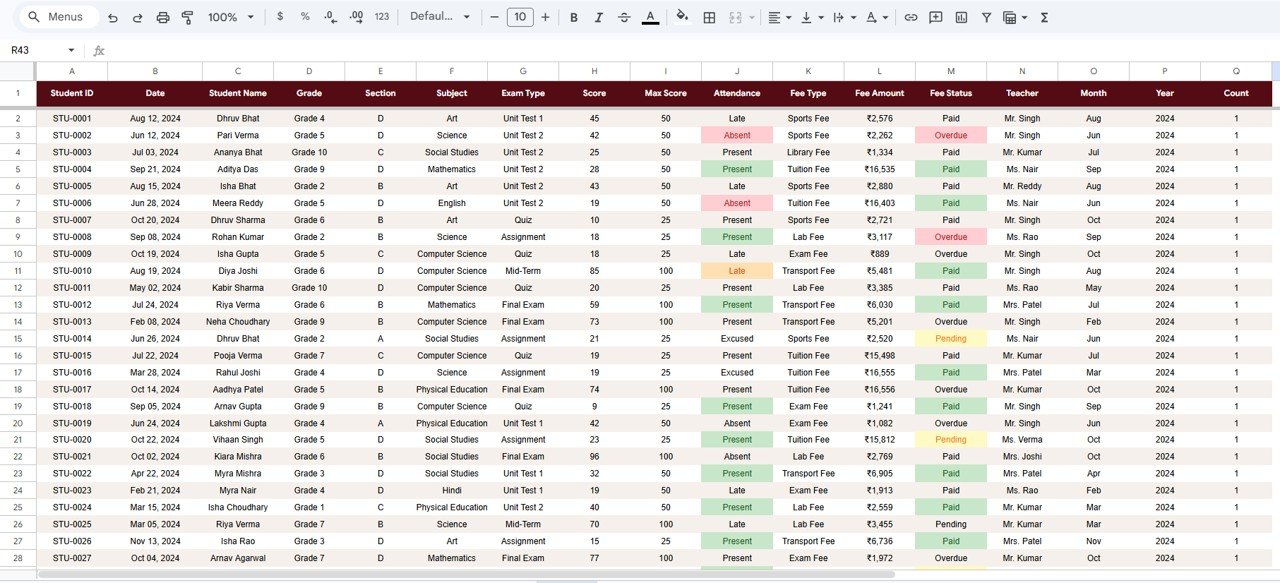
The Data sheet is where you enter your records. Add or replace rows in the same column format and every page in the dashboard updates automatically. No formulas to adjust.
📊 School Admin Dashboard in Google Sheets vs. Excel School Dashboard vs. Paid School SaaS — Where This Fits
| Feature | School Admin Dashboard in Google Sheets | Excel School Dashboard | PowerSchool / Classter SaaS |
|---|---|---|---|
| Cost | $9.99 one-time | $14.99 – $17.99 one-time | $3 – $10 / student / month |
| Platform | Google Sheets (any browser) | Microsoft Excel (desktop) | Cloud-based SaaS |
| Setup Time | Under 10 minutes | 10–15 minutes | 2–4 weeks onboarding |
| Real-Time Collaboration | ✅ Built-in (Google Sheets) | Limited (OneDrive required) | ✅ Yes |
| Mobile Access | ✅ Google Sheets app | Limited mobile support | ✅ Mobile app |
| Customizable Fields | ✅ Fully editable | ✅ Fully editable | Limited by plan tier |
| Share with Link | ✅ One click | ❌ Requires OneDrive | ✅ Role-based access |
| Year-1 Cost (5 Teachers) | $9.99 total | $14.99 – $17.99 total | $1,800 – $6,000+ |
| Student Record Lookup | ✅ Instant by Student ID | ❌ Not included | ✅ Built-in search |
For schools that need academic, attendance, and fee tracking without paying per-student SaaS fees, the School Admin Dashboard in Google Sheets sits in the sweet spot.
👥 Who This Template Is For — and Who It’s Not For
✅ This template is built for:
- School principals and vice principals who want a single view of academics, attendance, and fee collection
- School administrators at K-12 institutions with up to 1,000 students who track data in spreadsheets
- Academic coordinators who need subject-wise and teacher-wise performance breakdowns
- Small private school owners who want a dashboard without paying per-student SaaS fees
❌ This template is NOT for:
- Large school districts (5,000+ students) needing multi-campus rollup, SSO, and API integrations
- Schools requiring parent portal access, LMS integration, or automated report card generation
⚙️ How to Use the School Admin Dashboard in Google Sheets
- Open the PDF guide included in your download and click the Google Sheets copy link to create your own editable copy in Google Drive.
- Go to the Data sheet and replace the sample rows with your school’s student records — keep the same column format.
- Navigate to the Overview page to see your KPI cards and charts update automatically with your data.
- Use the slicers at the top of the Overview page to filter by grade, section, subject, or any other field.
- Check the Academics, Attendance, and Finance pages for detailed breakdowns of each area.
- Use the Search sheet to look up individual student records by entering their Student ID.
💼 Real-World Use Cases
Priya manages administration at a 400-student private school in Bangalore. She uses the School Admin Dashboard in Google Sheets to track attendance rates across 12 sections, monitor fee collection status by grade, and identify students with declining scores. Before this template, she relied on 4 separate Excel files and a paid attendance app. Now she shares one Google Sheet link with her team and saves 3 hours weekly on reporting.
James is the principal of a charter school in Texas with 250 students. He opens the Overview page every Monday morning to check Attendance Rate % and Total Fees collected. The Finance page shows him which grades have the most overdue fees, and the Academics page highlights subjects where average scores have dipped below 70%. He uses the Search sheet to pull up records for parent-teacher conferences.
Maria coordinates academics at a bilingual elementary school in Mexico City. She filters the Academics page by teacher to compare performance across Spanish and English subject teachers. The slicer-driven charts help her prepare monthly reports for the school board without building pivot tables from scratch. Her team of 5 teachers accesses the same dashboard simultaneously via Google Sheets.
❓ Frequently Asked Questions
What KPIs does the School Admin Dashboard in Google Sheets track?
The School Admin Dashboard in Google Sheets tracks 4 headline KPIs: Total Records, Avg Score, Total Fees, and Attendance Rate %. These cards appear on the Overview page and update automatically when you change data or apply slicer filters.
How many charts are included in the School Admin Dashboard?
The School Admin Dashboard in Google Sheets includes 16+ charts across 4 analysis pages — Overview, Academics, Attendance, and Finance. Each page contains 4 charts covering different aspects of school data such as subject scores, monthly trends, and fee status breakdowns.
Can I search for a specific student’s record?
Yes. The Search sheet in the School Admin Dashboard in Google Sheets lets you enter any Student ID to instantly pull up the complete record including grades, scores, attendance, fee amount, fee status, and teacher name — all in one row.
How does this compare to PowerSchool or Classter?
PowerSchool and Classter charge $3 to $10 per student per month with multi-week onboarding. The School Admin Dashboard in Google Sheets costs $9.99 one-time, sets up in under 10 minutes, and covers academics, attendance, and fee tracking for schools with up to 1,000 students.
Do I need Microsoft Excel to use this dashboard?
No. The School Admin Dashboard runs entirely in Google Sheets inside your browser. All you need is a free Google account. No Excel, no desktop software, no add-ons required.
Can multiple teachers access the dashboard at the same time?
Yes. Google Sheets supports real-time collaboration. Share the dashboard link with your team and everyone can view or edit simultaneously — no per-user fees, no licenses.
How long does setup take?
Setup takes under 10 minutes. Open the PDF guide, click the copy link to create your Google Sheets copy, go to the Data sheet, replace the sample records with your own data, and the entire dashboard updates automatically.
👤 About the Author
Built by PK — Microsoft Certified Professional with 15+ years of Excel, Google Sheets, and Power BI experience. Founder of NextGenTemplates, reaching 300K+ subscribers across YouTube channels (@PK-AnExcelExpert, @NextGenTemplates, @NeoTechNavigators). Every template is hand-built and tested before release.
🔗 Explore Related Templates
🏫 Daycare Center Dashboard in Google Sheets — Track enrollment, attendance, billing, and staff performance for childcare centers.
🎵 Music School Dashboard in Excel — Monitor student progress, lesson revenue, and instructor performance across music programs.
🎓 Virtual Classrooms KPI Dashboard in Excel — Track student engagement, session completion, and instructor ratings for online learning.
📊 Fitness Performance and Revenue Dashboard in Google Sheets — Analyze member retention, class attendance, and revenue trends.
Browse our full Google Sheets Dashboard Templates catalog for 250+ ready-to-use templates.
📖 Click here to read the Detailed Blog Post
Watch the step-by-step video tutorial:
🎥 Visit our YouTube channel for step-by-step video tutorials
👉 YouTube.com/@NextGenTemplates










Reviews
There are no reviews yet.