


🔑 Key Features of the Nonprofit Fundraising Dashboard in Google Sheets
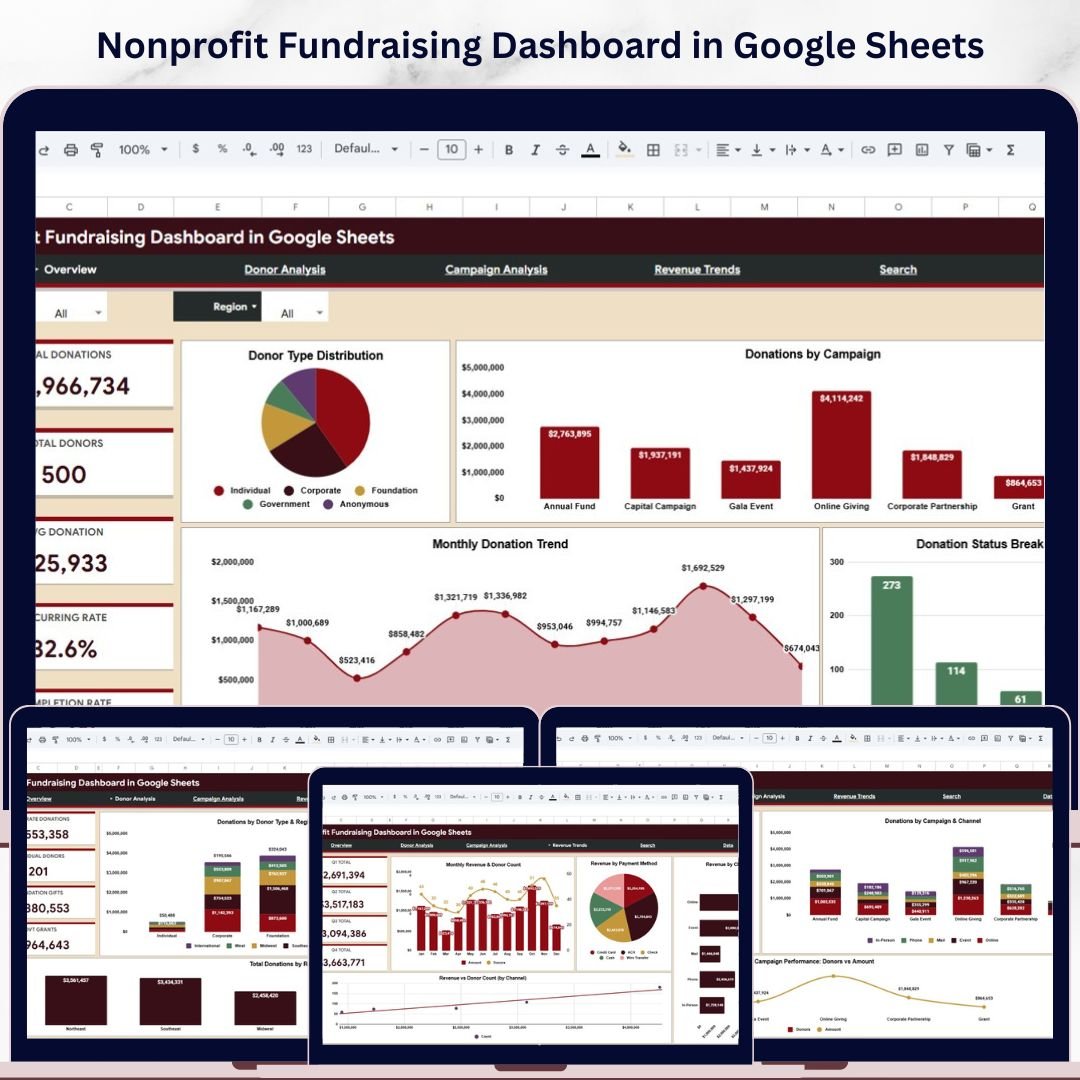
The Nonprofit Fundraising Dashboard in Google Sheets is a powerful, ready-to-use analytics template built specifically for nonprofit organizations that want to track donations, analyze donor behavior, and measure campaign performance — all within Google Sheets. This dashboard includes 5 interactive pages covering every aspect of your fundraising operations, from high-level KPI summaries to granular donation record lookups. Whether you run a small community nonprofit or a large charitable foundation, this template gives you instant visibility into your fundraising pipeline with zero setup hassle. It tracks 5 key performance indicators including Total Donations, Total Donors, Average Donation, Recurring Rate, and Completion Rate across multiple analytical views.
Unlike complex BI tools, this Google Sheets fundraising dashboard works right inside your browser — no software installation, no licensing fees, no learning curve. Simply open the template in Google Drive, replace the sample data with your real donation records, and watch all charts and KPIs update automatically. The template is perfect for nonprofit managers, fundraising coordinators, development directors, and board members who need data-driven insights without the overhead of enterprise analytics platforms. Explore our full collection of Google Sheets Dashboard Templates for more ready-to-use solutions.
📦 What’s Inside the Nonprofit Fundraising Dashboard
1. Overview Page
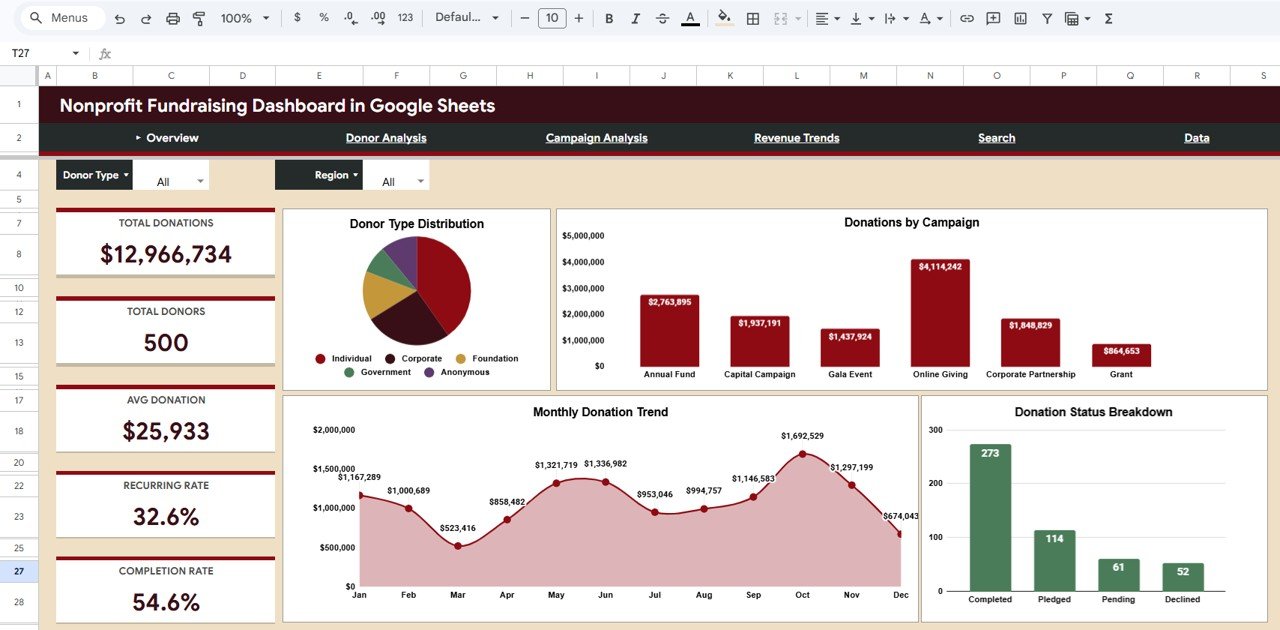
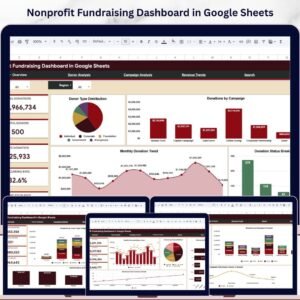
The Overview page serves as your fundraising command center with high-level KPI cards showing Total Donations, Total Donors, Average Donation, Recurring Rate, and Completion Rate. Below the cards, you will find insightful charts including Donations by Donor Type, Donations by Campaign, Monthly Donation Trend, and Donation Status breakdown. Multiple interactive slicers let you filter the entire dashboard by specific criteria for quick drill-down analysis. This page gives you a complete snapshot of your fundraising health in seconds.
Nonprofit Fundraising Dashboard in Google Sheets
2. Donor Analysis Page
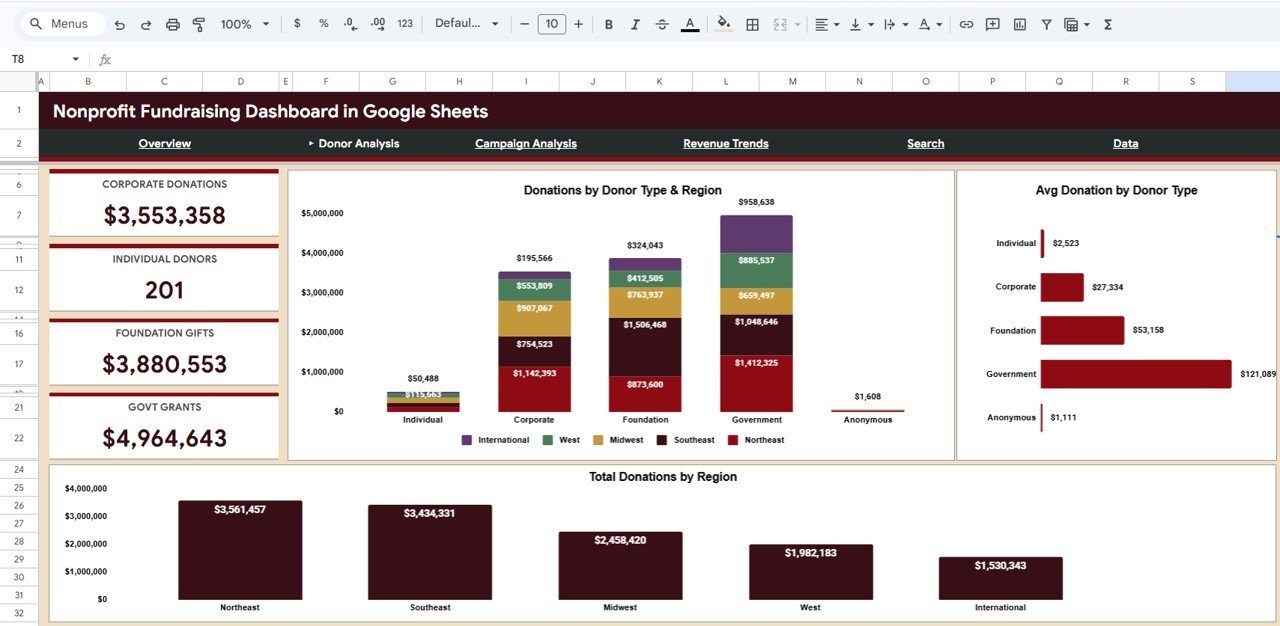
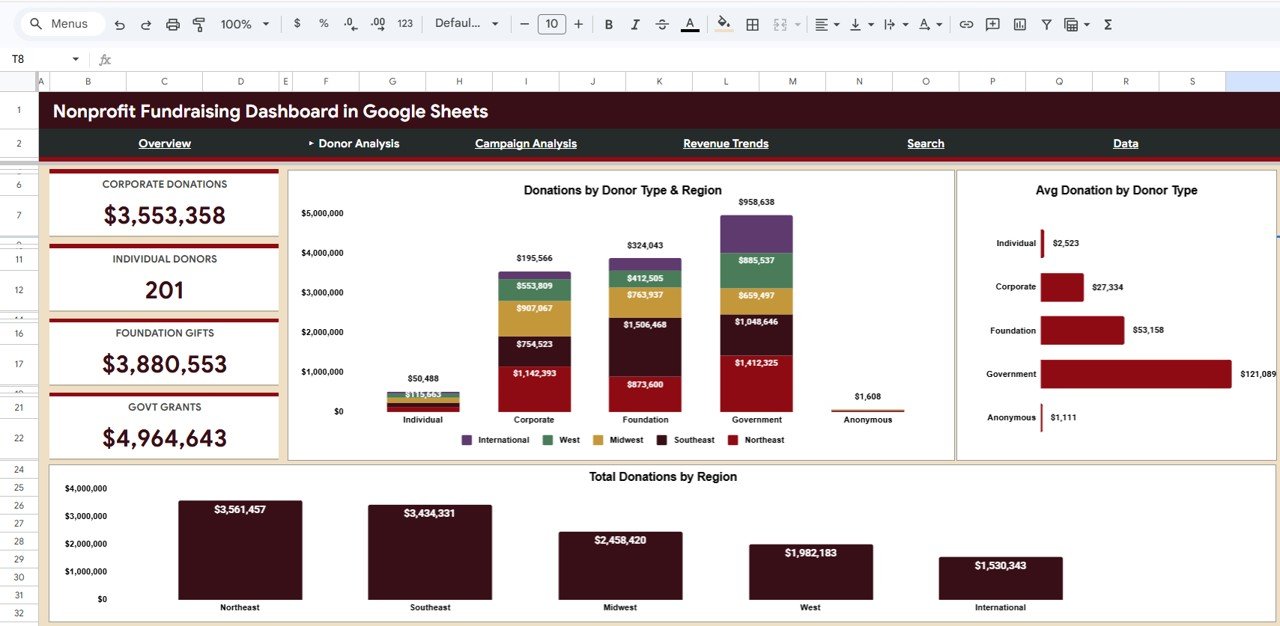
The Donor Analysis page dives deep into your donor base with three powerful visualizations: Donations by Donor Type and Region, Average Donation by Donor Type, and Total Donations by Region. This page helps you understand which donor segments contribute the most and which geographic regions have the highest giving potential. Use these insights to focus your outreach efforts where they matter most. If you also manage donation workflows, check out the Corporate Donation Request Tracker in Google Sheets.
Donor Analysis
3. Campaign Analysis Page
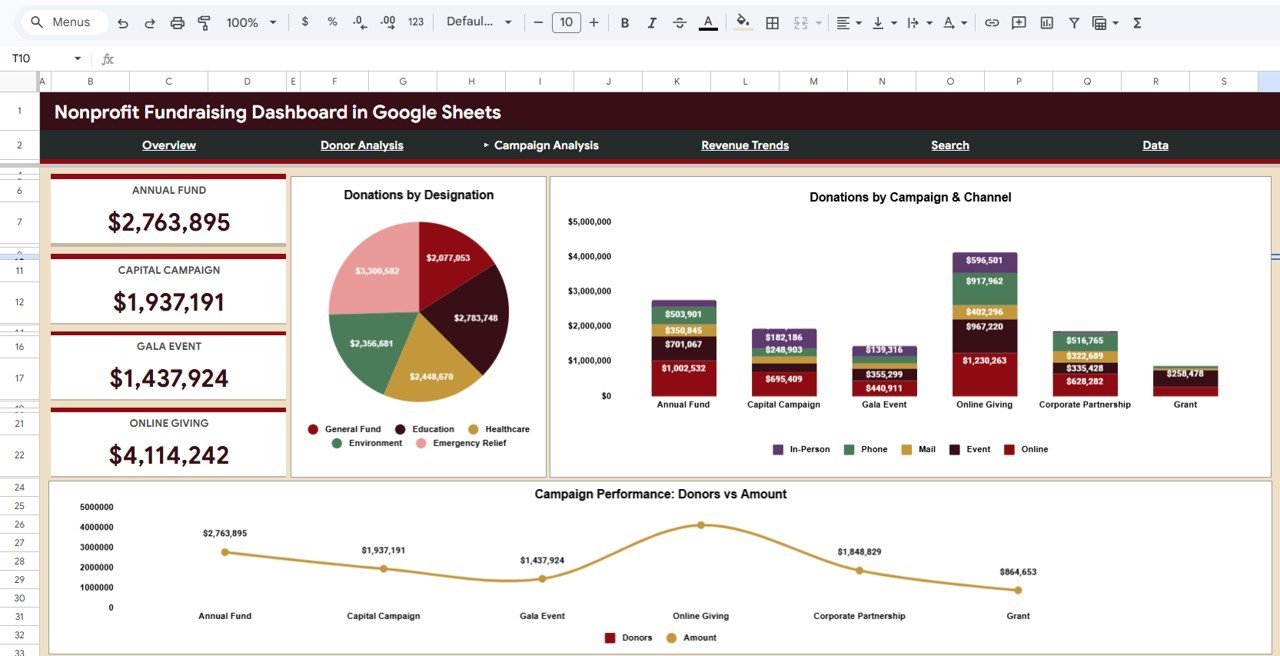
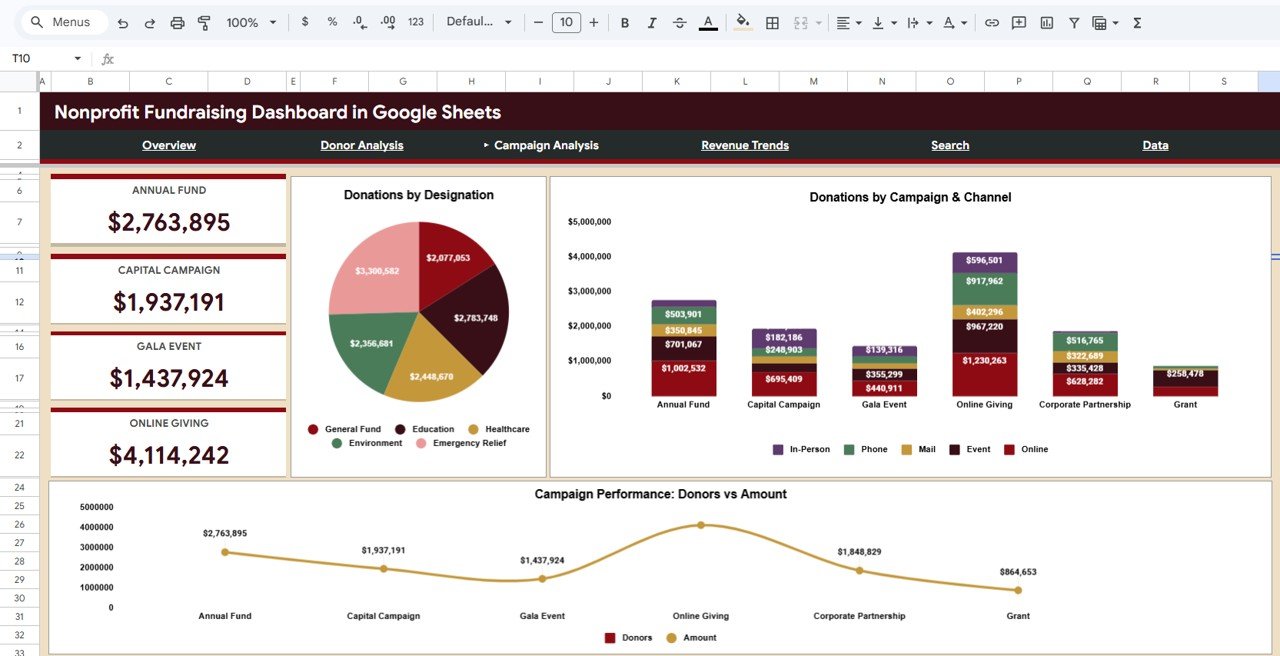
The Campaign Analysis page breaks down your fundraising campaigns with charts showing Donations by Designation, Donations by Campaign and Channel, and Campaign Performance comparing Donors vs Amount by Campaign. This view is essential for understanding which campaigns deliver the best ROI and which acquisition channels are most effective. Pair this with the Nonprofit Fundraising Dashboard in Power BI for advanced enterprise-level analytics Nonprofit Fundraising Dashboard in Google Sheets
Campaign Analysis
4. Revenue Trends Page
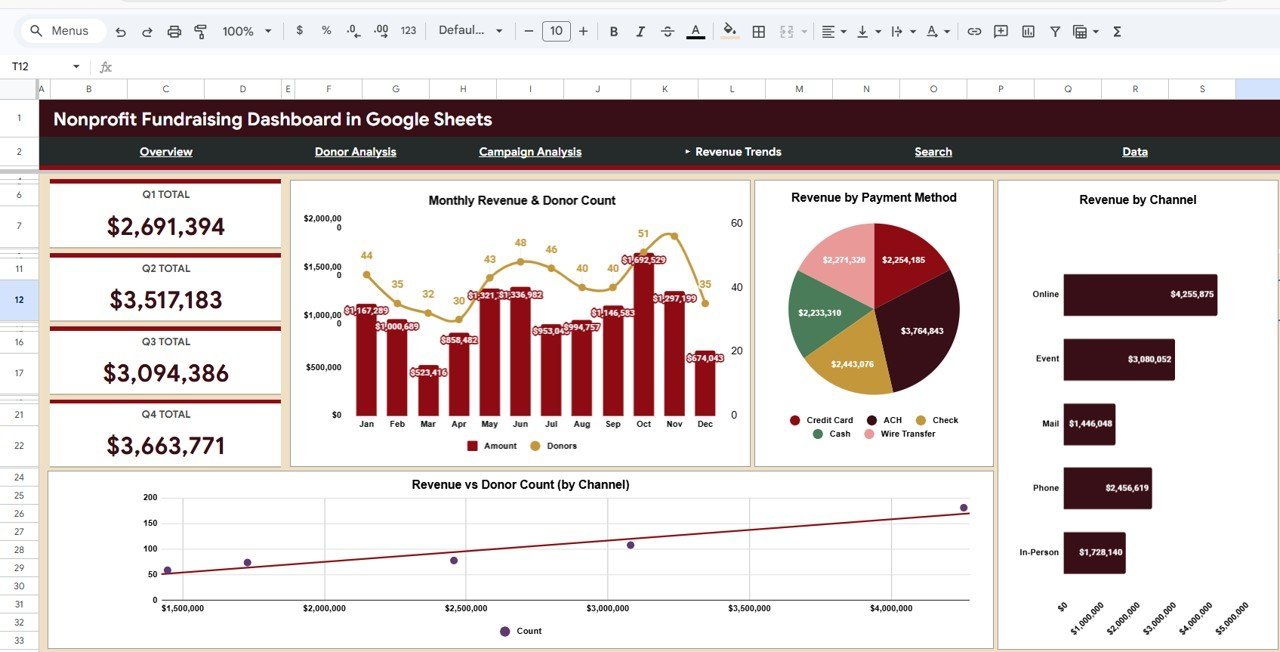
The Revenue Trends page provides time-based analysis with Monthly Revenue and Donor Count by Month, Revenue by Payment Method, Revenue by Channel, and Revenue vs Donor Count by Channel. Track how your fundraising revenue evolves over time, identify seasonal patterns, and determine which payment methods and channels drive the most income. This is your go-to page for strategic planning and forecasting. For a broader view of organizational finances, explore the Nonprofit Fundraising Dashboard in Excel.
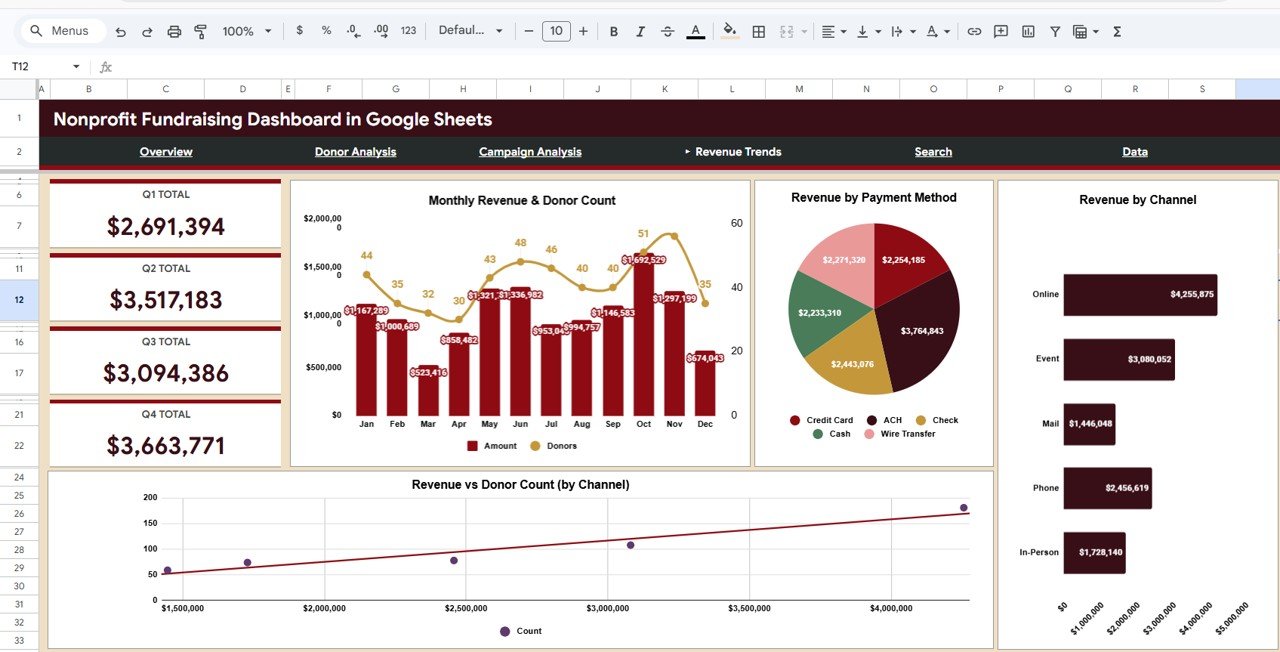
Revenue Trends
5. Search Page
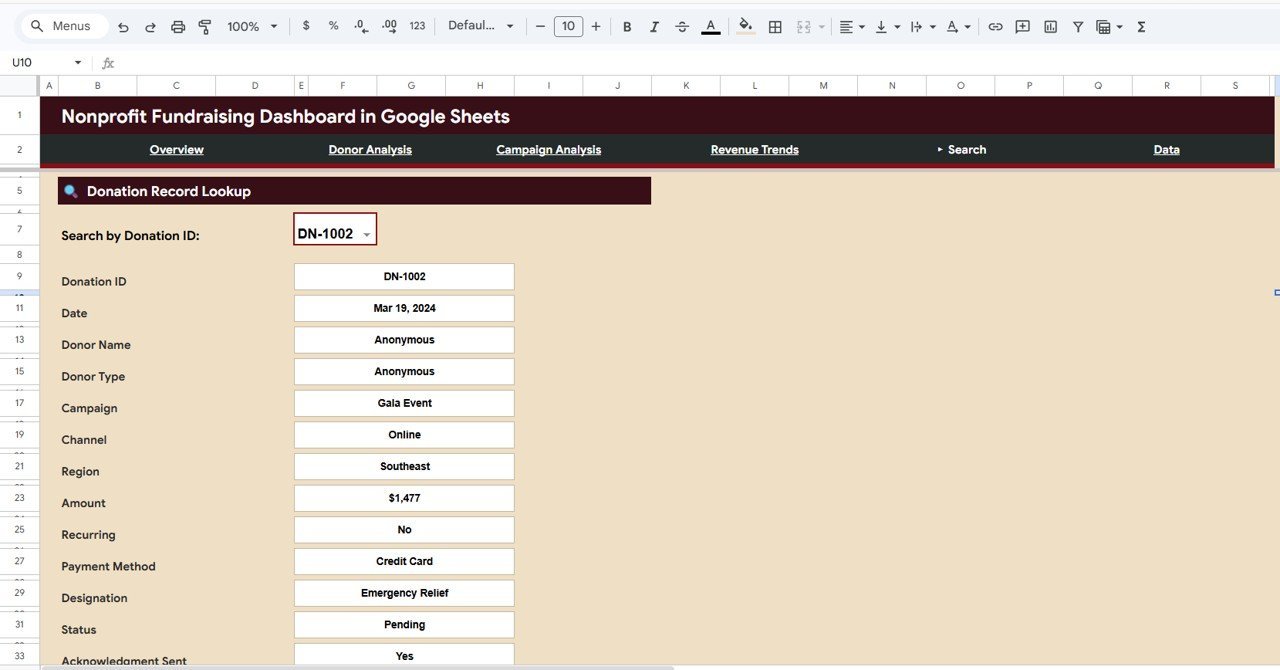
The Search Page features a Donation Record Lookup tool. Select any Donation ID from the dropdown and instantly view the full details of that donation — including Date, Donor Name, Donor Type, Campaign, Channel, Region, Amount, Recurring status, Payment Method, Designation, Status, and Acknowledgment Sent. This page is perfect for quickly verifying individual donation records or answering donor inquiries.
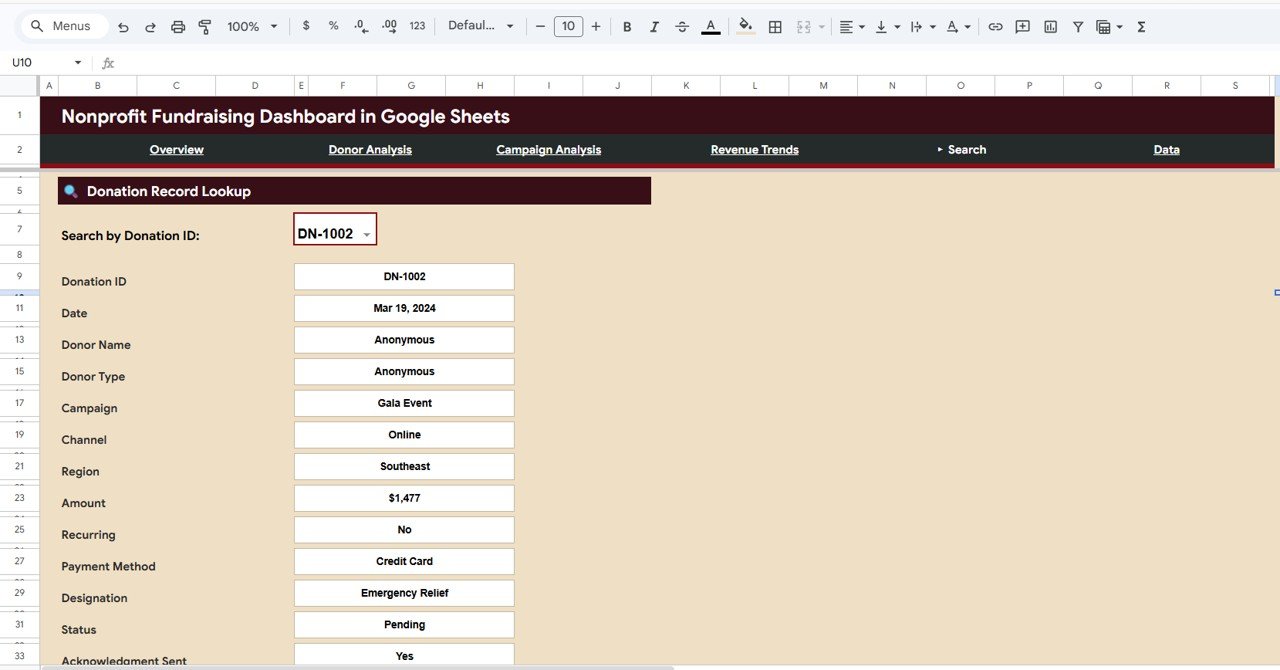
Search Sheet Tab
6. Data Sheet
The Data Sheet is where you enter all your donation records in a pre-structured format. Simply follow the column layout and add your data — all dashboard pages, charts, and KPIs will update automatically based on the information you enter here.
Data Sheet Tab
⚙️ How to Use the Nonprofit Fundraising Dashboard
1️⃣ Download the template and open the PDF guide included in your purchase
2️⃣ Click the Google Sheets copy link in the PDF to create your own editable copy in Google Drive
3️⃣ Navigate to the Data Sheet tab and replace the sample data with your actual donation records
4️⃣ All 5 dashboard pages will auto-update with your real data — charts, KPIs, and filters refresh instantly
5️⃣ Use slicers on the Overview page to filter and drill down into specific time periods, campaigns, or donor types
6️⃣ Use the Search Page to look up individual donation records by Donation ID
👥 Who Can Benefit from This Nonprofit Fundraising Dashboard
📌 Nonprofit Executive Directors – Get a clear picture of fundraising performance for board meetings and strategic planning
📌 Development and Fundraising Managers – Track campaign ROI, donor retention, and revenue trends in one place
📌 Grant Writers and Program Managers – Use data-backed insights to strengthen grant applications and reporting
📌 Volunteer Coordinators – Understand donor demographics and regional giving patterns to optimize volunteer outreach
📌 Board Members and Trustees – Access a visual summary of organizational fundraising health without digging through spreadsheets
❓ Frequently Asked Questions
What KPIs does the Nonprofit Fundraising Dashboard in Google Sheets track?
The Nonprofit Fundraising Dashboard in Google Sheets tracks 5 key performance indicators: Total Donations, Total Donors, Average Donation, Recurring Rate, and Completion Rate. These KPIs are displayed on the Overview page and update automatically when you enter your data.
Do I need advanced Google Sheets skills to use this template?
No. This dashboard is designed for users of all skill levels. Simply replace the sample data in the Data Sheet tab with your own donation records and all charts, KPIs, and filters update automatically. No formulas or scripts to configure.
Can I filter the dashboard by specific campaigns or donor types?
Yes. The Overview page includes multiple interactive slicers that let you filter the entire dashboard by criteria such as campaign name, donor type, region, and more for instant drill-down analysis.
What is the best Google Sheets template for tracking nonprofit donations?
The Nonprofit Fundraising Dashboard in Google Sheets is one of the best templates available for tracking nonprofit donations. It offers 5 interactive pages covering donor analysis, campaign performance, revenue trends, and a powerful donation record search feature — all in a cloud-based, no-install format.
How do I look up a specific donation record in this dashboard?
Navigate to the Search Page tab and select a Donation ID from the dropdown menu. The page will instantly display all details for that donation including Date, Donor Name, Campaign, Amount, Payment Method, Status, and whether an acknowledgment was sent.
Is this template compatible with other nonprofit tools?
Yes. Since it runs in Google Sheets, you can easily export data from your CRM, donation platform, or accounting system into CSV format and paste it into the Data Sheet tab. The dashboard adapts to any data source as long as the column structure is followed.
🔗 Explore Related Templates
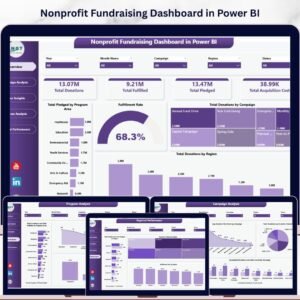
📊 Nonprofit Fundraising Dashboard in Power BI – Advanced nonprofit analytics with Power BI interactive visuals and DAX-powered KPIs
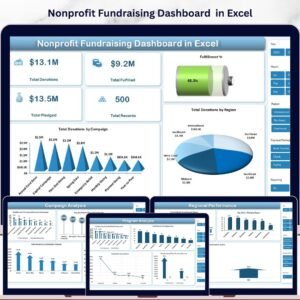
📊 Nonprofit Fundraising Dashboard in Excel – Classic Excel version with pivot tables and automated charts for desktop users
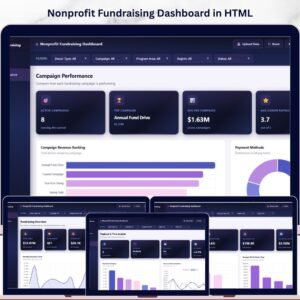
📊 Nonprofit Fundraising Dashboard in HTML – Browser-based interactive dashboard with modern SaaS-style design
📊 Social Services KPI Scorecard in Google Sheets – Track social services performance with KPI scorecards in Google Sheets
📖 Click here to read the Detailed Blog Post
Watch the step-by-step video tutorial:
🎥 Visit our YouTube channel to learn step-by-step video tutorials
👉 YouTube.com/@NextGenTemplates
Compatibility and Requirements
- Works in Google Sheets with a free Google account and a web browser.
- Make your own copy from the Google Sheets link in the included PDF guide.
- Google explains how charts work in Sheets in Add & edit a chart or graph.










Reviews
There are no reviews yet.