





Modern marketing teams deal with constantly changing data. Campaign budgets, leads, channels, managers, and revenue figures evolve every day. However, when this information stays scattered across multiple tools, reports, and spreadsheets, teams lose clarity. As a result, marketers struggle to understand campaign ROI, channel effectiveness, and budget efficiency. That is exactly why the Marketing Analytics Dashboard in Google Sheets becomes an essential solution.
This ready-to-use dashboard transforms raw marketing data into clear KPIs, interactive charts, and actionable insights—all within a single Google Sheets file. Instead of switching between tools or building reports manually, marketing teams can monitor performance, optimize spending, and improve ROI using one centralized dashboard.
Because this dashboard is built entirely in Google Sheets, it remains cloud-based, collaborative, and cost-effective. There is no need for expensive BI software or complex integrations. You simply update your marketing data, and the dashboard automatically recalculates metrics and refreshes visuals in real time.

🚀 Key Features of the Marketing Analytics Dashboard
📊 All-in-One Marketing Performance View – Track campaigns, channels, leads, cost, and revenue in one place
💰 Cost vs Revenue Analysis – Measure ROI clearly at campaign, channel, and manager level
🎯 Lead Quality Metrics – Monitor Revenue per Lead and Cost per Lead
📈 Trend Analysis – Identify monthly performance patterns and seasonality
🧑💼 Campaign Manager Accountability – Compare performance across managers
🔍 Advanced Search Functionality – Find specific records instantly
☁️ 100% Google Sheets Based – No technical skills or BI tools required
These features help marketing teams move from guesswork to data-driven decision-making.
📦 What’s Inside the Marketing Analytics Dashboard
📌 Overview Sheet Tab
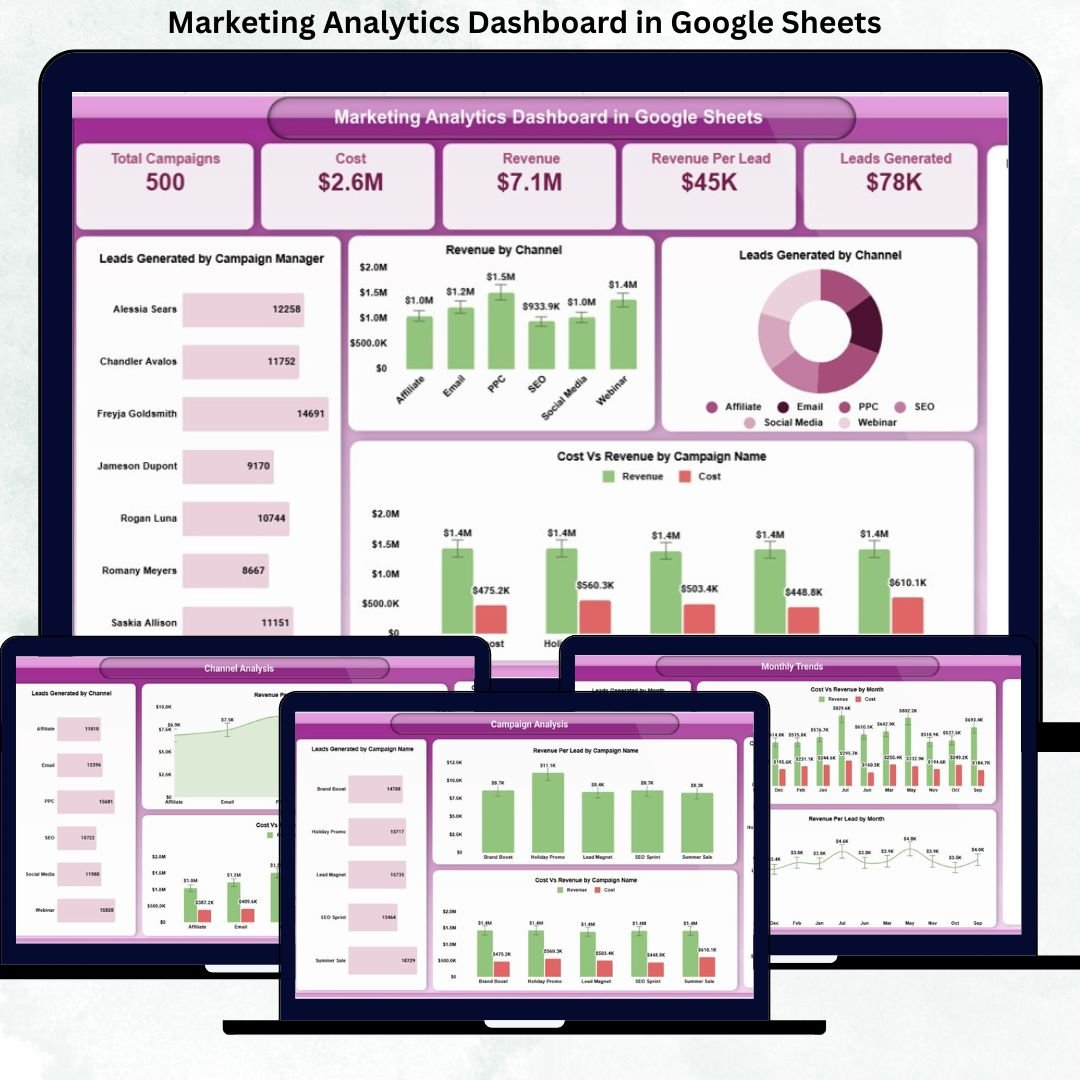
The Overview sheet acts as the executive summary of your entire marketing performance.
KPI Cards Display:
Total Campaigns – Number of active and completed campaigns
Cost – Total marketing spend
Revenue – Revenue generated from marketing efforts
Revenue per Lead – Lead quality indicator
Leads Generated – Total leads acquired
Charts Included:
Leads Generated by Campaign Manager
Revenue by Channel
Leads Generated by Channel
Cost vs Revenue by Campaign Name
Revenue by Campaign Manager
These visuals allow leadership to understand marketing efficiency in seconds.
📊 Campaign Analysis Section
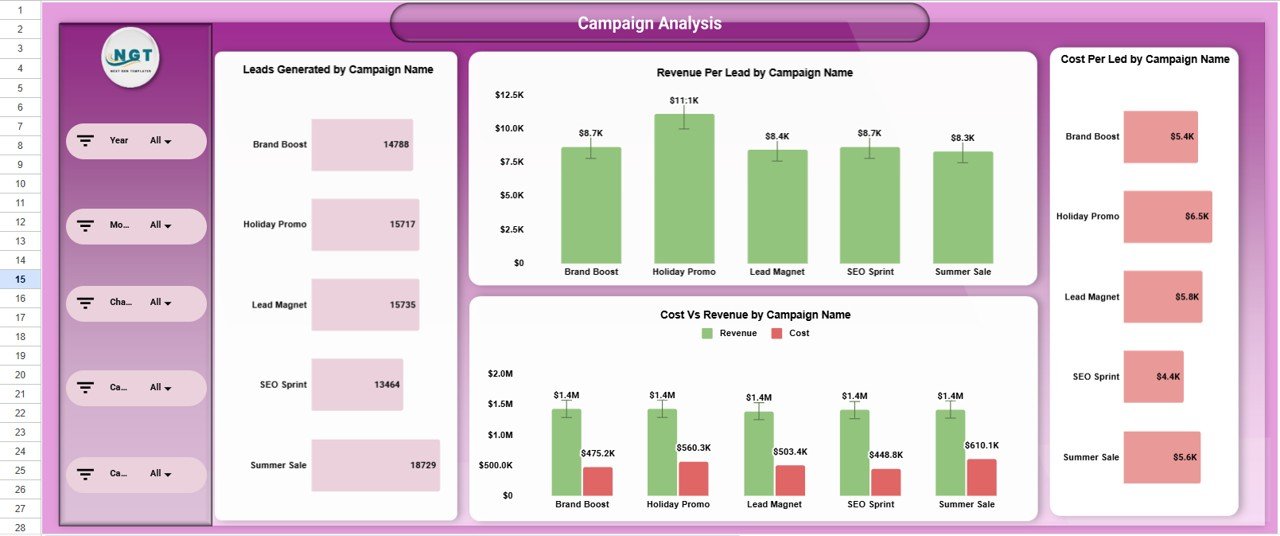
This section helps marketers evaluate individual campaign performance.
Charts include:
Leads Generated by Campaign Name
Revenue per Lead by Campaign Name
Cost per Lead by Campaign Name
Cost vs Revenue by Campaign Name
This analysis clearly shows which campaigns to scale, optimize, or stop.
📡 Channel Analysis Section
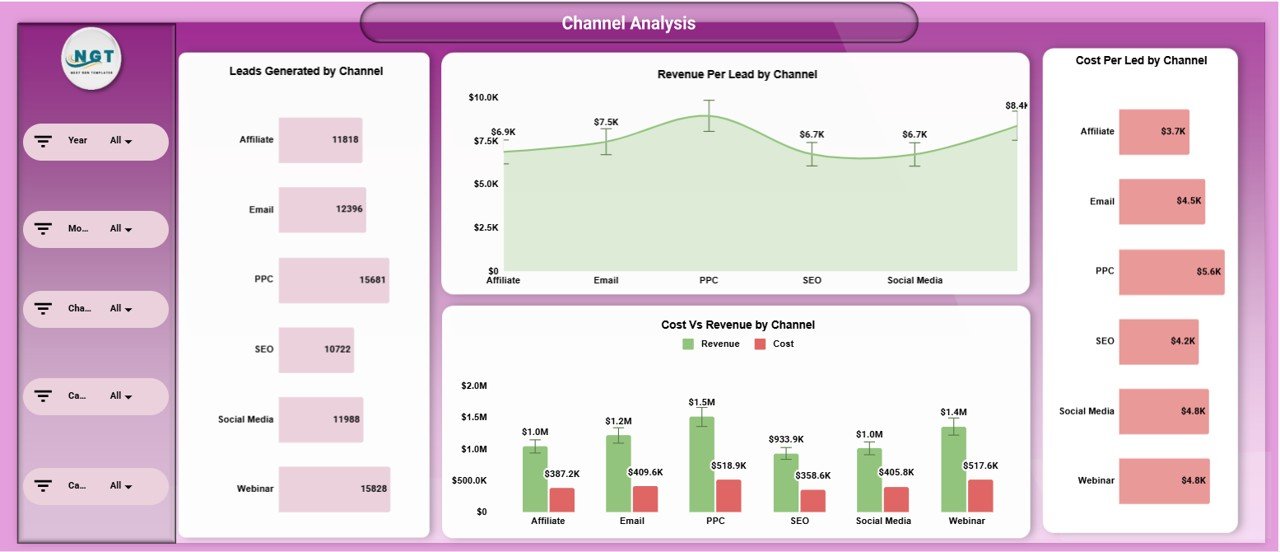
Understand how each marketing channel performs.
Charts include:
Leads Generated by Channel
Revenue per Lead by Channel
Cost per Lead by Channel
Cost vs Revenue by Channel
With these insights, teams can shift budgets toward high-performing channels.
🧑💼 Campaign Manager Analysis
Track performance by campaign owner.
Charts include:
Leads Generated by Campaign Manager
Cost vs Revenue by Campaign Manager
Cost per Lead by Campaign Manager
Revenue per Lead by Campaign Manager
This improves accountability, performance reviews, and workload planning.
📅 Monthly Trends Analysis
Identify growth patterns and seasonality.
Charts include:
Leads Generated by Month
Cost vs Revenue by Month
Cost per Lead by Month
Revenue per Lead by Month
Trend analysis helps teams plan future campaigns more effectively.
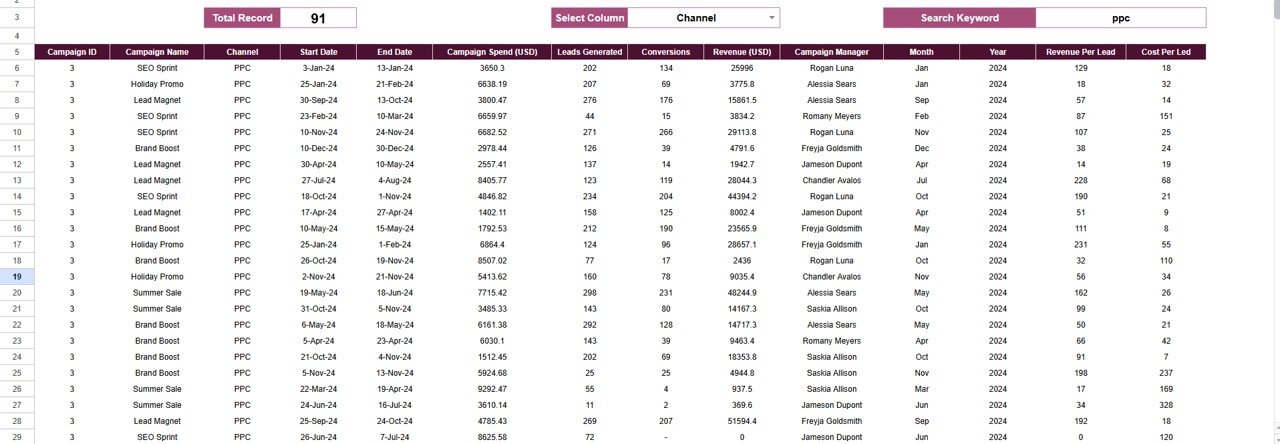
🔍 Search Functionality
The dashboard includes a smart search panel where you can:
Enter a Search Keyword (Campaign, Channel, Manager, Month, etc.)
Select a Field Name
Matching records appear instantly, saving hours of manual filtering during reviews, audits, or meetings.
🎯 Who Can Use This Dashboard
Marketing Managers
Digital Marketing Teams
Performance Marketers
Marketing Analysts
Business Owners & Founders
Marketing Agencies
### Click here to read the Detailed blog post
Watch the step-by-step video tutorial:
Visit our YouTube channel to learn step-by-step video tutorials — Youtube.com/@NeotechNavigators
Compatibility and Requirements
- Works in Google Sheets. You need a free Google account and a web browser.
- The charts and KPI cards recalculate when you update your campaign data. Google explains how charts work in Add and edit a chart or graph.
Frequently Asked Questions
Which KPIs does the dashboard show?
The Overview sheet has KPI cards for Total Campaigns, Cost, Revenue, Revenue per Lead and Leads Generated.
Can I compare campaigns, channels and managers?
Yes. The dashboard has separate analysis sections for campaigns, channels and campaign managers. Each one charts leads generated, cost per lead, revenue per lead and cost vs revenue.
Can I see monthly trends?
Yes. The Monthly Trends section charts leads generated, cost vs revenue, cost per lead and revenue per lead by month.
How do I find a specific record?
Use the search panel. Enter a keyword such as a campaign, channel, manager or month, pick a field name, and the matching records appear.
Is there an Excel or Power BI version?
Yes. See the Marketing Analytics Dashboard in Excel and the Marketing Analytics Dashboard in Power BI.
Related Marketing Templates
- Marketing Analytics Dashboard in Excel: the same dashboard for Excel
- Marketing Analytics Dashboard in Power BI: the Power BI edition
- Marketing Dashboard in Google Sheets: another marketing dashboard for Sheets
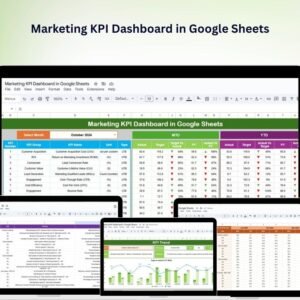
- Marketing KPI Dashboard in Google Sheets: a KPI-focused view of marketing metrics
- Marketing and Social Media Analytics Kit: 7 marketing analytics templates in one download
Browse all Google Sheets dashboards.






















Reviews
There are no reviews yet.