New: NextGenTemplates Academy - video courses on Excel formulas with AI and Pivot Tables & dashboards. Early-bird: 20% off with code EARLYBIRD20 - first 20 orders only.See the courses →
₹999.00Original price was: ₹999.00.₹699.00Current price is: ₹699.00.
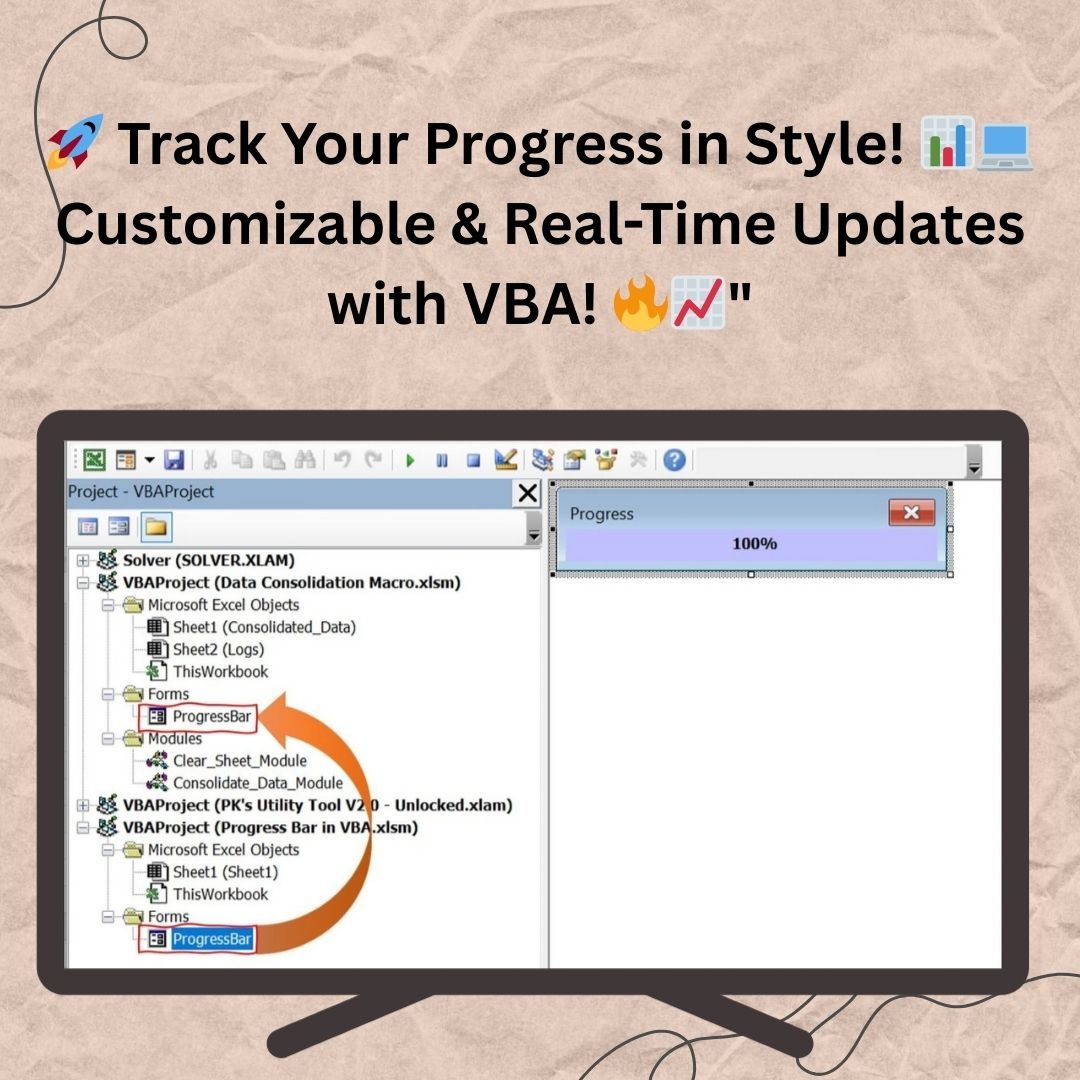
The Ultimate Progress Bar Control in VBA User Form is a sleek and customizable progress tracker that integrates seamlessly into your VBA projects. Easily update progress in real-time, giving users a clear, visual representation of task completion.
Key Features:
Easy Integration: Drag and drop into your existing VBA project.
Customizable Design: Adjust colors, size, and appearance to suit your app.
Real-Time Progress Tracking: Dynamically update progress based on task completion.
Code-Driven Updates: Use simple VBA code to update the progress bar.
SUMIFS, XLOOKUP, FILTER, LAMBDA and checking AI-written formulas, with real business projects. 11h 47m of video by PK, with practice files, quizzes and a capstone.
Efficiently monitoring progress is a key aspect of any application that requires task completion tracking. With the Ultimate Progress Bar Control in VBA User Form, you can easily visualize task progress, making it more user-friendly and professional. This tool is ideal for anyone looking to incorporate a sleek and functional progress bar into their Excel VBA projects.Ultimate Progress Bar Control in VBA User form
Ultimate Progress Bar Control in VBA User form
Key Features:Ultimate Progress Bar Control in VBA User form
1. Easy Integration
One of the standout features of the Ultimate Progress Bar Control in VBA User Form is its effortless integration into your existing VBA projects. With this tool, you don’t need to be an expert in VBA to make it work. Simply drag and drop the progress bar control from our template into your project, and you’re ready to go. The user-friendly design ensures that the bar fits seamlessly into your existing forms, providing an instant and hassle-free upgrade to your application.
Whether you are a beginner or an experienced developer, the integration process is quick and simple. All you need is to paste the code into your VBA editor, and the progress bar will be fully functional. This makes it a perfect solution for developers looking to save time and enhance the usability of their applications.
2. Customizable Completion Tracking
The Ultimate Progress Bar Control doesn’t just show a generic progress bar; it allows you to track task completion with great precision. The percentage-based tracking is fully customizable to fit any task, be it small or large. As the task progresses, the bar updates dynamically, providing real-time visual feedback on the completion percentage.
This feature is perfect for projects that require long processing times, such as data analysis, report generation, or database updates. With the visual display of progress, users will know exactly how far along the task is and how much longer they need to wait, improving their overall experience and reducing frustration.
The color scheme of the progress bar is also customizable, enabling you to match the bar to the aesthetic of your application. Whether you prefer a sleek, minimalistic look or want to make it more vibrant, you have full control over the appearance of the progress indicator.
3. Code-Driven Control
Updating the progress bar is as easy as calling a function. The Ultimate Progress Bar Control offers dynamic control via VBA code, enabling developers to programmatically update the progress as tasks proceed. By calling the progress update function at key stages in your code, you can reflect the actual task progress in real-time, giving users an accurate status.
The code-driven control ensures that you can integrate this progress bar into any task, from file uploads and data processing to external database interactions. Whether you are running a simple script or complex process, you can update the progress bar without interruptions, maintaining the flow of your application.
4. Real-Time User Feedback
One of the most critical aspects of any application is ensuring that users stay informed about the status of their operations. The Ultimate Progress Bar Control delivers real-time user feedback as the task progresses. This feature helps eliminate any uncertainty about the process, as users can visually see how much has been completed and how much is left.
This real-time tracking allows for better user engagement and minimizes the chance of user frustration during lengthy tasks. Users will appreciate knowing exactly where the application stands, which leads to an overall enhanced user experience.
5. Multiple Progress Bar Support
If your project requires multiple tasks to be tracked simultaneously, the Ultimate Progress Bar Control offers the option to display multiple progress bars. This is especially useful in complex projects with parallel tasks. You can track several processes at once, displaying each task’s progress independently while keeping the user interface clean and organized.
Whether you are dealing with multiple file transfers, data synchronizations, or a variety of background processes, this feature ensures that each task’s progress is displayed in an intuitive and clear way.
6. Elegant and Professional Design
The progress bar comes with an elegant, modern design that fits well with the rest of your application. Its sleek, minimal look is perfect for any project, whether it’s a professional business tool or a simple data management application. The design is not only visually appealing but also intuitive, ensuring that users can easily understand the progress of ongoing tasks.
You can customize the style, shape, and color to match your application’s theme. This makes it versatile for various types of applications, from corporate software to personal projects, while maintaining a high level of professionalism.
7. User-Friendly Interface
The user interface of the progress bar is clean and straightforward. With a simple design and easy-to-understand labels like “Progress” and the percentage of completion, users can quickly grasp the current status of their tasks. Additionally, the close button on the progress window provides users with a way to cancel the progress or dismiss the window when the task is completed, enhancing the interactive experience.
Benefits:
Improves User Experience: Provides real-time feedback, making tasks more transparent and less frustrating.
Easy Integration: Drag-and-drop implementation makes adding the progress bar to your project a breeze.
Customizable: Tailor the progress bar to fit your needs with customizable colors and size.
Code-Driven: Update the progress bar easily through simple VBA code.
Multi-Task Tracking: Monitor multiple tasks simultaneously with multiple progress bars.
Professional Look: Adds a polished, professional touch to your project.
Use Cases:
File Uploads/Downloads: Show the progress of file transfers or large uploads.
Data Processing: Track the progress of data operations, calculations, or complex database queries.
Background Tasks: Keep users informed during lengthy tasks such as software installation or report generation.
Multi-Stage Processes: Monitor the progress of multiple tasks running in parallel.
Conclusion:
The Ultimate Progress Bar Control in VBA User Form is the perfect tool for adding a modern, professional, and efficient progress bar to your VBA projects. With easy integration, real-time tracking, and complete code control, this tool enhances the overall user experience, making your application more responsive and interactive. Whether for simple tasks or complex processes, this customizable progress bar will keep your users informed, ensuring smooth and engaging operation throughout the entire process.
Click here to read the detailed blog post Ultimate Progress Bar Control in VBA User form
After downloading and unzipping this file, ensure that macros are enabled before use. Refer to our below tutorial link for step-by-step instructions on enabling macros in Excel.
No - please use Windows. Our VBA tools use forms with controls such as ListBox, which work only in Microsoft Excel for Windows. They do not work on Mac Excel, Excel Online (browser), Google Sheets or the Excel mobile app.
Which Excel version do I need?
Microsoft Excel 2016, 2019, 2021 or Microsoft 365 for Windows (the desktop app).
The macros do not run or I see a yellow security bar. What do I do?
Unzip the download first. Right-click the .xlsm file > Properties > tick Unblock > OK. Open it and click Enable Content on the yellow bar. If Excel still says macros are blocked, check File > Options > Trust Center > Macro Settings.
Is there a login? What are the default details?
Systems with a login screen come with default admin login details in the user manual (or message us and we will send them). Sign in as admin and change the password straight away. Where the system has User Management, the admin can change user names and passwords and add or edit users.
Are the sheets or the VBA code protected?
Data sheets are protected so the forms and reports keep working - you enter data through the forms. In some tools the VBA code is also protected. If you need to edit the code, email [email protected] with your order number and we will share the password.
Can I enter back-dated (past) records?
Yes, you can enter records with past dates.
Can more than one person use it at the same time?
It is a single-user desktop workbook. For shared, multi-user access from anywhere, see our Google Apps Script web apps.
How many records can it handle?
It has been tested with several thousand records and suits normal small-business volumes.
Is it a one-time payment or a subscription?
One-time payment. No subscription, no per-user fees and nothing to renew - the file is yours to keep.
How do I get the file after payment?
Instantly. The download link appears on screen after checkout, is emailed to you, and stays under My Account > Downloads on our website. If the email does not arrive within a few minutes, check your spam or promotions folder.
Is a user manual included?
Most of our newer products include a PDF user manual in the download. If yours does not have one, message us with your order number and we will send it.
Do I get free updates?
Bug fixes are always free - if something does not work as described, we fix it and send you the corrected file. New versions with new features are not included in the price, unless this product's description says otherwise.
Can you customise it for me?
Yes. Small changes to this template (your columns, categories, logo, colours, minor layout) cost the template price plus $40-80 (Rs 3,000-6,000 + GST), quoted once you send your list. A fully custom build is usually $100-200 (Rs 8,000-18,000 + GST) with two revision rounds. Email your requirements to [email protected] or message us on WhatsApp.
Can I use it for my business or my clients?
Yes, for your own personal or internal business use, for as long as you like. Reselling or redistributing the template is not allowed.
What is your refund policy?
Because these are digital downloads, they are non-refundable once delivered - except when the product does not match its description (report it within 48 hours of purchase) or there is a technical problem our team cannot fix within 72 hours. Email [email protected] with your order number.
How do I get help?
Email [email protected] (Mon-Fri, 10 AM-7 PM IST) or message us on WhatsApp +91 80770 90260 (chat only, no calls). Please include your order number.
Still have a question? Click Need help? at the bottom-left to ask our assistant, or message us on WhatsApp.
Application
MS Excel
Template Type
Charts and Visualization
Price
Paid
Business Or Department
IT and Software Development
Reviews
There are no reviews yet.
Only logged in customers who have purchased this product may leave a review.









Reviews
There are no reviews yet.