


Tracking financial performance accurately is essential for every business. Whether you’re managing a startup, a department, or a consultancy, keeping an eye on your revenues, expenses, and profits ensures informed decision-making and financial control. The Revenue and Expense Monitoring Dashboard in Google Sheets simplifies this process — offering a real-time, automated, and visually appealing way to monitor your organization’s financial health.
Built entirely in Google Sheets, this dashboard helps users visualize financial data through interactive charts, KPIs, and performance analysis, providing a complete view of revenue and expense dynamics — all without the need for any additional software.

💼 What Is a Revenue and Expense Monitoring Dashboard in Google Sheets?
The Revenue and Expense Monitoring Dashboard is a pre-built, data-driven financial management tool that allows you to track income, spending, and profit trends in real time.
It empowers users to:
✅ Visualize how revenue and expenses evolve month by month
✅ Analyze profits across departments or product categories
✅ Identify high-cost areas and profitability trends
✅ Make quick, data-backed financial decisions
This template is perfect for small business owners, finance teams, department managers, and consultants who want a professional, cloud-based solution that’s easy to update and share.
📊 Key Features of the Revenue and Expense Dashboard
🏠 1. Overview Sheet Tab
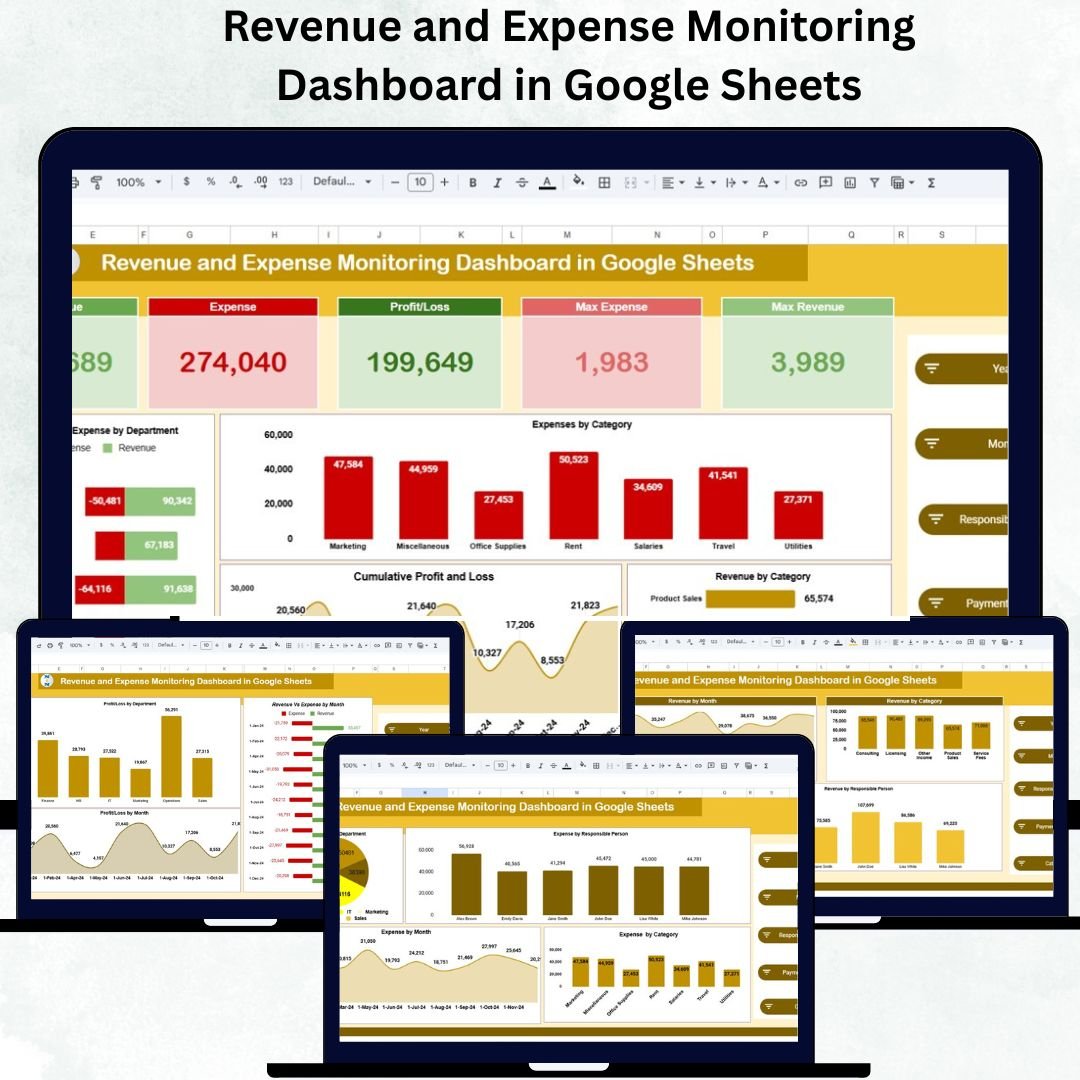
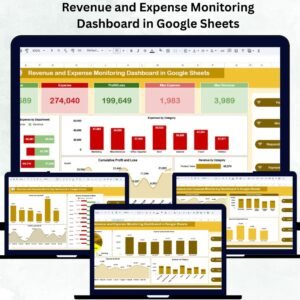
The Overview tab provides an instant financial snapshot with five major KPI cards:
Revenue 💵 – Displays total earnings for the selected period.
Expense 💸 – Shows total costs across departments and categories.
Profit/Loss 📈 – Calculates net profit after expenses.
Max Revenue 💰 – Identifies the department or month with the highest revenue.
Max Expense 🧾 – Highlights the highest single expense record.
Charts Include:
Revenue vs Expense by Department – Compare performance across business units.
Expenses by Category – View detailed spending breakdowns.
Revenue by Category – Analyze which areas drive the most revenue.
Cumulative Profit & Loss – Track profitability over time.
Profit/Loss Trend – Identify positive or negative trends easily.
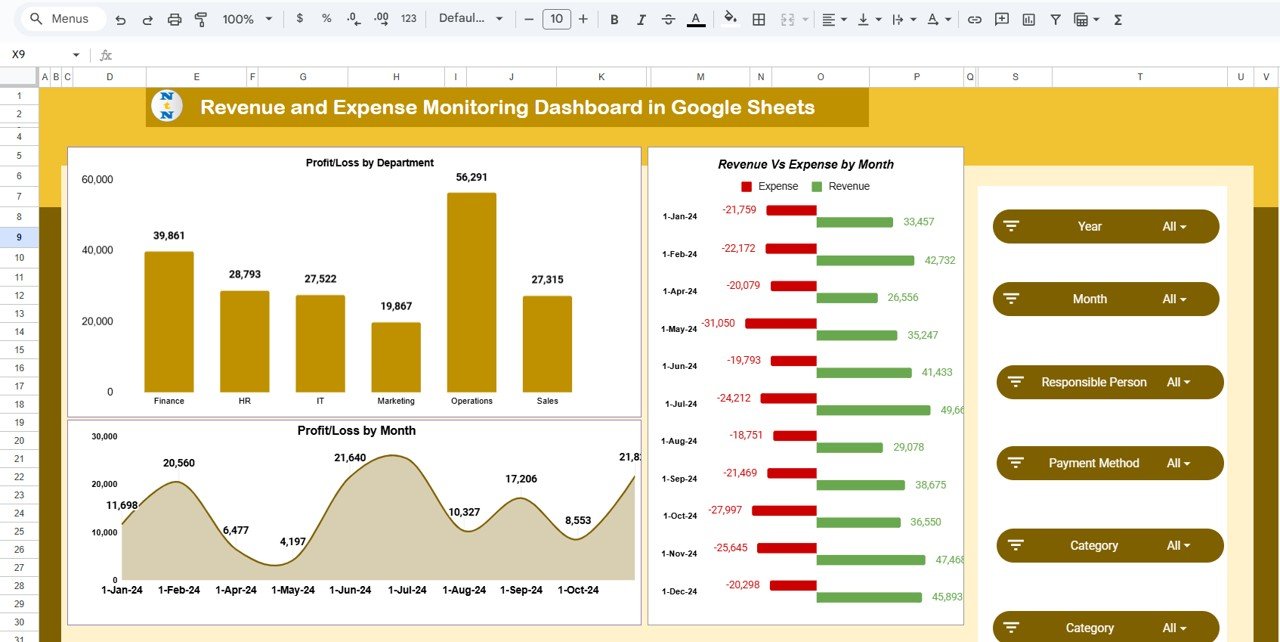
💹 2. Profit and Loss Analysis
Understand your financial performance at a deeper level:
Profit/Loss by Department
Profit/Loss by Month
Revenue vs Expense by Month
This view highlights which departments are profitable and when expenses spike, enabling strategic budgeting and forecasting.
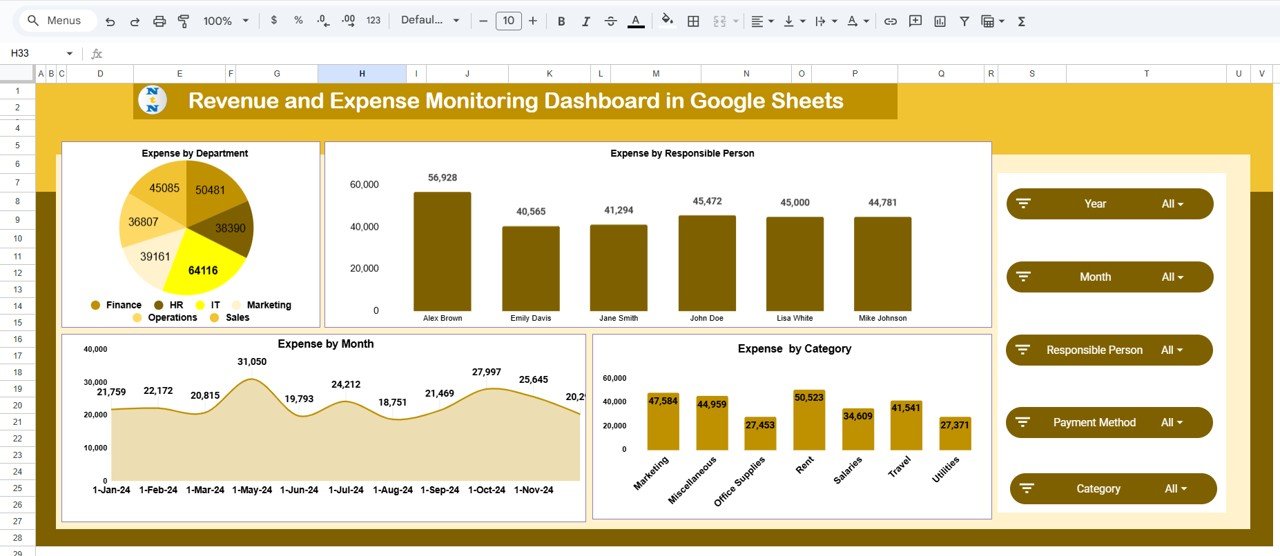
💰 3. Expense Analysis Tab
Track spending across multiple dimensions with charts such as:
Expense by Department
Expense by Responsible Person
Expense by Category
Expense by Month
These visuals help spot overspending trends and keep financial discipline strong.
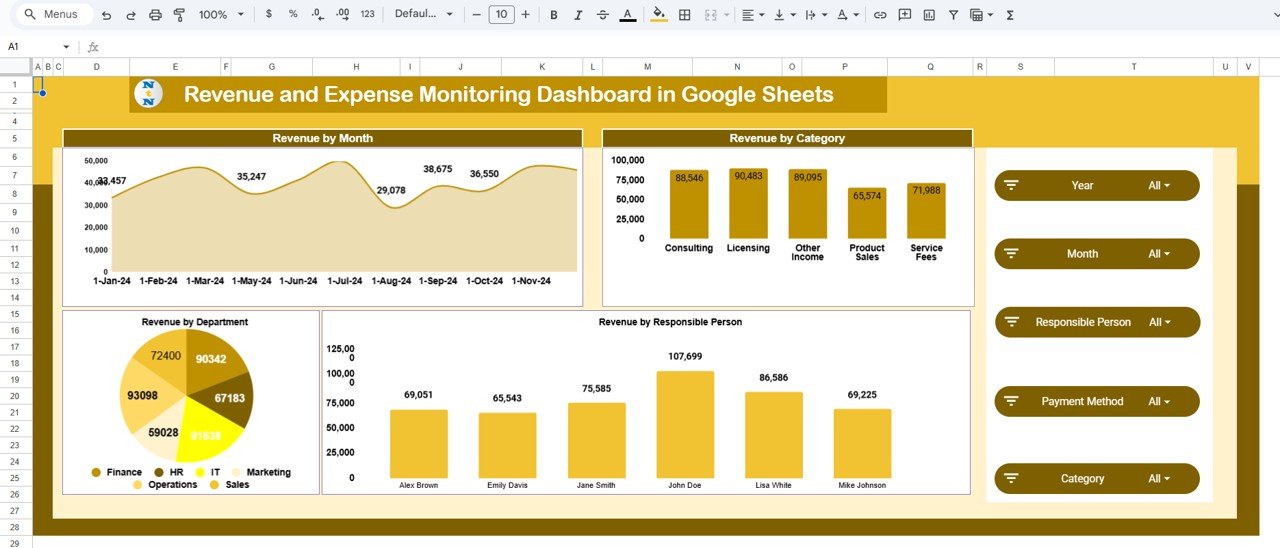
💵 4. Revenue Analysis Tab
Dive deep into your income sources:
Revenue by Month
Revenue by Category
Revenue by Responsible Person
Revenue by Department
These insights ensure that businesses can focus on high-performing products, services, or teams to maximize revenue potential.
📑 5. Data Sheet Tab
The Data Sheet is the backbone of the dashboard — where all financial data is entered.
Fields Include:
Date
Department
Category
Responsible Person
Revenue Amount (USD)
Expense Amount (USD)
Profit/Loss (Auto-calculated)
Once data is entered, all charts and KPIs auto-refresh instantly — giving you real-time financial visibility.
🌟 Advantages of Using This Dashboard
📊 Centralized Financial Monitoring: Track all key financial metrics in one place.
⚙️ Automated Calculations: Eliminate manual math errors with built-in formulas.
🧭 Visual Financial Insights: Turn raw data into actionable graphs and KPIs.
🌍 Cloud Collaboration: Multiple users can update data in real time.
💡 Customizable: Add new categories, departments, or fields easily.
🕒 Real-Time Updates: Charts refresh instantly as data changes.
💻 Accessible Anywhere: Use on desktop, tablet, or mobile devices.
💰 Cost-Effective: Enjoy professional analytics without costly software.
🚀 Opportunities for Improvement
Enhance your dashboard even further with these optional upgrades:
🔗 Automated Data Import: Sync directly with accounting tools for live updates.
💬 Expense Approval Workflow: Add verification or approval tracking.
📊 Budget vs Actual Comparison: Measure performance against planned targets.
💱 Currency Conversion: Perfect for global organizations.
📧 Email Notifications: Trigger alerts for overspending or profit drops.
📈 Advanced Visualization: Integrate with Google Looker Studio or Power BI.
💡 Best Practices
✅ Update data weekly or monthly for accurate reporting.
✅ Maintain consistent naming for categories and departments.
✅ Analyze quarterly trends for strategic decision-making.
✅ Protect sensitive data by managing permissions.
✅ Use color-coded conditional formatting to highlight anomalies.
👥 Who Can Use This Dashboard
Finance Teams: For real-time monitoring and reporting.
Department Managers: To track their team’s spending and profit performance.
Business Owners: To make informed growth and budgeting decisions.
Accountants: For reconciliation and expense validation.
Consultants & Freelancers: To monitor personal income and project expenses.
✅ Conclusion
The Revenue and Expense Monitoring Dashboard in Google Sheets gives businesses a crystal-clear view of their financial performance. It brings together all key indicators — revenue, expenses, and profit — into one visual, automated system that’s easy to maintain and share.
If your goal is to improve financial accuracy, transparency, and decision-making, this dashboard is your all-in-one solution — designed to simplify accounting while empowering smarter business growth.
🔗 Click here to read the detailed blog post
Watch the step-by-step video Demo:
🔗 Visit our YouTube channel for step-by-step tutorials
What’s Inside the Spreadsheet
- Overview tab with five KPI cards and five charts
- Profit and Loss Analysis tab
- Expense Analysis tab
- Revenue Analysis tab
- Data Sheet tab, where every record is entered
Compatibility and Requirements
- Works in Google Sheets with a free Google account and a web browser.
- Several people can update the data at the same time, and it opens on desktop, tablet or mobile.
- Google explains how charts work in Add & edit a chart or graph.
Frequently Asked Questions
Which KPIs are on the Overview tab?
Revenue, expense, profit or loss, max revenue and max expense.
What fields does the Data Sheet have?
Date, department, category, responsible person, revenue amount, expense amount, and profit or loss, which is calculated for you.
Can I add departments or categories?
Yes. You can add new categories, departments or fields.
Do the charts update on their own?
Yes. Once you enter data, all charts and KPIs refresh.
Related Finance Templates
- Income and Expense Dashboard in Google Sheets: another view of income and spending
- Income and Expenses Monthly and Yearly View in Google Sheets: monthly and yearly totals
- Profit and Loss Templates in Google Sheets: build a P&L statement
- Expense Tracking Dashboard in Power BI: expense reporting in Power BI
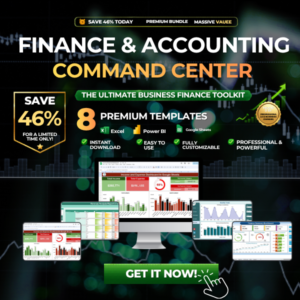
- Finance & Accounting Command Center: 8 finance templates in one bundle
Browse all Google Sheets dashboards or the Google Sheets financial tools.








Reviews
There are no reviews yet.