

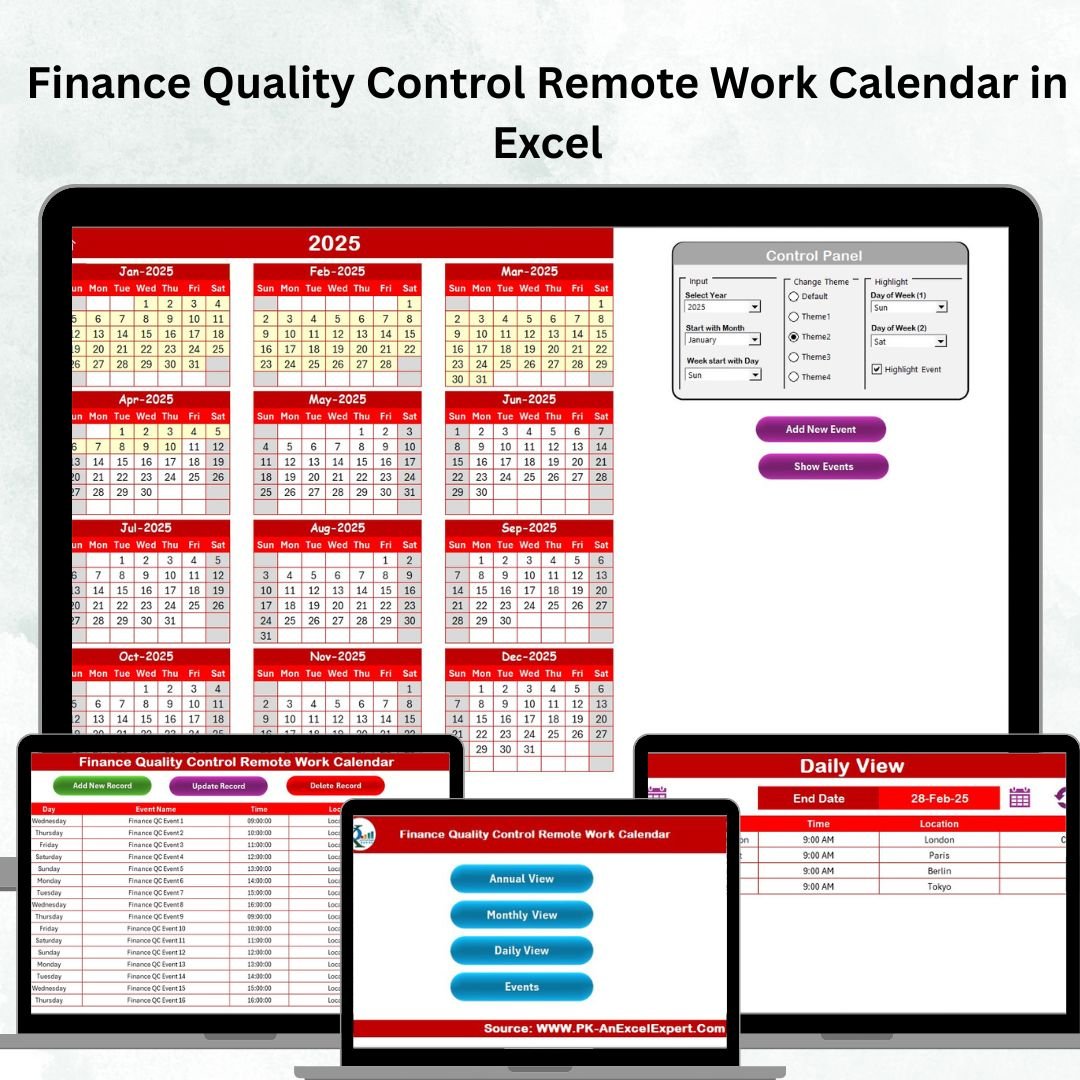
In today’s financial world, quality control and remote work must go hand in hand. Missed deadlines, poor visibility, and compliance challenges are common when teams work across distributed locations. That’s where the Finance Quality Control Remote Work Calendar in Excel comes in—your all-in-one solution to streamline financial operations, enhance accountability, and boost productivity.
This ready-to-use Excel template empowers finance managers, auditors, accountants, and quality control officers to plan, track, and manage tasks with ease. With annual, monthly, and daily views, plus a complete event database, it’s designed to make remote work smarter, not harder.
✨ Key Features of Finance Quality Control Remote Work Calendar in Excel
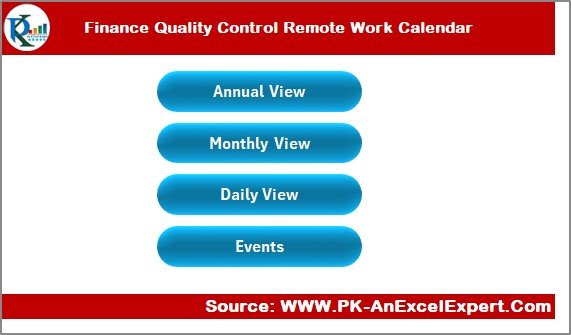
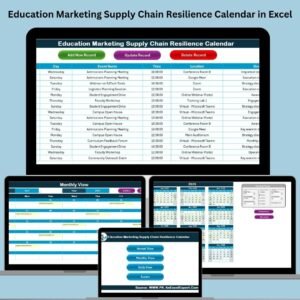
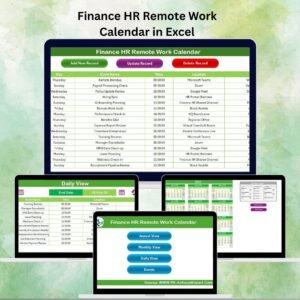
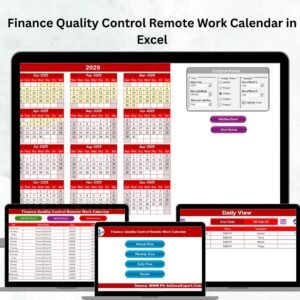
Home Sheet Tab 🏠 – Your control hub with navigation buttons for Annual, Monthly, Daily, and Events view.
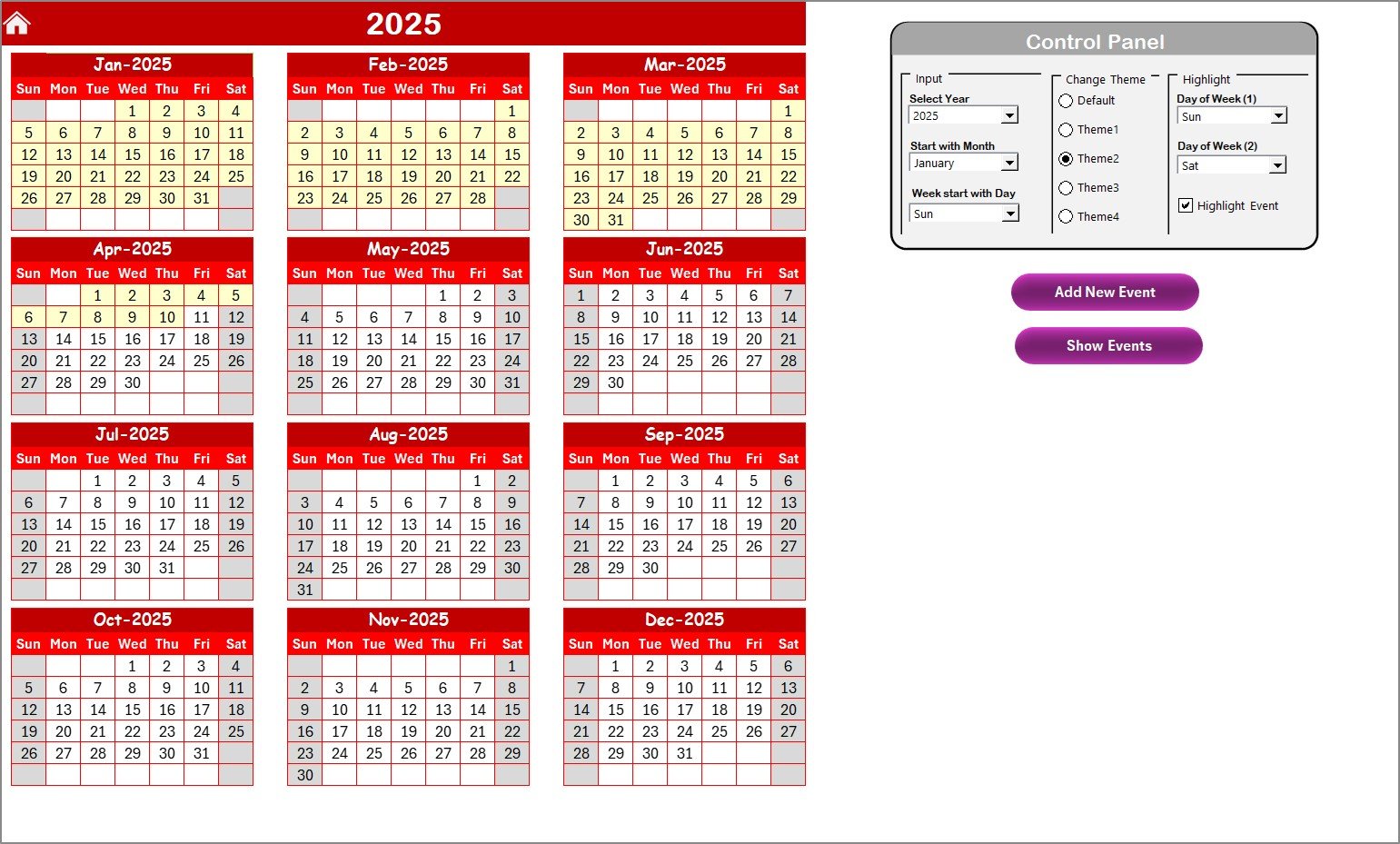
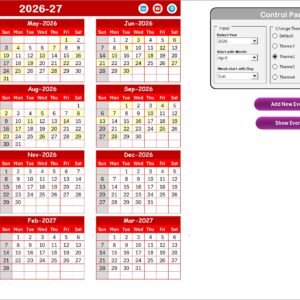
Annual View Sheet Tab 📅 – Get a full-year perspective with options to adjust year, month, start day, and highlight weekends or events.
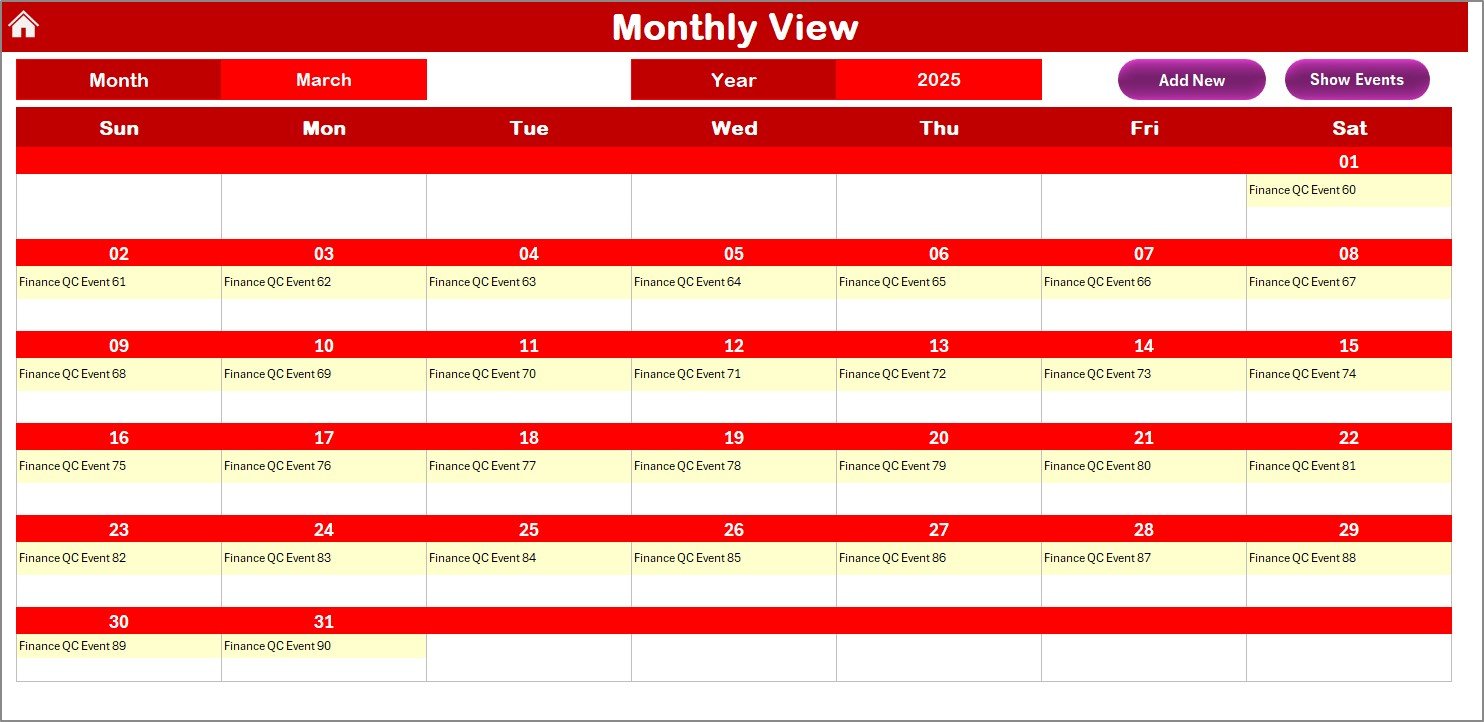
Monthly View Sheet Tab 📆 – Stay on top of project deadlines, recurring tasks, and approvals with easy month selection and event tracking.
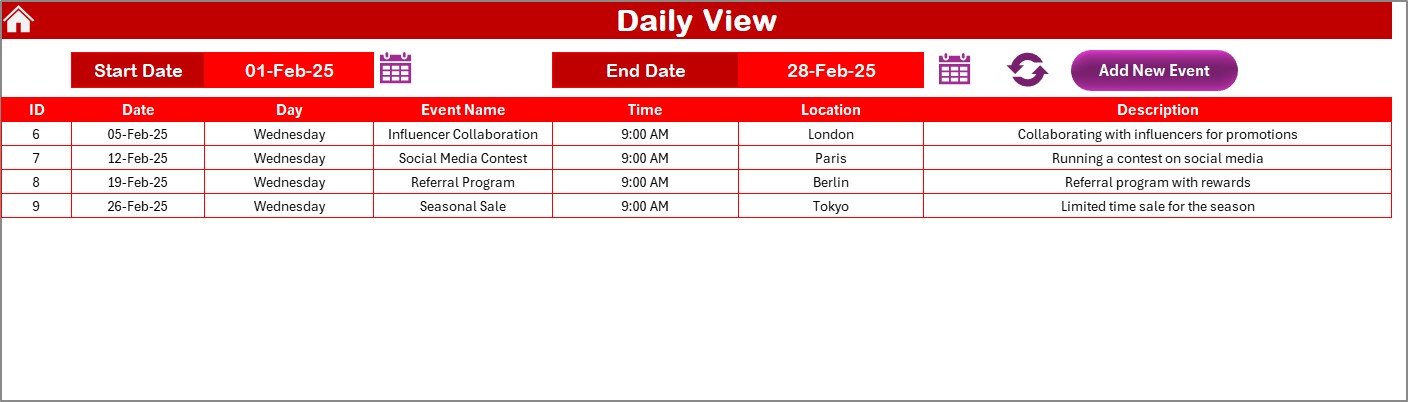
Daily View Sheet Tab 📋 – Dive into date ranges, refresh updates instantly, and capture short-term events like audits or check-ins.
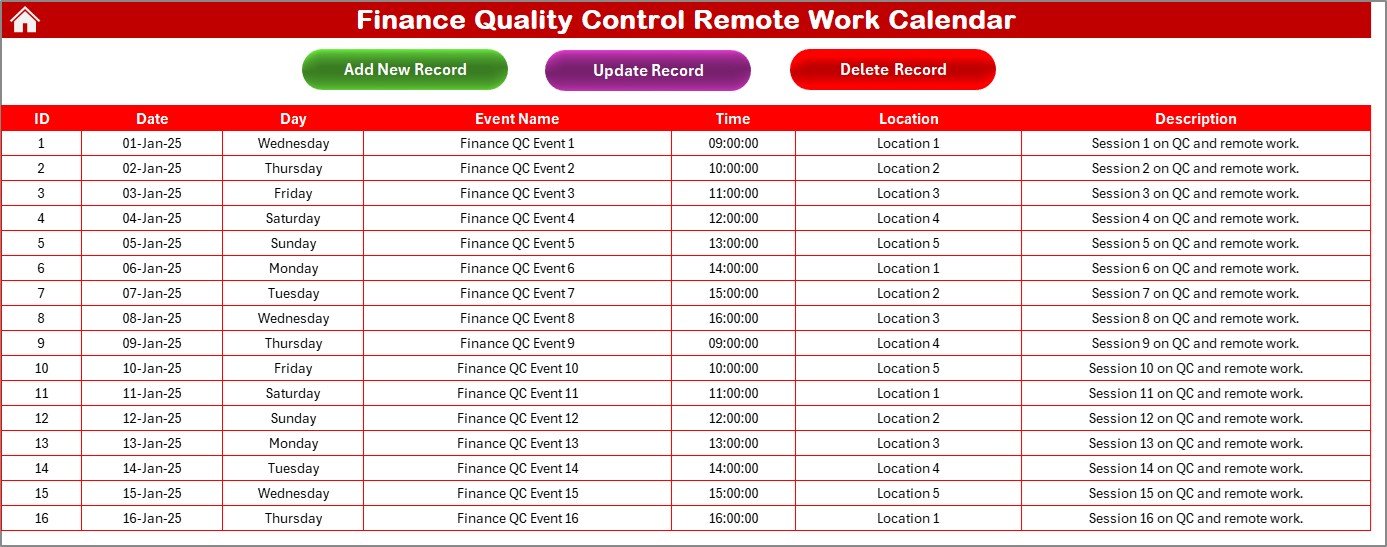
Events Sheet Tab 📊 – A centralized event database with auto-generated IDs, dates, event names, time, location, and descriptions.
With built-in Add, Update, and Delete controls, managing records has never been easier.
📦 What’s Inside the Finance Quality Control Remote Work Calendar in Excel
When you download this template, you get:
✔ 5 powerful worksheet tabs: Home, Annual, Monthly, Daily, and Events.
✔ Navigation shortcuts: Quickly jump to any section without scrolling.
✔ Custom themes: Choose from 5 color themes to match your style.
✔ Highlight options: Mark weekends, key audit dates, or compliance events.
✔ Structured database: Keep all events recorded in one place.
✔ Automation tools: Buttons for adding, editing, and removing entries.
This calendar is built for clarity, accountability, and efficiency.
🛠️ How to Use the Finance Quality Control Remote Work Calendar in Excel
Start from the Home Sheet – Use the navigation buttons to move between views.
Plan the Year – Select the year in the Annual View, apply themes, and highlight weekends.
Track Monthly Activities – Use the Monthly View to monitor project deadlines and compliance reviews.
Focus on Daily Operations – Select a date range in the Daily View for week-to-week event management.
Manage Records in Events Sheet – Add new events, update existing ones, or delete outdated entries.
Secure Your Data – Use Excel’s password protection to safeguard sensitive financial information.
Simple, intuitive, and effective!
🙌 Who Can Benefit from This Finance Quality Control Remote Work Calendar in Excel
This calendar is a game-changer for:
CFOs & Finance Leaders – Gain complete visibility into quality control processes.
Finance Managers – Track deadlines and ensure compliance.
Quality Control Officers – Monitor audits, reporting schedules, and accountability.
Remote Finance Teams – Stay aligned, productive, and well-coordinated.
Auditors & Accountants – Record and review compliance-related events.
Any Distributed Team – Even non-finance teams can adapt this tool for event management.
If your goal is to stay compliant, meet deadlines, and collaborate remotely, this template is for you.
✅ Click here to read the Detailed blog post
Visit our YouTube channel to learn step-by-step video tutorials.
Watch the step-by-step video tutorial:
Compatibility and Requirements
- Works in Microsoft Excel desktop (Excel 2016 or later, or Microsoft 365).
- The Events sheet has Add, Update and Delete controls, so Excel desktop with macros enabled is needed for those buttons. The template does not run in Excel for the web, Google Sheets or mobile apps. Microsoft explains how to turn macros on in Enable or disable macros in Microsoft 365 files.
Frequently Asked Questions
Which sheets does the calendar have?
Five sheets: Home, Annual View, Monthly View, Daily View and Events.
Where do I enter events?
On the Events sheet. Each record has an auto-generated ID, a date, an event name, a time, a location and a description. You can add, update or delete records with the buttons on that sheet.
Can I change the colors?
Yes. You can pick one of 5 color themes, and you can highlight weekends and event dates in the Annual View.
Can I view a custom date range?
Yes. The Daily View lets you select a date range and refresh it to see the events inside it.
Is there a version for other teams?
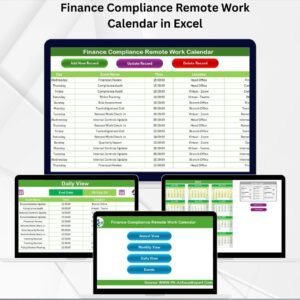
Yes. See the Quality Control Remote Work Calendar in Excel and the Finance Compliance Remote Work Calendar in Excel.
Related Finance and Quality Control Calendars
- Quality Control Remote Work Calendar in Excel: the same remote work calendar for quality control teams
- Finance Compliance Remote Work Calendar in Excel: a finance calendar built around compliance dates
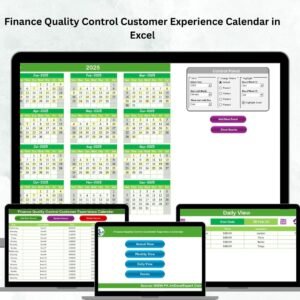
- Finance Quality Control Customer Experience Calendar in Excel: finance quality control with a customer experience focus
- Finance Quality Control AI Implementation Calendar in Excel: finance quality control for AI rollout planning
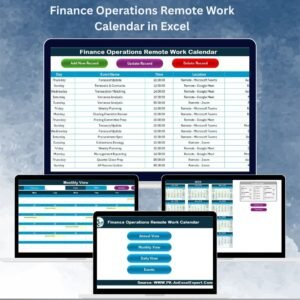
- Finance Operations Remote Work Calendar in Excel: a remote work calendar for finance operations
Browse all Excel calendar templates.









Reviews
There are no reviews yet.