

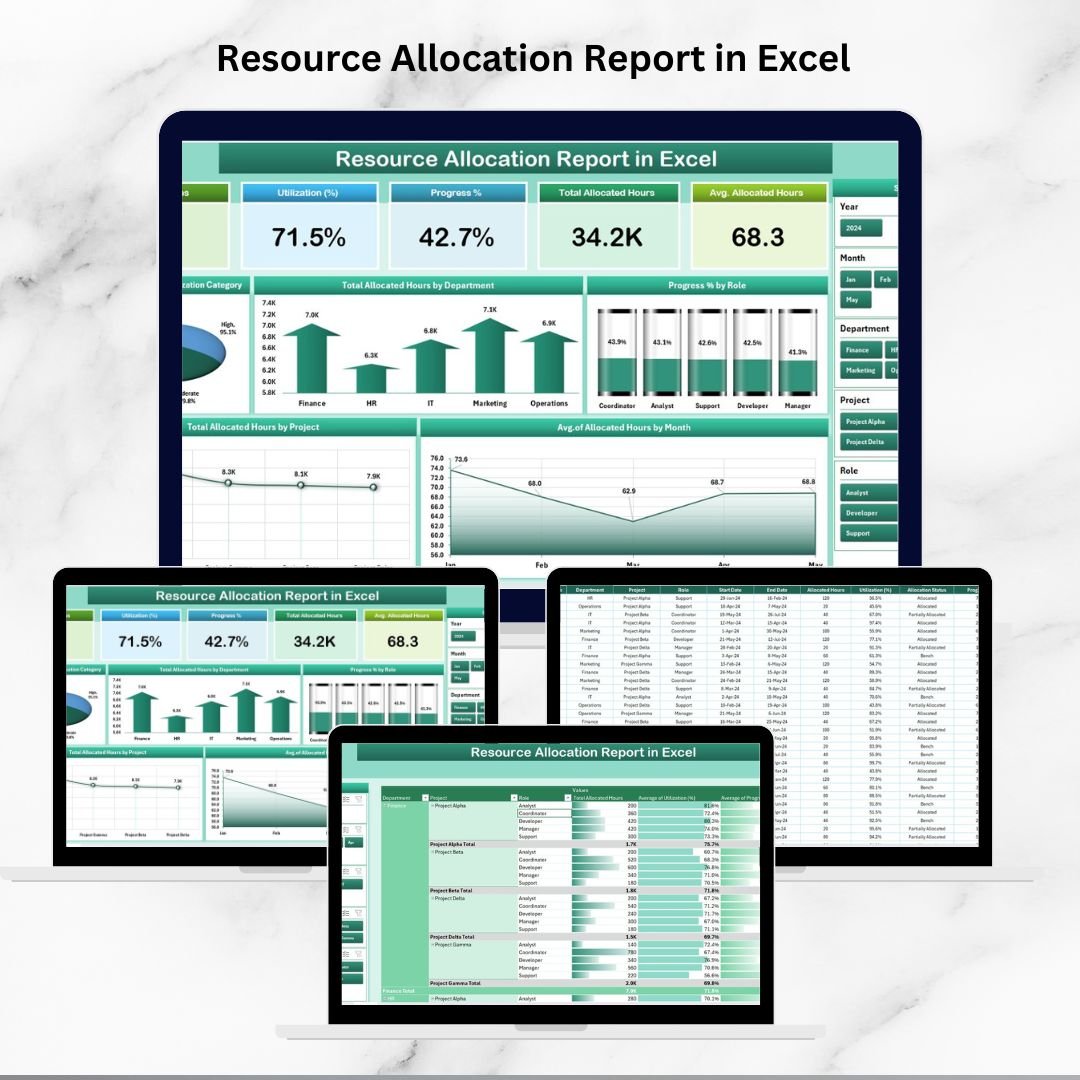

Managing people, skills, and time is one of the most critical challenges in modern organizations. Whether you’re overseeing a small team or handling multiple large-scale projects, ensuring that resources are optimally allocated is key to boosting efficiency and reducing costs. That’s why we created the Resource Allocation Report in Excel—a ready-to-use, interactive solution for smarter decision-making.
This Excel-based tool helps you track utilization, spot under- or over-allocation, and plan workloads with confidence. With its easy-to-use dashboards, slicers, and detailed reports, you can transform scattered data into clear, actionable insights.
✨ Key Features of Resource Allocation Report in Excel
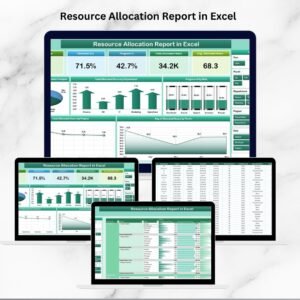
📊 Summary Dashboard – Cards and charts show allocation hours, utilization %, projects count, and role progress.
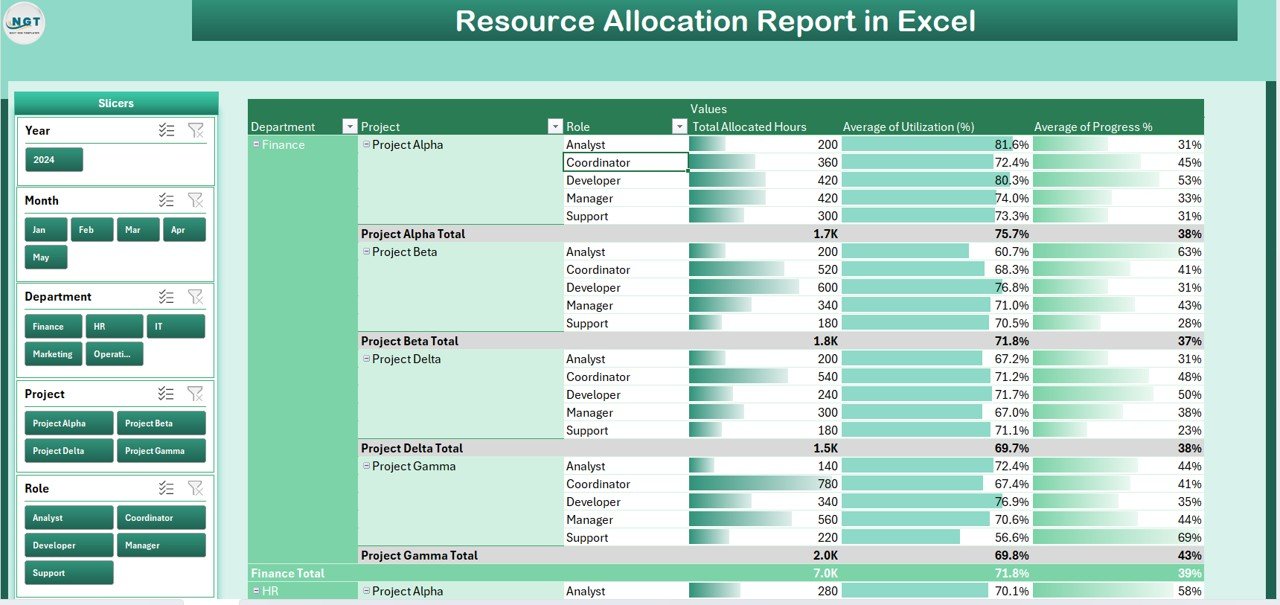
🎯 Interactive Slicers – Filter data by project, department, role, or timeframe instantly.
📑 Detailed Report Page – Tabular insights break down hours by employee, role, or department.
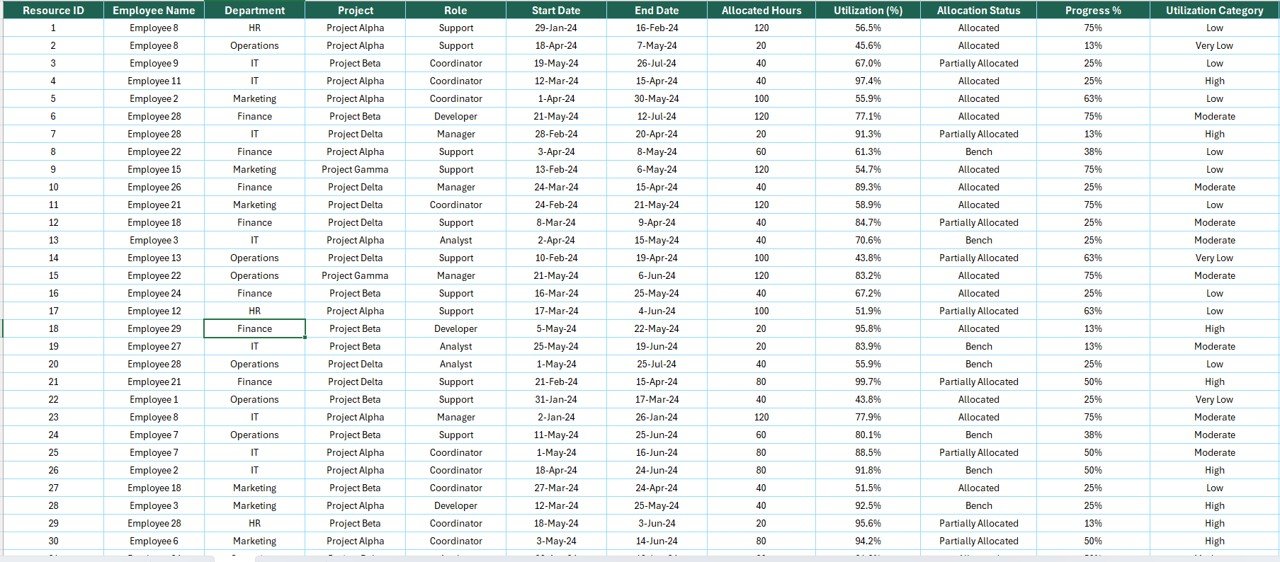
🗂 Data Sheet – Centralized place to input actual hours and assignments.
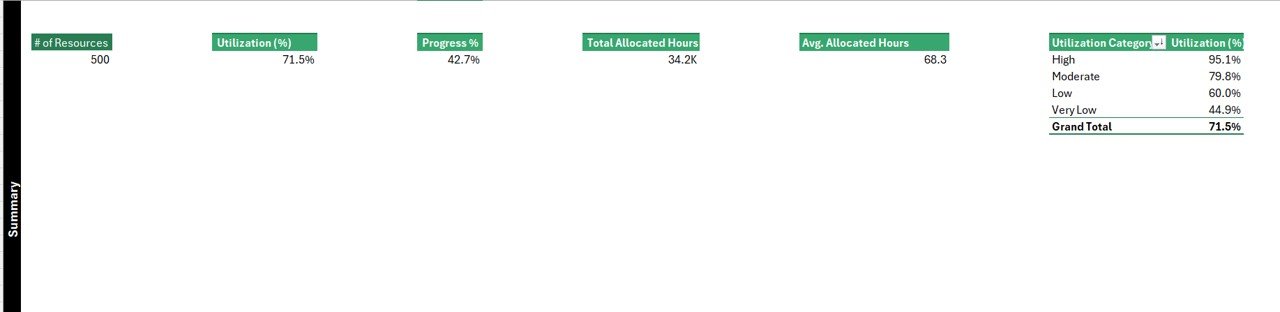
⚙ Support Sheet – Includes reference lists for departments, projects, roles, and utilization categories.
🚦 Visual Insights – Charts highlight bottlenecks, trends, and workload imbalances.
🔄 Auto-Refresh – Update raw data once, and all dashboards adjust automatically.
💰 Cost-Effective – No expensive project management software—Excel does the job.
📂 What’s Inside the Resource Allocation Report
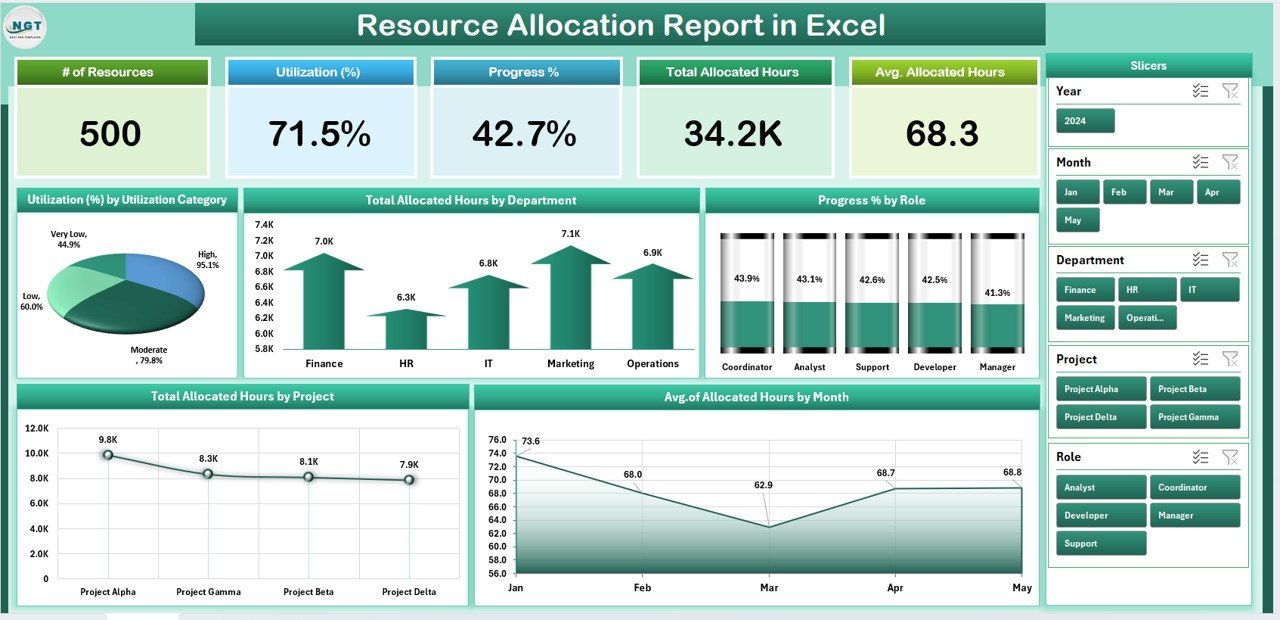
Summary Page – The main hub with 5 KPI cards, slicers, and charts for quick resource allocation insights.
Report Page – Detailed tables for managers who prefer granular data views.
Data Sheet – The raw data engine where allocation details are updated.
Support Sheet – Structured lists that keep data consistent and error-free.
📖 How to Use the Resource Allocation Report
Enter Data – Fill the Data Sheet with hours, project info, departments, and roles.
Explore the Summary – Use slicers to analyze allocation by project, department, or role.
Dive into the Report Page – Access detailed tables for in-depth analysis.
Update Regularly – Refresh data weekly or monthly to maintain accurate reports.
Act on Insights – Reallocate staff, balance workloads, and forecast requirements.
👥 Who Can Benefit from This Report?
🏢 Project Managers – Track team workloads and spot over-allocation.
🧑💼 Department Heads – Ensure fair workload distribution.
👥 HR Teams – Monitor utilization and support workforce planning.
📊 Executives – Gain a big-picture view of resource efficiency.
🛠 Any Organization – From IT and construction to healthcare and education.
This report is designed to save time, reduce costs, and maximize team potential.
✅ Click here to read the Detailed blog post
Visit our YouTube channel to learn step-by-step video tutorials
Watch the step-by-step video tutorial:
Compatibility and Requirements
- Works in Microsoft Excel desktop (Excel 2016 or later, or Microsoft 365).
- Slicers filter the Summary page by project, department, role or timeframe.
- Microsoft’s guide Use slicers to filter data explains the Excel feature this file is built on.
Frequently Asked Questions
What is on the Summary page?
Five KPI cards, slicers and charts for allocation hours, utilization %, project count and role progress.
Can I filter by project or department?
Yes. Slicers filter the data by project, department, role or timeframe.
Where do I enter hours and assignments?
In the Data Sheet. The Support Sheet holds the lists of departments, projects, roles and utilization categories that keep entries consistent.
Is there a detailed view for managers?
Yes. The Report Page breaks hours down by employee, role or department in tables.
Related Resource Allocation Templates
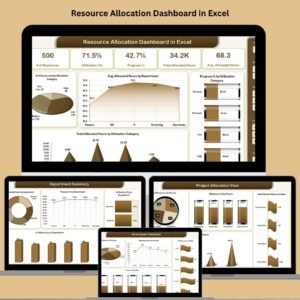
- Resource Allocation Dashboard in Excel: a fuller multi-page dashboard
- Resource Allocation Dashboard in Power BI: the same topic in Power BI
- Resource Allocation KPI Dashboard in Excel: MTD and YTD allocation KPIs
- Employee Workload Dashboard in Excel: workload by employee
- Project Management Pro Bundle: 9 project templates in one download
Browse all Excel report templates or the Excel project management templates.



Reviews
There are no reviews yet.