

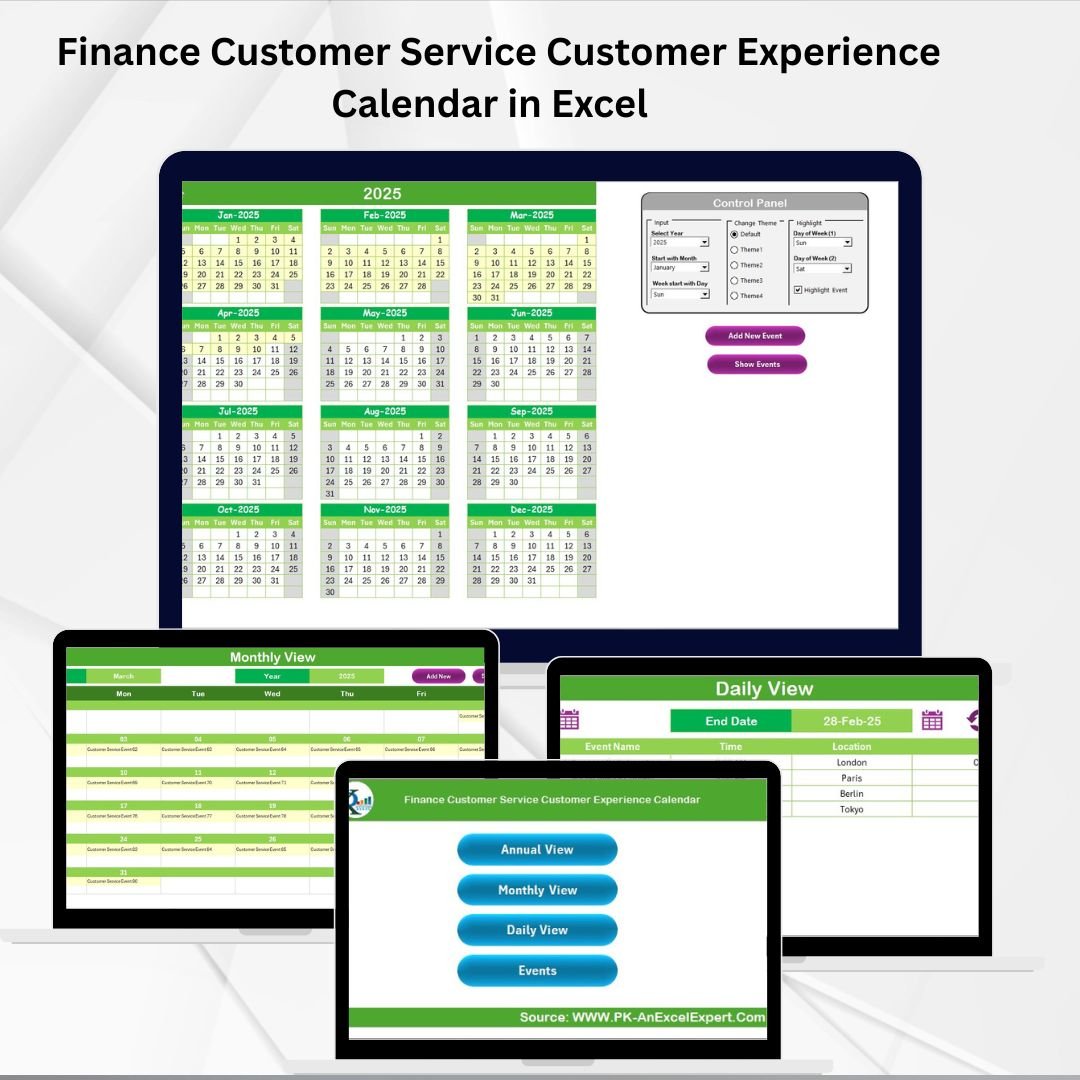

Key Features of Finance Customer Service Customer Experience Calendar in Excel ✨
Customer experience is at the heart of financial services. With the increasing demand for remote and hybrid work models, finance teams need tools that not only organize tasks but also enhance customer satisfaction. The Finance Customer Service Customer Experience Calendar in Excel is that tool—simple, effective, and designed to bring structure to your operations.
This pre-built Excel template acts as a central hub for managing customer interactions, team availability, events, and deadlines. Instead of juggling scattered schedules, your team can rely on one interactive, easy-to-use system.
Key highlights include:
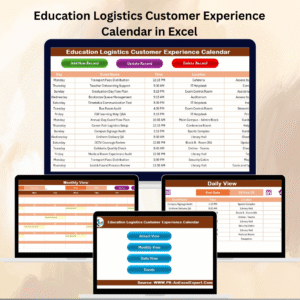
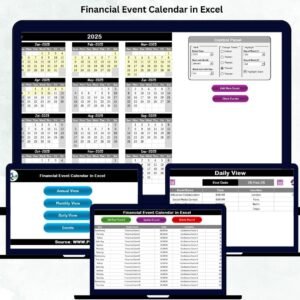
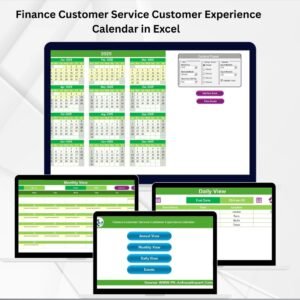
📅 Annual, Monthly & Daily Views – Get big-picture insights or drill down into specific dates.
✅ Built-In Navigation – Switch between sheets with one click.
📊 Event Management Tools – Add, update, or delete activities quickly.
🎨 Customizable Themes – Choose from five styles to suit your needs.
📂 Structured Database – Keep a record of all events, deadlines, and customer activities.
🚀 No Software Needed – Runs entirely on Excel—no extra cost or training.
Whether your focus is client meetings, compliance deadlines, or customer service sessions, this template ensures everything stays on track.
What’s Inside the Finance Customer Service Customer Experience Calendar 📂
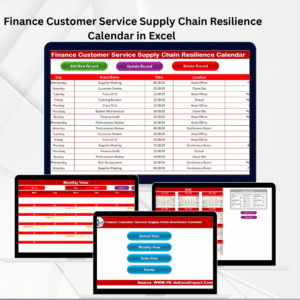
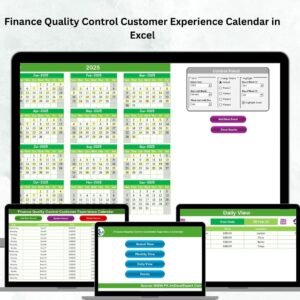
The template is organized into five key worksheets that work seamlessly together:
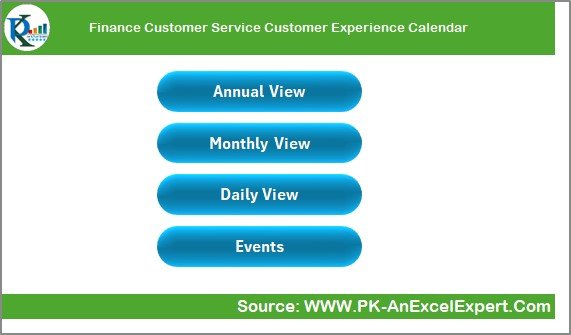
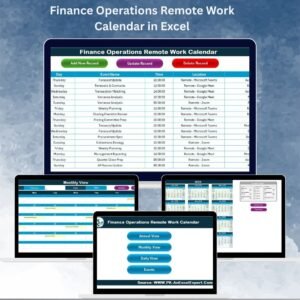
Home Sheet Tab
Central index with interactive buttons.
Navigate instantly to Annual, Monthly, Daily, or Events views.
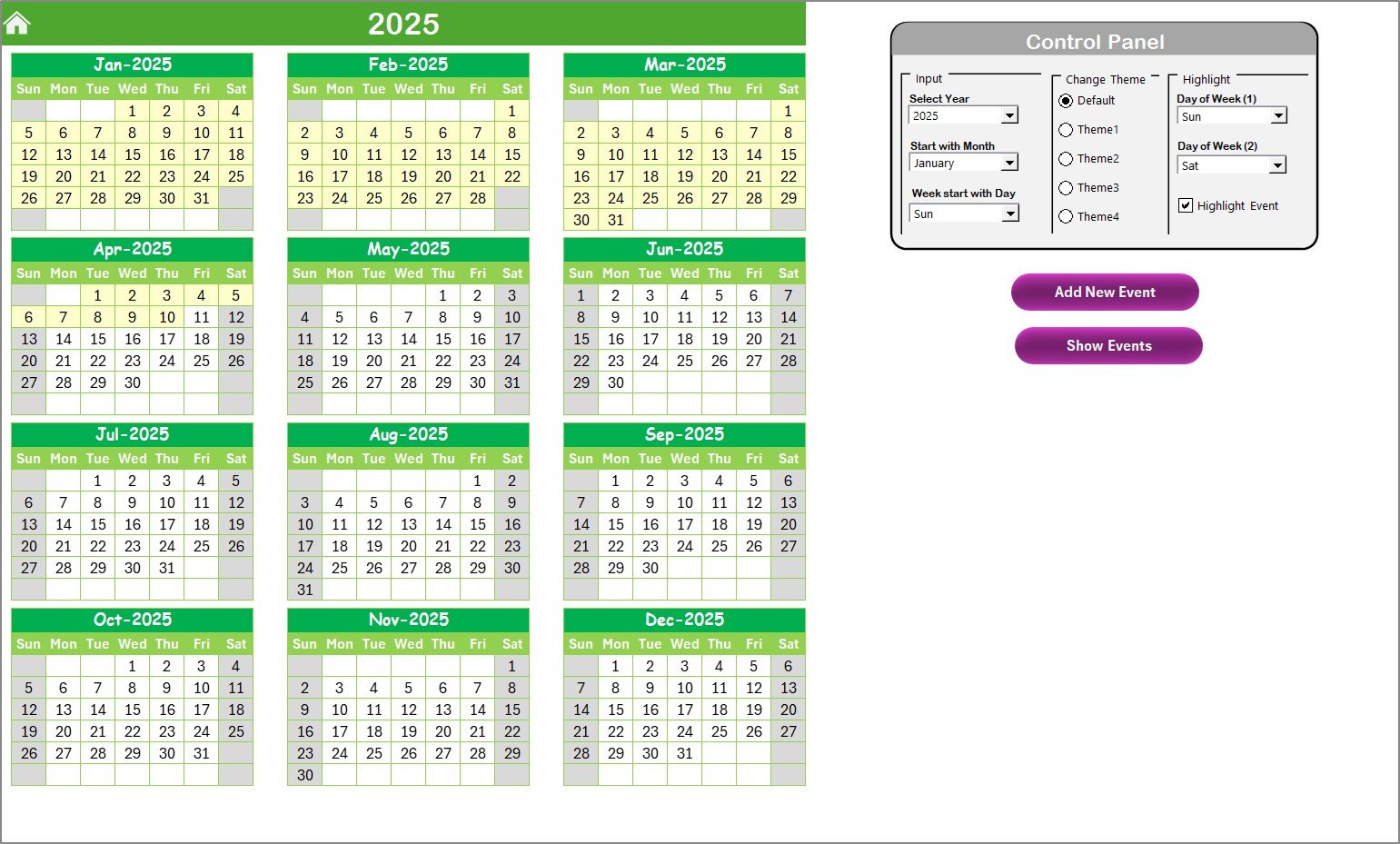
Annual View
Full 12-month overview for strategic planning.
Control panel to adjust year, start month, and week start day.
Color theme and highlight options for weekends or major events.
Add & Show Event buttons for quick scheduling.
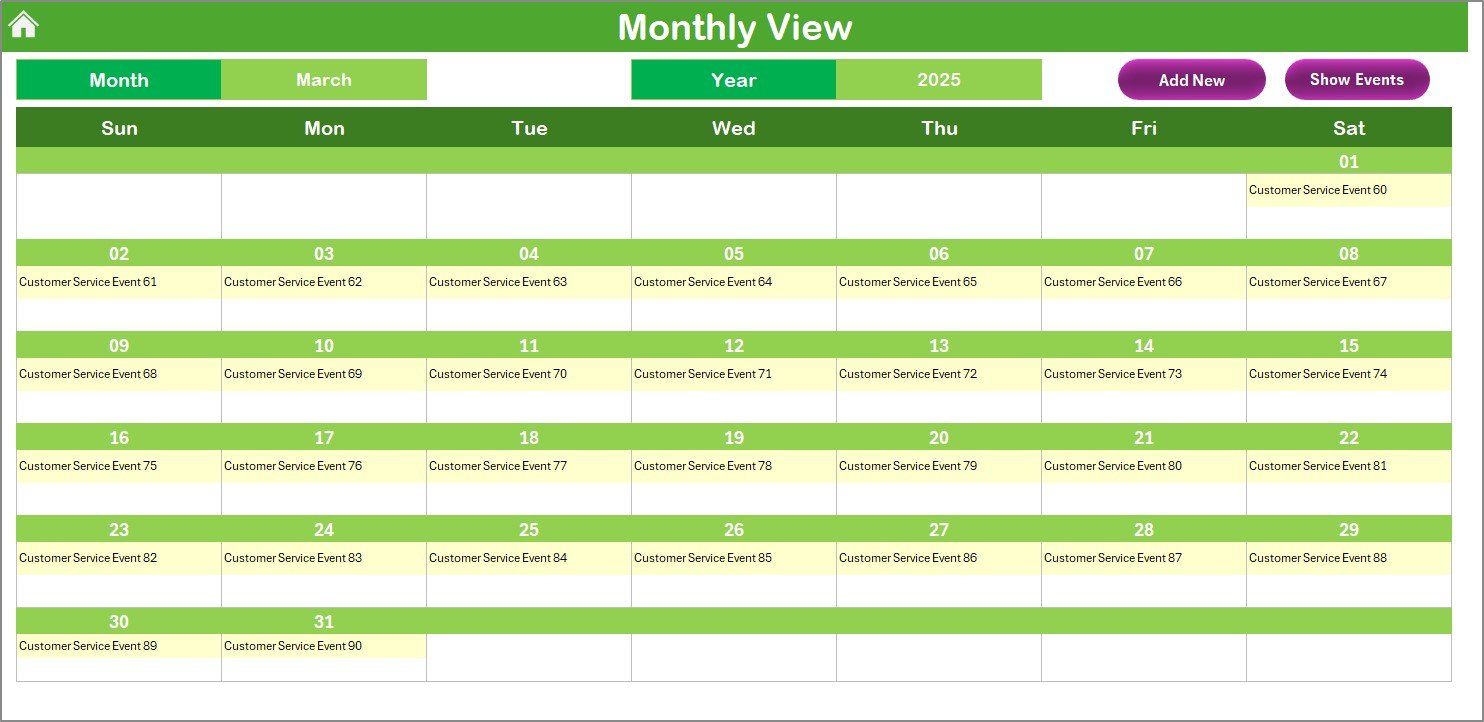
Monthly View
Detailed monthly planning with dropdowns for month and year.
Displays all events, even handling multiple activities per day.
Add & Show Event buttons to manage tasks directly.
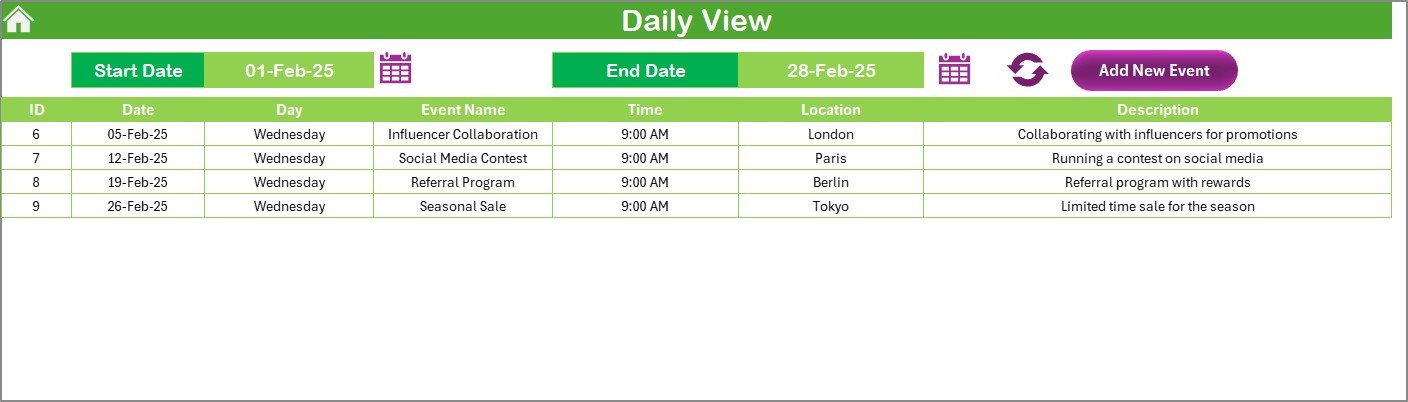
Daily View
Focused event tracking within a specific date range.
Refresh button to update changes instantly.
Perfect for day-to-day customer service task management.
Events Sheet Tab
Master database of all activities.
Captures ID, Date, Day, Event Name, Time, Location, and Description.
Add, Update, or Delete records easily with action buttons.
This layout ensures visibility, organization, and accountability across your finance team.
How to Use the Finance Customer Service Customer Experience Calendar 🛠️
Getting started is simple:
Download & Open the File – Launch the Excel workbook and begin from the Home sheet.
Plan Annual Goals – Enter yearly milestones, compliance deadlines, or customer campaigns.
Set Monthly Tasks – Add recurring client calls, reporting activities, and service events.
Track Daily Workloads – Use the Daily View for detailed task monitoring.
Log Events in the Database – Capture all customer service activities in the Events sheet.
Stay Updated – Regularly update records for accurate scheduling and accountability.
No advanced Excel skills are required—this tool is plug-and-play for any finance team.
Who Can Benefit from This Calendar 👥
This template is ideal for:
💼 Finance Teams – Manage deadlines, compliance events, and client schedules.
👨💻 Customer Service Departments – Track client meetings, workshops, and follow-ups.
🏢 SMEs & Enterprises – Standardize customer interaction tracking across departments.
📊 Team Leaders – Improve accountability by monitoring staff schedules.
🧑🏫 Training Managers – Organize workshops and internal staff development.
🏠 Remote & Hybrid Teams – Ensure smooth collaboration without missing client commitments.
If customer trust and satisfaction matter to your finance organization, this tool is a must-have.
Opportunities for Improvement & Best Practices 💡
Enhance the template further with:
🔔 Automated Reminders via Outlook or VBA macros.
🌐 Cloud Hosting for real-time team collaboration.
📱 Mobile-Friendly Versions for on-the-go tracking.
📊 Analytics Dashboards to visualize trends in customer service activities.
Best practices:
Keep events updated daily.
Highlight key activities for visibility.
Review progress weekly and monthly.
Train your team to use built-in features.
Combine with customer service KPIs for deeper insights.
✅ Click here to read the Detailed blog post
📺 Visit our YouTube channel to learn step-by-step video tutorials
Watch the step-by-step video tutorial:
Compatibility and Requirements
- Works in Microsoft Excel desktop (Excel 2016 or later, or Microsoft 365).
- The Home sheet has buttons to move between the Annual, Monthly, Daily and Events sheets, and Add, Update and Delete buttons on the Events sheet. Microsoft explains the date, event and color-coding side in Use conditional formatting to highlight information in Excel.
Frequently Asked Questions
Which sheets are included?
Five sheets: Home, Annual View, Monthly View, Daily View and Events.
What details can I record for each event?
The Events sheet stores ID, Date, Day, Event Name, Time, Location and Description. You can add, update or delete records with the action buttons.
Can I change the year and the first day of the week?
Yes. The Annual View has a control panel where you set the year, the start month and the week start day. You can also pick one of five color themes and highlight weekends or major events.
What if several events fall on the same day?
The Monthly View handles multiple events on one day. The Daily View lists events for a date range you choose.
Is there a version for other finance teams?
Yes. For example, the Finance Customer Service Remote Work Calendar in Excel and the Customer Service Customer Experience Calendar in Excel.
Related Customer Experience Calendars
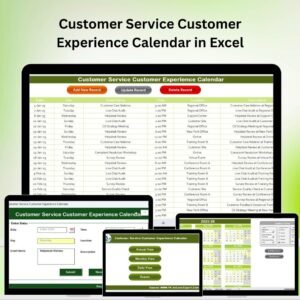
- Customer Service Customer Experience Calendar in Excel: the same calendar for customer service teams outside finance
- Finance Customer Service Remote Work Calendar in Excel: schedules remote work for the same team
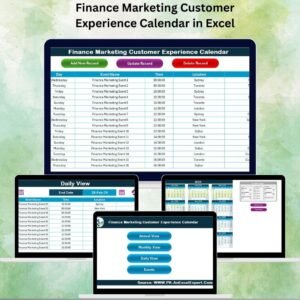
- Finance Marketing Customer Experience Calendar in Excel: for finance and marketing teams
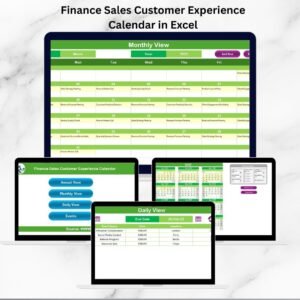
- Finance Sales Customer Experience Calendar in Excel: for finance and sales teams
- Finance Operations Customer Experience Calendar in Excel: for finance and operations teams
Browse all Excel calendar templates.




Reviews
There are no reviews yet.