





Remote work is the new reality for technology sales teams—but staying organized in a virtual world isn’t easy. That’s where our Technology Sales Remote Work Calendar in Excel comes in. This all-in-one Excel-based calendar is tailor-made for tech sales professionals working across time zones, departments, and campaigns. 📈🖥️
Built with powerful navigation tools, form-based entries, and dynamic calendar views, this planner ensures nothing slips through the cracks—whether it’s a product demo, follow-up call, or end-of-month pitch.
Let’s explore everything this ready-to-use calendar template offers and why it’s a must-have for remote sales operations.
✨ Key Features of the Remote Work Calendar
🏠 Home Sheet – Fast & Intuitive Navigation

One dashboard. Four destinations.
Quick-click buttons take you directly to:
📆 Annual View
📅 Monthly View
📋 Daily View
🗂️ Events Database
Never scroll through endless tabs again.
📆 Annual View Sheet – See the Whole Year at Once
Perfect for high-level planning and strategy rollouts:
🔄 Input Group – Set your year, starting month, and first day of the week
🎨 Theme Picker – Choose from 5 vibrant color themes
📌 Highlight Options – Mark weekends or important dates
🆕 Add New Event – Opens a form to enter event details
🔍 Show Event – Displays all events for any selected date
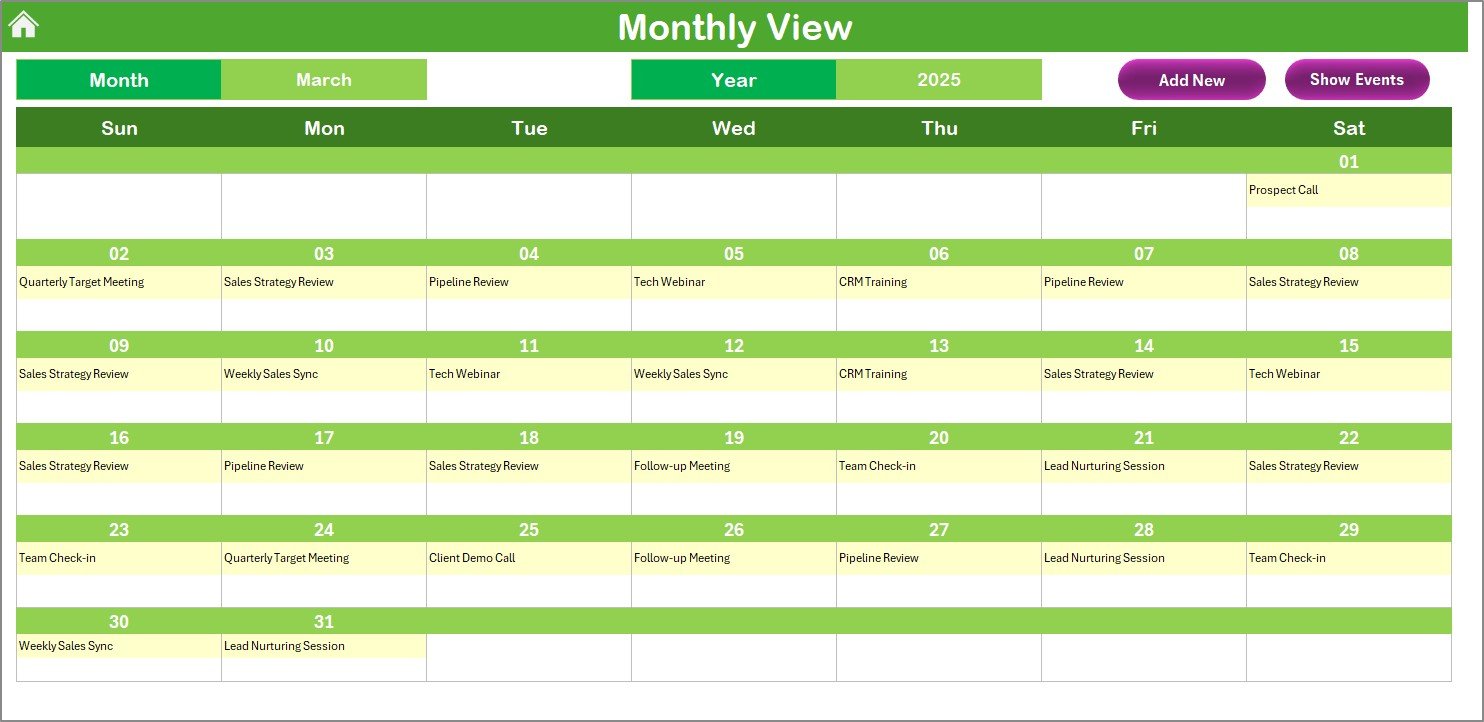
📅 Monthly View Sheet – Focused, Flexible, and Sales-Driven
Need clarity on a product launch month or follow-up week? This sheet delivers:
🗓️ Drop-downs to choose the month and year
📌 Shows 1 event per day, with “more than 1…” tag if needed
🆕 Add or view events with just a click
📋 Daily View Sheet – Detailed Task Management
Drill into your busiest sales days:
🗓️ Set a Start and End Date
🔄 Click Refresh to load events
➕ Add new events directly from this tab
Ideal for EOM (End of Month) crunch time, client deadlines, or campaign pushes.
📑 Events Sheet – The Master Database
The foundation of the calendar. Here’s what it tracks:
🆔 Auto-generated ID
📅 Date & Day
🧾 Event Name, Time, Location, and Description
🧰 Action buttons: Add, Update, Delete with built-in forms
Everything you enter reflects instantly in the calendar views.
🧠 How to Use the Product
📥 Download and open the Excel file
🧭 Use the Home Sheet to explore different views
✍️ Start entering events using the form or Events Sheet
📊 Switch views as needed for annual, monthly, or daily planning
🎯 Customize themes, start dates, and more from the control panel
Easy. Clean. Zero coding required.
👥 Who Can Benefit from This Calendar?
💼 Tech Sales Executives – Coordinate pitches, calls, and demos
📅 Remote Sales Managers – Plan campaigns, track performance
📈 SaaS Sales Teams – Schedule virtual onboarding, webinars
🚀 Startups & Agencies – Keep remote teams aligned and accountable
From daily deal tracking to annual revenue strategies—this Excel calendar adapts to your goals.
🔗 Click here to read the Detailed blog post
📺 Visit our YouTube channel to learn step-by-step video tutorials
Watch the step-by-step video tutorial:
Compatibility and Requirements
- Works in Microsoft Excel desktop (Excel 2016 or later, or Microsoft 365).
- The Home sheet buttons, the event forms (Add, Update, Delete) and the Show Event and Refresh buttons use macros. Run the file in Excel desktop on Windows with macros enabled. It does not run in Excel for the web, Google Sheets or mobile. Microsoft explains the setting in Enable or disable macros in Microsoft 365 files.
Frequently Asked Questions
Which sheets are included?
Five sheets: Home, Annual View, Monthly View, Daily View and Events. The Home sheet has buttons that take you to the other four.
Where do I enter an event?
You can use the Add New Event button on the Annual, Monthly or Daily View sheets, or work directly on the Events sheet. Each event stores a date, day, event name, time, location and description, plus an auto-generated ID.
Can I change the year, the starting month and the first day of the week?
Yes. On the Annual View sheet you set the year, the starting month and the first day of the week. You can also pick one of 5 color themes and highlight weekends or important dates.
What does the Monthly View show when a day has several events?
It shows one event per day. When a date has more than one, it adds a “more than 1…” tag, and the Show Event button lists everything for that date.
Is there a version for other teams?
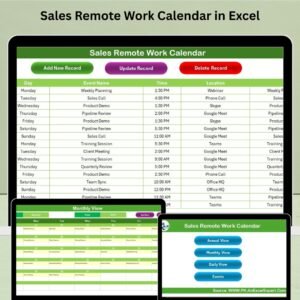
Yes. For example, the Technology Marketing Remote Work Calendar in Excel and the Sales Remote Work Calendar in Excel use the same layout for those teams.
Related Remote Work Calendars
- Sales Remote Work Calendar in Excel: the same calendar for sales teams in any industry
- Technology Marketing Remote Work Calendar in Excel: for remote marketing teams at technology companies
- Technology Customer Service Remote Work Calendar in Excel: for remote support teams
- Technology Operations Remote Work Calendar in Excel: for operations teams
- Monthly Sales Goals Calendar in Excel: a calendar for monthly sales targets
Browse all Excel calendar templates.













Reviews
There are no reviews yet.