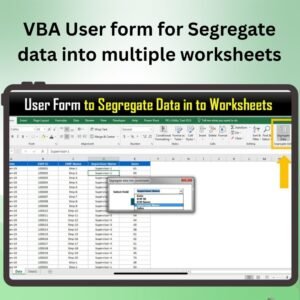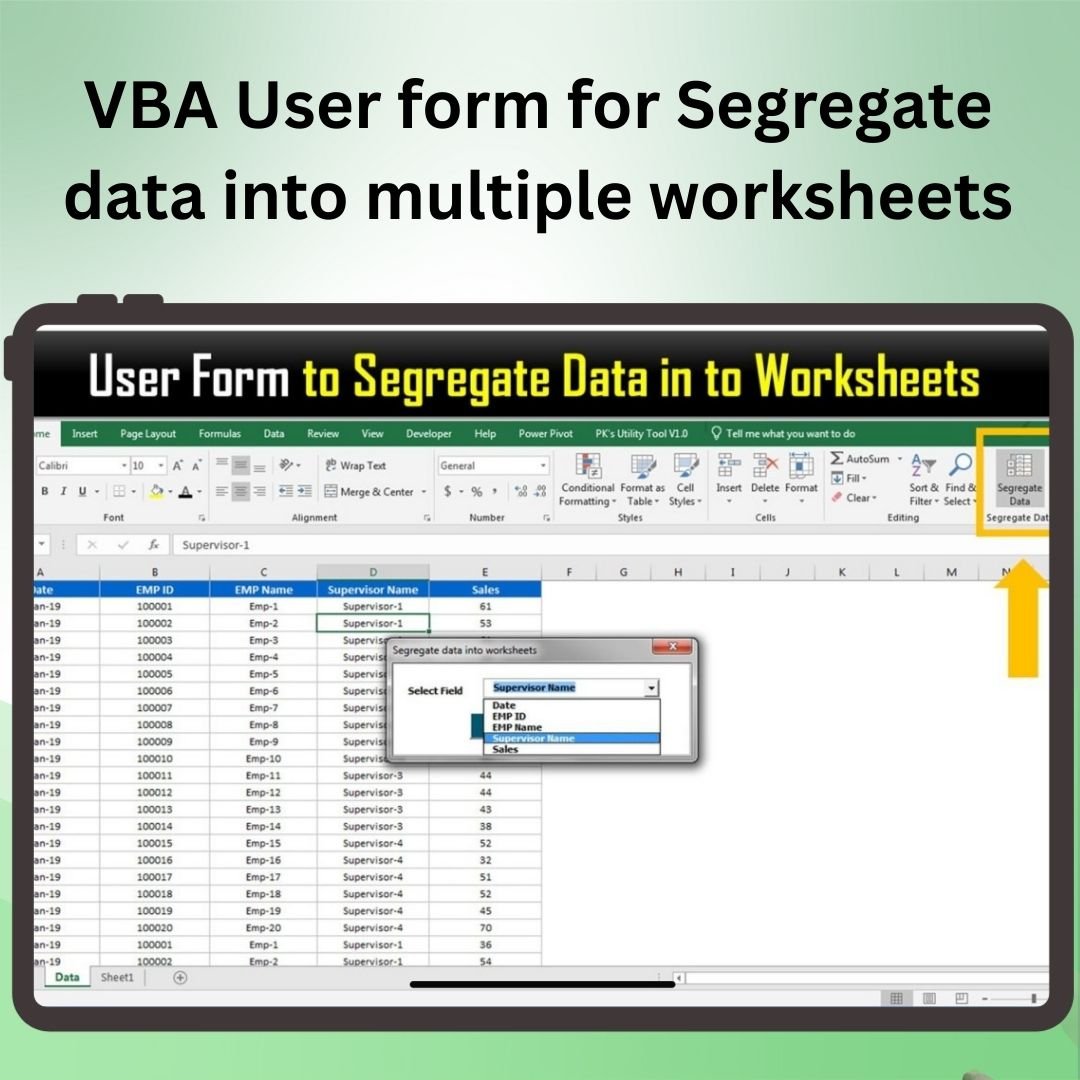

VBA User form for Segregate data into multiple worksheets

MS Excel - instant download

Original price was: ₹1,499.00.Current price is: ₹699.00.
Details, requirements and demo below
Sale!

VBA User form for Segregate data into multiple worksheets

Original price was: ₹1,499.00.Current price is: ₹699.00.

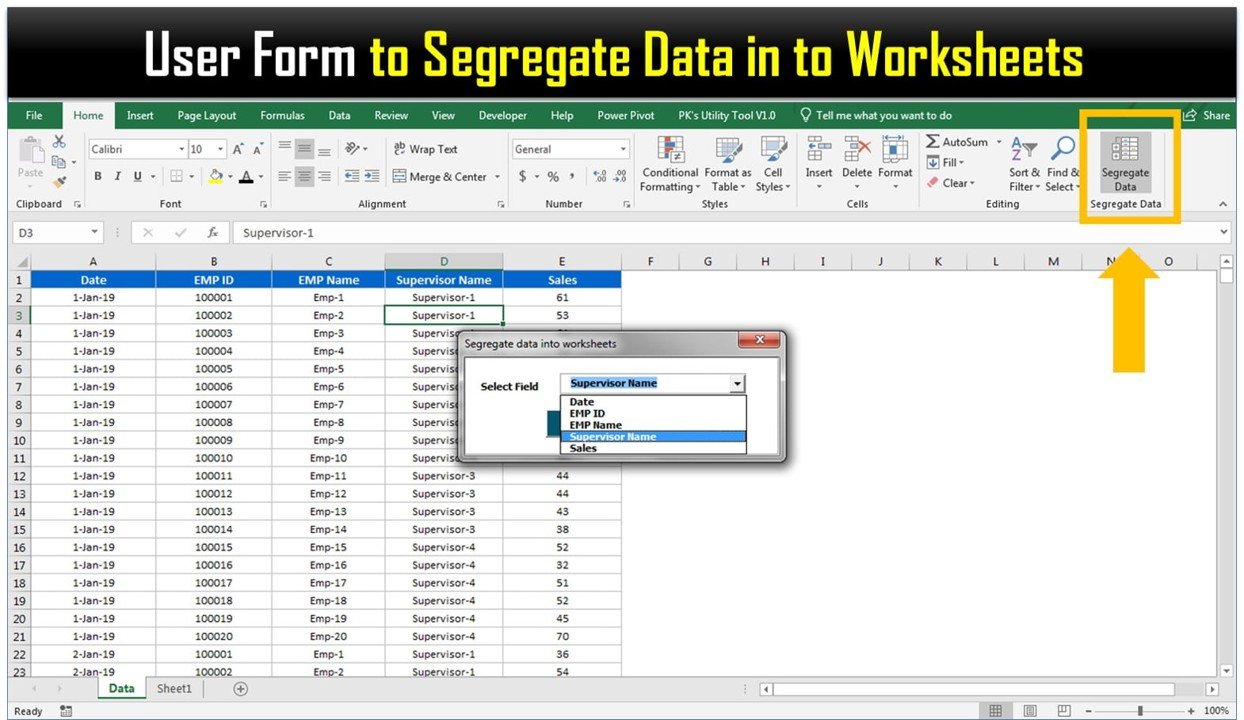
Easily segregate large datasets into multiple worksheets with this VBA user form. Select your criteria, and let the tool automatically organize your data for you.

  • Automated Data Segregation: Sort data into multiple sheets based on criteria with a click.
  • Customizable Criteria: Choose any column or data range for segmentation.
  • User-Friendly Interface: No coding needed—just select your criteria and let the tool do the work.
  • Time-Saving Tool: Reduce the time spent on manual data sorting and eliminate errors.
  • Efficient Data Management: Organize your data into structured worksheets for easier analysis and reporting.
- +

💡 Buy any 2 templates and save 20% automatically at checkout.

Pricing country
Prices follow your selected country; checkout uses your billing country.
Excel + AI Mastery: 100 Essential Formulas courseLaunch offer
🎓 NEXTGENTEMPLATES ACADEMY
Want to build templates like this yourself?
Excel + AI Mastery: 100 Essential Formulas

SUMIFS, XLOOKUP, FILTER, LAMBDA and checking AI-written formulas, with real business projects. 11h 47m of video by PK, with practice files, quizzes and a capstone.

The VBA User Form for Segregating Data into Multiple Worksheets is a powerful tool that helps automate the process of organizing and segregating data within an Excel workbook. This tool is ideal for users who work with large datasets that need to be divided into multiple worksheets based on specific criteria, such as customer name, department, region, or any other category.

By using VBA (Visual Basic for Applications), this tool enables a seamless, automated process that eliminates the need for manually sorting and copying data into separate sheets. The user-friendly VBA form allows you to select the criteria for segregation and then automatically distributes the data accordingly. This is especially useful for managers, analysts, or anyone who needs to streamline data processing and reporting tasks.
VBA user form
VBA user form

Key Features of the VBA User Form for Segregating Data into Multiple Worksheets:

⚙️ User-Friendly Interface
The intuitive user form makes it easy to set criteria for data segregation, allowing users to divide their data quickly and efficiently without needing advanced Excel skills.

📊 Automated Data Distribution
Automatically separate data into multiple worksheets based on user-defined criteria, saving time and reducing manual effort.

🔄 Real-Time Data Segregation
Once the user selects the desired criteria, the tool instantly processes the data and populates the appropriate worksheets in real-time.

📅 Customizable Segregation Criteria
Set custom segregation rules based on columns, such as categories, dates, or other variables, allowing for flexibility in data organization.

📈 Efficient Data Management
This tool simplifies the process of managing large datasets, allowing you to keep each category or group of data in its own worksheet for easier analysis and reporting.

Why You’ll Love the VBA User Form for Segregating Data into Multiple Worksheets:

✅ Save Time on Data Organization – Automate the process of segregating large amounts of data into multiple worksheets based on your criteria. ✅ Customizable for Your Needs – Tailor the user form to sort data based on any column or variable relevant to your project or analysis. ✅ User-Friendly Interface – No need for coding knowledge—just fill out the form and let the VBA script do the work. ✅ Ensure Accuracy – Eliminate human error by automating the data segregation process. ✅ Organize Data Efficiently – Quickly create multiple worksheets for easier data management, analysis, and reporting.

What’s Inside the VBA User Form for Segregating Data into Multiple Worksheets:

  • VBA User Form – A simple form where you can select criteria for segregating your data into multiple sheets.
  • Automated Segregation Process – Once the criteria are selected, the VBA script runs and distributes the data across worksheets automatically.
  • Customizable Settings – Choose which data columns to use as your criteria for segregation and adjust as needed.
  • Real-Time Data Updates – The form updates the worksheets instantly after you define the data parameters.

How to Use the VBA User Form for Segregating Data into Multiple Worksheets:

1️⃣ Download the Template – Get instant access to the Excel file after purchase. 2️⃣ Input Your Data – Add your data to the sheet, ensuring each category or column is properly formatted. 3️⃣ Open the VBA Form – Click to open the user form and select the criteria for data segregation. 4️⃣ Segregate Data – Click the “Segregate” button, and the VBA script will automatically sort your data into the relevant worksheets. 5️⃣ Review and Adjust – Once the segregation is complete, you can review and make adjustments to the newly created worksheets.

Who Can Benefit from the VBA User Form for Segregating Data into Multiple Worksheets:

  • Business Analysts
  • Data Analysts
  • Project Managers
  • Sales Teams
  • Operations Managers
  • Anyone working with large datasets and needing efficient data management

The VBA User Form for Segregating Data into Multiple Worksheets is a game-changer for anyone working with complex datasets that require sorting and organizing into multiple sheets. It saves time, reduces errors, and enhances the efficiency of data processing, making it an essential tool for anyone in data management, analysis, or reporting.

Click here to read the Detailed blog post

https://www.pk-anexcelexpert.com/vba-user-form-for-segregate-data-into-multiple-worksheets/
Visit our YouTube channel to learn step-by-step video tutorials

YouTube.com/@PKAnExcelExpert

Watch the step-by-step video tutorial:

Frequently asked questions

Does it work on Mac?
No - please use Windows. Our VBA tools use forms with controls such as ListBox, which work only in Microsoft Excel for Windows. They do not work on Mac Excel, Excel Online (browser), Google Sheets or the Excel mobile app.
Which Excel version do I need?
Microsoft Excel 2016, 2019, 2021 or Microsoft 365 for Windows (the desktop app).
The macros do not run or I see a yellow security bar. What do I do?
Unzip the download first. Right-click the .xlsm file > Properties > tick Unblock > OK. Open it and click Enable Content on the yellow bar. If Excel still says macros are blocked, check File > Options > Trust Center > Macro Settings.
Is there a login? What are the default details?
Systems with a login screen come with default admin login details in the user manual (or message us and we will send them). Sign in as admin and change the password straight away. Where the system has User Management, the admin can change user names and passwords and add or edit users.
Are the sheets or the VBA code protected?
Data sheets are protected so the forms and reports keep working - you enter data through the forms. In some tools the VBA code is also protected. If you need to edit the code, email [email protected] with your order number and we will share the password.
Can I enter back-dated (past) records?
Yes, you can enter records with past dates.
Can more than one person use it at the same time?
It is a single-user desktop workbook. For shared, multi-user access from anywhere, see our Google Apps Script web apps.
How many records can it handle?
It has been tested with several thousand records and suits normal small-business volumes.
Is it a one-time payment or a subscription?
One-time payment. No subscription, no per-user fees and nothing to renew - the file is yours to keep.
How do I get the file after payment?
Instantly. The download link appears on screen after checkout, is emailed to you, and stays under My Account > Downloads on our website. If the email does not arrive within a few minutes, check your spam or promotions folder.
Is a user manual included?
Most of our newer products include a PDF user manual in the download. If yours does not have one, message us with your order number and we will send it.
Do I get free updates?
Bug fixes are always free - if something does not work as described, we fix it and send you the corrected file. New versions with new features are not included in the price, unless this product's description says otherwise.
Can you customise it for me?
Yes. Small changes to this template (your columns, categories, logo, colours, minor layout) cost the template price plus $40-80 (Rs 3,000-6,000 + GST), quoted once you send your list. A fully custom build is usually $100-200 (Rs 8,000-18,000 + GST) with two revision rounds. Email your requirements to [email protected] or message us on WhatsApp.
Can I use it for my business or my clients?
Yes, for your own personal or internal business use, for as long as you like. Reselling or redistributing the template is not allowed.
What is your refund policy?
Because these are digital downloads, they are non-refundable once delivered - except when the product does not match its description (report it within 48 hours of purchase) or there is a technical problem our team cannot fix within 72 hours. Email [email protected] with your order number.
How do I get help?
Email [email protected] (Mon-Fri, 10 AM-7 PM IST) or message us on WhatsApp +91 80770 90260 (chat only, no calls). Please include your order number.

Still have a question? Click Need help? at the bottom-left to ask our assistant, or message us on WhatsApp.

Application

MS Excel

Template Type

VBA Tool

Price

Paid

Business Or Department

IT and Software Development

Reviews

There are no reviews yet.

Only logged in customers who have purchased this product may leave a review.

VBA User form for Segregate data into multiple worksheetsVBA User form for Segregate data into multiple worksheets
Original price was: ₹1,499.00.Current price is: ₹699.00.
- +
Scroll to Top