

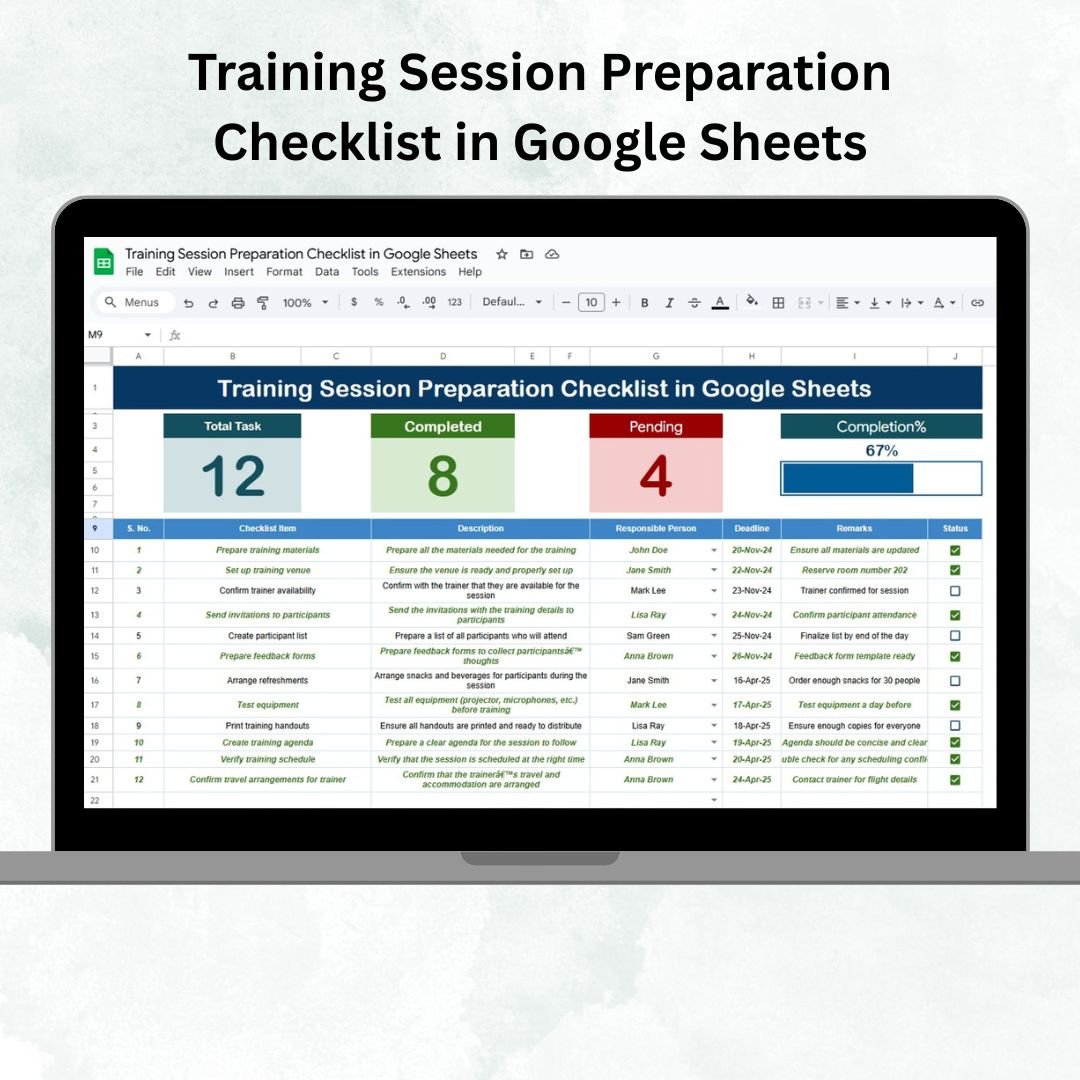

Preparing for training sessions can often feel overwhelming—materials, venues, schedules, trainers, and participant needs must all align perfectly. A single missed step can delay the entire session and reduce its effectiveness. That’s why we created the Training Session Preparation Checklist in Google Sheets — a ready-to-use, interactive template designed to help HR teams, trainers, and coordinators track preparation tasks, responsibilities, deadlines, and completion status in one centralized tool.
With this checklist, you can streamline planning, assign responsibilities clearly, and ensure nothing falls through the cracks. Whether you’re organizing in-person workshops or virtual training programs, this tool provides a structured and visual way to track every step of your preparation process.
🔑 Key Features of the Training Session Preparation Checklist
✅ Training Session Checklist Sheet Tab
This is the main working area where all tasks are listed. It includes:
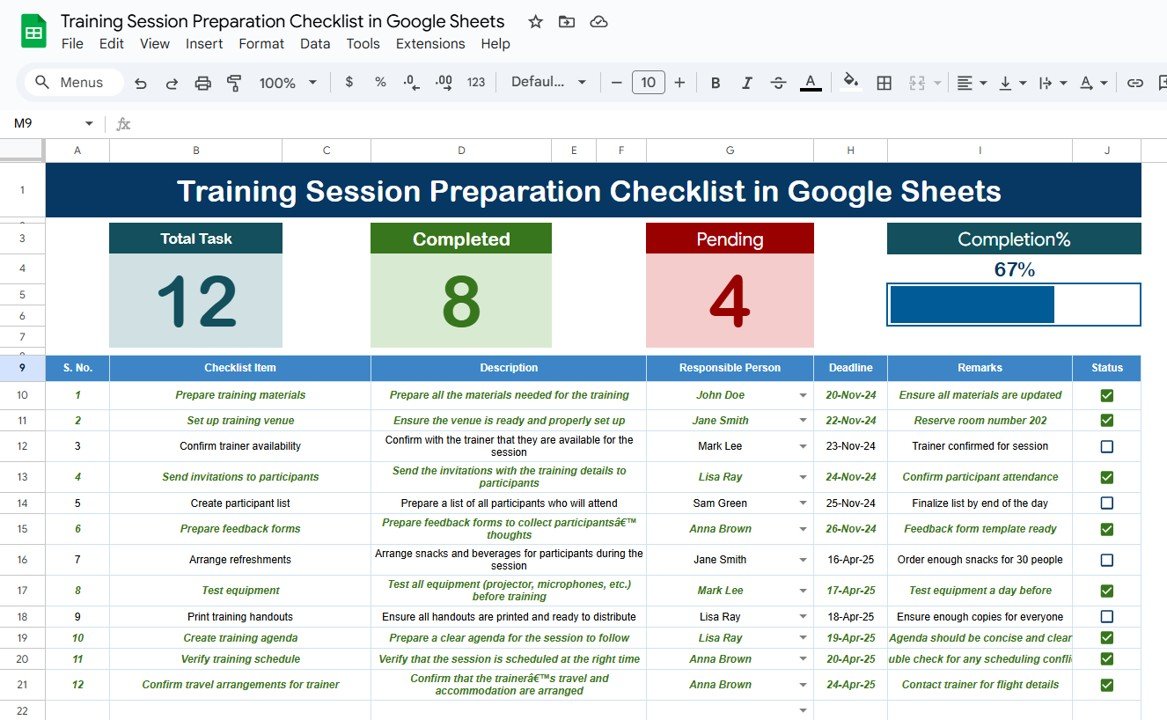
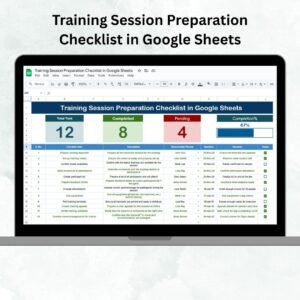
Top Section with Dynamic Cards:
Total Checklist Items – Displays the overall number of tasks
Completed Items – Count of tasks marked as ✔
Pending Items – Count of tasks marked as ✘
Progress Bar – A visual representation of completion percentage
Detailed Checklist Table:
Serial No. (automatic numbering)
Checklist Item (specific task name)
Description (short explanation of the task)
Responsible Person (assigned team member)
Deadline (target completion date)
Remarks (notes or special instructions)
Status (✔ for completed, ✘ for pending)
This structure gives you a clear, real-time snapshot of preparation progress, making it easy to identify bottlenecks.
✅ List Sheet Tab
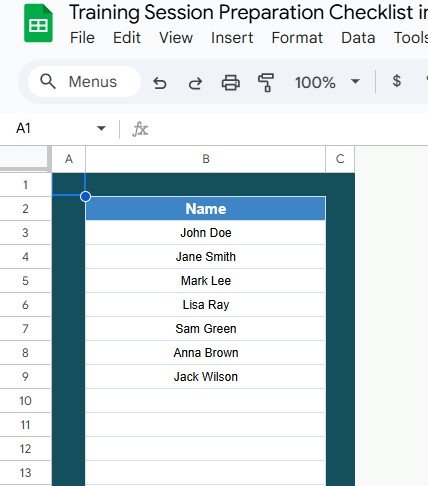
This supporting sheet captures a unique list of responsible persons, which feeds into the dropdowns in the checklist sheet. Benefits include:
Eliminating spelling errors and inconsistencies in assigning names
Making the template interactive and easy to update
Streamlining accountability across tasks
📦 What’s Inside the Checklist?
Main Checklist Tab – Task-by-task progress tracking with status updates
List Sheet Tab – Responsible persons database for dropdowns
Dynamic Cards & Progress Bar – Instant visual insight into preparation progress
Pre-Built Columns – Ready to capture task details, deadlines, and responsibilities
Sample Data – Pre-filled examples to guide first-time users
🧠 How to Use the Training Session Preparation Checklist
Enter Tasks – Add all session preparation steps (venue setup, materials, invites, etc.) in the checklist sheet.
Assign Responsibilities – Use the dropdowns linked to the List sheet to allocate tasks.
Set Deadlines – Define target dates for each item to ensure timely preparation.
Track Progress – Update status with ✔ or ✘ as tasks move forward.
Monitor Completion – Review cards and the progress bar for an at-a-glance update.
Collaborate in Real-Time – Share the Google Sheet with your team for seamless updates.
👥 Who Can Benefit from This Checklist?
🏢 HR Teams – Manage corporate training programs smoothly
👩🏫 Trainers & Facilitators – Ensure all prep steps are covered
🧑💼 Managers – Track training readiness across departments
🎓 Educational Institutions – Plan workshops and academic sessions efficiently
🚀 Small Businesses – Save time with a structured, ready-to-use format
⭐ Advantages of Using the Training Session Preparation Checklist
🗂 Centralized Tracking – All tasks in one structured tool
⚡ Real-Time Updates – Collaborative edits in Google Sheets
📊 Visual Progress Indicators – Cards & progress bar for quick status checks
🛠 Customizable – Add/remove columns, tasks, or team members easily
⏱ Time-Saving – Prebuilt design for immediate use
📑 Audit-Friendly – Historical record of past training sessions
🔗 Click here to read the Detailed blog post
🔗 Visit our YouTube channel to learn step-by-step video tutorials
Compatibility and Requirements
- Works in Google Sheets. You need a free Google account and a web browser.
- Responsible persons are picked from a dropdown fed by the List sheet. Google explains dropdowns in Create an in-cell dropdown list.
Frequently Asked Questions
Which sheets are included?
Two sheets: the Training Session Checklist sheet for tasks and progress, and the List sheet that holds the responsible persons used in the dropdowns.
What columns does the checklist have?
Serial No., Checklist Item, Description, Responsible Person, Deadline, Remarks and Status. Serial numbers fill in automatically.
How do I show that a task is done?
Set the Status column to ✔ for completed or ✘ for pending. The cards at the top count completed and pending items, and the progress bar shows the completion percentage.
How do I add a new person to assign tasks to?
Add the name to the List sheet. It then appears in the Responsible Person dropdown on the checklist sheet.
Is there an Excel version?
Yes. See the Training Session Preparation Checklist in Excel.
Related Training and Checklist Templates
- Training Session Preparation Checklist in Excel: the same checklist in Excel
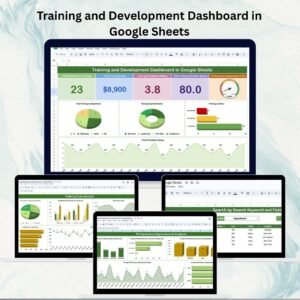
- Training and Development Dashboard in Google Sheets: a dashboard view of your training data
- Employee Onboarding Checklist in Google Sheets: a checklist for new hires
- Project Management Checklist in Google Sheets: task tracking for projects
- Checklist & SOP Pack: 12 checklist templates in one download
Browse all Google Sheets checklists.






Reviews
There are no reviews yet.