


In today’s fast-moving business world, managing sales calls effectively can make the difference between winning or losing a client. Sales representatives handle dozens of calls daily, from initial prospecting to follow-ups and deal closures. Without a structured system, important opportunities slip through the cracks. That’s where the Sales Call Checklist in Google Sheets comes in — a ready-to-use, interactive tool designed to help sales teams stay organized, accountable, and productive.
This checklist is not just about logging calls. It’s about providing your team with a clear roadmap to track progress, assign responsibilities, and ensure no sales opportunity is missed. Built in Google Sheets, this tool offers flexibility, collaboration, and real-time updates that work seamlessly for small businesses, startups, and large sales teams alike.
✅ Key Features of the Sales Call Checklist in Google Sheets
Centralized Sales Call Tracking: Organize all calls, follow-ups, and activities in one digital space.
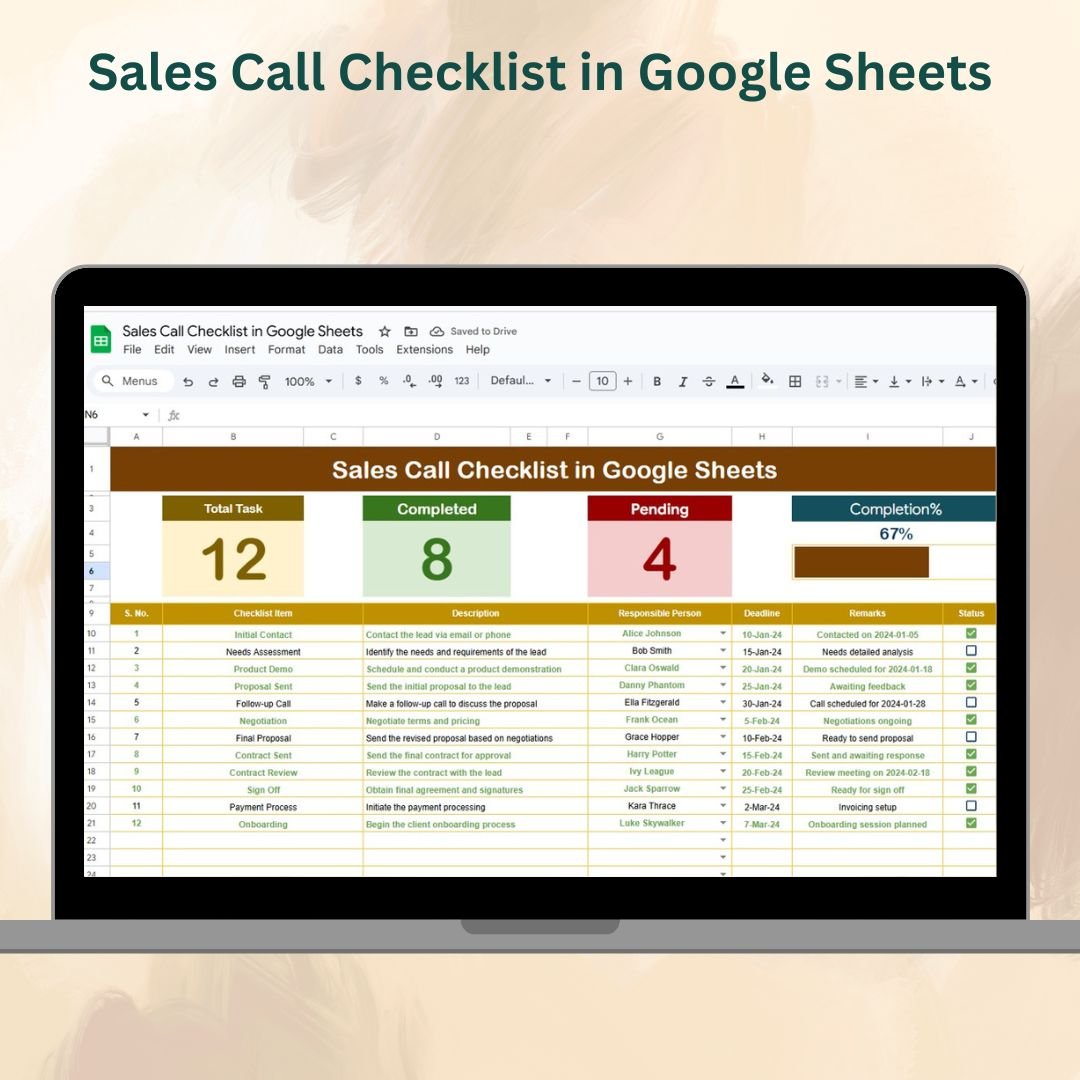
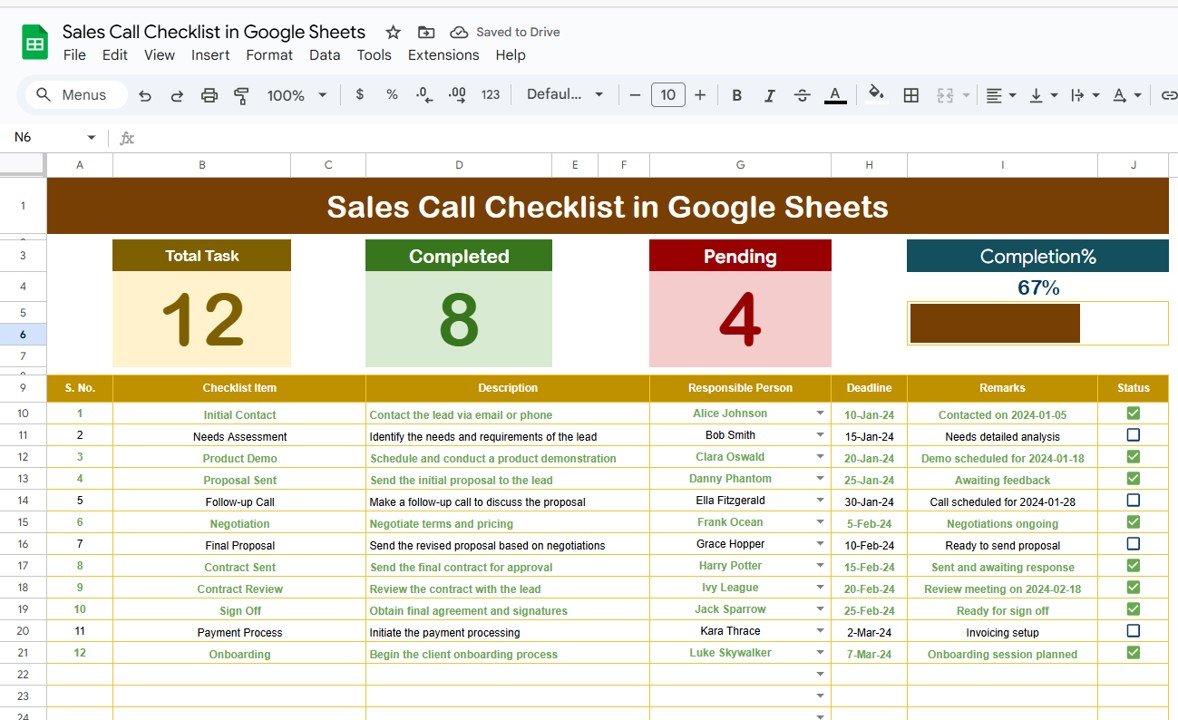
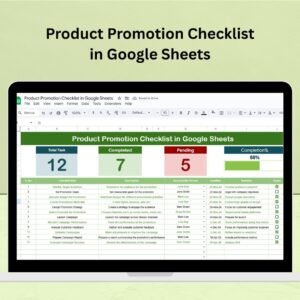
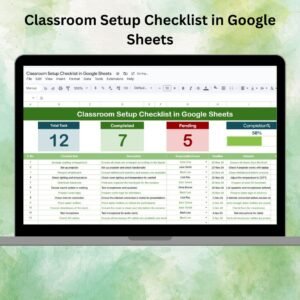
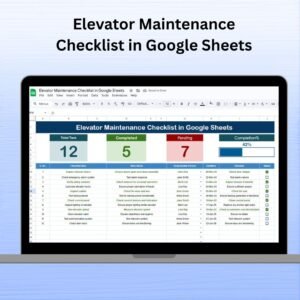
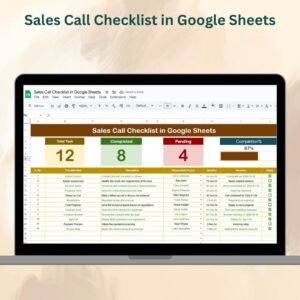
Progress Dashboard: Quick cards at the top show total calls, completed calls, pending calls, and a visual progress bar.
Detailed Checklist Table: Columns for Serial No., Task/Call Activity, Description, Responsible Person, Deadline, Remarks, and Status (✔/✘).
Dropdown Assignments: Automatically assign tasks via dropdown lists from the List Sheet to avoid errors and ensure accountability.
Real-Time Collaboration: Multiple team members can update progress simultaneously.
Customizable Layout: Add new fields like priority, call type, or follow-up date to fit your team’s workflow.
Visual Indicators: Use conditional formatting to highlight overdue calls and track urgency.
📋 What’s Inside the Sales Call Checklist
Main Checklist Sheet
Top dashboard cards for instant progress tracking.
A structured table to log and monitor every sales call, deadline, and responsible person.
Interactive progress bar for quick visual updates.
List Sheet
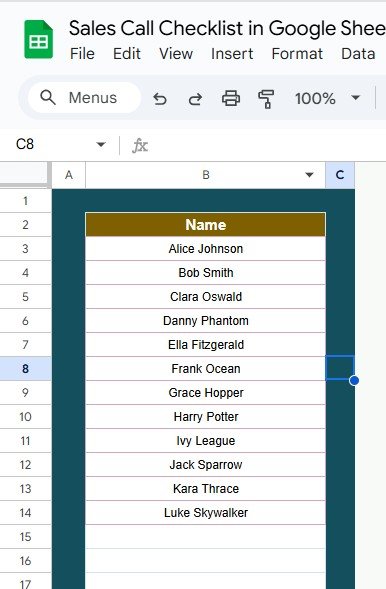
A centralized sheet with team member names.
Linked to the main sheet to provide dropdown options for assigning responsibilities.
Prevents spelling errors and maintains consistency across assignments.
🛠 How to Use the Sales Call Checklist
Set Up the List Sheet – Add names of all sales reps. This ensures you can assign calls quickly via dropdown menus.
Enter Sales Calls – Record each task or call activity in the main sheet, with details, responsible person, and deadlines.
Track Status – Update calls with ✔ when completed or ✘ if pending. The dashboard and progress bar update automatically.
Monitor Remarks – Use the remarks column for important notes, follow-up details, or client-specific insights.
Review Weekly – Managers can quickly filter by salesperson, call type, or status to identify gaps and coach the team.
👨💼 Who Can Benefit from This Checklist
Sales Representatives – Keep track of leads, calls, and follow-ups without missing a step.
Sales Managers – Monitor team performance, call completion rates, and accountability.
Small Business Owners – Manage limited sales staff more effectively without expensive CRM tools.
Remote Sales Teams – Collaborate in real-time from anywhere in the world.
B2B & B2C Companies – Ensure structured communication with prospects and clients across industries.
📈 Advantages of the Sales Call Checklist
Improved Organization – Every call logged, tracked, and monitored.
Accountability – Tasks assigned clearly to each team member.
Efficiency – Track pending calls and prioritize follow-ups.
Data-Driven – Use Google Sheets filters and charts to analyze performance.
Scalability – Works for both small and large teams with easy customization.
⚡ Best Practices
Update the checklist daily for real-time accuracy.
Set clear deadlines to maintain accountability.
Use conditional formatting for overdue or high-priority calls.
Review team performance weekly using filters or pivot tables.
Customize the sheet to include KPIs like call-to-sale ratio or average response time.
🔮 Opportunities for Improvement
Integrate with CRM systems for automatic updates.
Add KPI tracking for better sales analytics.
Automate email alerts for overdue calls using Google Apps Script.
Build a visual dashboard in Google Sheets for trend analysis.
✅ Conclusion
The Sales Call Checklist in Google Sheets is more than just a tracker — it’s a productivity tool designed to help sales teams manage calls, follow-ups, and deal progress with ease. Whether you’re a small business owner or a large sales organization, this checklist keeps everyone aligned, accountable, and focused on closing deals.
Click here to read the Detailed Blog Post
Watch the step-by-step video Demo:
Visit our YouTube channel to learn step-by-step video tutorials → YouTube.com/@NeotechNavigators
Compatibility and Requirements
- Works in Google Sheets with a free Google account and a web browser.
- Make a copy to your own Google Drive, then share it with your team if you want to work on it together.
- New to Sheets? Google’s guide How to use Google Sheets covers the basics.
- Google explains dropdowns in Create an in-cell dropdown list.
Frequently Asked Questions
What do the cards at the top show?
Total calls, completed calls and pending calls, plus a progress bar that updates as you mark calls done.
Which columns are in the checklist?
Serial No., Task or Call Activity, Description, Responsible Person, Deadline, Remarks and Status.
How do I assign calls to sales reps?
Add your team names on the List sheet. They then appear in the Responsible Person dropdown on the main sheet.
How do I mark a call as done?
Set the Status to ✔ when a call is completed or ✘ if it is still pending. The cards and progress bar update automatically.
Related Sales Templates
- Sales Call Checklist Template in Excel: the same checklist in Excel
- CRM and Sales Pipeline Management System Web App: manage leads and deals in a browser app
- One Page Sales Dashboard in Google Sheets (Free Template): chart sales results in Sheets
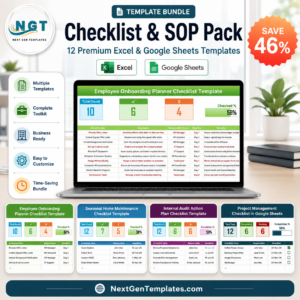
- Checklist & SOP Pack: 12 Excel and Google Sheets checklists in one bundle
Browse all Google Sheets checklists or the Google Sheets templates.








Reviews
There are no reviews yet.