

Retail success depends on perfect timing. Promotions, campaigns, store events, launches, and operational deadlines must all align seamlessly. However, when retail teams rely on scattered notes, emails, or basic spreadsheets, planning quickly becomes chaotic. As a result, important dates are missed, campaigns overlap, and execution suffers.
That is exactly where the Retail Planning Calendar in Excel becomes a must-have planning and execution tool for modern retail businesses.
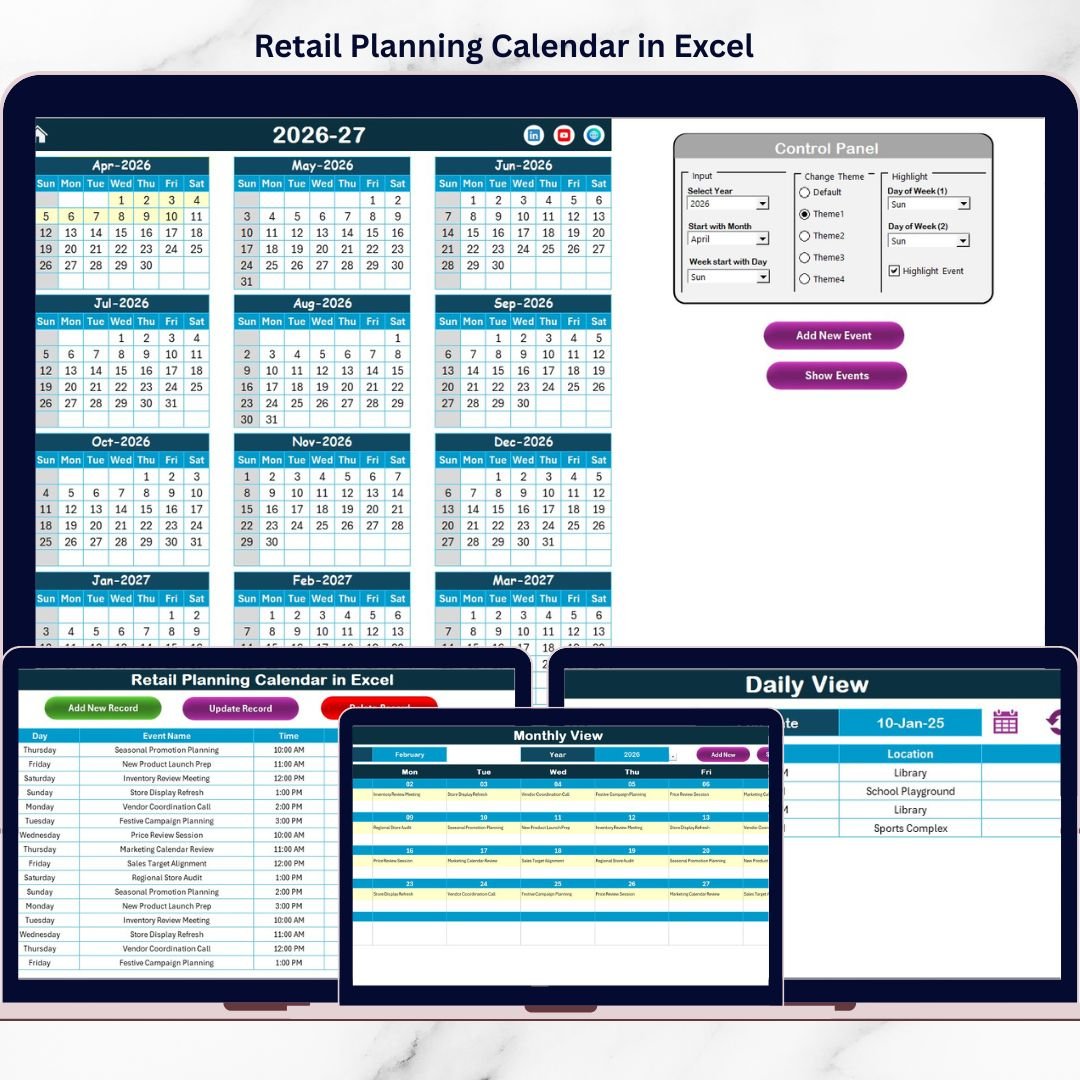
This ready-to-use Excel calendar helps retailers plan, organize, and track all retail activities in one structured and interactive workbook. Instead of juggling multiple files, teams gain complete visibility across annual, monthly, and daily planning views, ensuring every retail activity stays on track.
🔑 Key Features of Retail Planning Calendar in Excel
🗓️ Multiple Planning Views
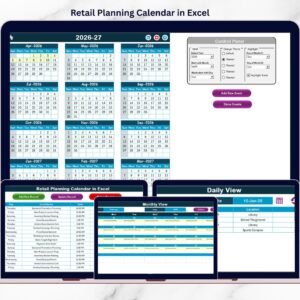
Plan retail activities using Annual, Monthly, and Daily calendar views for complete visibility.
🎨 Theme Customization
Change the entire calendar theme using predefined color options to match your brand or preference.
📌 Automatic Event Highlighting
Highlight weekends, important days, and event dates automatically for better visibility.
➕ Easy Event Management
Add, update, or delete events using simple buttons and user-friendly forms.
📂 Centralized Event Database
Store all retail events in one structured backend sheet to avoid duplication and confusion.
📦 What’s Inside the Retail Planning Calendar in Excel
This professionally designed Excel template includes five powerful worksheets, each built to support retail planning from strategy to execution.
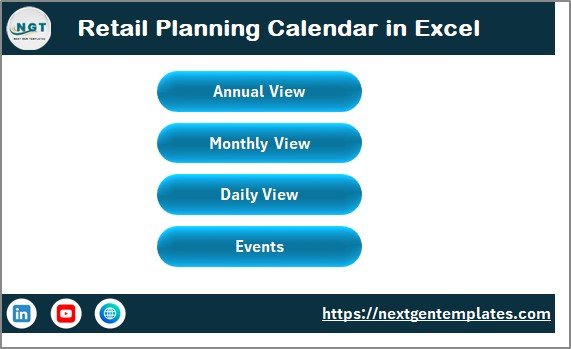
🏠 Home Sheet – Navigation Hub
Buttons for Annual View, Monthly View, Daily View, and Events
One-click navigation across the entire calendar
Clean and intuitive layout for easy access
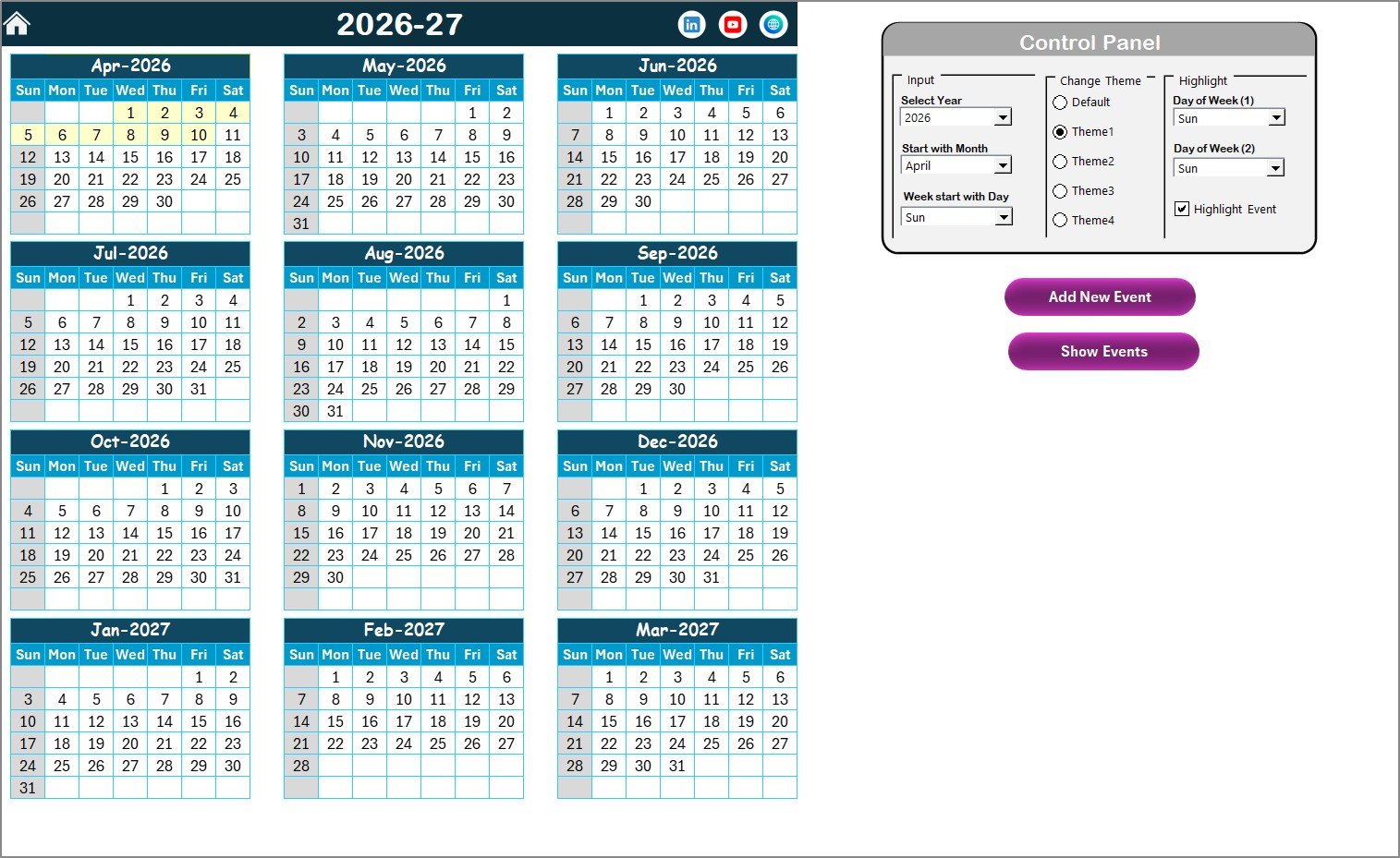
🗓️ Annual View Sheet – Year-at-a-Glance Planning
Displays all 12 months in one screen
Control panel to change year, starting month, and starting weekday
Theme selection with five predefined color options
Highlight weekends and important days
Add and view events directly from the annual calendar
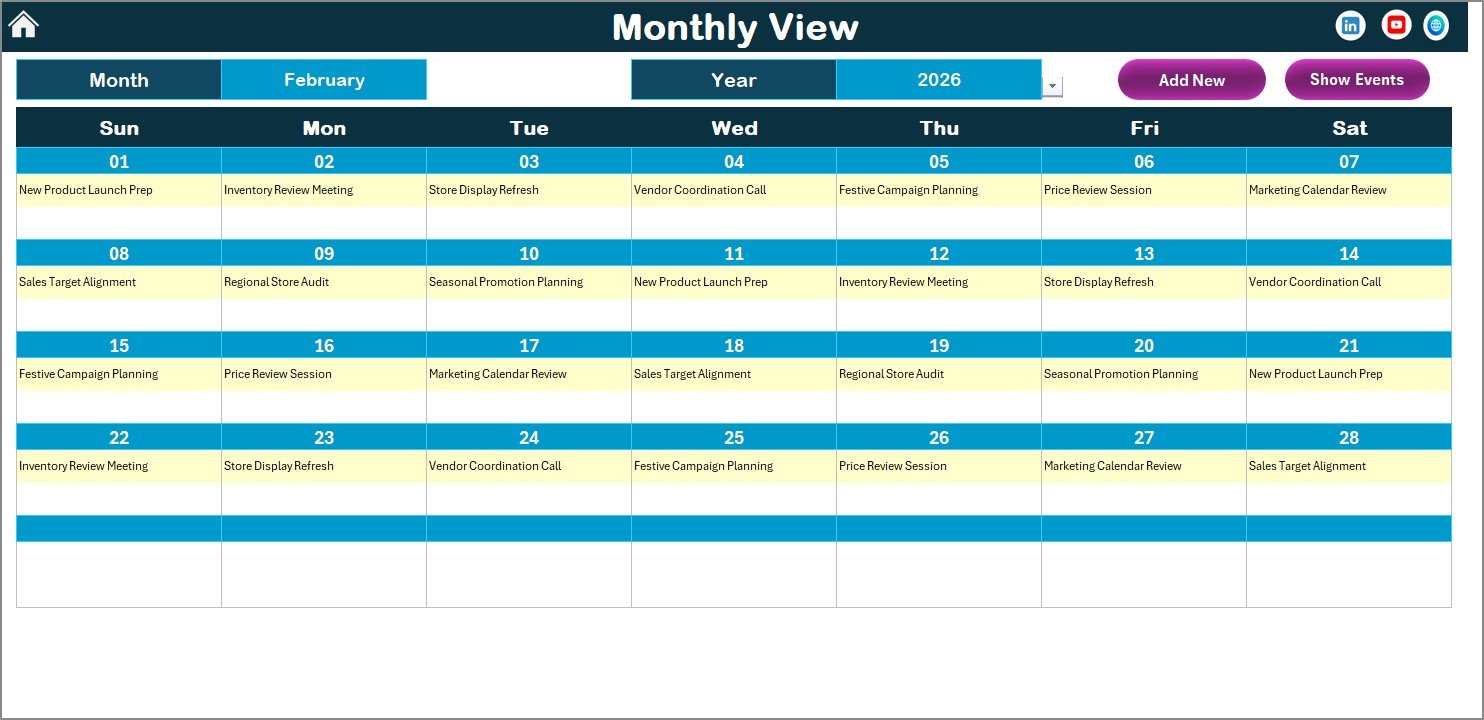
📅 Monthly View Sheet – Focused Monthly Execution
Select month and year dynamically
View one event per date
Display “more than 1…” when multiple events exist
Add and view events using dedicated buttons
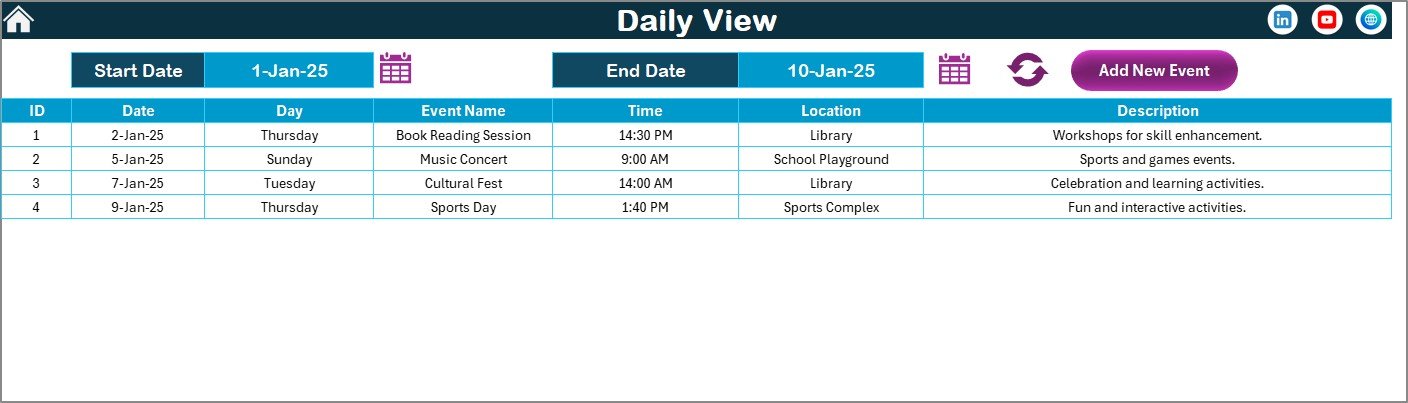
📋 Daily View Sheet – Detailed Event Tracking
Select start and end date using calendar icons
Refresh to load all events within the date range
View event details in a structured table
Add new events directly from daily view
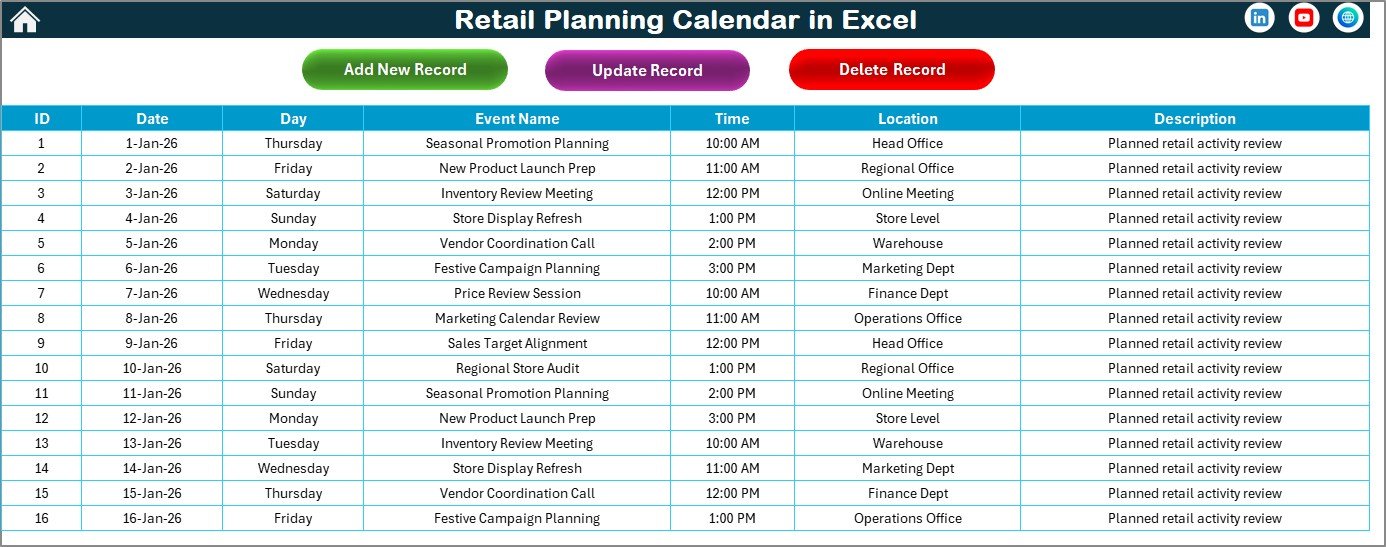
🗂️ Events Sheet – Central Event Database
Auto-generated Event ID
Event Date and Day
Event Name, Time, Location, and Description
Buttons to add, update, or delete events
⚙️ How to Use the Retail Planning Calendar in Excel
Using this calendar is simple and beginner-friendly:
1️⃣ Select the year, month, and week settings
2️⃣ Add retail events using the Add Event button
3️⃣ View plans in Annual, Monthly, or Daily format
4️⃣ Update or delete events anytime
5️⃣ Track execution using highlighted dates and views
No formulas to manage. No advanced Excel skills required.
👥 Who Can Benefit from This Retail Planning Calendar
This Excel calendar is ideal for:
🛒 Retail store managers
📦 Merchandising teams
📢 Marketing & campaign teams
⚙️ Operations managers
🏬 multi-store retail businesses
Anyone with basic Excel knowledge can use it confidently.
🚀 Why Choose This Retail Planning Calendar?
✅ Centralized retail planning in one file
✅ Clear visibility of events and campaigns
✅ Reduced planning errors and overlaps
✅ Faster execution and coordination
✅ 100% Excel-based, no extra software
Stop reacting late. Start planning retail activities with confidence and clarity.
📘 Click here to read the Detailed blog post
🎥 Visit our YouTube channel to learn step-by-step video tutorials
Watch the step-by-step video tutorial:
Compatibility and Requirements
- Works in Microsoft Excel desktop (Excel 2016 or later, or Microsoft 365).
- You add, update and delete events with buttons and forms, so the workbook uses macros. Use Excel desktop on Windows with macros enabled. It does not run in Excel for the web, Google Sheets or mobile. Microsoft explains the setting in Enable or disable macros in Microsoft 365 files.
Frequently Asked Questions
Which sheets are included?
Five sheets: Home, Annual View, Monthly View, Daily View and Events.
How do I add a retail event?
Use the Add Event button on the Annual, Monthly or Daily View sheet. The event is saved on the Events sheet with an auto-generated Event ID, date, day, name, time, location and description.
Can I change or delete an event later?
Yes. The Events sheet has buttons to add, update or delete events, and the calendar views show the change.
What happens when two events fall on the same day?
The Monthly View shows one event per date and displays “more than 1…” when a date has several events. The Daily View lists every event in the date range you select.
Can I change the year, starting month or colors?
Yes. The Annual View has a control panel for the year, the starting month and the starting weekday, plus five predefined color themes.
Is there a version for another type of planning?
Yes. See the Event Planning Calendar in Excel and the Annual Strategic Planning Calendar in Excel.
Related Calendar Templates
- Event Planning Calendar in Excel: plan and track events by date
- Annual Strategic Planning Calendar in Excel: a year-long planning view
- Content Planning Calendar in Excel: schedule campaign content
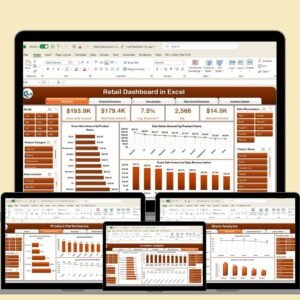
- Retail Dashboard in Excel: track retail results alongside your plan
- Calendar & Planner Pack: 12 calendar and planner templates in one download
Browse all Excel calendar templates.





Reviews
There are no reviews yet.