


Office Renovation Request Tracker in Excel 🏢📊🔧
Managing office renovation requests is often chaotic. Without a proper system, organizations struggle with scattered approvals, missing budgets, and inconsistent tracking. The Office Renovation Request Tracker in Excel is a ready-to-use, VBA-powered tool that streamlines the entire process—from request submission to approval, budget monitoring, and reporting.
Designed for administrators, HR professionals, and facility managers, this tool ensures every renovation request is centralized, transparent, and easy to track. With interactive dashboards, secure login, automated forms, and user management, it eliminates inefficiencies and helps businesses control costs effectively.
✨ Key Features of the Office Renovation Request Tracker
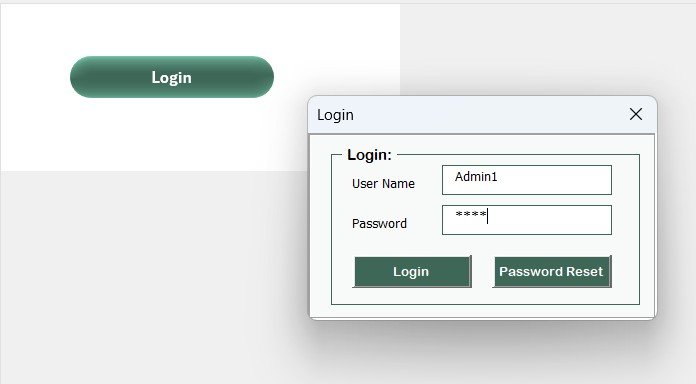
🔐 Login Form – Secure Access
User authentication with User ID and Password (default Admin1 / abcd).
Redirects to the Main Form after successful login.
Protects data with role-based access.
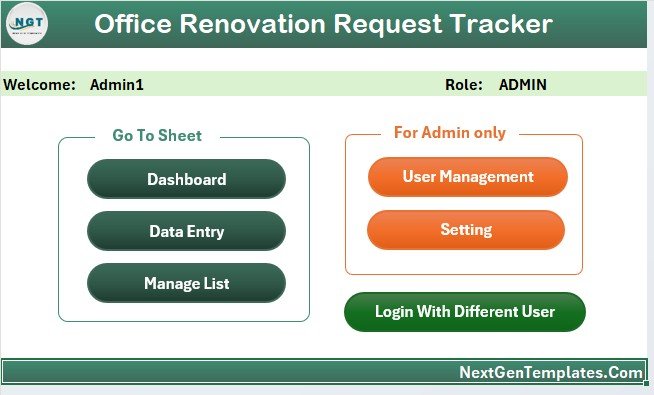
🖥 Main Form – Centralized Control
A simple, user-friendly hub for managing requests.
Quick navigation to dashboards, forms, and settings.
Update or delete requests instantly.
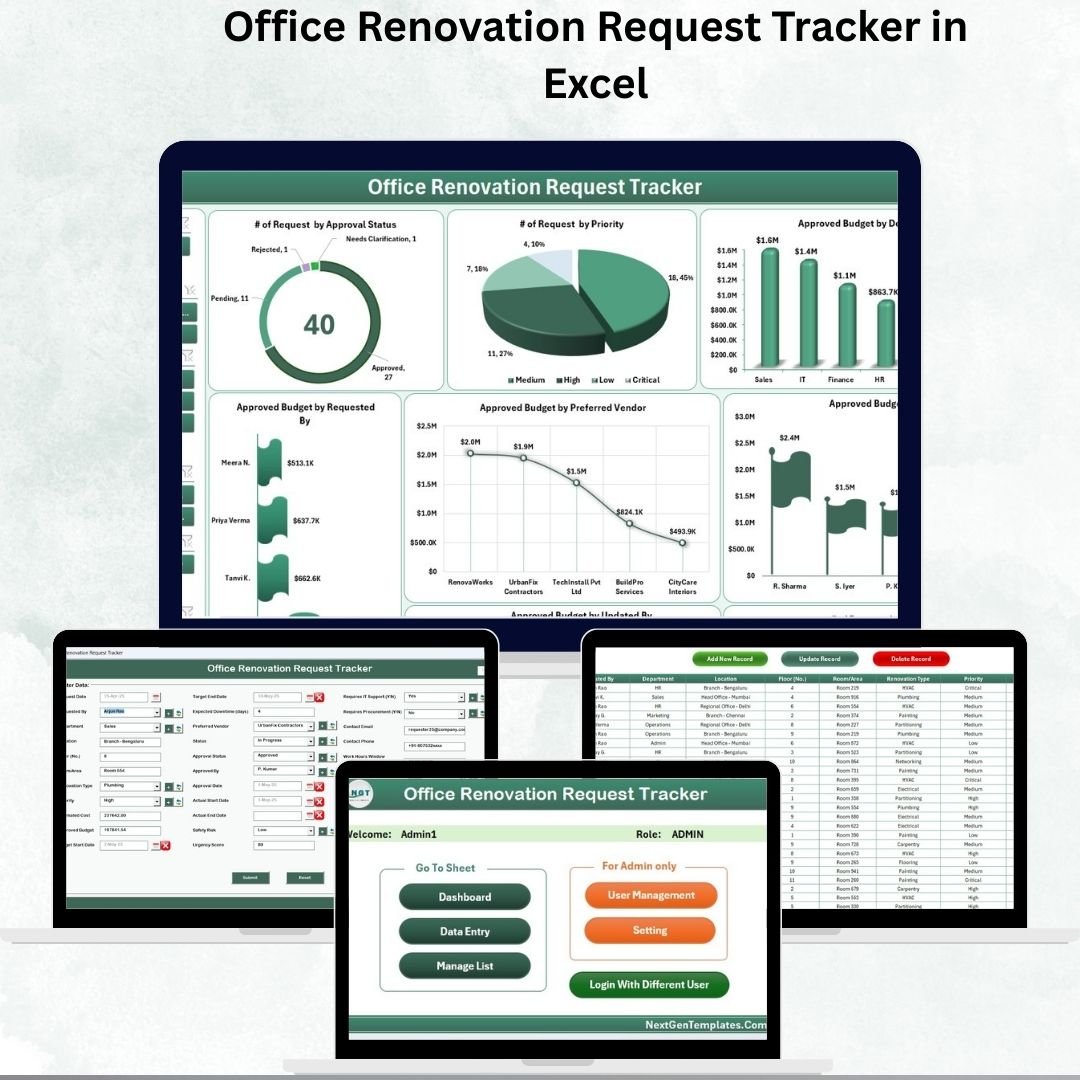
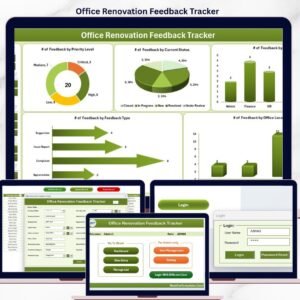
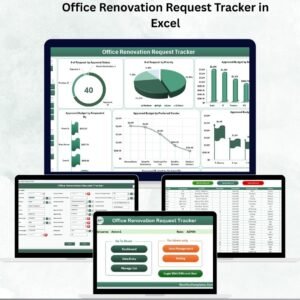
📊 Dashboard Sheet – Visual Insights
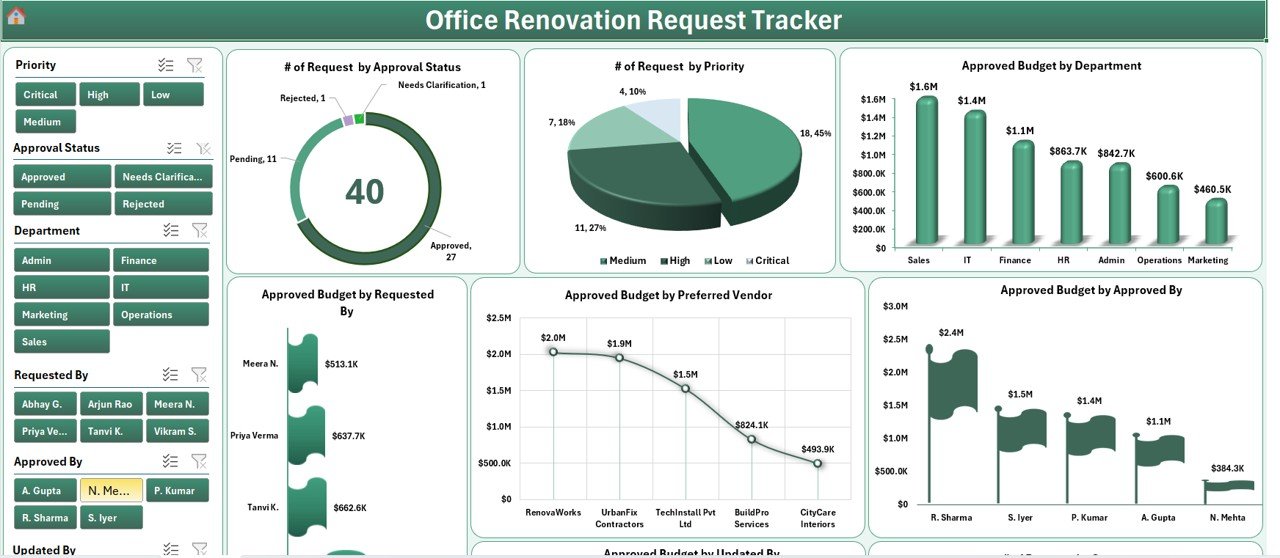
8 slicers + 8 interactive charts:
Requests by Approval Status
Requests by Priority
Approved Budget by Department
Approved Budget by Requestor
Approved Budget by Vendor
Approved Budget by Approver
Approved Budget by Updated By
Requests by Status
Provides real-time insights for smarter decision-making.
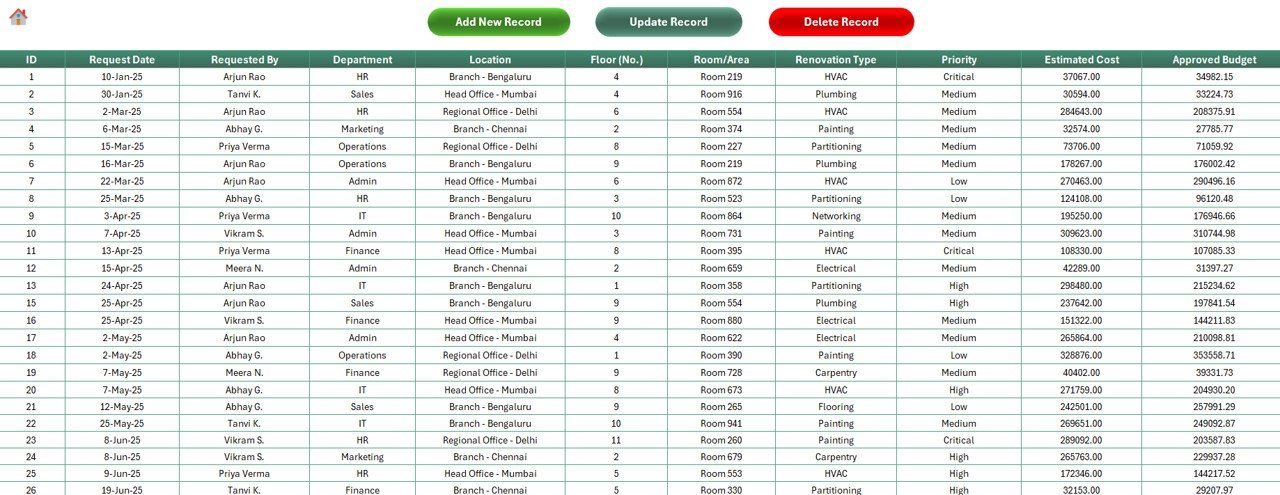
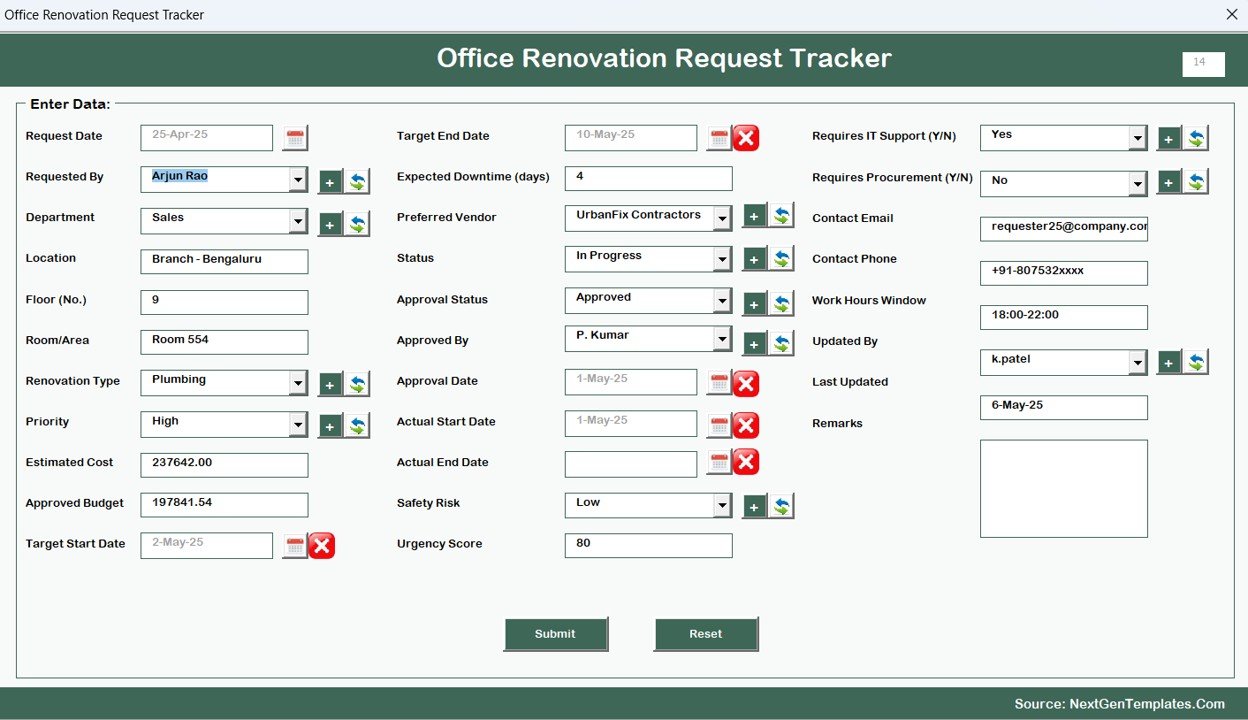
📝 Data Entry Sheet – Easy Request Management
Buttons for Add New Record, Update Record, Delete Record.
Automated forms ensure accurate and structured entries.
Real-time updates refresh the dashboard automatically.
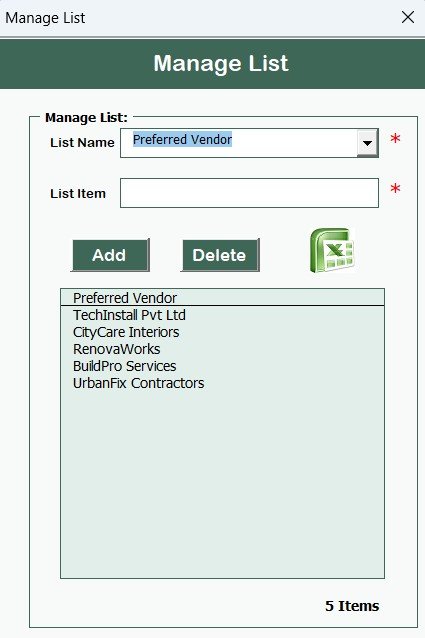
📋 Manage List Sheet – Dropdown Control
Centralized master lists for dropdowns (Departments, Vendors, Priorities).
Consistency in data entry across all requests.
⚙ Support Sheet – Automated Backend
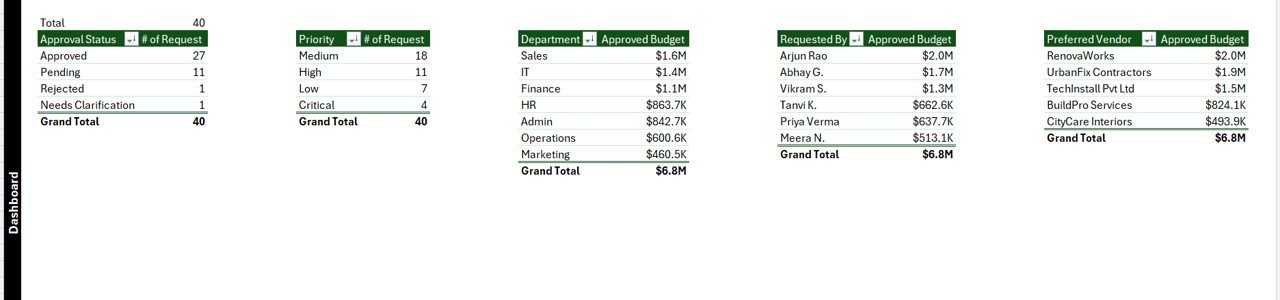
Pivot tables powering dashboard charts.
Hidden sheet, no manual edits required.
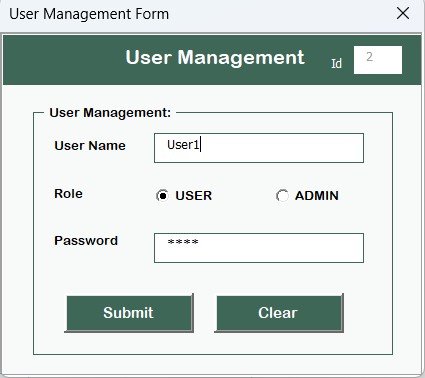
👥 User Management – Multi-User Access
Add, update, or delete users.
Role-based access with password reset options.
Keeps data secure and ensures accountability.
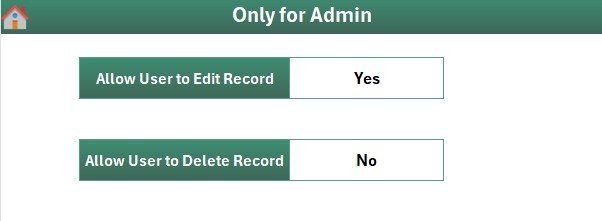
🛠 Settings Sheet – Full Customization
Configure request categories, budgets, and system rules.
Flexible enough to adapt to different business requirements.
✅ Advantages of the Office Renovation Request Tracker
📌 Centralized Management – Track all renovation requests in one place.
⏱ Time-Saving – Automated forms and dashboards reduce manual effort.
🔍 Transparency – Clear insights into approvals, budgets, and vendors.
💰 Cost Control – Monitor budgets by department, vendor, or priority.
👥 Multi-User Friendly – Secure login with role-based access.
⚡ Easy to Use – No coding or IT setup required, works directly in Excel.
🛠 Customizable – Adapt dropdowns, lists, and settings for your office.
📌 Opportunities for Improvement
☁ Cloud Integration: Share files in SharePoint/Google Drive for real-time collaboration.
📱 Mobile Access: Add mobile-friendly forms for on-the-go tracking.
📧 Automated Notifications: Email alerts for pending approvals.
📊 Vendor Database: Track vendor performance and service quality.
📖 Best Practices
Standardize Categories (Furniture, Electrical, Painting, etc.).
Assign Roles Carefully for request approvals.
Update Regularly to keep dashboards accurate.
Leverage Insights from slicers/charts to detect budget issues early.
Maintain Vendor Records for better procurement decisions.
👥 Who Can Use This Tracker?
Office Administrators – Simplify approvals and records.
Facility Managers – Track renovation progress and budgets.
HR Professionals – Monitor employee-related requests.
Finance Teams – Control departmental spending on renovations.
Small & Large Businesses – Scalable for all organization sizes.
🚀 Conclusion
The Office Renovation Request Tracker in Excel is more than just a form—it’s a comprehensive renovation management system. With features like dashboards, automated forms, login security, and user management, it helps businesses handle renovation requests efficiently, transparently, and cost-effectively.
🔗 Click here to read the Detailed blog post
Visit our YouTube channel to learn step-by-step video tutorials
Watch the step-by-step video tutorial:
Compatibility and Requirements
- Works in Microsoft Excel desktop on Windows with macros enabled. It does not run in Excel for the web, Google Sheets or on mobile.
- The tracker has a login form and VBA forms, so you need to allow macros when you open the file. Microsoft explains how in Enable or disable macros in Microsoft 365 files.
Frequently Asked Questions
What is the default login?
The default login is User ID Admin1 and password abcd. After you sign in, the Main Form opens.
Which charts and slicers are on the dashboard?
The Dashboard sheet has 8 slicers and 8 charts. The charts cover requests by approval status, priority and status, and approved budget by department, requestor, vendor, approver and updated by.
How do I add, update or delete a request?
Use the Add New Record, Update Record and Delete Record buttons on the Data Entry sheet. The dashboard refreshes with the change.
Can I change the dropdown lists?
Yes. The Manage List sheet holds the master lists for dropdowns such as departments, vendors and priorities. The Settings sheet lets you configure request categories, budgets and system rules.
Is there a Google Sheets version?
Yes. See the Office Renovation Request Tracker in Google Sheets.
Related Office Renovation Templates
- Office Renovation Request Tracker in Google Sheets: the same tracker for Google Sheets
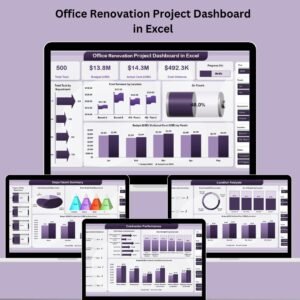
- Office Renovation Project Dashboard in Excel: a dashboard for the renovation project
- Office Renovation Project Report in Excel: a report for the renovation project
- Office Supply Request Tracker in Excel: another office request tracker in Excel
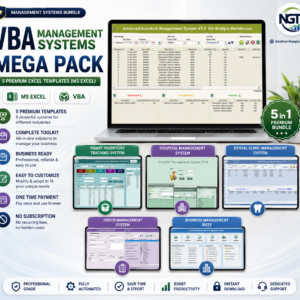
- VBA Management Systems Mega Pack: 5 Excel VBA templates in one download
Browse all Excel trackers and VBA tools.










Reviews
There are no reviews yet.