New: NextGenTemplates Academy - video courses on Excel formulas with AI and Pivot Tables & dashboards. Early-bird: 20% off with code EARLYBIRD20 - first 20 orders only.See the courses →
₹999.00Original price was: ₹999.00.₹499.00Current price is: ₹499.00.
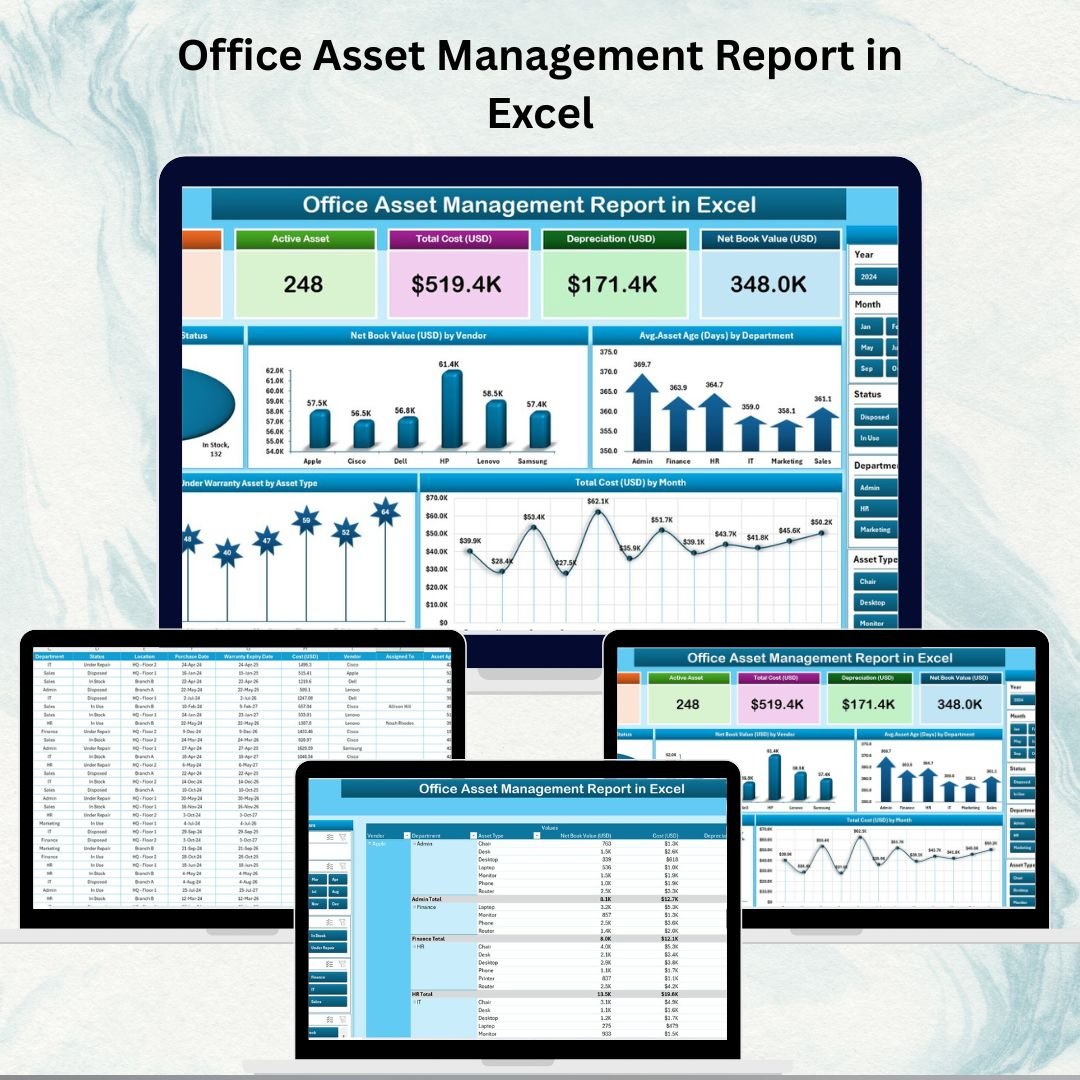
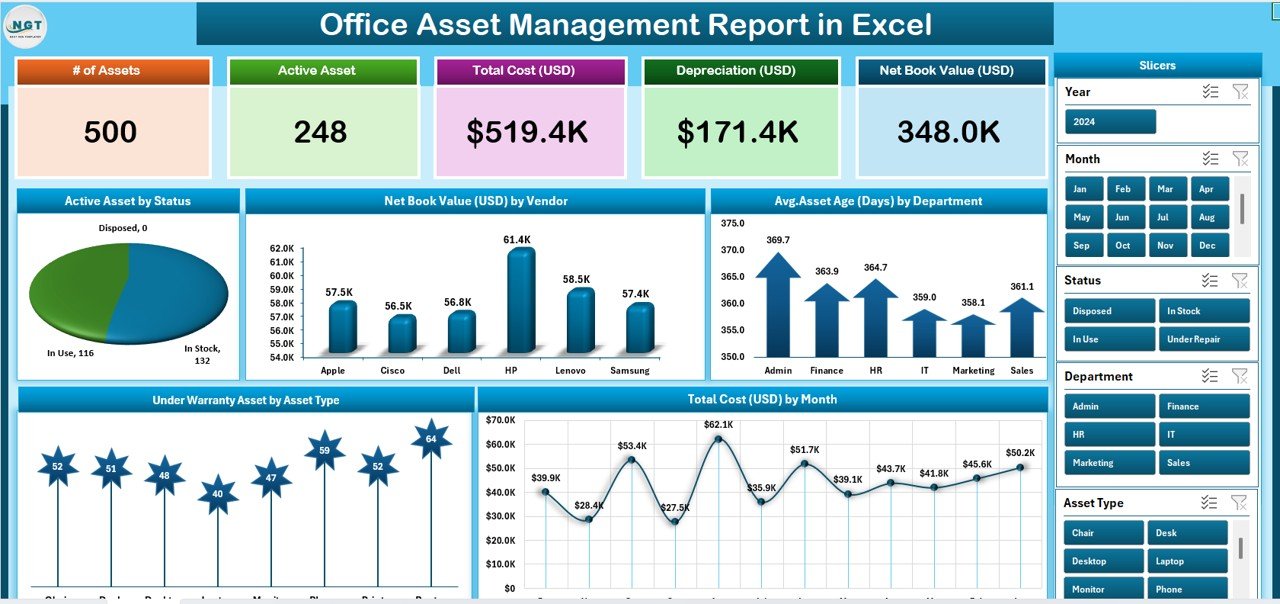
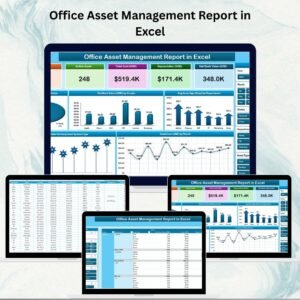
🛡️ Take Control of Your Office Assets! The Office Asset Management Report in Excel helps you track all assets (laptops, printers, furniture, software, etc.) in one centralized dashboard — with KPIs, charts, and real-time asset visibility.
✨ Key Features:
📊 Summary Dashboard with KPIs & Charts
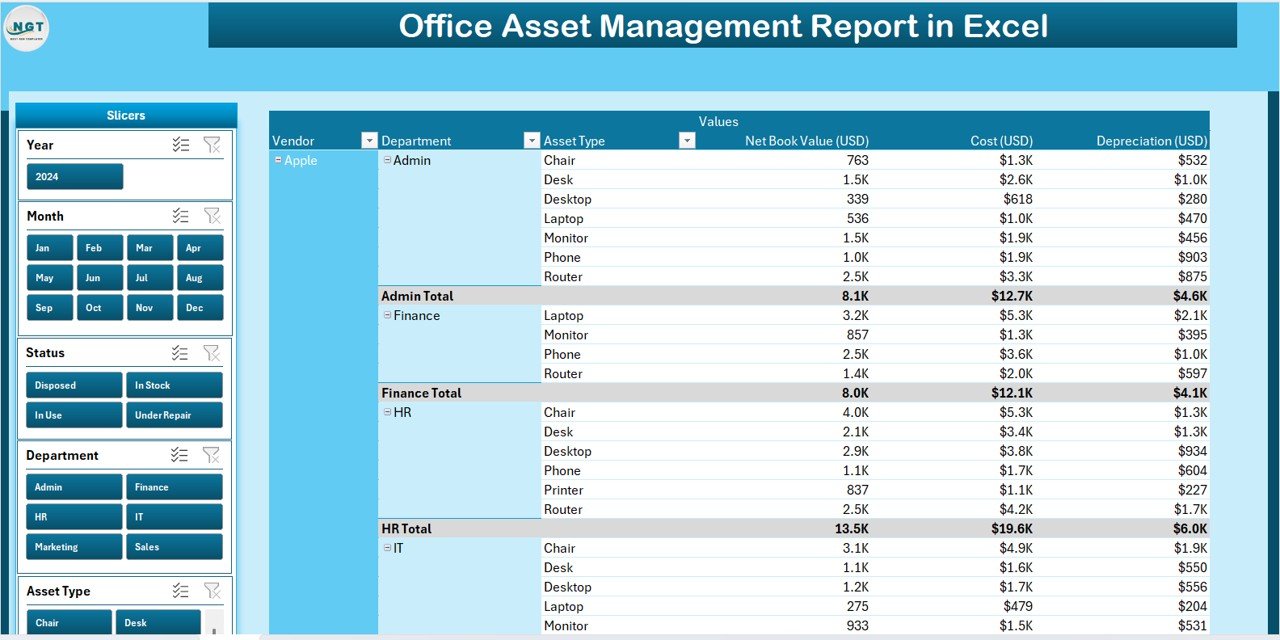
🗂 Detailed Report Page with slicers
🧾 Track Warranty, Status & Net Book Value
🔄 Auto-Refresh via Data Sheet
🧩 Fully Customizable Excel Template
💡 Ideal for Admin, IT & Operations Teams
🟢 No Coding / No Subscription Required
🛠 Supports Better Budget & Lifecycle Planning
🔍 Quick Filter by Department / Vendor / Asset Type
SUMIFS, XLOOKUP, FILTER, LAMBDA and checking AI-written formulas, with real business projects. 11h 47m of video by PK, with practice files, quizzes and a capstone.
As your organization grows, so does the number of laptops, printers, furniture, tools, and licenses that need to be managed. Tracking these assets manually across different spreadsheets often leads to errors, duplicate entries, unnecessary expenses, and operational delays. The Office Asset Management Report in Excel solves this problem with a centralized, easy-to-use dashboard that gives you full visibility over all your office assets in real time.
This ready-to-use Excel template transforms raw asset data into visual KPIs, charts, and dynamic reports. Whether you need to track warranty status, asset age, cost, or vendor performance, this report brings everything together in one place — without the need for complex software or coding skills.
✨ Key Features of the Office Asset Management Report
✅ Summary Page (Dashboard View)
Office Asset Management Report
Total Active Assets
Net Book Value (USD)
Average Asset Age (Days)
Under Warranty Assets
Total Asset Cost (USD)
Interactive charts: • Active Assets by Status • Net Book Value by Vendor • Average Age by Department • Under Warranty by Asset Type • Total Cost by Month
Right-hand slicers to filter by Department, Vendor, or Asset Type
✅ Report Page (Detailed View)
Full table with asset-level details
Slicers for fast filtering
Display fields like Asset ID, Purchase Date, Cost, Status, Warranty, Remaining Life
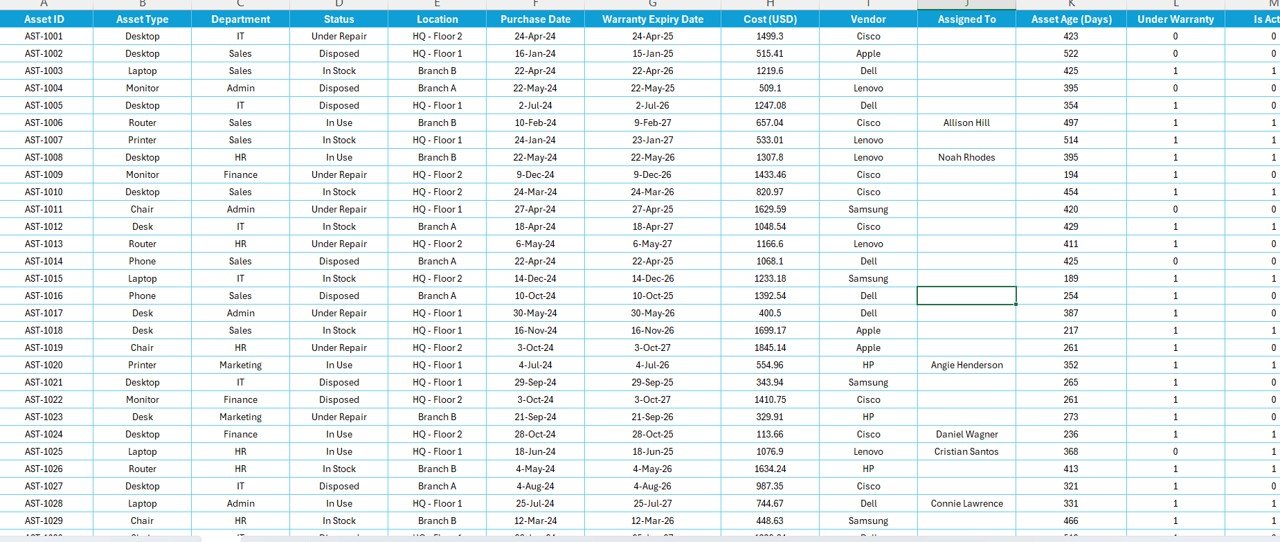
✅ Data Sheet (Raw Data Entry)
Simple structured table for entering purchase data, cost, warranty, vendor, department, etc.
Dashboard updates automatically once data is refreshed
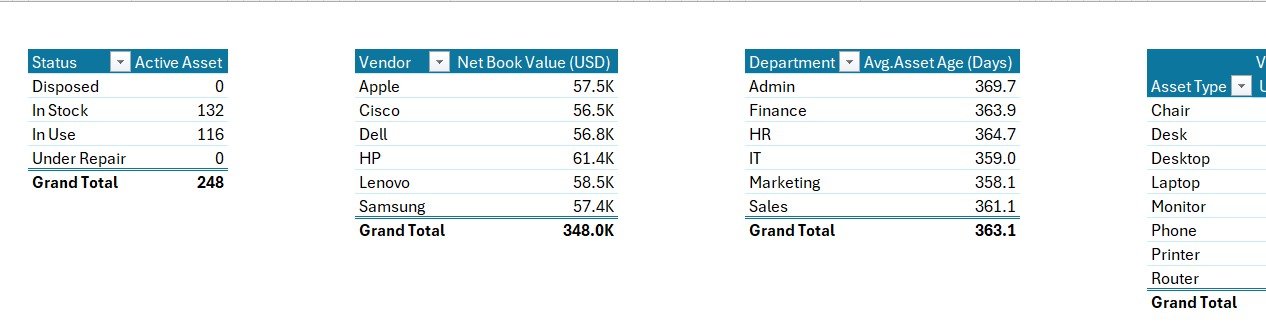
✅ Support Sheet
Reference lists for drop-downs (Departments, Vendors, Asset Types)
Keeps inputs consistent and prevents manual entry errors
Enter Into Data Sheet – Use predefined fields to input your data.
Refresh the Dashboard – Click Data → Refresh All to update all charts and KPIs.
Review the Summary Page – Analyze the top-level KPIs and filter to specific departments or vendors.
Drill Down in the Report Page – Use slicers to investigate specific assets and export if needed.
Repeat Regularly – Update the Data Sheet weekly or monthly to keep the report accurate and up to date.
🎯 Who Can Benefit from This Report
🏢 Office Administrators – Track asset lifecycle and warranty renewals 💼 Operations Managers – Identify aging assets and plan replacements 🧾 Finance Teams – Monitor total asset cost and net book value 🛠️ IT Departments – Maintain visibility over hardware/software inventory across departments
🚀 Benefits of Using This Excel-Based Report
Real-Time Visibility of all office assets
Better Decision-Making with visual KPIs and charts
Accurate Warranty & Lifecycle Tracking
Budget Planning Support (Net Book Value & Replacement Forecasting)
Visit our YouTube channel to learn step-by-step video tutorials
Watch the step-by-step video tutorial:
Frequently asked questions
Which Excel version do I need?
Microsoft Excel 2016 or later on desktop (Microsoft 365 recommended). Many of our formula templates also open in Excel 2013 and Excel for the web - the exact requirement is listed in this product's description.
Does it work on Mac?
Yes. Formula-based Excel templates (no macros) work in Excel for Mac 2016 or later.
Does it work on mobile or Excel Online?
You can view it in the Excel mobile app and Excel for the web, but for entering data, using slicers and refreshing pivots we recommend desktop Excel.
How do I add my own data?
Replace the sample rows on the data sheet with your own (keep the column headers), then click Data > Refresh All so every chart and pivot updates.
Some sheets are protected - how do I edit them or change the logo?
A few of our trackers, data entry systems and dashboards protect sheets so formulas are not overwritten by mistake. Go to Review > Unprotect Sheet - most have no password. If Excel asks for one, message us with your order number and we will share it straight away.
How many records can it handle?
It has been tested with several thousand rows and suits normal small-business volumes. Excel itself handles over 1 million rows.
Is it a one-time payment or a subscription?
One-time payment. No subscription, no per-user fees and nothing to renew - the file is yours to keep.
How do I get the file after payment?
Instantly. The download link appears on screen after checkout, is emailed to you, and stays under My Account > Downloads on our website. If the email does not arrive within a few minutes, check your spam or promotions folder.
Is a user manual included?
Most of our newer products include a PDF user manual in the download. If yours does not have one, message us with your order number and we will send it.
Do I get free updates?
Bug fixes are always free - if something does not work as described, we fix it and send you the corrected file. New versions with new features are not included in the price, unless this product's description says otherwise.
Can you customise it for me?
Yes. Small changes to this template (your columns, categories, logo, colours, minor layout) cost the template price plus $40-80 (Rs 3,000-6,000 + GST), quoted once you send your list. A fully custom build is usually $100-200 (Rs 8,000-18,000 + GST) with two revision rounds. Email your requirements to [email protected] or message us on WhatsApp.
Can I use it for my business or my clients?
Yes, for your own personal or internal business use, for as long as you like. Reselling or redistributing the template is not allowed.
What is your refund policy?
Because these are digital downloads, they are non-refundable once delivered - except when the product does not match its description (report it within 48 hours of purchase) or there is a technical problem our team cannot fix within 72 hours. Email [email protected] with your order number.
How do I get help?
Email [email protected] (Mon-Fri, 10 AM-7 PM IST) or message us on WhatsApp +91 80770 90260 (chat only, no calls). Please include your order number.
Still have a question? Click Need help? at the bottom-left to ask our assistant, or message us on WhatsApp.
Application
MS Excel
Template Type
Report Template
Price
Paid
Business Or Department
HR and Payroll
Reviews
There are no reviews yet.
Only logged in customers who have purchased this product may leave a review.




Reviews
There are no reviews yet.