



Managing museums and cultural centres goes far beyond preserving history and art. Leaders must balance visitor satisfaction, ticket revenue, staffing costs, event expenses, and operating budgets—often across multiple regions and programs. However, when data is scattered across spreadsheets and manual reports, visibility reduces and decision-making slows down. This is exactly why the Museums & Cultural Centres Dashboard in Excel becomes a powerful and practical solution.
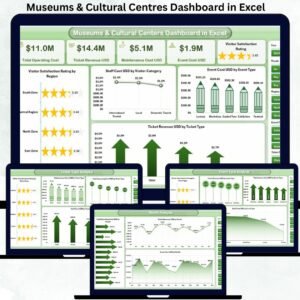
This ready-to-use Excel dashboard transforms raw museum and cultural centre data into clear visuals, KPI cards, and interactive slicers. Instead of reviewing multiple files, decision-makers get a single, structured view of performance. As a result, managers understand trends faster, control costs better, and improve visitor experience with confidence. Because the dashboard runs entirely in Microsoft Excel, it remains simple, flexible, and accessible for both technical and non-technical users.
🏛 Key Features of the Museums & Cultural Centres Dashboard in Excel
This dashboard is designed with clarity, usability, and performance monitoring in mind. It includes five analytical pages, a left-side Page Navigator, right-side slicers, and automated visuals.
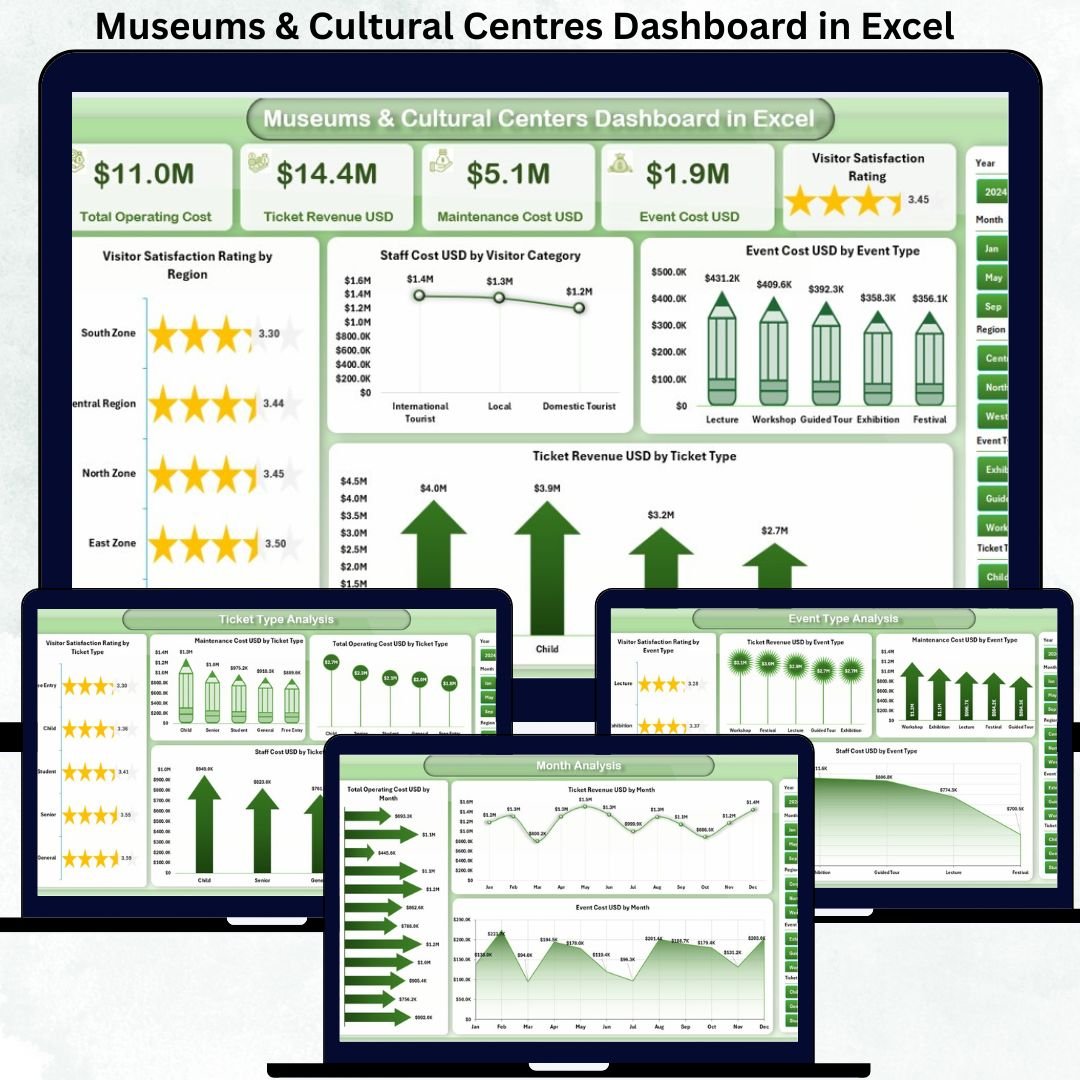
📊 Overview Page – Complete Performance Snapshot
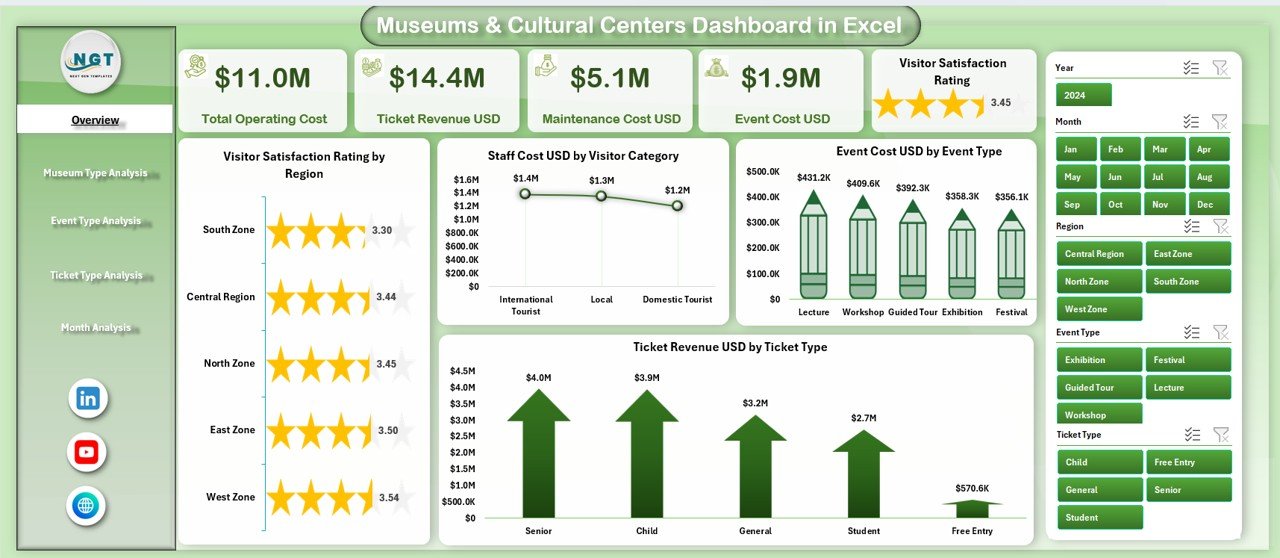
The Overview Page acts as the command center of the dashboard.
Key elements include:
🧮 KPI Cards for instant performance visibility
📈 Four powerful charts, including:
Visitor Satisfaction Rating by Region
Staff Cost (USD) by Visitor Category
Event Cost (USD) by Event Type
Ticket Revenue (USD) by Ticket Type
This page helps leadership quickly assess satisfaction levels, major cost drivers, and revenue sources without deep analysis.
🎭 What’s Inside the Museums & Cultural Centres Dashboard in Excel
The dashboard includes five structured analysis pages, each focusing on a specific operational area:
🏺 Museum Type Analysis Page
Different museum types operate with different cost structures and visitor expectations.
Charts include:
Visitor Satisfaction Rating by Museum Type
Staff Cost (USD) by Museum Type
Ticket Revenue (USD) by Museum Type
Total Operating Cost (USD) by Museum Type
This page supports smarter budgeting and resource allocation across museum categories.
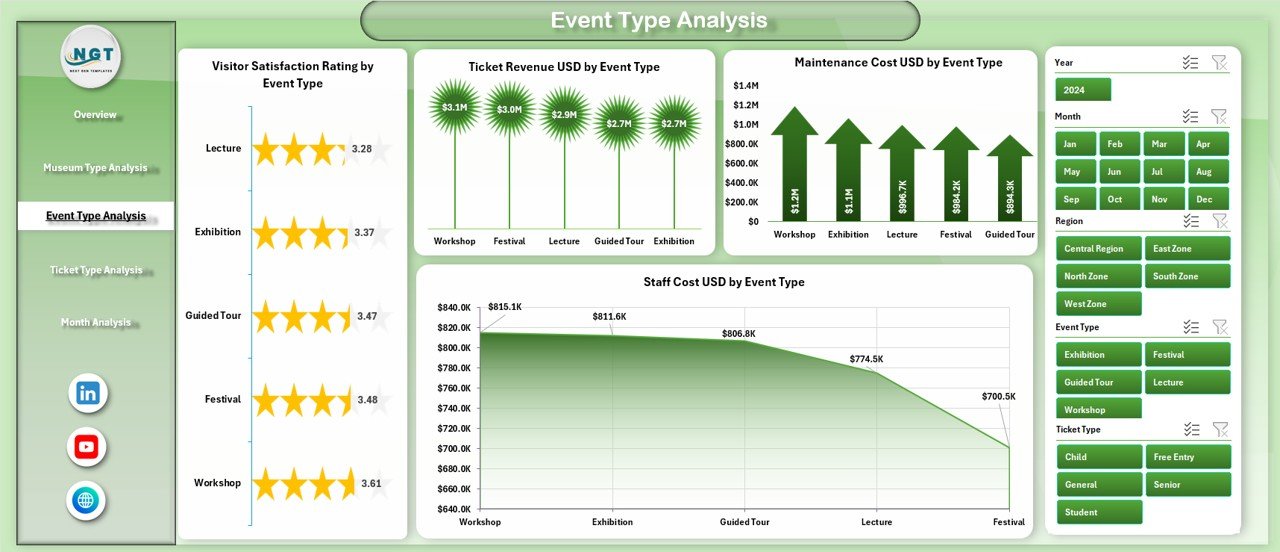
🎟 Event Type Analysis Page
Events attract visitors but also impact costs.
Charts include:
Visitor Satisfaction Rating by Event Type
Staff Cost (USD) by Event Type
Ticket Revenue (USD) by Event Type
Maintenance Cost (USD) by Event Type
Managers use this page to identify profitable events and control maintenance-heavy programs.
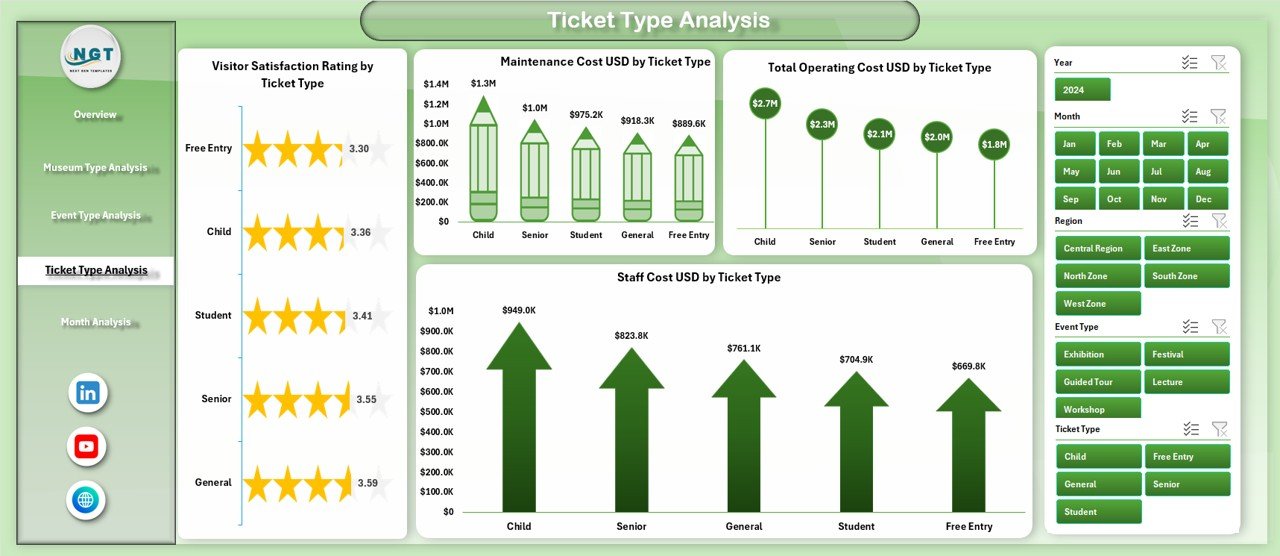
🎫 Ticket Type Analysis Page
Ticket pricing directly affects revenue and visitor volume.
Charts include:
Visitor Satisfaction Rating by Ticket Type
Staff Cost (USD) by Ticket Type
Ticket Revenue (USD) by Ticket Type
Maintenance Cost (USD) by Ticket Type
This analysis helps optimize pricing strategies while maintaining visitor satisfaction.
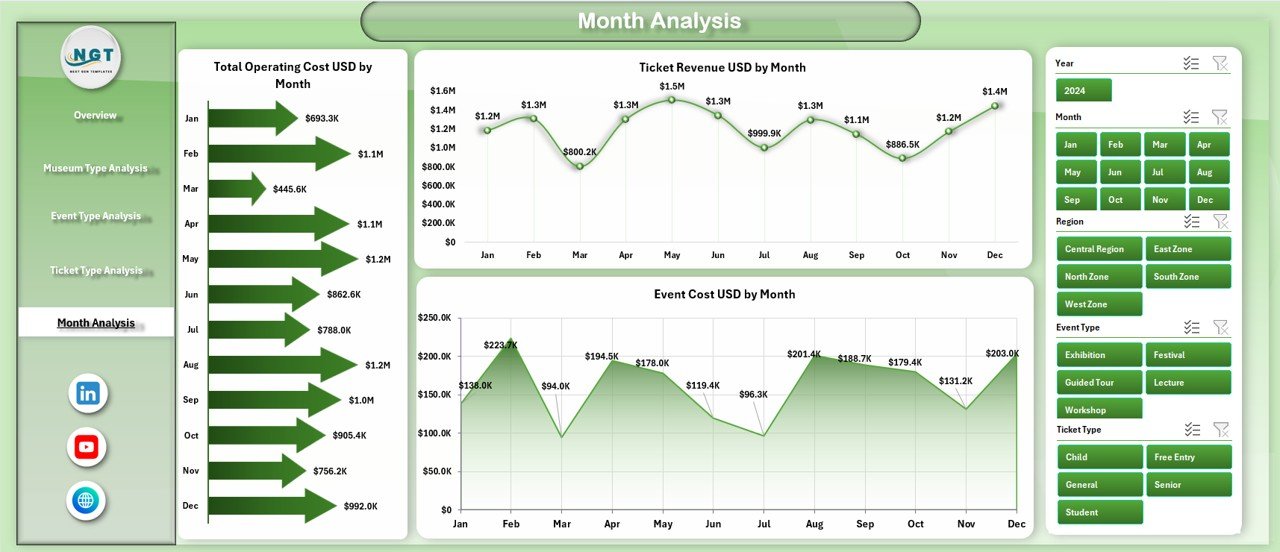
📅 Month Analysis Page
Seasonality plays a major role in cultural operations.
Charts include:
Total Operating Cost (USD) by Month
Ticket Revenue (USD) by Month
Event Cost (USD) by Month
This page helps forecast demand, manage budgets, and control monthly expenses effectively.
⚙️ How to Use the Museums & Cultural Centres Dashboard
1️⃣ Enter or update data in the structured Data Sheet
2️⃣ Refresh pivot tables (one click)
3️⃣ Use slicers to filter by region, museum type, event type, ticket type, or month
4️⃣ Navigate between pages using the Page Navigator
5️⃣ Review trends, costs, revenues, and satisfaction levels
6️⃣ Use insights for budgeting, reporting, and planning
No coding. No advanced tools. Just Excel.
👥 Who Can Benefit from This Dashboard?
This dashboard is ideal for:
🏛 Museum Directors & Curators
🎭 Cultural Centre Managers
💰 Finance & Operations Teams
🎟 Event & Program Coordinators
🏛 Government & Public Institutions
🎨 Non-profit Cultural Organizations
Any institution managing cultural programs and visitor services gains immediate value.
### 🔗 Click here to read the Detailed blog post
Visit our YouTube channel to learn step-by-step video tutorials
👉 Youtube.com/@PKAnExcelExpert
Watch the step-by-step video tutorial:
Compatibility and Requirements
- Works in Microsoft Excel desktop (Excel 2016 or later, or Microsoft 365).
- The dashboard uses pivot tables and slicers to filter by region, museum type, event type, ticket type and month. Microsoft explains slicers in Use slicers to filter data.
Frequently Asked Questions
How many pages does the dashboard have?
Five analysis pages: Overview, Museum Type Analysis, Event Type Analysis, Ticket Type Analysis and Month Analysis. A Page Navigator on the left moves you between them.
What can I filter with the slicers?
You can filter by region, museum type, event type, ticket type or month. The slicers sit on the right side of the dashboard.
How do I update the dashboard with my own data?
Enter or update your figures in the Data Sheet, then refresh the pivot tables with one click. The charts and KPI cards update from there.
Which measures does it track?
Visitor satisfaction rating, staff cost, ticket revenue, event cost, maintenance cost and total operating cost, all in USD where they are money values.
Is there a Power BI or Google Sheets version?
Yes. See the Museums & Cultural Centers Dashboard in Power BI and the Museum Dashboard in Google Sheets.
Related Museum Templates
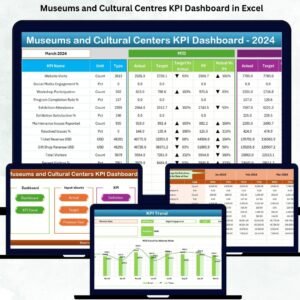
- Museums and Cultural Centres KPI Dashboard in Excel: a KPI-focused view for the same type of organization
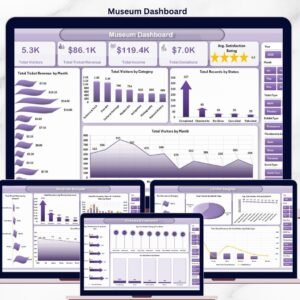
- Museum Dashboard in Excel: another Excel dashboard for museum data
- Museum Operations KPI Dashboard in Excel: operations KPIs for museums
- Museums & Cultural Centers Dashboard in Power BI: the Power BI edition
- Museum Dashboard in Google Sheets: a Google Sheets version
Browse all Excel dashboards.






Reviews
There are no reviews yet.