

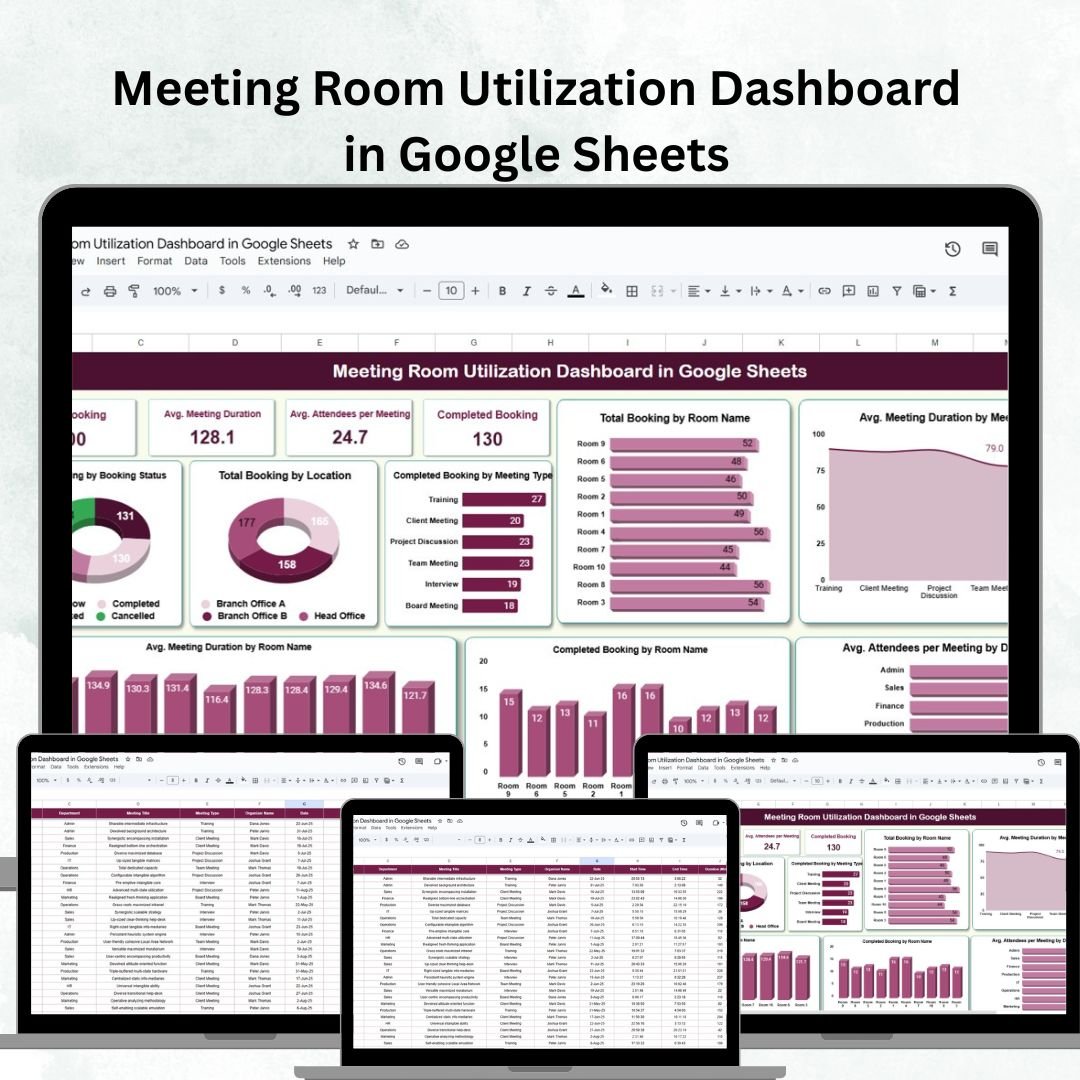

Managing meeting rooms efficiently is one of the most overlooked yet crucial aspects of workplace productivity. The Meeting Room Utilization Dashboard in Google Sheets is a ready-to-use, data-driven tool that helps organizations track bookings, analyze room usage trends, and optimize scheduling for maximum efficiency.
Whether you manage a large corporate office, a co-working space, or multiple locations, this dashboard provides a centralized view of meeting activity—helping you reduce double bookings, identify underused spaces, and plan resources effectively.
With real-time collaboration and automated updates, it’s the perfect solution for hybrid, flexible, or in-office work environments. 🚀
🔑 Key Features of the Meeting Room Utilization Dashboard
📋 Dashboard Sheet Tab
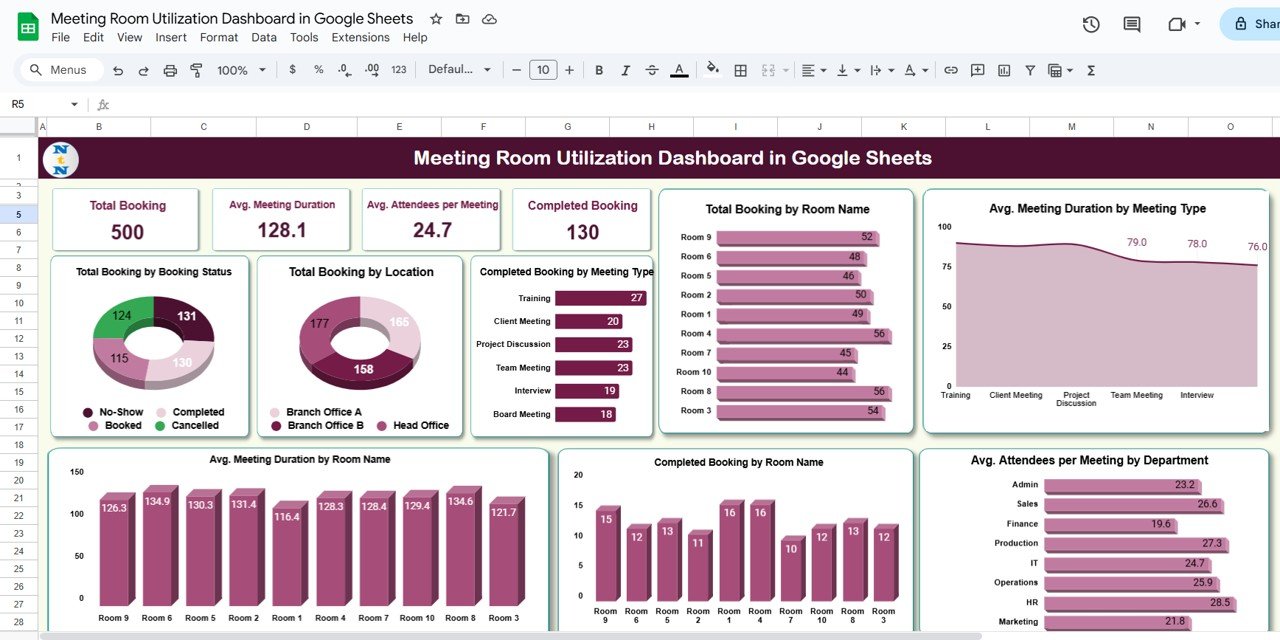
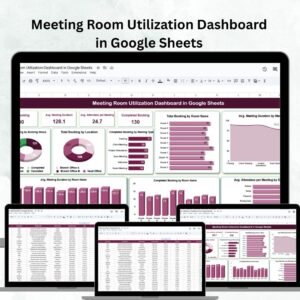
Get a visual summary of your entire office meeting activity through powerful charts and key metrics:
Total Bookings – Count of all meetings scheduled within a given period
Average Meeting Duration – Track how long meetings typically last
Average Attendees per Meeting – Gauge employee participation
Completed Bookings – Monitor meetings successfully completed
📊 Charts & Insights Include:
Total Bookings by Booking Status (Pending, Completed, Canceled)
Total Bookings by Location – Identify most and least utilized sites
Completed Bookings by Meeting Type – Track frequent meeting categories
Total Bookings by Room Name – Measure room-level performance
Average Duration by Meeting Type – Compare time spent on various meeting types
Average Attendees by Department – Understand team-level engagement
Together, these visuals make it easy to pinpoint inefficiencies, spot peak hours, and allocate meeting rooms intelligently.
🔍 Search Sheet Tab
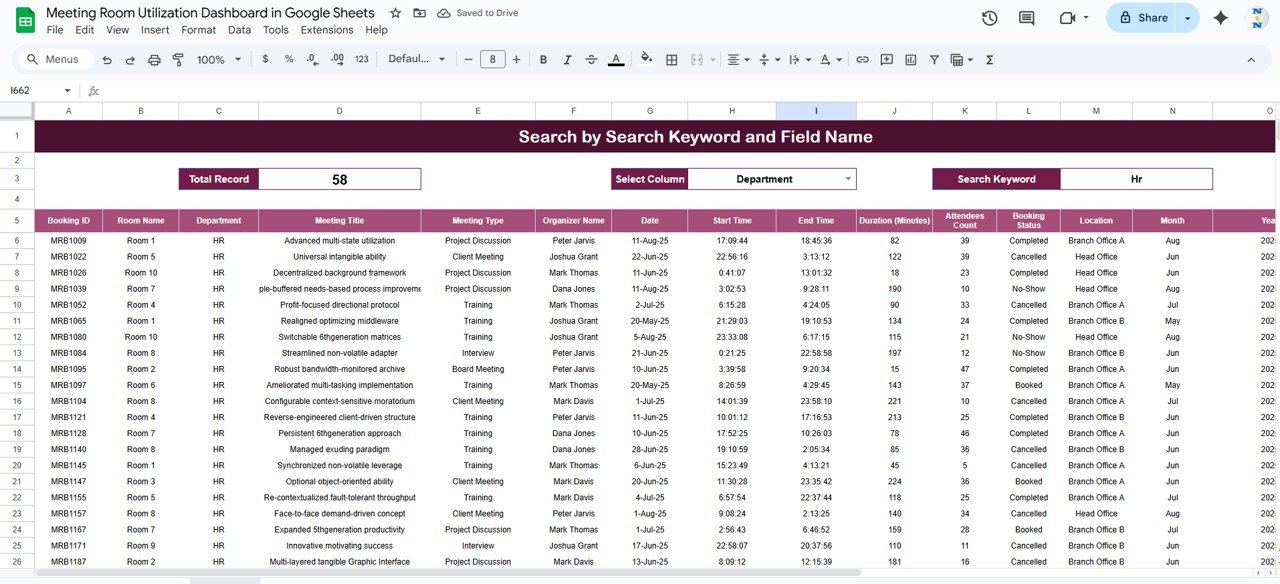
Find specific meetings using keywords or field filters such as room name, department, or meeting type
Ideal for quickly accessing meeting logs, verifying schedules, or resolving booking conflicts
Saves time and enhances accountability
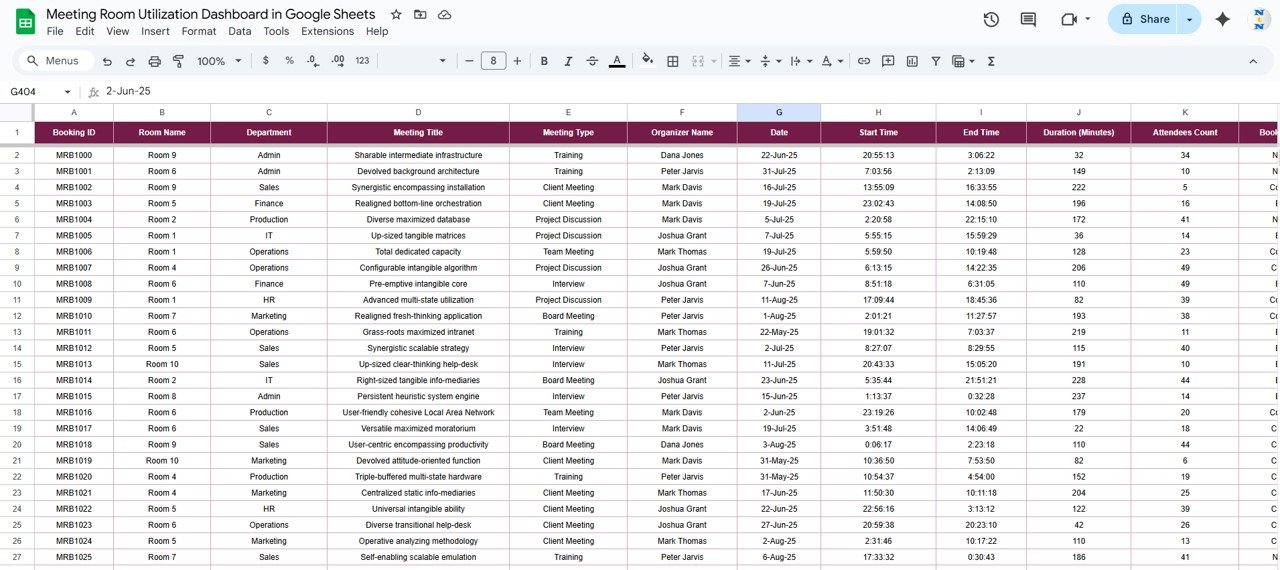
📑 Data Sheet Tab
Log all meeting data including:
Date, Time, Room, and Location
Meeting Type, Department, Attendees Count
Status (Completed, Pending, or Canceled)
Changes update instantly across the entire dashboard
Enables real-time tracking for better decision-making
📦 What’s Inside the Dashboard?
When you download this template, you’ll get:
✅ Interactive Dashboard Sheet – Cards, charts, and visual summaries
✅ Search Sheet Tab – Keyword and filter-based search functionality
✅ Data Entry Sheet – Structured for easy and accurate input
✅ Auto-Updated Reports – Reflects the latest data dynamically
✅ Customizable Fields – Modify room names, meeting types, and departments
✅ Preloaded Sample Data – Understand setup and functionality instantly
🧑💼 Who Can Benefit from This Dashboard?
🎯 Office Administrators & Facility Managers – Track usage and prevent double bookings
🎯 HR & Operations Teams – Evaluate meeting behavior and employee participation
🎯 IT & Space Planners – Optimize resource allocation and manage hybrid workspaces
🎯 Executives – Gain strategic insights into meeting culture and efficiency
🎯 Co-Working Managers – Track room utilization across clients or zones
🧪 How to Use the Meeting Room Utilization Dashboard
Log Data: Enter all meeting details in the Data Sheet.
View Dashboard: Instantly see updated cards, charts, and KPIs.
Search Records: Use the Search tab to locate specific meetings.
Analyze Utilization: Review duration, attendance, and frequency trends.
Optimize Resources: Adjust schedules, allocate underused rooms, and reduce waste.
No coding or advanced skills required—just plug in your meeting data and start analyzing.
🌟 Why Choose This Dashboard?
Centralized meeting tracking system
Real-time collaboration through Google Sheets
Smart charts to visualize usage and performance
Helps reduce double bookings and idle rooms
Customizable to match any office layout
Easy to share, edit, and maintain across teams
With the Meeting Room Utilization Dashboard in Google Sheets, you can transform your meeting spaces into data-optimized, high-efficiency assets that boost productivity and resource utilization. 🌟
🔗 Click here to read the Detailed blog post
Watch the step-by-step video Demo:



Reviews
There are no reviews yet.