


Managing legal documents is one of the most important but challenging tasks for organizations of any size. Contracts, compliance files, agreements, and policies all require periodic review, ownership, and proper record-keeping. Without a structured system, teams risk missed deadlines, compliance failures, or overlooked responsibilities.
The Legal Document Review Tracker in Excel solves these challenges by providing a ready-to-use, VBA-powered Excel template that organizes document reviews, approvals, and compliance tracking in one centralized system. Designed with automation, dashboards, and user management features, this tool ensures accuracy, transparency, and efficiency for legal and compliance teams.
Built entirely in Excel with VBA automation, it functions like lightweight software—yet it remains simple enough for anyone with basic Excel knowledge to use. From secure logins and automated data entry forms to dashboards with slicers and charts, the tracker is a cost-effective alternative to expensive compliance systems.
✨ Key Features of the Legal Document Review Tracker
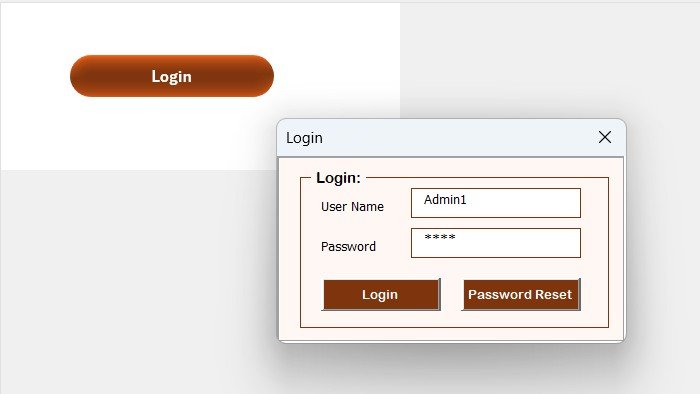
✅ Secure Login Form
Default credentials: User ID: Admin1 | Password: abcd.
Supports multiple users with individual logins.
Ensures data privacy and access control.
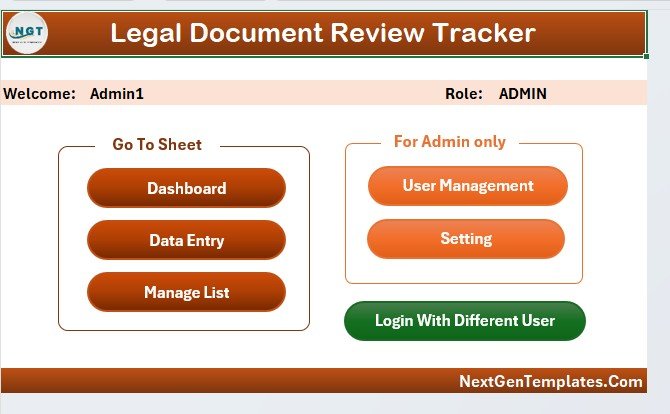
✅ Main Form (Control Center)
Acts as the hub for all navigation.
Access data entry, dashboards, user management, and settings.
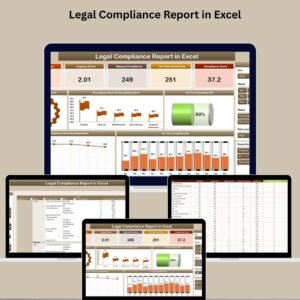
✅ Interactive Dashboard Sheet Tab
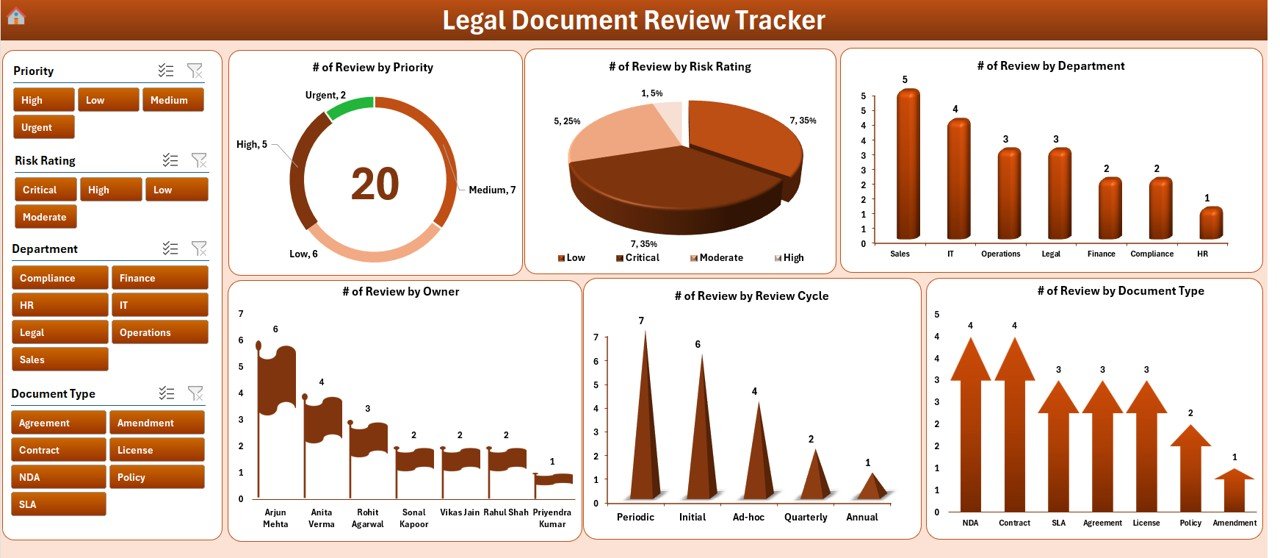
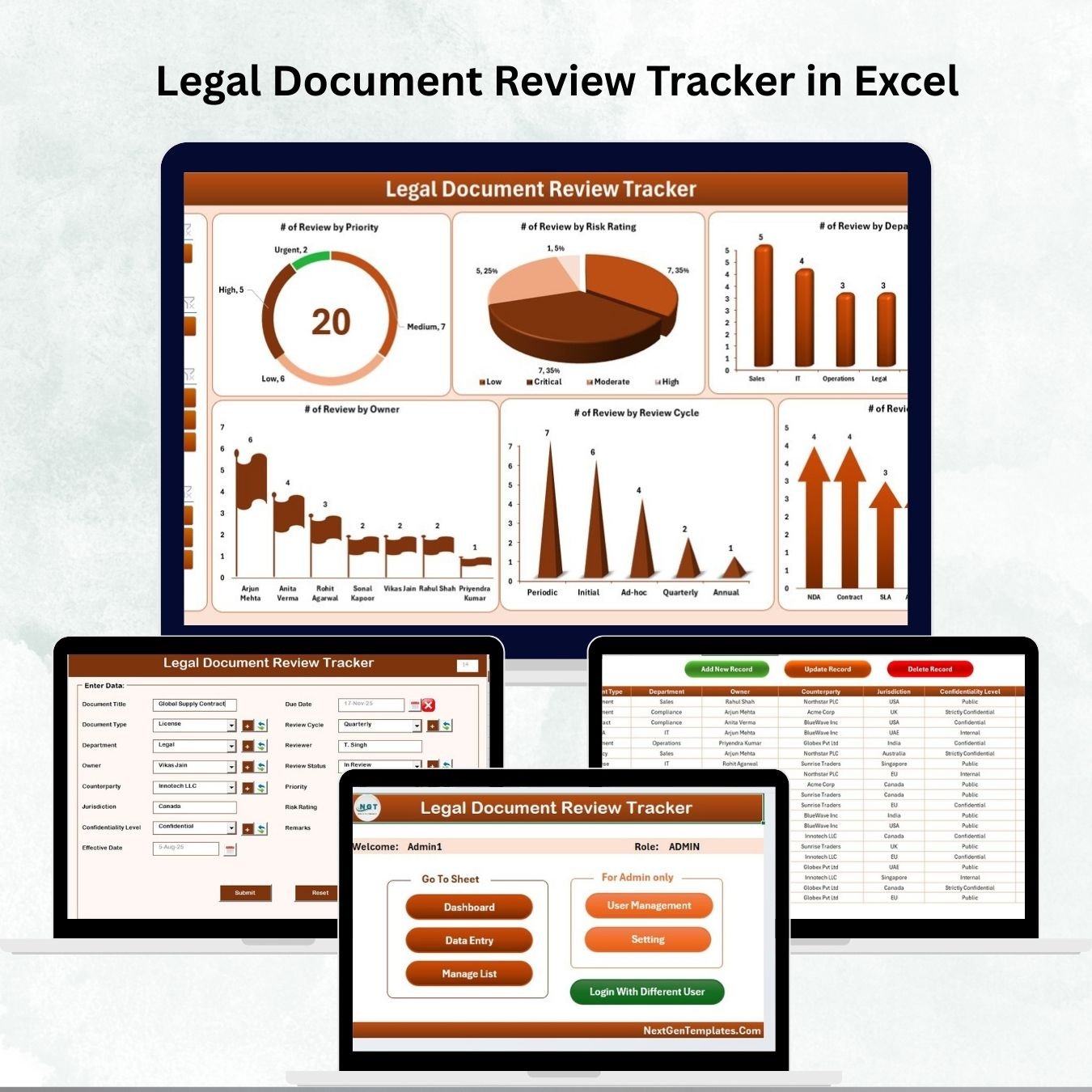
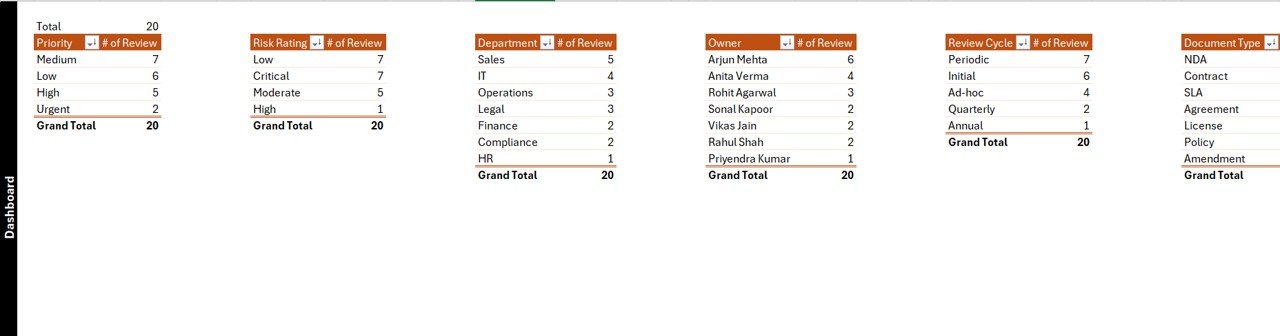
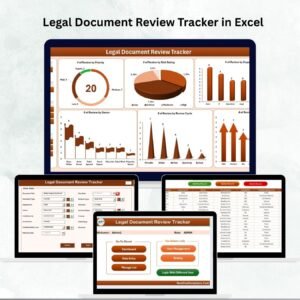
Provides real-time insights with five slicers and six charts:
Reviews by priority
Reviews by risk rating
Reviews by department
Reviews by owner
Reviews by review cycle
Reviews by document type
Helps managers instantly identify compliance risks and workload distribution.
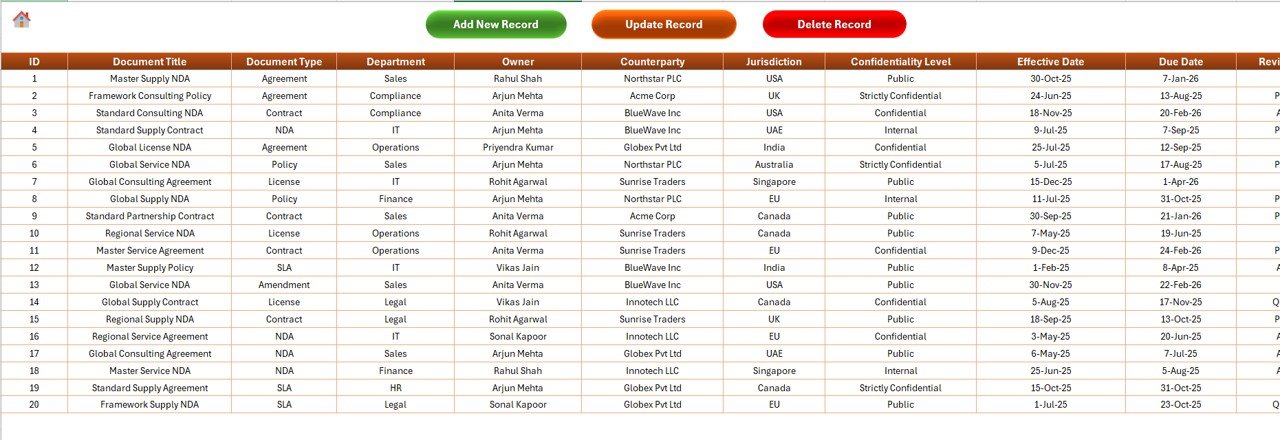
✅ Data Entry Sheet Tab
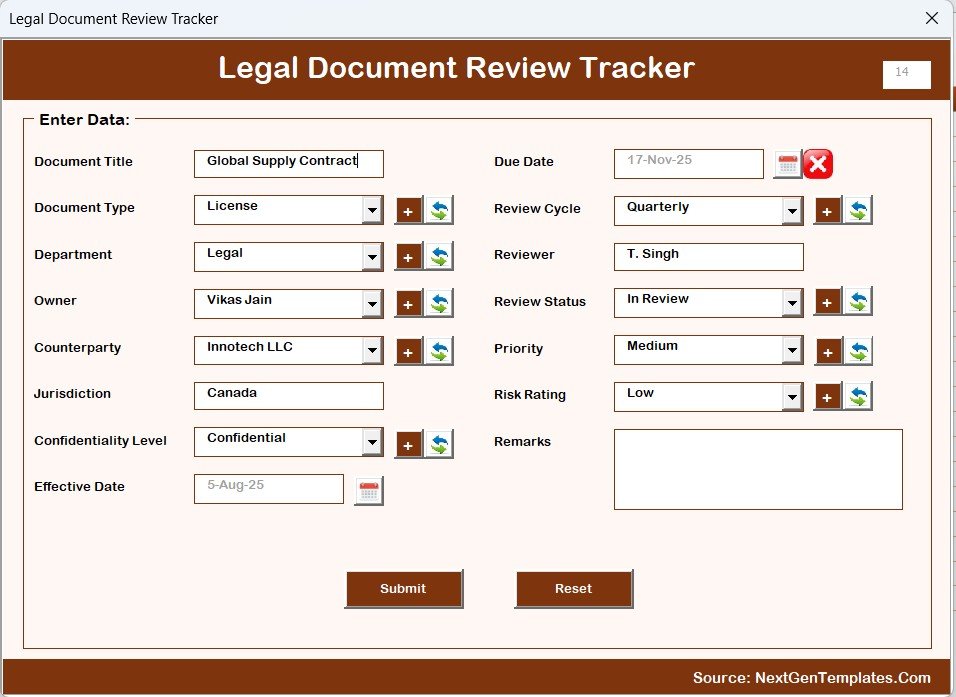
Add New Record: Input document details via a form.
Update Record: Select an ID, edit, and auto-refresh dashboards.
Delete Record: Securely remove outdated entries.
✅ Manage List Sheet Tab
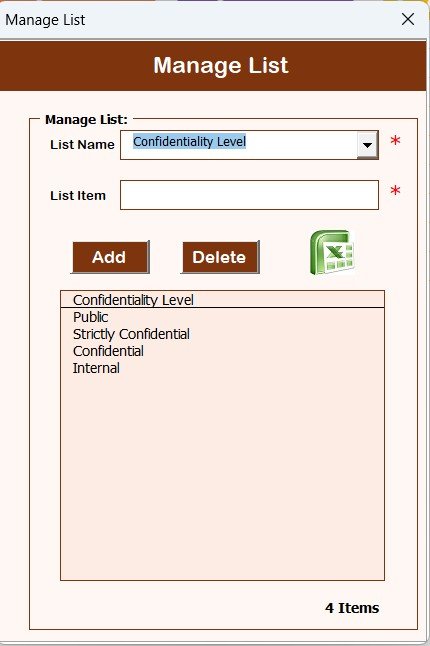
Maintains dropdown lists for: Departments, Document Types, Priorities, etc.
Ensures consistency and avoids duplicate entries.
✅ Support Sheet Tab
Backend sheet with pivot tables powering dashboards.
Can be hidden to avoid accidental edits.
✅ User Management
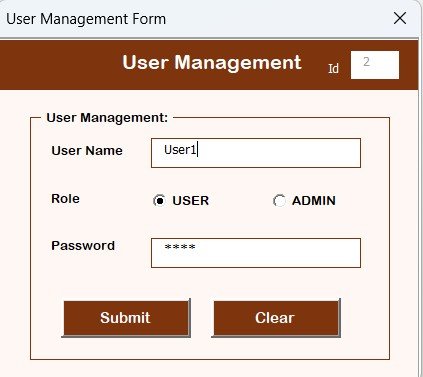
Add, update, or delete users.
Reset/change passwords.
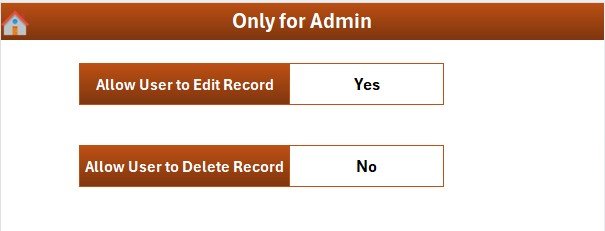
Assign access levels for secure collaboration.
✅ Settings Sheet
Customize review cycles, risk levels, and priority categories.
Flexible setup for different organizational policies.
📦 What’s Inside the Legal Document Review Tracker
Login & Main Form – Secure access and easy navigation.
Dashboard Tab – Charts + slicers for quick analysis.
Data Entry Tab – Add, update, or delete records seamlessly.
Manage List Tab – Maintain dropdowns for consistency.
Support Sheet – Pivot-based engine for visuals.
User Management & Settings – Control access and customize preferences.
Preloaded Sample Records – Get started instantly with realistic demo entries.
🛠️ How to Use the Legal Document Review Tracker
Download & Enable Macros – Open Excel and allow macros.
Login – Use default credentials and create new users.
Customize Lists – Update dropdowns for departments, risks, and priorities.
Add Records – Use the data entry form for documents.
Update/Delete Records – Select IDs for quick edits.
Analyze Dashboards – Filter by owner, risk, or department for insights.
Track Deadlines & Review Cycles – Stay compliant with timely updates.
👩💼 Who Can Benefit from This Tracker?
Legal Teams – Track contracts, agreements, and reviews.
Compliance Officers – Monitor risk ratings and audit readiness.
Business Managers – Ensure accountability and transparency.
HR Teams – Track policy reviews and updates.
SMEs & Enterprises – Scalable solution for businesses of all sizes.
Consultants – Manage compliance for multiple clients.
👉 Click here to read the Detailed blog post
Visit our YouTube channel to learn step-by-step video tutorials
Watch the step-by-step video tutorial:
Compatibility and Requirements
- Works in Microsoft Excel desktop on Windows with macros enabled. It does not run in Excel for the web, Google Sheets or on mobile.
- The login, data entry forms and user management run on VBA. Microsoft explains how to turn macros on in Enable or disable macros in Microsoft 365 files.
- The Dashboard sheet uses five slicers and six charts that read from pivot tables on the Support sheet.
Frequently Asked Questions
What are the default login details?
The default User ID is Admin1 and the password is abcd. You can add more users, change passwords and delete users from the User Management screen.
Which charts and slicers does the dashboard have?
It has five slicers and six charts. The charts show reviews by priority, risk rating, department, owner, review cycle and document type.
How do I add, update or delete a review record?
Use the Data Entry sheet. Add New Record opens a form for the document details. For Update Record and Delete Record you select the record ID first. The dashboard refreshes after an update.
Can I change the dropdown values for departments and document types?
Yes. The Manage List sheet holds the dropdown lists for departments, document types, priorities and similar fields. The Settings sheet lets you adjust review cycles, risk levels and priority categories.
Is there a Google Sheets version?
Yes. See the Legal Document Review Tracker in Google Sheets.
Related Legal and Compliance Templates
- Legal Document Review Tracker in Google Sheets: the same tracker for Google Sheets
- Legal Compliance Calendar in Excel: a calendar for compliance dates
- Legal Compliance Documentation Checklist in Excel: a checklist for compliance paperwork
- Legal Compliance Dashboard in Excel: a dashboard view of compliance status
- Legal KPI Dashboard in Excel: KPIs for legal teams
Browse all Excel trackers and VBA tools.






Reviews
There are no reviews yet.