



Organizing internal office events is fun, but managing registrations, tracking attendance, and pulling reports can quickly become chaotic—unless you have the right tool. That’s where our Office Event Registration Tracker in Excel steps in! 💼🎉
Built with powerful VBA automation, this all-in-one Excel tool allows HR teams, event coordinators, and admin staff to track every participant, visualize real-time insights, and simplify event workflows—no extra software required!
Let’s dive into what makes this registration tracker a must-have for your office operations.
✨ Key Features of the Office Event Registration Tracker
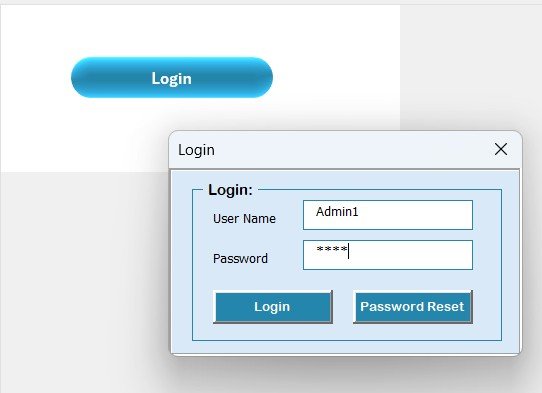
🔐 Login Form for Secure Access
The tool opens with a secure login screen. You can manage user roles and credentials to ensure controlled access for Admins and Users.
Default login:
👤 User ID: Admin1
🔑 Password: abcd
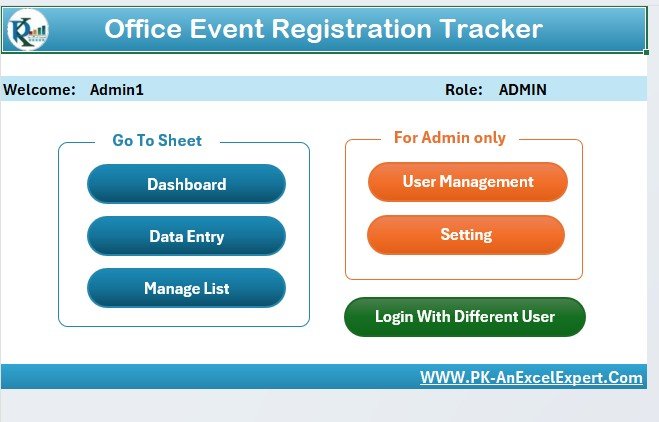
🖥️ Main Form – The Central Control Hub
After login, the Main Form gives access to:
✅ View, edit, or delete records
🔁 Perform bulk actions (Export, Print)
🧭 Navigate across sheets with one click
The clean layout ensures anyone—even non-tech users—can operate it effortlessly.
📊 Dashboard Sheet – Visual Insights in One Glance
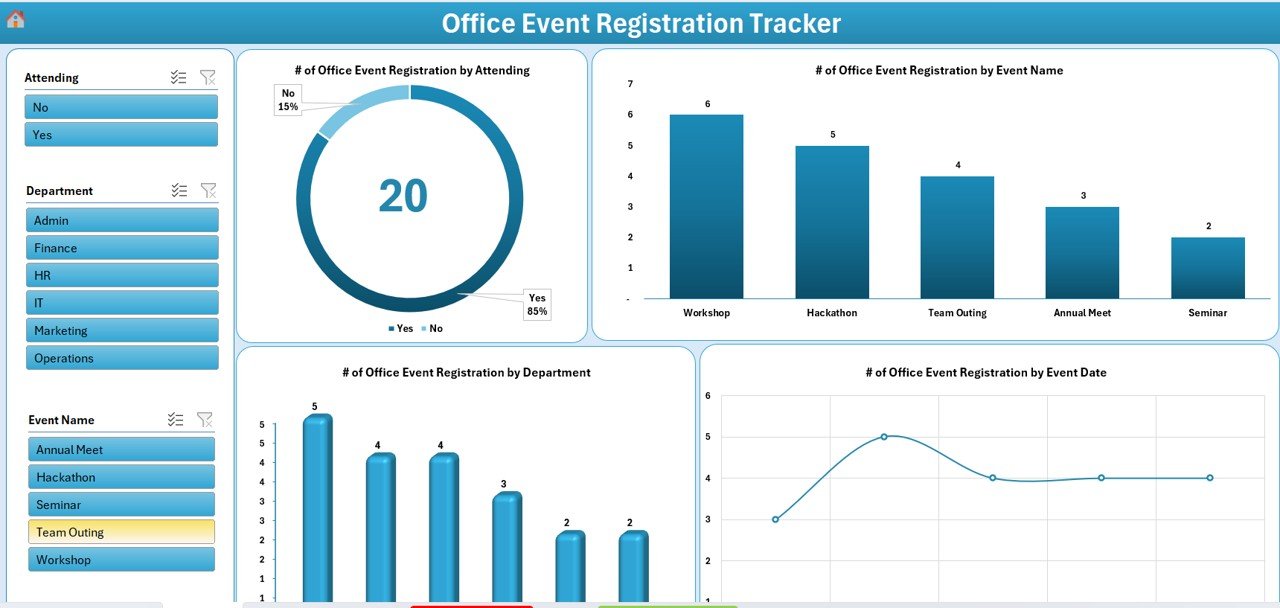
Gain real-time visibility using interactive slicers and charts:
🔍 Filter by Event Name, Department, Date, and Attendance
🍩 Doughnut Chart: Attending vs Not Attending
📊 Bar Charts: Event-wise & Department-wise registrations
📈 Line Chart: Registration trends by date
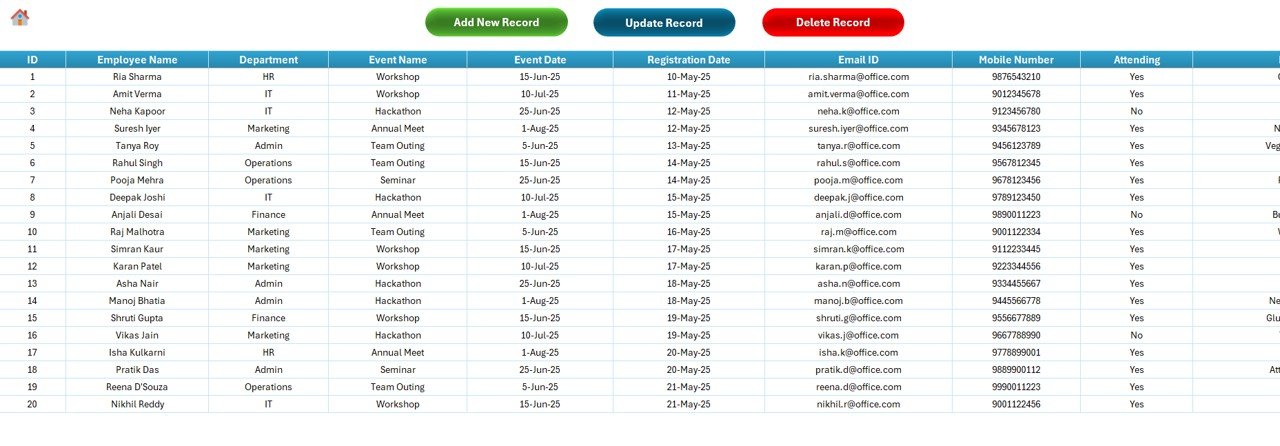
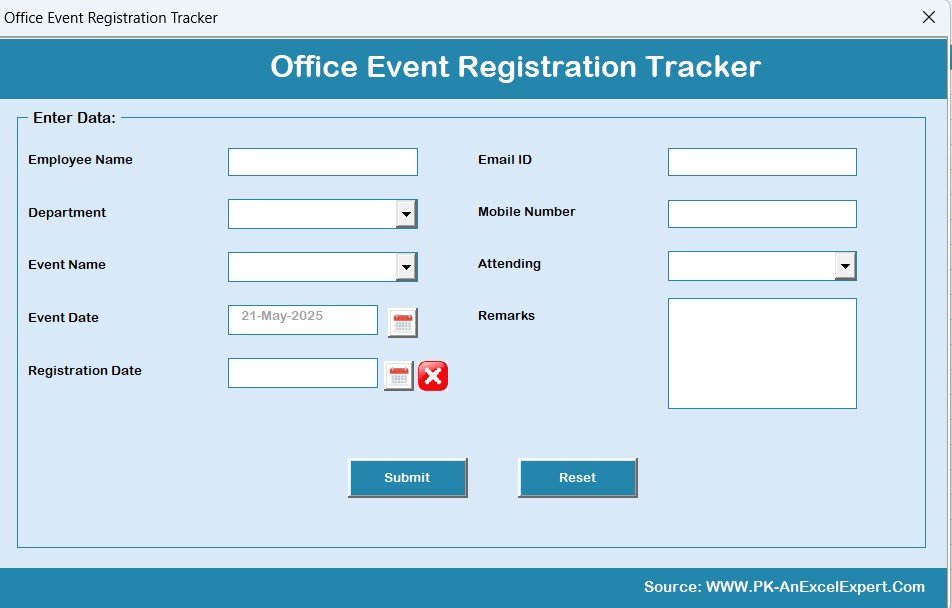
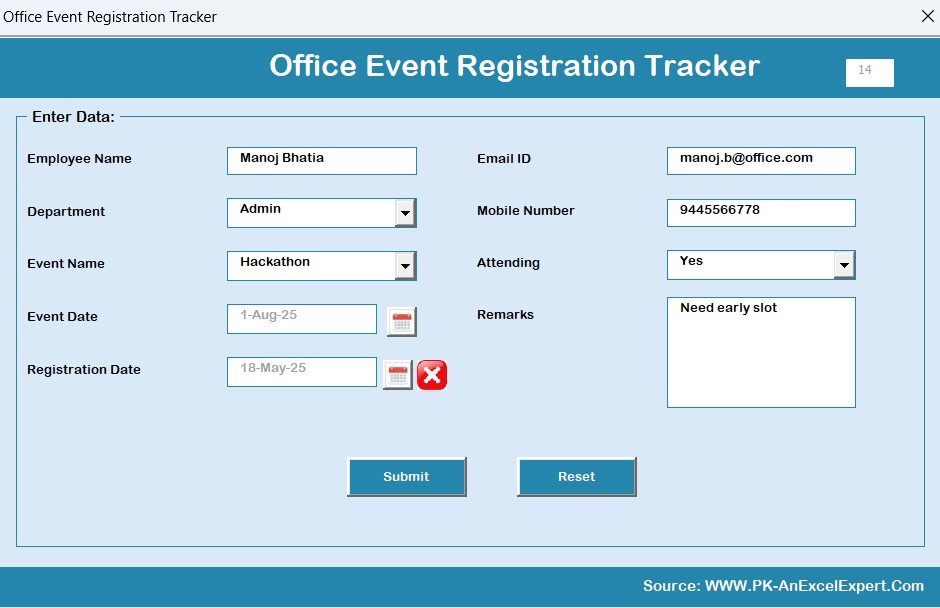
📝 Data Entry Sheet – Automated Record Keeping
This sheet is your data backbone, with:
Auto ID Generation
Fields for Name, Department, Event, Email, Mobile, Attendance & Remarks
💡 Three automated buttons:
➕ Add New Record
🔄 Update Existing Record
❌ Delete Record (with confirmation prompt)
Everything updates dynamically—no manual refresh required!
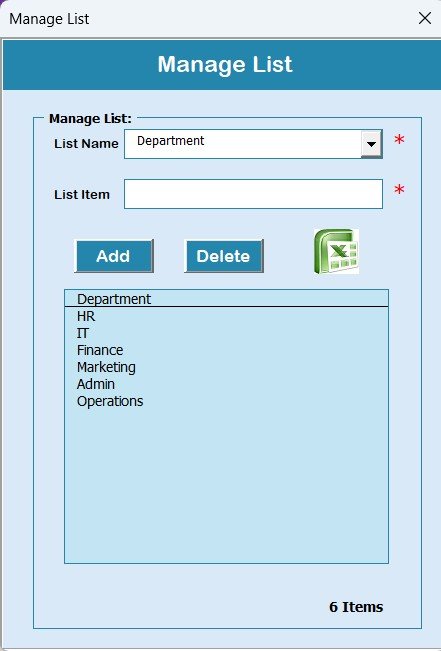
⚙️ Manage List Sheet – Dynamic Dropdowns
Customize Departments, Event Names, and Attendance Options in one place. All values instantly update in the dropdown menus on the Data Entry Form.
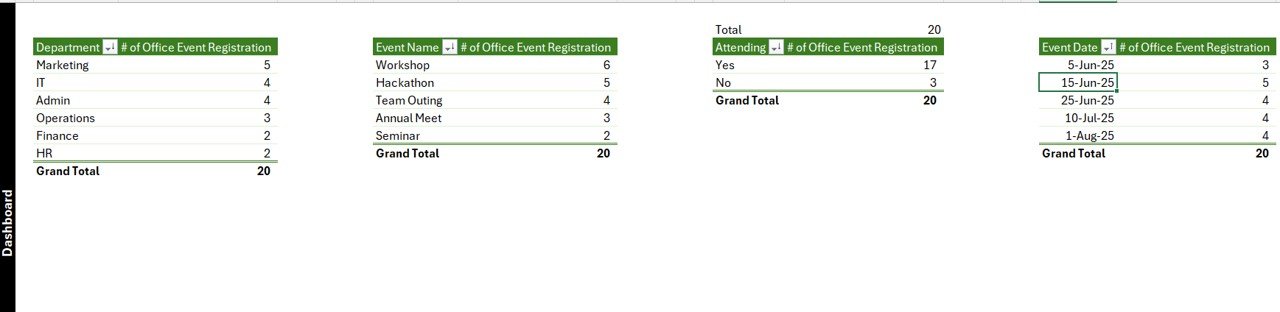
📈 Support Sheet – Hidden Analytics Engine
This sheet powers the dashboard with pivot tables and backend calculations. No edits required—just let it do its magic behind the scenes.
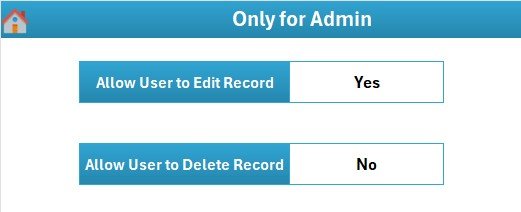
👥 Multi-User Management System
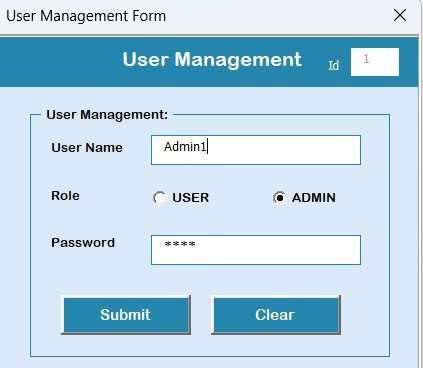
Add, delete, or modify user roles from the User Management section. You can:
Create new users
Set passwords
Assign roles (Admin/User)
Role-based access improves accountability and security.
🎛️ Settings Sheet
Set global preferences:
Default dashboard view
Color themes
Data validation rules
This makes it easy to tailor the tool to your brand or workflow.
🧠 How to Use the Product
📥 Download the Tracker and open in Excel
🔐 Log in as Admin using the default credentials
⚙️ Customize Lists: Add event names & departments via the Manage List sheet
📝 Register Attendees using the Main Form
📊 View Dashboard: Monitor registrations, trends, and department-wise participation live
👥 Who Can Benefit from This Tracker?
👩💼 HR Teams – For workshops, celebrations, or wellness programs
🧑🏫 Training Departments – Track upskilling program attendance
🧾 Admin Staff – Manage RSVP lists for internal events
🎉 Event Committees – Monitor live participation
🏢 Corporate Offices – For any event with 10 to 1,000+ participants
🔗 Click here to read the Detailed blog post
📺 Visit our YouTube channel to learn step-by-step video tutorials
Watch the step-by-step video tutorial:
Compatibility and Requirements
- Runs in Excel desktop on Windows with macros enabled. It does not run in Excel for the web, Google Sheets or mobile apps. Microsoft explains how in Enable or disable macros in Microsoft 365 files.
- The tracker opens with a login form, so you sign in before you can use it.
- A Google Sheets edition is also available if your team works in the browser.
Frequently Asked Questions
Do I need to log in to use the tracker?
Yes. The tracker opens with a login form. The default login is User ID Admin1 and Password abcd, and Admins can add users and change passwords in User Management.
What details can I record for each attendee?
The Data Entry sheet has fields for Name, Department, Event, Email, Mobile, Attendance and Remarks. The ID is generated automatically.
Can I add my own events and departments?
Yes. Add event names, departments and attendance options on the Manage List sheet. They appear in the dropdown menus on the data entry form.
What does the dashboard show?
It has slicers for Event Name, Department, Date and Attendance. The charts are a doughnut chart of attending vs not attending, bar charts by event and by department, and a line chart of registrations by date.
Is there a Google Sheets or attendance dashboard version?
Yes. See the Office Event Registration Tracker in Google Sheets and the Office Event Attendance Dashboard in Excel.
Related Office Event Templates
- Office Event Registration Tracker in Google Sheets: the same tracker for Google Sheets
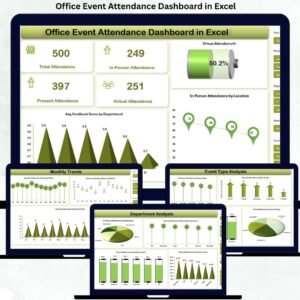
- Office Event Attendance Dashboard in Excel: a dashboard view of event attendance
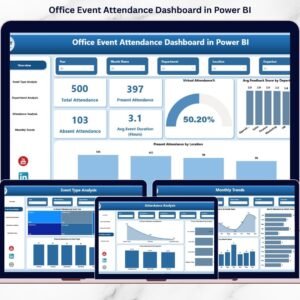
- Office Event Attendance Dashboard in Power BI: the attendance dashboard in Power BI
- Office Event Feedback Tracker in Excel: collect feedback after the event
- Corporate Event Planning Report in Excel: a planning report for corporate events
Browse all Excel trackers and Excel VBA tools.













Reviews
There are no reviews yet.