

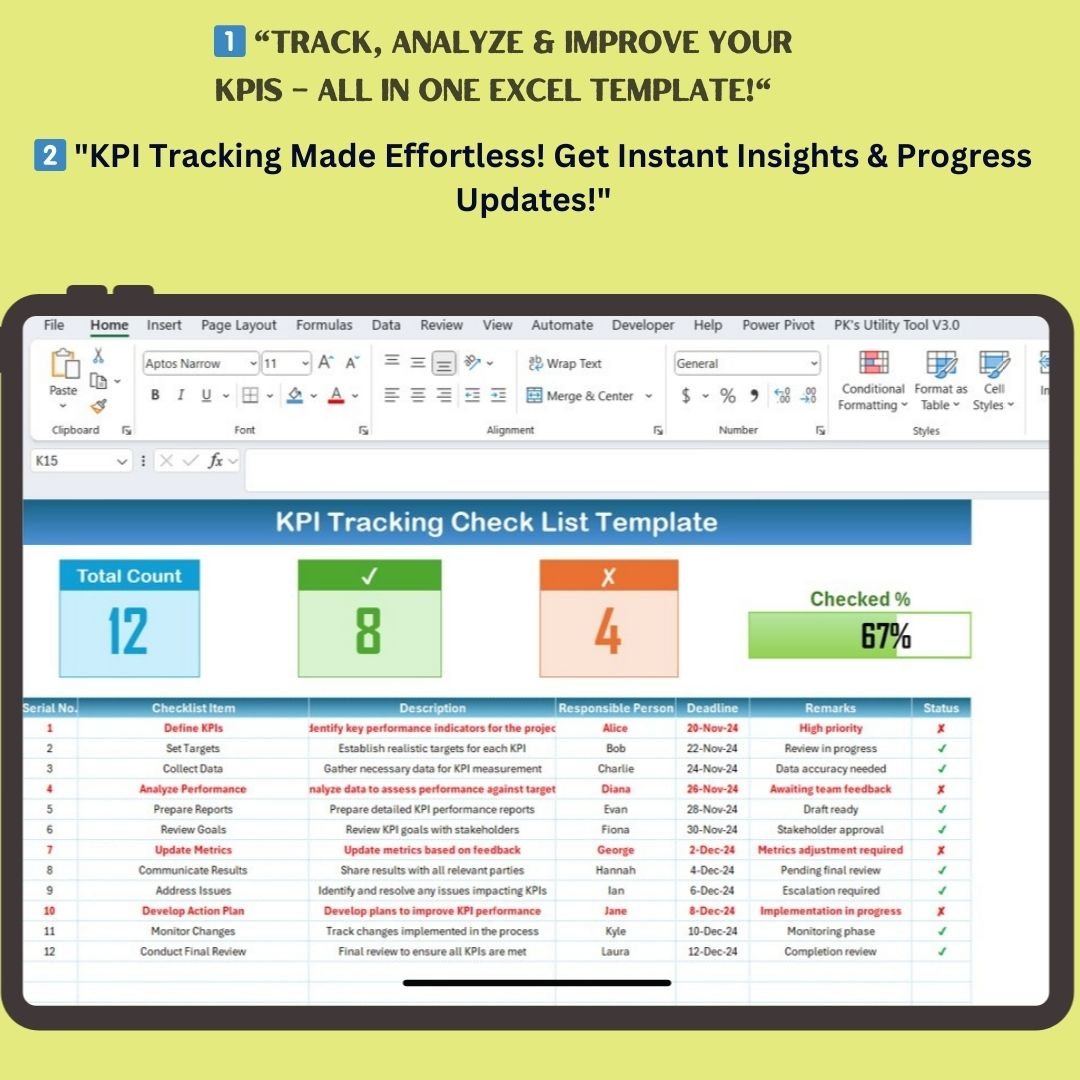
Stay on top of your business performance with our KPI Tracking Checklist Template in Excel! This ready-to-use template helps you monitor key performance indicators (KPIs) effectively, ensuring accountability, progress tracking, and goal achievement. Whether you’re managing a project, overseeing a business strategy, or optimizing performance, this template provides the structure you need to succeed.
🔹 Why Use a KPI Tracking Checklist?
Tracking KPIs manually can be time-consuming and prone to errors. This Excel KPI Tracking Checklist streamlines the entire process by providing a structured and automated way to:
✔ Define measurable performance goals
✔ Assign responsibilities to team members
✔ Track progress in real-time with visual indicators
✔ Identify bottlenecks and improvement areas
✔ Keep all performance-related data organized in one place
🔹 Key Features of the KPI Tracking Checklist Template
📌 Two Organized Worksheets for Seamless Tracking
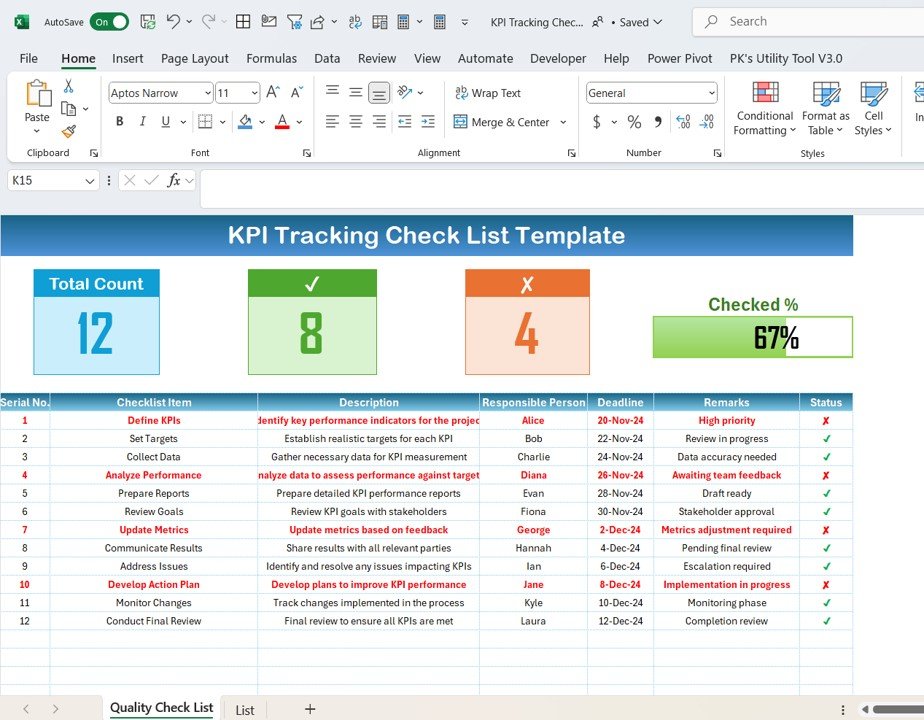
1️⃣ KPI Tracking Checklist Sheet
- The primary sheet where you input, update, and monitor KPIs.
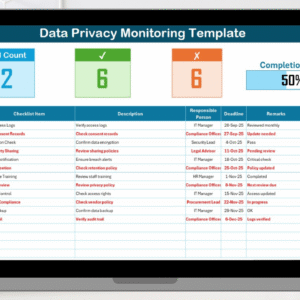
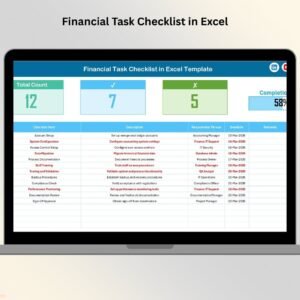
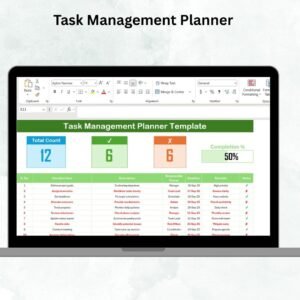
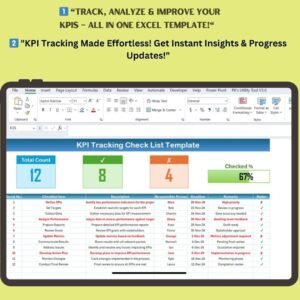
- Visual summary cards at the top give you a quick glance at your overall progress.
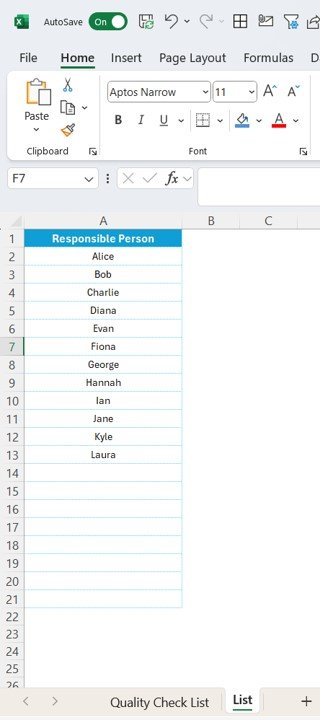
2️⃣ List Sheet
- A pre-set list of responsible persons to ensure consistency in task assignment.
- Dropdown functionality eliminates manual entry errors.
📊 Visual Summary Cards for Instant Insights
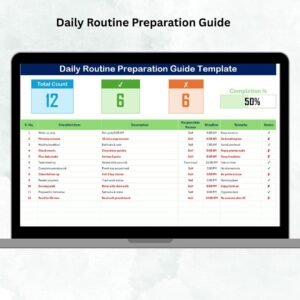
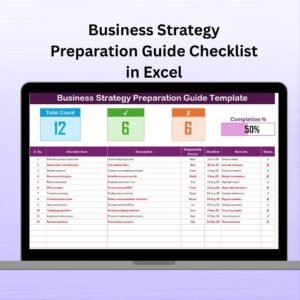
At the top of the KPI Tracking Checklist, you’ll find real-time progress indicators that give you a snapshot of your performance tracking:
✅ Total Count: Displays the total number of KPI checklist items.
✅ Checked Count: Shows the number of completed KPI tasks (✔).
❌ Crossed Count: Highlights pending KPI tasks (✘).
📈 Progress Bar: A visual indicator of your KPI completion percentage.
📋 Comprehensive KPI Checklist Table
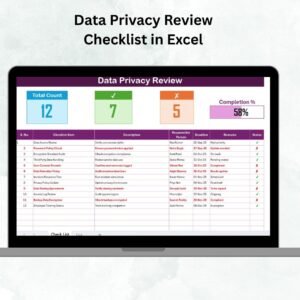
This is the core section of the template where you track all KPI-related tasks. The table includes:
✔ Serial Number: Helps keep track of the order of tasks.
✔ Checklist Item: Lists specific KPI tasks that need monitoring.
✔ Description: Provides details on what needs to be done.
✔ Responsible Person: Assigns accountability for each KPI.
✔ Deadline: Ensures tasks are completed on time.
✔ Remarks: Space for any additional notes or updates.
✔ Status: Marks whether a KPI has been completed (✔) or is still pending (✘).
🔹 How to Use the KPI Tracking Checklist?
Using this template is simple! Follow these easy steps:
1️⃣ Enter KPI Data: Populate the checklist with your defined KPIs, descriptions, and deadlines.
2️⃣ Assign Responsibilities: Use the dropdown menu to select the responsible person for each KPI.
3️⃣ Monitor and Update Status: As tasks are completed, mark them as ✔ to reflect progress.
4️⃣ Track Performance: Use the visual summary at the top to instantly see how well KPIs are being met.
5️⃣ Analyze and Adjust: Identify performance gaps and make data-driven decisions to improve KPIs.
🔹 Advantages of Using This KPI Tracking Template
🌟 Improved Performance Monitoring: Keeps all KPIs in one structured place, reducing manual errors.
🌟 Enhanced Accountability: Assign tasks and deadlines clearly, ensuring everyone knows their responsibilities.
🌟 Real-Time Tracking: Stay updated with instant progress visuals and a dynamic checklist.
🌟 Saves Time: Predefined drop-down menus and automated status tracking streamline KPI monitoring.
🌟 Fully Customizable: Adapt it to your business needs by adding new KPIs, changing formats, or modifying descriptions.
🔹 Who Can Benefit from This KPI Checklist?
This template is perfect for:
✔ Project Managers – Monitor project KPIs and ensure goals are met.
✔ Business Owners – Keep track of operational and financial performance.
✔ HR Professionals – Measure employee productivity and engagement KPIs.
✔ Marketing Teams – Track campaign performance and ROI.
✔ Finance Departments – Monitor budget adherence and cost efficiency.
🔹 Why Choose This KPI Tracking Template?
Unlike generic spreadsheets, this KPI Tracking Checklist Template is pre-structured, automated, and visually optimized for efficiency. It eliminates the hassle of manual tracking while ensuring accurate, organized, and data-driven decision-making.
✅ Easy to use and customizable
✅ Instant download and ready-to-go format
✅ Visually appealing with progress indicators
✅ Boosts productivity and performance
Visit our YouTube channel to learn step-by-step video tutorials
Click hare to read the Detailed blog post
Compatibility and Requirements
- Works in Microsoft Excel desktop (Excel 2016 or later, or Microsoft 365).
- The responsible person column uses dropdowns fed by the List sheet. Microsoft explains how they work in Create a drop-down list.
Frequently Asked Questions
Which sheets are included?
Two sheets: the KPI Tracking Checklist sheet, where you enter and monitor your KPIs, and the List sheet, which holds the responsible persons.
What columns does the checklist table have?
Serial Number, Checklist Item, Description, Responsible Person, Deadline, Remarks and Status.
How do I assign a KPI to someone?
Add the names to the List sheet, then pick the responsible person from the dropdown in each row of the checklist.
What do the summary cards at the top show?
They show the total count of checklist items, the checked count, the crossed count and a progress bar for KPI completion.
Is there a Google Sheets version of a checklist like this?
See the Project Management Checklist in Google Sheets for a checklist you can use in a browser.
Related Checklist and Tracking Templates
- Project Management Tracking in Excel: track project tasks and progress
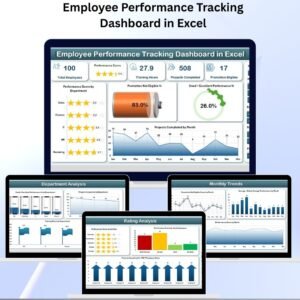
- Employee Performance Tracking Dashboard in Excel: a dashboard view of performance
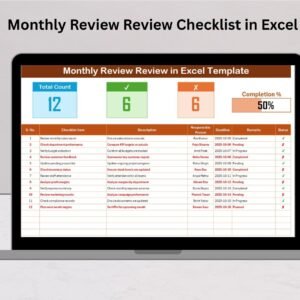
- Monthly Review Tracking Checklist in Excel: another tracking checklist for regular reviews
- Project Management Checklist in Google Sheets: a checklist for Google Sheets users
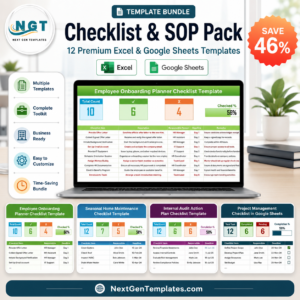
- Checklist & SOP Pack: 12 Excel and Google Sheets checklist templates in one download
Browse all Excel checklist templates or the Excel KPI dashboards.









Reviews
There are no reviews yet.