

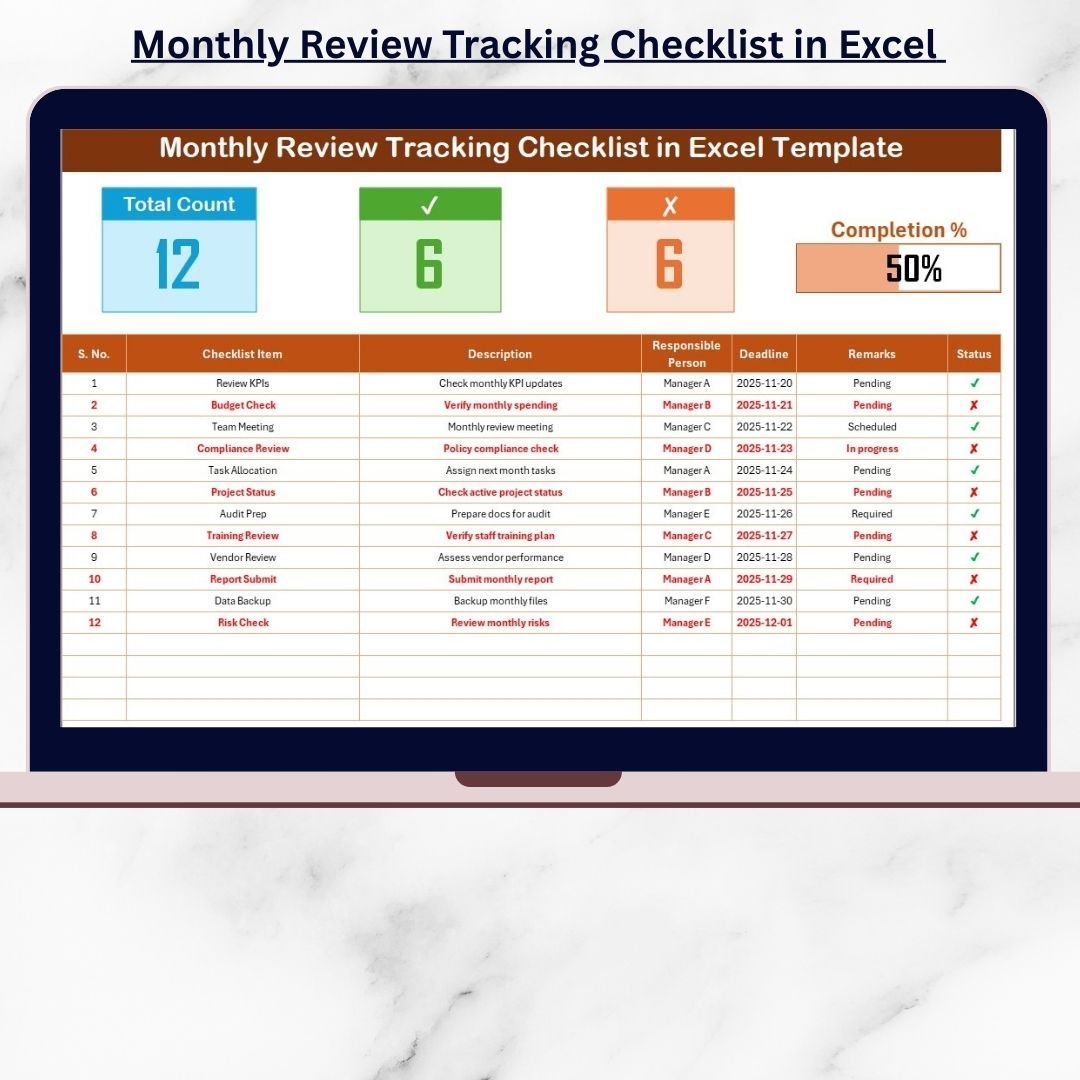
Managing monthly reviews, tasks, and follow-ups becomes effortless when you use a smart and organized system. The Monthly Review Tracking Checklist in Excel is a ready-to-use digital tool designed to simplify your entire monthly review process. Whether you work in HR, Finance, Operations, Administration, Procurement, or Project Management, this template helps you stay ahead of deadlines, track progress visually, and manage accountability with complete clarity.
Instead of juggling handwritten notes, scattered sheets, or missed follow-ups, this structured Excel checklist brings everything into one place—clear, simple, and professional. With automated counts, status icons, visual progress indicators, and dropdown-based entries, managing monthly reviews becomes smoother and faster than ever. This template helps you stay consistent, avoid missed deadlines, and run highly productive review meetings every single month.
✨ Key Features of the Monthly Review Tracking Checklist in Excel
This powerful template is packed with smart features designed to save time and increase accuracy:
📊 Automated Summary Panel
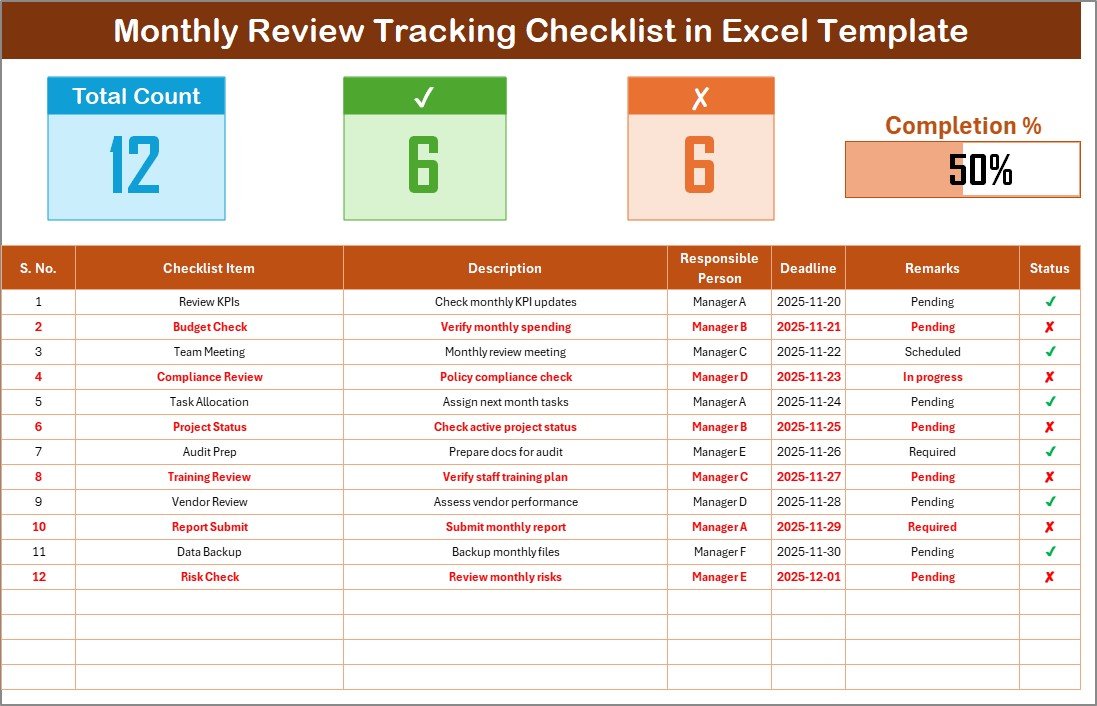
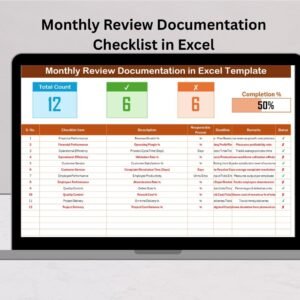
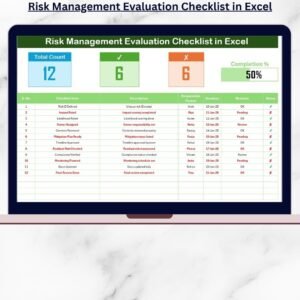
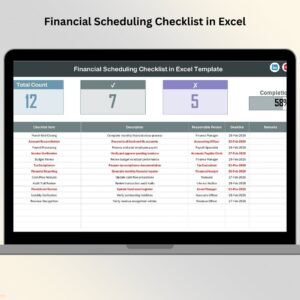
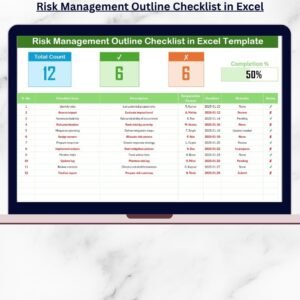
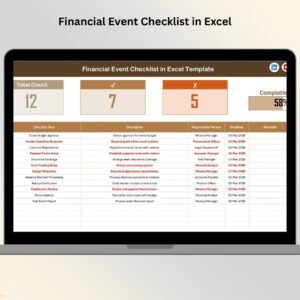
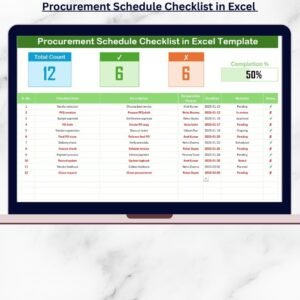
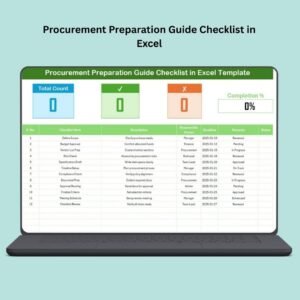
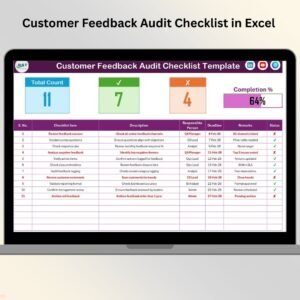
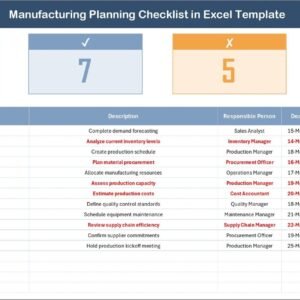
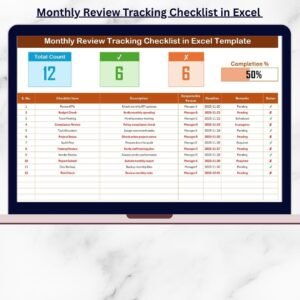
At the top of the sheet, you’ll see a clean visual summary showing:
Total Tasks
Completed Tasks
Pending Tasks
A Dynamic Progress Bar
This gives you a quick overview of your entire month’s progress in seconds.
📋 Organized Checklist Table
You get a well-structured table with the following columns:
Serial No.
Checklist Item
Description
Responsible Person
Deadline
Remarks
Status (✔ or ✘)
This makes review tracking simple, clean, and well-documented.
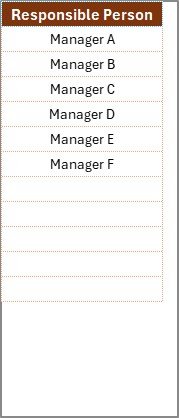
🔽 Smart Dropdown for Responsible Persons
The list sheet contains unique names to avoid typing errors and maintain consistency.
🎯 100% Editable & Customizable
Modify columns, add new fields, apply color coding, and customize as needed—Excel gives you total flexibility.
📦 What’s Inside the Monthly Review Tracking Checklist in Excel
When you download this product, you get a professionally designed Excel file that includes:
🧾 Main Checklist Sheet
This is your central workspace for entering tasks, marking progress, tracking deadlines, and viewing status updates. The automatic calculations update in real time as you change task status.
🧑🤝🧑 Responsible Person List Sheet
This sheet stores the master list of team members used in dropdown selections. It helps standardize task assignments and reduces manual errors.
🎨 Built-In Formatting & Visual Elements
Progress bar, conditional formatting, structured layout, and clean design make your monthly reviews organized and visually appealing.
🛠️ How to Use the Monthly Review Tracking Checklist in Excel
Using this template is extremely simple—even if you have basic Excel skills:
👉 Enter your monthly review tasks in the table
👉 Add descriptions for clarity
👉 Choose the responsible person from the dropdown
👉 Enter deadlines for each task
👉 Update the status as ✔ (completed) or ✘ (pending)
👉 Watch the summary panel update automatically
👉 Review your progress at the end of the month
👉 Save a new copy each month for record-keeping
With this flow, you can manage your monthly reviews in minutes.
👥 Who Can Benefit from This Monthly Review Tracking Checklist in Excel
This template is perfect for:
✔ Small Businesses
✔ Corporate Teams
✔ HR Departments
✔ Finance & Accounts
✔ Admin & Operations
✔ Procurement Teams
✔ Project Managers
✔ Educational Institutions
✔ Consultants & Freelancers
Anyone who handles recurring monthly tasks will find this tool extremely valuable. It helps improve transparency, boosts accountability, and ensures nothing gets missed.
Click hare to read the Detailed blog post
Watch the step-by-step video tutorial:














Reviews
There are no reviews yet.