

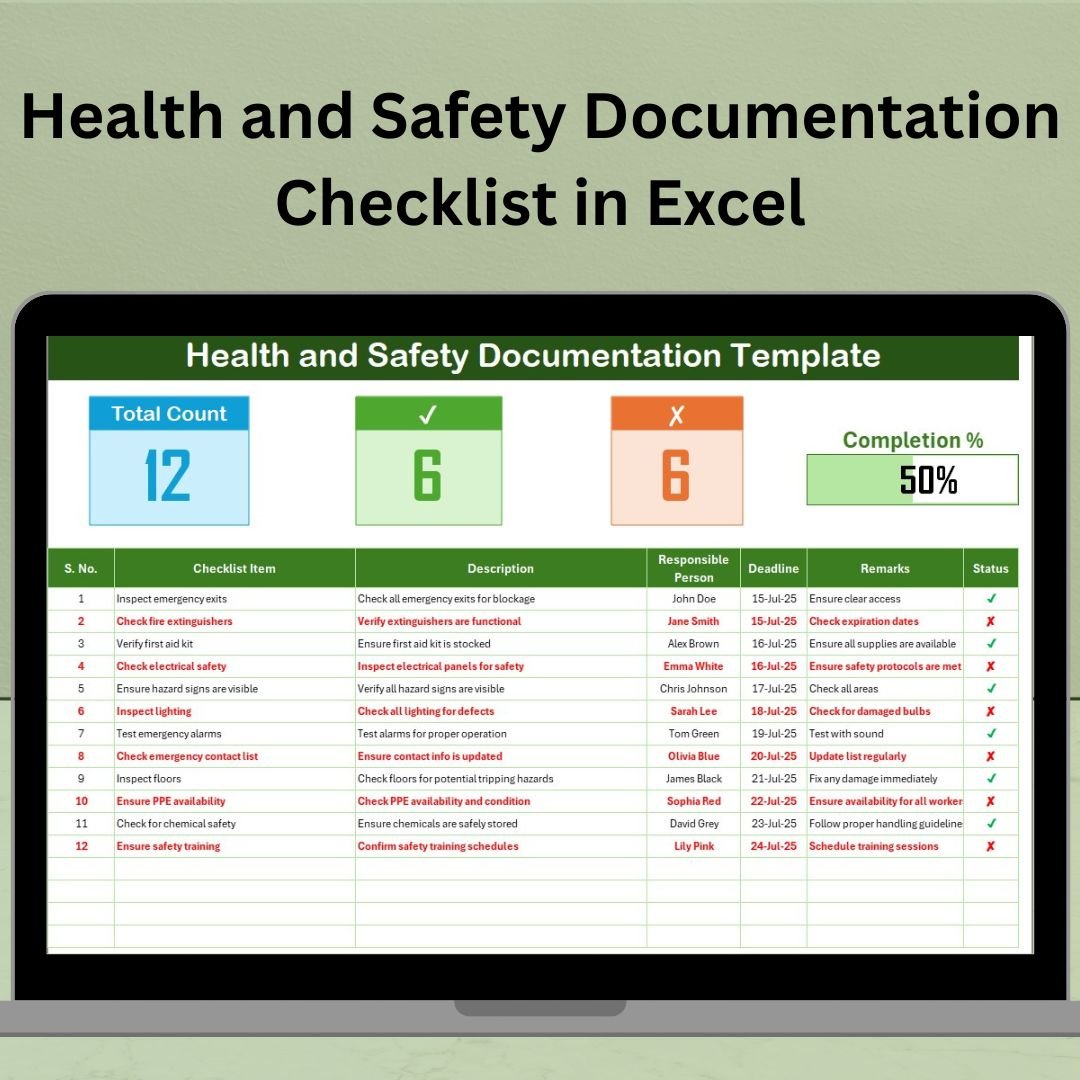

Keep your workplace safe, compliant, and audit-ready with our Health and Safety Documentation Checklist in Excel — a powerful yet easy-to-use tool designed for HR teams, compliance officers, safety supervisors, and operational managers.
This ready-to-use Excel template gives you a smart, visual, and fully editable platform to track safety protocols, assign responsibilities, monitor deadlines, and ensure your organization stays up to code — all in one place!
📈 Key Features of Health and Safety Documentation Checklist
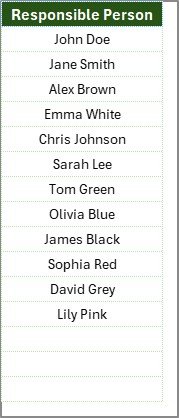
- Two Organized Worksheets: Includes a checklist sheet for daily tracking and a List sheet for managing responsible persons via dropdowns.
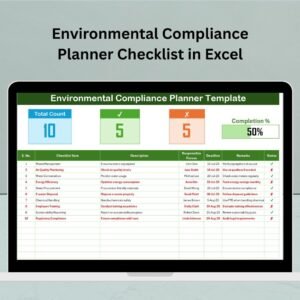
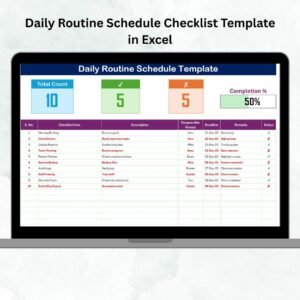
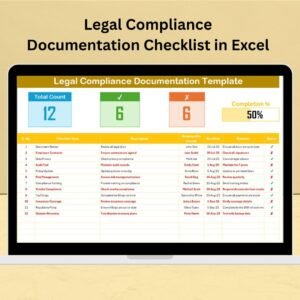
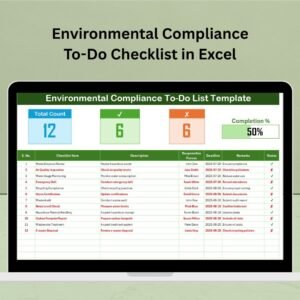
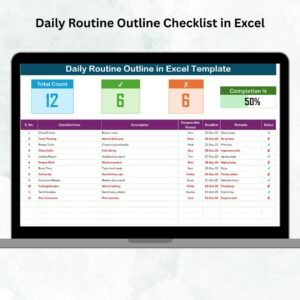
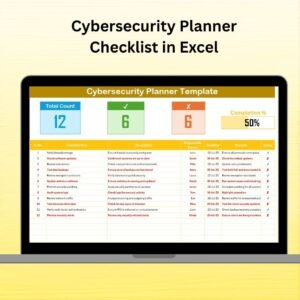
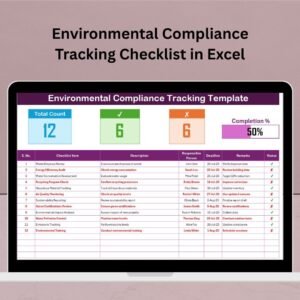
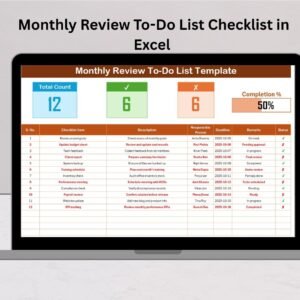
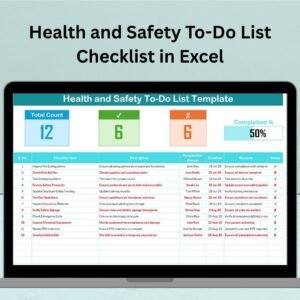
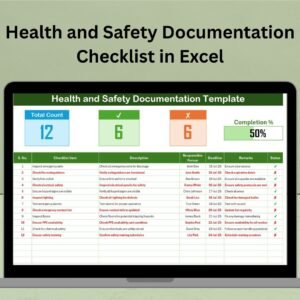
- Progress Monitoring: Displays Total, Checked, and Crossed items, with a dynamic progress bar for a visual completion indicator.
- Status Tracking: Built-in ✔ and ✘ icons help users instantly spot completed and failed tasks.
- Dropdown-enabled Fields: Select the responsible person from a dropdown menu to avoid entry errors and standardize assignments.
- Structured Table Layout: Clear columns for Checklist Item, Description, Responsible Person, Deadline, Remarks, and Status.
- Fully Editable: Add, remove, or update fields as needed to match your company’s safety protocol.
- No Special Software Needed: Built entirely in Excel—no add-ins or VBA needed.
🔍 What’s Inside the Health and Safety Checklist
This Excel file comes with two powerful worksheets:
1. ✅ Checklist Tab:
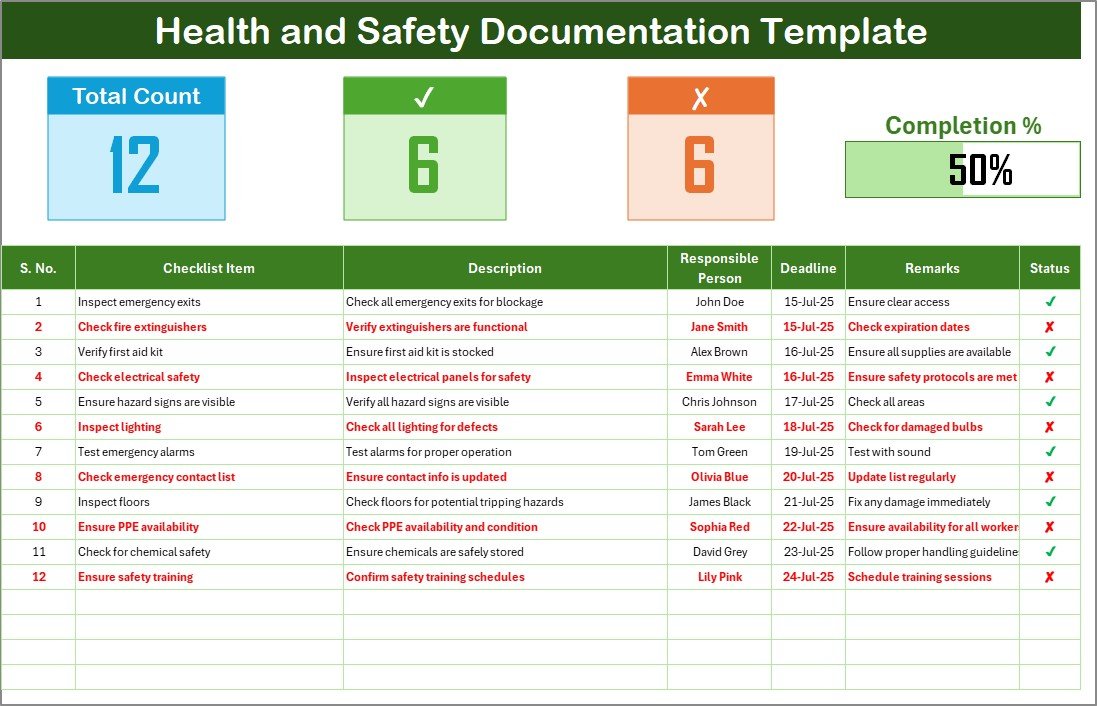
This is the central table where you track your safety tasks. It includes:
- Serial No.: Task identifiers
- Checklist Item: The safety procedure/task
- Description: Brief details
- Responsible Person: Linked to dropdown from List tab
- Deadline: Due date
- Remarks: Comments or observations
- Status: Tick (✔) or Cross (✘)
It also includes:
- Auto-calculated total tasks
- Count of completed and failed items
- Progress bar that updates dynamically
2. 📄 List Tab:
- Maintain your list of responsible persons
- Automatically feeds into the checklist dropdown field
- Easy to edit, remove, or add names
⚖️ How to Use the Checklist
- Open the Excel File and navigate to the Checklist tab.
- Start Adding Tasks: Fill in your health and safety measures.
- Assign Ownership: Choose the responsible person from the dropdown.
- Set Deadlines: Define when each task should be completed.
- Update Statuses: Mark each item with a ✔ (completed) or ✘ (not done).
- Monitor Progress: Use the summary metrics and progress bar to keep track.
- Manage Team List: Go to the List tab to edit names.
- Customize As Needed: Add more columns, rename fields, or change formatting.
🧬 Who Can Benefit from This Excel Template?
- 💼 HR & Compliance Teams: To monitor health and safety standards.
- 🚧 Facility Managers: To oversee safety operations and track accountability.
- 🧬 Audit & Risk Professionals: To maintain documentation for inspections.
- 🧮 Business Owners: To implement standardized safety procedures.
- 🏛️ Educational Institutions: To track hygiene, equipment checks, and emergency drills.
This checklist helps you stay on top of your obligations — boosting your compliance scores, reducing liability, and ensuring employee safety.
🔗 Click here to read the Detailed blog post
Visit our YouTube channel to learn step-by-step video tutorials
Watch the step-by-step video tutorial:
Compatibility and Requirements
- Works in Microsoft Excel desktop (Excel 2016 or later, or Microsoft 365).
- It needs no add-ins or VBA. The responsible person field uses a dropdown list, which Microsoft explains in Create a drop-down list.
Frequently Asked Questions
Which columns does the checklist include?
Each row has a Serial No., Checklist Item, Description, Responsible Person, Deadline, Remarks and Status.
How do I mark an item as done or not done?
Set the Status to a tick for completed or a cross for not done. The ticks and crosses make it easy to spot failed tasks.
How does the responsible person dropdown work?
You keep the list of names on the List tab, and it feeds the dropdown on the Checklist tab. You can add, edit or remove names there.
How do I see overall progress?
The sheet counts Total, Checked and Crossed items and shows a progress bar that updates as you change statuses.
Can I add my own safety items?
Yes. You can add or remove rows, rename fields and add columns to match your safety procedures.
Related Health and Safety Templates
- Employee Health and Safety Dashboard in Excel: report on safety results with charts
- Health and Safety Monitoring Checklist in Excel: for routine safety monitoring
- Health and Safety Tracking Checklist in Excel: track safety actions over time
- Employee Health and Safety Report in Excel: a printable safety report
- Checklist & SOP Pack: 12 premium Excel and Google Sheets checklists in one bundle
Browse all Excel checklists or the Excel health and safety templates.








Reviews
There are no reviews yet.