

Modern organizations rely heavily on software to operate efficiently. From productivity tools and development software to licensed applications and security tools, employees regularly submit requests for new installations, upgrades, or re-installations. However, when IT teams manage these requests through emails, chat messages, or unstructured spreadsheets, problems quickly arise. Requests get missed, approvals are delayed, licenses become difficult to track, and IT workloads increase unnecessarily.
The IT Software Installation Request Tracker in Google Sheets is designed to eliminate these challenges. This ready-to-use tracker provides a centralized, structured, and transparent system to manage all software installation requests from start to finish. It helps IT teams log requests, prioritize work, track approvals, monitor installation status, and analyze demand trends — all within a single Google Sheets file.
Because the tracker runs entirely in Google Sheets, it offers real-time updates, easy collaboration, and zero dependency on expensive ITSM or ticketing software. IT teams can focus on execution instead of chasing emails and spreadsheets.
🚀 Key Features of the IT Software Installation Request Tracker
🗂️ Centralized Request Management
All software installation requests are recorded in one structured tracker, eliminating scattered communication and confusion.
⏱️ Priority-Based Tracking
Requests are categorized by priority (Low, Medium, High, Critical), allowing IT teams to address urgent business needs faster.
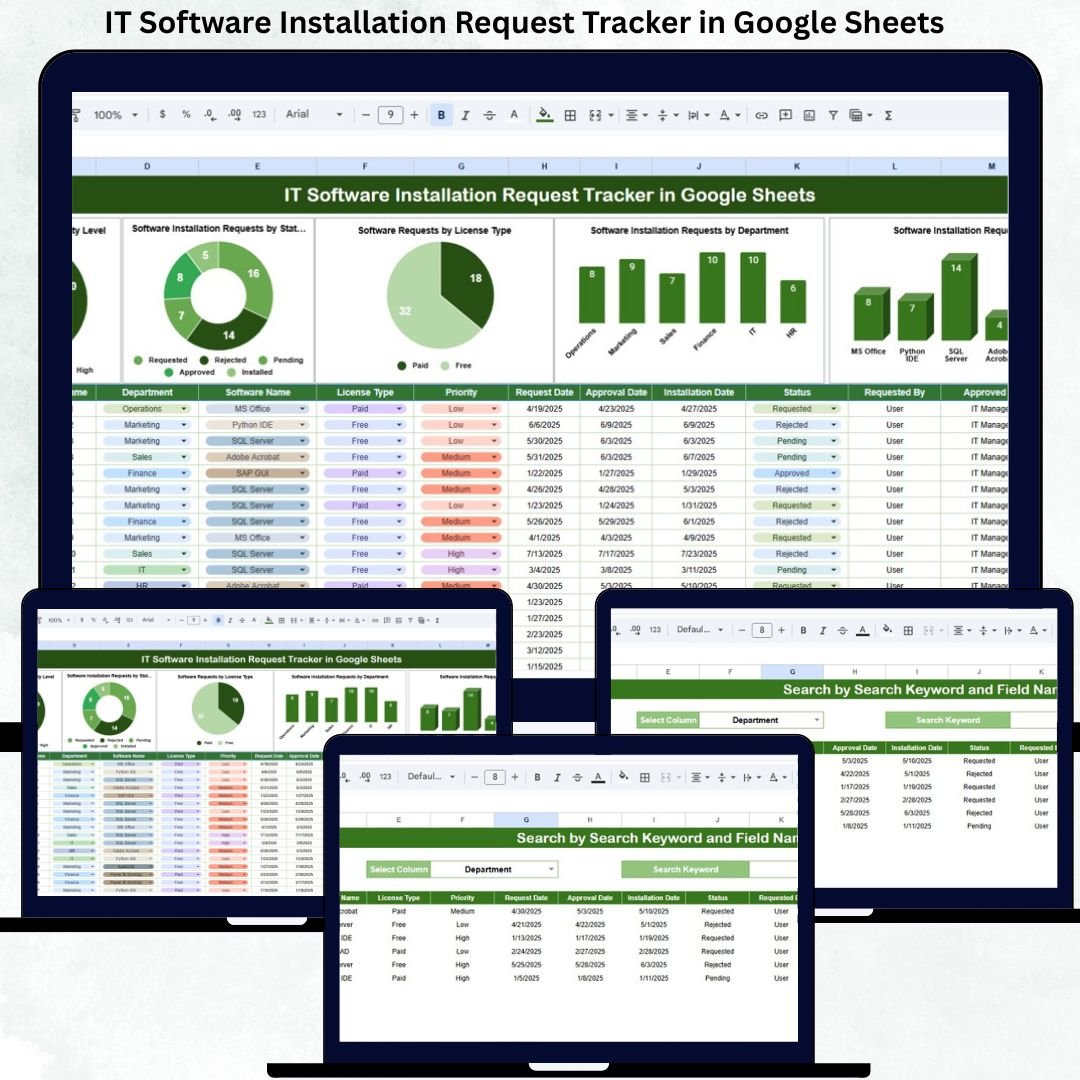
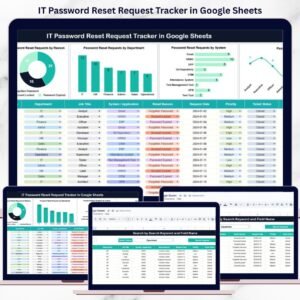
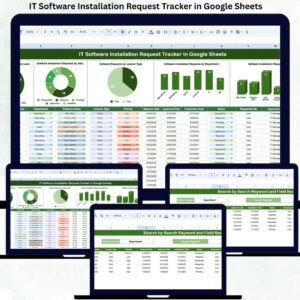
📊 Real-Time Visual Dashboards
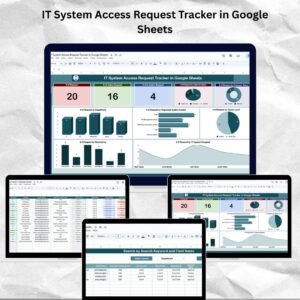
Built-in charts instantly show request volume, status distribution, license types, and department-wise demand.
🔍 Smart Search Functionality
Quickly locate any request using keyword search and field-based filtering without manual scrolling.
📈 Workload & Demand Analysis
Understand which departments and software tools generate the most requests and plan resources accordingly.
🤝 Collaborative & Cloud-Based
Multiple IT team members can update and monitor requests simultaneously in Google Sheets.
📦 What’s Inside the IT Software Installation Request Tracker
🖥️ Tracker Sheet Tab – Core Data Entry
This is the backbone of the entire system. All software installation requests are entered here in a clean and structured format.
Typical fields include:
Request ID
Employee Name
Department
Software Name
Software Category
License Type (Free, Paid, Trial, Enterprise)
Priority Level
Request Status (New, Approved, In Progress, Installed, Rejected)
Assigned IT Technician
Request Date
Installation Date
Comments / Remarks
Once data is entered or updated, all charts refresh automatically.
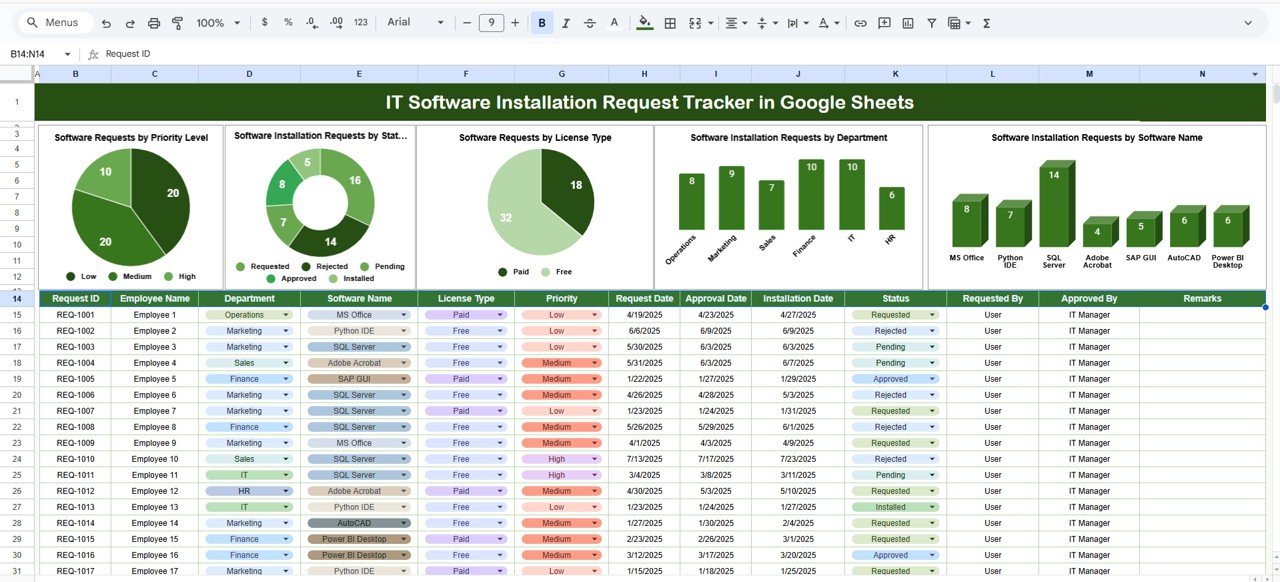
📊 Dashboard Charts – Instant Insights
The tracker includes five dynamic charts that provide immediate visibility:
Software Requests by Priority Level – Identify urgent and critical requests instantly
Requests by Status – Monitor pending, in-progress, and completed installations
Requests by License Type – Control licensing costs and compliance
Requests by Department – Understand department-wise demand
Requests by Software Name – Identify frequently requested tools for standardization
These visuals help IT managers make faster and smarter decisions.
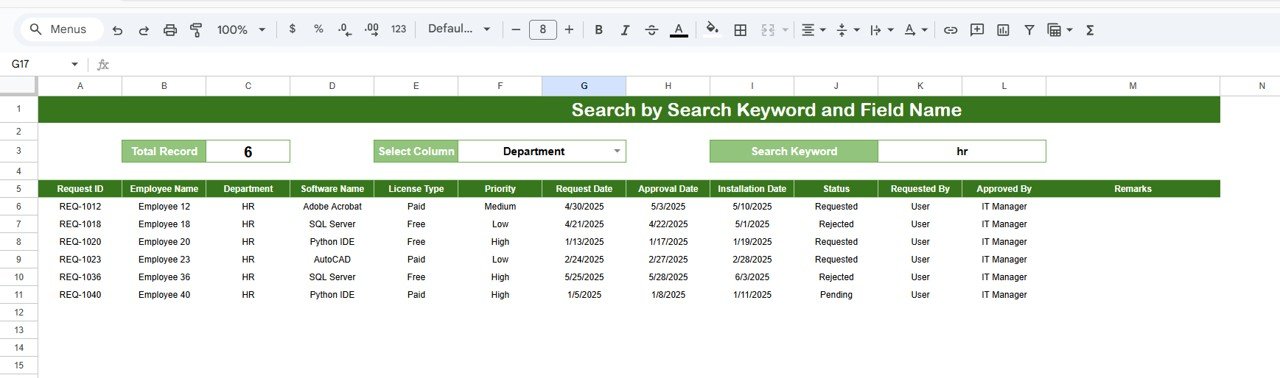
🔎 Search Function – Find Any Request in Seconds
The tracker includes a powerful search panel that allows you to:
Enter a Search Keyword
Select a Field Name (Employee, Software, Department, Status, Priority, etc.)
Matching records appear instantly, making audits, follow-ups, and employee queries effortless.
🛠️ How to Use the IT Software Installation Request Tracker
1️⃣ Log every software installation request in the Tracker Sheet
2️⃣ Assign priority and IT ownership
3️⃣ Update request status as work progresses
4️⃣ Review dashboard charts weekly
5️⃣ Use search for quick lookups and reporting
👥 Who Can Benefit from This Tracker
💻 IT Helpdesk Teams
🛠️ System Administrators
🧑💼 IT Managers & Operations Heads
📋 Compliance & Audit Teams
🏢 Growing Organizations & Enterprises
### Click here to read the Detailed blog post
Watch the step-by-step video tutorial:
Visit our YouTube channel to learn step-by-step video tutorials
👉 https://youtube.com/@NeotechNavigators
Compatibility and Requirements
- Works in Google Sheets. You need a free Google account and a web browser.
- The Tracker sheet uses dropdown fields such as priority, status and license type. Google explains dropdowns in Create an in-cell dropdown list.
Frequently Asked Questions
What does the tracker record for each request?
Each row holds the Request ID, employee name, department, software name, software category, license type, priority level, request status, assigned IT technician, request date, installation date and comments.
Which charts does it include?
Five charts: requests by priority level, by status, by license type, by department and by software name. They update when you add or change a request in the Tracker sheet.
Which statuses and license types can I track?
Statuses are New, Approved, In Progress, Installed and Rejected. License types are Free, Paid, Trial and Enterprise.
How do I find one request quickly?
Use the search panel. Type a keyword, choose a field name such as employee, software, department, status or priority, and the matching records appear.
Is there a similar tracker for IT support requests?
Yes. See the IT Support Request Tracker in Google Sheets. An Excel option for hardware is the IT Equipment Request Tracker in Excel.
Related IT and Request Templates
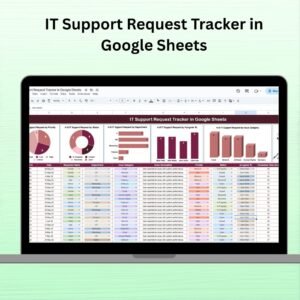
- IT Support Request Tracker in Google Sheets: log and track IT support requests
- IT Equipment Request Tracker in Excel: the same idea for hardware requests, in Excel
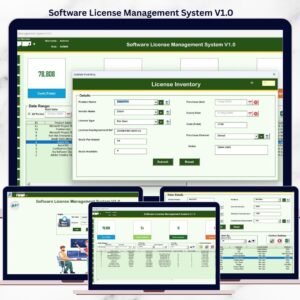
- Software License Management System V1.0: manage software licenses in Excel
- Work Order Request Tracker in Google Sheets: track work orders from request to completion
- IT and Cybersecurity Operations Bundle: 8 templates for IT operations in Excel and Power BI
Browse all Google Sheets trackers.














Reviews
There are no reviews yet.