


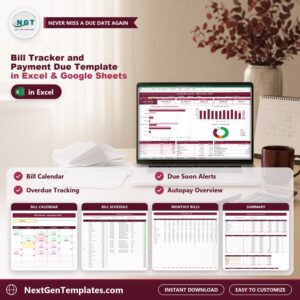
Bill Tracker and Payment Due Template in Excel and Google Sheets puts every bill, every due date and every payment in one place, so you always know what is paid, what is still to pay, what is overdue and what is due next. List each recurring bill once, log each due date and payment, and the status, days late and balance work themselves out. It ships in two editions, Google Sheets and Microsoft Excel, with the same tabs, formulas and sample data.
Watch the Bill Tracker and Payment Due Template in Excel and Google Sheets walkthrough
If you are searching for a bill tracker template, a bill payment tracker or a bill organizer template that works in both Excel and Google Sheets, with a color-coded bill calendar and a bill tracker Excel file you can keep and edit, this is a ready-made one.
Good to know: this is a tracking tool you fill in yourself. It does not connect to a bank, pay bills or send reminders, and the sample payees and amounts are illustrative. It is not financial advice. Join 10,000+ customers in 180+ countries.
What You Get
- Dashboard with a month dropdown, six tiles, charts, the next bills to pay and a category summary
- Setup tab for the household or business name, city, tracker year, who pays the bills, the status date and the due-soon window
- Bills tab: every recurring bill once, with bills per year, annual cost, paid this year and still due
- Bill Schedule tab with dropdowns, paid date and amount, and an automatic Paid, Paid Late, Overdue, Due Soon or Upcoming status
- Bill Calendar tab that shows any month as a color-coded calendar
- Monthly Bills, Summary, Lists and How to Use tabs
- Two editions in one download: Excel (.xlsx, no macros) and a PDF guide with the Make a copy link for Google Sheets
Key Features
Dashboard (Google Sheets)
Pick any month from the dropdown and six tiles update: Bills This Month, Paid, Still to Pay, Overdue, Due Soon and On-Time Rate. Under them sit bills by category (due vs paid), paid vs still to pay by month, a bill status chart, the next bills to pay, a category summary and an at-a-glance block. Links under the title jump to every tab.

Bills (Google Sheets)
List every recurring bill once: payee, category, frequency, due day, usual amount, autopay and the account it comes from. The tab works out bills per year, annual cost, paid this year and still due.

Bill Schedule (Google Sheets)
One row per bill per due date, with dropdowns for the bill and the payment method. Type the paid date and amount paid, and the status (Paid, Paid Late, Overdue, Due Soon or Upcoming), days late and balance fill in by themselves.

Bill Calendar (Google Sheets)
Any month as a calendar. Red days are overdue, pink days still have money to pay, green days are paid and yellow marks the status date, with the number of bills and the amount on every day.

Monthly Bills (Google Sheets)
The amount due for every bill in every month with SUMIFS, plus the year total, what is paid and what is still due. Handy for spotting seasonal bills and planning cash flow.

Summary (Google Sheets)
The blocks behind the Dashboard: bills by category, by month and by status, the next unpaid bills sorted by due date and a list of key figures.

How to Use (Google Sheets)
A step-by-step guide to every tab in simple words.

Dashboard (Excel edition)
The same Dashboard in Excel: pick a month, read the six tiles and the charts, and see which bills to pay next.

Bill Calendar (Excel edition)
The color-coded bill calendar in Excel, with the same red, pink, green and yellow days.

Bill Schedule (Excel edition)
The same Bill Schedule log in Excel, with the automatic Paid, Paid Late, Overdue, Due Soon and Upcoming status.

Summary (Excel edition)
The same Summary blocks in Excel, with bills by category, month and status.

Who Is It For?
Households, couples, freelancers and small business owners who want one place to see which bills are paid, which are late and which are coming up. It suits anyone who prefers a tracker they can keep and edit in Excel or Google Sheets, with no macros, no add-ins and no subscription.
How to Use
- Open the PDF guide and click Make a copy for Google Sheets, or open the Excel file.
- On the Setup tab, type the household name, city, tracker year, who pays the bills and the status date.
- On the Bills tab, list every recurring bill once with its due day and usual amount.
- On the Bill Schedule tab, log each due date and type the paid date and amount when you pay.
- Pick a month on the Dashboard or the Bill Calendar and read what is paid, still to pay, overdue and due soon.
Comparison
| Feature | This template | Blank spreadsheet |
|---|---|---|
| Status for every bill | Automatic: Paid, Paid Late, Overdue, Due Soon, Upcoming | Type it by hand |
| Month view of due dates | Color-coded bill calendar | Build it yourself |
| Amount due for every bill in every month | Monthly Bills tab with SUMIFS | Write the formulas |
| Google Sheets and Excel editions | Both included | One platform |
Frequently Asked Questions
How does the bill tracker work?
List each recurring bill once on the Bills tab, then log each due date and payment on the Bill Schedule tab. The status, days late and balance work themselves out, and the Dashboard shows the month you pick.
Does it work in Google Sheets and in Excel?
Yes. The ZIP holds an Excel edition (.xlsx, no macros) and a PDF guide with the Make a copy link for Google Sheets. Both have the same tabs, formulas and sample data.
What does the sample data show?
A fictional household in Columbus, Ohio with 21 bills and 204 due dates for 2026, paid to a status date of November 16, 2026, with a few late payments and overdue bills. Payees and amounts are illustrative.
How does it know a bill is overdue or due soon?
It compares each due date with the status date on the Setup tab. The Due Soon window is 7 days by default and you can change it.
Does it pay my bills or connect to my bank?
No. You type each payment yourself. It does not import from a bank or send reminders, and it is not financial advice.
Can I add my own bills?
Yes. Add each bill once on the Bills tab, then add its due dates on the Bill Schedule tab. Copy last month’s rows to the bottom for a new month and clear the paid dates.
Does it need macros or add-ins?
No. The Excel edition uses formulas only, so there is nothing to enable beyond opening the file.
Get the Template
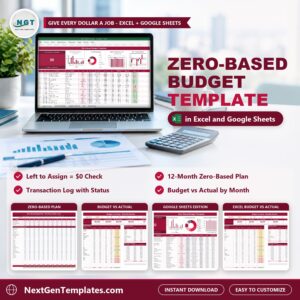
Download the Bill Tracker and Payment Due Template in Excel and Google Sheets and see what is paid, what is overdue and what is due next. To plan your spending first, see the Zero-Based Budget Template in Excel and Google Sheets, or try the Bill Payment Tracker in Google Sheets. Businesses can look at the Accounts Payable Aging Dashboard in Excel, or browse all Google Sheets templates.





Reviews
There are no reviews yet.