

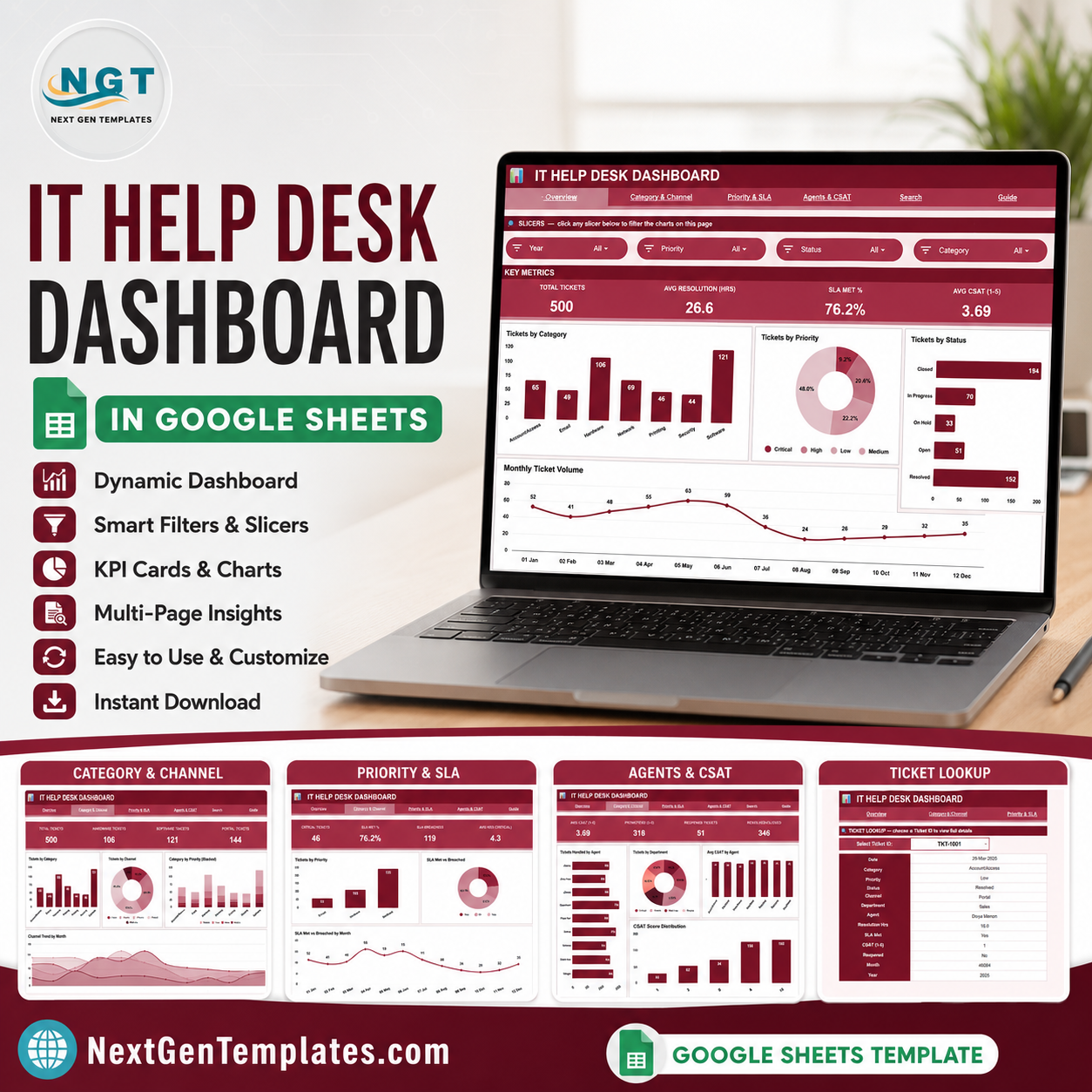

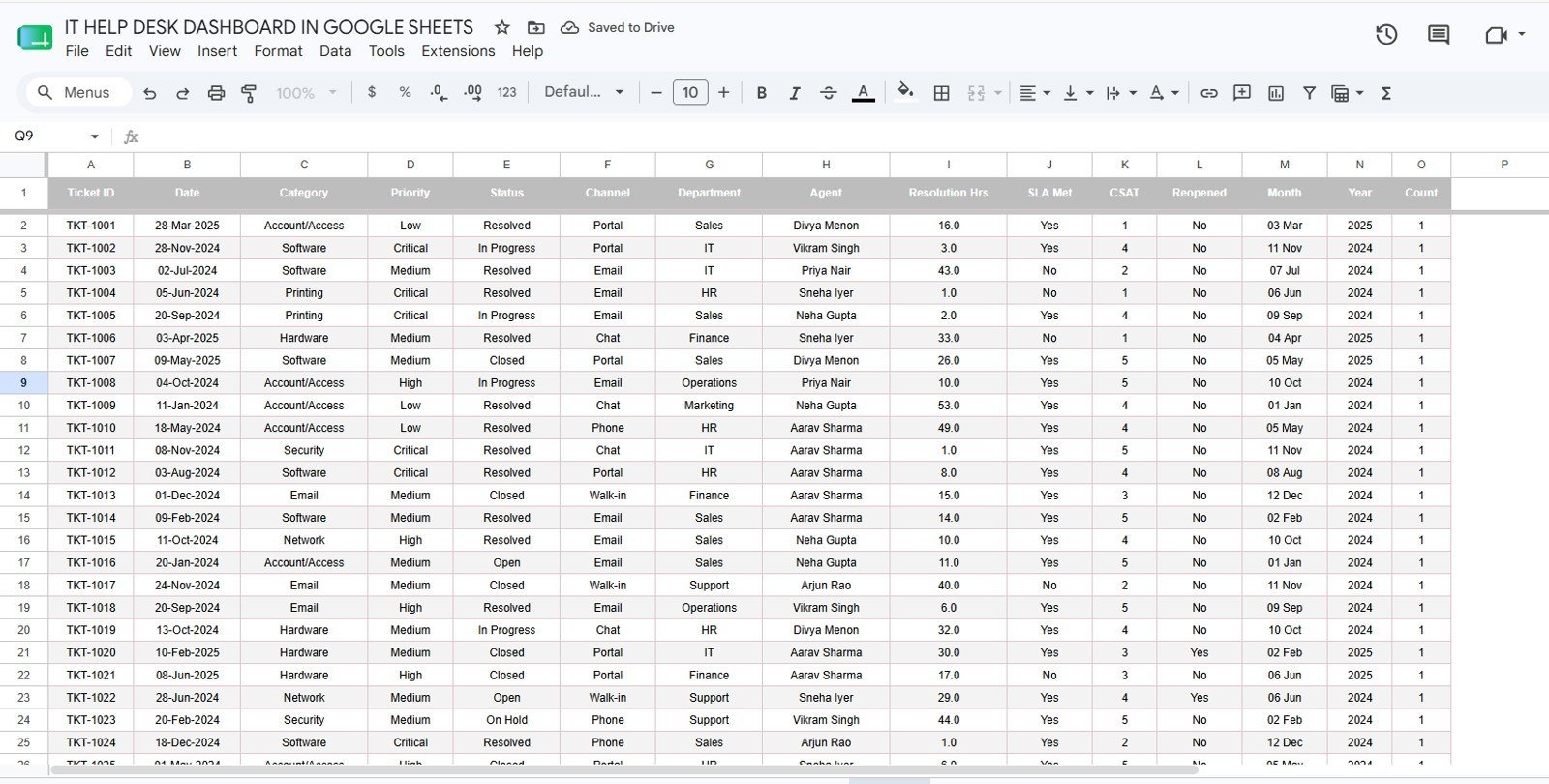
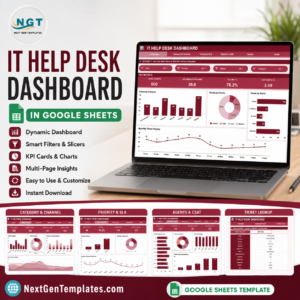
The IT Help Desk Dashboard in Google Sheets tracks 4 headline KPIs across 6 connected tabs, with 16 pre-built charts and built-in slicer filters covering category, channel, priority, SLA, agents, and CSAT. Setup takes under 10 minutes — paste your ticket export into the Data tab and every chart, KPI, and search lookup updates on its own.
🌍 Join 8,400+ teams in 40+ countries using NextGenTemplates to replace paid SaaS tools with one-time-purchase Excel, Google Sheets, Power BI, and HTML templates.
✅ Instant download · One-time payment · No subscription · No per-user fees · Lifetime access
🔑 Key Features of the IT Help Desk Dashboard in Google Sheets
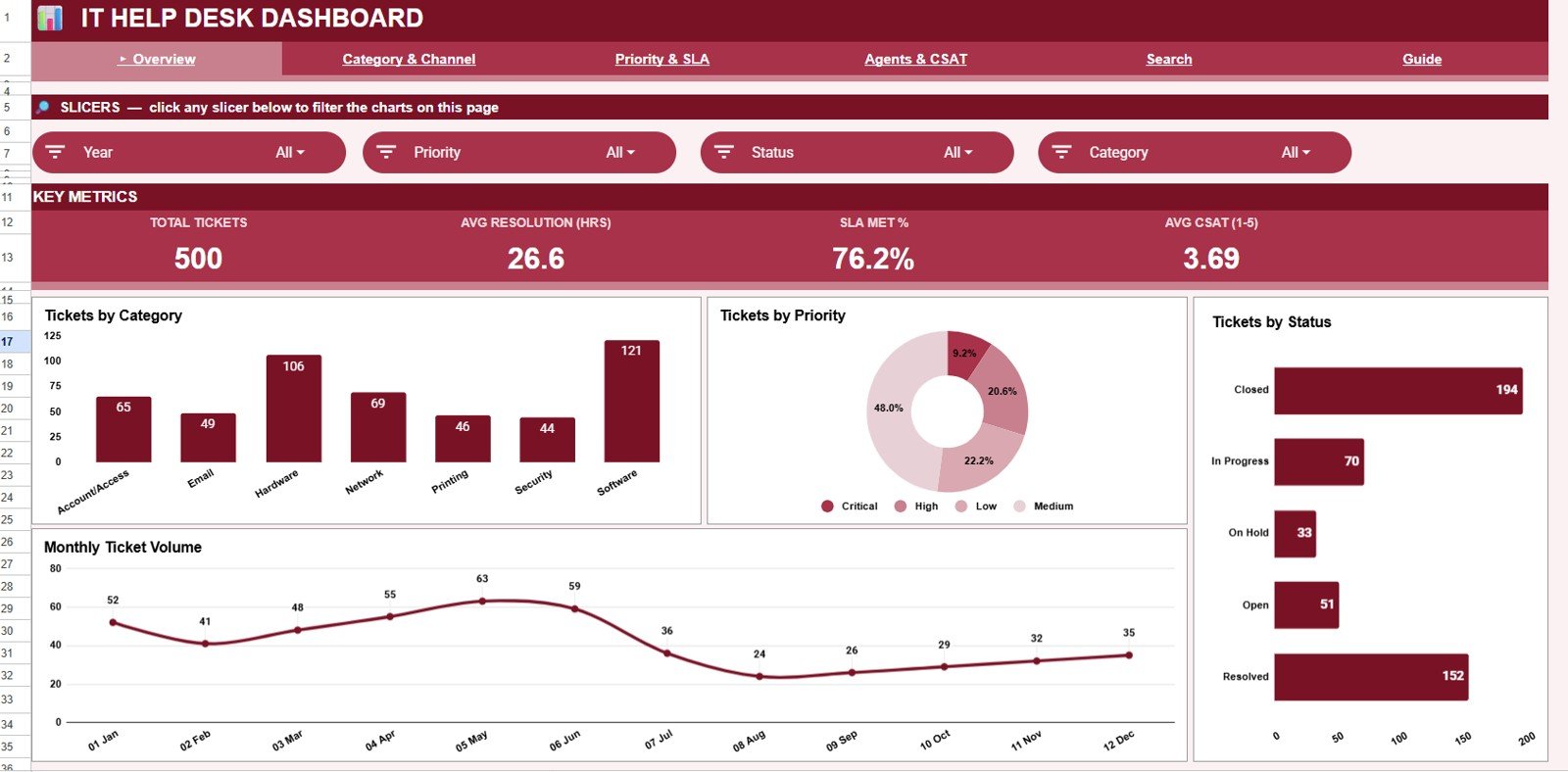
📊 4 KPI cards on one screen — Total Tickets, Average Resolution (Hours), SLA Met %, and Average CSAT (1–5) sit at the top of the Overview tab, so you can read service-desk health in a single glance without building a report.
📈 16 ready-made charts across 4 analysis tabs — ticket volume, category, channel, priority, SLA compliance, resolution time, agent workload, and CSAT distribution are all charted for you. No pivot tables to configure and no formulas to write.
🎛️ Native slicer filters — the Overview tab uses Google Sheets slicers, so you can filter the whole dashboard by category, priority, or status and watch every card and chart respond instantly.
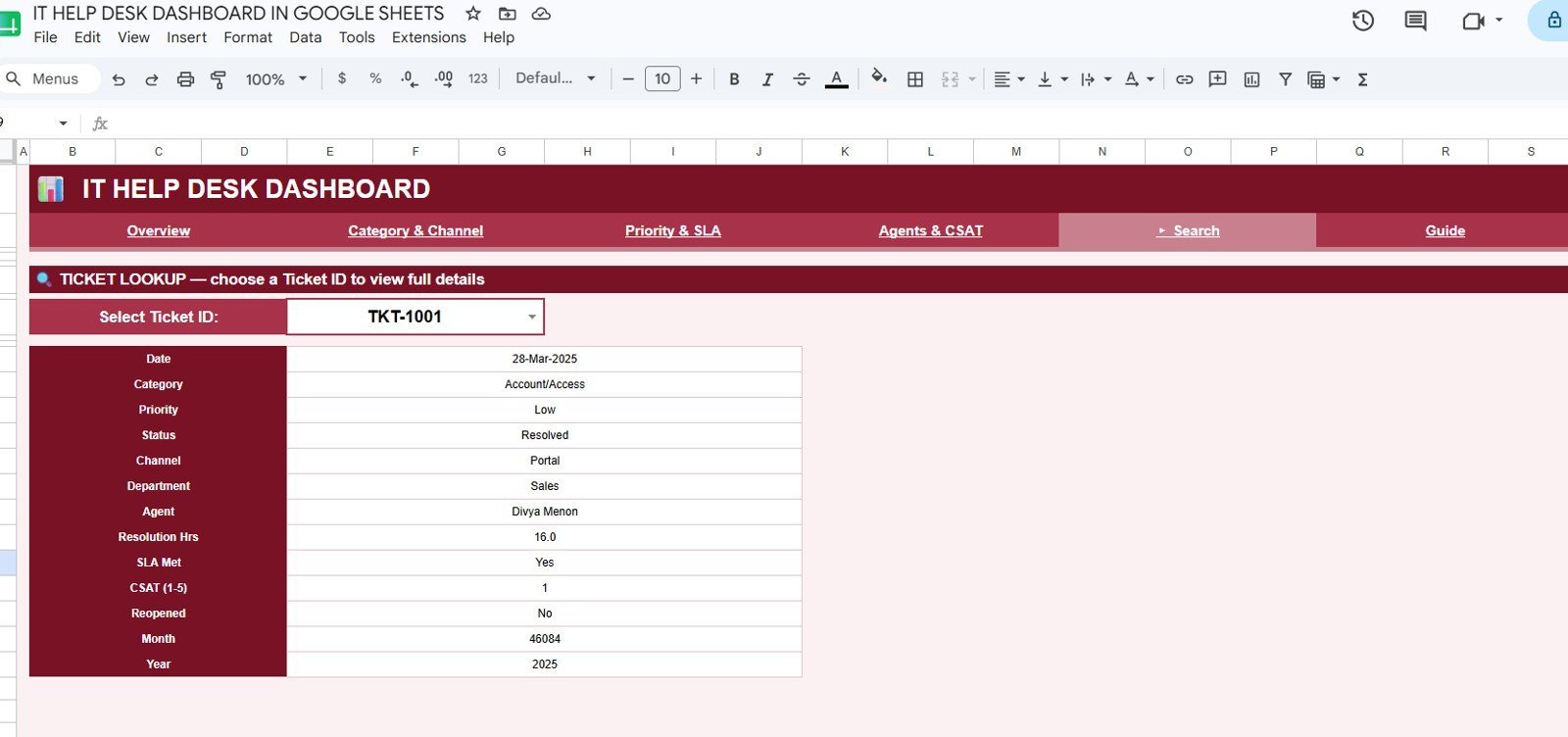
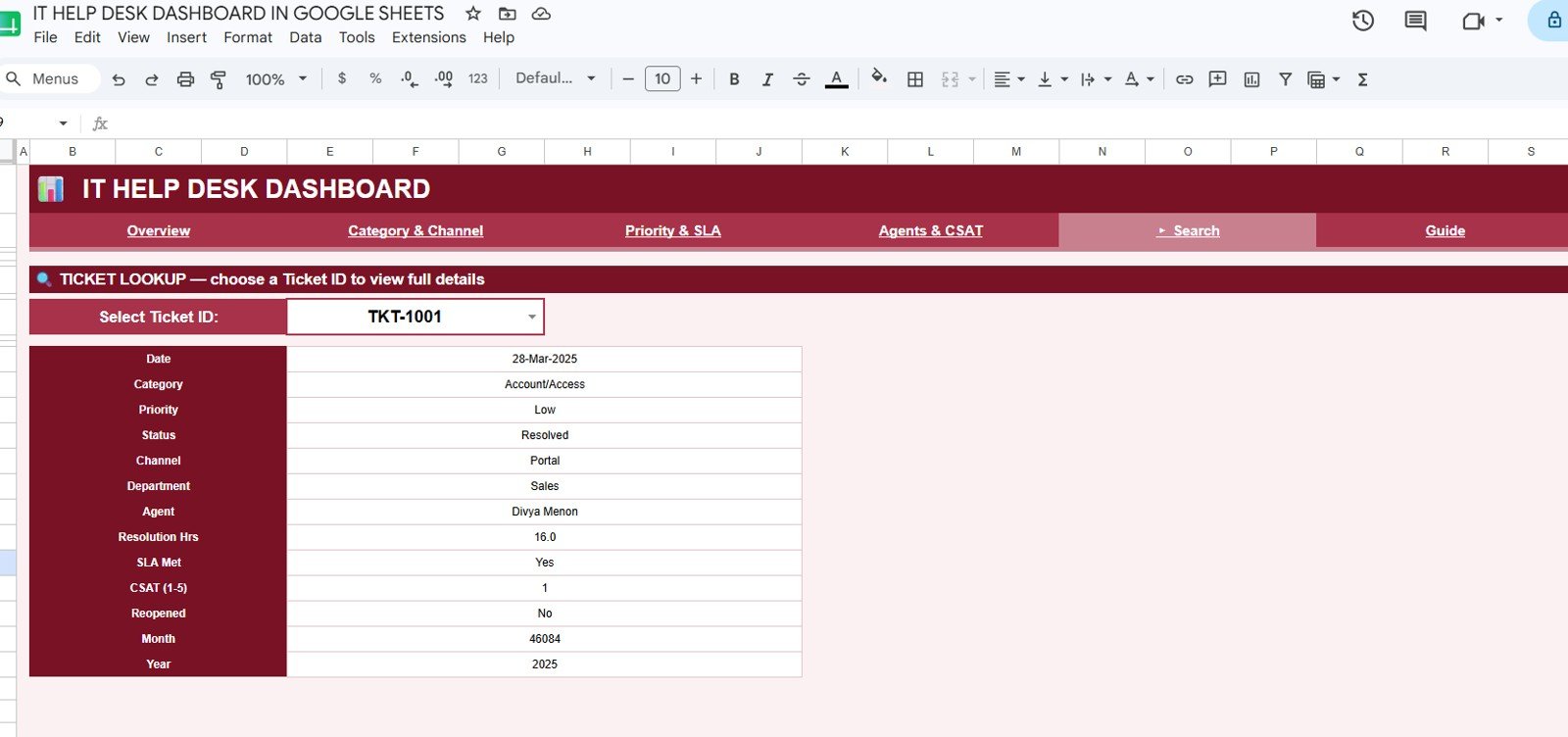
🔎 Single-ticket lookup — the Search tab returns every field for any Ticket ID you pick from a dropdown, including SLA Met, Reopened flag, and CSAT score — useful for stand-ups, audits, and escalations.
📥 One Data tab drives everything — add or paste tickets in the same column format and the Overview, Category & Channel, Priority & SLA, and Agents & CSAT tabs all refresh automatically.
📦 What’s Inside the IT Help Desk Dashboard in Google Sheets
Page 1: Overview
The Overview tab leads with four KPI cards — Total Tickets, Avg Resolution (Hrs), SLA Met %, and Avg CSAT (1–5) — plus slicers for quick filtering. Charts include Tickets by Category, Tickets by Priority, Tickets by Status, and Tickets by Month, giving a fast read on volume and overall help-desk health.
Page 2: Category & Channel
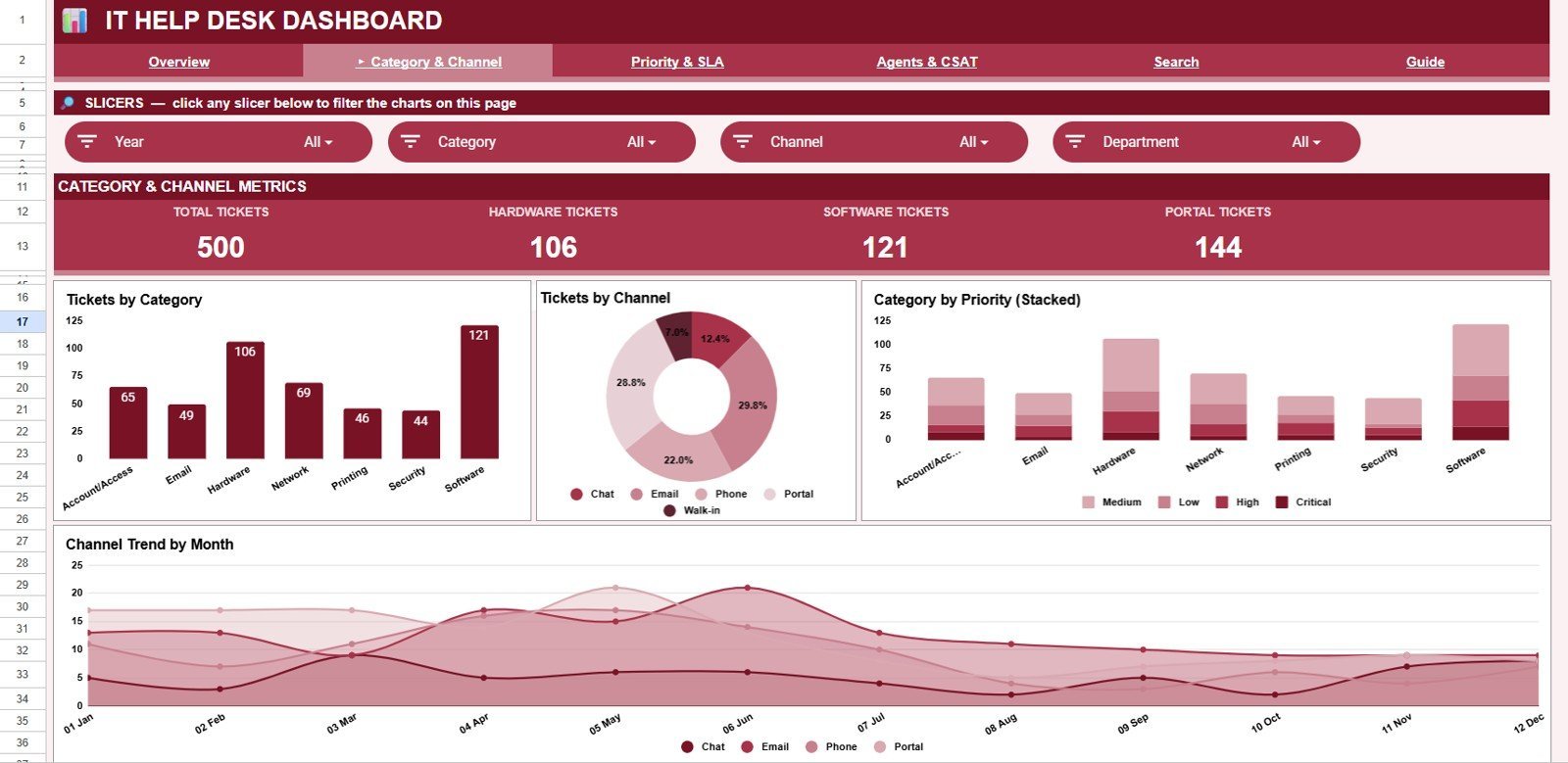
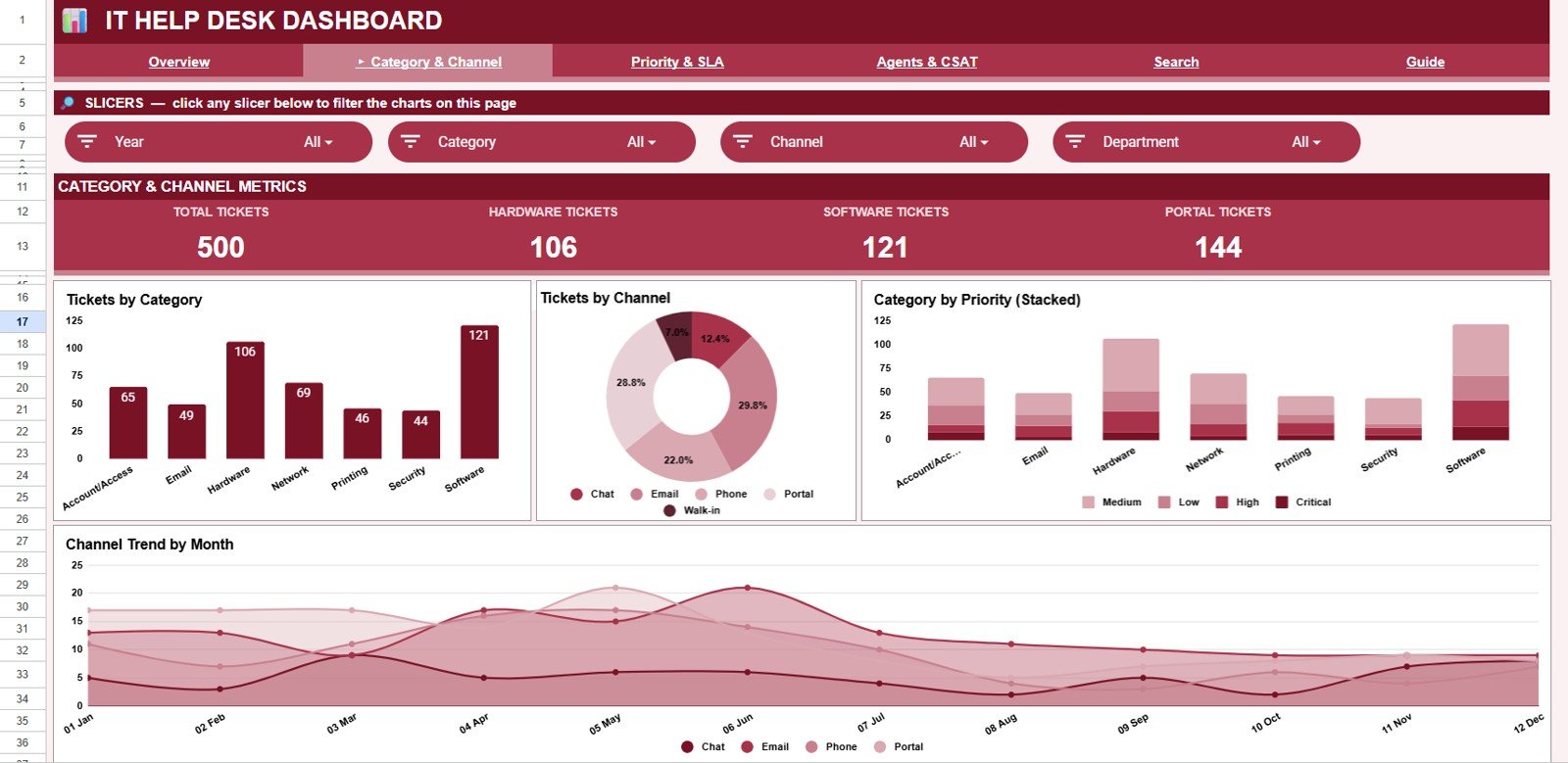
This tab breaks tickets down by where they come from and what they are about. Charts include Tickets by Category, Tickets by Channel, Category by Priority, and Channel Trend by Month — so you can see which request types and intake channels drive the most load over time.
Page 3: Priority & SLA
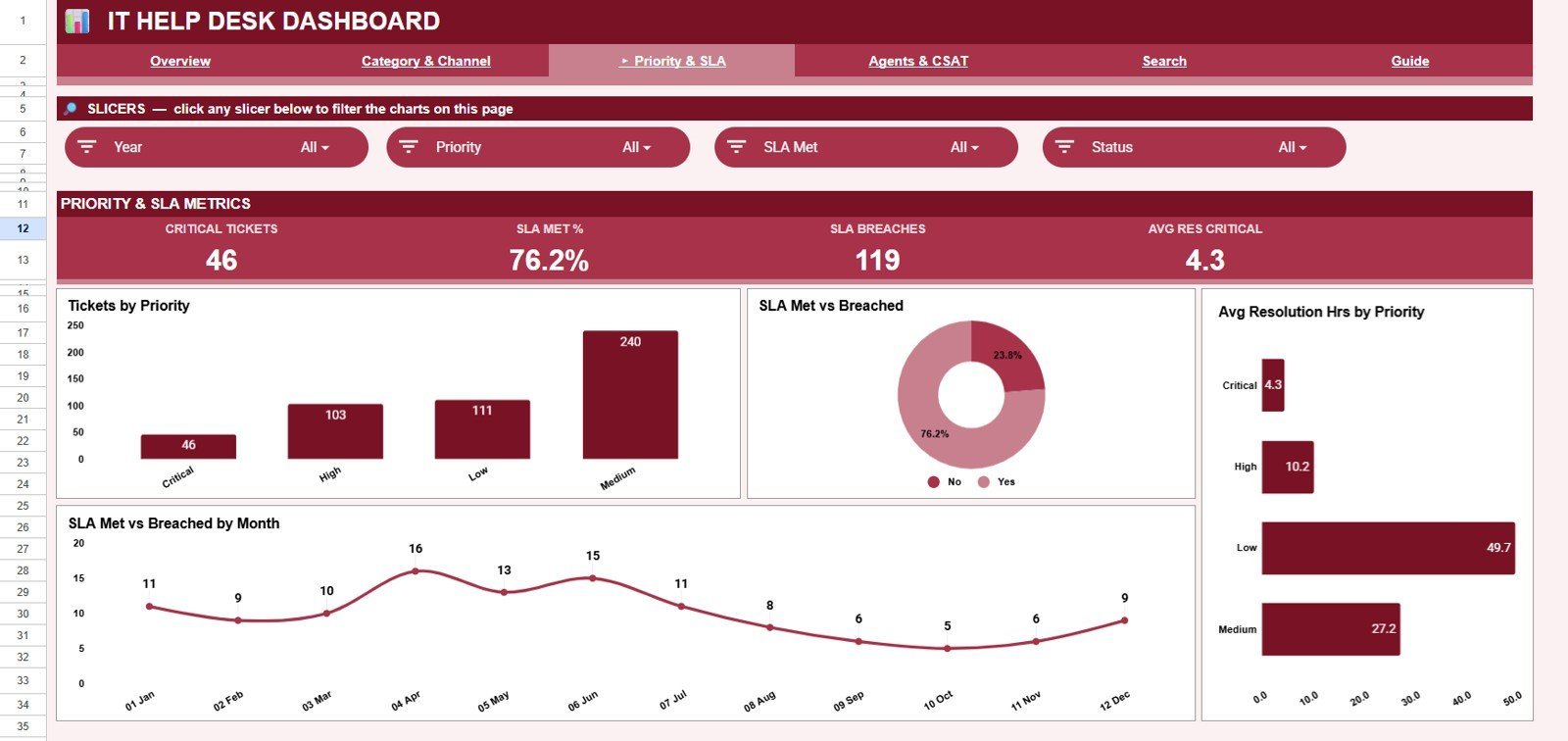
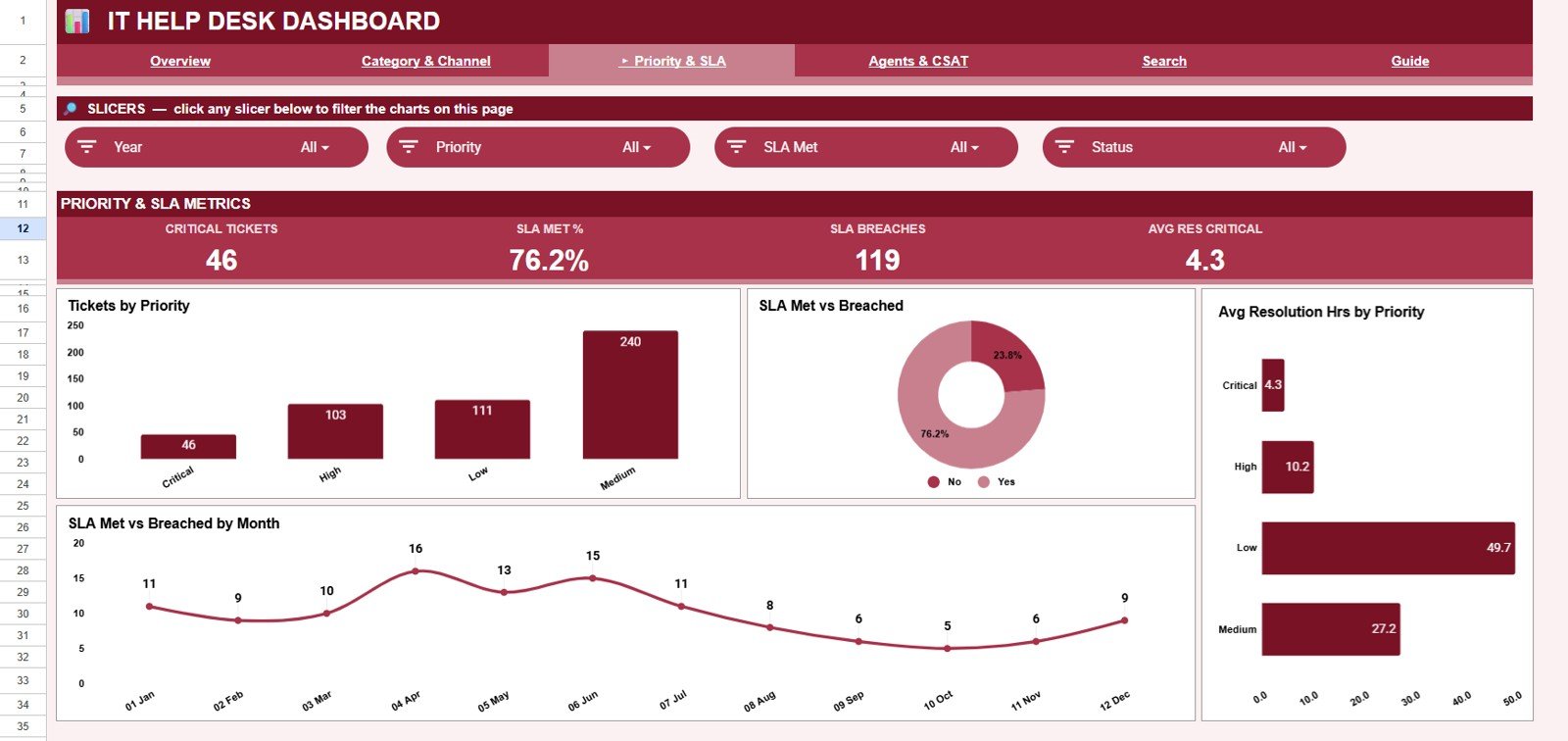
The Priority & SLA tab focuses on urgency and service-level compliance. Charts include Tickets by Priority, SLA Met vs Breached, Avg Resolution Hrs by Priority, and SLA Met vs Breached by Month, making it easy to spot where high-priority tickets are slipping past their SLA.
Page 4: Agents & CSAT
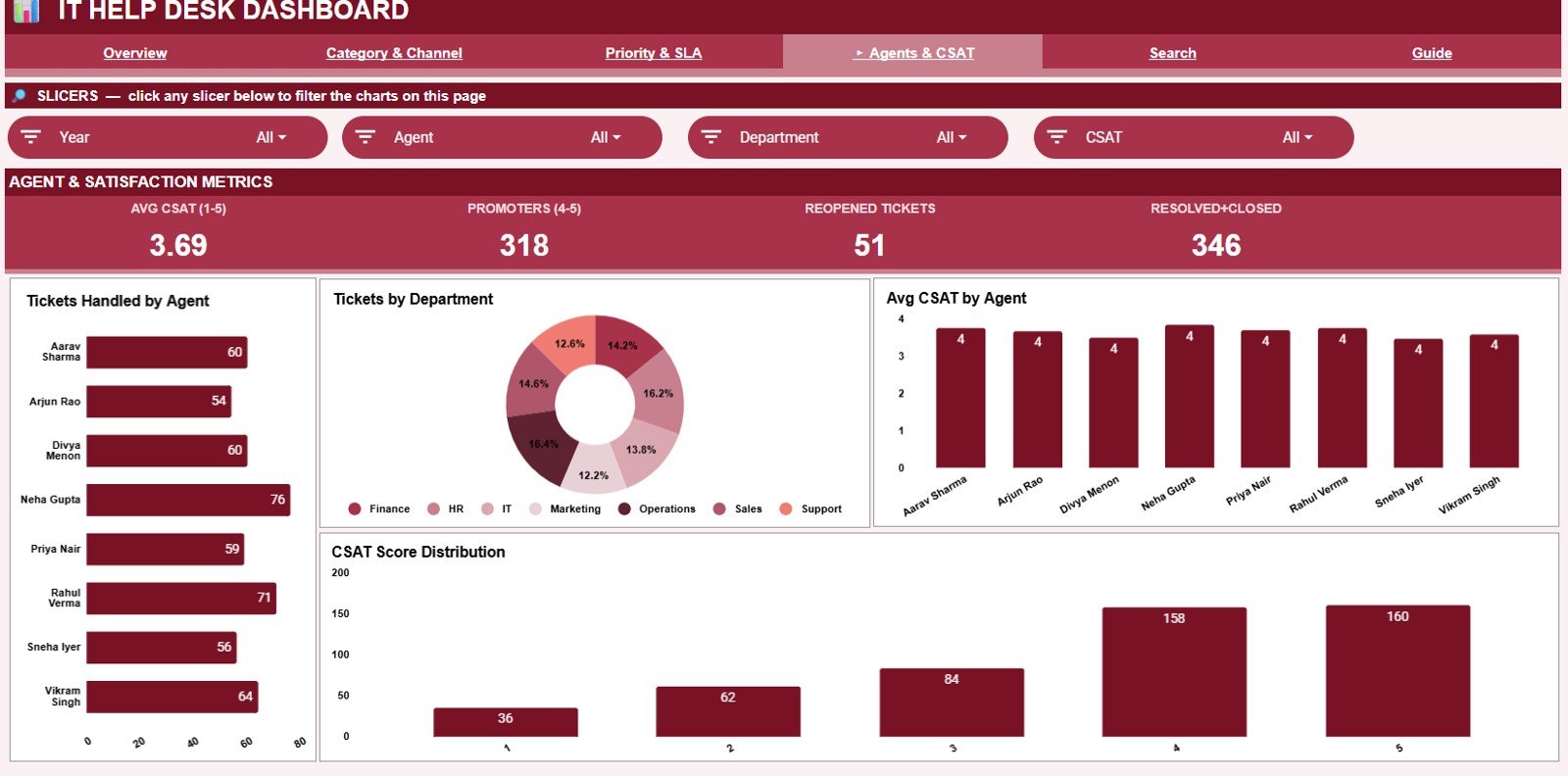
This tab measures team performance and customer satisfaction. Charts include Tickets Handled by Agent, Tickets by Department, Avg CSAT by Agent, and CSAT Score Distribution — helping you balance workloads and identify which agents and departments keep customers happiest.
Page 5: Search Sheet
Pick any Ticket ID from the dropdown and the Search tab instantly shows the full record — Date, Category, Priority, Status, Channel, Department, Agent, Resolution Hrs, SLA Met, CSAT, Reopened, Month, and Year — so you can look up one ticket and see everything about it in one place.
Page 6: Data Sheet
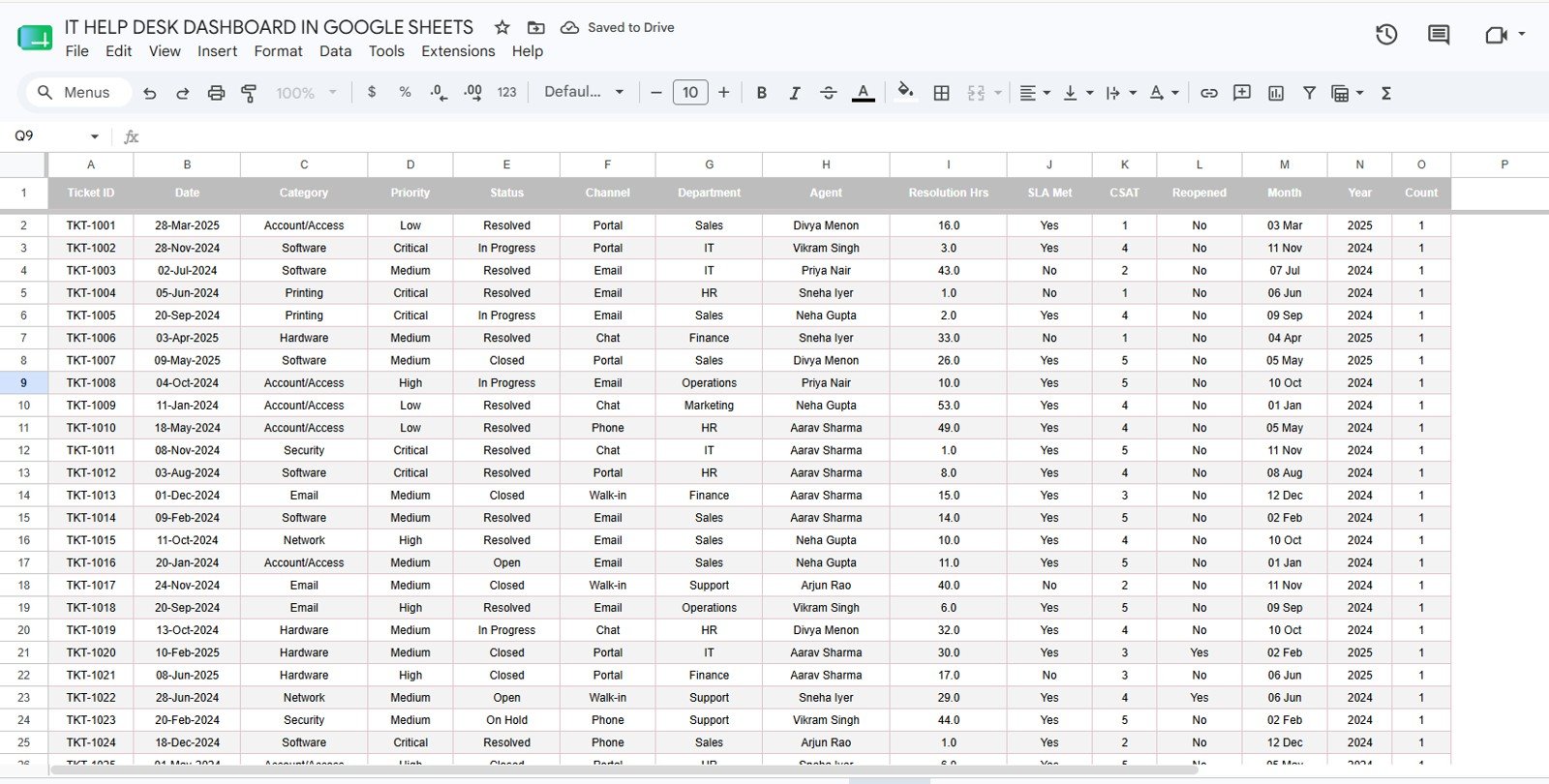
The Data tab is where your records live. Add new tickets in the same column format shown in the sample, and every dashboard tab and the search lookup update automatically — no relinking and no manual chart edits.
📊 IT Help Desk Dashboard in Google Sheets vs. Excel vs. Paid Help-Desk SaaS — Where This Fits
| Feature | IT Help Desk Dashboard (Google Sheets) | Microsoft Excel Dashboard | Zendesk / Freshdesk (Paid SaaS) |
|---|---|---|---|
| Cost | $9.99 one-time ✅ | One-time purchase | $25–115 / agent / month |
| Platform | Google Sheets (browser, any device) ✅ | Microsoft Excel (desktop) | Web app + mobile |
| Setup time | Under 10 minutes ✅ | Under 10 minutes | Hours to days (config + agents) |
| Real-time team collaboration | Yes — native in Google Sheets ✅ | Limited (file sharing) | Yes |
| Mobile access | Yes — Sheets app ✅ | Limited | Yes |
| Customizable fields | Fully editable ✅ | Fully editable | Restricted to vendor schema |
| Share with a link | Yes ✅ | No (send the file) | Yes |
| SLA Met vs Breached tracking | Built in ✅ | Built in | Built in (paid tier) |
| Year-1 cost at 5 agents | $9.99 total ✅ | One-time | $1,500–$6,900 / year |
For IT teams that want SLA, CSAT, and ticket analytics without a per-agent monthly bill, the IT Help Desk Dashboard in Google Sheets sits in the sweet spot.
👥 Who This Template Is For — and Who It’s Not For
✅ This template is built for:
- Small and mid-size IT teams (2–50 agents) who want help-desk reporting without paying per seat
- MSPs and internal support desks already working in Google Workspace
- IT managers who need SLA %, CSAT, and agent workload views for weekly or monthly reviews
❌ This template is NOT for:
- Teams that need live ticket intake, email piping, or automated routing — this is a reporting and analysis dashboard, not a ticketing engine
- Enterprises requiring SOC 2, SSO, or audit-grade access controls inside the tool
- Anyone who refuses to use Google Sheets (an Excel version and Power BI version are available instead)
⚙️ How to Use the IT Help Desk Dashboard in Google Sheets
- Open the PDF in your download and click the Google Sheets copy link to create your own editable copy in Google Drive.
- Go to the Data tab and paste your tickets in the same column format as the sample data.
- Open the Overview tab and use the slicers to filter by category, priority, or status.
- Review the Category & Channel, Priority & SLA, and Agents & CSAT tabs for deeper analysis.
- Use the Search tab to pull the full record for any single Ticket ID.
💼 Real-World Use Cases
Ravi manages a 12-agent internal IT desk at a manufacturing firm. He uses the IT Help Desk Dashboard in Google Sheets to track SLA Met % and Avg Resolution Hours by priority each month, then shares the link with leadership — instead of paying $55 per agent per month for a SaaS suite.
Nadia runs a small MSP supporting five clients. She filters the Overview slicers by category to show each client where their tickets cluster, and uses the Agents & CSAT tab to prove her team’s satisfaction scores during renewal conversations.
Tom is a support team lead who opens the Search tab in daily stand-ups to review reopened and breached tickets by ID, keeping the team focused on the records that need attention.
❓ Frequently Asked Questions
What KPIs does the IT Help Desk Dashboard in Google Sheets track?
The IT Help Desk Dashboard in Google Sheets tracks four core KPIs — Total Tickets, Average Resolution (Hours), SLA Met %, and Average CSAT (1–5) — plus 16 supporting charts across category, channel, priority, SLA, agents, and CSAT. All metrics update when you replace the sample data.
How long does setup take?
Setup takes under 10 minutes. Make your own copy of the IT Help Desk Dashboard in Google Sheets, paste your tickets into the Data tab in the same format as the sample, and the Overview, analysis tabs, and Search lookup all refresh automatically.
How does this compare to Zendesk or Freshdesk?
Paid help-desk SaaS like Zendesk and Freshdesk charge $25–115 per agent each month and handle live ticketing. The IT Help Desk Dashboard in Google Sheets is a one-time $9.99 reporting layer for SLA, CSAT, and agent analytics — ideal when you already capture tickets elsewhere.
Can I filter the dashboard by category or priority?
Yes. The Overview tab of the IT Help Desk Dashboard in Google Sheets includes native slicers, so you can filter every KPI card and chart by category, priority, or status in one click and see the filtered view instantly.
Do I need any add-ons or scripts to use it?
No. The IT Help Desk Dashboard in Google Sheets runs on standard Google Sheets features — slicers, charts, and lookups. There are no add-ons, no macros, and no monthly fees; just make a copy and start entering data.
Is an Excel or Power BI version available?
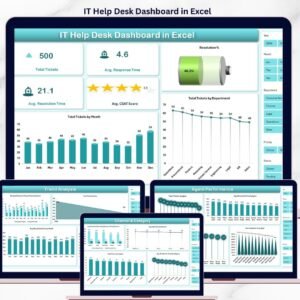
Yes. The same dashboard is available as an IT Help Desk Dashboard in Excel and an IT Help Desk Dashboard in Power BI, so you can pick the platform your team already uses.
👤 About the Author
Built by PK — Microsoft Certified Professional with 15+ years of Excel, Google Sheets, and Power BI experience. Founder of NextGenTemplates, reaching 300K+ subscribers across YouTube channels (@PK-AnExcelExpert, @NextGenTemplates, @NeoTechNavigators). Every template is hand-built and tested before release.
🔗 Explore Related Templates
Browse more Google Sheets Dashboards or compare these IT help-desk options:
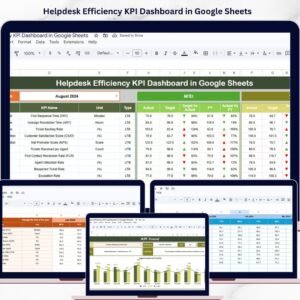
- Helpdesk Efficiency KPI Dashboard in Google Sheets — a KPI-scorecard view of help-desk efficiency.
- IT Helpdesk Ticket Tracker in Google Sheets — a lightweight tracker for logging tickets.
- IT Helpdesk Ticket Management System — a multi-user web app for end-to-end ticketing.
💎 Save more — get this and 7 more tools in the IT & Cybersecurity Operations Bundle (8 templates) →
Also available as: Excel version · Power BI version
📖 Click here to read the Detailed Blog Post<
Watch the step-by-step video Demo:
/h3>
🎥 Visit our YouTube channel for step-by-step video tutorials
👉 YouTube.com/@NextGenTemplates









Reviews
There are no reviews yet.