


The Internal Audit Checklist in Excel is a structured, easy-to-use template designed to help businesses perform systematic audits across financial, operational, and compliance areas. This digital checklist ensures accuracy, accountability, and compliance by tracking audit tasks, assigning responsibilities, and monitoring progress efficiently.
Whether you’re an auditor, compliance officer, or business manager, this Excel template is a must-have tool to ensure a smooth auditing process.
Why Use This Internal Audit Checklist?
✅ Structured & Organized – Keep your internal audits streamlined with a well-defined process.
✅ Improves Accountability – Assign responsible persons for each task to enhance ownership.
✅ Tracks Progress in Real-Time – Visual progress indicators and completion tracking for better monitoring.
✅ Saves Time & Reduces Errors – Automates task tracking, minimizing the risk of missed audit points.
✅ Fully Customizable – Modify checklist items, responsible persons, and deadlines based on your needs.
Key Features of the Internal Audit Checklist
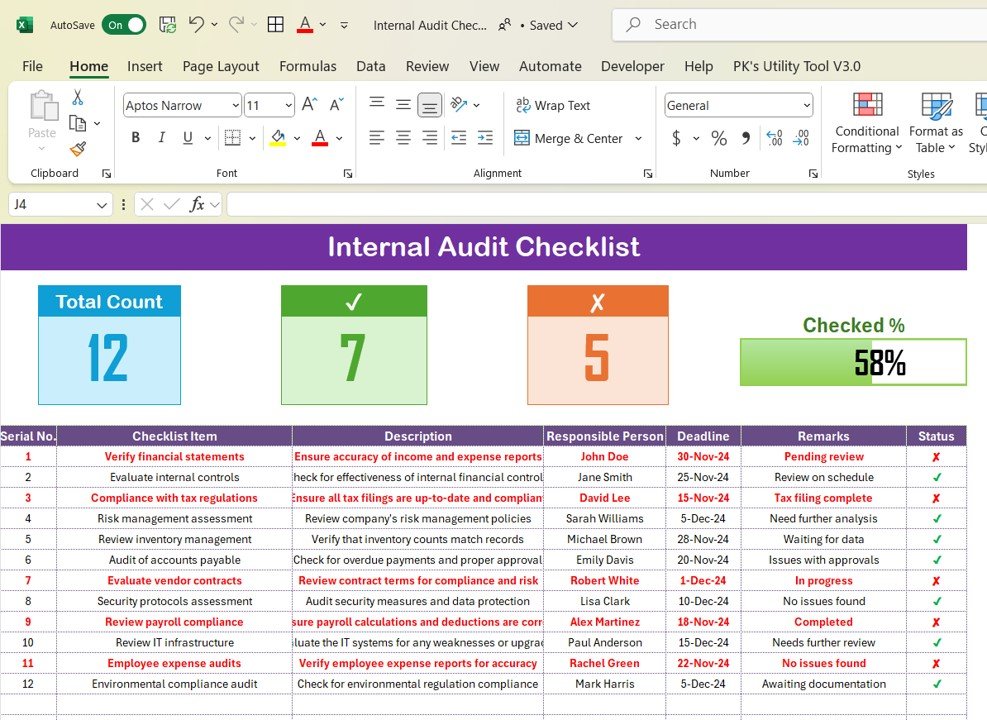
1. Two Comprehensive Worksheets
This template includes two primary sheets to ensure seamless auditing:
🔹 Internal Audit Checklist Sheet – The main dashboard where you enter and track audit activities.
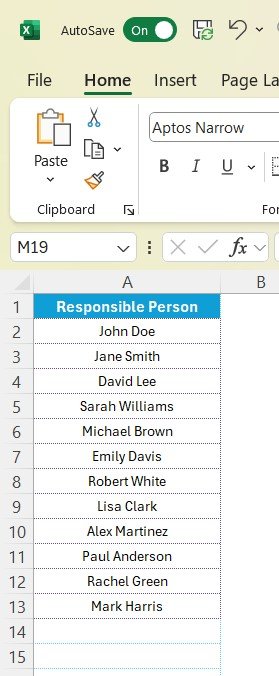
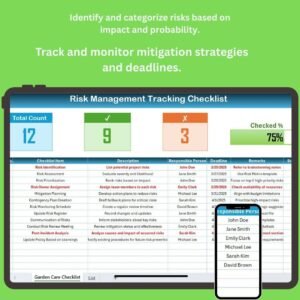
🔹 List Sheet – A reference sheet with predefined responsible persons for easy dropdown selection.
2. Dashboard for Progress Tracking
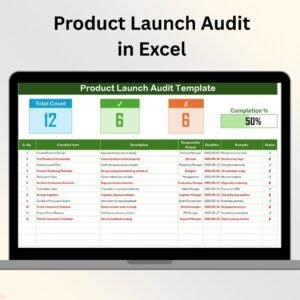
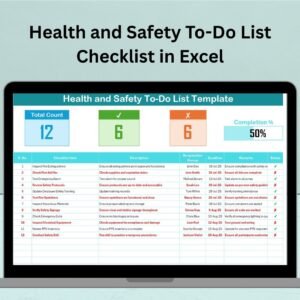
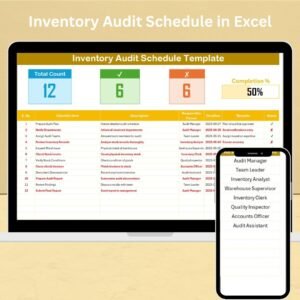
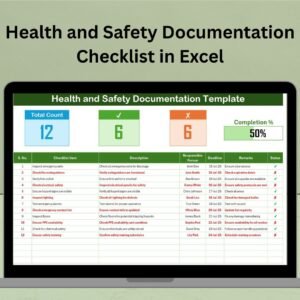
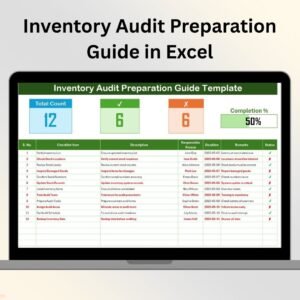
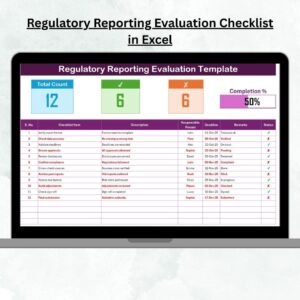
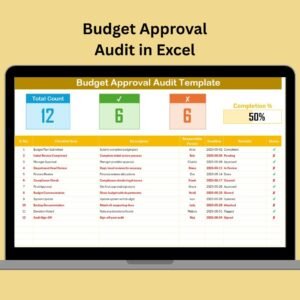
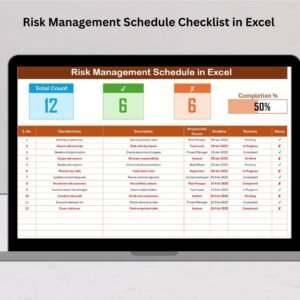
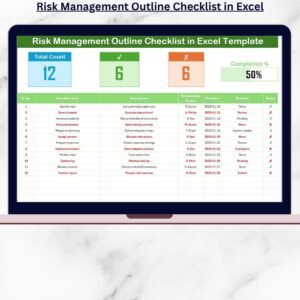
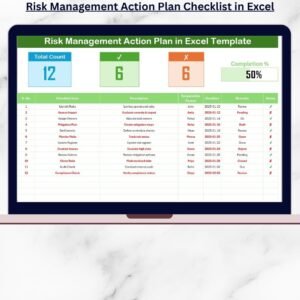
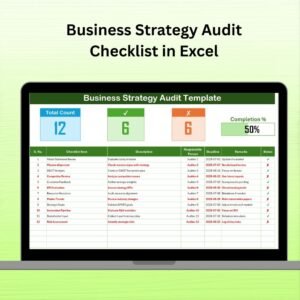
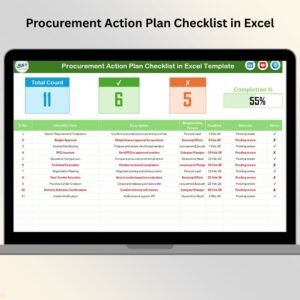
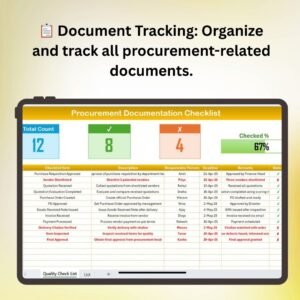
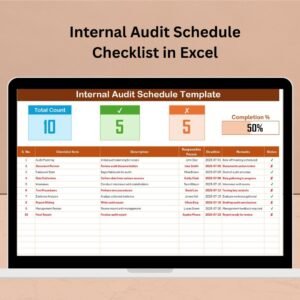
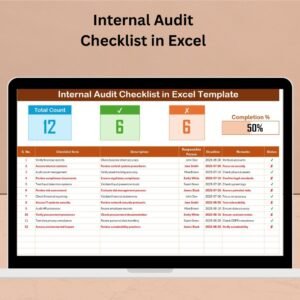
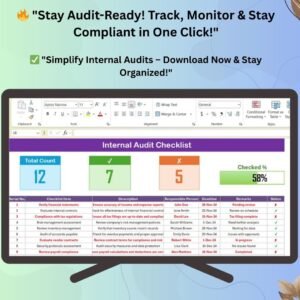
At the top of the checklist, a visual dashboard provides an instant overview of audit status:
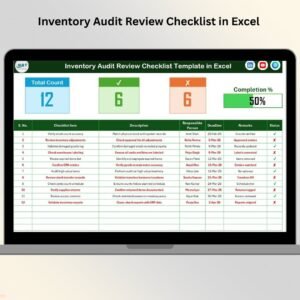
📌 Total Count – Displays the total number of audit tasks.
📌 Checked Count – Shows the number of completed audit items.
📌 Crossed Count – Indicates the number of pending or incomplete tasks.
📌 Progress Bar – A visual indicator of audit progress, making it easy to assess completion status.
3. Detailed Audit Checklist Table
The core of the template consists of a structured audit table with essential columns:
✔ Serial No. – Unique number for each audit task.
✔ Checklist Item – The specific process or area being audited.
✔ Description – A brief explanation of the audit item.
✔ Responsible Person – The individual accountable for completing the audit task.
✔ Deadline – The due date for task completion.
✔ Remarks – Additional notes or findings related to the task.
✔ Status – A completion status indicator (✔ for completed, ✘ for pending).
4. Predefined Responsible Person List
To simplify data entry, the List Sheet contains a predefined dropdown for responsible persons, allowing quick selection without manual typing. This feature:
✔ Reduces Data Entry Errors
✔ Standardizes Assigned Responsibilities
✔ Enhances Tracking & Follow-ups
How to Use the Internal Audit Checklist?
Step 1: Define Audit Scope
Determine the areas of your business that need auditing (e.g., financial compliance, vendor contracts, inventory management).
Step 2: Assign Responsibilities
Use the dropdown list to assign the right person for each audit task.
Step 3: Set Deadlines
Establish a clear timeline for completing each audit task.
Step 4: Track & Update Audit Status
✔ Mark completed items with a ✔
✘ Keep pending items marked with a ✘
Step 5: Monitor Progress
Use the visual progress bar and count indicators to track completion rates at a glance.
Who Can Use This Template?
🔹 Finance & Compliance Teams – Ensure tax filings, payroll, and financial audits are on track.
🔹 HR & Operations Managers – Monitor employee compliance, vendor contracts, and payroll calculations.
🔹 IT & Security Teams – Perform regular security and infrastructure assessments.
🔹 Small Businesses & Enterprises – Keep business audits organized for efficiency and accountability.
Why Choose Our Internal Audit Checklist in Excel?
✔ User-Friendly & Automated – No advanced Excel skills needed!
✔ Time-Saving – Automated tracking reduces manual work.
✔ Fully Editable – Customize audit tasks, responsible persons, and timelines as per your needs.
✔ Instant Download – Get started with your internal audit immediately after purchase.
Click hare to read the Detailed blog post
Visit our YouTube channel to learn step-by-step video tutorials
Compatibility and Requirements
- Works in Microsoft Excel desktop (Excel 2016 or later, or Microsoft 365).
- The Responsible Person column uses a drop-down list fed by the List Sheet. Microsoft’s guide to creating a drop-down list explains how these lists work.
Frequently Asked Questions
What columns does the audit table have?
Serial number, checklist item, description, responsible person and deadline for each audit task, plus a status mark.
How is audit progress shown?
The dashboard at the top shows the total count, the checked count, the crossed count and a progress bar for the share of items completed.
How do I add auditors to the dropdown?
Type their names on the List Sheet. The Responsible Person dropdown reads from that list.
Can I change the audit items?
Yes. The checklist items, descriptions, responsible persons and deadlines are all editable, so you can cover financial, operational or compliance audits.
Related Audit Templates
- Internal Audit Compliance Checklist in Excel: a checklist focused on compliance items
- Internal Audit Schedule Checklist in Excel: plan when each audit runs
- Internal Audit Action Plan Checklist in Excel: follow up on audit findings
- Compliance Audit Tracker in Excel: track audits and their status over time
- Internal Audit Dashboard in Excel: report audit results in charts
Browse all Excel checklist templates or the quality control templates.













Reviews
There are no reviews yet.