

Employee training and skill development are key drivers of organizational growth. However, managing and tracking training-related expenses across multiple employees, departments, and locations can become complex and time-consuming.
The Employee Training Expense Tracker in Google Sheets is a ready-to-use, data-driven solution that simplifies expense monitoring and reporting — all in one centralized and visual dashboard.
This interactive tracker helps HR, L&D, and finance teams analyze spending patterns, ensure compliance, and optimize future training budgets.
💡 What Is an Employee Training Expense Tracker in Google Sheets?
An Employee Training Expense Tracker is a visual management tool that records, categorizes, and analyzes all expenses related to staff training.
Built entirely in Google Sheets, it automates key calculations, summarizes financial insights, and presents real-time visualizations to support smarter decision-making.
You can easily track spending by:
✅ Department
✅ Training purpose
✅ Expense type
✅ Payment method
✅ Location
✅ Currency
Whether it’s local workshops, overseas seminars, or team-building retreats, this tracker provides complete transparency and control over your training investments.
📊 Tracker Sheet Tab Overview
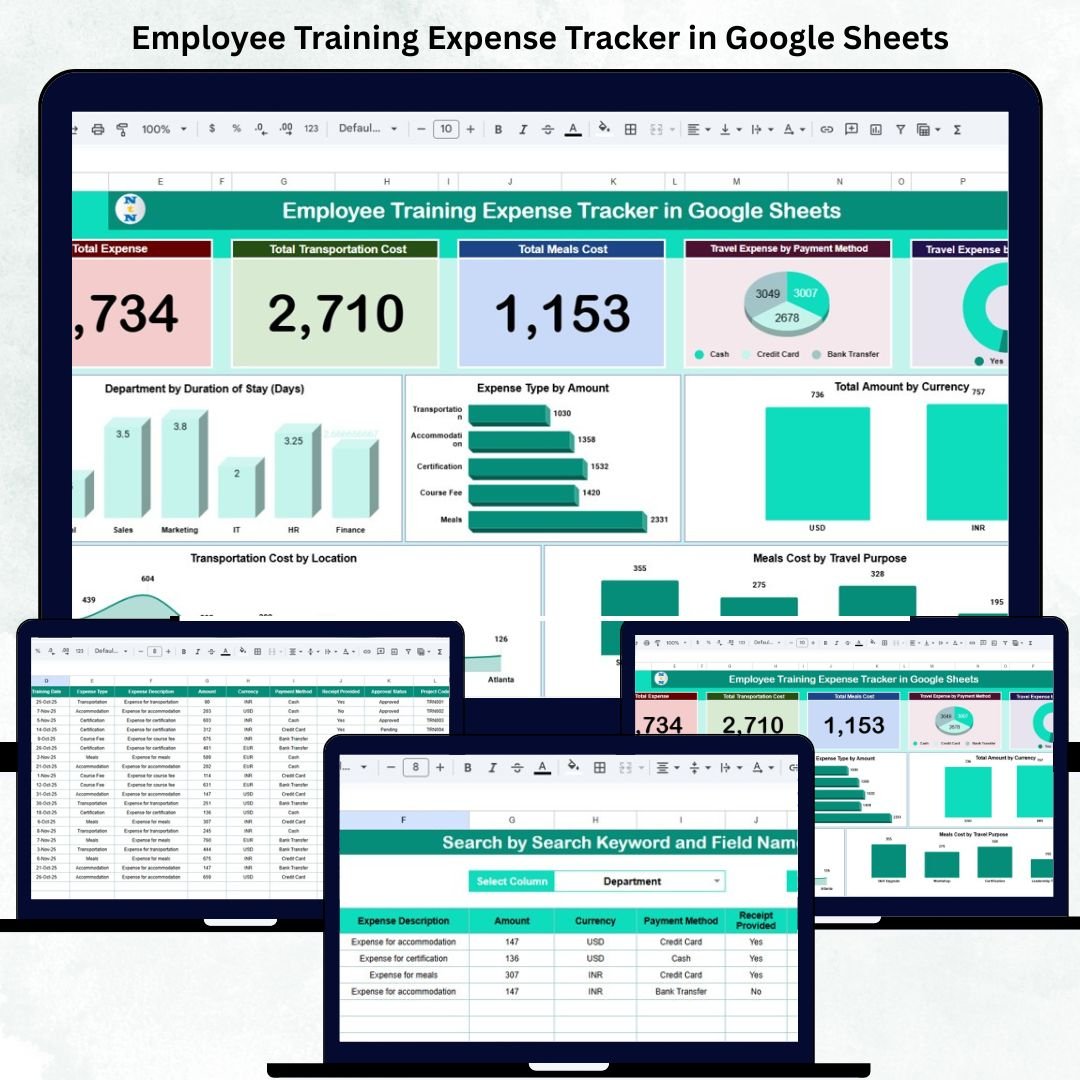
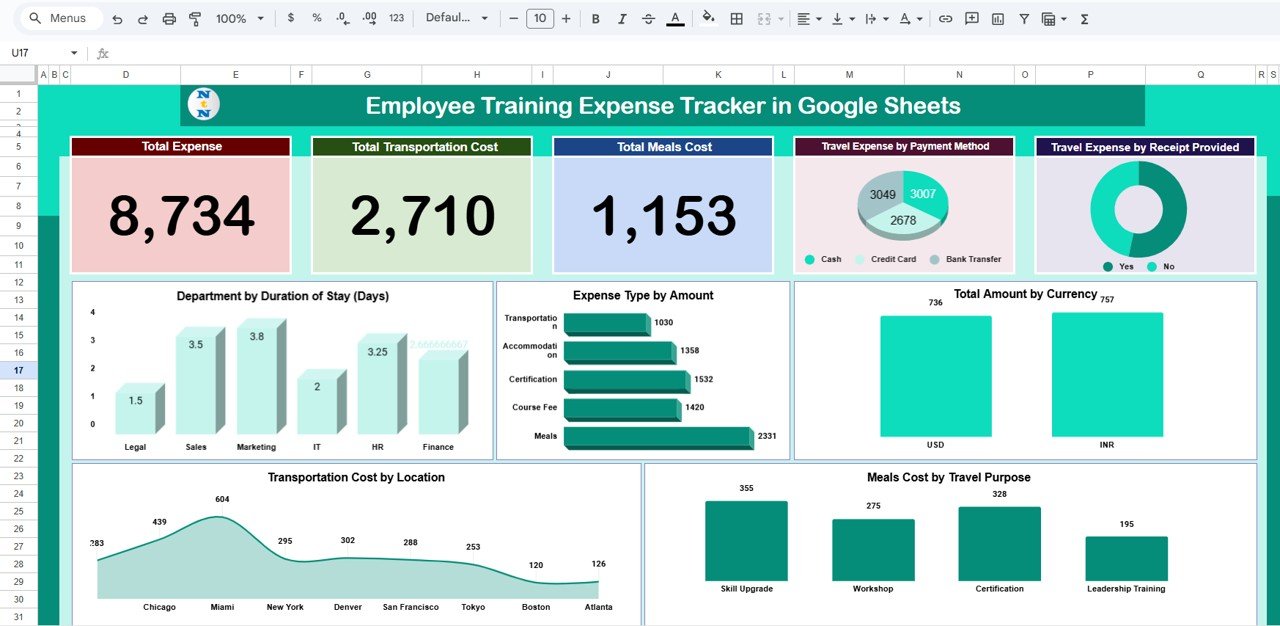
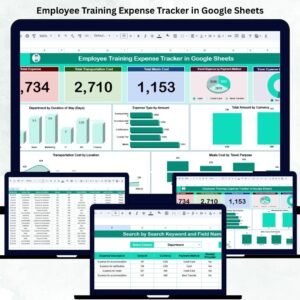
The Tracker Sheet Tab is the main dashboard and visualization hub. It displays overall spending through KPIs and interactive charts that update automatically when new expense data is entered.
🔹 Key KPIs (Cards)
💰 Total Expense: The sum of all training costs recorded.
🚗 Total Transportation Cost: Total travel-related expenses for training events.
🍽 Total Meals Cost: Aggregated spending on meals during training programs.
These summary cards give finance teams a quick snapshot of overall cost performance.
📈 Charts in the Tracker Sheet
1. Travel Expense by Payment Method
Visualizes how training-related travel expenses are distributed by payment type — Cash, Credit Card, Bank Transfer, or Reimbursement.
➡️ Helps identify preferred or high-cost payment channels.
2. Travel Expense by Receipt Provided
Displays which expenses are backed by receipts vs. those pending documentation.
➡️ Supports compliance and simplifies audits.
3. Department by Duration of Stay (Days)
Shows how long employees from each department typically spend on training events.
➡️ Useful for resource planning and tracking training intensity.
4. Expense Type by Amount
Breaks down costs by category — Travel, Meals, Accommodation, Registration Fees, or Materials.
➡️ Highlights which expense types consume the most budget.
5. Total Amount by Currency
Summarizes total spending across multiple currencies (USD, EUR, INR, etc.).
➡️ Perfect for organizations conducting global training programs.
6. Meals Cost by Travel Purpose
Analyzes food-related spending across training purposes like Workshops, Conferences, Certifications, or Team-Building sessions.
7. Transportation Cost by Location
Displays travel spending by destination or branch location — helping optimize logistics and route planning.
🔍 Search Sheet Tab
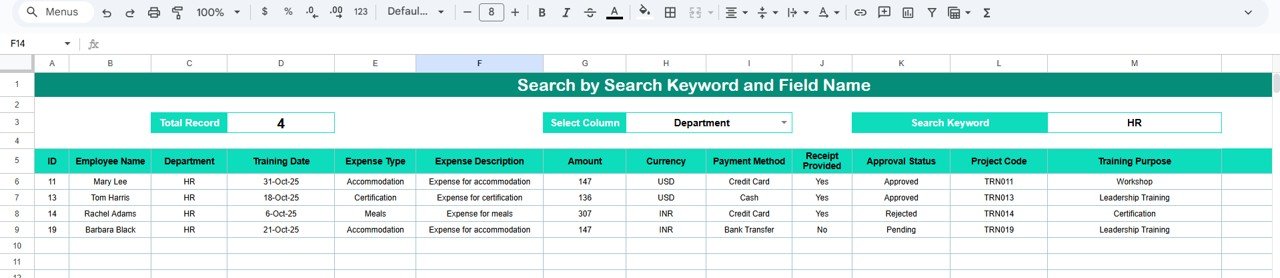
The Search Tab allows quick filtering and retrieval of specific expense records.
Examples:
Type “HR Department” → View HR-related training expenses.
Type “Credit Card” → See all expenses paid via that method.
Type “Workshop” → Filter all workshop-related costs.
This built-in search tool makes audits and reporting faster and more reliable.
📑 Data Sheet Tab
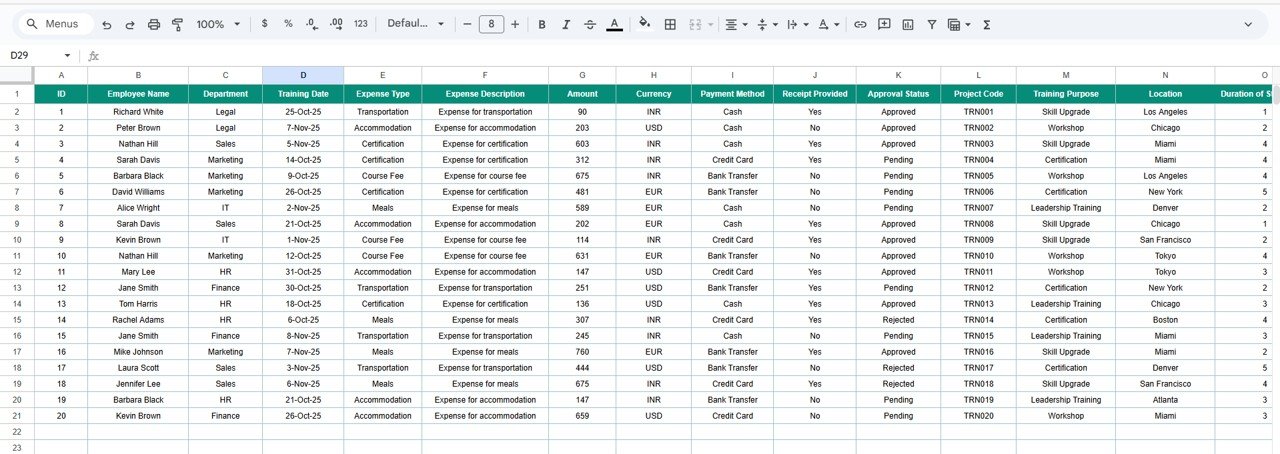
The Data Sheet stores all raw entries that feed into the dashboard’s calculations.
Typical Columns:
Date | Employee Name | Department | Training Purpose | Location | Duration (Days) | Expense Type | Payment Method | Receipt Provided (Yes/No) | Currency | Amount | Remarks
As soon as you input or edit any record, the Tracker Sheet updates automatically.
🌟 Advantages of the Employee Training Expense Tracker
🧾 Centralized Expense Tracking: Manage all training-related costs in one sheet.
📈 Instant Visualization: Auto-updating charts and summaries.
💡 Budget Optimization: Identify overspending areas and manage costs better.
🏢 Departmental Insights: Compare training spend across departments.
🔍 Transparency & Audit Readiness: Track receipts and ensure financial accountability.
🤝 Collaboration-Ready: Multiple team members can update the sheet simultaneously.
⚙️ Fully Customizable: Add new expense types, currencies, or fields as needed.
🚀 Opportunities for Improvement
Enhance this tracker with advanced automation using Google Workspace tools:
📧 Google Forms Integration: Collect expenses directly from employees.
💱 Automatic Currency Conversion: Use
GOOGLEFINANCEformulas for live exchange rates.⚠️ Overspending Alerts: Add conditional formatting for department budget thresholds.
📎 Digital Receipts: Link to Google Drive folders for document storage.
📊 Dashboard Syncing: Connect to Looker Studio for advanced BI reporting.
💼 Best Practices for Using the Tracker
✅ Record expenses immediately after each event.
✅ Use consistent category labels (e.g., “Meals,” “Travel”).
✅ Validate receipt availability for every claim.
✅ Review department totals monthly for budgeting accuracy.
✅ Protect formula and KPI cells from editing.
✅ Set up reminders or forms for regular data collection.
✅ Conclusion
The Employee Training Expense Tracker in Google Sheets is the ultimate solution for HR and finance teams looking to gain complete visibility into training-related costs.
With its real-time charts, dynamic search functionality, and customizable structure, it simplifies expense reporting, ensures compliance, and enhances cost control.
From analyzing training ROI to auditing expenses, this tracker brings structure and clarity to your organization’s professional development investments.
Click here to Read detailed blog post
Watch the step-by-step video Demo:
🔗 Visit our YouTube Channel for Tutorials
👉 YouTube.com/@NeotechNavigators
Compatibility and Requirements
- Works in Google Sheets. You need a free Google account and a web browser.
- The Tracker sheet shows the Total Expense, Total Transportation Cost and Total Meals Cost cards plus seven charts. Google explains charts in Add and edit a chart or graph.
Frequently Asked Questions
Which sheets are included?
Three sheet tabs: Tracker (the dashboard with KPI cards and charts), Search and Data.
What do I enter in the Data sheet?
One row per expense. The columns are Date, Employee Name, Department, Training Purpose, Location, Duration (Days), Expense Type, Payment Method, Receipt Provided (Yes/No), Currency, Amount and Remarks. The Tracker sheet updates when you add or edit a record.
Which charts does the Tracker sheet show?
Travel Expense by Payment Method, Travel Expense by Receipt Provided, Department by Duration of Stay (Days), Expense Type by Amount, Total Amount by Currency, Meals Cost by Travel Purpose and Transportation Cost by Location.
Can I find the expenses of one department or payment method?
Yes. Type a term such as a department name, a payment method or a training purpose into the Search sheet to see the matching records.
Can I track spending in more than one currency?
Yes. Each record has a Currency column, and the Total Amount by Currency chart shows the totals for each currency.
Related Training and Expense Templates
- Employee Training Effectiveness Dashboard in Google Sheets: measure how well your training works
- Employee Business Travel Expense Tracker in Google Sheets: track travel costs outside training
- Employee Training KPI Dashboard in Excel: training KPIs in Excel
- Training and Development Dashboard in Power BI: the Power BI view of training
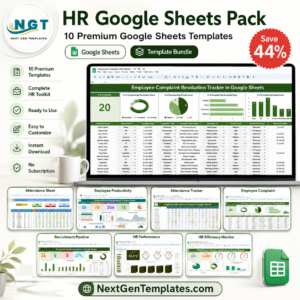
- HR Google Sheets Pack: 10 HR templates in one download
Browse all Google Sheets trackers.
















Reviews
There are no reviews yet.