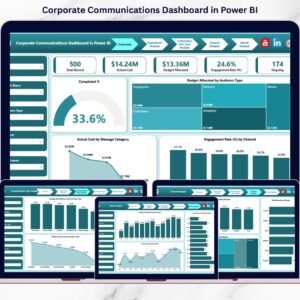
Communication is no longer just about sending messages — it’s about measuring impact.
If your organization is managing internal updates, PR campaigns, social media posts, newsletters, and events using scattered Excel files and manual reports… you’re operating without full visibility.
Where is the budget going?
Which department overspends?
Which channel drives engagement?
Are campaigns actually delivering results?
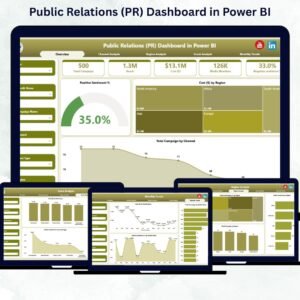
Instead of chasing reports, the Corporate Communications Dashboard in Power BI gives you one centralized, interactive system to monitor budget allocation, actual costs, engagement rate, campaign completion %, and departmental performance — all in real time.
This isn’t just reporting.
This is communication intelligence. 📊🚀
🚀 Key Feature of Corporate Communications Dashboard in Power BI
📊 5 Structured Analytical Pages
Get a complete performance view across Overview, Department, Communication Type, Channel, and Month analysis.
🎯 Budget vs Actual Tracking
Instantly compare allocated budget with actual cost to prevent overspending.
📈 Engagement Rate Monitoring
Measure audience engagement across channels and communication formats.
✅ Completed % Tracking
Monitor how many campaigns are completed vs ongoing.
🏢 Department-Wise Comparison
Evaluate spending and engagement across departments for accountability.
📣 Channel & Communication Type Insights
Identify high-performing platforms and formats.
🎛 Dynamic Slicers
Filter by Month, Department, Channel, Audience Type, and Communication Type instantly.
🔎 Drill-Through & Interactive Visuals
Dive deeper into data without leaving the dashboard.
⚡ Real-Time Data Visualization
Refresh data and get instant updated insights.
📦 What’s Inside the Corporate Communications Dashboard in Power BI
This ready-to-use dashboard includes 5 powerful pages:
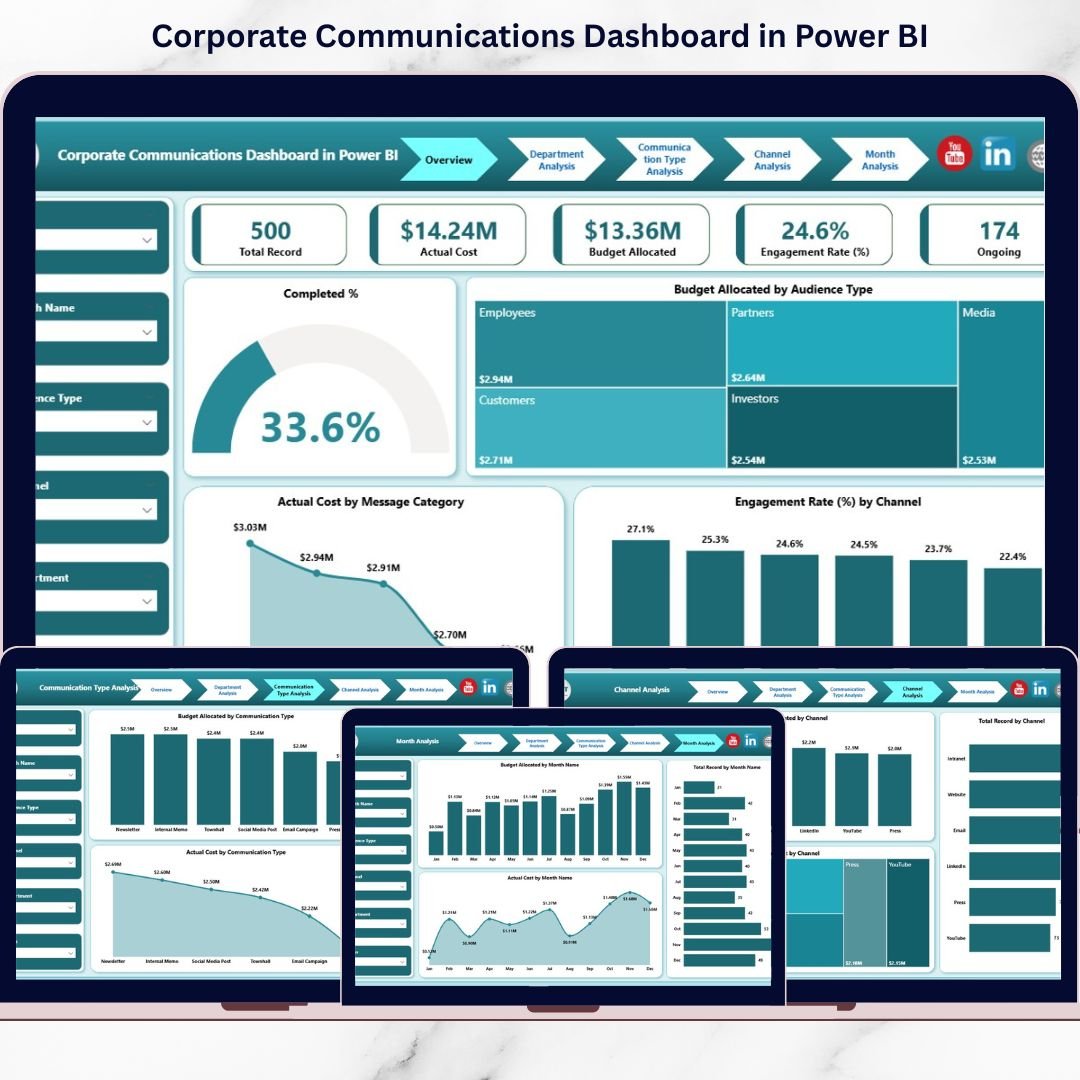
1️⃣ Overview Page – The Command Center
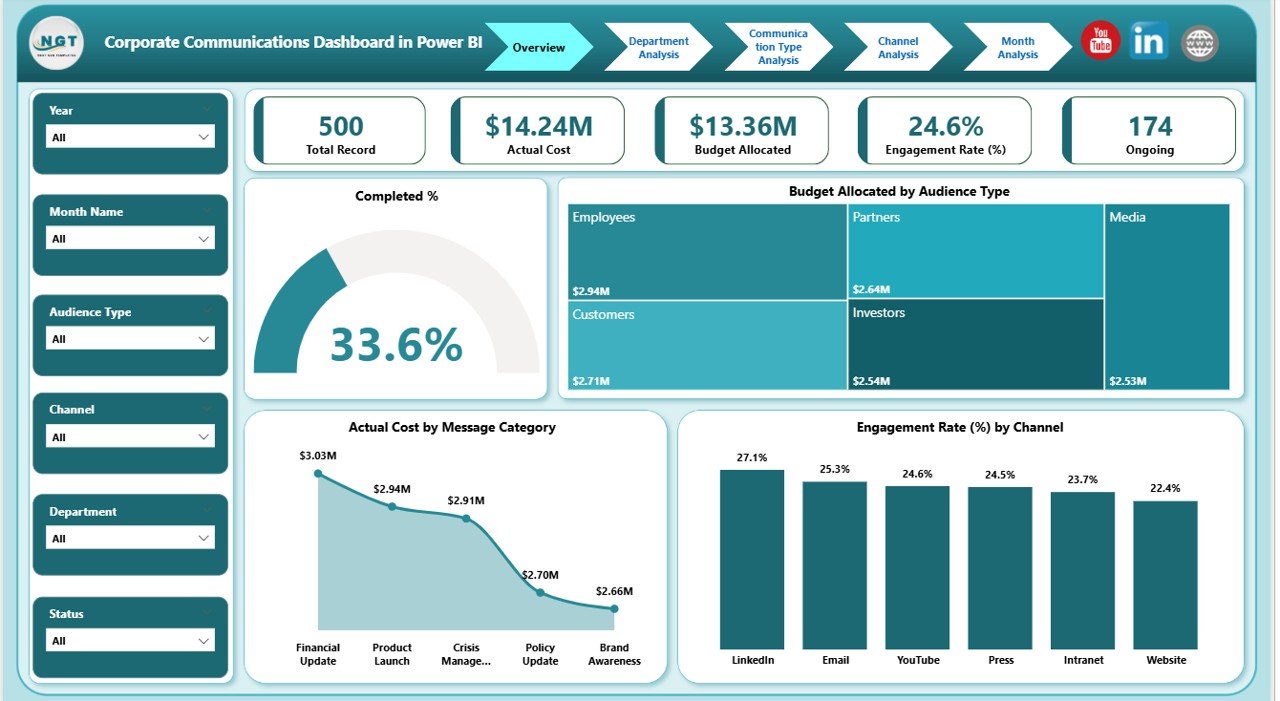
5 KPI Cards: Completed %, Total Budget, Total Actual Cost, Engagement Rate %, Total Records
Charts:
Budget by Audience Type
Actual Cost by Message Category
Engagement Rate by Channel
This page provides a high-level performance snapshot within seconds.
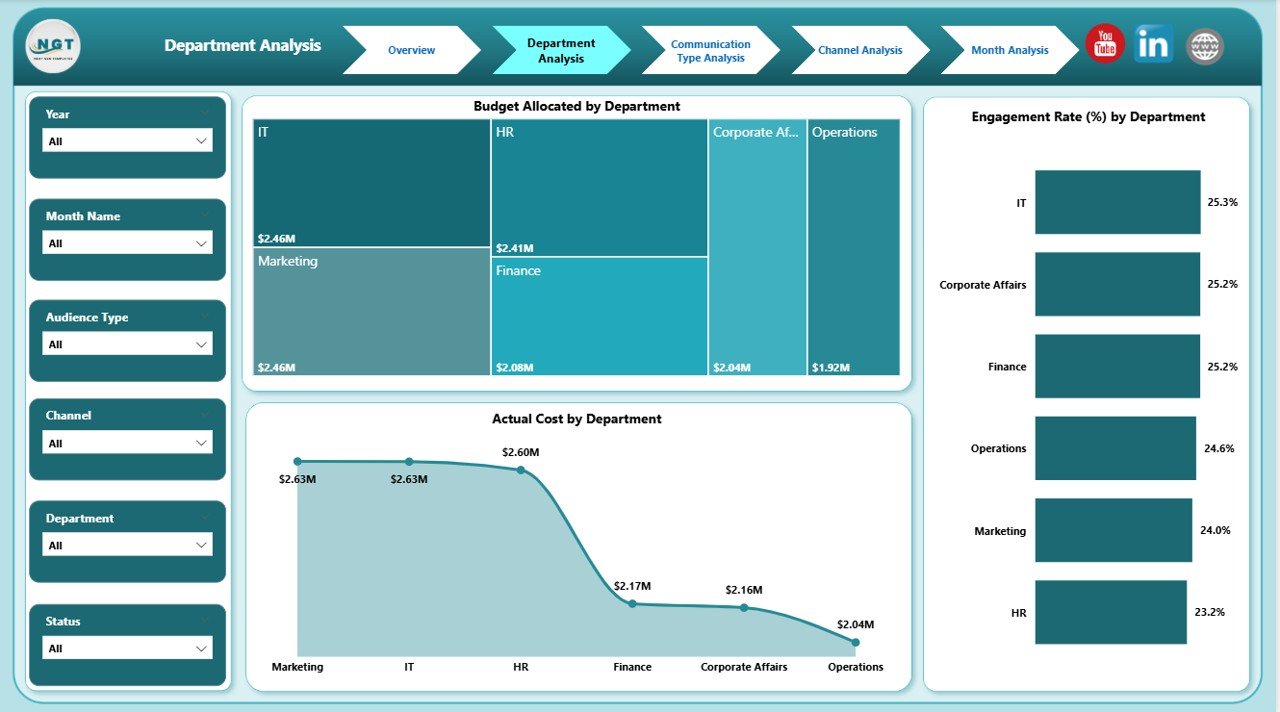
2️⃣ Department Analysis
Budget Allocated by Department
Actual Cost by Department
Engagement Rate by Department
Compare departmental performance and detect inefficiencies instantly.
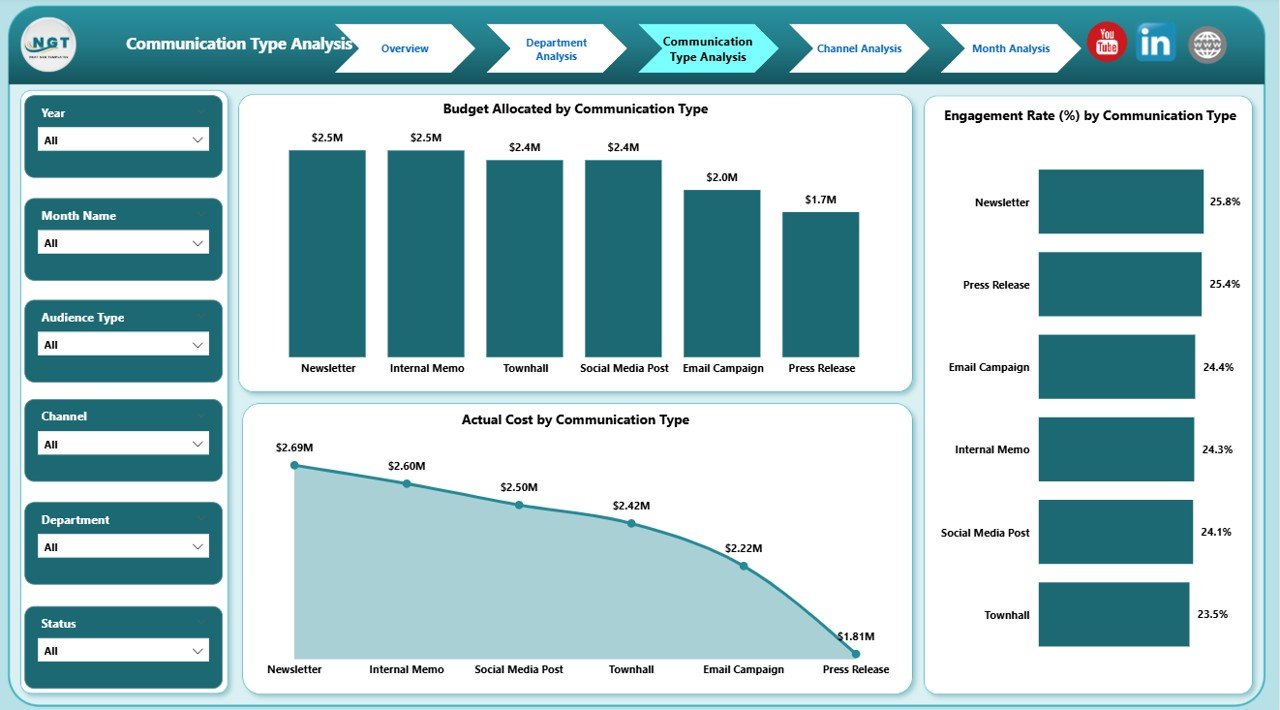
3️⃣ Communication Type Analysis
Budget by Communication Type
Actual Cost by Communication Type
Engagement Rate by Communication Type
Understand which communication formats drive better results.
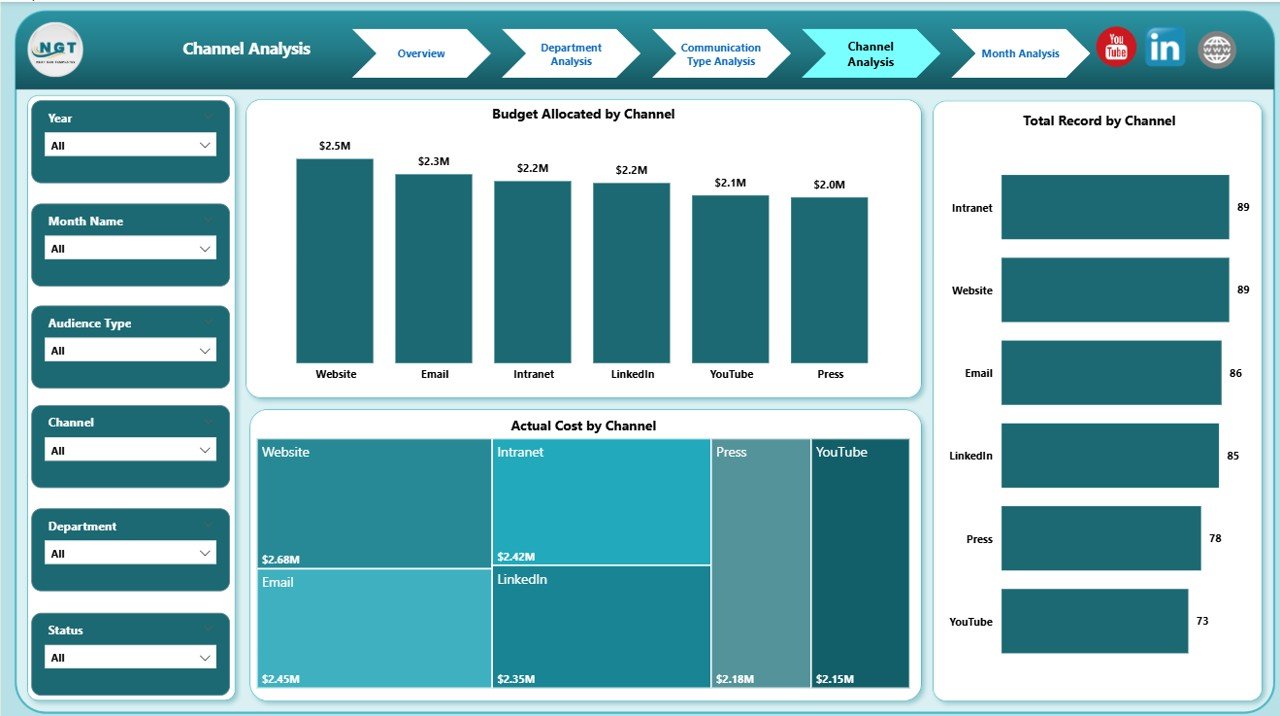
4️⃣ Channel Analysis
Budget by Channel
Actual Cost by Channel
Total Records by Channel
Optimize ROI by focusing on high-performing channels.
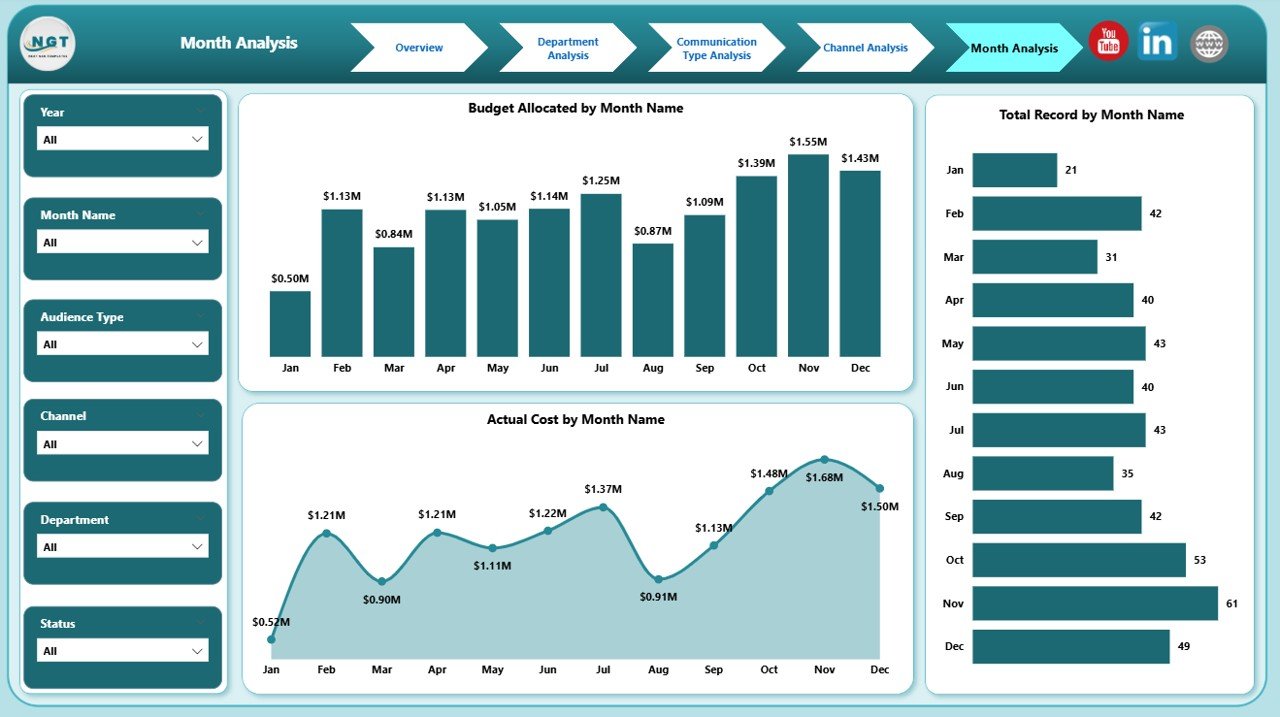
5️⃣ Month Analysis
Budget by Month
Actual Cost by Month
Total Records by Month
Identify trends, seasonal peaks, and long-term patterns for smarter planning.
🛠 How to Use the Corporate Communications Dashboard in Power BI
Using this dashboard is straightforward:
1️⃣ Prepare structured Excel data source
2️⃣ Import data into Power BI
3️⃣ Refresh dataset regularly
4️⃣ Use slicers to filter insights
5️⃣ Start with Overview page
6️⃣ Drill into Department, Channel, or Month analysis
7️⃣ Take action based on insights
No complicated setup. No multiple files. Just centralized performance control.
👥 Who Can Benefit from This Corporate Communications Dashboard in Power BI
This dashboard is ideal for:
📣 Corporate Communication Managers
📊 Marketing Teams
🏢 HR Communication Teams
📰 Public Relations Teams
📈 Corporate Strategy Leaders
💼 CFO & Finance Teams
Whether you are a growing company or a large enterprise, this dashboard gives you clarity and control.
Why This Dashboard Makes a Real Difference
With this dashboard, you can instantly:
Detect budget overruns
Measure engagement by channel
Compare department performance
Monitor campaign completion rate
Track monthly communication trends
Improve ROI through better allocation
Instead of reactive decisions, you gain proactive control.
Communication becomes measurable.
Budget becomes controlled.
Performance becomes transparent.
That’s the competitive advantage. 🔥
Click here to read the Detailed blog post
Visit our YouTube channel to learn step-by-step video tutorials
YouTube Channel