

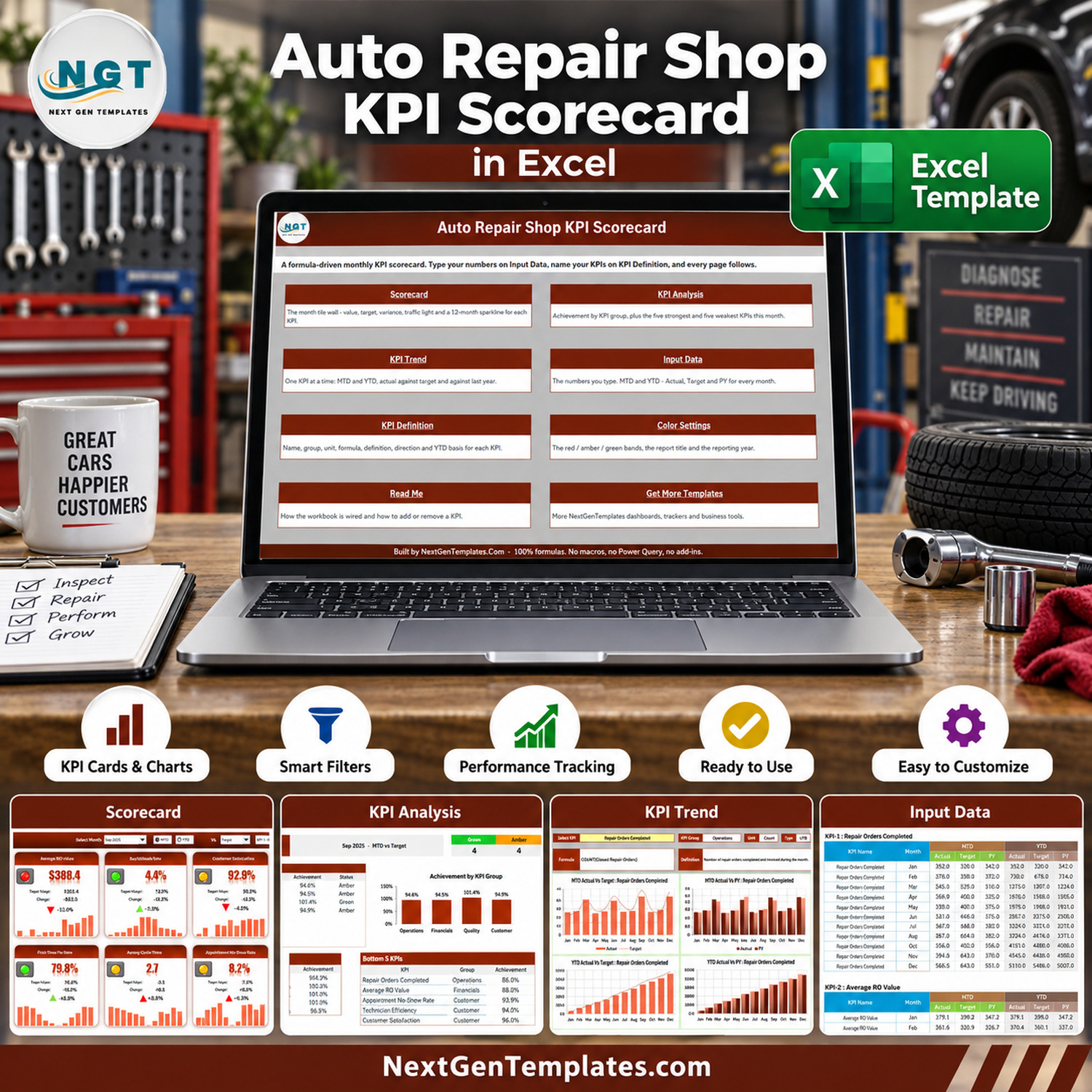

An auto repair shop already produces every number on this page. Closed repair orders and invoice totals sit in the shop management system, billed and clocked hours in the technician time sheets, comebacks in the service log, survey scores in the customer follow-up and no-shows in the appointment book. What most shops lack is one page that lines those figures up every month, in the same shape, so a slow month is obvious in seconds instead of after an evening of report exports.
The Auto Repair Shop KPI Scorecard in Excel is that page: 10 auto repair shop KPIs in 4 groups, a month picker, an MTD / YTD switch and direction-aware traffic lights, spread across 9 visible sheets. It ships with a complete 2025 sample year. Left on Sep-2025 with MTD and Vs. Target selected, it reads 4 Green, 4 Amber and 2 Red: Bay Utilization is 78.7% against a 77.1% target, while Repair Orders Completed is 571 against 664. It is a plain .xlsx built from formulas only – no macros, no Power Query, no add-ins. If you have been looking for an auto repair KPI template that fits a whole month on one page, this is it.
Which product this is. NextGenTemplates ships several templates with near-identical names. This listing belongs to the KPI Scorecard family: a one-page monthly management report driven by numbers you type. It is not the slicer-driven Auto Repair Dashboard in Excel, which analyses transaction-level records, and it is not a KPI Dashboard from the separate KPI Dashboard family, which uses its own KPI set and page layout.
Instant download – One-time payment – No subscription – No per-user fees – Lifetime access
Key Features of the Auto Repair Shop KPI Scorecard in Excel
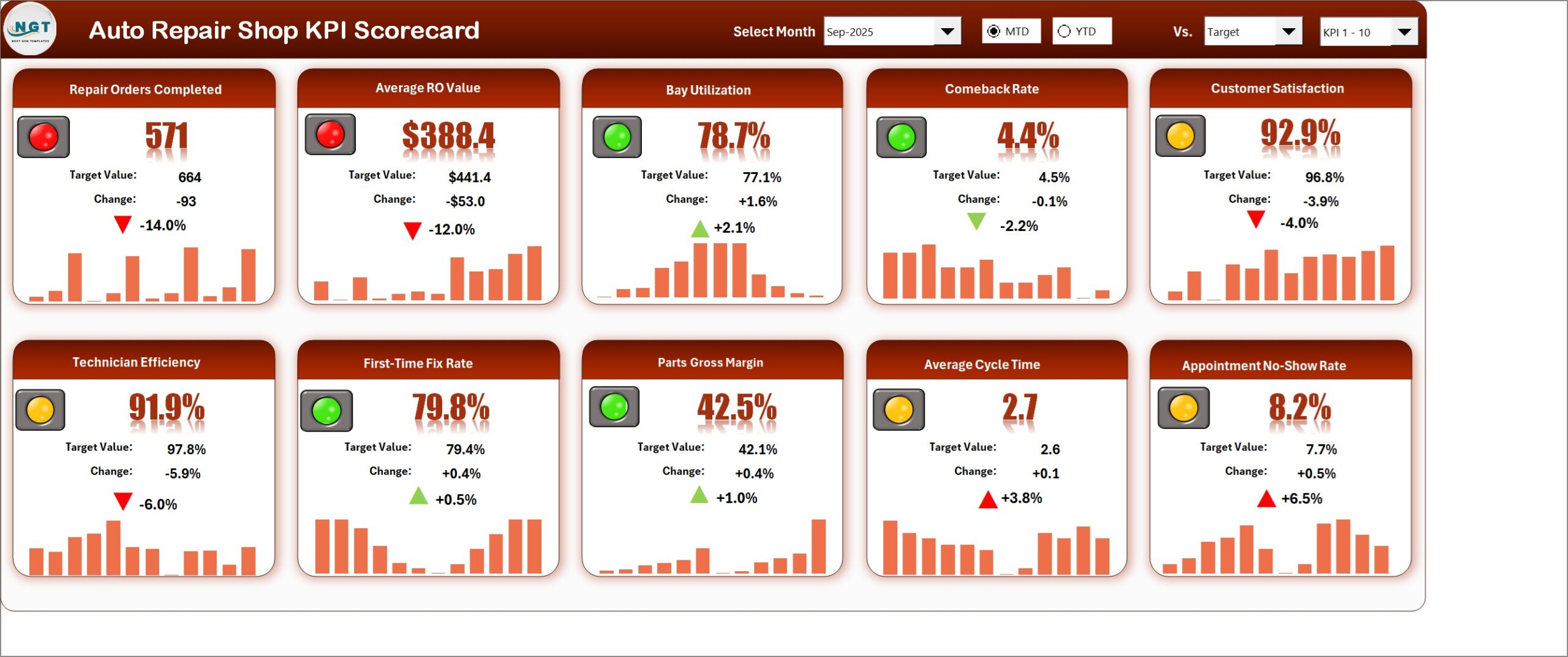
- Ten auto repair shop KPIs on one page – Repair Orders Completed, Average RO Value, Bay Utilization, Comeback Rate, Customer Satisfaction, Technician Efficiency, First-Time Fix Rate, Parts Gross Margin, Average Cycle Time and Appointment No-Show Rate. Every tile shows the value, the comparison value, the change, an arrow and a 12-month sparkline.
- Month picker with an MTD / YTD switch – choose any month of the reporting year from the header dropdown and flip the whole page between month-to-date and year-to-date without touching a formula.
- Three comparison bases – measure against Target, against the same period last year (PY) or against the Prior Month. Tiles, arrows and traffic lights all follow the choice.
- Direction-aware traffic lights – seven KPIs are upper-the-better and three are lower-the-better (Comeback Rate, Average Cycle Time and Appointment No-Show Rate), so a falling comeback rate turns green instead of red.
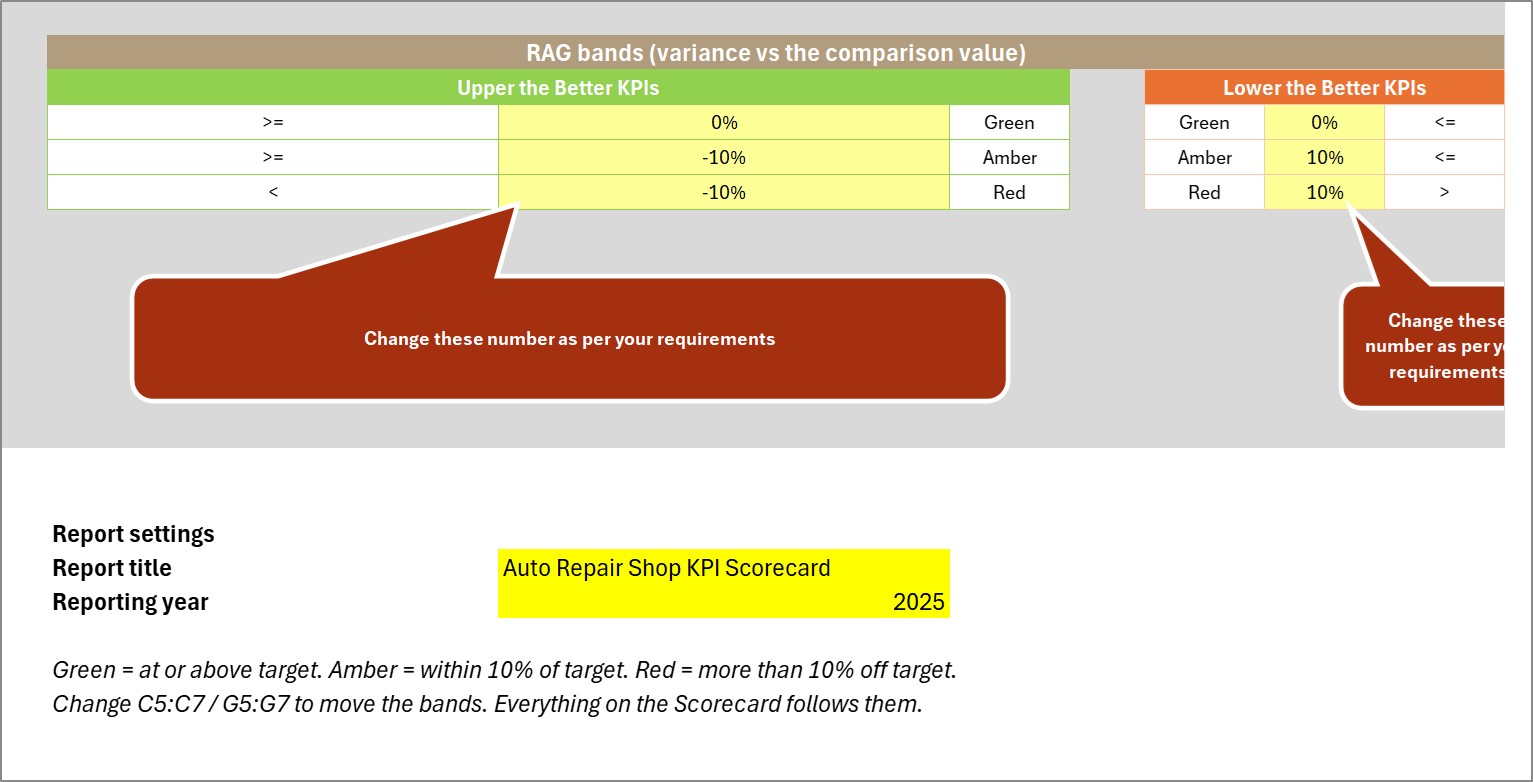
- Thresholds you own – the green / amber / red bands are ordinary cells on Color Settings. By default amber means within 10% of the comparison value; change it and every page re-flags itself.
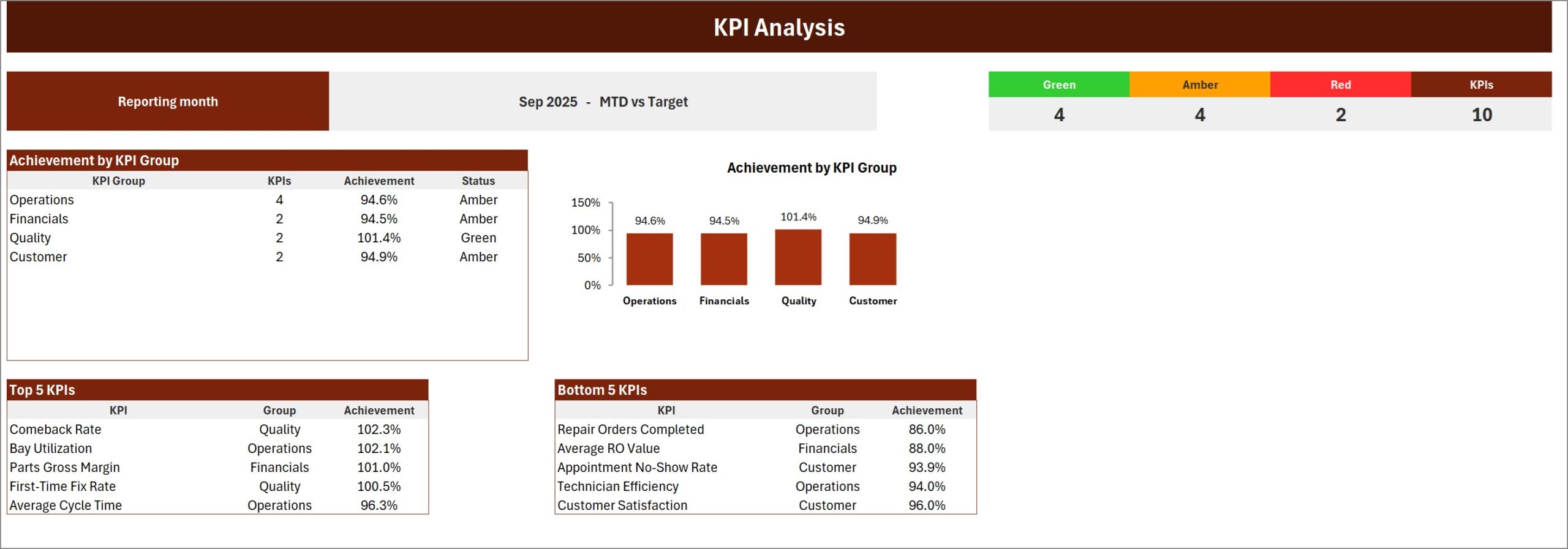
- KPI Analysis page – Green / Amber / Red counts, achievement by KPI group with a column chart, and automatic Top 5 and Bottom 5 KPI tables for the selected month.
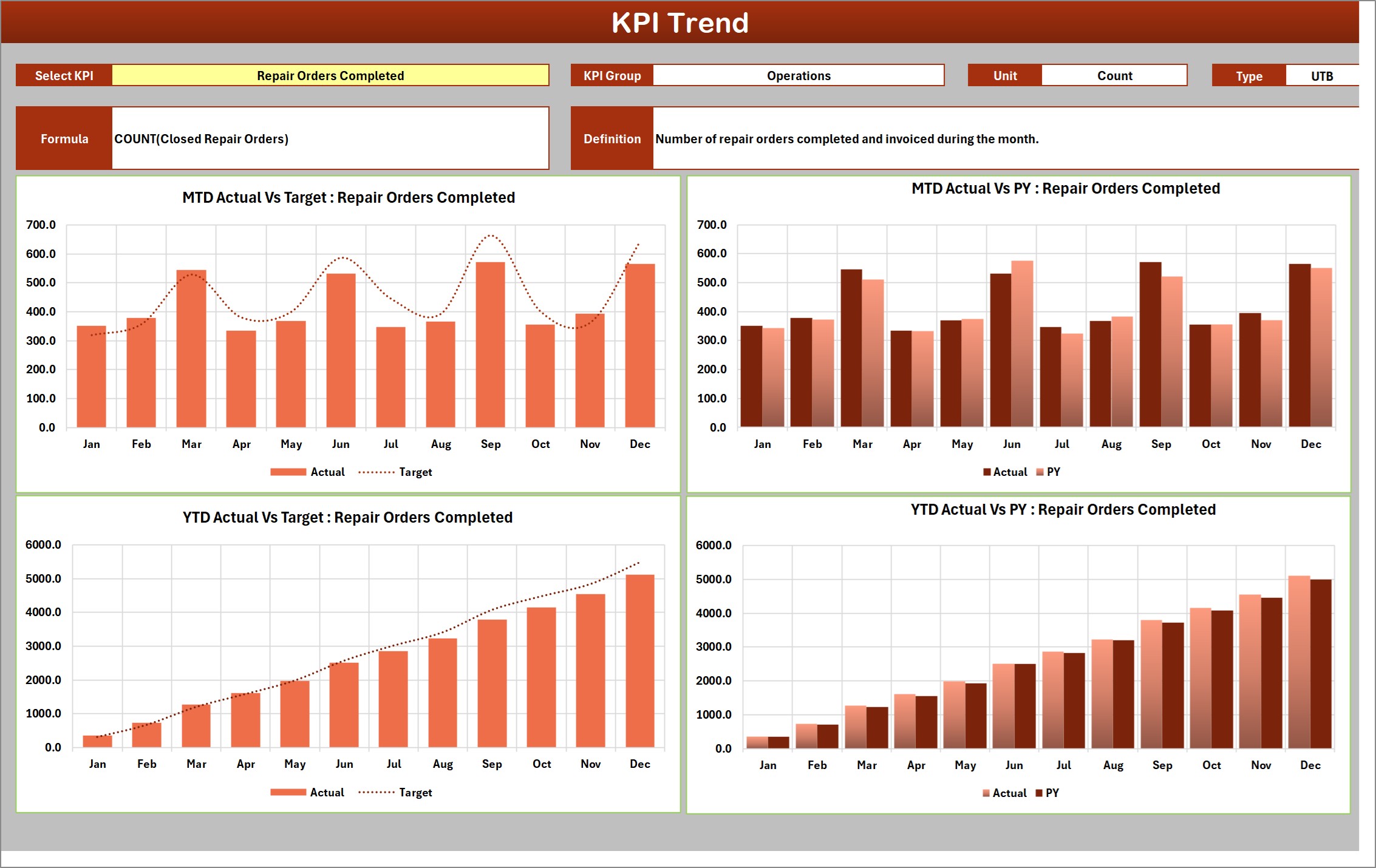
- KPI Trend page – one KPI at a time in four charts: MTD Actual vs Target, MTD Actual vs PY, YTD Actual vs Target and YTD Actual vs PY, with the KPI’s formula and definition printed above.
- Room for 20 KPIs – the Scorecard shows ten at a time and a set picker switches between KPI 1-10 and KPI 11-20.
What’s Inside the Workbook
Eleven sheets in total: nine visible pages and two hidden calculation sheets. Only two of them, Input Data and KPI Definition, ever need your typing.
Page 1: Home
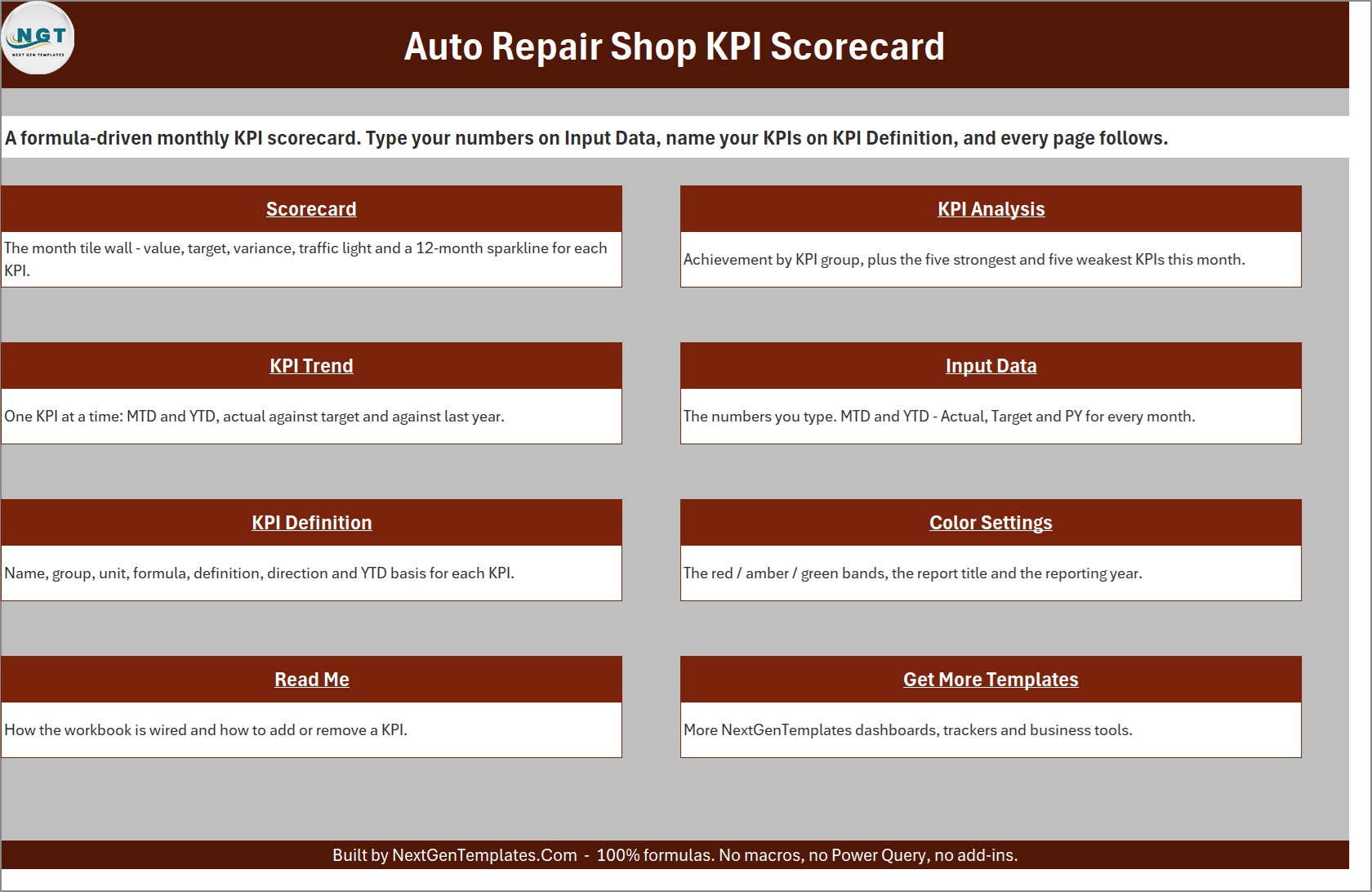
A navigation menu with a one-line description of every page, so a new user knows where to start.
Page 2: Scorecard
Ten KPI tiles for the selected month. In the sample, Repair Orders Completed (571 vs 664, -14.0%) and Average RO Value ($388.4 vs $441.4, -12.0%) are red, while Comeback Rate (4.4% vs 4.5%) and Parts Gross Margin (42.5% vs 42.1%) are green. The header holds Select Month, MTD / YTD, Vs. and the KPI set picker.
Page 3: KPI Analysis
The reporting month and basis, a 4 Green / 4 Amber / 2 Red / 10 KPIs counter strip, Achievement by KPI Group (Quality 101.4% Green; Operations 94.6%, Financials 94.5% and Customer 94.9% Amber) with its chart, plus Top 5 KPIs led by Comeback Rate at 102.3% and Bottom 5 KPIs led by Repair Orders Completed at 86.0%.
Page 4: KPI Trend
Pick one KPI to see its group, unit, type, formula and definition, then four monthly charts against Target and PY. Repair Orders Completed peaks at 571 in September and closes 2025 at 5,110 year-to-date against a 5,486 target and 5,007 the year before.
Page 5: Input Data
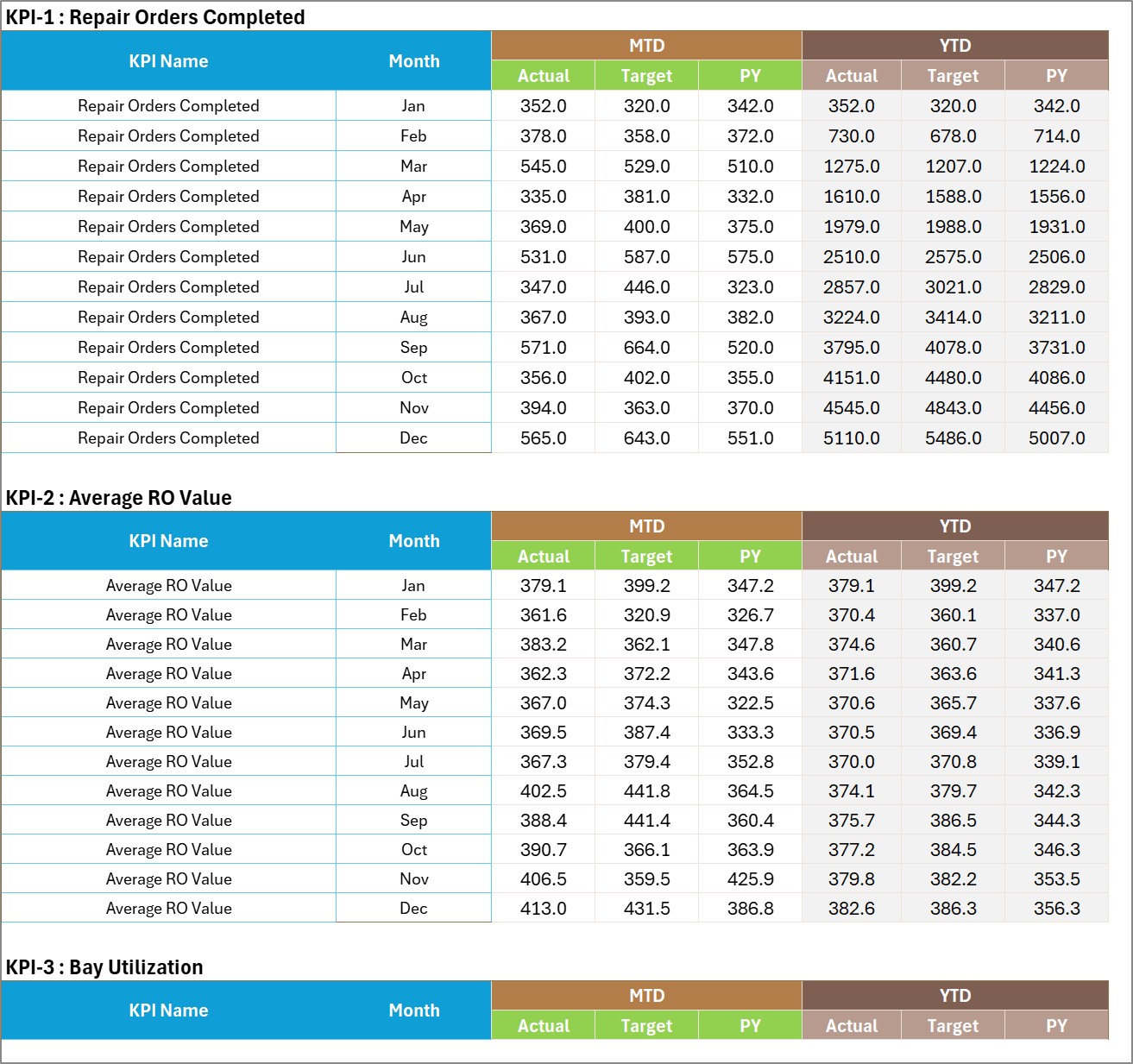
One numbered block per KPI with twelve month rows and six columns: MTD Actual, Target and PY, then YTD Actual, Target and PY. This is the only sheet that holds numbers.
Page 6: KPI Definition
Group, name, unit, formula, definition, UTB / LTB type and YTD basis for every KPI, with a Check column that flags duplicate names. Technician Efficiency, for example, is defined as Billed Flat-Rate Hours / Clocked Hours.

Page 7: Color Settings
The RAG bands for upper-the-better and lower-the-better KPIs, the report title and the reporting year that feeds the month picker.
Page 8: Read Me
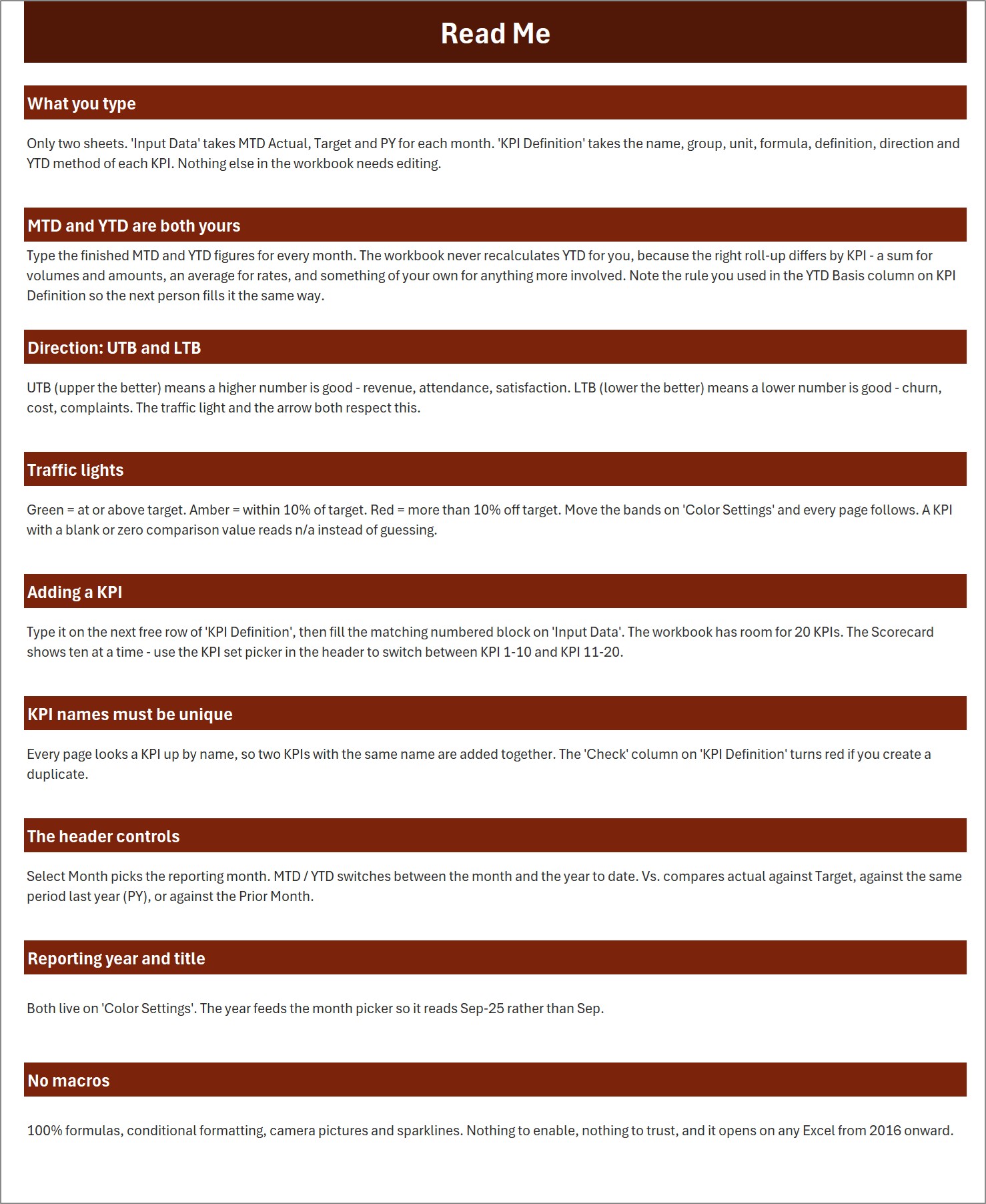
Nine short sections: what you type, why MTD and YTD are both typed, UTB and LTB, traffic lights, adding a KPI, unique names, the header controls, reporting year and title, and why there are no macros.
Page 9: Get More Templates
Pointers to the other NextGenTemplates product lines and a contact line for customisation requests.
The ten KPIs it ships with
| # | KPI | Group | Unit | Direction | Sep-2025 MTD vs Target |
|---|---|---|---|---|---|
| 1 | Repair Orders Completed | Operations | Count | Upper the better | 571 vs 664 – Red |
| 2 | Average RO Value | Financials | USD | Upper the better | $388.4 vs $441.4 – Red |
| 3 | Bay Utilization | Operations | % | Upper the better | 78.7% vs 77.1% – Green |
| 4 | Comeback Rate | Quality | % | Lower the better | 4.4% vs 4.5% – Green |
| 5 | Customer Satisfaction | Customer | % | Upper the better | 92.9% vs 96.8% – Amber |
| 6 | Technician Efficiency | Operations | % | Upper the better | 91.9% vs 97.8% – Amber |
| 7 | First-Time Fix Rate | Quality | % | Upper the better | 79.8% vs 79.4% – Green |
| 8 | Parts Gross Margin | Financials | % | Upper the better | 42.5% vs 42.1% – Green |
| 9 | Average Cycle Time | Operations | Hours | Lower the better | 2.7 vs 2.6 – Amber |
| 10 | Appointment No-Show Rate | Customer | % | Lower the better | 8.2% vs 7.7% – Amber |
All figures are sample data for a fictional shop. Rename any KPI, change its unit or flip its direction on KPI Definition – for example, if your shop measures cycle time in days rather than hours, just change the unit and type your own numbers.
Excel KPI Scorecard vs. Google Sheets vs. Shop Management Software – Where This Fits
| Feature | This Excel KPI scorecard | A Google Sheets scorecard | Shop management software |
|---|---|---|---|
| Cost | One-time purchase | One-time template price | Recurring monthly subscription |
| Platform | Excel 2016 or later, Microsoft 365 | Web browser | Vendor web app |
| Setup time | Minutes – type numbers, rename KPIs | Minutes | Onboarding and data integration |
| Works offline | Yes | No | No |
| Real-time team collaboration | No – share the file | Yes | Yes |
| Pulls numbers automatically | No – you type them monthly | No | Yes, for its own data |
| Change a KPI or threshold | Type over a cell | Type over a cell | Admin settings or vendor support |
| Monthly one-page management report | Ready on day one | Ready on day one | Often needs a custom report |
For shop owners who want a one-page monthly report without paying for another platform, this scorecard sits in the sweet spot. Prefer working in a browser? The Auto Repair Shop KPI Scorecard in Google Sheets is the companion edition; it carries its own KPI list (for example Effective Labor Rate and Estimate Approval Rate), so compare the two before choosing.
Who This Template Is For – and Who It’s Not For
This template is built for:
- Independent auto repair shops and general service garages that want one monthly performance page for the whole business.
- Service managers and shop foremen who report bay utilization, technician efficiency and comebacks to the owner.
- Accountants and consultants preparing a monthly pack for an auto repair client.
This template is NOT for:
- Writing repair orders, estimates, invoices or job cards – it reports on those systems rather than replacing them.
- Per-technician or per-vehicle tracking – it holds shop-level monthly figures, one scorecard per workbook.
- Warranty, emissions or safety-inspection record keeping – it makes no compliance or certification claims.
How to Use It
- Open the workbook in desktop Excel. There are no macros, so there is no security prompt.
- Set the report title and reporting year on Color Settings; the year makes the month picker read Sep-2025 rather than Sep.
- Rename the KPIs on KPI Definition and set each group, unit, formula text, definition, UTB / LTB direction and YTD basis.
- Replace the sample numbers on Input Data: MTD Actual, Target and PY, then the YTD equivalents for each month.
- Adjust the bands on Color Settings if 10% is the wrong amber width for your shop.
- Read the month on the Scorecard, then use KPI Analysis and KPI Trend to explain anything that moved.
If you want to understand the sparklines behind each tile, Microsoft’s Excel help and learning site covers them, although day to day you only type numbers and names.
Real-World Use Cases
Mike owns a six-bay general repair shop. On the first Monday of each month he types ten numbers, prints the Scorecard and KPI Analysis pages and walks his service writer through the Bottom 5 table. A red Average RO Value next to a green Bay Utilization tells him the bays are full but the tickets are small.
Sofia is the service manager at a busy brake-and-suspension shop. She watches Comeback Rate and First-Time Fix Rate together, because a rising comeback rate beside a flat first-time fix rate points at diagnosis rather than parts.
Raj is a bookkeeper with three garage clients. He keeps one copy of the workbook per client, switches the Vs. control to PY for the year-end meeting, and uses the KPI Trend page to show whether a slow quarter was seasonal.
Frequently Asked Questions
Does this connect to my shop management software?
No. You type the monthly figures on the Input Data sheet. That keeps the workbook portable, offline and free of connections that break, and filling ten KPIs for a month takes a few minutes once your source reports are to hand.
Are macros required?
No. It is a plain .xlsx built from formulas, conditional formatting, camera pictures and sparklines. There is nothing to enable, and it opens in Excel 2016 or later and Microsoft 365.
How long does setup take?
Most buyers load the Auto Repair Shop KPI Scorecard in Excel in under half an hour: set the year on Color Settings, rename or keep the ten KPIs, then paste twelve months of MTD and YTD figures into Input Data.
Does it calculate year-to-date for me?
No, deliberately. The right roll-up differs by KPI – Repair Orders Completed is summed, Bay Utilization is averaged – so you type the finished YTD figure and record the rule in the YTD Basis column on KPI Definition.
Can I change which direction a KPI counts as good?
Yes. Each KPI has a UTB or LTB type on KPI Definition. Change it and that KPI’s light and arrow reverse.
Is this the same as the Google Sheets edition?
No. The Google Sheets edition is a separate product with its own KPI list. Both are monthly scorecards; this one is a desktop Excel workbook.
What is in the download?
A ZIP holding the .xlsx workbook and a PDF user manual for the Excel KPI Scorecard line.
About the Author
Built by PK – Microsoft Certified Professional with 15+ years of Excel, Google Sheets and Power BI experience. Founder of NextGenTemplates, reaching 300K+ subscribers across YouTube channels (@PKAnExcelExpert, @NextGenTemplates, @NeoTechNavigators). Every template is hand-built and tested before release.
Explore Related Templates
- Auto Repair Dashboard in Excel – a slicer-driven analytics dashboard for shops that keep transaction-level records.
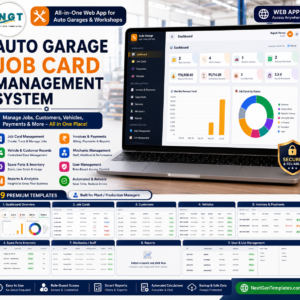
- Auto Garage Job Card Management System Web App – if you need job cards managed, not just reported.
- Vehicle Service Log Data Entry System in Excel – a simple form for logging each service visit.
- Spare Parts Inventory Data Entry System in Excel – keep the parts room in order.
- Garage Door Service KPI Scorecard in Excel – another scorecard built on the same Excel engine.
Browse every scorecard and KPI template in the Excel KPI templates category.
Read the detailed blog post on the Auto Repair Shop KPI Scorecard in Excel
Visit our YouTube channel for step-by-step video tutorials
Last updated: September 2026
Watch the demo video:
Compatibility and Requirements
- Works in Microsoft Excel desktop (Excel 2016 or later, or Microsoft 365).
- The file is a plain .xlsx built from formulas, so there is nothing to enable on opening. The Scorecard uses sparklines and charts, and Microsoft explains charts in Create a chart from start to finish.
More Questions About This Template
How many KPIs can the scorecard hold?
It ships with 10 KPIs and has room for 20. The Scorecard shows ten at a time, and a set picker switches between KPI 1-10 and KPI 11-20.
Can I compare against last year instead of the target?
Yes. The Vs. control in the header switches the whole page between Target, the same period last year (PY) and the Prior Month. Tiles, arrows and traffic lights follow your choice.
Why does a falling Comeback Rate show green?
Comeback Rate, Average Cycle Time and Appointment No-Show Rate are lower-the-better KPIs. The other seven are upper-the-better. Each KPI has a UTB or LTB type on the KPI Definition sheet, and you can change it.
Is there a Google Sheets version?
Yes. See the Auto Repair Shop KPI Scorecard in Google Sheets. It carries its own KPI list, so compare the two before choosing.
Related Auto Repair Templates
- Auto Repair Shop KPI Scorecard in Google Sheets: the browser edition of this scorecard
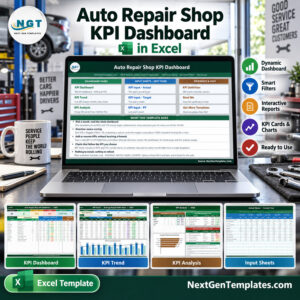
- Auto Repair Shop KPI Dashboard in Excel: a dashboard view of shop KPIs
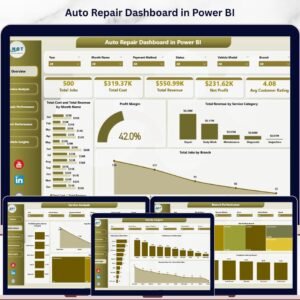
- Auto Repair Dashboard in Power BI: the same topic in Power BI
- Automotive KPI Scorecard in Excel: a scorecard for the wider automotive trade
- Service Center and Repair Shop Management System Web App: for running day-to-day shop work
Browse all Excel operations templates.





















Reviews
There are no reviews yet.