

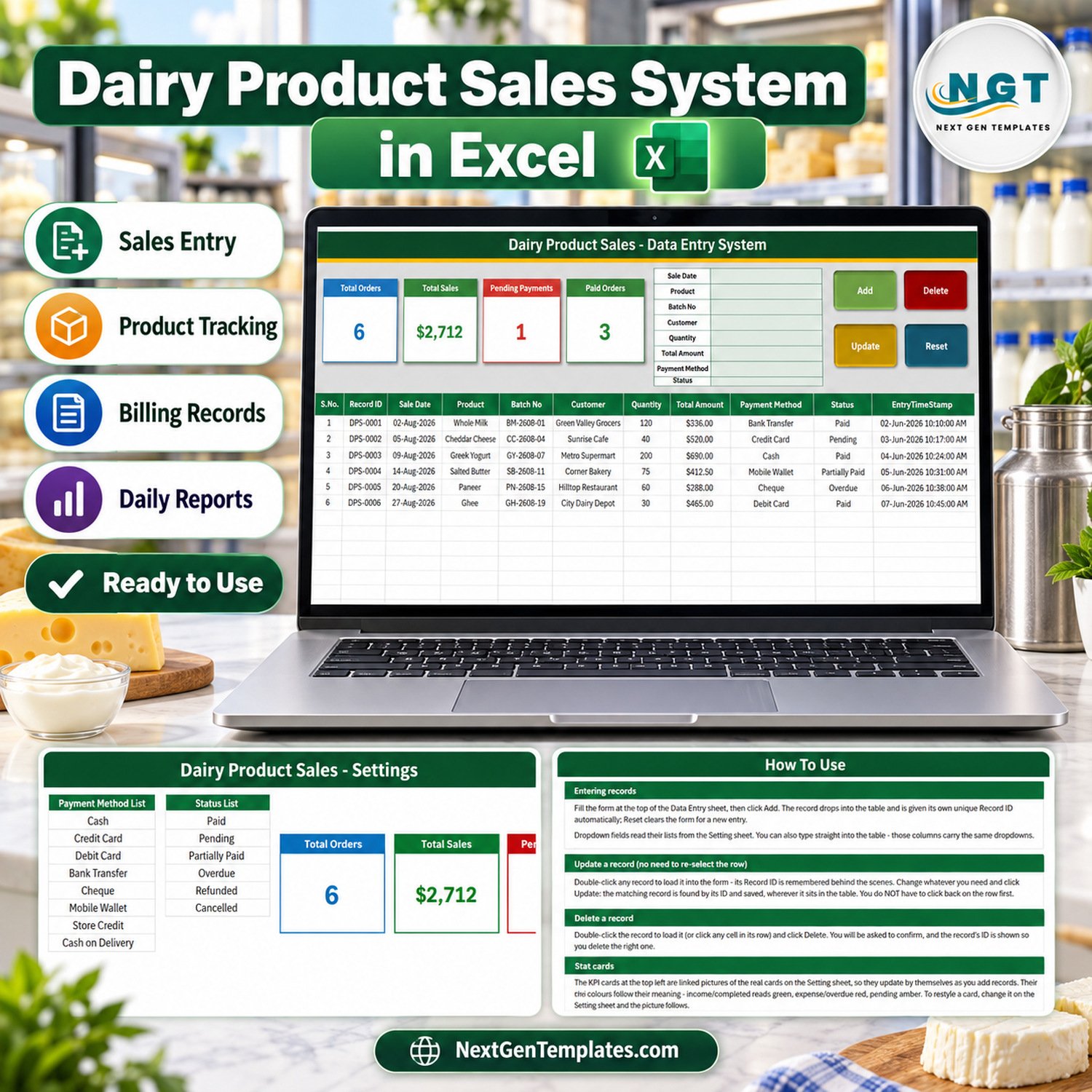
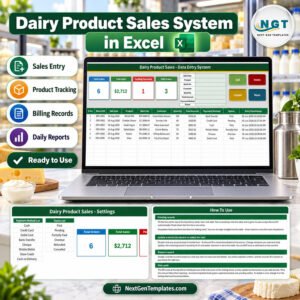
The Dairy Product Sales Data Entry System in Excel is a macro-enabled workbook for recording every dairy sale a shop, depot or small distributor makes: whole milk, butter, cheese, yogurt, paneer, ghee, cream and ice cream. It gives you an 8-field entry form with a Batch No field, 4 live VBA buttons, 4 self-updating stat cards and 4 editable dropdown lists holding 36 ready values. Fill the form, click Add, and the sale lands in the records table with its own Record ID and timestamp.
It is a sales register, not a point-of-sale system, not accounting software and not a stock, cold-chain or batch-recall system. It answers the questions a dairy owner asks at the end of the week – how many orders went out, how much was billed, and which customers still owe money – without flicking back through a delivery book.
✅ Instant download · One-time payment · No subscription · No per-user fees · Fully unlocked and editable
🔑 Key Features of the Dairy Product Sales Data Entry System in Excel
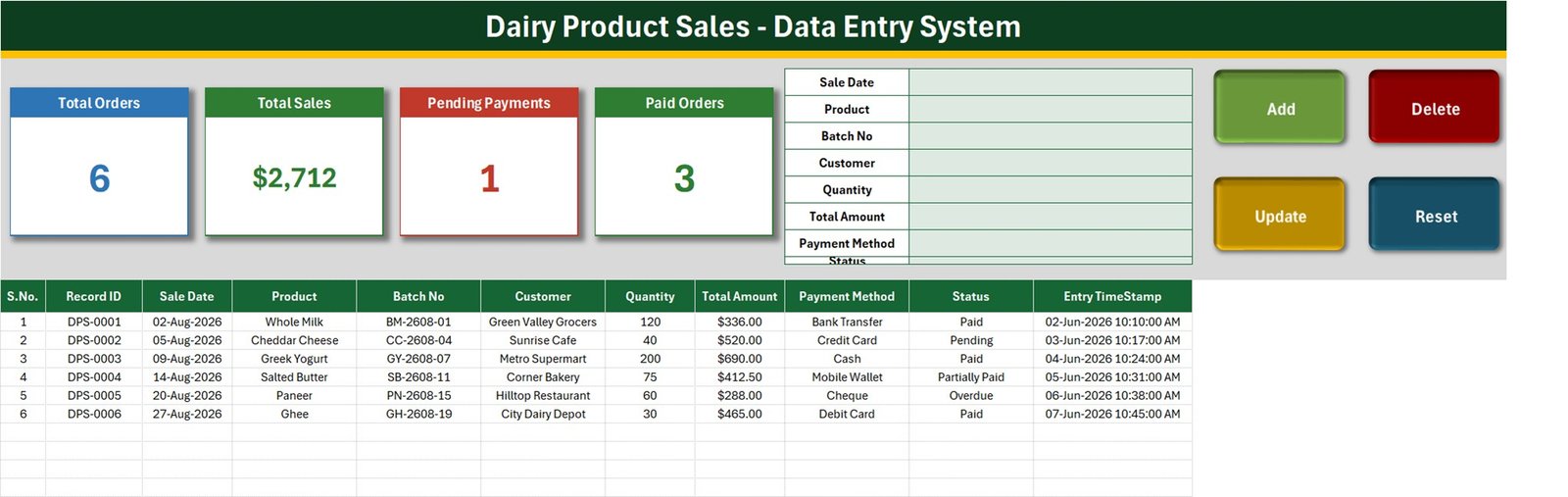
- 🧾 An eight-field entry form – Sale Date, Product, Batch No, Customer, Quantity, Total Amount, Payment Method and Status – placed beside the stat cards on the Data Entry sheet, so one screen covers entry and review.
- 🏷️ A Batch No on every sale. Write the batch code printed on the crate or carton (for example BM-2608-01) so you can later filter every sale that came out of one batch.
- 🔘 Four live VBA buttons. Add saves the form as a new record, Update rewrites the record you loaded, Delete removes a record after a confirmation that shows its Record ID, and Reset clears the form without touching the table.
- 🔢 Automatic Record IDs in the DPS-0001 series plus an Entry TimeStamp on every saved sale, so each record can be found again after the table has been sorted or filtered.
- 🖱️ Double-click editing. Double-click any row and it loads back into the form. The workbook remembers the Record ID, so Update finds that record wherever it now sits.
- 📋 Four dropdown lists on the Setting sheet – 12 dairy products, 10 customers, 8 payment methods and 6 payment statuses – shared by the form and by the table columns.
- 💳 Payment statuses built for trade customers: Paid, Pending, Partially Paid, Overdue, Refunded and Cancelled, so credit sales to cafes, bakeries and grocers stay visible.
- 📊 Four stat cards – Total Orders, Total Sales, Pending Payments and Paid Orders – that recalculate from the table as you add records, with no refresh button and no pivot table to rebuild.
- 🧪 Six fictional sample sales (DPS-0001 to DPS-0006) already loaded, so you can watch every button work before you clear them out.
📦 What’s Inside the Workbook
Four sheets make up the whole product: Data Entry, Setting, Instructions (a How To Use page) and Get More Templates.
Sheet 1: Data Entry
This is the working screen. It shows the Total Orders, Total Sales, Pending Payments and Paid Orders cards, the eight-field form, the Add, Delete, Update and Reset buttons, and an eleven-column records table: S.No., Record ID, Sale Date, Product, Batch No, Customer, Quantity, Total Amount, Payment Method, Status and Entry TimeStamp. On the sample data the cards read 6, $2,712, 1 and 3.
Sheet 2: Setting
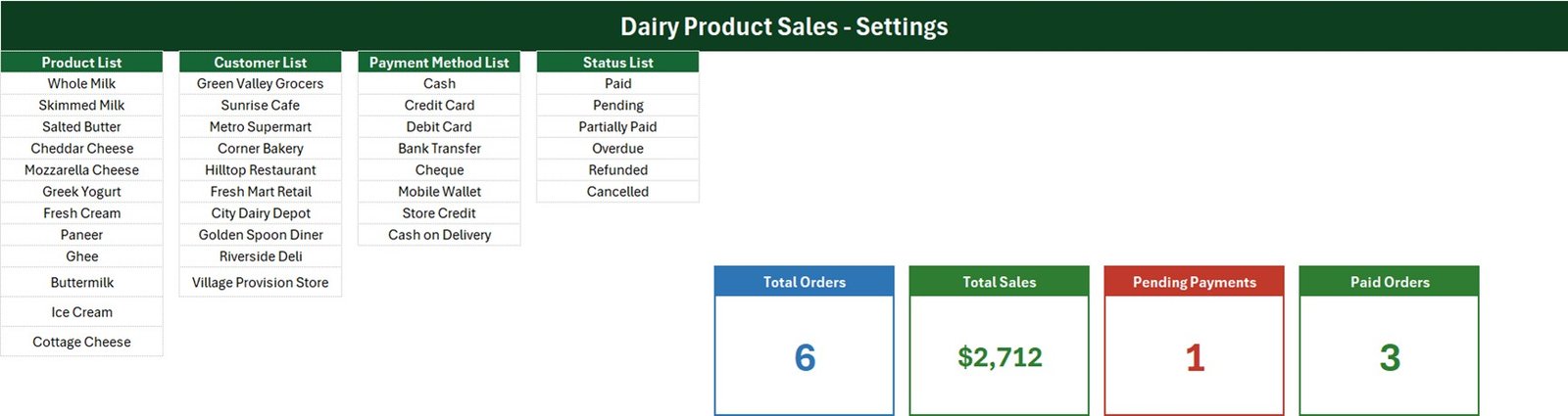
This sheet holds the four dropdown lists and the real stat-card formulas. The lists ship with these values, all editable:
- 🥛 Product List (12): Whole Milk, Skimmed Milk, Salted Butter, Cheddar Cheese, Mozzarella Cheese, Greek Yogurt, Fresh Cream, Paneer, Ghee, Buttermilk, Ice Cream, Cottage Cheese.
- 🏪 Customer List (10): Green Valley Grocers, Sunrise Cafe, Metro Supermart, Corner Bakery, Hilltop Restaurant, Fresh Mart Retail, City Dairy Depot, Golden Spoon Diner, Riverside Deli, Village Provision Store.
- 💵 Payment Method List (8): Cash, Credit Card, Debit Card, Bank Transfer, Cheque, Mobile Wallet, Store Credit, Cash on Delivery.
- 📌 Status List (6): Paid, Pending, Partially Paid, Overdue, Refunded, Cancelled.
The customer names are fictional sample entries for you to replace with your own trade and retail customers.
Sheet 3: How To Use
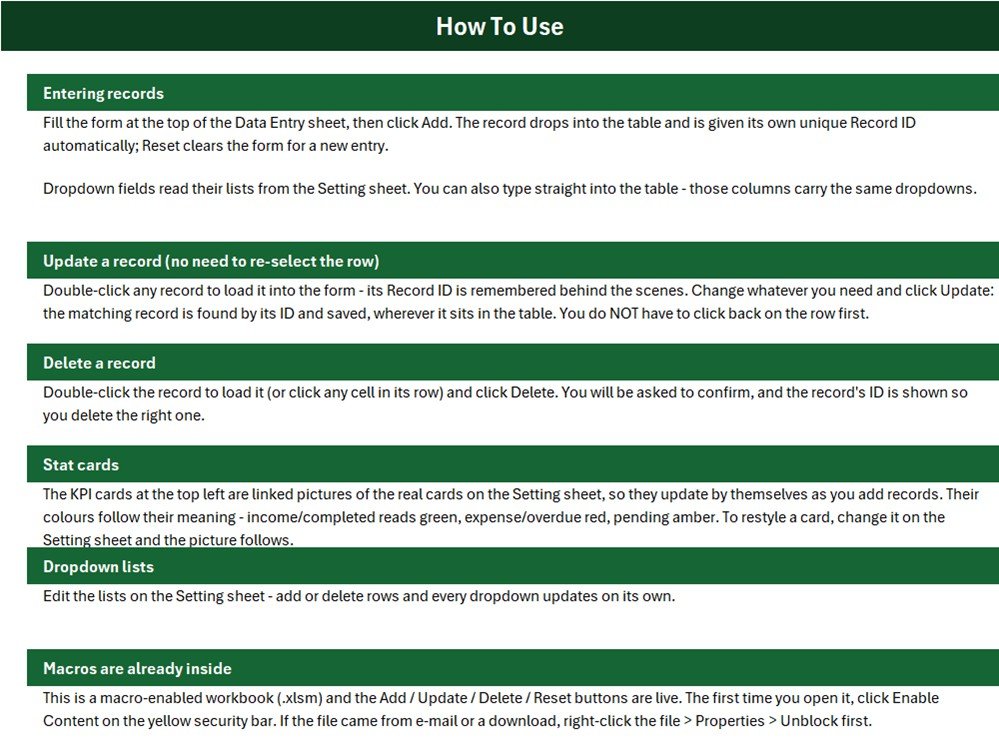
This page explains entering records, updating without re-selecting the row, deleting, how the stat cards work, editing the dropdown lists and enabling macros on first open.
📐 What the Four Stat Cards Actually Count
These are the real formulas from the Setting sheet. Read them once and the cards will never surprise you:
- 🔹 Total Orders =
COUNTA('Data Entry'!$C$15:$C$1048576)– a count of the Sale Date column. A record saved with a blank Sale Date is not counted. - 🔹 Total Sales =
SUM('Data Entry'!$H$15:$H$1048576)– every Total Amount whatever the status, so Pending, Overdue, Refunded and Cancelled rows are included. The six samples total 2,711.50, displayed as $2,712, of which only $1,491 is marked Paid. Treat it as billed value, not cash collected. - 🔹 Pending Payments =
COUNTIF('Data Entry'!$J$15:$J$1048576,"Pending"). - 🔹 Paid Orders =
COUNTIF('Data Entry'!$J$15:$J$1048576,"Paid").
Only two of the six statuses have a card. Partially Paid and Overdue are not counted as pending, so on the sample data Pending Payments reads 1 while three customers still owe money (a Pending $520, a Partially Paid $412.50 and an Overdue $288). To count every unpaid sale, change the Pending Payments cell on the Setting sheet to =SUM(COUNTIF('Data Entry'!$J$15:$J$1048576,{"Pending","Partially Paid","Overdue"})).
Total Amount is typed, not calculated. There is no Unit Price, discount or tax column, and Quantity has no unit of measure, so enter the final billed amount for the whole sale and keep quantities in one unit per product (litres, kg or packs).
📊 This Excel Workbook vs. a Google Sheets Log vs. Dairy Distribution Software
| Feature | This Excel dairy sales register | Home-made Google Sheets log | Dairy distribution / route-sales software |
|---|---|---|---|
| Cost | ✅ $6.99 one-time (regular $11.99) | Free, but you build it yourself | Recurring monthly subscription, often per route or user |
| Platform | Excel for Windows desktop | Any browser | Vendor app or browser |
| Setup time | ✅ About 10 minutes – edit four lists | Hours to design form, lists and formulas | Days of onboarding and data import |
| Entry form with Add / Update / Delete | ✅ Built in, VBA | No – typing straight into rows | ✅ Yes |
| Batch number on each sale | ✅ Yes, free-text field | Only if you add a column | ✅ Usually, with lot tracking |
| Real-time team collaboration | No – one file on one PC | ✅ Yes | ✅ Yes |
| Mobile access | No | ✅ Yes | ✅ Usually |
| Stock, expiry dates, invoices | No | No | ✅ Usually included |
| Customizable lists and fields | ✅ Fully unlocked | ✅ Yes | Limited to vendor settings |
For a small dairy shop or depot that wants a tidy, searchable sales register without paying for distribution software it will not fully use, this workbook sits in the sweet spot.
👥 Who This Template Is For – and Who It’s Not For
✅ Built for:
- Dairy shops, milk booths and cheese counters keeping a daily sales register
- Small dairy depots and distributors selling on credit to cafes, bakeries, restaurants and grocers
- Owners who want to see paid and pending customer payments at a glance
❌ NOT for:
- Processors that need stock control, expiry-date tracking, cold-chain logs or batch recall – this records sales only
- Businesses needing tax invoices, route planning or several users editing at once
- Anyone working on a Mac, in Excel for the web or in Google Sheets, where the VBA buttons do not run
⚙️ How to Use the Dairy Sales Register
- Unzip the download and open
Dairy_Product_Sales_System.xlsmin Excel for Windows. Click Enable Content; if Excel still blocks it, right-click the file, choose Properties and tick Unblock (Microsoft explains why in Macros from the internet are blocked by default). - Open the Setting sheet and rewrite the four lists with your own products, customers, payment methods and statuses.
- Delete the six sample rows when you are ready to start.
- Fill the form on Data Entry and click Add. The Record ID and Entry TimeStamp are written for you.
- To correct a sale, double-click its row, edit it and click Update. When a customer pays, change the Status to Paid the same way. To remove a sale, load it and click Delete, then confirm.
- Click Reset to clear the form without touching the table.
💼 Real-World Use Cases
Anita runs a neighbourhood dairy shop. She logs each morning’s milk, paneer and ghee sales, records the batch code from every crate, and filters the Batch No column when a supplier asks which customers received a particular delivery.
Tom supplies butter and cheese to local cafes on 7-day credit. He marks each delivery Pending, flips it to Partially Paid or Paid as the money arrives, and filters the Status column every Friday before making his collection calls.
A small dairy depot filters the Payment Method column at month-end to split bank transfers, cheques and cash-on-delivery sales before handing figures to the accountant.
⚠️ Limits to Know Before You Buy
- 🔸 The in-table dropdowns cover rows 15 to 214 – 200 records. The Add button and the card formulas keep working below that, but drag the validation down if you keep more than 200 sales in one file.
- 🔸 The four lists are fixed named ranges, and each is already full. ProductList reads
Setting!$A$3:$A$14, CustomerList$C$3:$C$12, Payment_MethodList$E$3:$E$10and StatusList$G$3:$G$8. The How To Use page says every dropdown updates on its own when you add rows; that is only true if you insert a row inside a list. A value typed in the first blank cell below a list will not appear until you widen the range in Formulas > Name Manager. - 🔸 No stock, expiry or billing. Recording a sale does not reduce any stock count, there is no expiry-date field, and there is no receipt, tax invoice, GST or VAT calculation.
- 🔸 Not a food-safety record. Batch No is a free-text label. The workbook makes no traceability, recall, cold-chain or food-safety compliance claim.
❓ Frequently Asked Questions
What does the Dairy Product Sales Data Entry System in Excel track?
It records one row per sale with Sale Date, Product, Batch No, Customer, Quantity, Total Amount, Payment Method and Status, plus an automatic Record ID and Entry TimeStamp. Four cards show Total Orders, Total Sales, Pending Payments and Paid Orders, recalculating as you add, update or delete records.
How long does setup take?
About ten minutes. Enable macros, replace the values in the four Setting lists with your own products, customers, payment methods and statuses, delete the six sample rows, and start adding sales through the form. No formulas need editing.
Why does Pending Payments show fewer unpaid sales than I expect?
It counts only the status Pending. Partially Paid and Overdue sales stay in the table and in Total Sales, but neither card counts them. Use the COUNTIF formula above to include all three.
Can it track stock or expiry dates?
No. It is a sales register. There is no stock balance, no expiry-date column and no cold-chain log. Batch No is a label you type so you can filter sales by batch later.
Will it work on a Mac or in Excel for the web?
No. Excel for the web cannot run VBA, and Excel for Mac handles macros and security prompts differently, so the Add, Update, Delete and Reset buttons are supported on Excel for Windows desktop only. Google Sheets cannot run the macros either.
Is the file locked?
No. Every sheet, list, formula and macro is open, so you can rename columns, recolour cards or add your own calculations such as a Unit Price column.
👤 About the Author
Built by PK – Microsoft Certified Professional with 15+ years of Excel, Google Sheets and Power BI experience. Founder of NextGenTemplates, reaching 300K+ subscribers across YouTube channels (@PKAnExcelExpert, @NextGenTemplates, @NeoTechNavigators). Every template is hand-built and tested before release.
🔗 Explore Related Templates
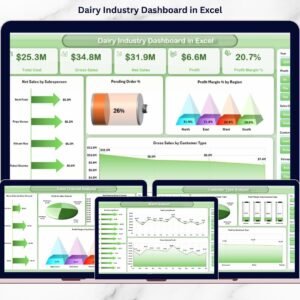
- 📈 Dairy Industry Dashboard in Excel – analysis instead of entry: charts and KPIs over dairy business performance.
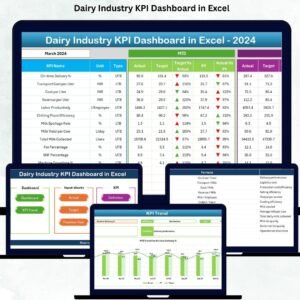
- 🎯 Dairy Industry KPI Dashboard in Excel – month-by-month KPI tracking with targets for a dairy operation.
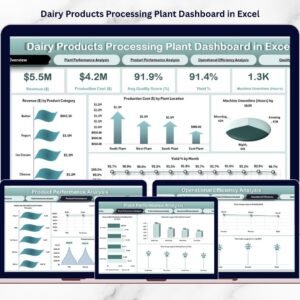
- 🏭 Dairy Products Processing Plant Dashboard in Excel – production-side reporting for a processing plant.
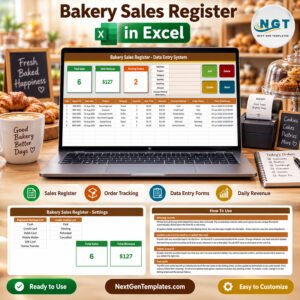
- 🧾 Bakery Sales Register Data Entry System in Excel and Optical Shop Sales Data Entry System in Excel – the same form-and-cards build for other shop counters.
Browse more Excel VBA tools in the store.
📖 Click here to read the Detailed Blog Post
🎥 Visit our YouTube channel for step-by-step video tutorials
👉 YouTube.com/@NextGenTemplates
Watch the step-by-step video Demo:
📅 Last updated: September 2026










Reviews
There are no reviews yet.