

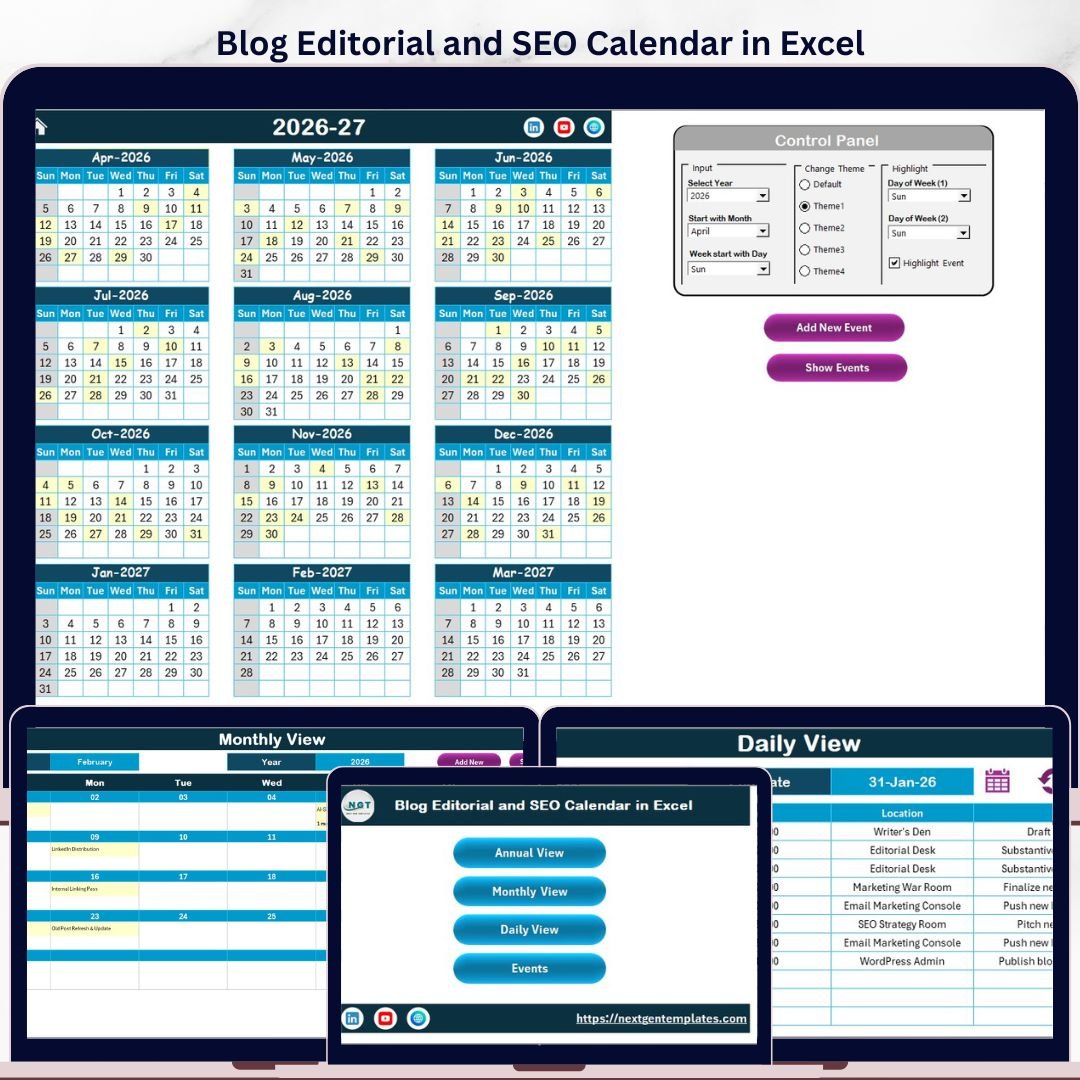
The Blog Editorial and SEO Calendar in Excel gives content teams a 5-worksheet planning system for blog topics, SEO deadlines, publishing dates, campaign launches, and daily editorial tasks. Many marketers lose 5+ hours each week chasing content dates across notes, chats, and separate trackers; this Excel calendar puts the annual plan, monthly schedule, daily event list, and event database in one workbook. Join 8,400+ teams in 40+ countries using NextGenTemplates for one-time-purchase Excel, Google Sheets, Power BI, and HTML templates.
Instant download. One-time payment. No subscription. No per-user fees. Lifetime access.
Blog Editorial and SEO Calendar in Excel
Key Features of Blog Editorial and SEO Calendar in Excel
- 5 worksheet structure covering Home, Annual View, Monthly View, Daily View, and Events.
- Annual 12-month calendar for planning campaigns, topic clusters, seasonal content, and publishing cadence across the full year.
- Monthly editorial view for tracking selected month activity with one visible event per day and a clear multiple-event indicator.
- Daily event list filtered by start date and end date, useful for weekly standups and daily publishing reviews.
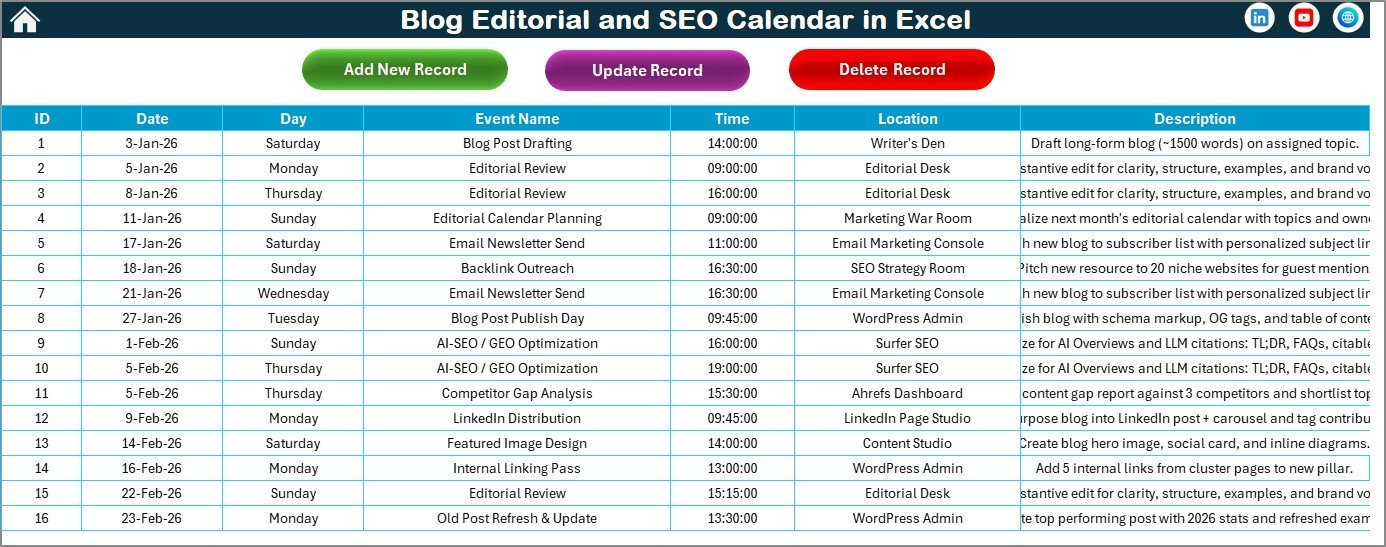
- Event database storing ID, date, day, event name, time, location, and description for every blog or SEO activity.
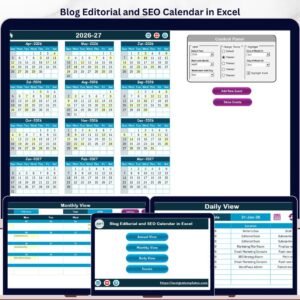
- Control panel options for year, starting month, week start day, 5 workbook themes, weekday highlighting, and event highlighting.
- Button-based event management with add, show, update, and delete workflows for structured planning.
What’s Inside the Blog Editorial and SEO Calendar in Excel
Home Sheet Tab
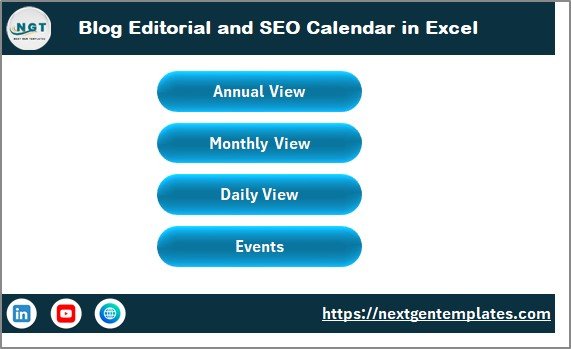
The Home sheet is the index page. It contains four navigation buttons that jump to Annual View, Monthly View, Daily View, and Events, so content managers do not need to scroll through workbook tabs during planning meetings.
Annual View Sheet Tab
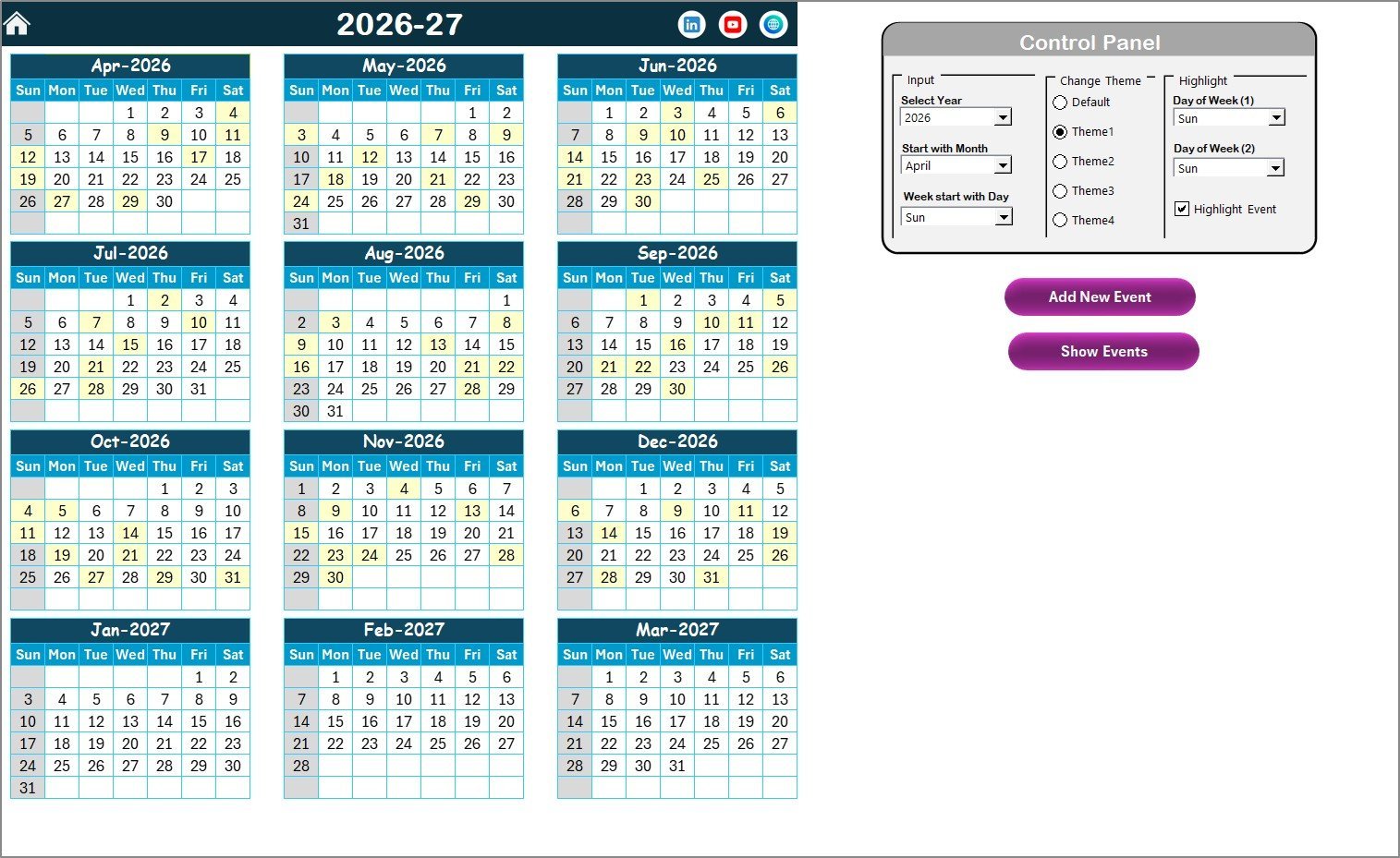
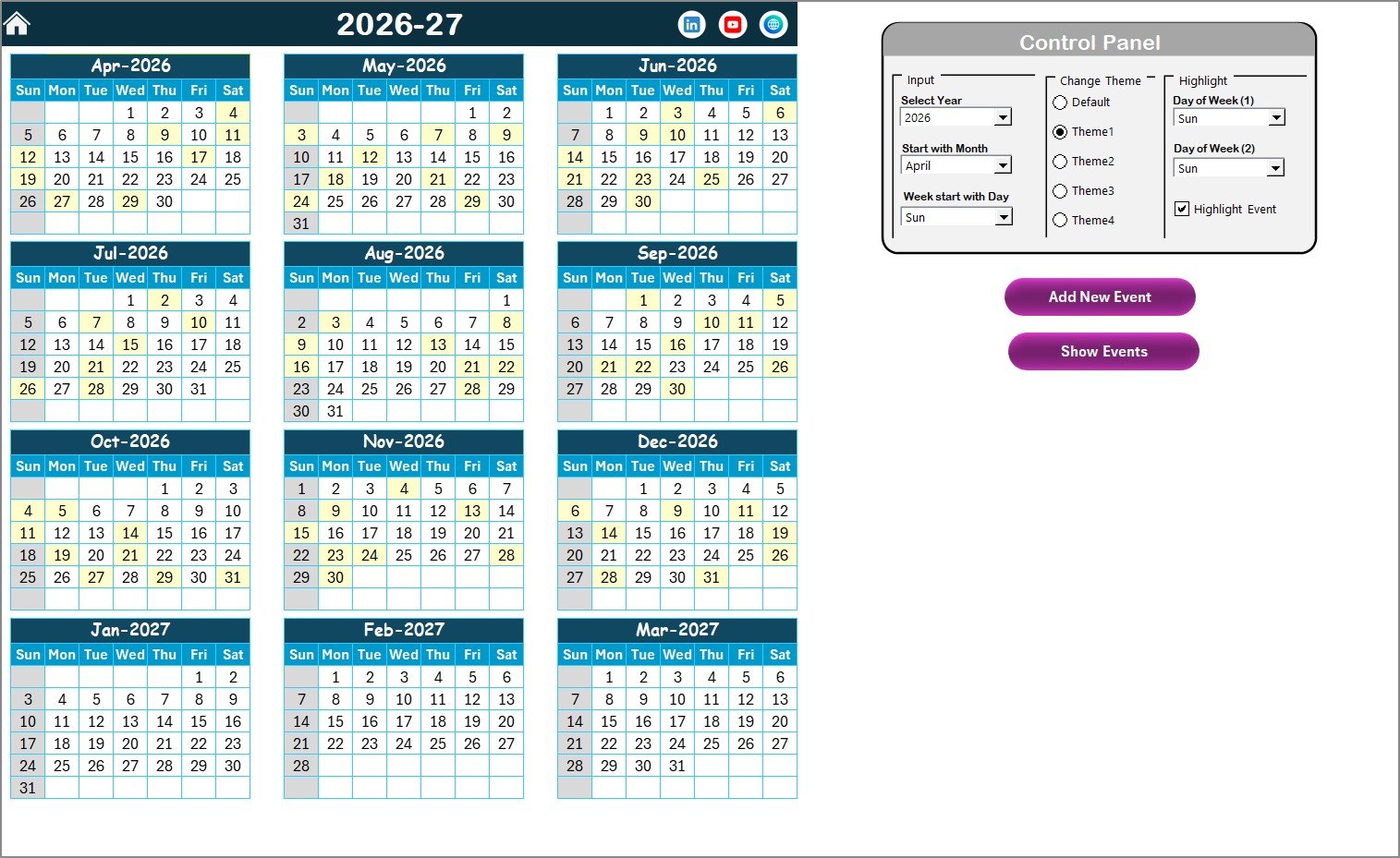
The Annual View sheet shows 12 months of calendars in one screen. It includes a control panel with three groups: Input, Change Theme, and Highlight. Use Input to select the year, starting month, and starting day of the week. Use Change Theme to apply one of five color themes across the workbook. Use Highlight to mark two weekdays, such as Saturday and Sunday, and optionally highlight events in yellow.
Annual View Sheet tab
The Annual View also includes an Add New Event button and a Show Event button. Select a date, click Add New Event, complete the form, and submit. To review entries for a selected date, click Show Event.
Monthly View Sheet Tab
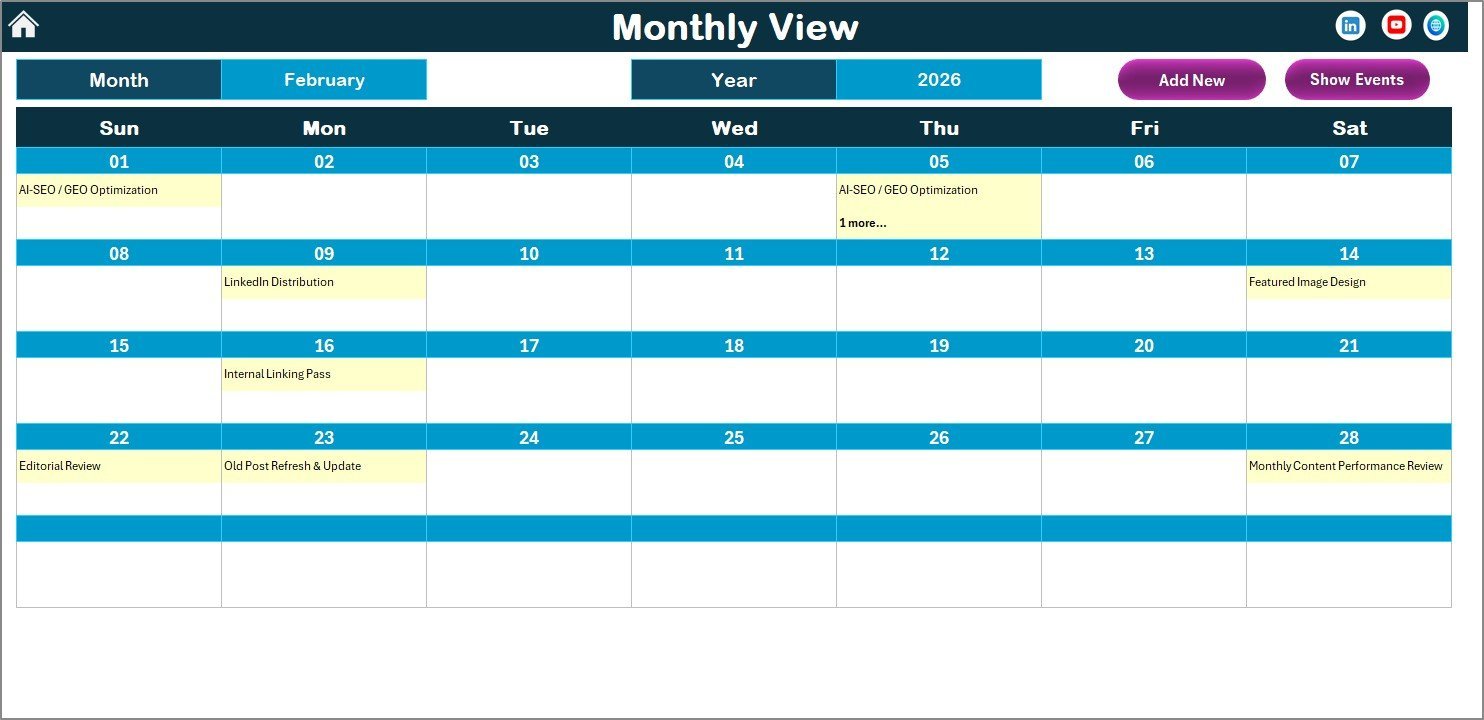
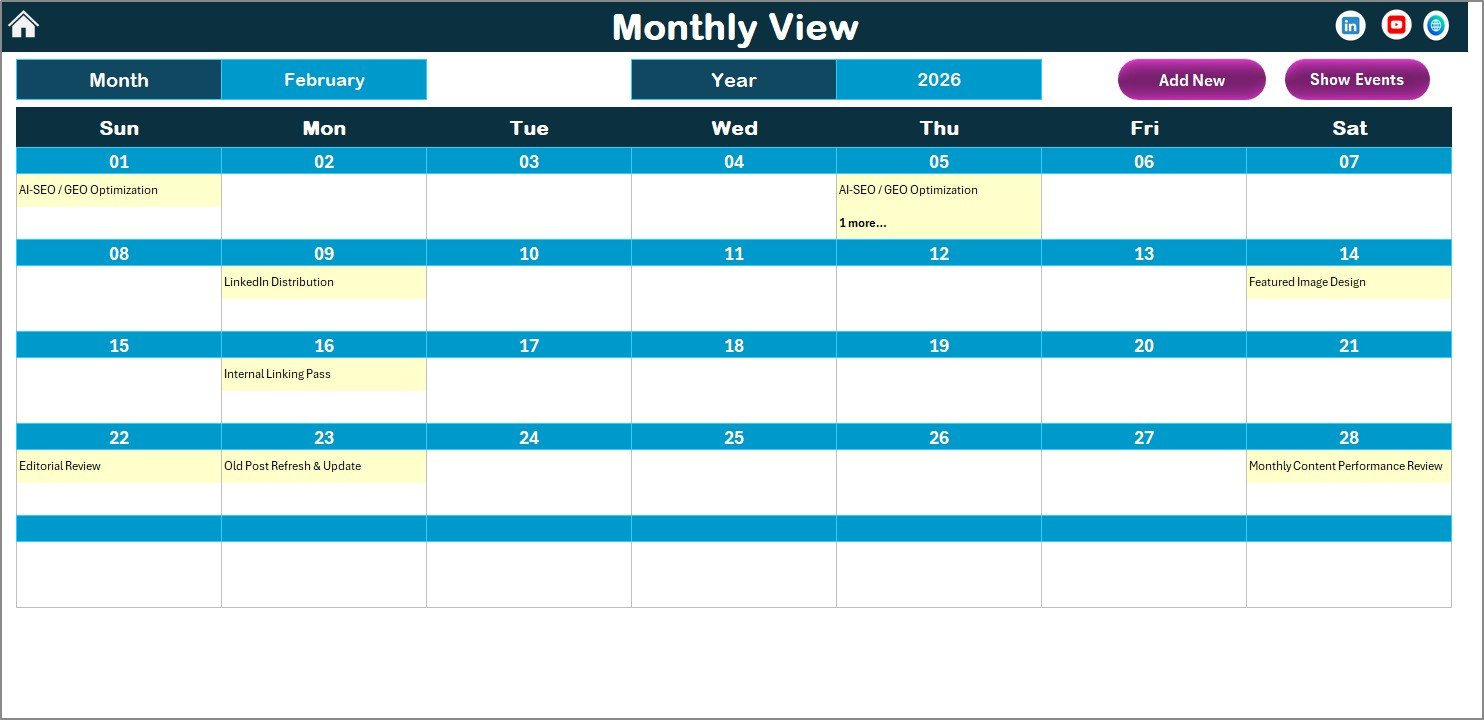
The Monthly View sheet displays one selected month. Choose the month and year at the top, and the calendar updates accordingly. It shows one event directly on the calendar; when a date has multiple events, the cell shows a more-than-one indicator so you know to open the event list.
Monthly View Sheet tab
Daily View Sheet Tab
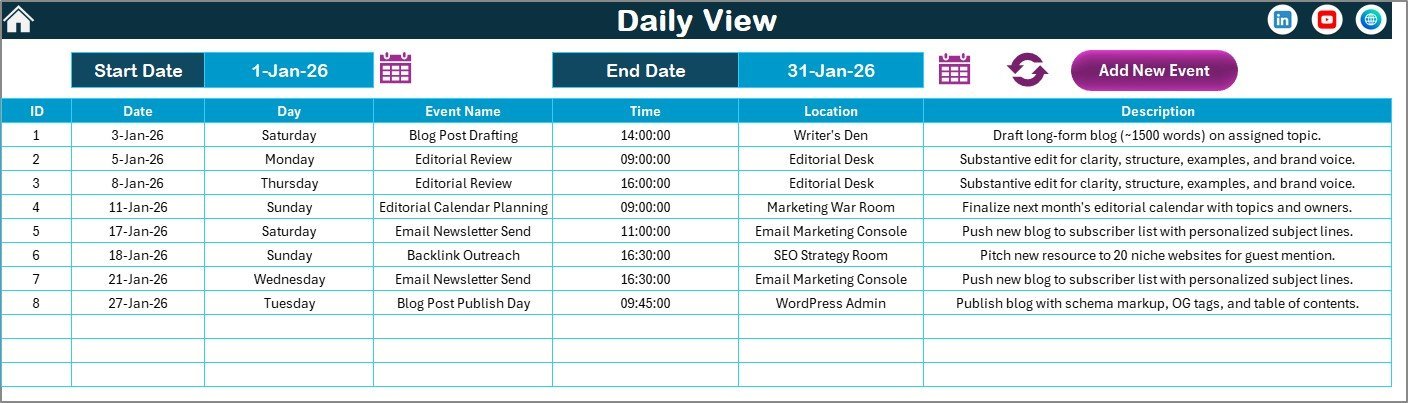
The Daily View sheet lists event details for a selected date range. Enter the Start Date and End Date at the top, use the calendar icons to choose dates, then click Refresh to show the latest data. This is ideal for weekly editorial standups, daily blog publishing checks, and SEO campaign execution reviews.
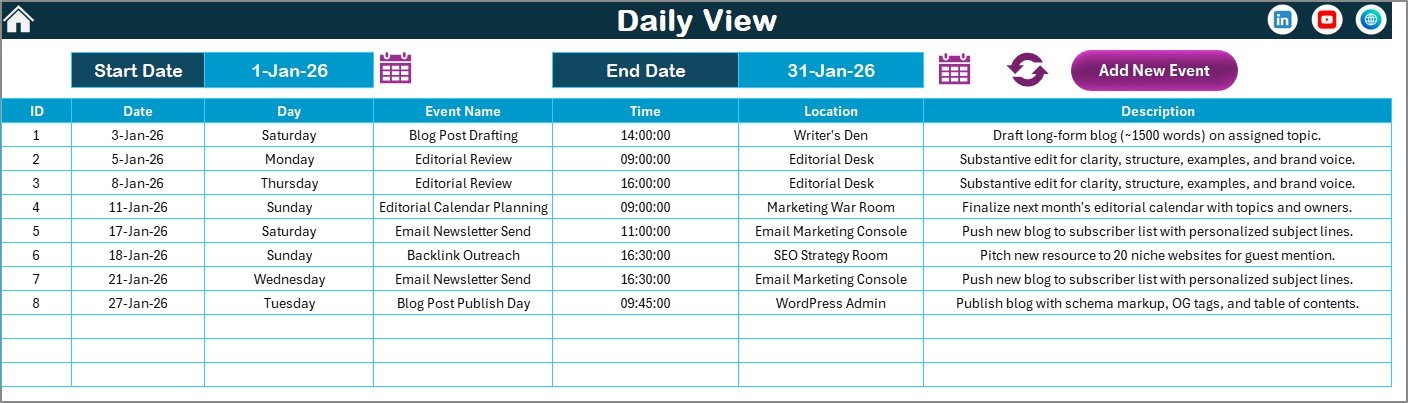
Daily View Sheet tab
Events Sheet Tab
The Events sheet is the database. It captures ID, Date, Day, Event Name, Time, Location, and Description. At the top, three buttons let you add a new record, update an existing record by selected ID, or delete a selected event record.
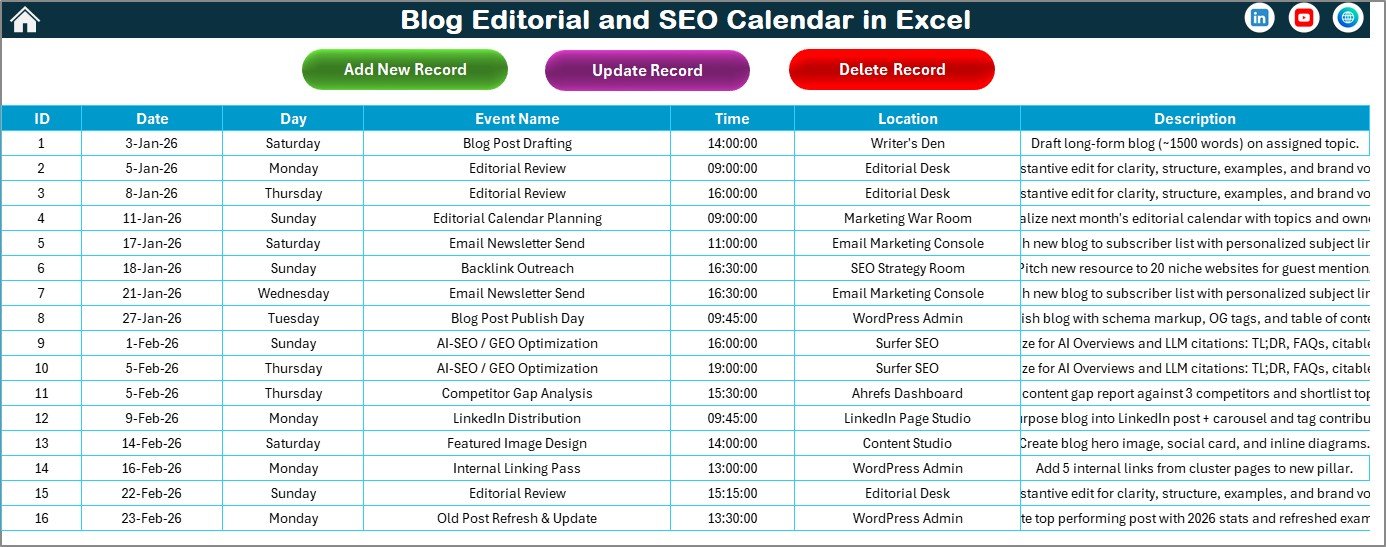
Events Sheet tab
Blog Editorial and SEO Calendar in Excel vs. Google Sheets vs. Paid Content SaaS – Where This Fits
| Feature | Blog Editorial and SEO Calendar in Excel | Google Sheets Calendar | Paid SaaS like CoSchedule or Airtable |
|---|---|---|---|
| Cost | $4.99 one-time | Free to build manually | $10-$49+ per user/month |
| Platform | Microsoft Excel | Browser-based Sheets | Cloud SaaS |
| Setup time | Under 10 minutes | Several hours to design | 1-3 hours plus onboarding |
| Annual, monthly, daily views | Included | Manual build | Included in higher tiers |
| Event form workflow | Included | Requires Apps Script | Included |
| Works offline | Yes | Limited | No |
| Year-1 cost at 5 users | $4.99 | $0 plus build time | $600-$2,940+ |
Who This Template Is For – and Who It’s Not For
Best fit for: bloggers, SEO specialists, content marketers, small agencies, solo creators, newsletter teams, and marketing coordinators who already use Excel and want a simple editorial calendar without recurring software costs.
Not a fit for: teams that need native auto-publishing to WordPress, social channels, approval workflows, real-time multi-user permission control, or enterprise content governance.
How to Use the Blog Editorial and SEO Calendar in Excel
- Download and unzip the file.
- Open it in Microsoft Excel and enable macros if prompted so the form buttons work correctly.
- Use the Annual View control panel to choose year, starting month, week start day, and theme.
- Select a date and click Add New Event to enter blog topics, SEO tasks, publishing deadlines, launches, or review dates.
- Use Monthly View for month-level publishing planning and Daily View for date-range execution.
- Maintain the Events sheet as the source of truth for every editorial and SEO activity.
Real-World Use Cases
Priya, SEO content manager: Priya plans a 90-day blog sprint around keyword clusters, assigning draft dates, review dates, and publish dates in the Events sheet. The Annual View helps her avoid overloading one week.
Carlos, agency owner: Carlos uses separate copies for each client. Monthly View gives him a clean client-facing schedule, while Daily View lets his writers see exactly what is due this week.
Meera, solo blogger: Meera plans blog posts, newsletter topics, seasonal campaigns, and update reminders in one workbook instead of paying for a monthly content tool.
Frequently Asked Questions
Does this template require macros?
The calendar includes button and form workflows for adding, updating, showing, and deleting events. Open it in Excel and enable macros if prompted to use those interactive features.
Can I change the year and starting month?
Yes. The Annual View control panel lets you select the year, starting month, and starting day of the week.
Can I track more than one event on the same date?
Yes. The Events sheet stores all events, and the Monthly View indicates when a date has more than one event.
Can I use this for SEO tasks as well as blog publishing?
Yes. Use event names and descriptions for keyword research, draft creation, optimization, internal linking, publishing, refresh dates, and performance reviews.
Does this auto-publish blog posts?
No. This is a planning calendar, not a WordPress automation tool. It helps you organize dates and actions before publishing.
Can I customize the theme?
Yes. The workbook includes five built-in color themes that can be applied from the Annual View control panel.
About the Author
Built by PK – Microsoft Certified Professional with 15+ years of Excel, Google Sheets, and Power BI experience. Founder of NextGenTemplates, reaching 300K+ subscribers across YouTube channels. Every template is hand-built and tested before release.
Explore Related Templates
- Technology Marketing Remote Work Calendar in Excel
- Influencer Campaign Dashboard in Excel
- Multi-Platform Social Media Calendar in Excel
- Browse all Excel Calendar Templates and Sales and Marketing Templates.
Download the Blog Editorial and SEO Calendar in Excel today and turn your blog schedule into a clean, searchable editorial planning system.









Reviews
There are no reviews yet.