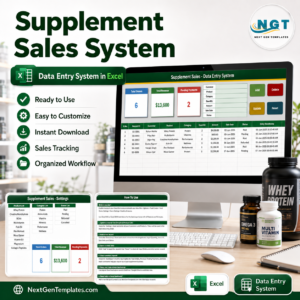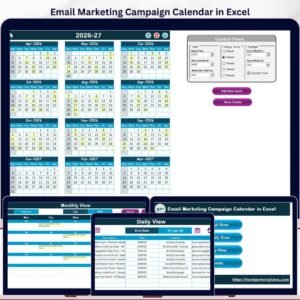
Garment Shop Sales Data Entry System in Excel is a small, macro-enabled workbook for recording every sale that leaves a clothing shop counter: one invoice, one customer, one garment type, one amount, one payment status. Fill the form at the top of the Data Entry sheet, press Add, and the sale drops into the records table with its own Record ID and a timestamp. Four stat cards above the form recount themselves as you go.
It is deliberately not a point-of-sale system and not accounting software. It is the sales register a boutique, tailoring outlet, uniform counter or small apparel store keeps so that at the end of the week somebody can answer “how many sales, how much money, and who still owes us” without scrolling a notebook.
Key Features of the Garment Shop Sales Data Entry System in Excel
- An eight-field entry form sitting above the table: Invoice No, Sale Date, Customer Name, Garment Type, Quantity, Sale Amount, Payment Method and Payment Status.
- Four live VBA buttons – Add, Update, Delete and Reset – wired to the macros
Add_Record,Update_Record,Delete_RecordandReset_Form. - Automatic Record IDs in the
GSS-0001series, assigned by the Add macro, plus an Entry TimeStamp written on every saved record. - Double-click editing. Double-click any row and it loads back into the form. The workbook remembers which Record ID you are editing, so Update finds and rewrites that record wherever it now sits in the table – you do not have to click back on the row first.
- A confirmed delete. Delete asks you to confirm and shows the Record ID it is about to remove, so you cannot quietly lose the wrong sale.
- Three editable dropdown lists on the Setting sheet, used by both the form and the table columns.
- Four stat cards – Total Sales, Total Revenue, Pending Payments and Paid Invoices – that recalculate from the records table with no refresh button and no pivot to rebuild.
- Six sample sales already loaded so you can see the whole thing working before you clear it out.
What Is Inside the Workbook
Four sheets, and that is the whole product:
- Data Entry – the working screen: stat cards, the entry form, the four buttons and the records table.
- Setting – the three dropdown lists and the real stat-card formulas.
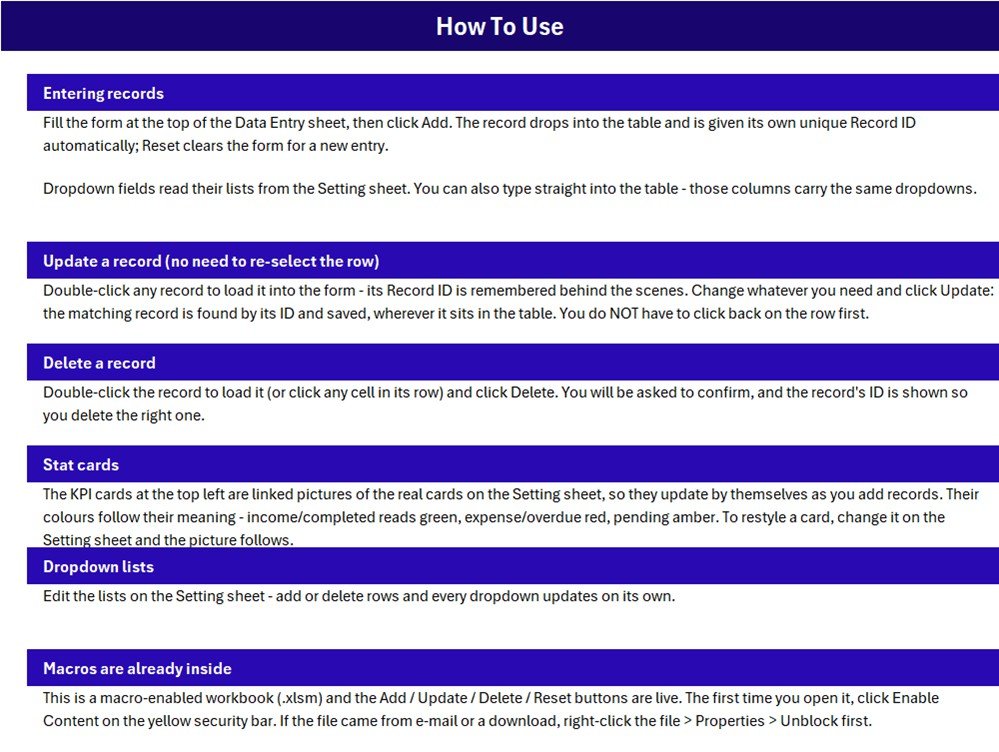
- Instructions – a “How To Use” page covering entry, updating, deleting, the stat cards, the dropdowns and enabling macros.
- Get More Templates – links back to the NextGenTemplates catalogue.
The records table
Eleven columns: S.No., Record ID, Invoice No, Sale Date, Customer Name, Garment Type, Quantity, Sale Amount, Payment Method, Payment Status and Entry TimeStamp. The S.No. column is a formula (=IF($B15="","",ROW()-14)) so it numbers itself and stays blank on empty rows.
The Garment Type, Payment Method and Payment Status columns carry the same dropdowns as the form, so you can also type straight into the table when you are catching up on a backlog rather than entering sales one at a time.
The Setting sheet and its three lists
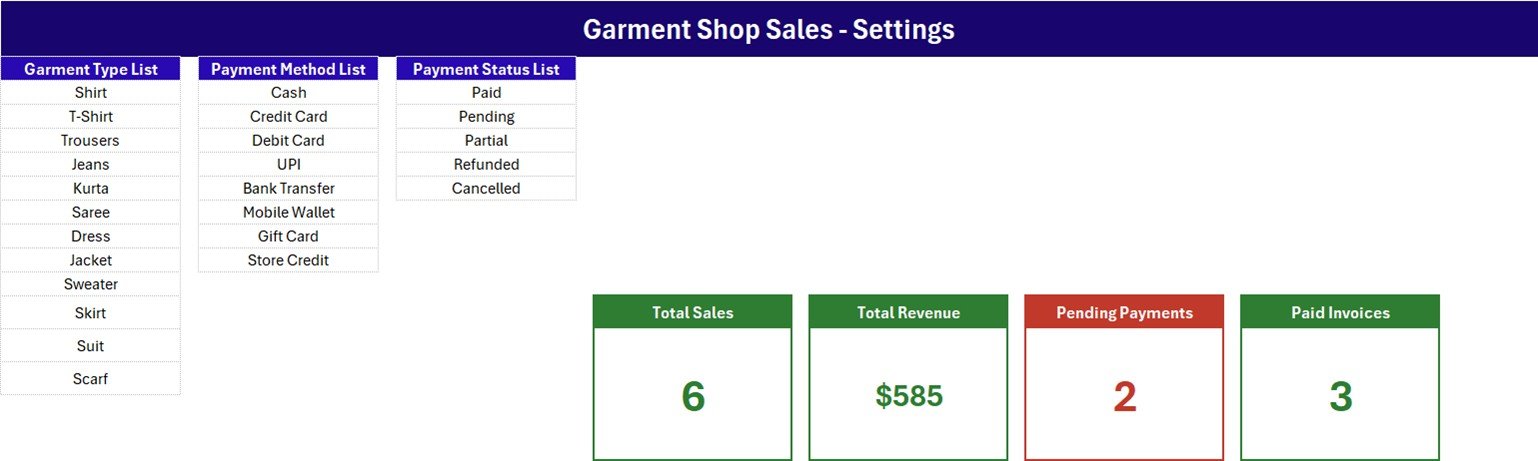
Everything the dropdowns offer is here, in plain cells you can rewrite:
- Garment Type List (12 values): Shirt, T-Shirt, Trousers, Jeans, Kurta, Saree, Dress, Jacket, Sweater, Skirt, Suit, Scarf.
- Payment Method List (8 values): Cash, Credit Card, Debit Card, UPI, Bank Transfer, Mobile Wallet, Gift Card, Store Credit.
- Payment Status List (5 values): Paid, Pending, Partial, Refunded, Cancelled.
The four stat cards live on this sheet too. The cards you see on the Data Entry screen are linked pictures of these ones, which is why they restyle themselves the moment you recolour the originals.
The How To Use page
What the Four Stat Cards Actually Count
These are the real formulas from the Setting sheet, not a marketing description of them. Read them once and the cards will never surprise you:
- Total Sales =
COUNTA('Data Entry'!$C$15:$C$1048576)– a count of the Invoice No column, not the Record ID column. A record saved with no invoice number will not be counted here even though it sits in the table. - Total Revenue =
SUM('Data Entry'!$H$15:$H$1048576)– the sum of every Sale Amount, whatever the payment status. Refunded and Cancelled rows are included. On the six sample rows it totals 585.24 and the card displays it rounded to $585. - Pending Payments =
COUNTIF('Data Entry'!$J$15:$J$1048576,"Pending"). - Paid Invoices =
COUNTIF('Data Entry'!$J$15:$J$1048576,"Paid").
Two consequences worth knowing. Only two of the five payment statuses have a card, so Pending + Paid does not add up to Total Sales – on the sample data that is 2 + 3 against 6 records, because the sixth is Partial. And because Total Revenue ignores status, it is money invoiced, not money collected. If you need collected-only figures, a one-line SUMIF on the Payment Status column will give them to you, and the Setting sheet is the natural place to put it.
How to Use It
- Unzip the download and open
Garment_Shop_Sales_System.xlsmin Excel for Windows on the desktop. Click Enable Content on the yellow security bar. If the file came by e-mail or download and Excel still blocks it, close it, right-click the file, choose Properties and tick Unblock. - Go to the Setting sheet first and rewrite the three lists to match your shop – your own garment types, the payment methods you actually accept, the statuses you actually use.
- Delete the six sample rows from the records table when you are ready to start for real.
- Fill the form on Data Entry and press Add. The Record ID and Entry TimeStamp are written for you.
- To correct a sale, double-click its row, change what is wrong and press Update. To remove one, double-click it (or click any cell in its row) and press Delete, then confirm.
- Reset clears the form without touching the table.
Who It Is For
Boutiques and small clothing shops, tailoring and stitching outlets keeping a sales register beside the order book, school and corporate uniform counters, saree and ethnic-wear stores, market and pop-up stalls, and anyone running a garment side-business who wants a searchable, sortable, filterable record of sales instead of a paper book – and who does not want to learn a POS system to get one.
Specifications
| Item | Detail |
|---|---|
| Format | Macro-enabled Excel workbook (.xlsm), delivered in a ZIP |
| Sheets | 4 – Data Entry, Setting, Instructions, Get More Templates |
| Form fields | 8, plus an auto Record ID and an auto Entry TimeStamp |
| Table columns | 11 |
| Stat cards | 4 – Total Sales, Total Revenue, Pending Payments, Paid Invoices |
| Dropdown lists | 3 – Garment Type (12), Payment Method (8), Payment Status (5) |
| Macros | 4 – Add_Record, Update_Record, Delete_Record, Reset_Form |
| In-table dropdowns | Applied to rows 15-214 (200 rows) – see the note below |
| Sample data | 6 records, GSS-0001 to GSS-0006 |
| Requires | Microsoft Excel for Windows, desktop, with macros enabled |
| Licence | Single-user, non-resale. Fully unlocked and editable |
Two Limits to Know Before You Buy
The in-table dropdowns cover rows 15 to 214. That is 200 records of built-in list validation. The Add button and the stat cards keep working past row 214 – the card formulas run the whole column – but if you expect to store more than 200 sales in one file, drag the validation down the columns once (or start a fresh copy each season, which is what most shops do).
The three lists are fixed ranges. Garment Type reads Setting!$A$3:$A$14, Payment Method $C$3:$C$10 and Payment Status $E$3:$E$7. To add a value, insert a row inside the block – right-click a row in the middle of the list and choose Insert – and Excel widens the range for you. Typing a new value in the first blank cell below a list will not put it in the dropdown; you would have to extend the named range in Formulas > Name Manager.
What It Does Not Do
Being straight about this saves everyone a refund request. This workbook has no stock or inventory tracking – recording a sale does not reduce a garment count anywhere. There is no barcode scanning, no cash-drawer or POS hardware support, no printed receipt or tax invoice, and no GST, VAT or sales-tax calculation of any kind. It is not accounting software and produces no ledger, no P&L and no statutory report. There is no customer database or CRM beyond the Customer Name you type on each sale, no supplier or purchase side, no size or colour variant tracking, no returns workflow beyond the Refunded status, no charts or pivot tables, and no multi-user or cloud sync – it is a single file on a single machine. Nothing in it constitutes tax or accounting advice.
Related Templates
| Template | What it does instead | Price |
|---|---|---|
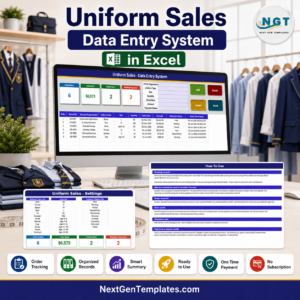
| Uniform Sales Data Entry System in Excel | The same form-and-cards build for a school or corporate uniform counter, with size on every line | 11.99 / 6.99 |
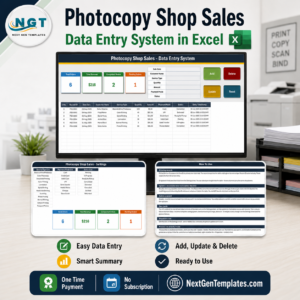
| Photocopy Shop Sales Data Entry System in Excel | The nearest counter-sales sibling outside apparel – same four-button VBA pattern | 11.99 / 6.99 |
| Fashion and Apparel Dashboard in Google Sheets | Analysis rather than entry – charts and slicers over apparel sales data | 18.99 / 9.99 |
| Tailor Shop and Stitching Management System Web App | A full multi-user web app when one Excel file on one PC is no longer enough | 69.99 / 39.99 |
| Retail Sales and Promotion Calendar in Excel | Plans the discounts and campaign dates that drive the sales you record here | 8.99 / 4.99 |
There is also a full step-by-step walkthrough of this workbook – every sheet, every formula, every macro – on our Excel blog: Garment Shop Sales Data Entry System in Excel.
A Footwear Shop Stock Data Entry System in Excel is also on the way as a close retail-stock neighbour to this one – watch the Data Entry Systems category for it.
Frequently Asked Questions
Do I have to enable macros?
Yes. The Add, Update, Delete and Reset buttons are VBA. Without macros enabled the sheets still open and you can type into the table by hand, but none of the four buttons will do anything.
Will it work in Excel on the web, or on a Mac?
Excel for the web cannot run VBA at all, so the buttons are dead there. On Excel for Mac the VBA host is different and macro behaviour, security prompts and file-unblocking all differ, so this workbook is supported on Excel for Windows, desktop only. Google Sheets cannot open it either.
How many sales can it hold?
The stat-card formulas cover the whole column, so the arithmetic does not run out. The built-in dropdown validation in the table is applied to rows 15 to 214 – 200 records – and you can drag it further down whenever you need to.
Can I add my own garment types and payment methods?
Yes, that is what the Setting sheet is for. Rewrite the values in place freely. To make the list longer, insert a row inside the existing block rather than typing below it, so the named range grows with it.
Why do Pending and Paid not add up to Total Sales?
Because only two of the five payment statuses have a card. Partial, Refunded and Cancelled sales are in the table and in Total Revenue, but they are not counted by either the Pending or the Paid card.
Does Total Revenue mean money I have actually received?
No – it is the sum of every Sale Amount regardless of status, so it includes Pending, Partial, Refunded and Cancelled rows. Treat it as invoiced value. A SUMIF against the Payment Status column will give you collected-only figures if you want them.
Is the file locked or password protected?
No. Every sheet, formula, list and macro is open. Restyle it, rename the columns, add your own calculations.
Does it print invoices or handle tax?
No. There is no invoice layout, no receipt printing and no GST, VAT or sales-tax logic anywhere in the workbook. The Invoice No column is a place to record the number your existing billing produces, not a place to generate one.