

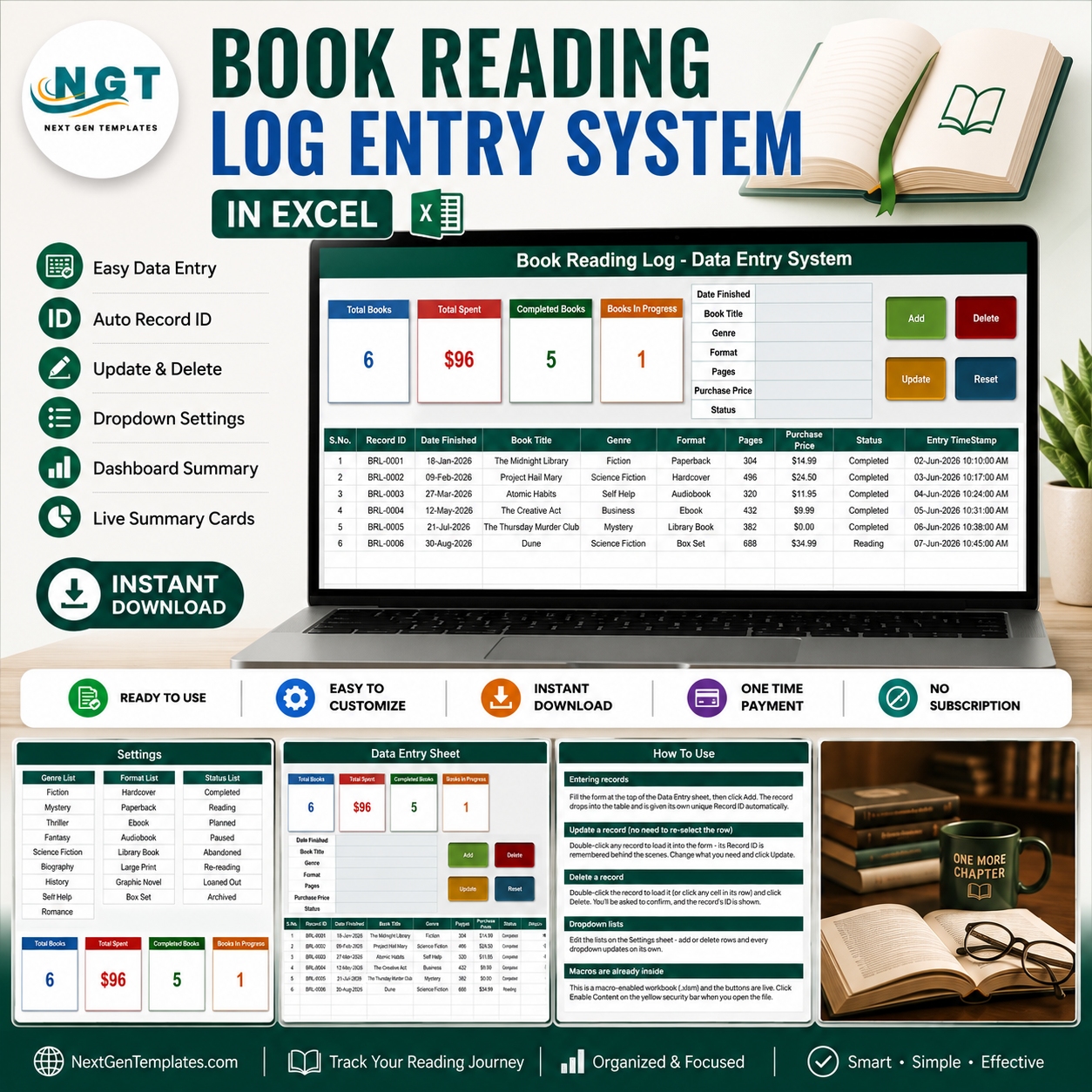
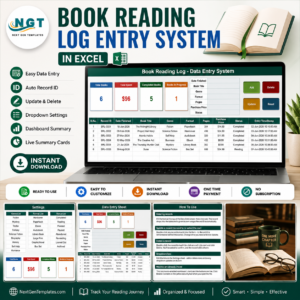
The Book Reading Log Data Entry System in Excel records 7 fields for every book you read – Date Finished, Book Title, Genre, Format, Pages and Purchase Price, plus a Status – and stamps each saved row with its own Record ID and an entry timestamp. Four live summary cards sit above the form: Total Books, Total Spent, Completed Books and Books In Progress. Three dropdown lists ship pre-filled with 10 genres, 8 formats and 8 reading statuses, and you edit all three on one Setting sheet. Setup takes under 10 minutes – open the workbook, enable macros, delete the 6 sample rows and start logging.
🌍 Join 8,400+ readers and teams in 40+ countries using NextGenTemplates to replace subscription apps with one-time-purchase Excel, Google Sheets and Power BI templates.
✅ Instant download · One-time payment · No subscription · No per-user fees · Lifetime access
⚠️ Read this first: this is a manual record-keeping workbook. Everything in it is typed in by you. It does not look up or validate ISBNs, it does not fetch titles, authors, covers or page counts from any catalogue or API, and it does not sync with Goodreads, StoryGraph, Kindle, Audible, Libby or a library system. It tracks nothing automatically – no reading time, no progress, no page counts. It is also a single-user desktop workbook: there are no accounts, no sharing and no multi-user features, so it is not a library circulation or lending-management system.
🔑 Key Features of the Book Reading Log Data Entry System
🔹 A 7-field entry form with four live buttons. The form on the Data Entry sheet collects Date Finished, Book Title, Genre, Format, Pages, Purchase Price and Status. Add, Update, Delete and Reset are real VBA buttons wired to the sheet, not pictures – Add writes a new row and Reset clears the form for the next book.
🔹 Record IDs are generated for you. Every saved book gets a sequential ID in the BRL-0001 format plus an Entry TimeStamp in the last column, so two editions of the same title never get confused and you always know when a row was keyed in.
🔹 Update without re-selecting the row. Double-click any record to load it back into the form. The workbook remembers its Record ID behind the scenes, so you can change any field, click Update, and it finds and saves the right row wherever it has moved to in the table.
🔹 Four summary cards that refresh themselves. Total Books, Total Spent, Completed Books and Books In Progress. The cards on the Data Entry sheet are linked pictures of the real cards on the Setting sheet, so they update as you type and restyle when you restyle the source.
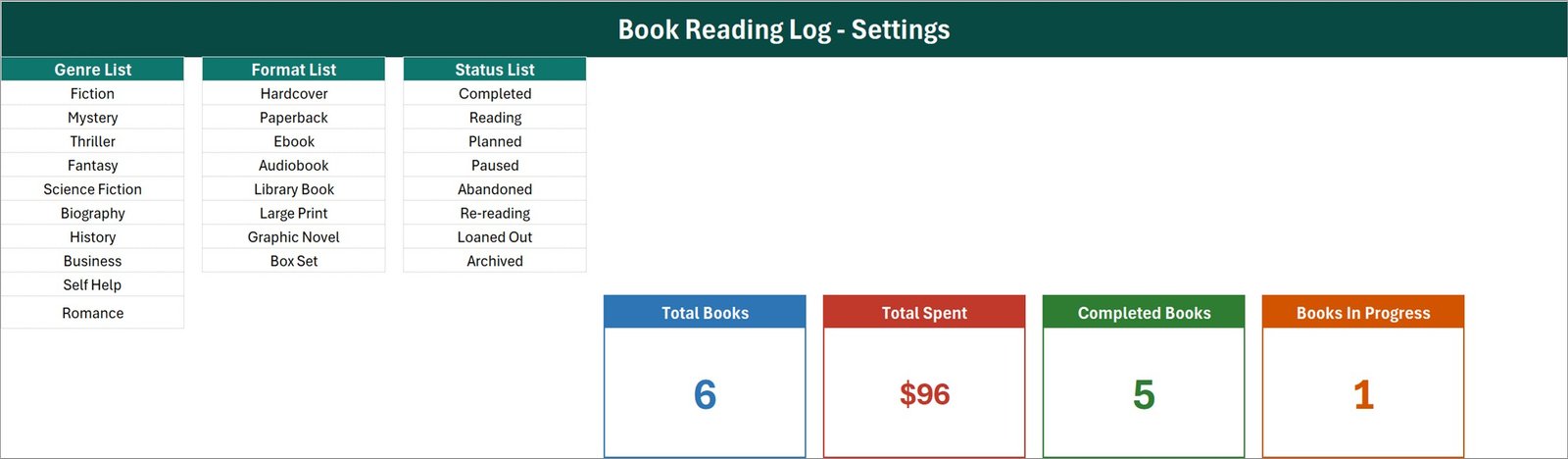
🔹 Three dropdown lists you own. Genre ships with Fiction, Mystery, Thriller, Fantasy, Science Fiction, Biography, History, Business, Self Help and Romance. Format ships with Hardcover, Paperback, Ebook, Audiobook, Library Book, Large Print, Graphic Novel and Box Set. Status ships with Completed, Reading, Planned, Paused, Abandoned, Re-reading, Loaned Out and Archived. Add or delete rows on the Setting sheet and every dropdown follows.
🔹 Type in the form or straight into the table. The table columns carry the same data validation as the form, so a fast typist can key a row directly and still get the dropdowns.
🔹 Audiobooks, library loans and box sets all fit. The Format list already covers them, and the Purchase Price column takes 0.00 for a borrowed book – the sample row for a library loan does exactly that.
📦 What Is Inside the Book Reading Log Data Entry System
The download is a single macro-enabled workbook, Book_Reading_Log_System.xlsm, with four sheets: Data Entry, Setting, Instructions and Get More Templates. Here is what the first three look like.
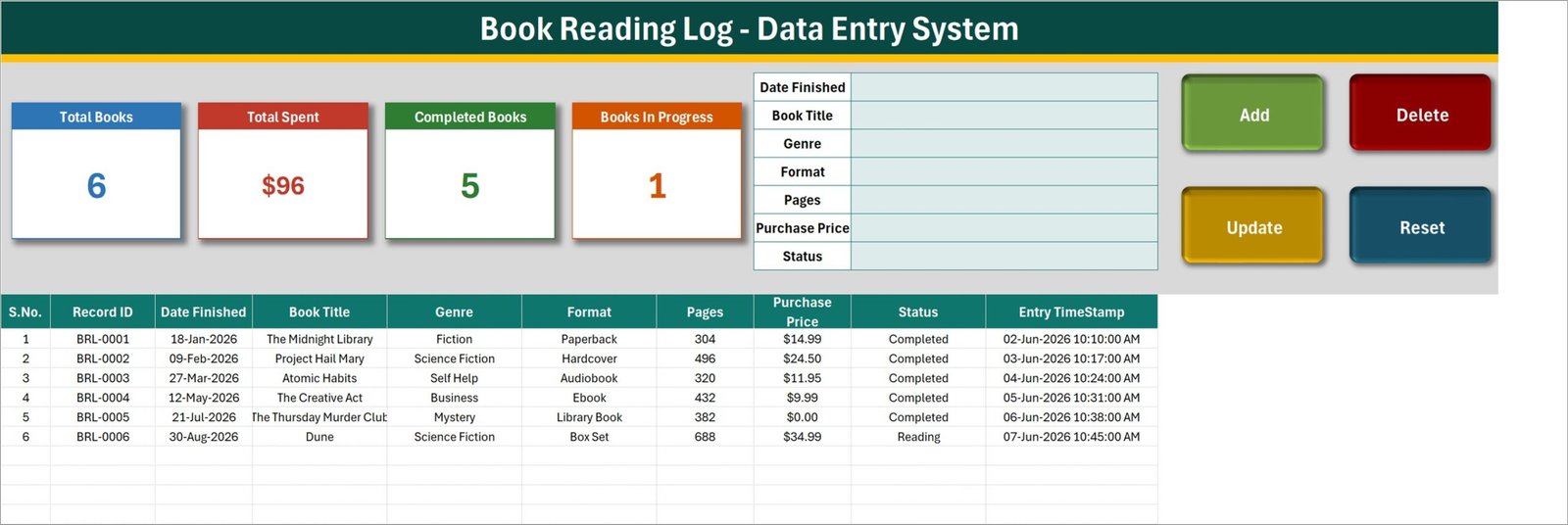
Sheet 1: Data Entry – form, summary cards and the book table
The entry form, the four summary cards and the Add / Update / Delete / Reset buttons sit across the top. Below them the book table lists S.No., Record ID, Date Finished, Book Title, Genre, Format, Pages, Purchase Price, Status and Entry TimeStamp. The six rows shown are sample data – delete them before you start.
Sheet 2: Setting – the three dropdown lists and the source cards
This sheet holds the Genre List (10 entries), the Format List (8) and the Status List (8) side by side, plus the four live summary cards that the Data Entry sheet mirrors. Edit a list here and the matching dropdown updates on its own.
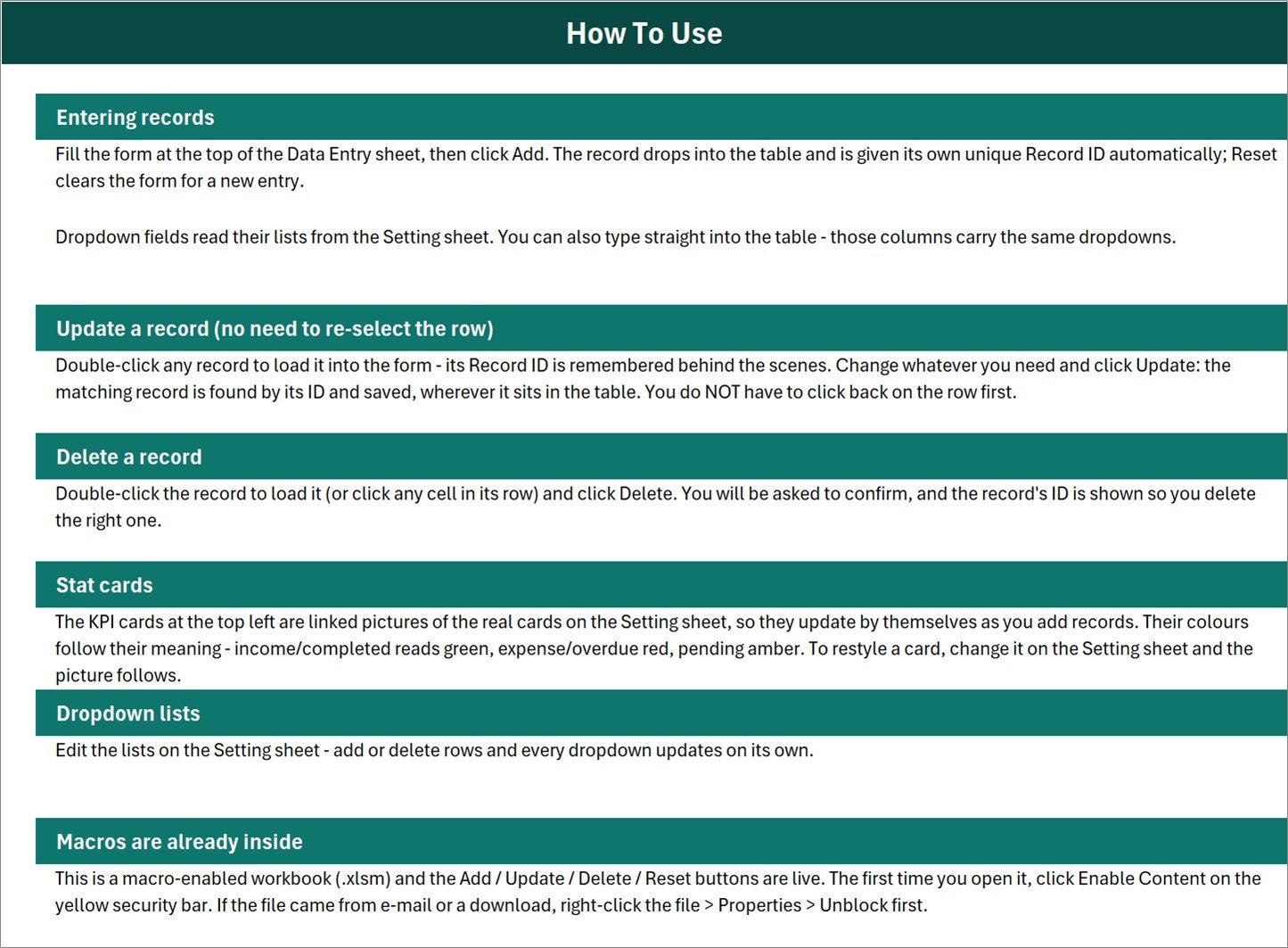
Sheet 3: Instructions – How To Use, in plain English
Six short sections cover entering records, updating without re-selecting the row, deleting with a confirmation prompt, how the linked-picture stat cards work, editing the dropdown lists, and enabling macros the first time you open the file.
The fourth sheet, Get More Templates, simply links back to the rest of the MS Excel template library.
📊 Book Reading Log Data Entry System vs. a Plain Spreadsheet vs. a Reading App
| Feature | Book Reading Log Data Entry System in Excel | Plain spreadsheet you build | Goodreads / StoryGraph / Bookly |
|---|---|---|---|
| Cost | $6.99 one-time ✅ | Free, but you build it yourself | Free tier, or roughly $3-6 per month for the paid apps |
| Platform | Desktop Microsoft Excel for Windows (.xlsm) | Any spreadsheet | Web plus phone app |
| Setup time | Under 10 minutes ✅ | Hours of formula and validation work | Minutes, once you have an account |
| Add / Update / Delete buttons | Built in via VBA ✅ | None unless you write them | Yes |
| Auto Record ID and entry timestamp | Yes, on every row ✅ | Manual formulas | Hidden from you |
| Book metadata and covers looked up for you | No – you type every field | No | Yes ✅ |
| Tracks what you spent on books | Yes – Purchase Price column and a Total Spent card ✅ | If you add it | Rarely, and not as a running total |
| Your data stays on your own machine | Yes – one file, no account, works offline ✅ | Yes ✅ | No – it lives on their servers |
| Social feed, reviews and friends | No | No | Yes ✅ |
| Cost over 3 years | $6.99 total ✅ | $0 plus your build time | $0 on the free tier, or $110-215 on a paid plan |
If you want a social feed and automatic cover art, use an app. If you want a private, offline, one-file record of what you read, when you finished it and what it cost you, this workbook is built for exactly that.
👥 Who This Template Is For – and Who It Is Not For
✅ This template is built for:
- Readers who finish 20-300 books a year and want one private list instead of an app account
- Anyone running a yearly reading challenge who wants a count of completed books and a running spend
- People who buy a lot of books and want to see what the habit actually costs, by format and genre
- Excel users who prefer a form with buttons over typing into a bare grid
- Readers who want their log to stay offline, on their own PC, with no account attached to it
❌ This template is NOT for:
- Anyone expecting the workbook to look up ISBNs, authors, covers or page counts – you type every field yourself
- Syncing with Goodreads, StoryGraph, Kindle, Audible, Libby or a library catalogue – there is no connection of any kind
- Running a library, classroom set or book club as a shared system – this is a single-user desktop file with no sharing, no logins and no lending workflow
- Automatic progress or reading-time tracking – nothing is measured for you
- Mac users, Excel for the web or Google Sheets users – the VBA buttons need desktop Excel for Windows
⚙️ How to Use the Book Reading Log Data Entry System
- Unzip the download and open
Book_Reading_Log_System.xlsmin desktop Excel. Click Enable Content on the yellow bar; if the file came by e-mail, right-click it, choose Properties and tick Unblock first. - Open the Setting sheet and edit the Genre, Format and Status lists so they match how you actually read – swap in Poetry, Manga, Horror, whatever you use.
- Go to the Data Entry sheet and delete the six sample rows, BRL-0001 to BRL-0006, so you start from a clean table.
- Fill the form – Date Finished, Book Title, Genre, Format, Pages, Purchase Price, Status – and click Add. The Record ID and Entry TimeStamp are written for you.
- To change a book, double-click its row, edit the form and click Update. To remove one, double-click it and click Delete, then confirm the Record ID shown in the prompt.
- Watch the four cards. They recalculate as you add rows, so Total Books, Total Spent, Completed Books and Books In Progress are always in view.
- Put a date in Date Finished on every row. The Total Books card counts that column, so a row with the date left blank is not included in the total – see the FAQ below.
💼 Real-World Use Cases
Sam is three years into a 52-books-a-year challenge. Every time he finishes something he keys the date, the title, the genre and the format, and clicks Add. The Completed Books card is his running score, and at year end he sorts the Genre column to see how badly the Science Fiction pile outweighs everything else.
Nadia wants to know what reading actually costs her. She fills in Purchase Price honestly – full price for hardbacks, $0.00 for the library and borrowed copies – and the Total Spent card gives her the number. Filtering the Format column tells her how much of it went on audiobooks, which is the answer she was avoiding.
Tom keeps a personal record of a large home library. He uses the Status list to mark books Loaned Out when a friend takes one and Archived when he passes it on, so the log stays a truthful picture of what is still on the shelf. It is his own record, not a lending system – the workbook does not send reminders or track due dates.
❓ Frequently Asked Questions
Does the Book Reading Log Data Entry System look up book details for me?
No. Everything is typed in by hand. The Book Reading Log Data Entry System does not look up or validate ISBNs, it does not fetch titles, authors, covers, publishers or page counts from any catalogue or API, and it does not sync with Goodreads, StoryGraph, Kindle, Audible, Libby or a library system. It is a manual record of books you enter yourself.
Do I need to enable macros, and will it work on a Mac?
Yes to macros – the Add, Update, Delete and Reset buttons are VBA, so click Enable Content the first time you open the file. The Book Reading Log Data Entry System is built for desktop Microsoft Excel for Windows. Excel for the web, Excel for Mac and Google Sheets will not run the buttons.
Why does the Total Books card not count a book I just added?
Because the Total Books card counts the Date Finished column, not the Record ID column – the formula on the Setting sheet is COUNTA('Data Entry'!$C$15:$C$1048576). A row you add with the Date Finished left blank, which is natural for a book you are still reading or only planning, is stored correctly but is not counted by that card. Put a date in every row, or change the formula to count column B instead.
Do the Completed and In Progress cards add up to Total Books?
Only if every row uses one of those two statuses. The Status list has 8 entries but only two of them get a card: Completed Books counts Status = “Completed” and Books In Progress counts Status = “Reading”. Planned, Paused, Abandoned, Re-reading, Loaned Out and Archived rows have no card of their own. Nothing is wrong with the counts – there is just no card for the other six. Add one on the Setting sheet with a COUNTIF if you want it.
Does the Total Spent card exclude books I abandoned or borrowed?
No, and it is worth knowing. Total Spent sums the whole Purchase Price column with SUM, whatever the Status says, so Abandoned, Planned and Loaned Out rows are all included. Read it as total money spent on books in the log. Borrowed and library copies contribute nothing because you enter 0.00 for them. For a filtered figure, swap the formula on the Setting sheet for a SUMIF.
How many books can it hold?
There is no fixed cap built into the Book Reading Log Data Entry System – the summary-card formulas read to the bottom of the sheet, so the limit is Excel’s own row limit. In practice a few thousand rows stay comfortably fast on ordinary hardware, which is a lifetime of reading for most people.
Can I change the genres, formats and statuses?
Yes. All three lists live on the Setting sheet of the Book Reading Log Data Entry System – Genre has 10 entries, Format and Status have 8 each. Add rows, delete rows or rename entries and every dropdown, in the form and in the table, updates automatically. No formula editing required.
Is this the same thing as your Reading List Checklist templates?
No. The Reading List Checklist in Excel and in Google Sheets are simple tick-box lists at $1.99. The Book Reading Log Data Entry System in Excel is a macro-enabled workbook with a VBA form, Add / Update / Delete / Reset buttons, automatic Record IDs and timestamps, four live summary cards and three managed dropdown lists. Buy the checklist if you want a list; buy this if you want a record.
👤 About the Author
Built by PK – Microsoft Certified Professional with 15+ years of Excel, Google Sheets and Power BI experience. Founder of NextGenTemplates, reaching 300K+ subscribers across YouTube channels (@PK-AnExcelExpert, @NextGenTemplates, @NeoTechNavigators). Every template is hand-built and tested before release.
🔗 Explore Related Templates
- Library Book Issue Data Entry System in Excel – the lending-side workbook, for logging books issued and returned rather than books you have read.
- Reading List Checklist Template in Excel – the simple tick-box version, if a form and Record IDs are more than you need.
- Reading List Checklist in Google Sheets – the same checklist for people who live in the browser.
- Library Services KPI Dashboard in Google Sheets – reporting for an actual library service, once counting rows is not enough.
- Specialty Bookstores Dashboard in Excel – the trade side of books: stock, titles and sales analysis.
- Meal Planner and Grocery List in Google Sheets – another personal-life template from the same catalogue.
Browse more MS Excel templates and Excel VBA tools for other record-keeping jobs.
📖 Click here to read the Detailed Blog Post
🎥 Visit our YouTube channel for step-by-step video tutorials
👉 YouTube.com/@NextGenTemplates
📅 Last updated: August 2026





Reviews
There are no reviews yet.