

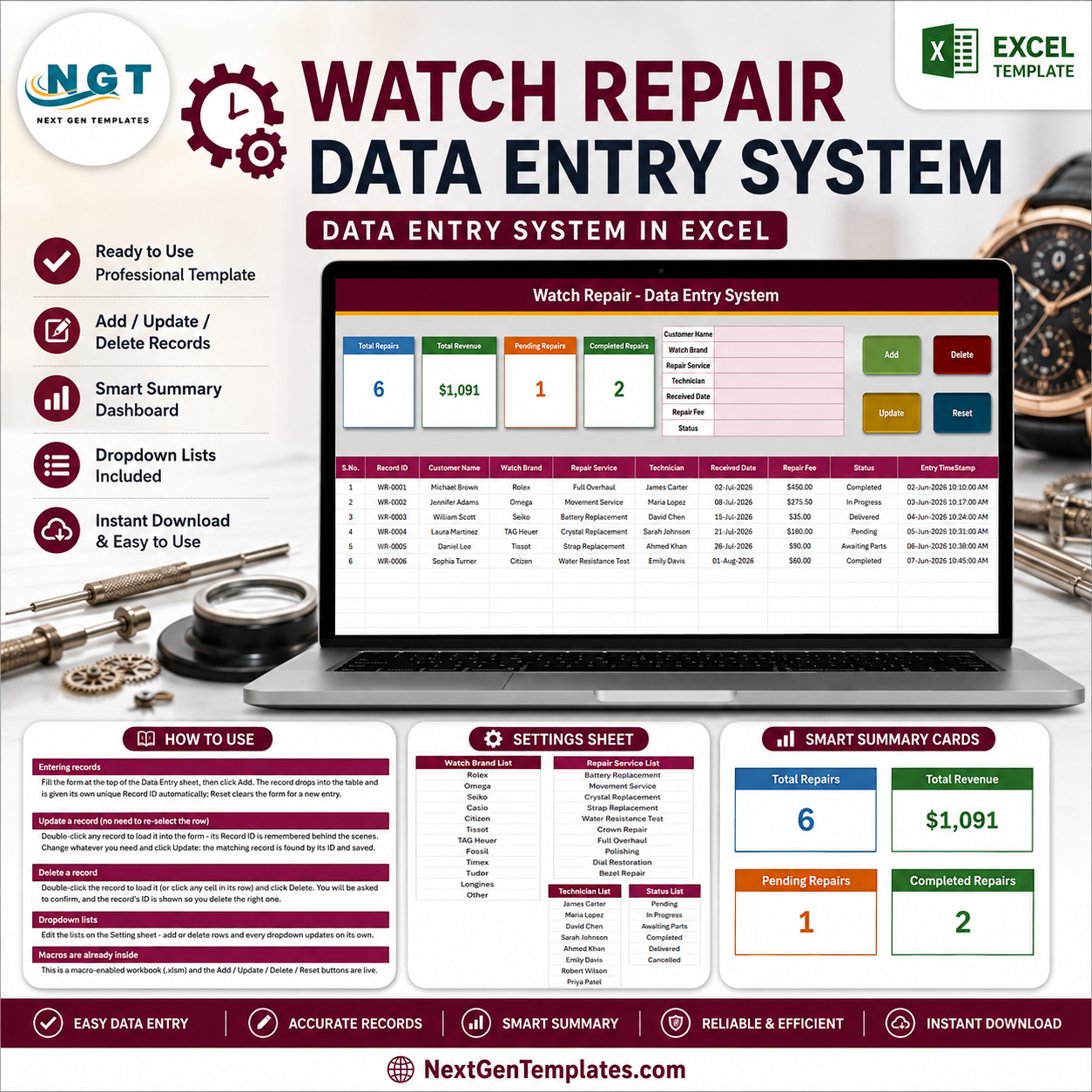
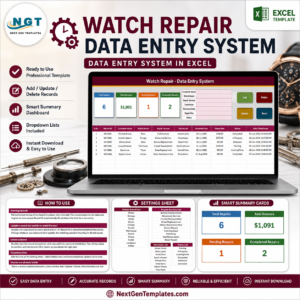
The Watch Repair Data Entry System in Excel turns a repair shop’s daily intake into one structured workbook: 3 focused sheets, 7 form fields, 10 table columns, 4 live summary cards and 6 sample jobs ready for practice. Add, find, update and delete records through VBA buttons while Excel assigns each repair a unique ID and timestamp. It is a one-time download, not a subscription, and the editable Settings sheet keeps your brand, service, technician and status lists under your control. Use the sample data to test the workflow, then remove it and start your own register.
Key Features of the Watch Repair Data Entry System in Excel
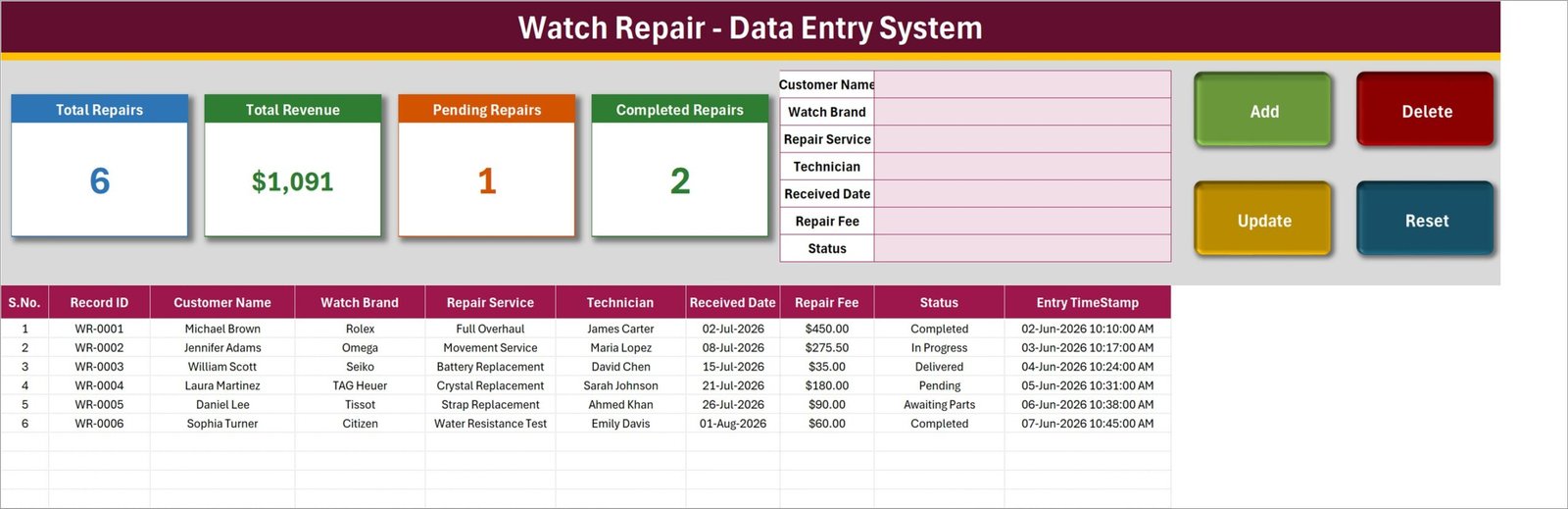
- Guided intake form: capture customer, watch brand, repair service, technician, received date, fee and status without typing into a wide table.
- Four working buttons: Add, Update, Delete and Reset streamline the everyday record cycle.
- Automatic identifiers: every new row receives a Record ID and Entry TimeStamp for easier lookup and audit follow-up.
- Double-click editing: load an existing row into the form, change it and save back to the matching ID without reselecting the row.
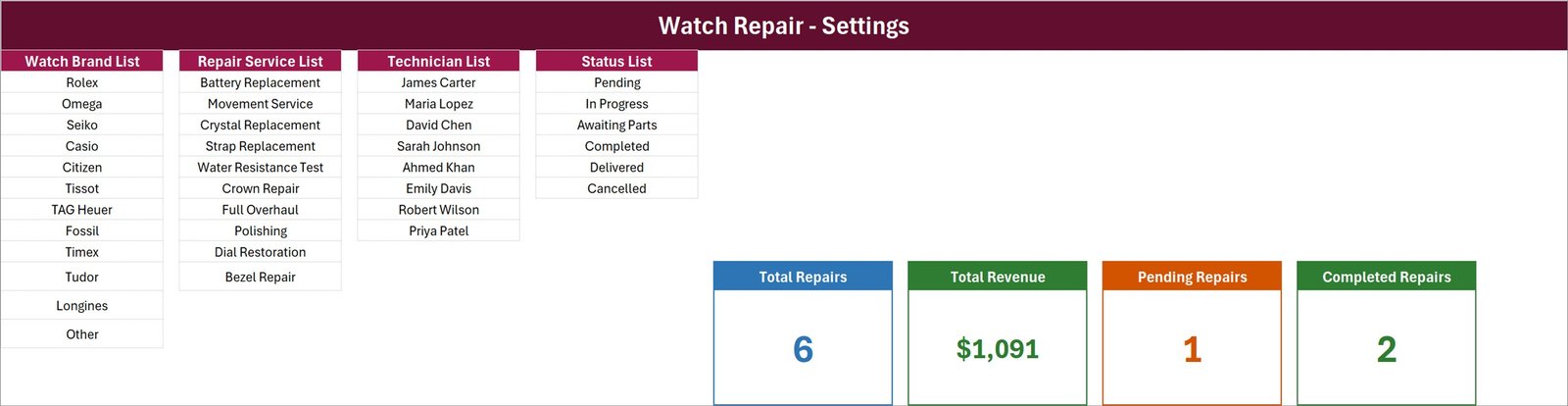
- Editable dropdown lists: maintain watch brands, repair services, technicians and statuses on the Settings sheet.
- Live summary cards: monitor Total Repairs, Total Revenue, Pending Repairs and Completed Repairs as the register changes.
- Macro-enabled delivery: the downloadable ZIP contains the ready-to-use .xlsm workbook.
What’s Inside the Watch Repair Data Entry System in Excel
Data Entry sheet
This is the working screen for front-desk intake. The sample register shows six jobs across brands including Rolex, Omega, Seiko, TAG Heuer, Tissot and Citizen, with services ranging from battery replacement to full overhaul. The table keeps S.No., Record ID, customer name, brand, service, technician, received date, fee, status and timestamp together.
Settings sheet
Edit the four source lists in one place. The screenshot includes 12 brand choices, 10 repair services, 8 technicians and 6 status values. The same sheet holds the source cards used by the linked summary pictures, so a style change there follows through to the entry page.
How To Use sheet
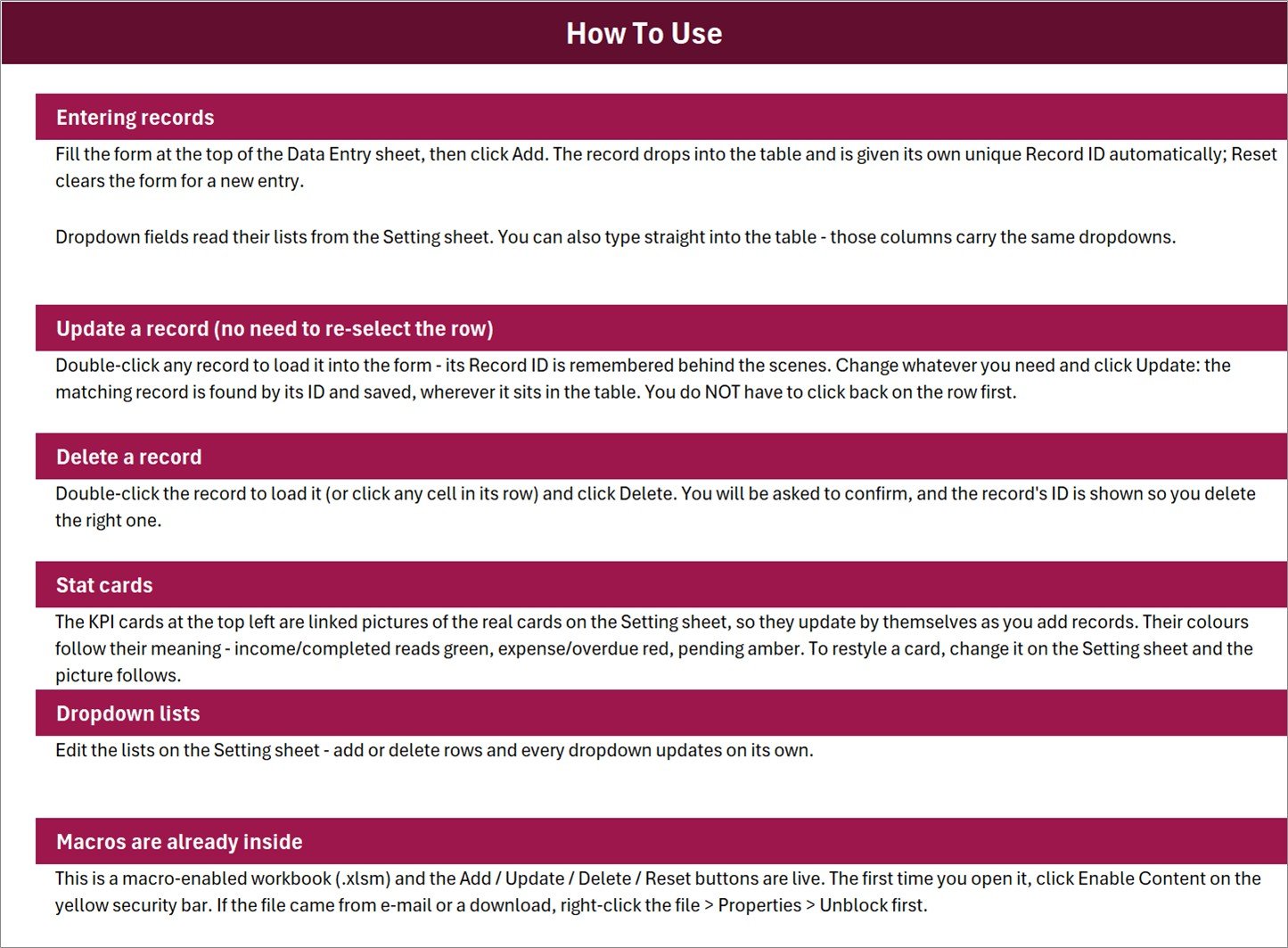
The workbook itself explains entering, updating and deleting records, maintaining dropdowns and enabling macros. The update workflow remembers the selected Record ID behind the scenes; the delete workflow asks for confirmation and shows the ID before removing the row.
Watch Repair Data Entry System in Excel vs. Google Sheets vs. Paid Repair SaaS – Where This Fits
| Capability | This Excel template | Google Sheets register | Paid repair SaaS |
|---|---|---|---|
| Cost | One-time purchase | Usually free to build | Recurring plan |
| Platform | Desktop Microsoft Excel | Browser / Sheets app | Vendor cloud |
| Setup | Open, enable macros, edit lists | Build formulas and scripts | Configure account and users |
| Add / update / delete form | Included with VBA | Needs Apps Script or manual rows | Usually included |
| Unique repair IDs | Automatic | Must be configured | Usually included |
| Team collaboration | File-based | Real time | Real time |
| Custom lists | Fully editable in workbook | Editable | Depends on plan |
| Customer messaging, payments, inventory | Not included | Not included by default | May be included |
Who This Template Is For – and Who It’s Not For
Good fit: independent watchmakers, jewellery repair counters, service desks and small workshops that need a tidy local record of incoming repairs, fees, technicians and status. It also suits a shop moving away from paper job books but not ready for a multi-user service platform.
Not a fit: businesses that require simultaneous multi-user editing, barcode scanning, parts inventory, customer portals, automated SMS, payment processing, warranty claims, accounting integration or regulatory documentation. This is a private administrative register; it does not authenticate watches, value items, diagnose faults, prove water resistance, generate legal receipts or replace insurance and custody procedures.
How to Use the Watch Repair Data Entry System in Excel
- Unzip the download and open
Watch_Repair_System.xlsmin desktop Excel. - If Windows blocks the file, right-click it, choose Properties and select Unblock; then open it and click Enable Content.
- Replace the sample brands, services, technicians and statuses on the Settings sheet.
- Delete the six demonstration rows before entering real customer information.
- Complete the seven form fields and click Add. Double-click a row to load it for Update or Delete.
- Keep backups and apply suitable access controls because the register may contain customer names and repair details.
Real-World Use Cases
Aisha, an independent watchmaker, checks pending jobs each morning and assigns each intake to the correct technician. Daniel, a jewellery-store manager, compares completed and pending counts before the service counter closes. Meera, a workshop administrator, uses Record IDs when customers call for a status update, then updates the row without searching across paper forms.
Frequently Asked Questions
Does it work in Excel for the web or Google Sheets?
No. The Add, Update, Delete and Reset controls use VBA and require desktop Microsoft Excel.
Are macros required?
Yes. Enable Content after checking the file came from this purchase. The workbook’s automated buttons will not run while macros are disabled.
Can I change the dropdown lists?
Yes. Edit the brand, service, technician and status lists on the Settings sheet.
Does it track parts or stock?
No. It records the repair job, fee and status; it does not include parts inventory or purchase ordering.
Can several staff edit it at the same time?
It is designed as a desktop workbook, not a concurrent database. Use an agreed file owner and a backup routine.
Is the sample information real?
No. The six rows and names are demonstration data and should be deleted before use.
About the Author
Built by PK – Microsoft Certified Professional with 15+ years of Excel, Google Sheets, and Power BI experience. Founder of NextGenTemplates, reaching 300K+ subscribers across YouTube channels. Every template is hand-built and tested before release.
Explore Related Templates
- Gift Register Data Entry System in Excel
- Harvest Record Data Entry System in Excel
- Livestock Register Data Entry System in Excel
- Browse Excel VBA tools or Excel trackers.
Ready to replace the repair notebook? Download the workbook, test the sample jobs, tailor the four lists and begin with your next intake. For a detailed walkthrough, see the Watch Repair Data Entry System guide.
Last updated: August 18, 2026.










Reviews
There are no reviews yet.