

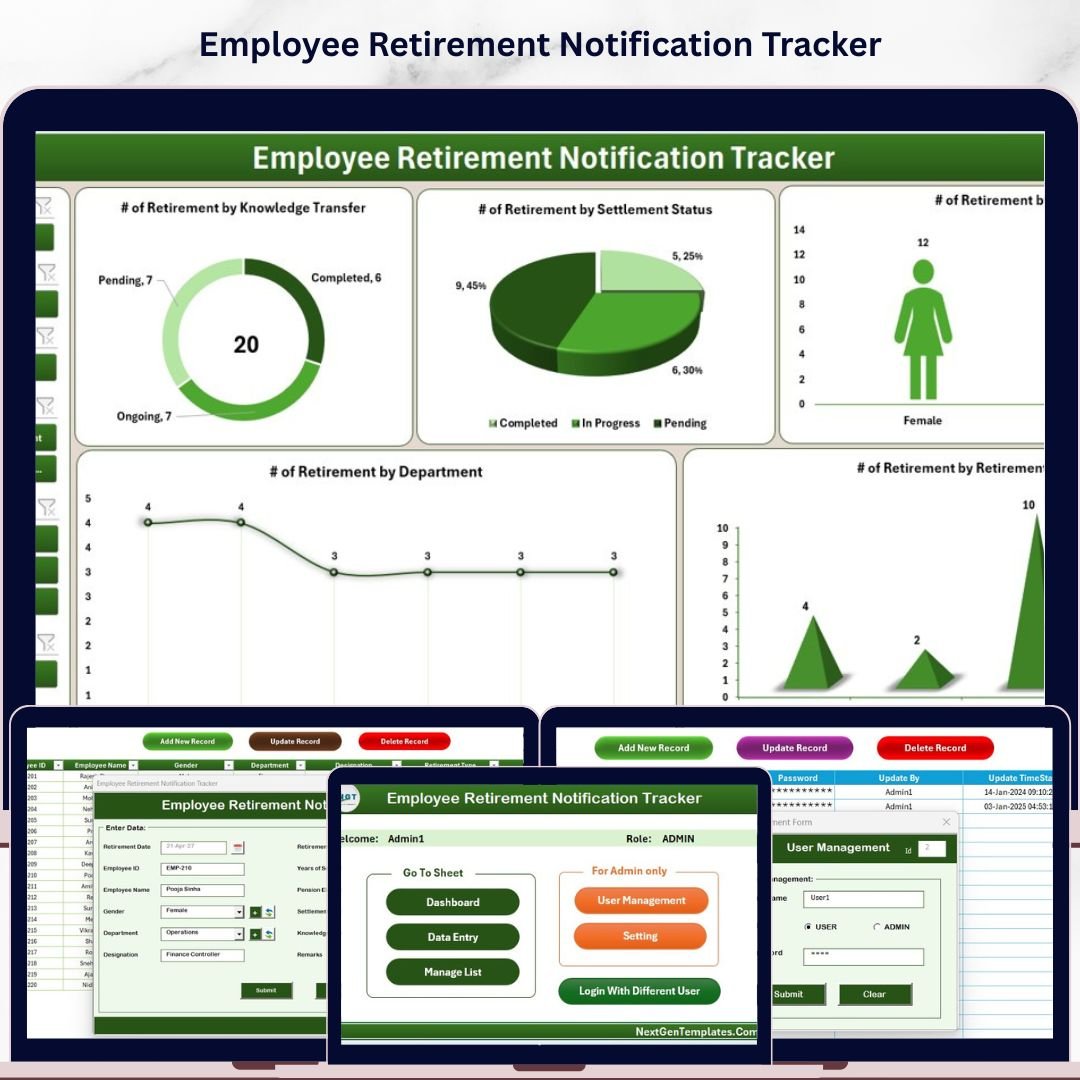
The Employee Retirement Notification Tracker in Excel manages 8 connected worksheets for HR teams who need to track upcoming retirements across departments and locations. The Dashboard runs on 4 slicers and 5 dynamic charts, and the Data Sheet uses a VBA-powered form with Add, Update, and Delete buttons that refresh every chart automatically. Login authentication and a built-in User Management sheet protect sensitive employee retirement data — fully ready in under 10 minutes.
🌍 Join 8,400+ teams in 40+ countries using NextGenTemplates to replace paid HRIS subscriptions with one-time-purchase Excel, Google Sheets, and Power BI tools.
✅ Instant download · One-time payment · No subscription · No per-user fees · Lifetime access
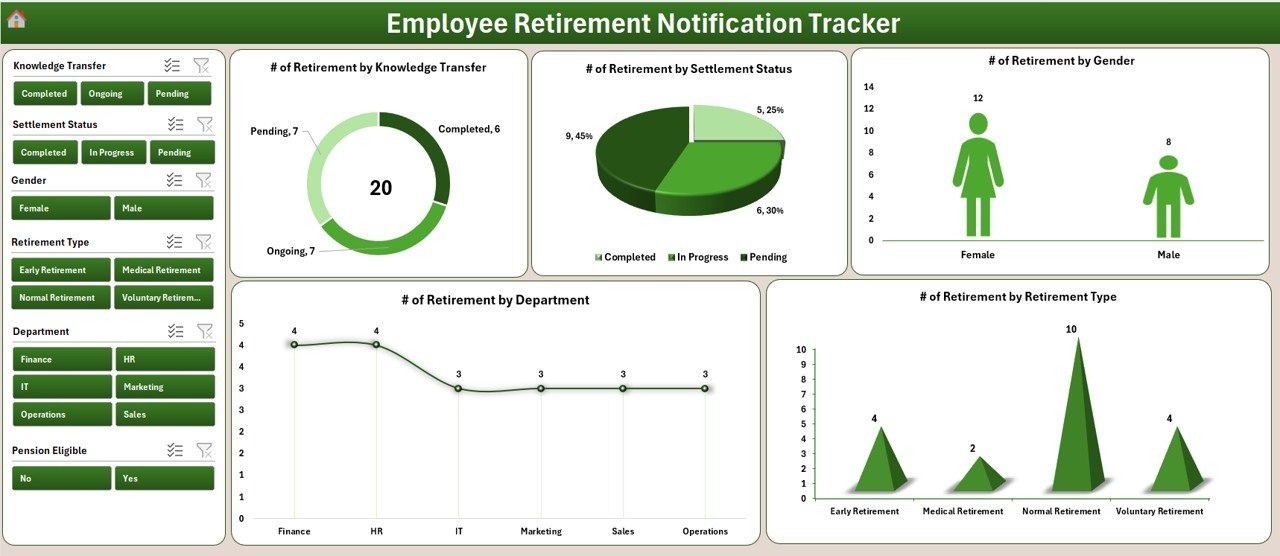
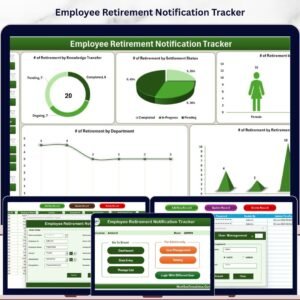
Employee Retirement Notification Tracker in Excel — Dashboard Overview
🔑 Key Features of the Employee Retirement Notification Tracker in Excel
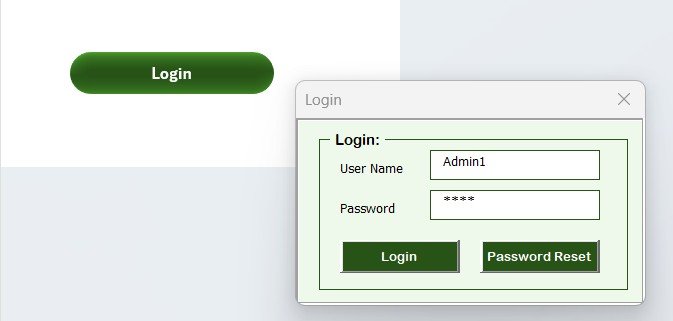
🔐 Login Form with Secure Access — A password-protected entry point ensures only authorized HR personnel can view or edit retirement records. Use the credentials defined in the User Management sheet to log in. This protects sensitive employee birth dates, retirement timelines, and pension-related data from accidental edits or unauthorized access.
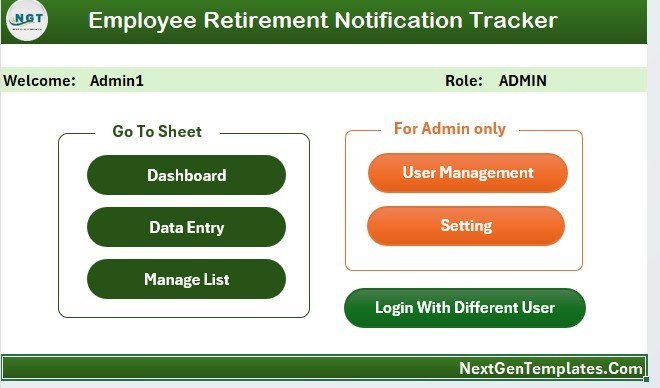
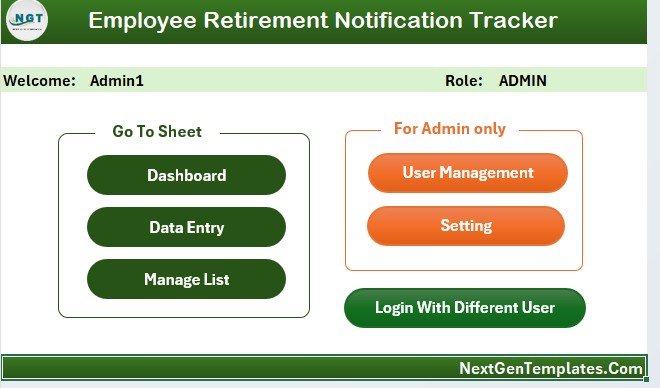
🏠 Home Page Navigation Hub — A central control panel with quick-access buttons to every sheet — Dashboard, Data Sheet, List, Settings, and User Management. The Home Page replaces clunky tab navigation with a clean menu screen, so even non-technical HR staff find what they need in one click.
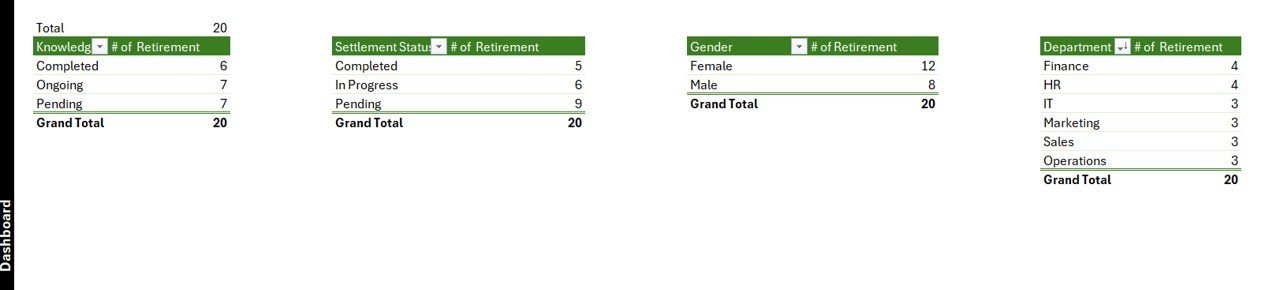
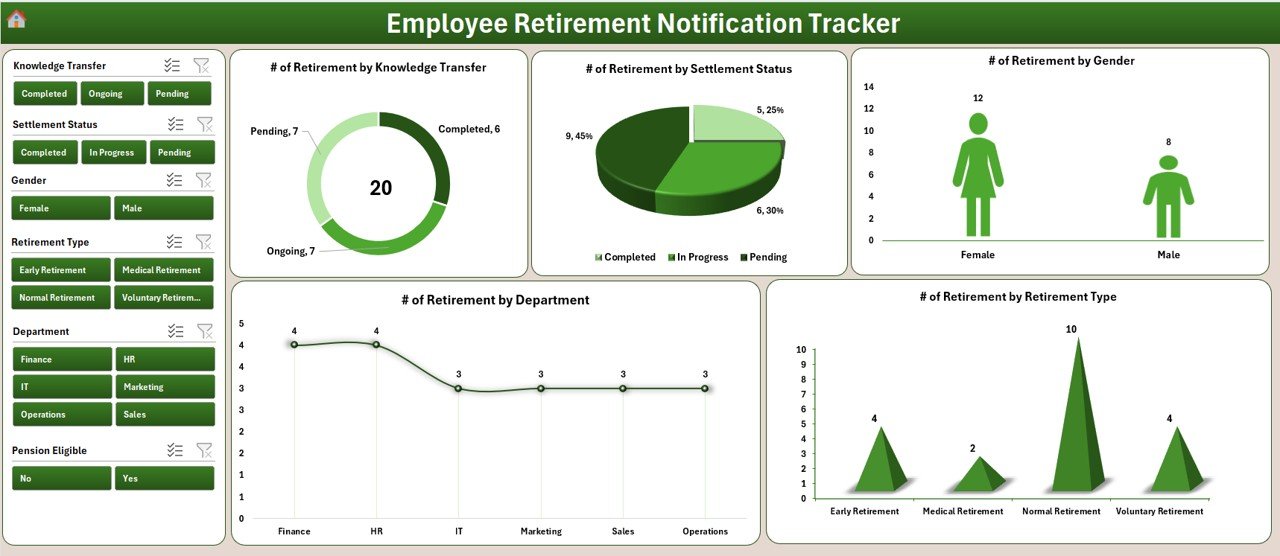
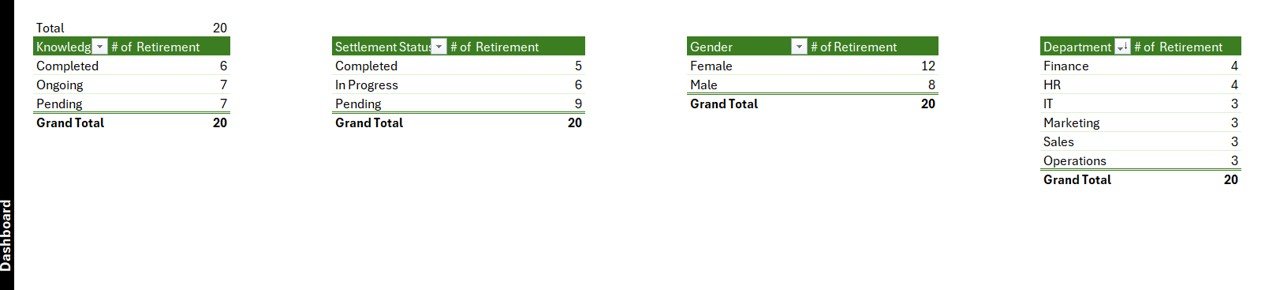
📊 Interactive Dashboard with 4 Slicers and 5 Charts — The Dashboard sheet visualizes upcoming retirements by department, location, designation, and retirement year. 4 slicers let you filter the data instantly, and 5 dynamic charts (covering retirement counts by department, location, age band, status, and yearly trends) refresh automatically when new records are added.
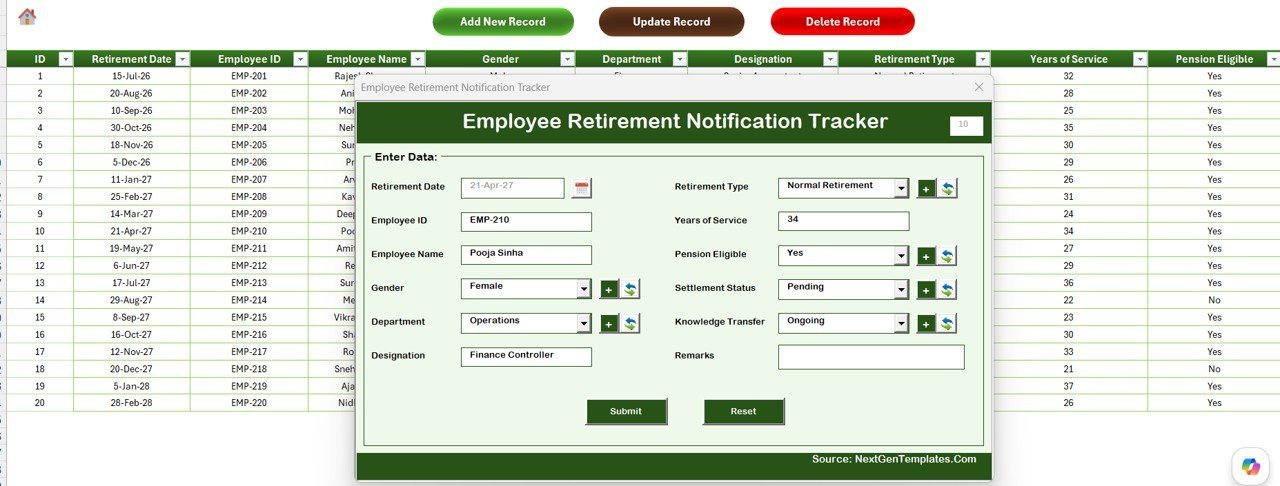
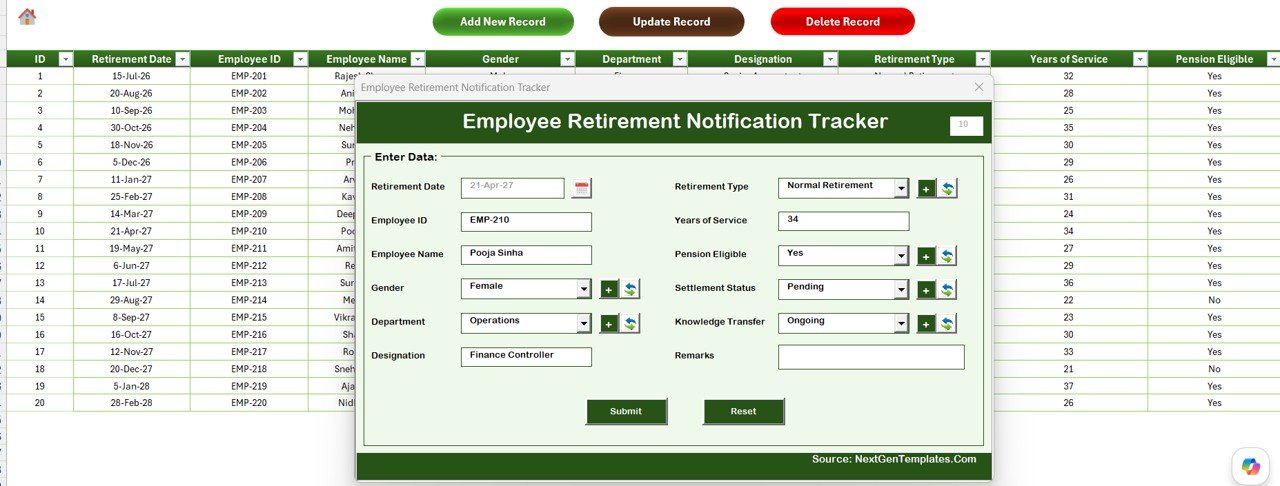
📝 VBA-Powered Data Entry Form (Add, Update, Delete) — On the Data Sheet, three command buttons drive a fully validated UserForm. Click Add New Record to open a blank form; Update Record auto-fills the form with the selected employee’s existing data; Delete Record removes the entry after a confirmation prompt. Every action refreshes the Dashboard automatically.
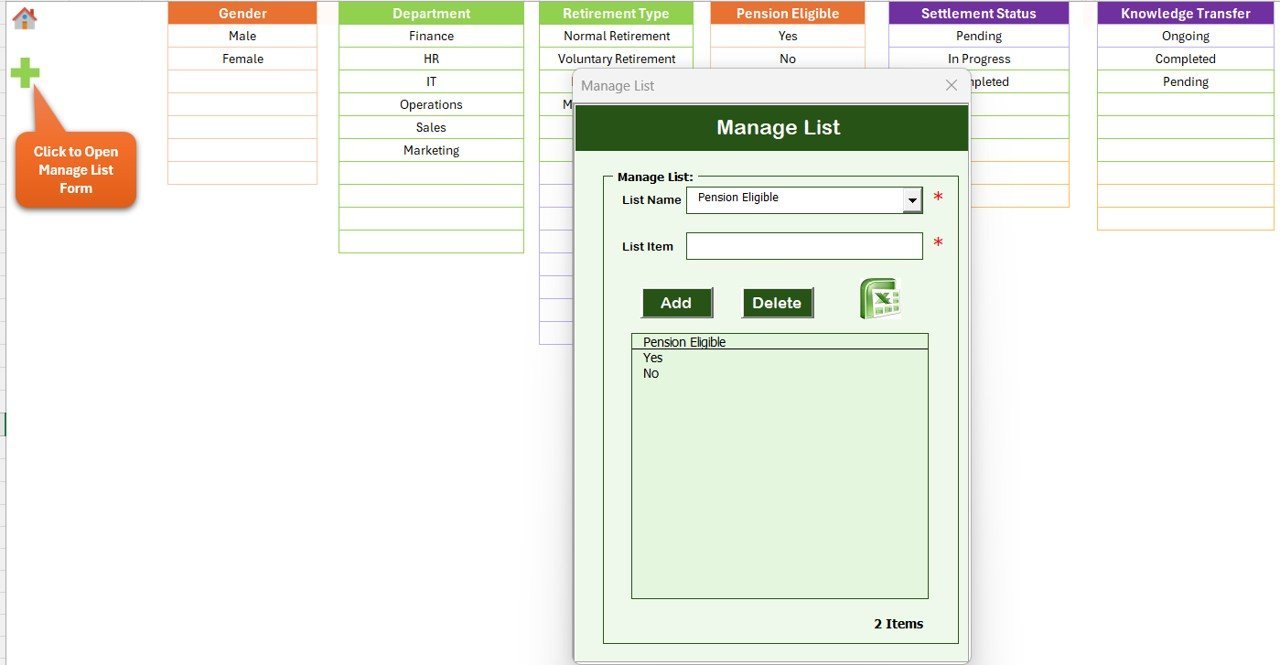
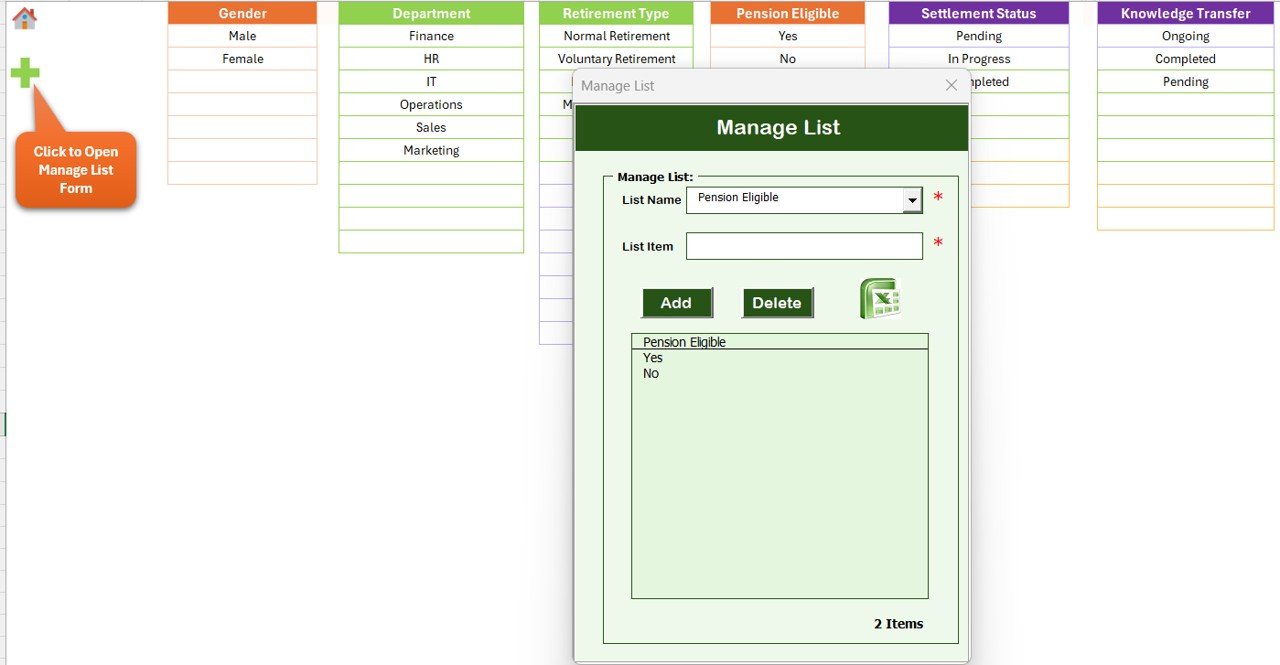
📋 List Sheet for Editable Dropdowns — All combo boxes inside the data entry form pull from the List Sheet — departments, locations, designations, retirement statuses, and any custom field. Edit one cell and every dropdown updates, with no VBA editing required.
📈 Support Sheet (Pivot Table Backend) — A hidden support tab holds the pivot tables that feed the Dashboard charts. You don’t need to touch this — Excel refreshes it whenever data changes. You can hide this sheet from end users to keep the workspace clean.
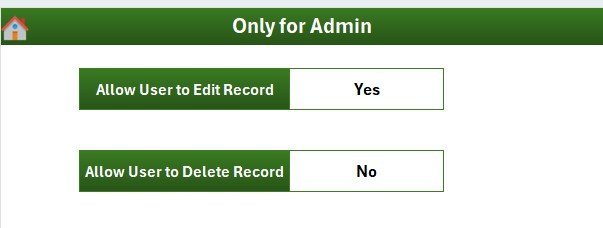
⚙️ Settings Sheet — Centralized configuration for branding, default values, and template behavior. Customize the tracker to match your company’s HR workflow without touching the underlying VBA code.
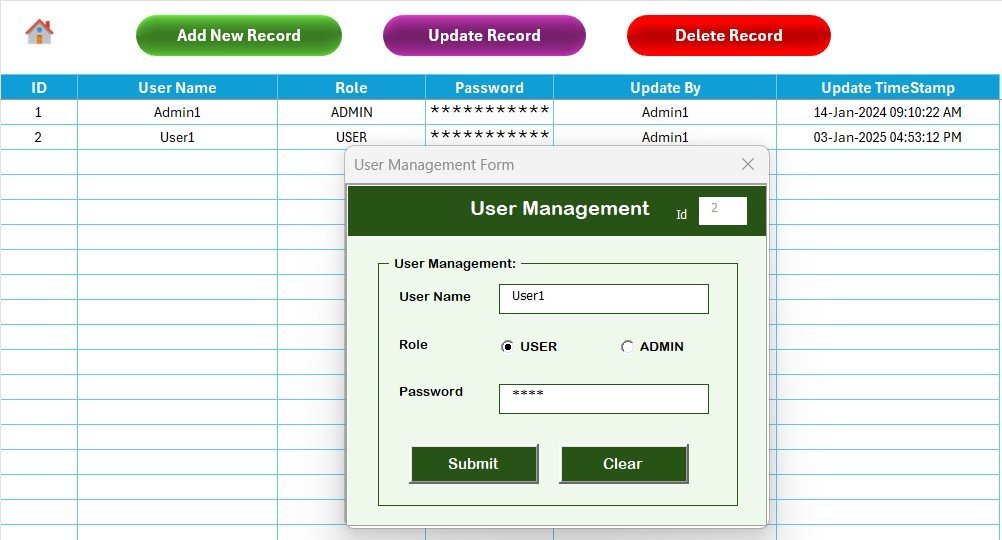
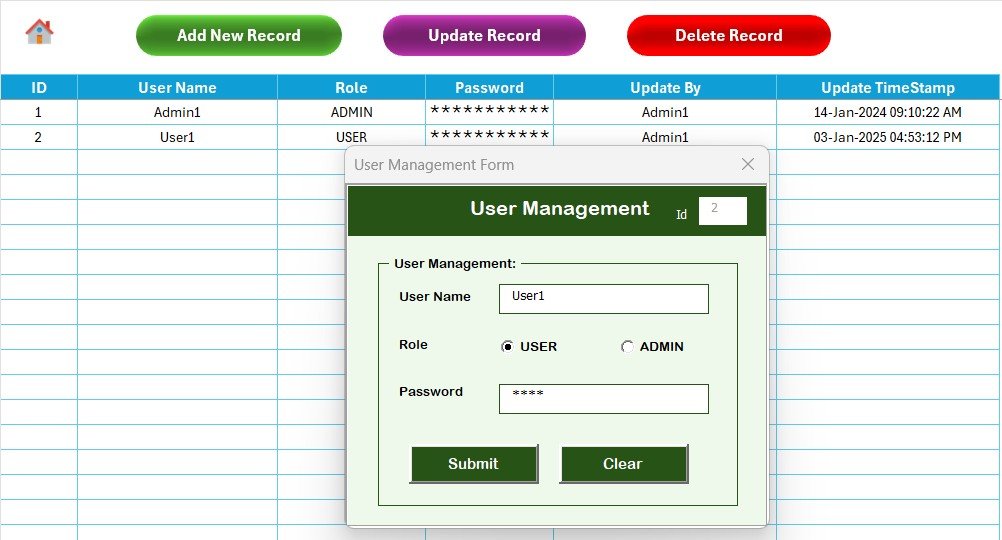
👥 User Management Sheet — Add, edit, or remove user accounts with role-based access (Admin or User). Admins manage everything; regular users access only the data entry workflow. Password storage is built into this sheet so credentials stay inside the file.
📦 What’s Inside the Employee Retirement Notification Tracker in Excel
The template ships as a single .xlsm file with 8 connected worksheets:
🔹 Login Form — credential check before access
🔹 Home Page — navigation hub with section buttons
🔹 Dashboard — 4 slicers + 5 charts (Retirement by Department, by Location, by Designation, by Year, by Age Band)
🔹 Data Sheet — master employee table with Add / Update / Delete buttons
🔹 List Sheet — editable lookup values for dropdowns
🔹 Support Sheet — pivot tables that power the dashboard
🔹 Settings Sheet — global configuration
🔹 User Management Sheet — multi-user access control
Login Form with secure credential check
Home Page navigation hub
📊 Employee Retirement Notification Tracker in Excel vs. Google Sheets HR Tracker vs. BambooHR / Workday — Where This Fits
| Feature | Employee Retirement Tracker (Excel) | Google Sheets HR Tracker | BambooHR / Workday |
|---|---|---|---|
| Cost | $6.99 one-time | $5–$15 one-time | $8–$15 / employee / month |
| Platform | Microsoft Excel (offline) | Google Sheets (cloud) | SaaS (cloud) |
| Setup time | Under 10 minutes | 10–15 minutes | 2–8 weeks |
| VBA Add/Update/Delete form | ✅ | ❌ | ✅ |
| Multi-user login + roles | ✅ | Limited | ✅ |
| Works fully offline | ✅ | ❌ | ❌ |
| Customizable fields | ✅ | ✅ | Limited |
| Year-1 cost at 50 employees | $6.99 total | $5–$15 total | $4,800–$9,000+ |
| Vendor lock-in | None | Google account | Annual contract |
For HR teams that want secure, structured retirement tracking without paying $5,000+ per year for a full HRIS, the Employee Retirement Notification Tracker in Excel sits in the sweet spot.
👥 Who This Template Is For — and Who It’s Not For
✅ This template is built for:
- HR managers and HRBPs at 20–500 person companies tracking 5–50 retirements per year
- Public-sector and PSU HR teams with mandatory retirement-age workflows (58 / 60 / 65)
- Workforce planners running succession analysis on Excel-only environments
- Multi-location organizations needing department- and location-wise retirement visibility
- HR consultants who need a portable, client-deployable retirement notification tool
❌ This template is NOT for:
- Enterprise HR teams already using Workday, SAP SuccessFactors, or Oracle HCM as system of record
- Teams needing SOC 2 Type II compliance or SSO with Active Directory
- Workforces above 5,000 employees where SaaS integration with payroll is mandatory
- Mac-only environments where VBA UserForms are unsupported (use the Google Sheets version instead)
⚙️ How to Use the Employee Retirement Notification Tracker in Excel
- Unzip the file and open the .xlsm in Microsoft Excel; click Enable Content when prompted to activate VBA macros.
- Log in via the Login Form using the default admin credentials, then go to the User Management sheet to add your team and change passwords.
- Open the List Sheet and update the dropdown values — departments, locations, designations, retirement statuses — to match your organization.
- From the Data Sheet, click Add New Record, fill in the employee retirement details on the form, and click Submit. Repeat for every employee.
- Switch to the Dashboard sheet, use the 4 slicers to filter by year, department, location, or designation, and review the 5 charts.
- Use Update Record or Delete Record on the Data Sheet to keep the tracker accurate as employees join, leave, or change roles.
Dashboard with 4 slicers and 5 dynamic charts
VBA-powered Data Entry Form with Add, Update, Delete buttons
💼 Real-World Use Cases
Priya leads HR at a 220-person Indian manufacturing company. She uses the Employee Retirement Notification Tracker to track every employee’s retirement date 24 months in advance. The Dashboard slicer for the upcoming year shows her 11 retirements across plant operations, helping her start succession planning early — instead of finding out a senior fitter is retiring next month with no replacement lined up.
Daniel runs the HR Shared Services desk at a 5-branch UK retail chain. He logs into the tracker every Monday, filters the Dashboard by location, and sends each branch manager a one-page retirement forecast for the next 6 months. Multi-user login lets each store HR update only their own records, while head office sees the consolidated view.
Anita is an HR consultant supporting 8 mid-sized clients in the GCC. She deploys this tracker for each client at $6.99 and customizes the List Sheet to match local mandatory retirement ages — saving each client roughly $4,800 per year compared to a BambooHR subscription.
❓ Frequently Asked Questions
Does the Employee Retirement Notification Tracker in Excel require macros?
Yes. The Add, Update, and Delete buttons run VBA macros, and the Login + User Management features depend on macros. Open the file in Microsoft Excel for Windows (Office 365 / 2021+) and click Enable Content when the security prompt appears. No separate installation is needed.
How does this compare to BambooHR or Workday for retirement tracking?
BambooHR and Workday cost $8–$15 per employee per month and require multi-week onboarding. The Employee Retirement Notification Tracker in Excel costs $6.99 one-time, deploys in under 10 minutes, and runs offline. It does not replace a full HRIS — it is purpose-built only for retirement notification and workforce planning.
Can multiple users edit the tracker at the same time?
The User Management sheet supports unlimited user accounts with Admin or User roles, and each person logs in with their own credentials. Simultaneous editing requires the file to live on OneDrive or SharePoint with co-authoring enabled — by default, only one person edits at a time.
How long does setup take for a 100-employee organization?
Under 10 minutes. Update the List Sheet with your departments, locations, and designations (2 minutes), add your HR users in the User Management sheet (3 minutes), then enter your 100 employee records via the data entry form. The Dashboard updates automatically as records are added.
Can I customize the charts and slicers on the Dashboard?
Yes. All 5 charts and 4 slicers are standard Excel objects connected to the Support Sheet pivot tables. Right-click any chart to change its type, colors, or data range. You can also add new charts that reference the same pivot data — the Employee Retirement Notification Tracker in Excel is fully editable.
Is this template available for Google Sheets or Power BI?
Yes — the Employee Retirement Notification Tracker in Google Sheets is the cloud-native version. For visualization-heavy workforce analytics, the Pension Funds Dashboard in Excel and Pension Funds Dashboard in Power BI pair well with this tracker.
What happens if I forget the admin password?
Open the User Management sheet directly to view stored credentials, or contact NextGenTemplates support with proof of purchase. The login system is convenience-grade — designed to prevent accidental edits, not to defeat determined attackers. For high-security needs, see the comparison table above.
👤 About the Author
Built by PK — Microsoft Certified Professional with 15+ years of Excel, VBA, Google Sheets, and Power BI experience. Founder of NextGenTemplates, reaching 300K+ subscribers across YouTube channels (@PK-AnExcelExpert, @NextGenTemplates, @NeoTechNavigators). Every template is hand-built and tested before release.
🔗 Explore Related Templates
🔹 Employee Retirement Notification Tracker in Google Sheets — cloud-based version with real-time collaboration
🔹 Employee Offboarding Tracker in Excel — pairs with this tracker for full exit lifecycle management
🔹 Pension Funds Dashboard in Excel — financial side of retirement workforce planning
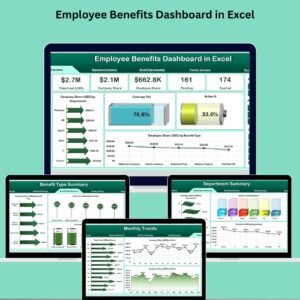
🔹 Employee Benefits Dashboard in Excel — track benefits eligibility alongside retirement timelines
🔹 Browse all HR & Payroll Excel Templates and Excel Dashboard Templates
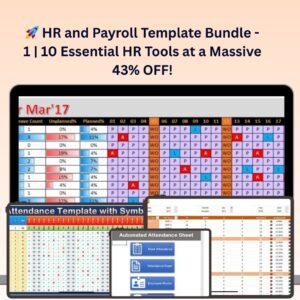
💎 Save 43% with the HR & Payroll Template Bundle — get this tracker plus 9 more essential HR Excel tools for $14.99 instead of buying separately.
User Management sheet with Admin and User roles
List Sheet with editable dropdown values
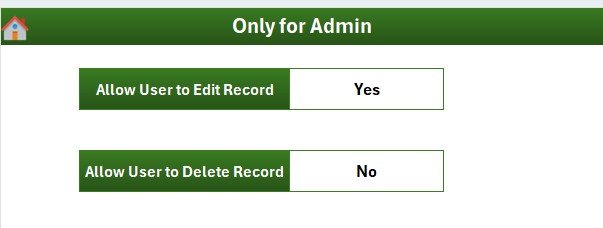
Settings sheet for global configuration
📖 Click here to read the Detailed Blog Post
🎥 Visit our YouTube channel for step-by-step video tutorials
👉 YouTube.com/@NextGenTemplates
📅 Last updated: May 2026
Reviews
There are no reviews yet.