

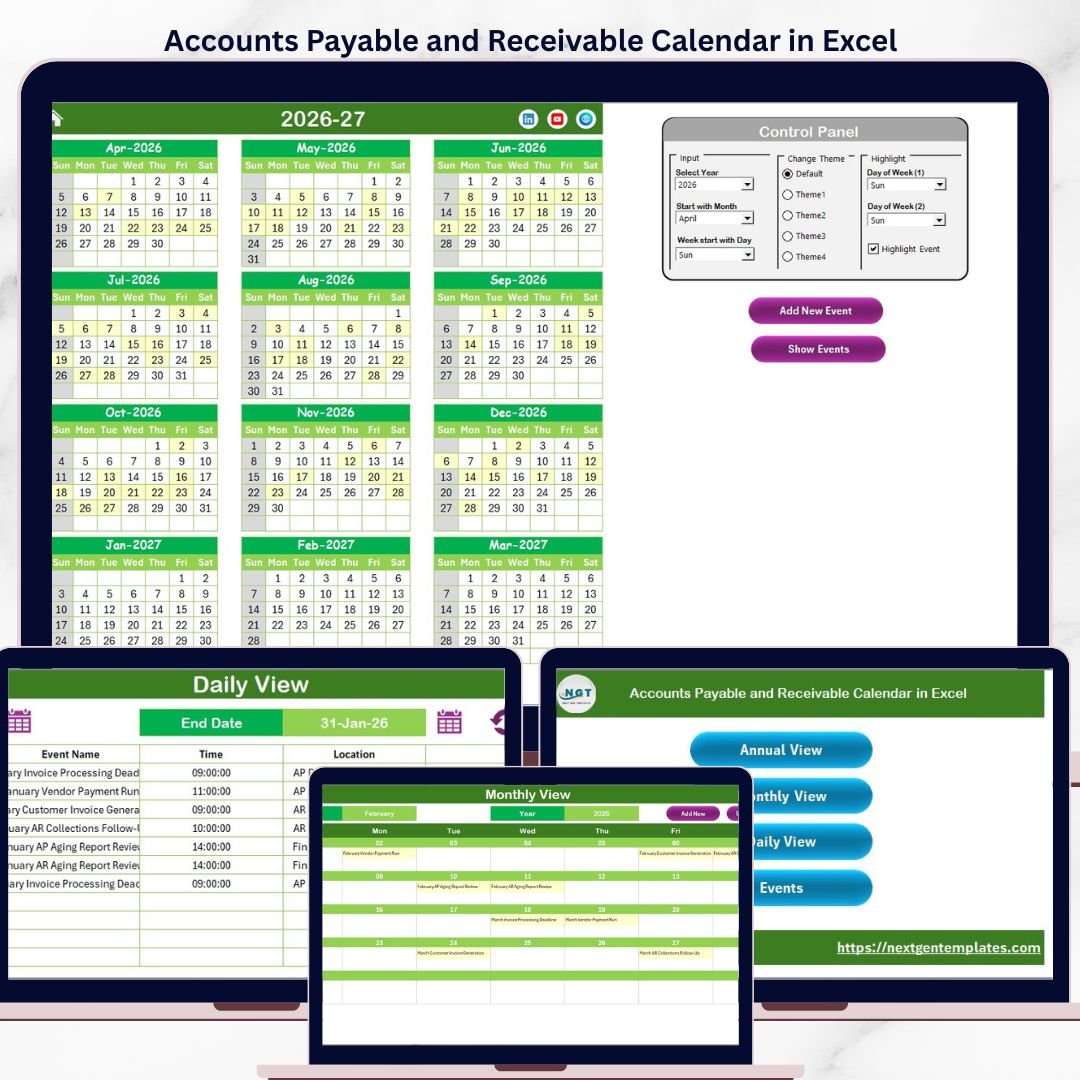
The Accounts Payable and Receivable Calendar in Excel organizes invoice due dates, payment schedules, and collection deadlines across 5 interactive worksheets with annual, monthly, and daily calendar views plus a centralized events database. The template tracks each payment event by date, time, location, and description — giving finance teams a visual timeline of every AP invoice, AR collection, and payment milestone. Setup takes under 10 minutes — open the file, select your year, and start entering payment events.Accounts Payable and Receivable Calendar in Excel
🌍 Join 8,400+ teams in 40+ countries using NextGenTemplates to replace paid SaaS tools with one-time-purchase Excel, Google Sheets, Power BI, and HTML templates.
✅ Instant download · One-time payment · No subscription · No per-user fees · Lifetime access
🔑 Key Features of Accounts Payable and Receivable Calendar in Excel
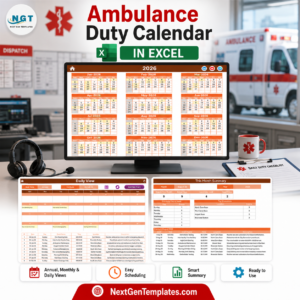
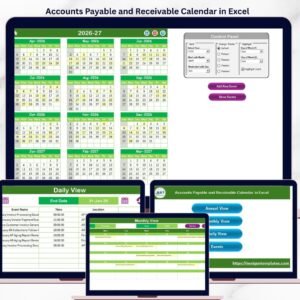
📅 5 worksheets in one template — The Accounts Payable and Receivable Calendar in Excel includes a Home navigation sheet, an Annual View showing all 12 months at a glance, a Monthly View with event details for any selected month and year, a Daily View that filters events by a custom date range, and a centralized Events database with 7 fields per record. This structure covers yearly payment planning, monthly invoice scheduling, and daily collection tracking in one workbook.Accounts Payable and Receivable Calendar in Excel
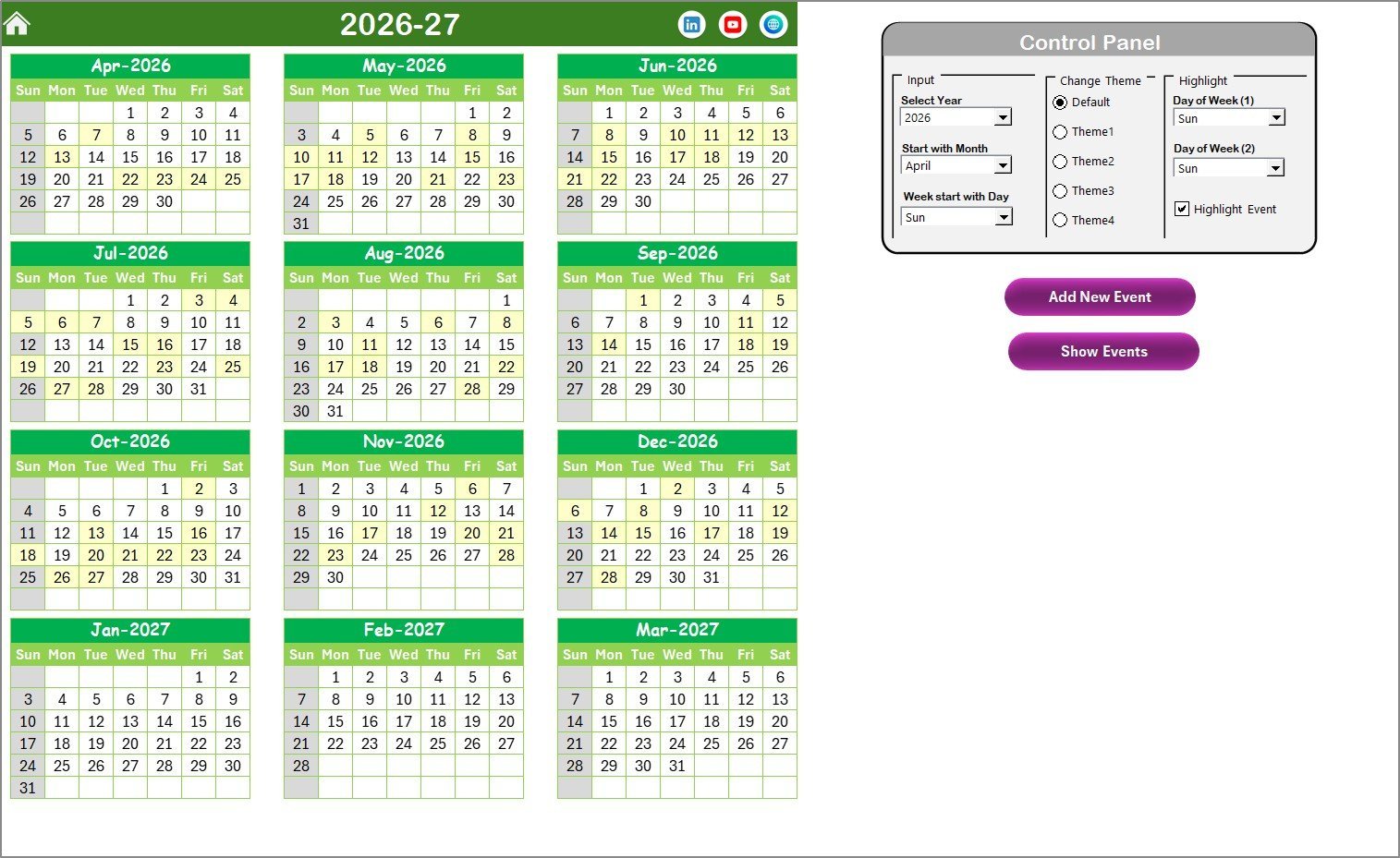
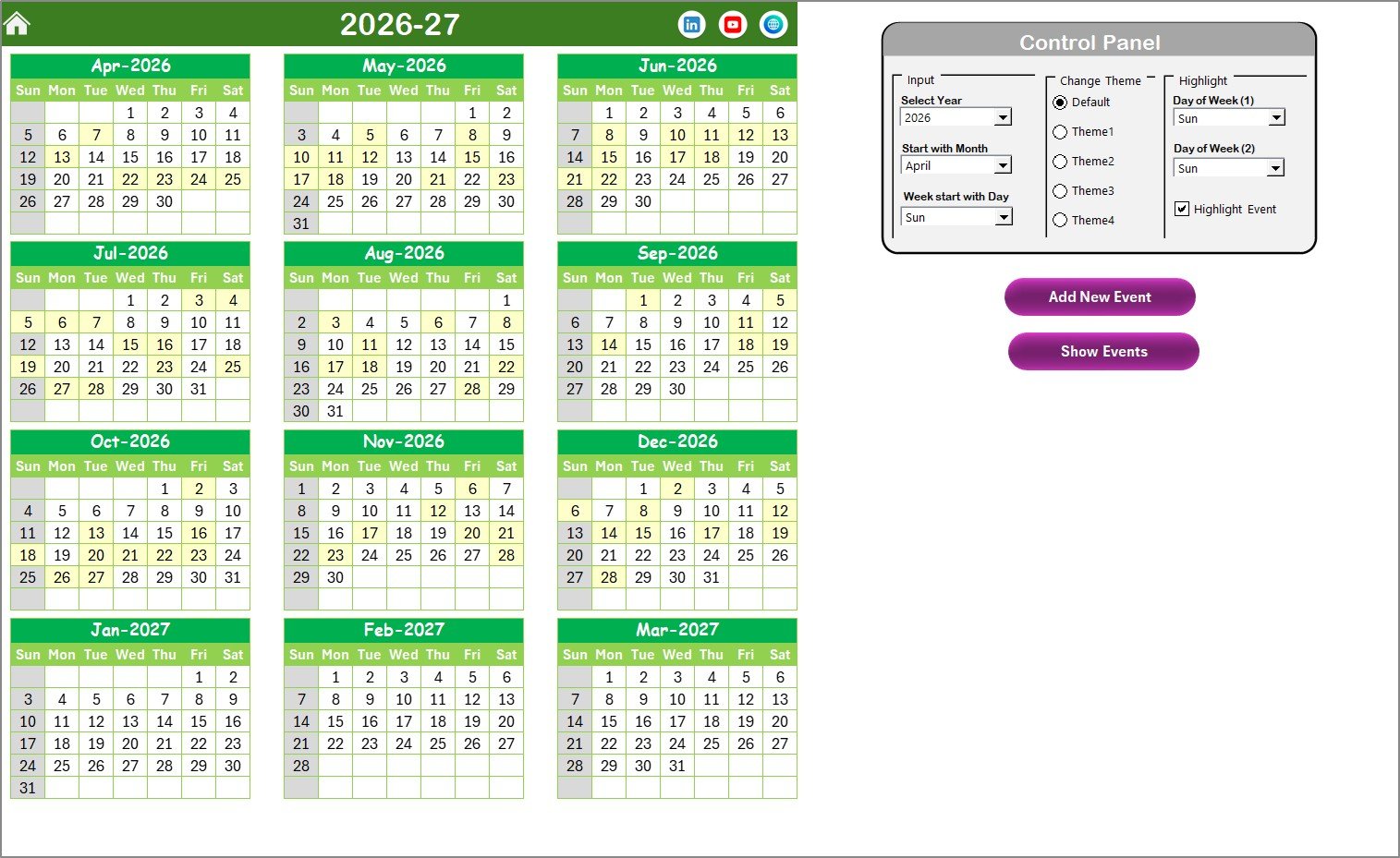
🎨 5 color themes with weekend and event highlighting — The Annual View control panel lets you select the year, starting month, starting weekday, and one of 5 built-in color themes. Highlight up to 2 weekdays (e.g., Saturday and Sunday) in grey and toggle event date highlighting in yellow — making it easy to spot payment deadlines across the entire year.
📝 Add New Event and Show Event buttons on every view — Each calendar view includes built-in buttons to add a new event via a VBA form or display the list of events on a selected date. Select any date on the calendar, click Add New Event, fill in the details, and the event instantly appears across all views. Browse more Excel Calendar Templates.
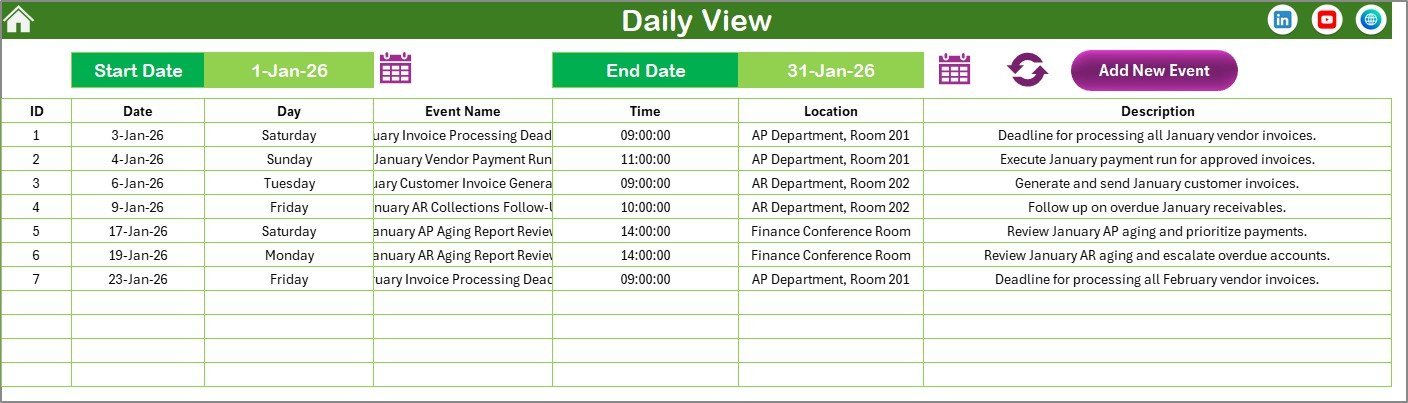
🔍 Daily View with date-range filtering — Set a Start Date and End Date at the top of the Daily View sheet and click Refresh to see all AP/AR events within that window. Use the calendar icon to select dates quickly. This is useful for filtering upcoming vendor payments, customer invoice due dates, or collection follow-up deadlines within a specific period.
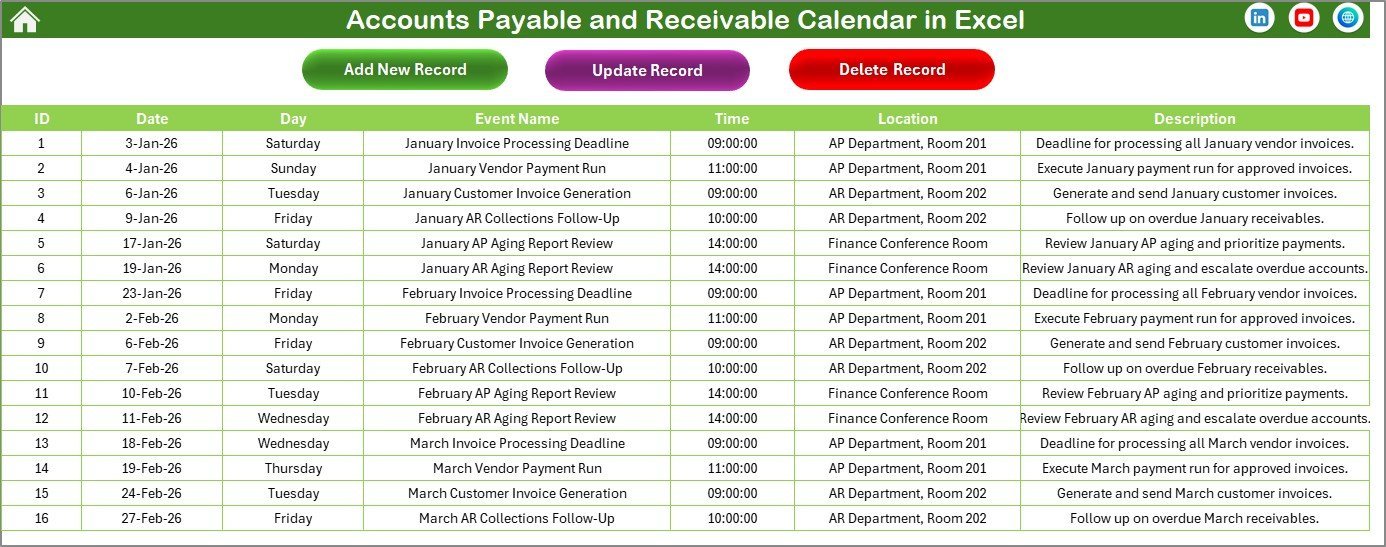
📊 Centralized Events database with full CRUD operations — The Events sheet stores every record with 7 structured fields: ID (auto-generated), Date, Day, Event Name, Time, Location, and Description. Three buttons at the top — Add New Record, Update Existing Record, and Delete Record — give you full control over event management without touching the grid directly.Accounts Payable and Receivable Calendar in Excel
📦 What’s Inside the Accounts Payable and Receivable Calendar in Excel
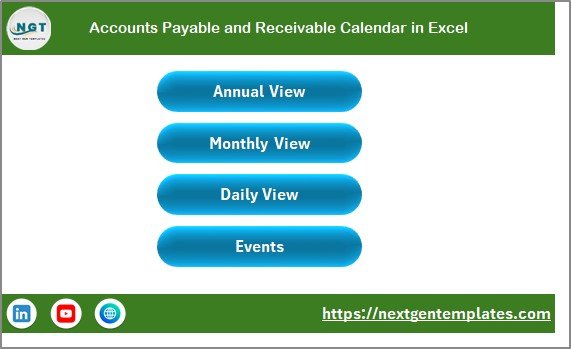
📌 Home Sheet — The index page with 4 navigation buttons: Annual View, Monthly View, Daily View, and Events. Click any button to jump directly to the corresponding sheet.
Accounts Payable and Receivable Calendar in Excel
📌 Annual View Sheet — Displays all 12 months of the year in a traditional calendar grid layout. The control panel on this sheet includes 3 groups: Input (select Year, starting month, starting weekday), Change Theme (5 color themes), and Highlight (select 2 weekdays to highlight plus an event highlight checkbox). Two buttons — Add New Event and Show Event — let you manage events directly from the annual view.
Annual View Sheet tab
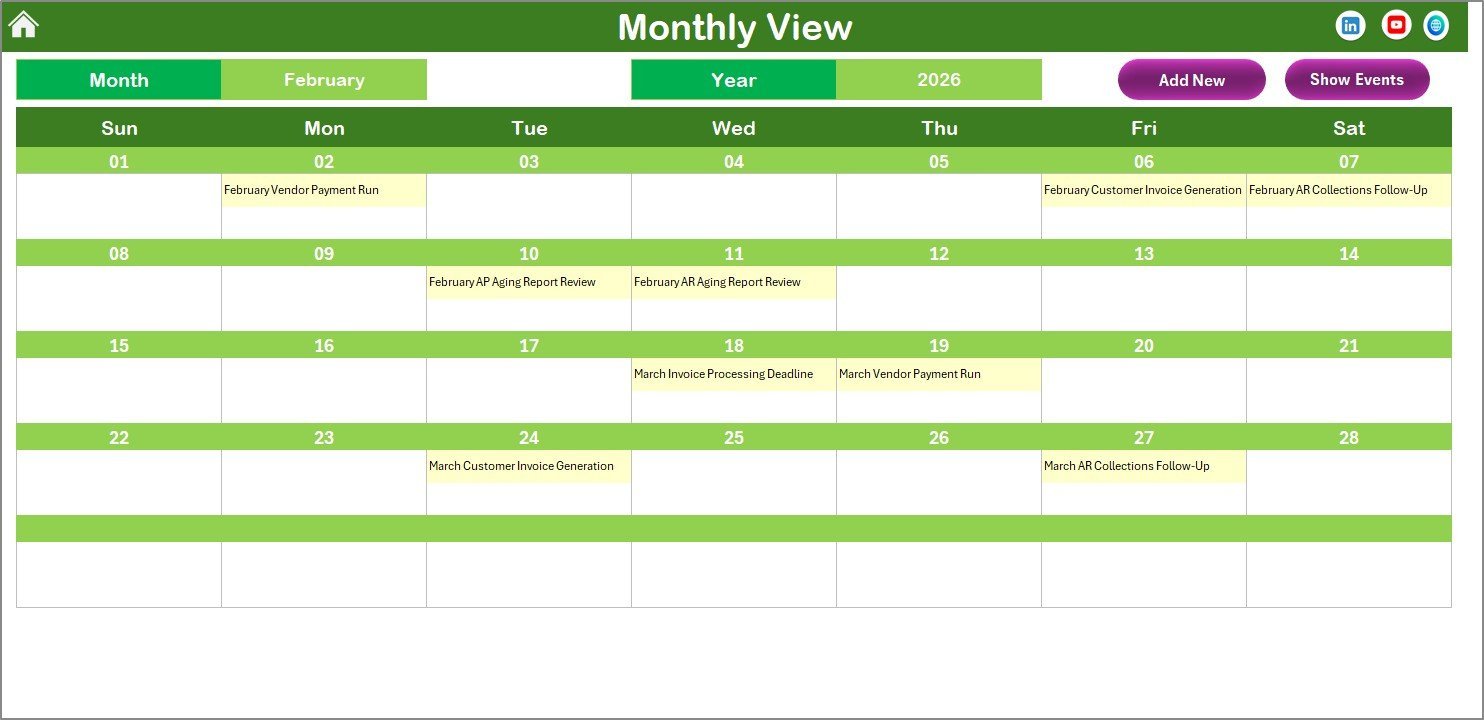
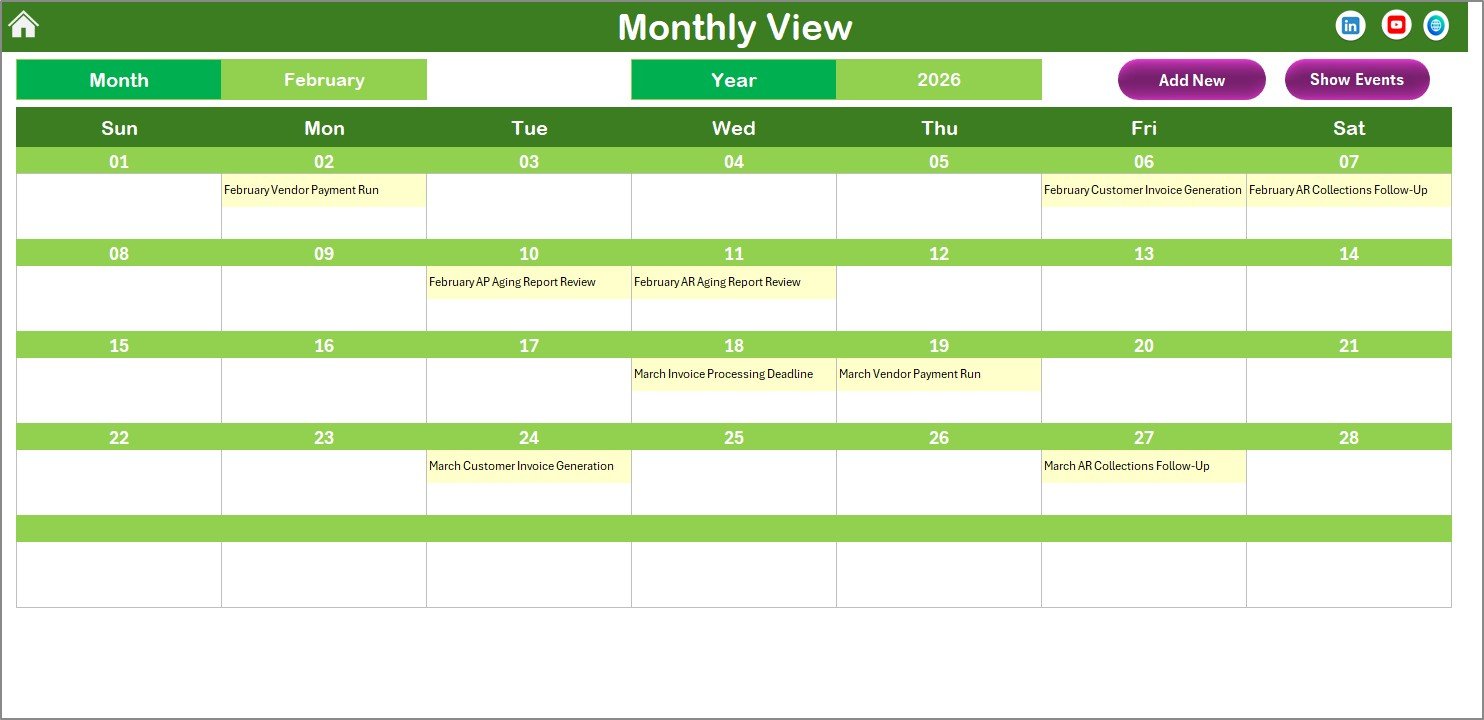
📌 Monthly View Sheet — A single-month calendar for the selected month and year. Select the Month and Year from drop-downs at the top and the calendar updates automatically. Each date cell shows 1 event, and if a date has more than 1 event, it displays “more than 1…” to indicate additional entries. Two buttons — Add New Event and Show Event — are available at the top for quick event management.Accounts Payable and Receivable Calendar in Excel
Monthly View Sheet tab
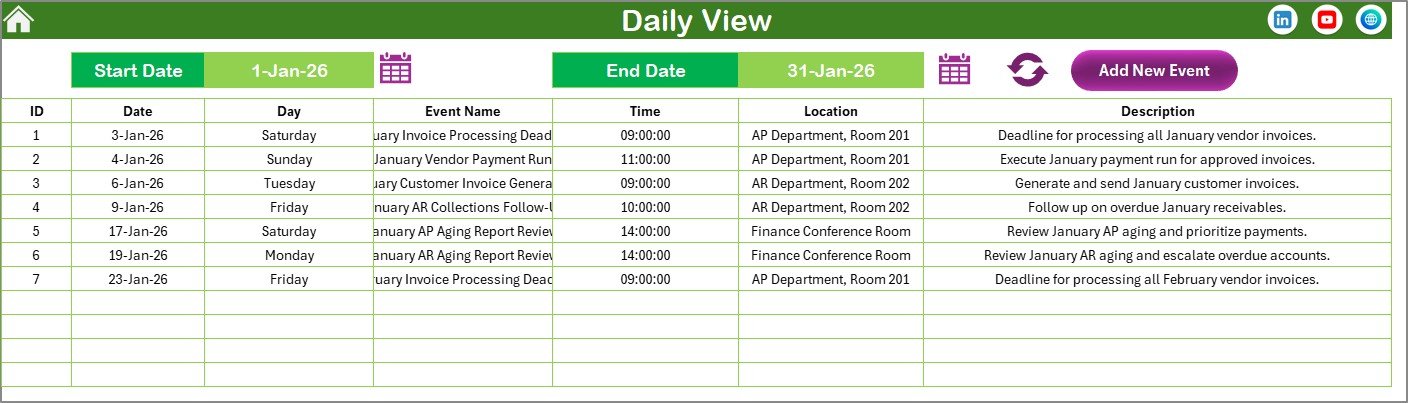
📌 Daily View Sheet — Lists all events with full details for a selected date range. Enter the Start Date and End Date at the top of the sheet — use the calendar icon to select dates. Click the Refresh button to display the latest data for the selected range. An Add New Event button is also available at the top.
Daily View Sheet tab
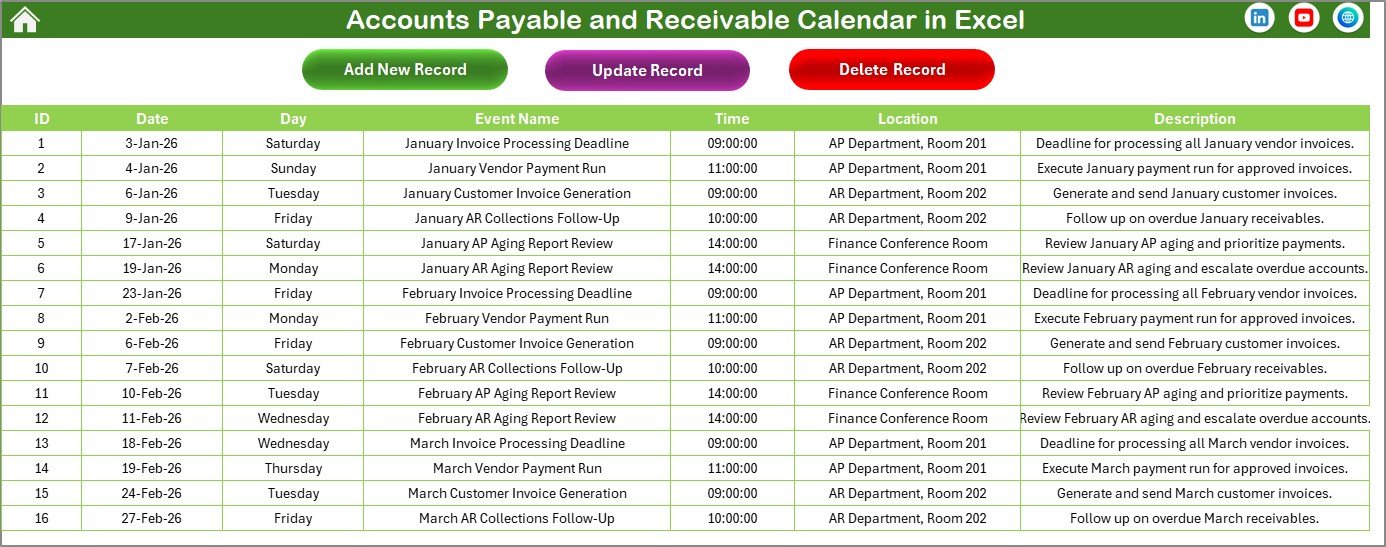
📌 Events Sheet — The central database where all event data is stored. Each row captures: ID (auto-generated), Date, Day (Sunday, Monday, etc.), Event Name, Time, Location, and Description. Three buttons at the top — Add New Record, Update Existing Record, and Delete Record — provide full CRUD functionality via VBA forms.Accounts Payable and Receivable Calendar in Excel
Events Sheet tab
📊 Accounts Payable and Receivable Calendar in Excel vs. Google Sheets Calendar vs. QuickBooks / Xero — Where This Fits
| Feature | AP & AR Calendar (Excel) | Google Sheets Calendar | QuickBooks / Xero |
|---|---|---|---|
| Cost | $4.99 one-time | $4.99–9.99 one-time | $30–200 / month |
| Platform | Microsoft Excel (offline) | Google Sheets (browser) | Cloud SaaS |
| Setup time | Under 10 minutes | Under 10 minutes | 2–6 weeks onboarding |
| Works offline | ✅ Yes | ❌ Needs internet | ❌ Needs internet |
| VBA event forms | ✅ Add / Update / Delete | ❌ Manual cell entry | ✅ Proprietary UI |
| 5 color themes | ✅ | ❌ | N/A |
| Annual + Monthly + Daily views | ✅ All 3 built-in | ✅ | ✅ |
| Customizable event fields | ✅ 7 fields per event | Varies | ✅ |
| Year-1 cost at 5 users | $4.99 total | $4.99–9.99 | $360–2,400 |
For finance teams that want a structured AP/AR payment calendar with VBA forms and 3 calendar views without paying $30+ per month for QuickBooks or Xero, the Accounts Payable and Receivable Calendar in Excel sits in the sweet spot.
👥 Who This Template Is For — and Who It’s Not For
✅ This template is built for:
- Accounts payable clerks and AP managers at 10–500 person companies tracking vendor invoice due dates and payment schedules on a visual calendar
- Accounts receivable teams monitoring customer invoice dates, collection follow-ups, and payment receipt deadlines
- Small business owners who need a single offline calendar for all AP and AR payment events without monthly SaaS fees
- Outsourced bookkeeping firms managing payment calendars for multiple clients in separate Excel files
❌ This template is NOT for:
- Enterprise finance teams needing automated ERP integration, bank feed syncing, and SOC 2 audit trails (use QuickBooks Advanced or NetSuite instead)
- Organizations requiring multi-user role-based access with approval workflows tied to Active Directory
- Teams that do not use Microsoft Excel on Windows (VBA features require Excel 2016+ on Windows)
⚙️ How to Use the Accounts Payable and Receivable Calendar in Excel
- Download and unzip the file. Open the workbook in Microsoft Excel on Windows and click Enable Content when the macro bar appears.
- Go to the Annual View sheet and select the Year, starting month, and starting weekday from the control panel.
- Choose a color theme from the 5 options in the Change Theme group.
- Select any date on the calendar and click Add New Event to open the VBA form. Enter the AP or AR event details and click Submit.
- Use the Monthly View to see events for a specific month — select Month and Year from the dropdowns at the top.
- Use the Daily View to filter events by a custom date range — enter Start Date and End Date, then click Refresh.
- Manage all records from the Events sheet using the Add New Record, Update Existing Record, and Delete Record buttons.
💼 Real-World Use Cases
Ravi manages accounts payable at a 60-person manufacturing company in Pune. He tracks 80+ vendor invoice due dates per month using the Accounts Payable and Receivable Calendar in Excel. The Annual View with event highlighting in yellow gives him a bird’s-eye view of all payment deadlines, and the Daily View filtered to the current week shows his team exactly which invoices need processing each day — replacing a $150/month AP automation tool.
Sarah runs accounts receivable at a mid-size consulting firm in Dallas. She uses the Monthly View to track customer payment due dates and follow-up reminders for overdue invoices. The VBA Add New Event form lets her log each AR event consistently, and she replaced a shared Google Sheet that kept breaking with cell edits from 3 different team members.
Amit is a freelance bookkeeper in Mumbai managing AP/AR calendars for 6 small business clients. He duplicates this template for each client, enters their vendor payment dates and customer collection deadlines, and delivers a branded payment calendar within a single engagement. The 5 color themes let him match each client’s branding preferences.
❓ Frequently Asked Questions
What is the Accounts Payable and Receivable Calendar in Excel?
The Accounts Payable and Receivable Calendar in Excel is a VBA-enabled workbook with 5 worksheets that helps finance teams schedule, track, and manage AP invoice due dates and AR collection deadlines — across annual, monthly, and daily calendar views with a centralized events database.
How long does setup take?
Setup takes under 10 minutes. Open the file in Excel, enable macros, select your year and starting month on the Annual View control panel, and start adding AP/AR payment events using the built-in VBA form. No formulas to configure.
How does this compare to QuickBooks or Xero?
QuickBooks and Xero cost $30–200 per month and require weeks of implementation. The Accounts Payable and Receivable Calendar in Excel is a one-time $4.99 purchase that covers the scheduling side of AP/AR — payment dates, invoice deadlines, and collection tracking — without automated bank feeds or ERP integrations.
Can I customize the event fields in the Events sheet?
The Events sheet includes 7 fields: ID, Date, Day, Event Name, Time, Location, and Description. You can add new columns for your needs and update the VBA form code to bind the new fields. The calendar views reference the default 7 fields.
Does this template work on Mac?
The Accounts Payable and Receivable Calendar in Excel uses VBA macros and ActiveX controls for the event forms and buttons. These features work on Microsoft Excel 2016 or later on Windows. Mac users may experience limited VBA functionality.
Is this a one-time payment or subscription?
One-time payment of $4.99. You get instant download, lifetime access, and no per-user fees. No subscription, no recurring charges.
Can I track events for multiple fiscal years?
Yes. Change the Year selector in the Annual View control panel to switch between fiscal years. All events in the Events database are date-stamped, so events from different years coexist in the same sheet and appear on the correct calendar view.
👤 About the Author
Built by PK — Microsoft Certified Professional with 15+ years of Excel, Google Sheets, and Power BI experience. Founder of NextGenTemplates, reaching 300K+ subscribers across YouTube channels (@PK-AnExcelExpert, @NextGenTemplates, @NeoTechNavigators). Every template is hand-built and tested before release.
🔗 Explore Related Templates
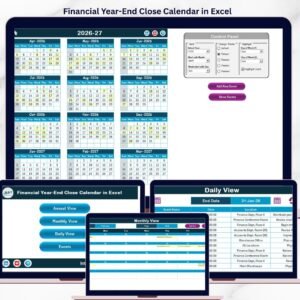
📅 Financial Year-End Close Calendar in Excel — Schedule year-end close tasks, reconciliation deadlines, and audit preparation events.
📅 Staff Birthday and Anniversary Calendar in Excel — Track employee birthdays and work anniversaries with the same 5-view calendar structure.
📅 Performance Review Schedule Calendar in Excel — Plan performance review meetings and appraisal schedules.
💎 Save more — Get all finance templates in the Finance & Accounting Command Center — 8 Premium Templates.
Browse more Excel Calendar Templates or explore the full NextGenTemplates shop.
📖 Click here to read the Detailed Blog Post
🎥 Visit our YouTube channel for step-by-step video tutorials
👉 YouTube.com/@NextGenTemplates
Compatibility and Requirements
- Needs Microsoft Excel 2016 or later on Windows, with macros enabled. Click Enable Content when the macro bar appears.
- The Add New Event, Show Event and record buttons run VBA forms, so they do not work in Excel for the web, Google Sheets or mobile apps.
- Microsoft’s guide Enable or disable macros in Microsoft 365 files shows how to turn macros on.








Reviews
There are no reviews yet.