

Managing customer service schedules manually often leads to missed follow-ups, overlapping tasks, delayed responses, and frustrated customers. Emails, sticky notes, and unstructured Excel files only make the problem worse.
That is exactly where the Customer Service Scheduling Calendar in Excel becomes a powerful game-changer.
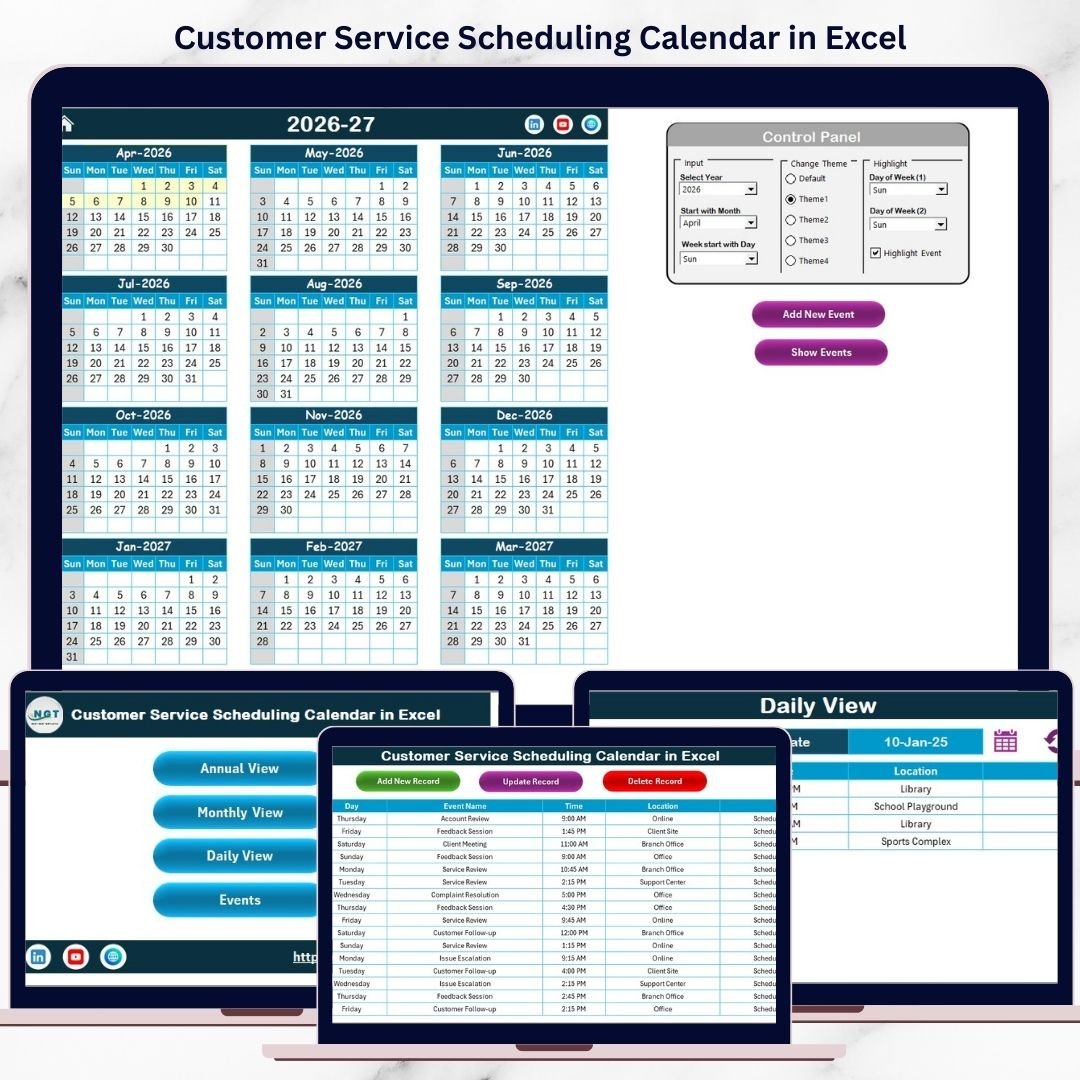
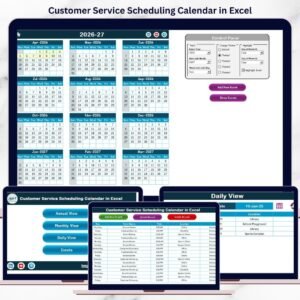
This professionally designed, ready-to-use Excel template helps you plan, track, and manage customer service activities effortlessly using a single centralized workbook. With annual, monthly, and daily views, smart navigation buttons, and an integrated event database, this calendar transforms chaotic scheduling into a smooth, reliable system.
Whether you manage a call center, customer support team, or service operations, this Excel calendar gives you clarity, control, and confidence—without using complex tools or expensive software.
🚀 Key Features of Customer Service Scheduling Calendar in Excel
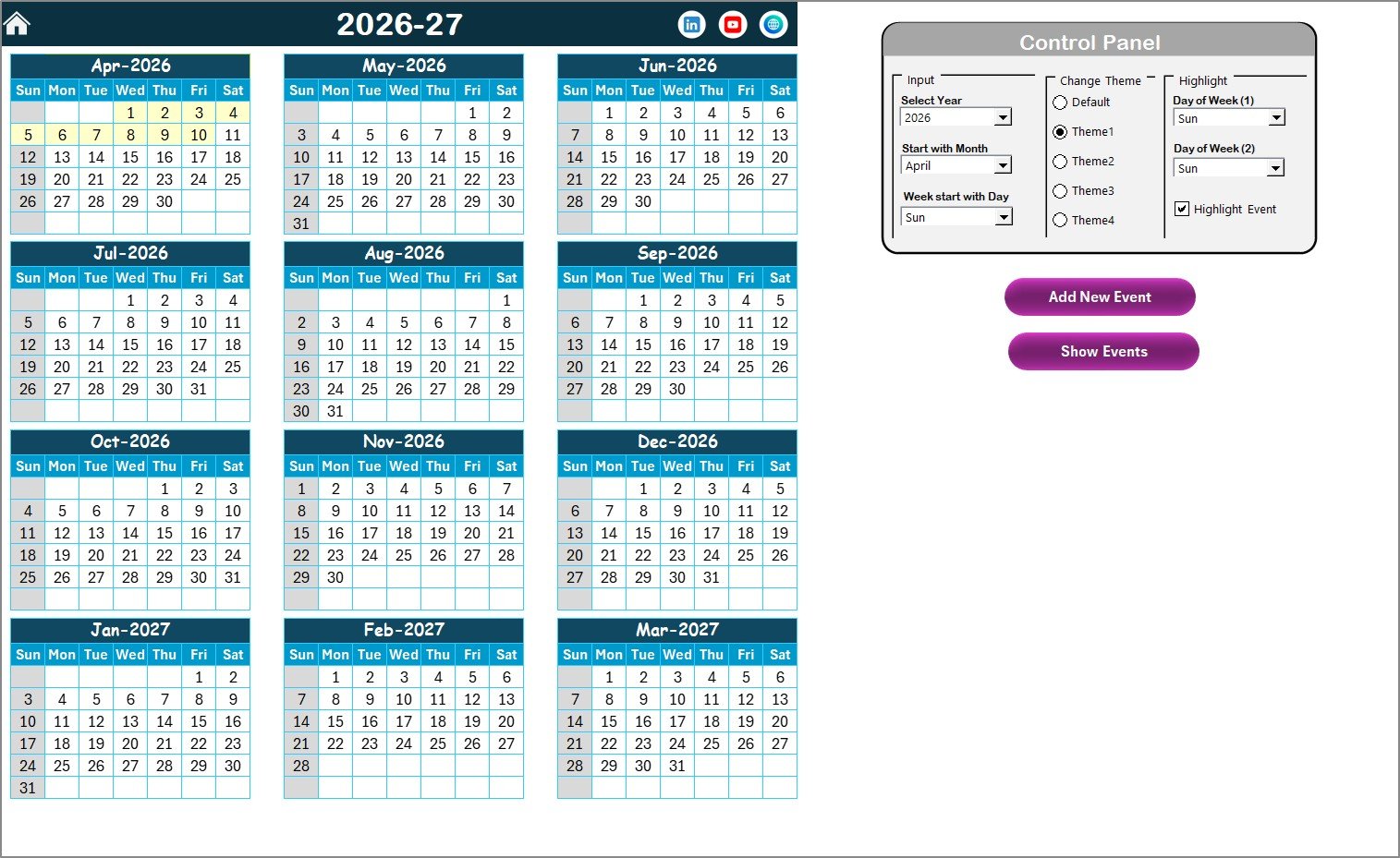
📅 Annual, Monthly & Daily Views
Plan long-term schedules, manage monthly workloads, and track daily events—all in one Excel file.
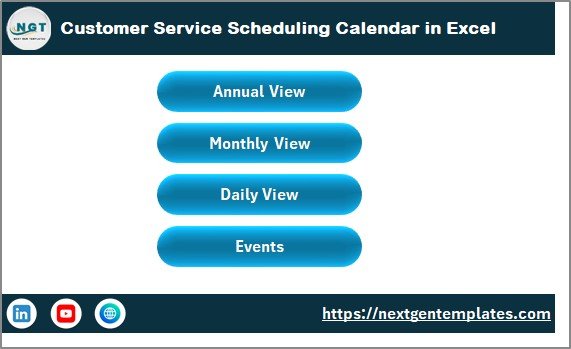
🧭 One-Click Navigation Home Sheet
Quickly jump between Annual View, Monthly View, Daily View, and Events sheet using intuitive buttons.
🎨 5 Built-In Color Themes
Instantly change the look and feel of the entire workbook with a single click.
🖍️ Smart Highlight Options
Highlight weekends, specific weekdays, or important events to improve visibility.
📝 User-Friendly Event Forms
Add, update, or delete events without touching complex formulas or tables.
📊 Centralized Event Database
All events are stored in one structured table, ensuring data accuracy and consistency.
⚡ Instant Updates Across Views
Any change in events reflects automatically across Annual, Monthly, and Daily views.
📦 What’s Inside the Customer Service Scheduling Calendar in Excel
This template includes 5 well-structured worksheets, each designed for a specific purpose:
🏠 Home Sheet
Acts as the control center with clean layout and one-click navigation buttons.
📆 Annual View Sheet
Displays all 12 months on one screen, helping you plan workloads, holidays, and busy periods at a glance.
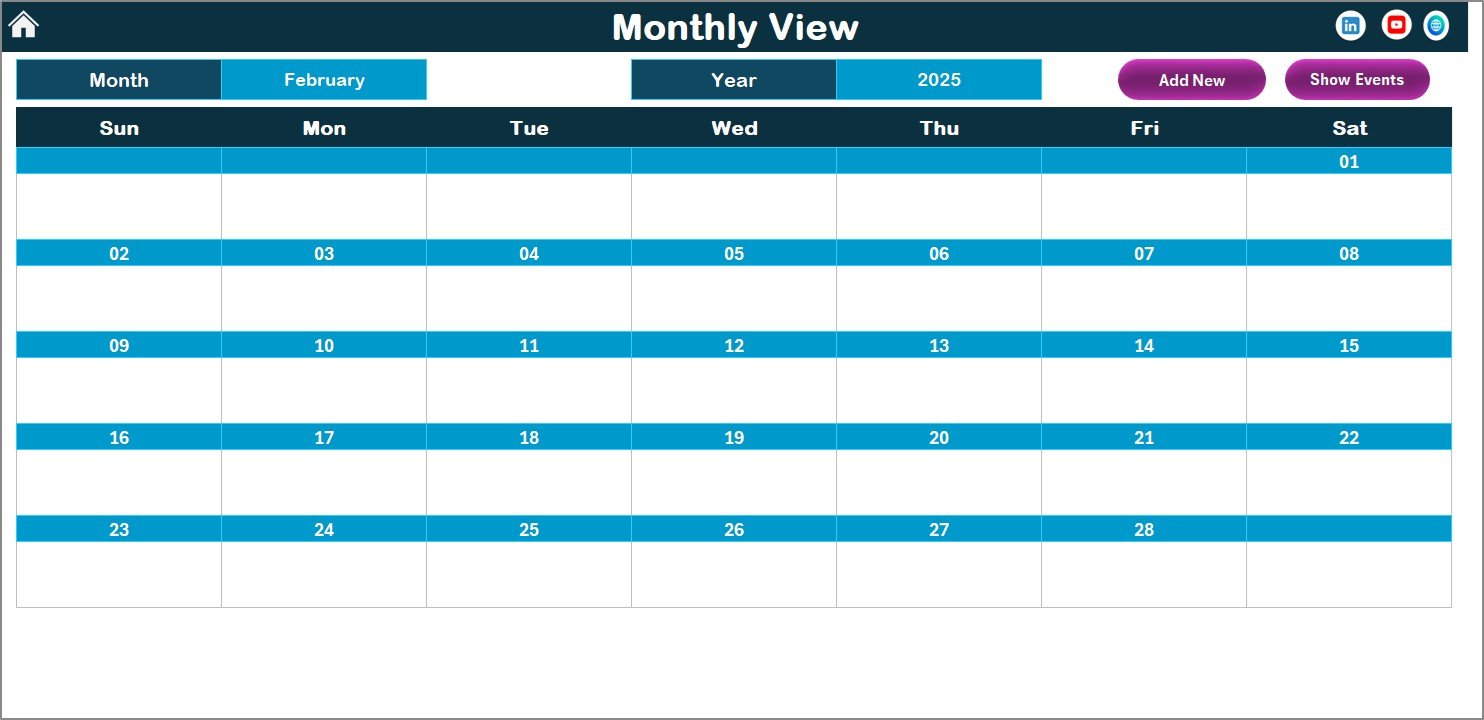
🗓️ Monthly View Sheet
Shows a focused month calendar with clearly visible events and smart handling of multiple events per day.
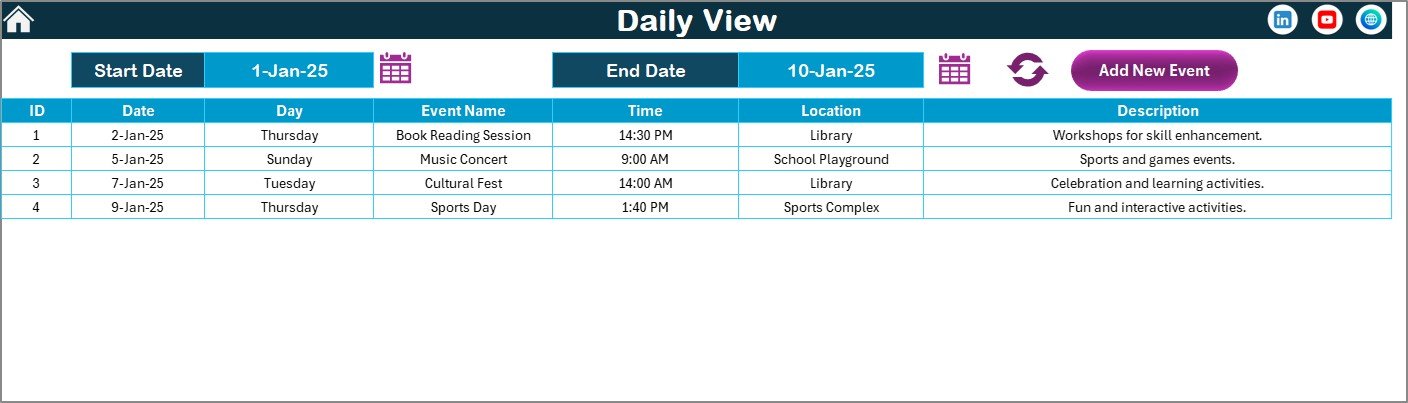
📋 Daily View Sheet
Provides detailed event tracking for selected date ranges—perfect for supervisors and coordinators.
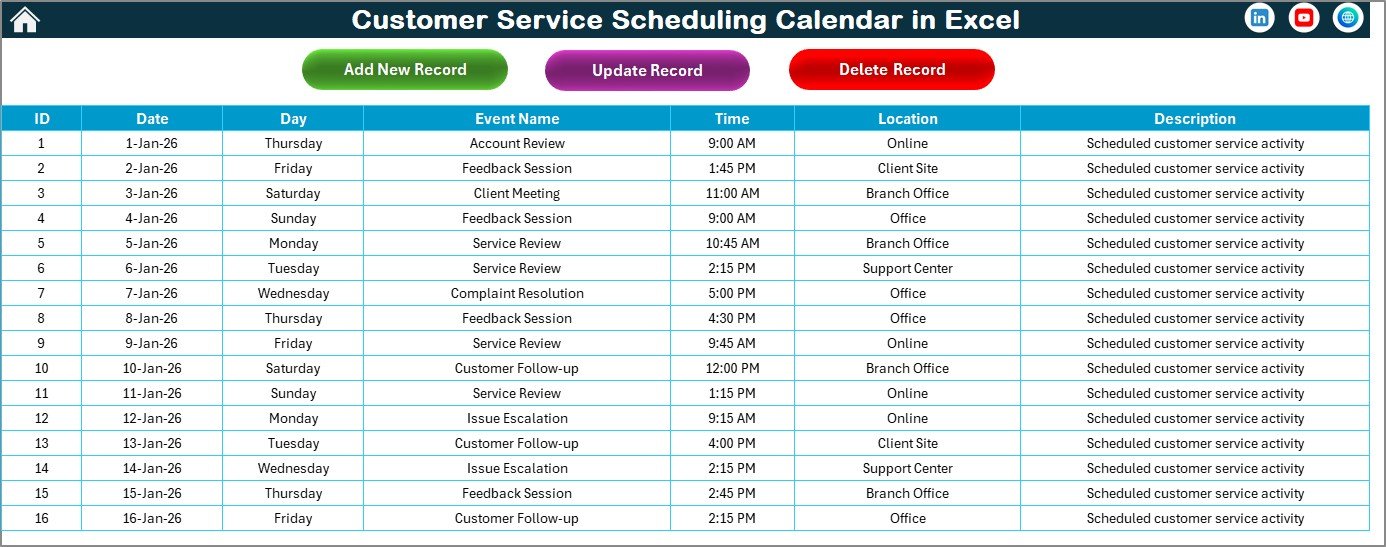
🗂️ Events Sheet
Stores all event records including Date, Day, Event Name, Time, Location, and Description.
🛠️ How to Use the Customer Service Scheduling Calendar in Excel
Using this calendar is simple—even for beginners:
1️⃣ Open the Home Sheet and navigate to your desired view
2️⃣ Select Year, Month, or Date Range using dropdowns
3️⃣ Click Add New Event to open the event entry form
4️⃣ Enter event details and submit
5️⃣ View or manage events instantly across all views
6️⃣ Use highlight and theme options to customize your calendar
No advanced Excel skills required—everything works through buttons and simple controls.
🎯 Who Can Benefit from This Customer Service Scheduling Calendar in Excel
👨💼 Customer Service Managers – Track team schedules and workloads
📞 Call Center Supervisors – Manage daily tasks and follow-ups
🧑💻 Support Team Coordinators – Avoid overlapping assignments
🏢 Small Business Owners – Organize service activities efficiently
📈 Service Operations Teams – Improve planning, visibility, and accountability
If your team handles multiple customer interactions every day, this calendar is built for you.
Click here to read the Detailed Blog Post
Watch the step-by-step video tutorial:
Visit our YouTube channel to learn step-by-step video tutorials
https://www.youtube.com/@PKAnExcelExpert
Compatibility and Requirements
- Works in Microsoft Excel desktop (Excel 2016 or later, or Microsoft 365).
- You pick the year, month and date range from dropdowns. Microsoft explains how they work in Create a drop-down list.
Frequently Asked Questions
How many sheets does the calendar have?
Five sheets: Home, Annual View, Monthly View, Daily View and Events.
How do I add a service event?
Click Add New Event to open the entry form. Enter the date, event name, time, location and description, then submit. The event appears in the Annual, Monthly and Daily views.
Can I change the colors?
Yes. The workbook has 5 built-in color themes you can switch with one click. You can also highlight weekends or specific weekdays.
Where are the events stored?
All events are stored in one table on the Events sheet, with Date, Day, Event Name, Time, Location and Description columns.
Is there a similar calendar for customer support coverage?
Yes. See the Customer Support Coverage Calendar in Excel.
Related Customer Service Templates
- Customer Service Schedule Calendar in Excel: another calendar for planning service schedules
- Customer Support Coverage Calendar in Excel: plan support coverage by day
- Customer Service Request Tracker in Excel: log and follow customer requests
- Customer Service Dashboard in Excel: a dashboard view of service activity
- Customer Service KPI Dashboard in Excel: track service KPIs
Browse all Excel calendar templates.








Reviews
There are no reviews yet.