

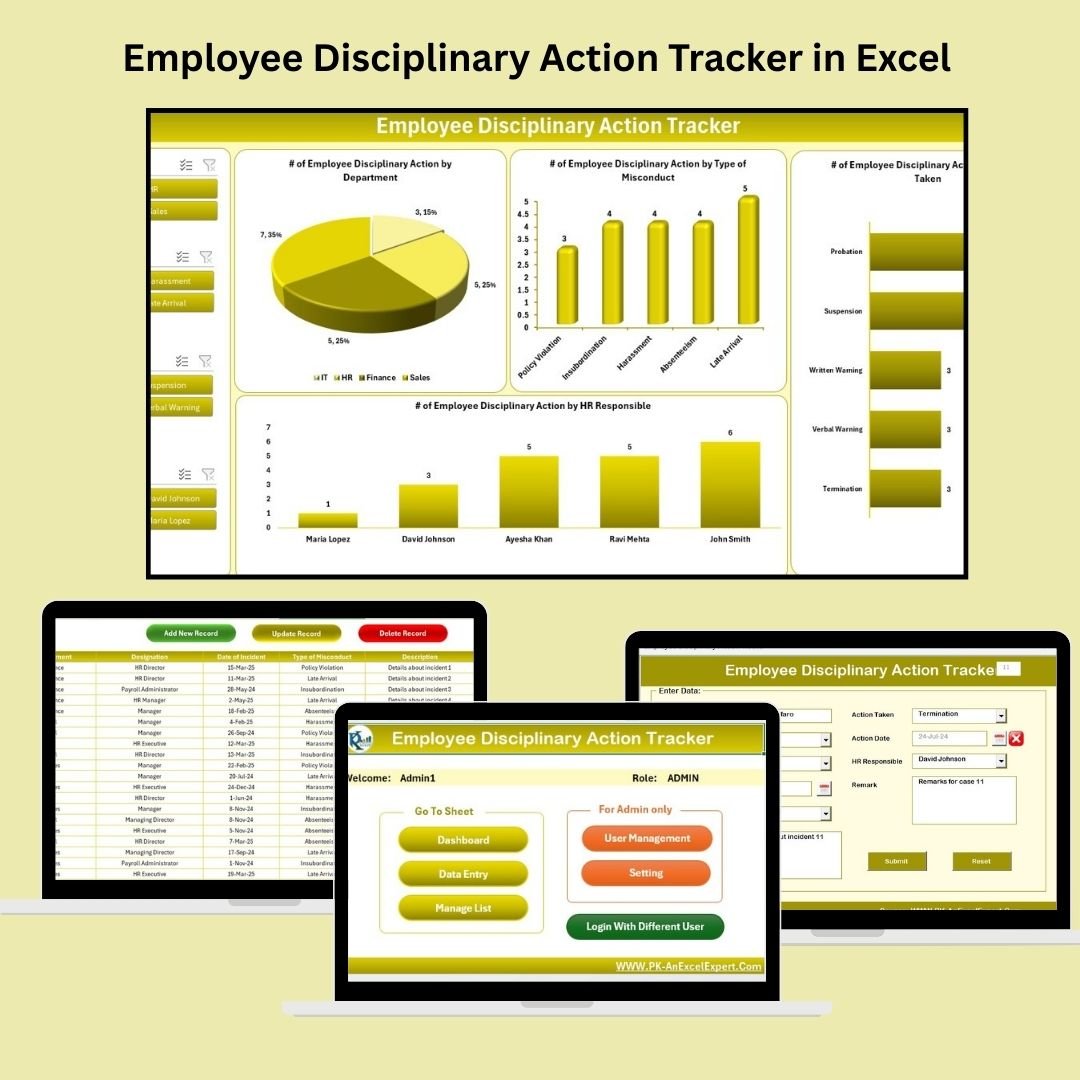


The Employee Disciplinary Action Tracker in Excel is an Excel and VBA workbook for recording workplace incidents and actions taken. It combines a data entry form, configurable lists, user management and a dashboard for reviewing records by department, misconduct type and HR responsibility.
Whether you’re an HR manager, team leader, or small business owner, this tool helps you track cases with clarity, confidence, and control. ✅
✨ Key Features of Employee Disciplinary Action Tracker in Excel
🔐 Secure Login System
Limit access with password-protected login so only authorized users can view or update sensitive records.
📝 User-Friendly Data Entry Form
Add new records, update details, or delete entries using an intuitive form — no need to scroll through rows.
📊 Interactive Dashboard

Visualize trends in misconduct, actions taken, HR responsibilities, and department-wise stats with dynamic charts and slicers.
📁 Automated Data Handling
All submissions are instantly reflected in your database and dashboard — with zero manual formulas required.
👥 User Management Panel
Easily add, remove, or update users and reset passwords for role-based access control.
⚙️ Editable Dropdowns
Customize departments, misconduct types, HR names, and actions taken using a dedicated list sheet.
📂 What’s Inside the Employee Disciplinary Action Tracker
🟩 Login Form Sheet
Secure entry point with customizable User IDs and passwords.
🟨 Main Form Interface
Central navigation panel to access records, dashboard, settings, and user controls.
📊 Dashboard Tab
Real-time visual analytics with charts and filters to quickly understand patterns and problem areas.
📋 Data Entry Sheet
Your master log with columns like Employee Name, Incident Date, Misconduct Type, Action Taken, and more.
🧾 Manage List Sheet
Edit dropdown values like Departments, Designations, HR Responsible — instantly reflected in the entry form.
🔧 Support Sheet (Hidden)
Drives all pivot tables and charts — optimized for performance.
👤 User Management Sheet
Create and manage multiple users with role-specific access and security.
🛠️ Settings Panel
Optional sheet to configure naming conventions and default behavior of the form.
🧠 How to Use the Tracker
1️⃣ Log In with Credentials
Use your User ID and password to access the dashboard.
2️⃣ Add or Edit Records via Form
Click ‘Add New’ to record an incident or ‘Update Record’ to modify an existing one.
3️⃣ Visualize with Dashboard
Track misconducts, HR actions, and department trends using slicers and interactive charts.
4️⃣ Manage Users and Settings
Go to the User Management tab to assign or remove users, reset passwords, and configure dropdowns.
5️⃣ Keep It Secure and Backed Up
Use Excel’s file-level protection and regularly save a backup of your tracker.
👥 Who Can Benefit from This Tracker?
This tool is perfect for any professional responsible for employee conduct and HR compliance:
👨💼 HR Managers & Officers
📈 Team Leads & Supervisors
🏢 Business Owners & Admin Heads
🏫 School or College Administration
🏭 Manufacturing Unit Managers
📞 Call Center & Service Team Managers
From tracking violations to managing resolutions — this tool has you covered.
🔗 Click here to read the Detailed blog post
📺 Visit our YouTube channel to learn step-by-step video tutorials
Watch the step-by-step video tutorial:
Questions about this template
What information goes in the disciplinary tracker?
Record the employee name, incident date, misconduct type and action taken, using your configured department, designation and HR responsibility lists. The form supports adding, updating and deleting records.
For help comparing reporting tools for this area, see our HR and payroll template guide.
What does the dashboard show?
Charts for misconduct trends, actions taken, HR responsibility and department, with slicers to filter the view.
Can I change the dropdown lists?
Yes. The Manage List sheet holds departments, designations, misconduct types, HR names and actions taken. Changes show up in the entry form right away.
Can each HR user have their own login?
Yes. The User Management panel lets you add or remove users, reset passwords and control who can change records.
Does the tracker need macros?
Yes. The login, form and buttons run on VBA, so open it in Excel desktop on Windows with macros enabled.
Compatibility and Requirements
- Made for Microsoft Excel on Windows (Excel 2016, 2019, 2021 or Microsoft 365).
- Macros must be enabled, because the login, forms and buttons run on VBA. Microsoft explains how in Enable or disable macros in Microsoft 365 files.
- Excel for the web, Google Sheets and the Excel mobile apps can’t run VBA, so use the Excel desktop app.
Related HR Templates
- Employee Grievance Tracker in Excel: log the complaints that can lead to disciplinary action
- Employee Database Tracker in Excel: keep the employee records in one place
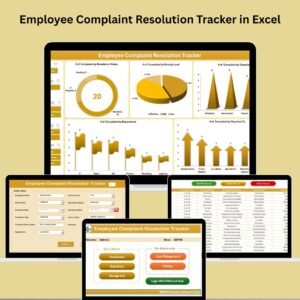
- Employee Complaint Resolution Tracker in Excel: follow complaints through to resolution
- Warning Letter Template in MS Word and Google Docs: a free letter to issue a formal warning
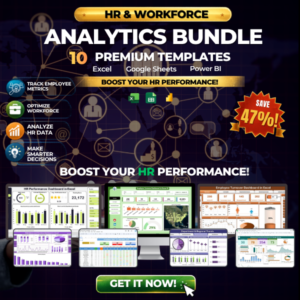
- HR & Workforce Analytics Bundle: 10 HR templates across Excel, Google Sheets and Power BI
Browse all Excel tracker templates or the HR and Payroll templates.


















Reviews
There are no reviews yet.