

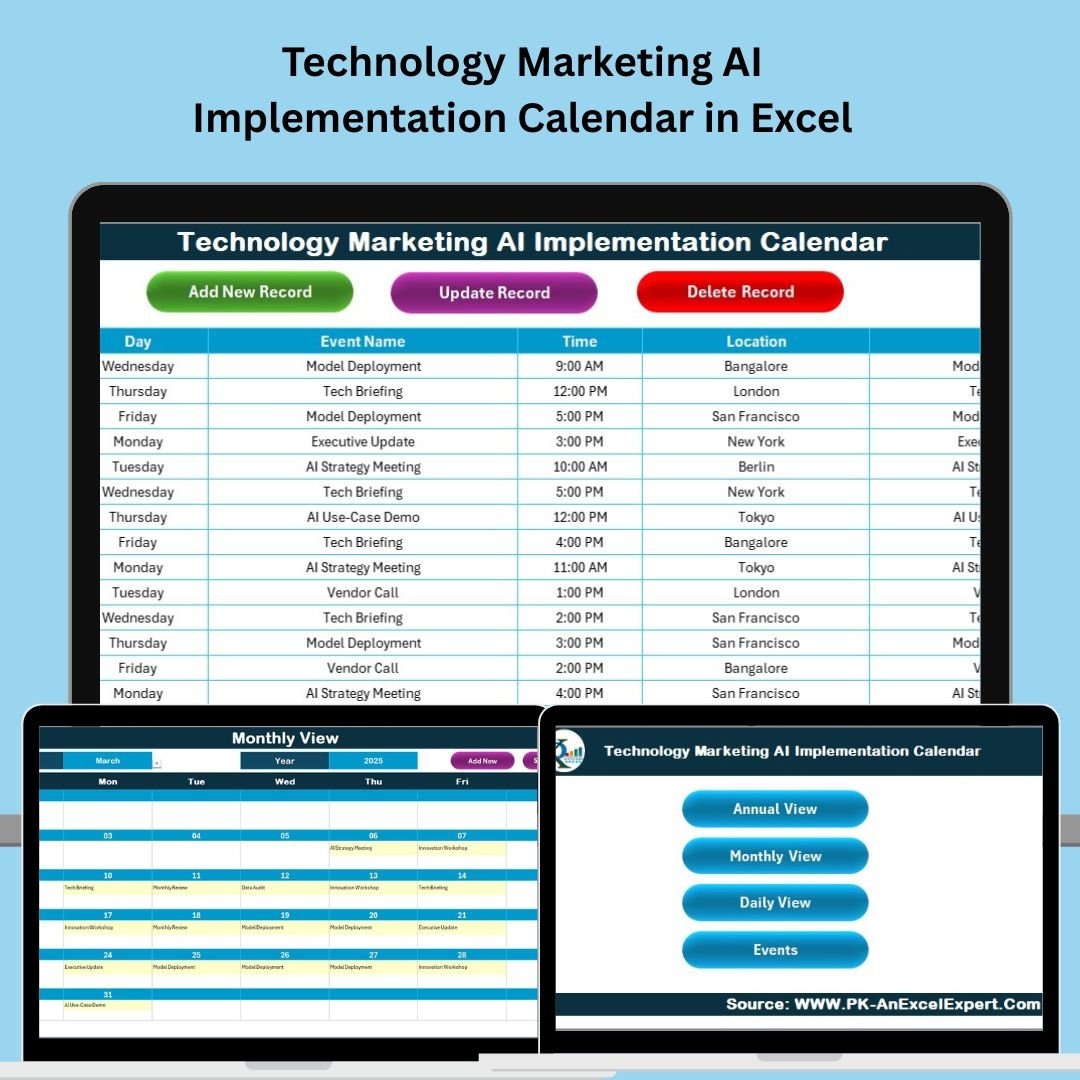
In today’s tech-driven world, AI marketing campaigns aren’t just ambitious — they’re complex. From model training timelines to multi-team alignment, success hinges on planning. That’s where the Technology Marketing AI Implementation Calendar in Excel becomes your must-have tool.
This smart, user-friendly Excel calendar is your AI project command center — enabling marketing and ops teams to map out strategies, assign responsibilities, and monitor deadlines across campaigns, vendors, and internal rollouts — without ever leaving Excel.
✨ Key Features of the AI Implementation Calendar
📂 5 Structured Worksheets for Total Visibility
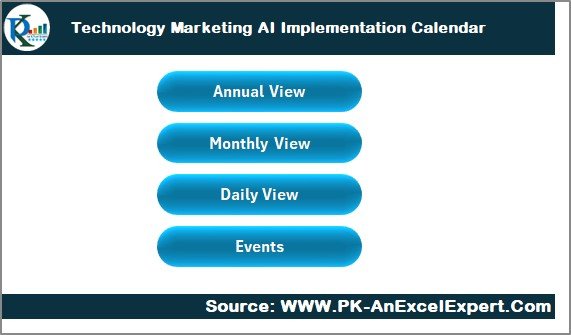
Home Sheet – Navigate instantly to any calendar view or database
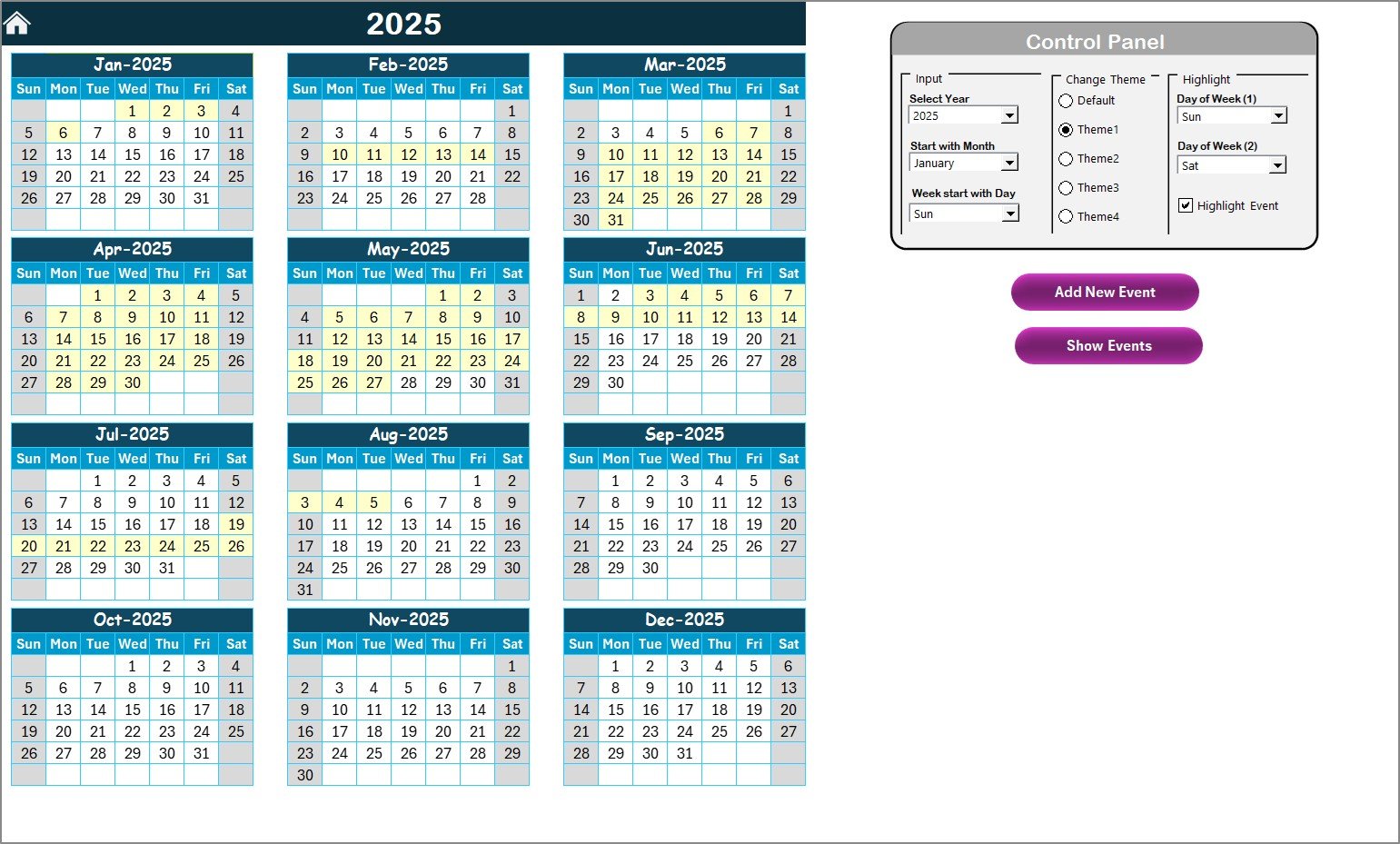
Annual View Sheet – Set long-term quarterly and yearly milestones
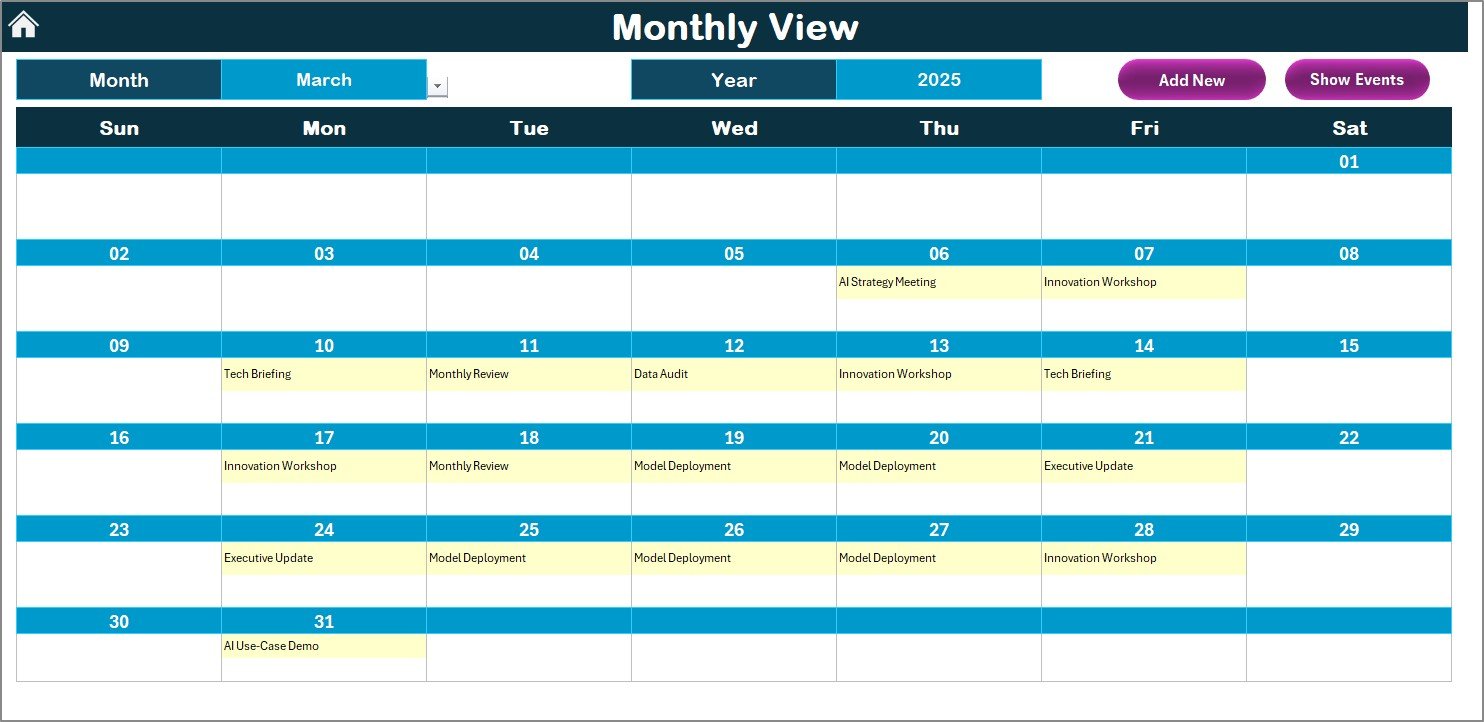
Monthly View Sheet – Visualize campaigns, AI testing, and delivery timelines
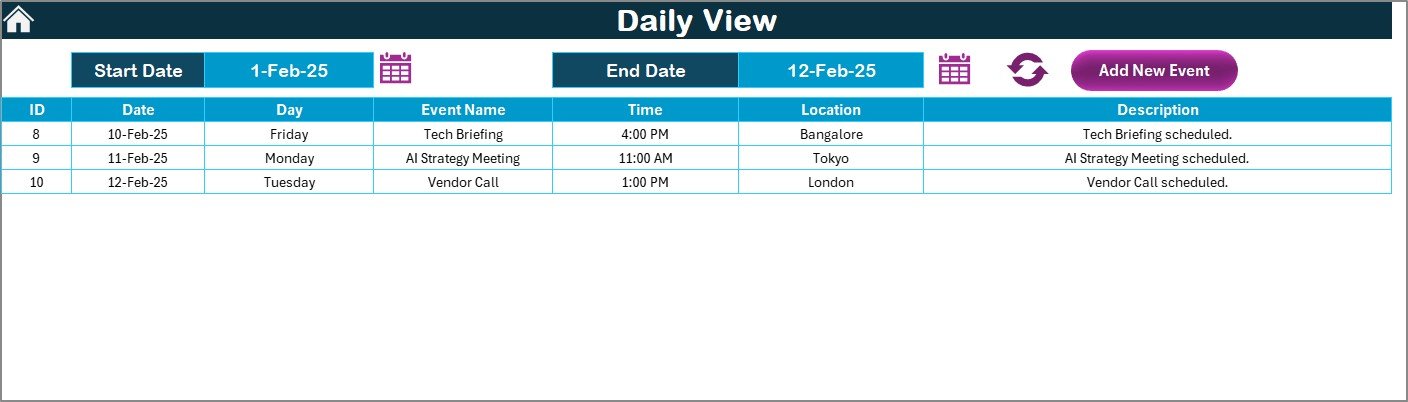
Daily View Sheet – Focus on short-term tasks and training events
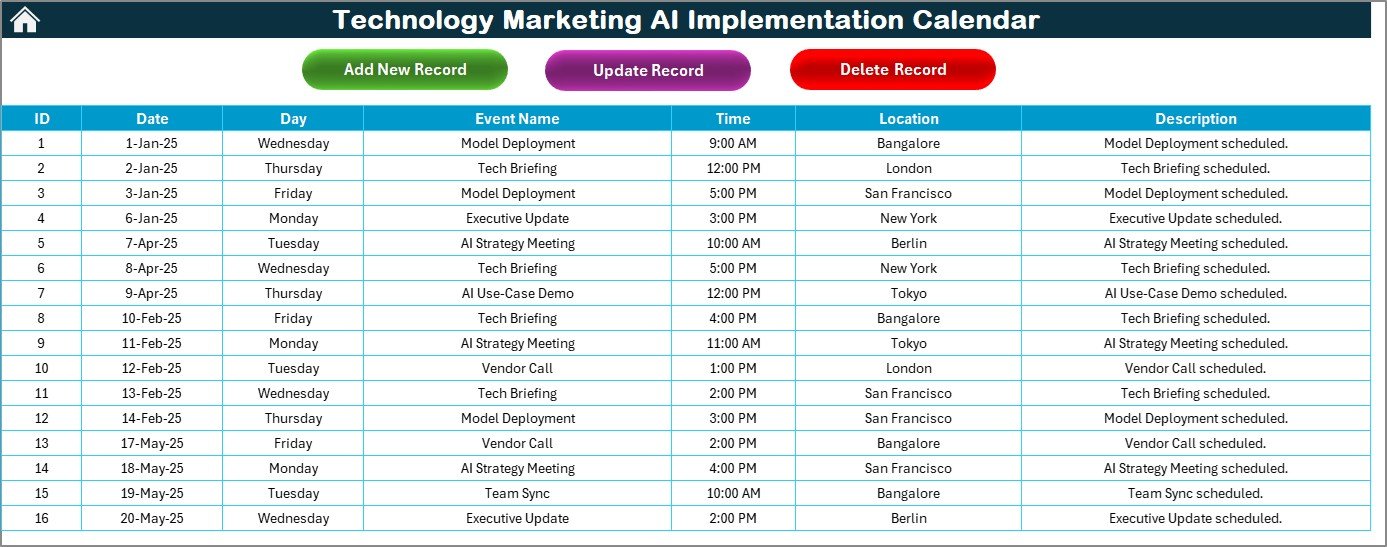
Events Sheet – Maintain an editable, searchable events database
🎛 Dynamic Control Panel (Annual View)
Set Year, Start Month, and Week Start Day
Choose from 5 professional color themes
Highlight up to 2 weekdays (e.g., Sat/Sun) or working vs. non-working days
One-click Add Event and Show Event functions
📆 Multiple View Modes
Yearly View for strategy planning
Monthly View for sprint scheduling and model iterations
Daily View for execution-level planning and check-ins
📝 Interactive Event Forms (No Manual Data Entry)
Add, Update, or Delete Events using built-in forms
All events auto-log to the Events Sheet with unique IDs
Event fields: Name, Date, Time, Location, Description
📦 What’s Inside the Excel Template?
🔹 Prebuilt calendar views with dropdowns for Year & Month
🔹 Dynamic data filters and refresh buttons
🔹 Macro-enabled (VBA-powered) event form system
🔹 Easy-to-edit visual layout and brandable color themes
🔹 Calendar icons for smooth date selection
🔹 Unlimited events — scale with your campaign size
🛠 How to Use the AI Calendar
✅ Start at the Home Sheet — your control panel
🧭 Use buttons to go to Annual, Monthly, or Daily View
📝 Add events via the form — they auto-sync with the database
🔍 Use “Show Event” to view tasks scheduled on specific dates
🎨 Customize your color theme, week start, or calendar year
🧠 Use the Daily View Sheet in meetings to keep teams aligned
Everything updates in real-time. No formulas needed, just click, enter, and plan.
👥 Who Should Use This Template?
Best for tech and marketing professionals including:
🤖 AI Project Managers – Coordinate vendors, model training, and release planning
📈 Marketing Ops Teams – Track content automation and AI testing events
📅 Digital Marketers – Schedule rollouts, customer targeting, and deliverables
🏢 Startups & Enterprise Teams – Plan at scale without costly SaaS tools
🧑💼 Cross-Functional Teams – Align development, marketing, and operations
🚀 Advantages of This Excel-Based Calendar
✅ All-in-One Campaign View – Track everything from AI pilots to webinars
📊 Visual Scheduling – Clear layout makes event conflicts easy to spot
🔧 Fully Customizable – Themes, controls, event fields – edit it all
🧾 Event Database Built-In – No double entry, no spreadsheet clutter
🧠 Macro Automation – No coding needed to use forms and filters
📤 Share & Collaborate – Works great on OneDrive or local network
📅 Supports AI-Specific Planning – Ideal for annotation milestones, model testing, and automation launches
💡 Best Practices for Success
📌 Set Quarterly Goals – Use Annual View to structure high-level objectives
📆 Plan Sprints Monthly – Organize testing and campaigns using Monthly View
🗓 Run Stand-Ups from Daily View – Keep tasks visible in daily check-ins
📥 Log Every Event – Use the Add Event form to reduce communication gaps
🎨 Match Themes to Brand – Stay visually aligned with your marketing identity
🧹 Clean Event Sheet Monthly – Delete outdated records for clarity
🛡 Enable Macros – Required for full form functionality
🔁 Click here to read the Detailed blog post
📺 Visit our YouTube channel to learn step-by-step video tutorials














Reviews
There are no reviews yet.