

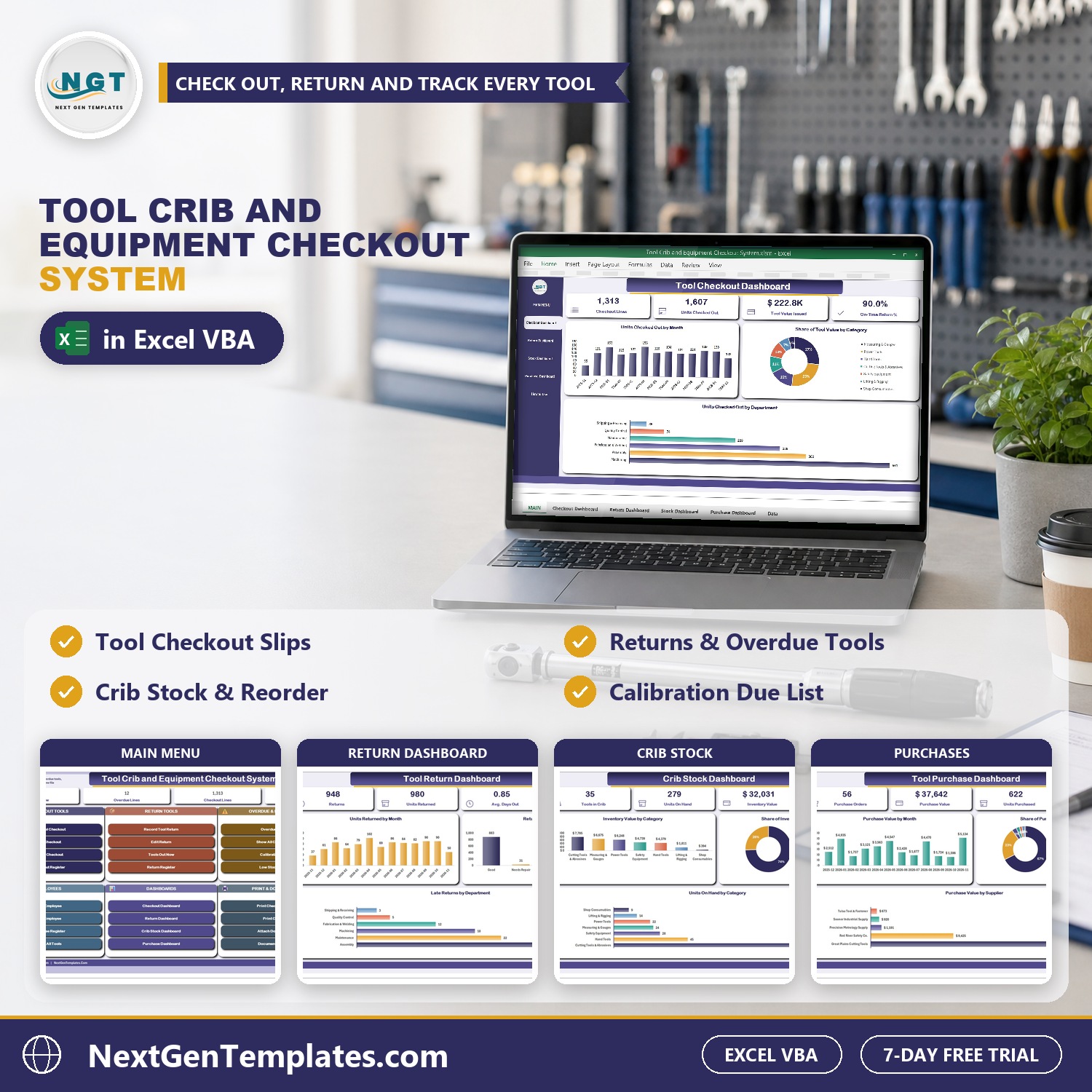
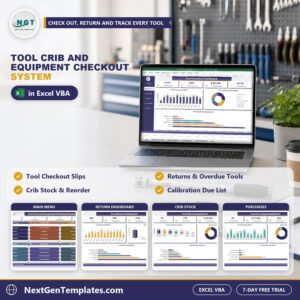
The Tool Crib and Equipment Checkout System in Excel VBA runs a whole tool crib in one macro-enabled Excel file. Every tool that leaves the crib is checked out to an employee against a work order, every return is recorded with its condition, overdue tools show up in one list, and crib stock, calibration dates and four dashboards build themselves.
Sample data for a Tulsa plant tool crib ships with 718 checkouts, 1,313 tool lines, 948 returns, 35 tools, 26 employees and 56 purchase orders, so every chart is populated when you open it. Replace it with your own and the whole system follows. It is a simple tool checkout system and equipment checkout system for a workshop, plant or maintenance team: a tool check out sheet, a returns log and a slip to sign in one file, with no cloud and no per-user fee. If tools still go out on a paper sheet, this is the step up from tool crib software you pay for every month.
Watch the Tool Crib and Equipment Checkout System V1.0 in Excel VBA walkthrough
🌍 Join 10,000+ customers in 180+ countries using NextGenTemplates to replace paid SaaS tools with one-time-purchase Excel, Google Sheets, Power BI and HTML templates.
✅ Instant download · One-time payment · No subscription · No per-user fees · Lifetime access
🎁 Try it free for 7 days before you buy: every form, register and dashboard works in the free trial, so you can test it on your own PC first.
Please note: this system needs Microsoft Excel 2016 or later for Windows with macros enabled. It does not work on Mac, in Excel for the web or in Google Sheets. It does not read barcodes or connect to an ERP. It is a single-user desktop workbook and your data stays on your own PC.
🔑 Key Features of the Tool Crib and Equipment Checkout System
📌 A checkout form built for the crib window. Search the employee and the department and shift come in by themselves. Add the work order and machine area, then type a few letters of a tool code or description and add it to the basket with a quantity. Unit cost comes from the tool master.
📌 Returns with a condition. Record each return by checkout line with the quantity, the condition and who received it. Damaged or lost tools are written off at unit cost.
📌 Overdue and follow up. Tools Out Now and Overdue Tools filter the register to the lines still out or past their due-back date.
📌 Crib stock and reorder points. Stock on hand, inventory value and a stock status for every tool, with a Low Stock Tools list.
📌 Calibration dates. Calibration Due lists gauges that are overdue or due within 30 days.
📌 Purchases. Record restock and replacement purchases with PO number, supplier and invoice, and stock on hand goes up straight away.
📌 Four dashboards with slicers. Checkout, Return, Crib Stock and Purchase dashboards filter by year, department, shift, condition, category, stock status and supplier.
📌 Print the checkout slip. Tool Checkout Slip on A4, 4 inch or 3 inch receipt paper with a line for the employee to sign.
📌 Documents on every record. Attach a calibration certificate, damage photo, tool responsibility form or supplier invoice and open it from the Document Library.
📦 What’s Inside the Tool Crib and Equipment Checkout System
Fourteen pages, laid out in the order you actually work in them.
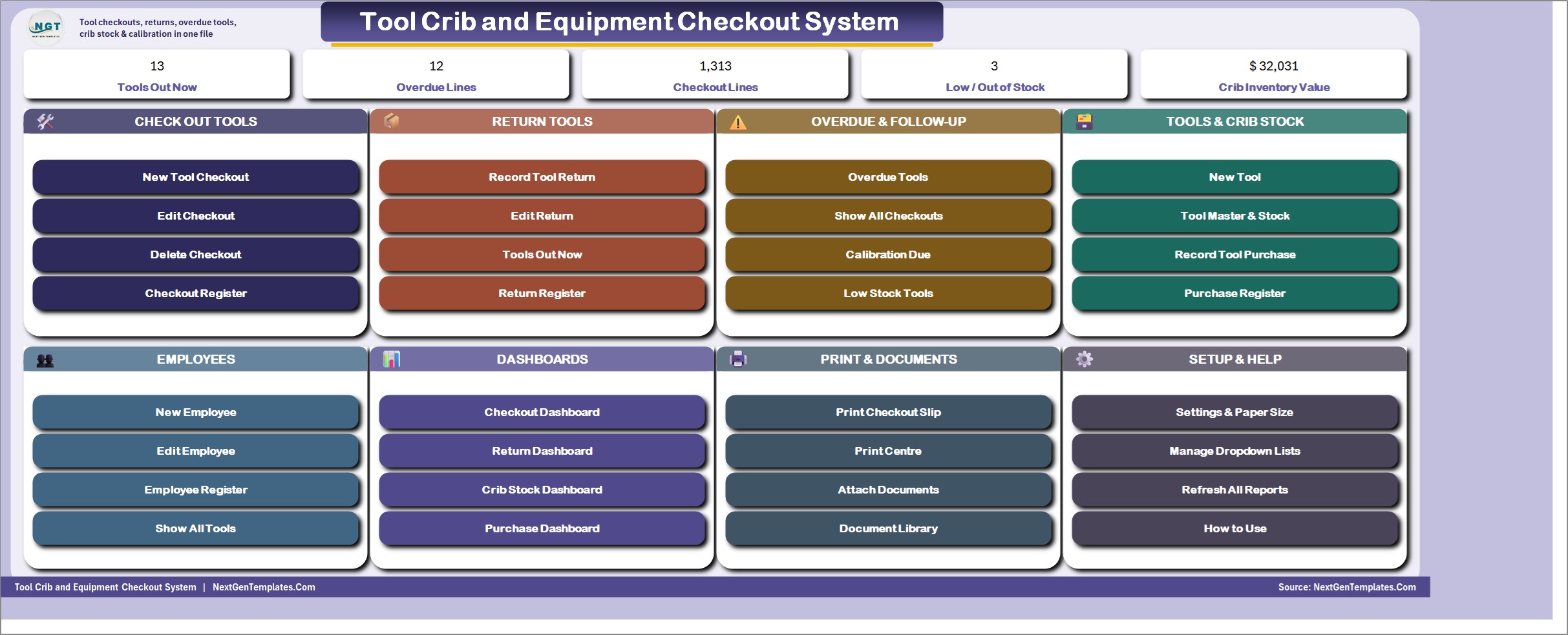
MAIN menu
Five live KPI cards (Tools Out Now, Overdue Lines, Checkout Lines, Low / Out of Stock and Crib Inventory Value) sit above eight colour-coded blocks: Check Out Tools, Return Tools, Overdue and Follow Up, Tools and Crib Stock, Employees, Dashboards, Print and Documents, and Setup and Help.
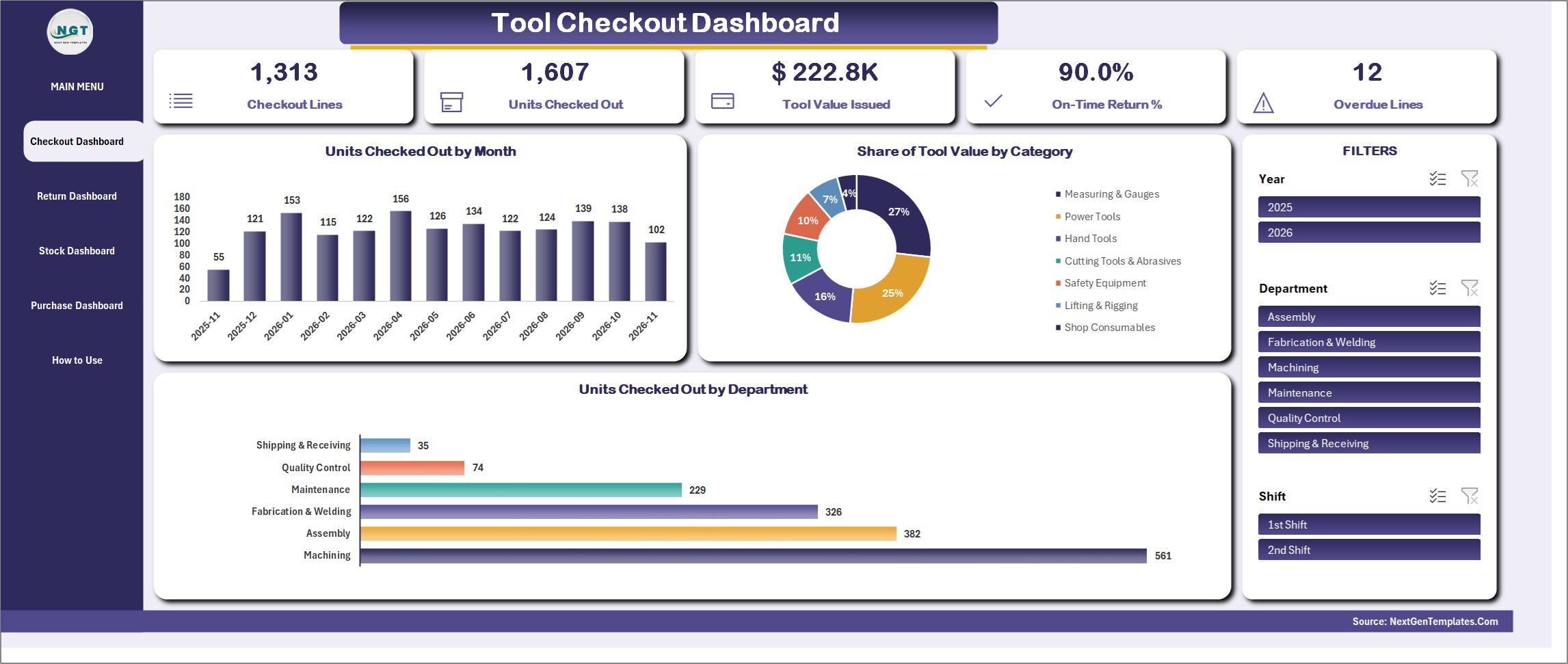
Tool Checkout Dashboard
Checkout Lines, Units Checked Out, Tool Value Issued, On-Time Return % and Overdue Lines, with Units Checked Out by Month, Share of Tool Value by Category and Units Checked Out by Department. Slicers for Year, Department and Shift drive every figure.
Tool Return Dashboard
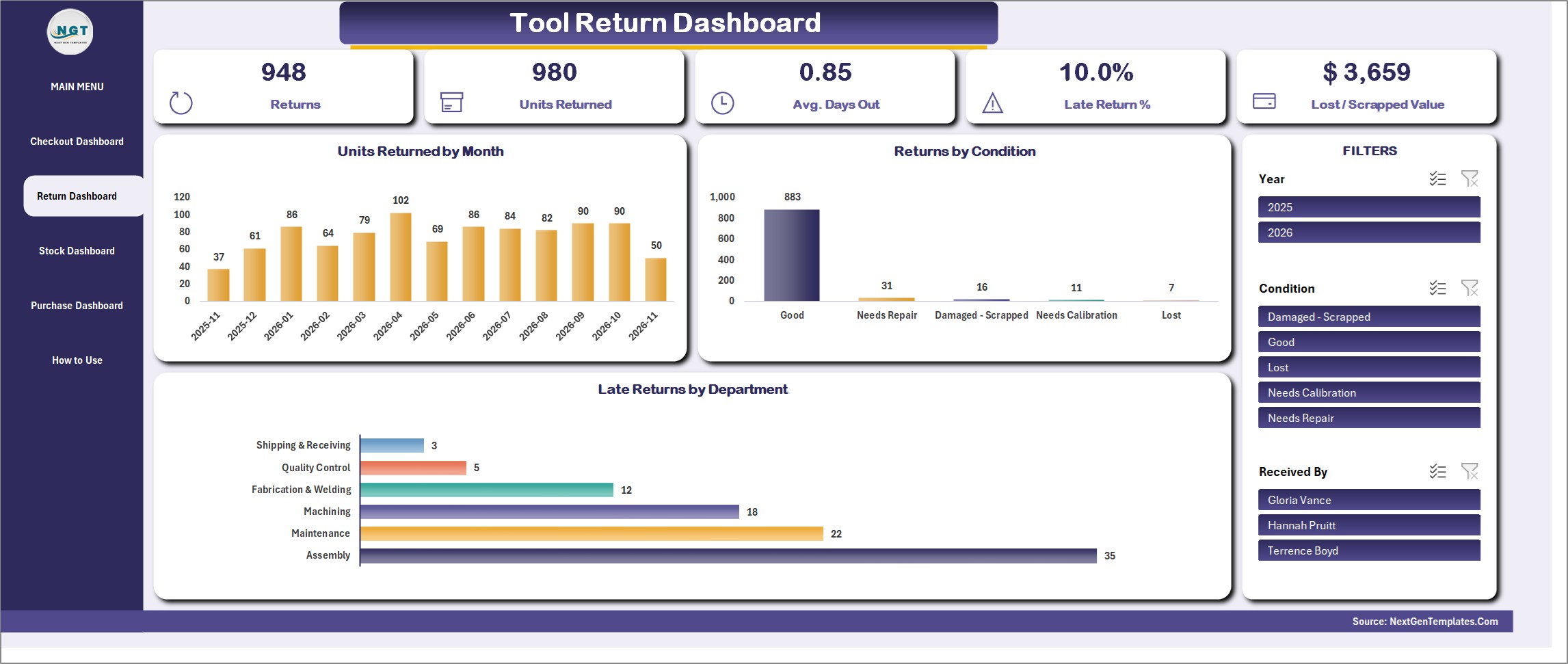
Returns, Units Returned, Average Days Out, Late Return % and Lost or Scrapped Value, with Returns by Month, Returns by Condition and Late Returns by Department. Filter by Year, Condition and Received By.
Crib Stock Dashboard
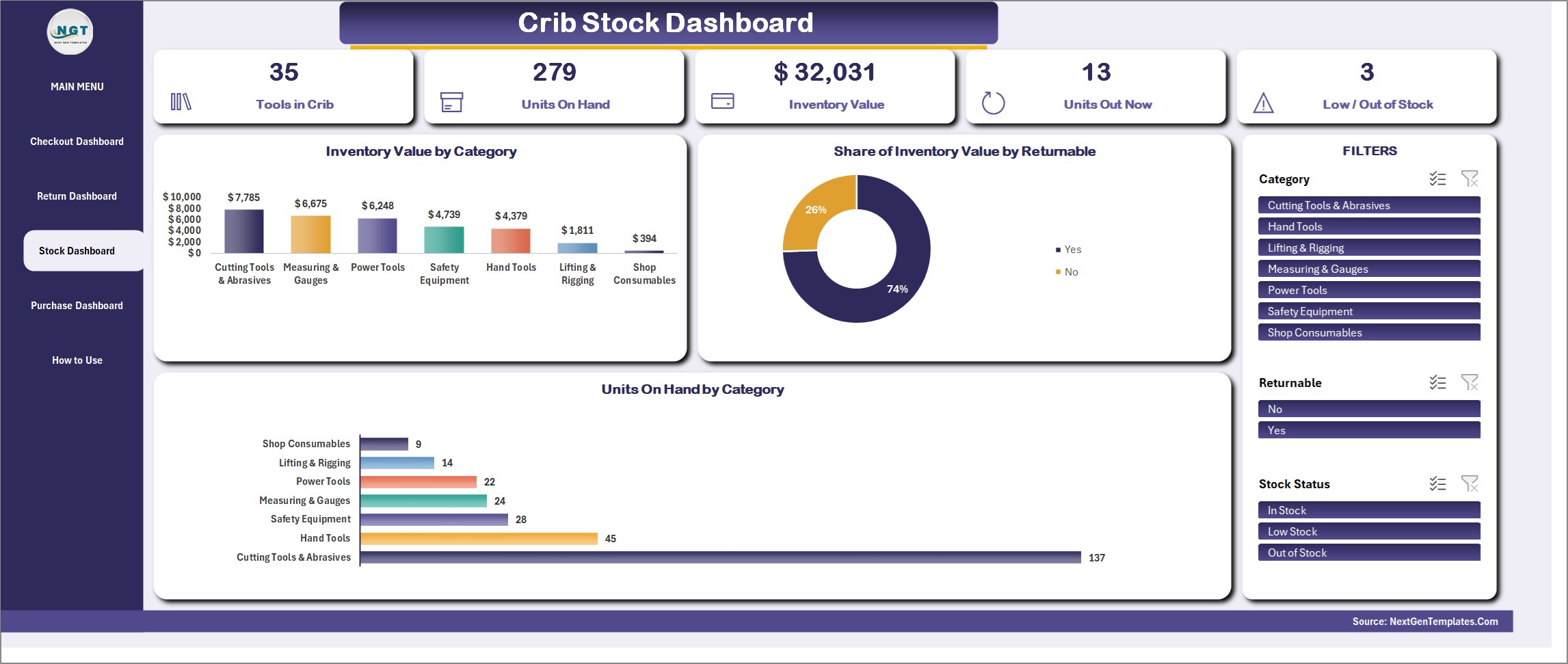
Tools in Crib, Units on Hand, Inventory Value, Units Out Now and Low or Out of Stock tools, with Inventory Value by Category, Share of Inventory Value by Returnable and Units on Hand by Category. Filter by Category, Returnable and Stock Status.
Tool Purchase Dashboard
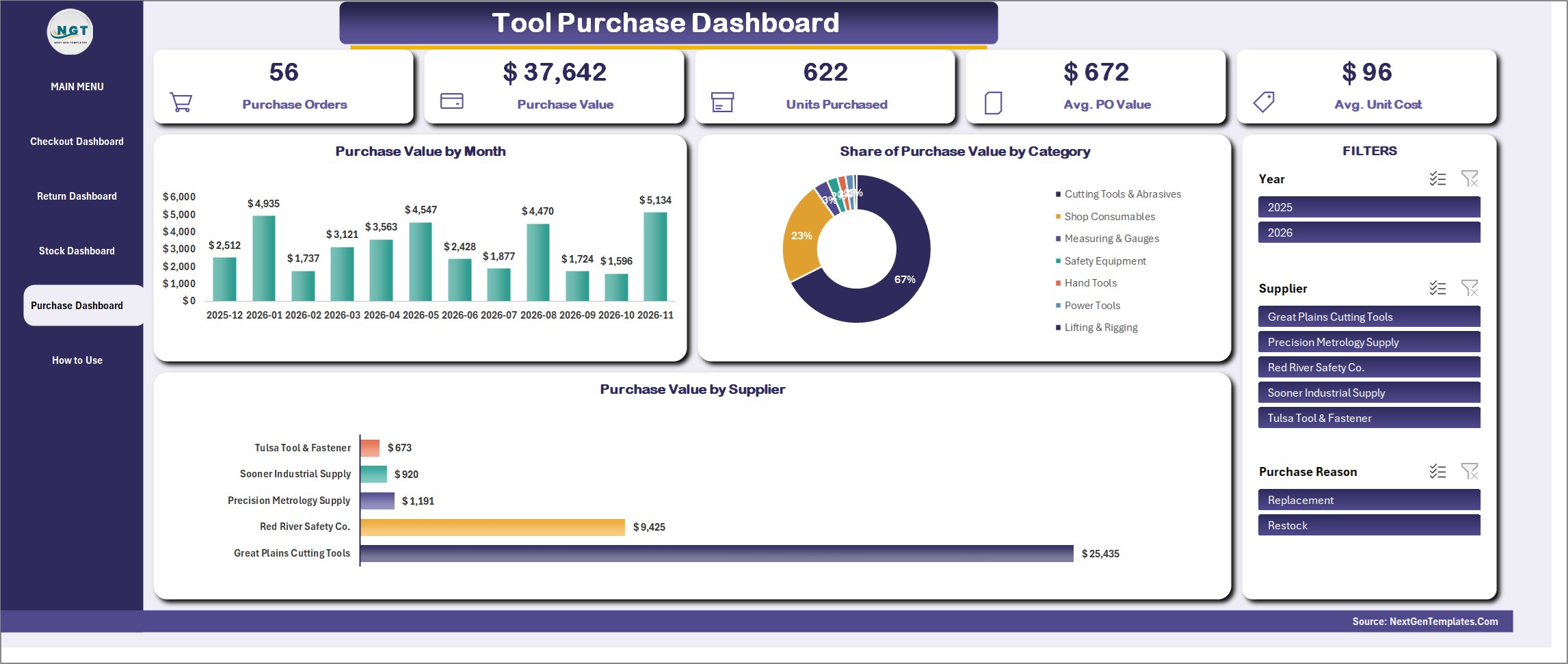
Purchase Orders, Purchase Value, Units Purchased, Average PO Value and Average Unit Cost, with Purchase Value by Month, Share of Purchase Value by Category and Purchase Value by Supplier. Filter by Year, Supplier and Purchase Reason.
How to Use
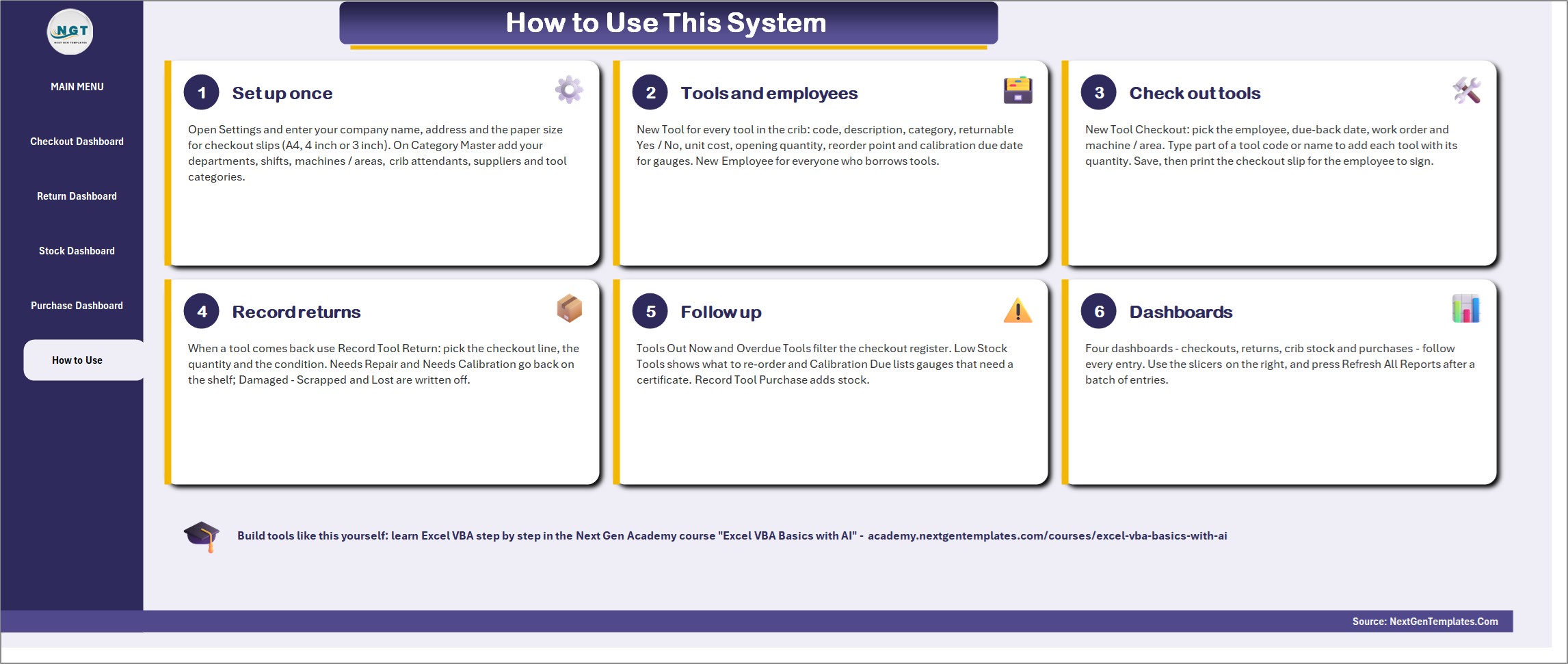
Six numbered cards on one page: set up once, add tools and employees, check out tools, record returns, follow up on overdue and calibration, and read the dashboards.
Checkout Register
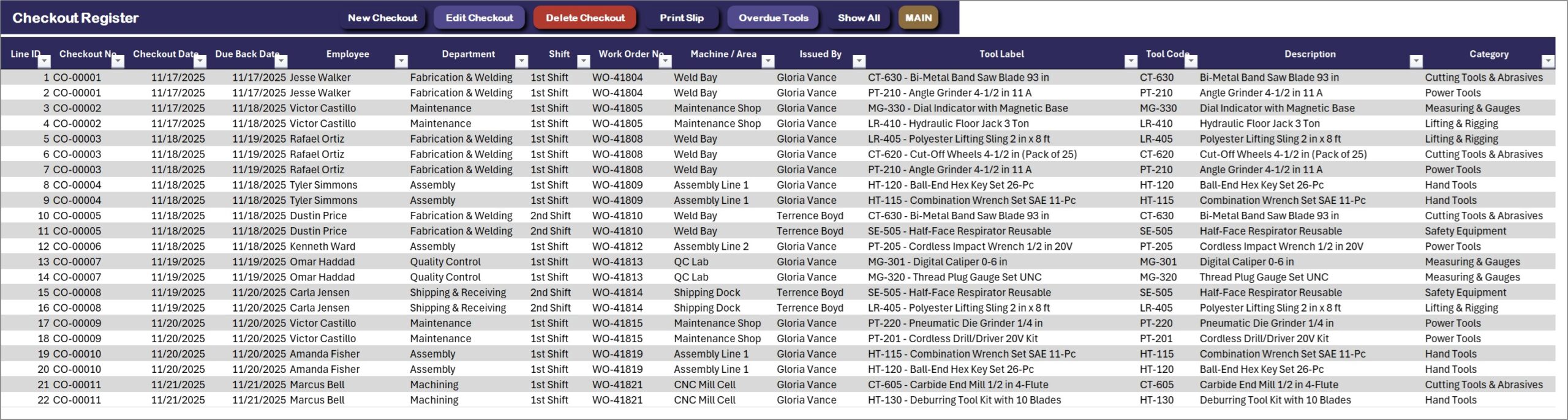
One row per tool line with the checkout number, dates, employee, department, shift, work order, machine or area, issued by, tool, quantity, unit cost and line value. Quantity returned, written off and outstanding, line status, days out and the on-time flag are worked out for you. New Checkout, Edit Checkout, Delete Checkout, Print Slip, Tools Out Now and Show All sit on the action bar.
Return Register
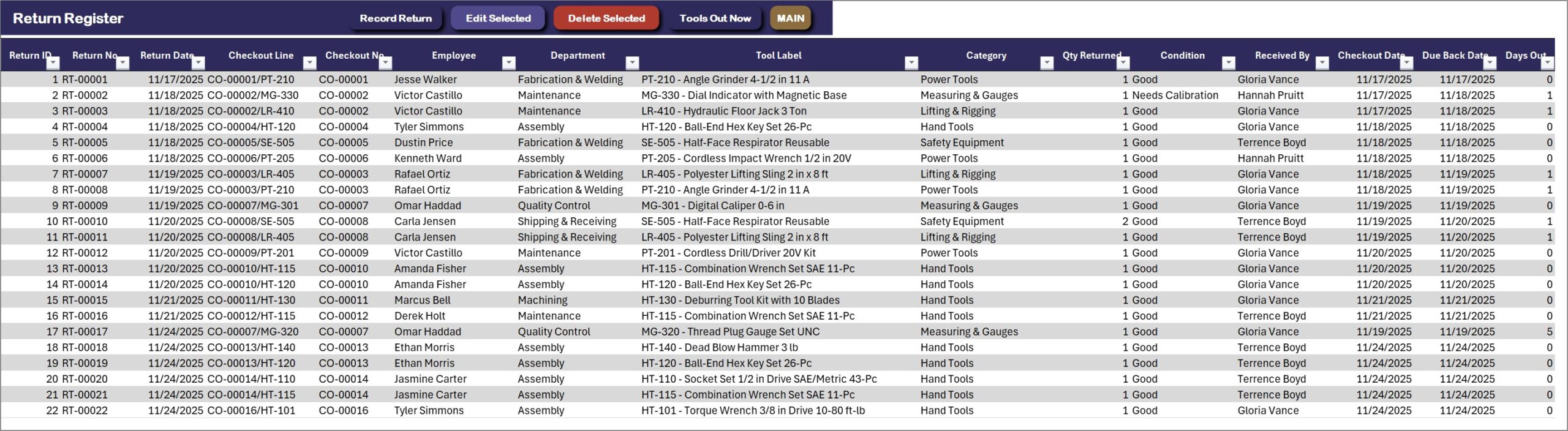
Every return with the return number, checkout line, employee, tool, quantity, condition (Good, Needs Repair, Needs Calibration, Damaged or Lost), received by, days out and write-off value. Edit Selected, Delete Selected and Tools Out Now sit on the action bar.
Tool Master and Crib Stock
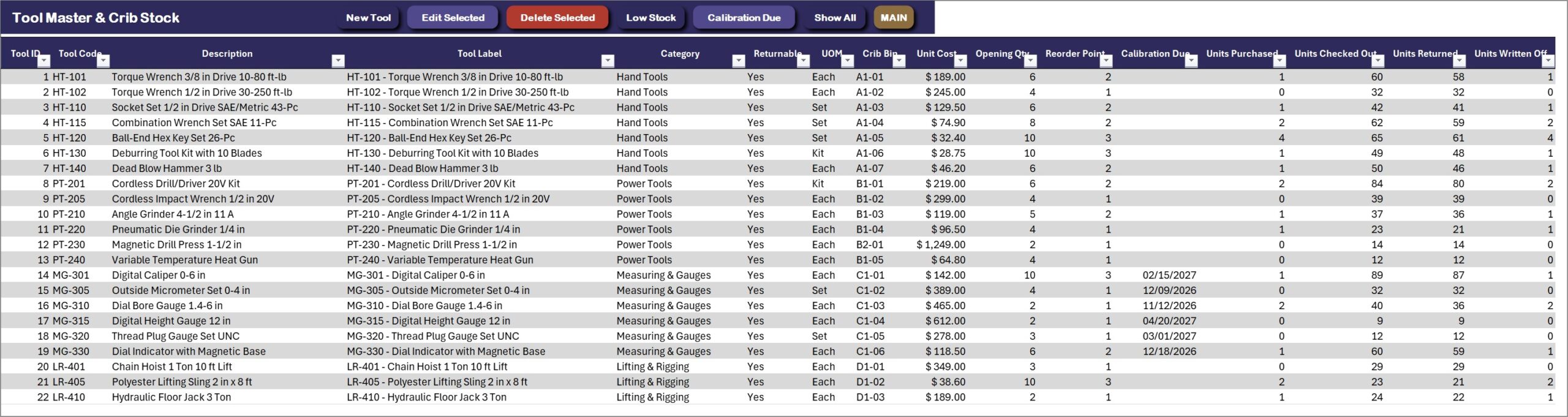
Each tool with code, description, category, crib bin, unit cost, opening quantity, reorder point and calibration due date. Units purchased, checked out, returned and written off, units out now, stock on hand, inventory value and stock status are calculated. Low Stock and Calibration Due filters sit on the action bar.
Employee Register
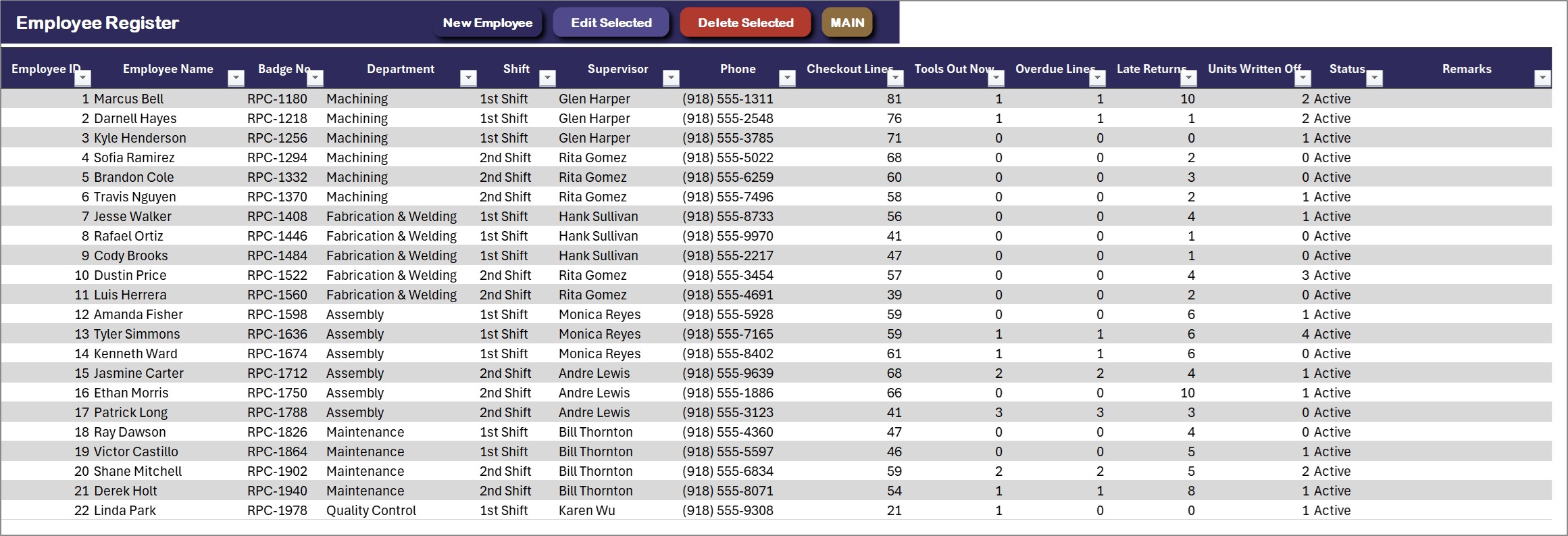
Employees with badge number, department, shift and supervisor, plus checkout lines, tools out now, overdue lines, late returns and units written off for each person.
Purchase Register
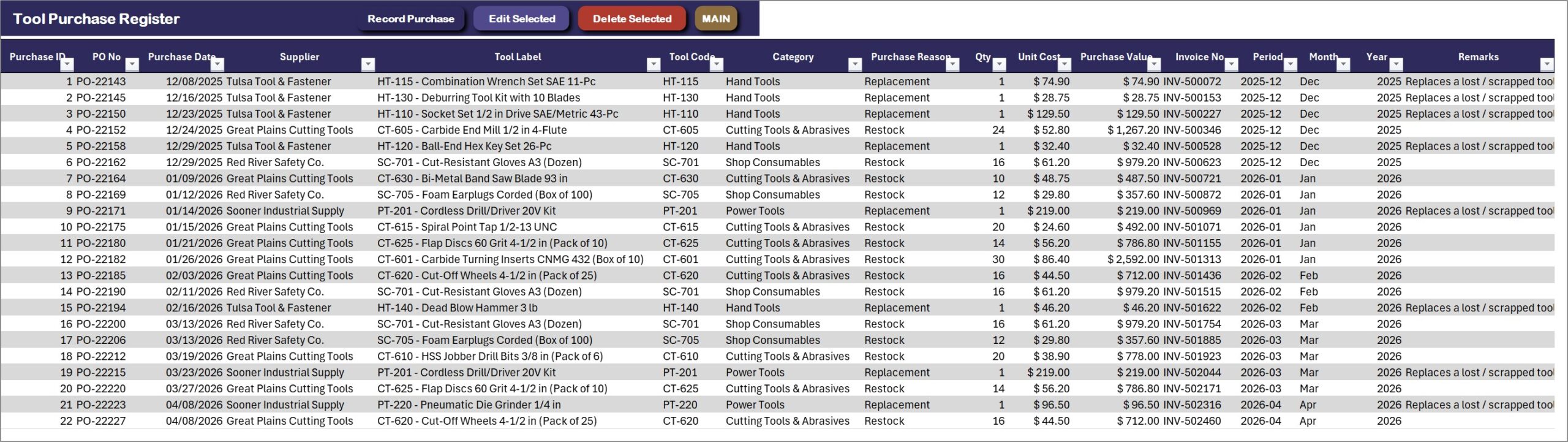
Restock and replacement purchases with PO number, supplier, tool, reason, quantity, unit cost, purchase value and invoice number.
Document Register
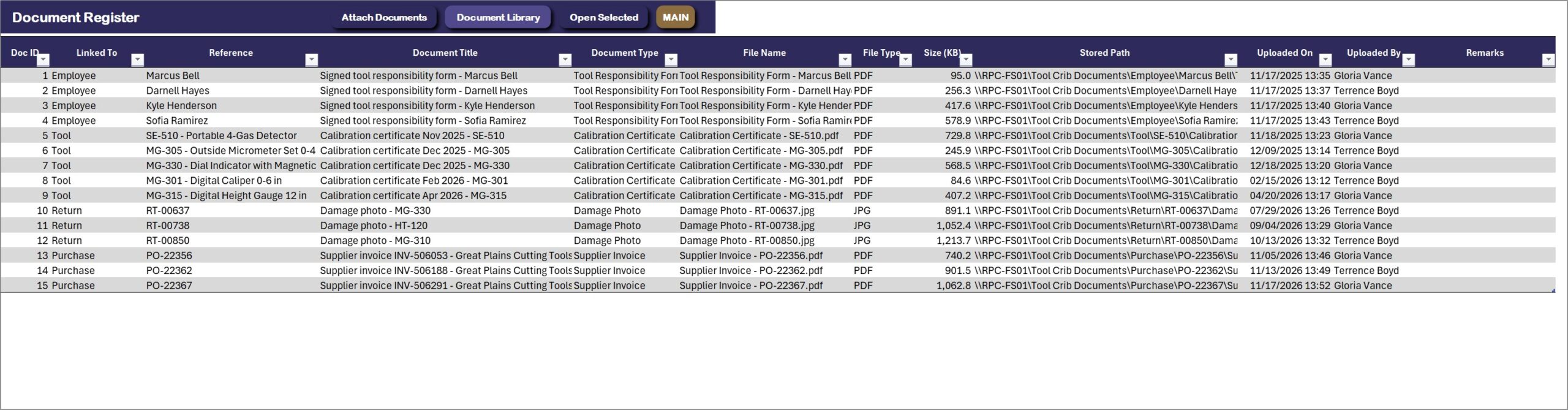
Calibration certificates, damage photos, signed tool responsibility forms and supplier invoices linked to the tool, return, employee or purchase they belong to. Open Selected opens any of them in one click.
Category Master
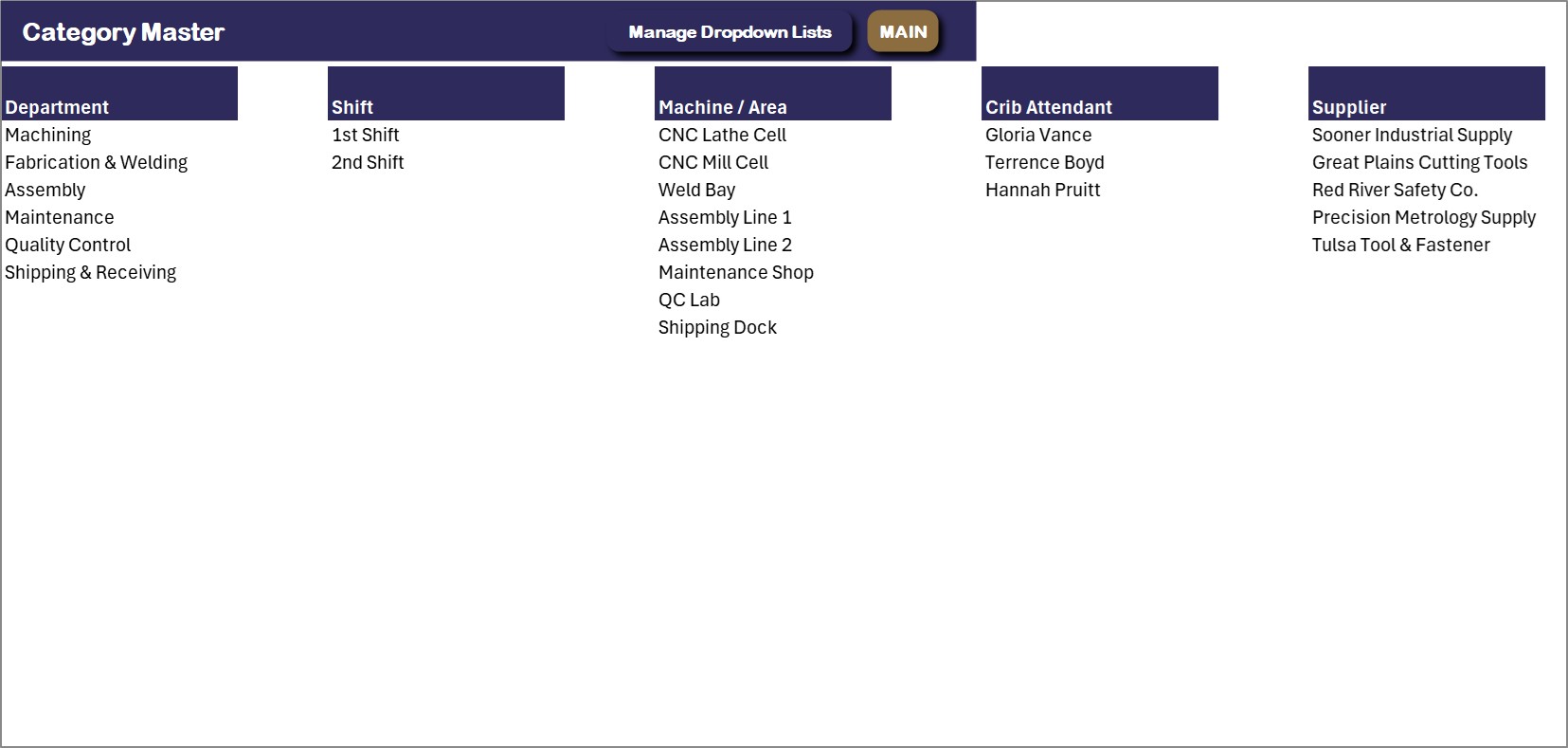
Departments, shifts, machine areas, crib attendants and suppliers in one place. Extend them here or from the Manage Dropdown Lists form and every drop-down follows.
Settings
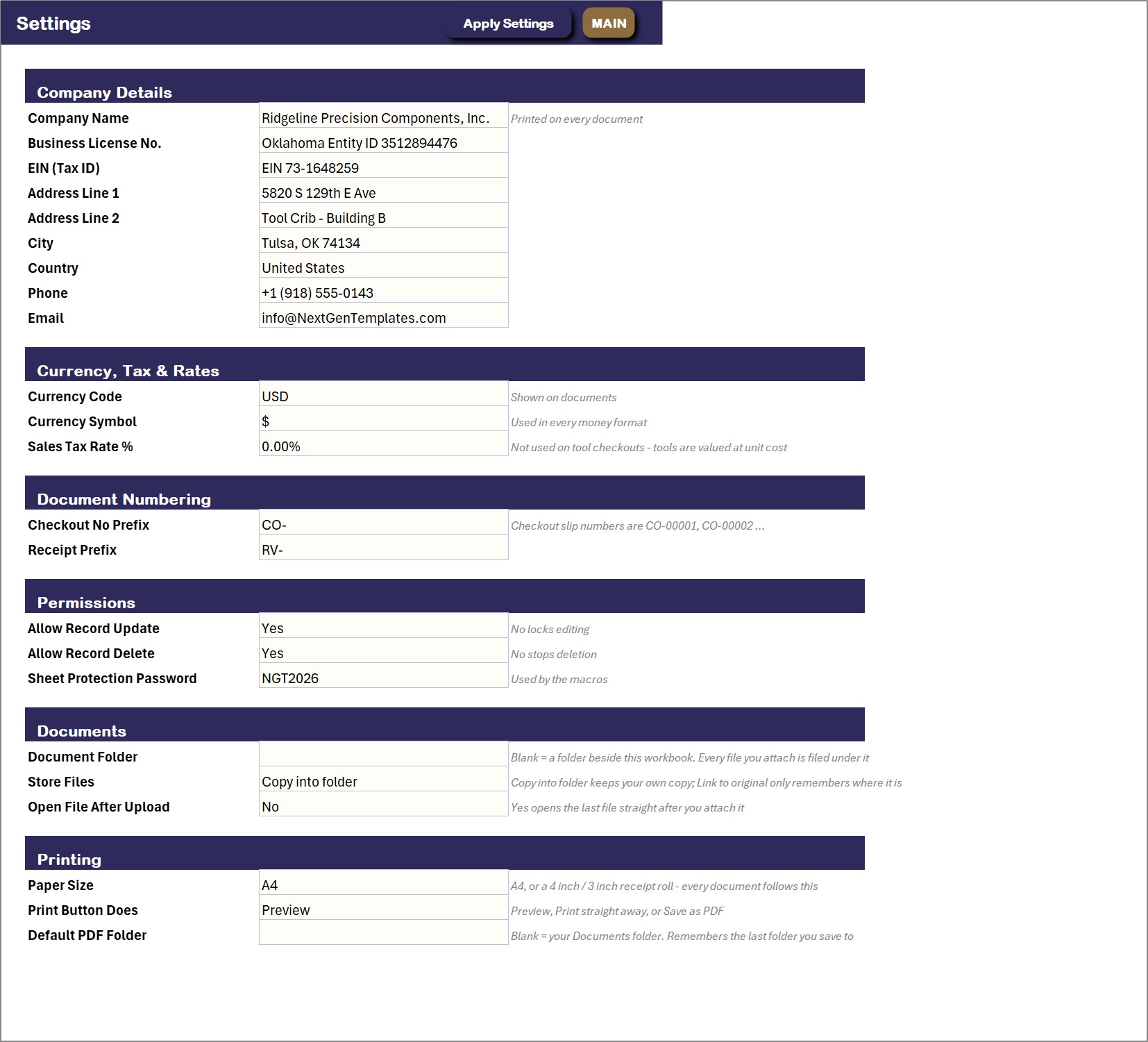
Company name and address, currency, checkout number prefix, permissions, the document folder and the paper size for printing.
👥 Who Is It For?
Plant and workshop tool cribs, maintenance teams, machine shops, fabrication and assembly lines, contractors with a tool store and any team that lends out equipment and wants to know who has what. It suits Windows Excel users who want a form and a button, not a database. It does not read barcodes or connect to an ERP.
🛠️ How to Use
- Download the ZIP, save the workbook to a normal folder and open it with macros enabled.
- Open Settings and enter your company details, checkout prefix and paper size, then extend the lists on Category Master.
- Add your tools and employees.
- Choose New Tool Checkout when tools leave the crib, then Record Tool Return when they come back.
- Press Refresh All Reports and read the dashboards, the overdue list and the calibration list.
📊 Tool Crib in Excel vs. a Paper Sheet vs. Tracking Software
| Feature | This Excel VBA system | Paper sign-out sheet | Cloud tool tracking software |
|---|---|---|---|
| Cost | $24.99 one-time ✅ | Free | Monthly subscription |
| Platform | Microsoft Excel for Windows (macros) | Paper | Cloud or installed software |
| Checkout form with a basket of tools | Yes ✅ | Manual | Yes ✅ |
| Returns with condition and write-off | Yes ✅ | Manual | Yes ✅ |
| Overdue tools list with employee and work order | Yes ✅ | No | Yes ✅ |
| Crib stock, reorder point and calibration due | Yes ✅ | No | Yes ✅ |
| Dashboards | 4 dashboards with slicers ✅ | No | Yes ✅ |
| A4 and receipt-roll checkout slip | A4, 4 inch or 3 inch ✅ | Handwritten | Yes ✅ |
| Barcode scanning and ERP connection | No | No | Often ✅ |
| Works offline, data stays on your PC | Yes ✅ | Yes | No |
For a small or mid-size crib that wants checkouts, returns, stock and calibration in one file, this system covers the daily work. It does not scan barcodes or connect to an ERP.
🎁 Try Before You Buy: 7-Day Free Trial
Download the free trial of the Tool Crib and Equipment Checkout System in Excel VBA and use the complete system for 7 days. Every form, register, dashboard, printable document and setting works exactly as in the full version, so you can test it with your own records before you decide.
How the free trial works
- Click Get the 7-Day Free Trial below, enter your email and download the ZIP from the email we send you. Unzip it.
- Open it in Microsoft Excel for Windows (the desktop app, not Excel Online or Mac) and click Enable Content on the yellow bar. If there is no yellow bar, right-click the file, choose Properties, tick Unblock and open it again.
- Your 7 days start the first time the file opens with macros on. A banner on the MAIN page shows how many days are left.
- After 7 days the trial locks and shows a Buy Full Version button. Buy the full version to keep working with no time limit.
| Free Trial | Full Version | |
|---|---|---|
| Every feature, form and dashboard | Yes | Yes |
| Time limit | 7 days | None, lifetime use |
| Trial banner | Yes | No |
| PDF user manual | No, full version only | Included |
| Editable (unlocked) VBA code | No, locked | Yes |
Enter your email and we send the download link straight to your inbox.
The trial runs once per computer: downloading it again does not restart the 7 days. Records you enter during the trial can be copied into the full version.
❓ Frequently Asked Questions
What is the Tool Crib and Equipment Checkout System in Excel VBA?
It is one macro-enabled Excel file that runs a tool crib: checkouts with a basket of tools, returns with a condition, an overdue list, crib stock with reorder points and calibration dates, purchases and four dashboards. Records go in through forms and the dashboards update themselves.
How do I check out tools?
Choose New Tool Checkout, search the employee, enter the work order and machine or area, then add each tool with its quantity to the basket and save. The checkout gets one number with a row for every tool, and you can print the Tool Checkout Slip straight away.
How do returns work?
Choose Record Tool Return, pick the checkout line, enter the quantity and the condition (Good, Needs Repair, Needs Calibration, Damaged or Lost) and who received it. A damaged or lost tool is written off at its unit cost.
How do I see which tools are overdue?
Overdue Tools filters the register to every line past its due-back date, with the employee and the work order, so the crib attendant knows who to call. Tools Out Now shows everything still out.
Does it track calibration and low stock?
Yes. Calibration Due lists gauges that are overdue or due within 30 days, and Low Stock Tools lists tools at or below their reorder point.
Can I print a checkout slip?
Yes. The Tool Checkout Slip prints on A4, 4 inch or 3 inch receipt paper with a line for the employee to sign. Choose the paper size once on the Settings sheet.
Which Excel do I need?
Microsoft Excel 2016 or later for Windows with macros enabled. It does not work on Mac, in Excel for the web or in Google Sheets, because the entry forms are VBA UserForms.
Does it scan barcodes or connect to an ERP?
No. It does not read barcodes or connect to an ERP or any outside service. It is a single-user desktop workbook and your data stays on your own PC. You can attach calibration certificates and damage photos from the Document Library.
Can I try it before I buy?
Yes. A 7-day free trial is available from the product page. It is a separate file with every form, register and dashboard working, and it stops working after 7 days.
Is sample data included?
Yes. The file ships with a year of sample data for a plant tool crib in Tulsa: 718 checkouts with 1,313 tool lines, 948 returns, 35 tools, 26 employees and 56 purchase orders, plus an illustrated PDF user manual, so every dashboard is populated when you open it.
🛒 Get the Tool Crib and Equipment Checkout System
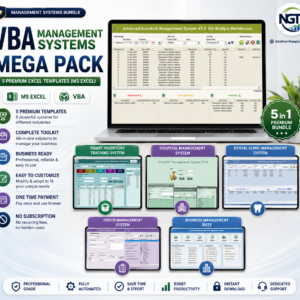
Download the Tool Crib and Equipment Checkout System in Excel VBA and stop writing tools out on paper. For a related VBA system, see the Warehouse Receiving and Putaway System in Excel VBA or the Multi-Location Inventory and Billing Management System in Excel VBA, or browse the VBA Management Systems Mega Pack.




Reviews
There are no reviews yet.