




With AI technology growing faster than ever, compliance is no longer a checklist—it’s a necessity. From data privacy laws to AI ethics reviews, the Technology Compliance AI Implementation Calendar in Excel helps your organization stay aligned with regulatory frameworks and implementation schedules, all in one place.
Whether you manage AI audits, cybersecurity timelines, or training sessions, this powerful Excel template puts your entire compliance year at your fingertips—no software subscription or coding required.
✨ Key Features of Technology Compliance AI Implementation Calendar
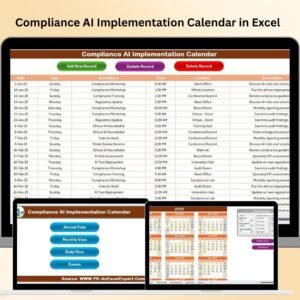
🏠 Home Sheet – Your Compliance Control Hub
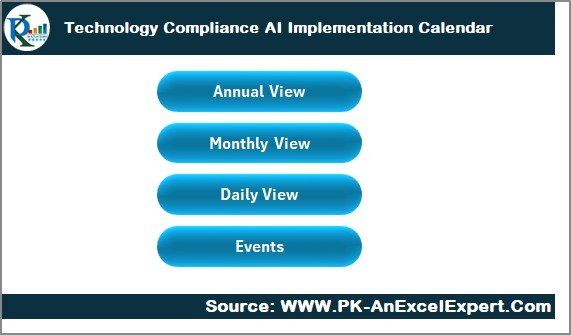
Navigate with ease using 4 smart buttons:
Annual View
Monthly View
Daily View
Events Database
The clean layout ensures a frictionless user experience and faster calendar updates.
📅 Annual View – Year-Round Planning with Full Control
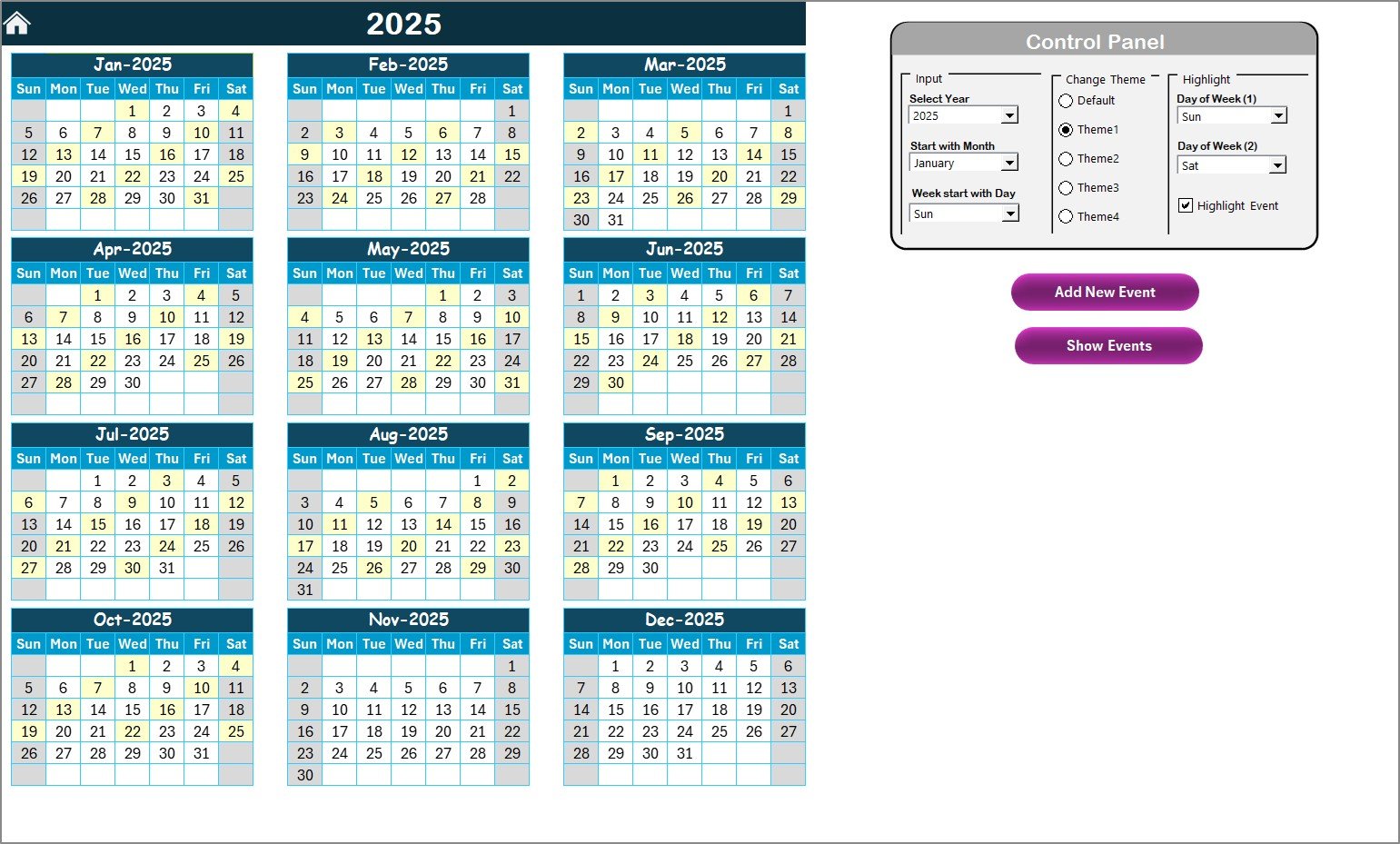
Plan out your entire year using this feature-rich layout:
Year Selector – Instantly updates the calendar
Start Month & Day Options – Align with fiscal or operational calendars
Theme Customization – Choose from 5 pre-defined color palettes
Weekend & Event Highlighting – Visually flag important days
Add New Event & Show Event Buttons – One-click data entry or lookup
Perfect for scheduling AI policy reviews, system patch rollouts, and compliance deadlines.
📆 Monthly View – Focused Planning Made Easy
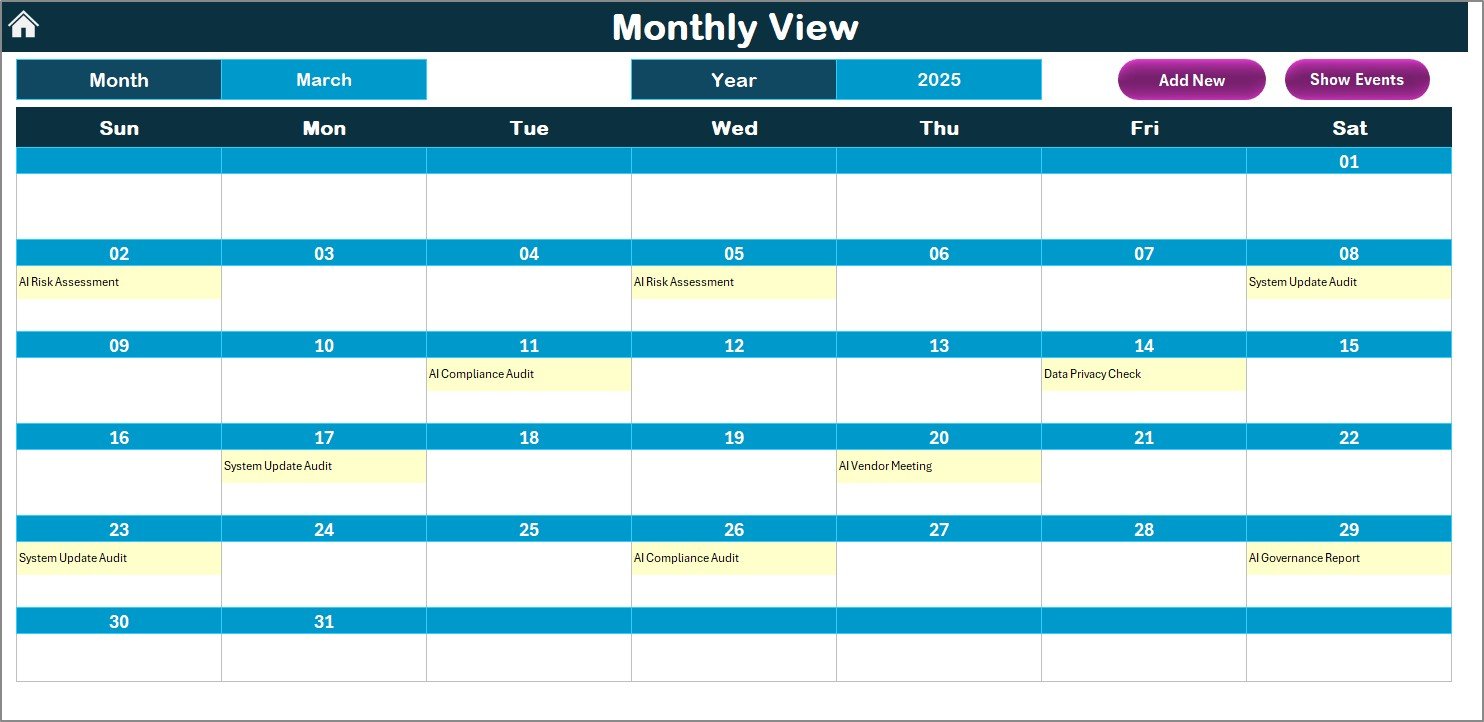
Drill into one month at a time:
Dropdown selectors for month and year
Shows one event directly, and alerts you when more are scheduled
Add/View Event buttons streamline daily task management
Stay on top of high-volume compliance periods or active rollouts.
📋 Daily View – Event Clarity for Tight Timeframes
Input a date range and instantly see:
All scheduled events with full details
Add New Event to expand your calendar with ease
Filter down to specific weeks, audits, or team schedules
Ideal for IT team check-ins, sprint-based AI implementation steps, or risk assessments.
📊 Events Sheet – The Secure, Scalable Database
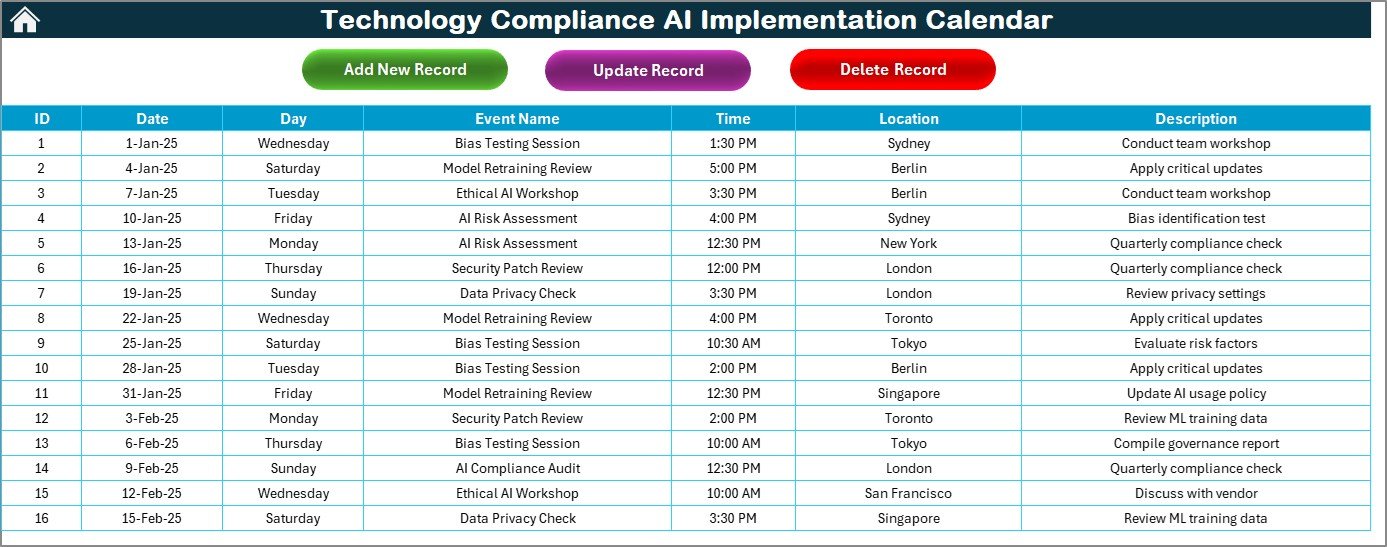
All your compliance events live here:
Auto-generated ID, Date, Day, Time, Location, and Description
Use Add, Update, or Delete Record buttons to manage entries
No need for complex formulas—just click and go!
📦 What’s Inside the Calendar Template?
5 Linked Worksheets – Home, Annual, Monthly, Daily, Events
Interactive Control Panel – Year, month, day, theme & highlights
Fully Automated Forms – For all add/edit/delete actions
Dynamic Views – Track events across different timeframes
VBA Automation – Powered by Excel macros for seamless use
Editable Fields – Tailor event types, categories, and layout as needed
🛠 How to Use the AI Compliance Calendar in Excel
Start at the Home Sheet
Use quick links to navigate to any section.Set the Year & Visual Theme
Choose your year, fiscal month start, and desired color theme.Add New Events
Click on a date in any view and fill out the automated form.Track by Month or Date Range
Use the Monthly View or Daily View to drill into busy periods.Manage Events from the Events Sheet
Add, update, or delete with user-friendly buttons and no need for Excel knowledge.
👥 Who Should Use This Template?
✅ IT Governance Leads – Schedule cybersecurity updates and reviews
✅ AI Project Managers – Track training data audits, model updates, and ethics checks
✅ Compliance Officers – Ensure adherence to global AI regulations
✅ Tech Consultants – Standardize deliverables across clients and teams
✅ CIOs and Innovation Teams – Gain visibility over AI deployment timelines
Whether you manage one project or an enterprise-wide AI rollout, this tool keeps compliance in check.
📘 Click here to read the Detailed blog post
🎥 Visit our YouTube channel to learn step-by-step video tutorials
Watch the step-by-step video tutorial:
Compatibility and Requirements
- Works in Microsoft Excel desktop on Windows (Excel 2016 or later, or Microsoft 365). Excel macros (VBA) run the Add, Update and Delete buttons and the forms, so macros must be enabled. The template does not run in Excel for the web, Google Sheets or mobile apps.
- Microsoft explains how to turn macros on in Enable or disable macros in Microsoft 365 files.
Frequently Asked Questions
Which sheets are included?
Five linked worksheets: Home, Annual View, Monthly View, Daily View and Events.
How do I add a compliance event?
Click Add New Event in the Annual, Monthly or Daily view, or use the Add button on the Events sheet, and fill out the form. The Events sheet stores the ID, date, day, time, location and description.
Can I start the calendar in a different month?
Yes. The Annual View has a year selector and start month and start day options, so you can align the calendar with a fiscal or operational year.
Can I change how the calendar looks?
Yes. The Annual View offers 5 color themes and options to highlight weekends and event days.
How do I see events for a specific date range?
Enter the dates in the Daily View. It lists every scheduled event in that range with its details.
Is there a similar calendar for other compliance topics?
Yes. See the Technology Compliance Supply Chain Resilience Calendar in Excel and the Technology Compliance Remote Work Calendar in Excel.
Related AI Implementation and Compliance Calendars
- Compliance AI Implementation Calendar in Excel: the general compliance version of this calendar
- Technology Compliance Supply Chain Resilience Calendar in Excel: compliance dates for supply chain resilience work
- Technology Compliance Remote Work Calendar in Excel: compliance dates for remote work policies
- Legal Compliance Calendar in Excel: legal filing and review deadlines
- Technology Operations AI Implementation Calendar in Excel: AI rollout dates for operations teams
Browse all Excel calendar templates.











Reviews
There are no reviews yet.