

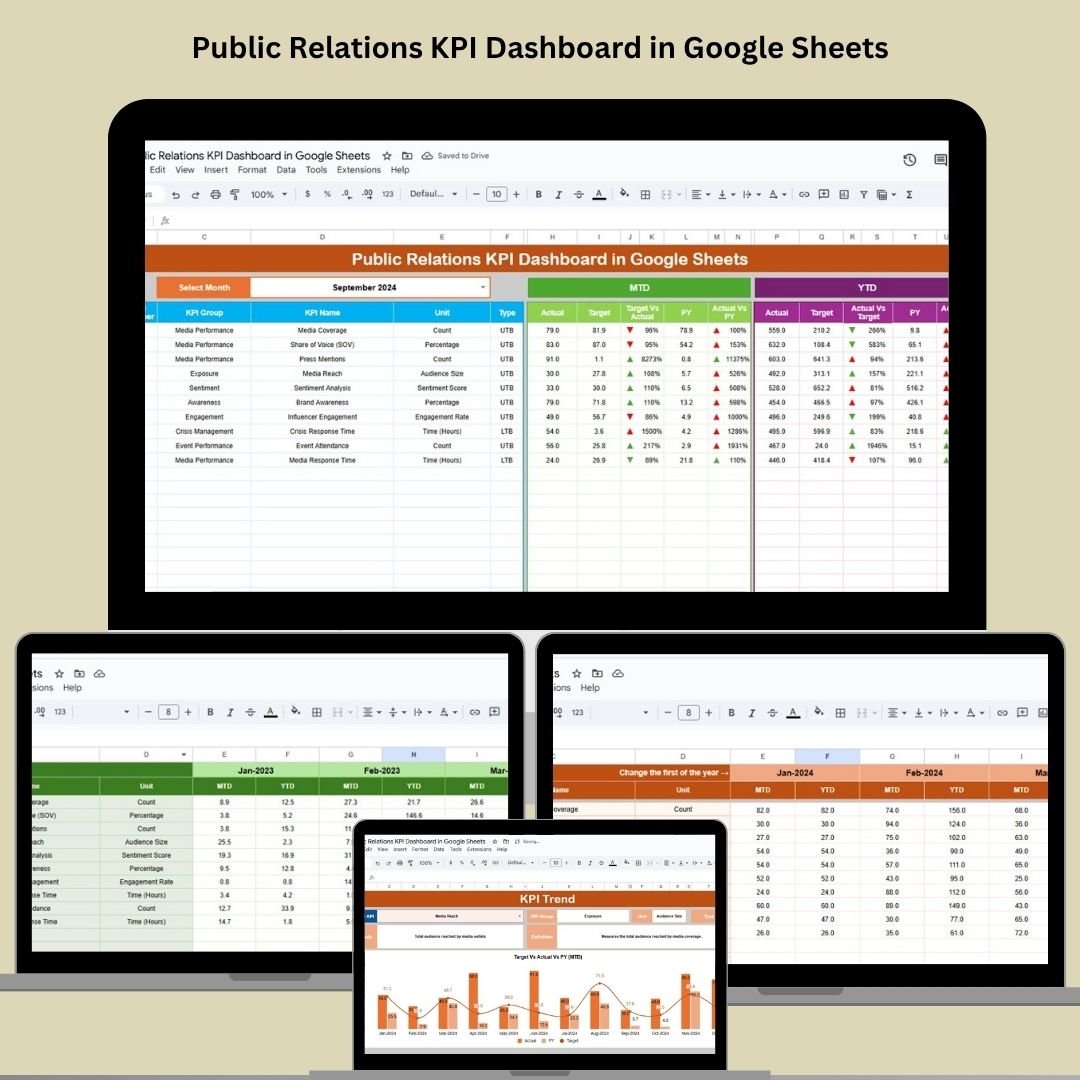

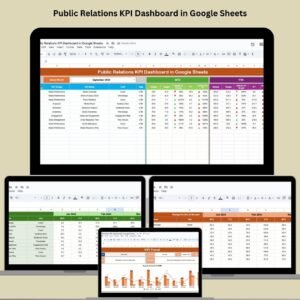
Measure the true impact of your PR campaigns with our Public Relations KPI Dashboard in Google Sheets—a ready-to-use, data-driven tool to help PR teams and agencies monitor media coverage, sentiment, reach, and other essential KPIs in one interactive view. Whether you’re managing a single campaign or your full PR strategy, this dashboard puts insights at your fingertips.
📊 Key Features of the Public Relations KPI Dashboard
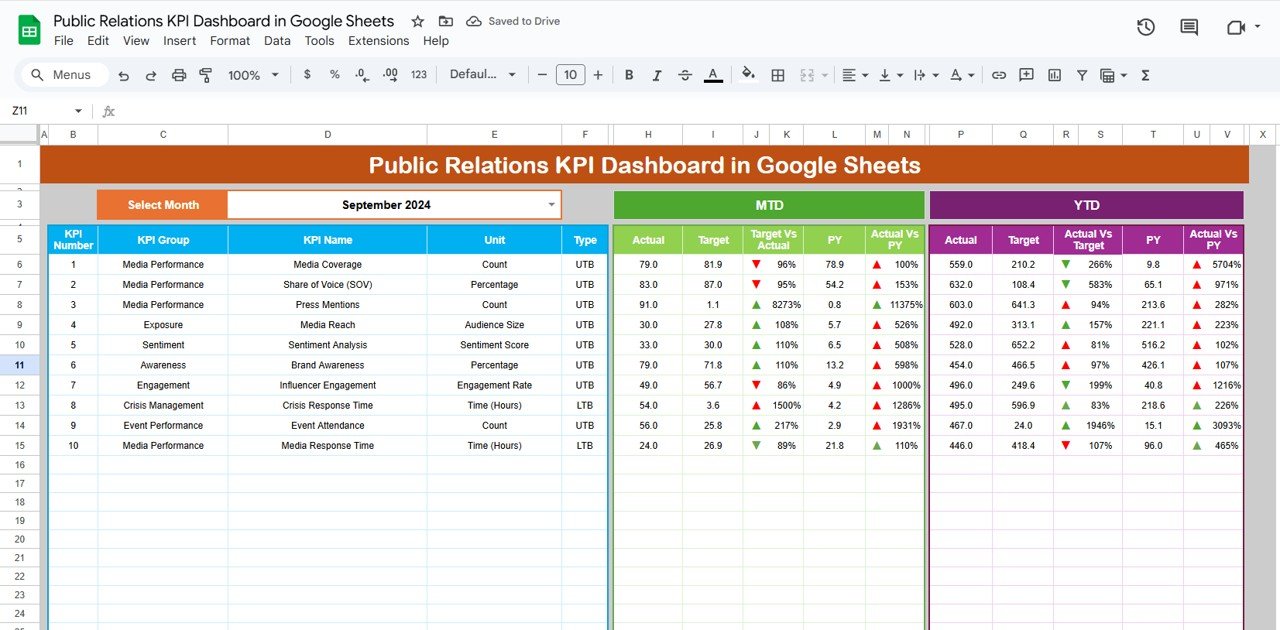
📌 Interactive Dashboard Sheet Tab
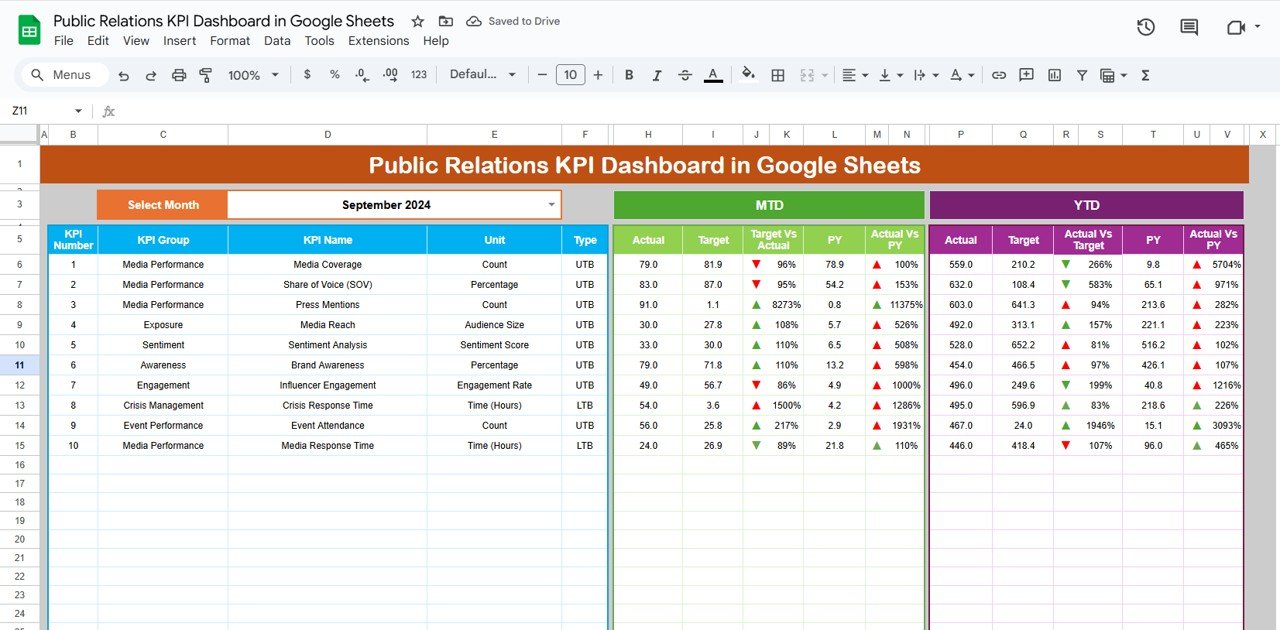
🎯 Track MTD (Month-To-Date), YTD (Year-To-Date), Targets, and Previous Year data
⚖️ Visual comparison of Target vs. Actual and PY vs. Actual using conditional formatting
🗓️ Select any month from a dropdown (Range D3) to dynamically update all metrics
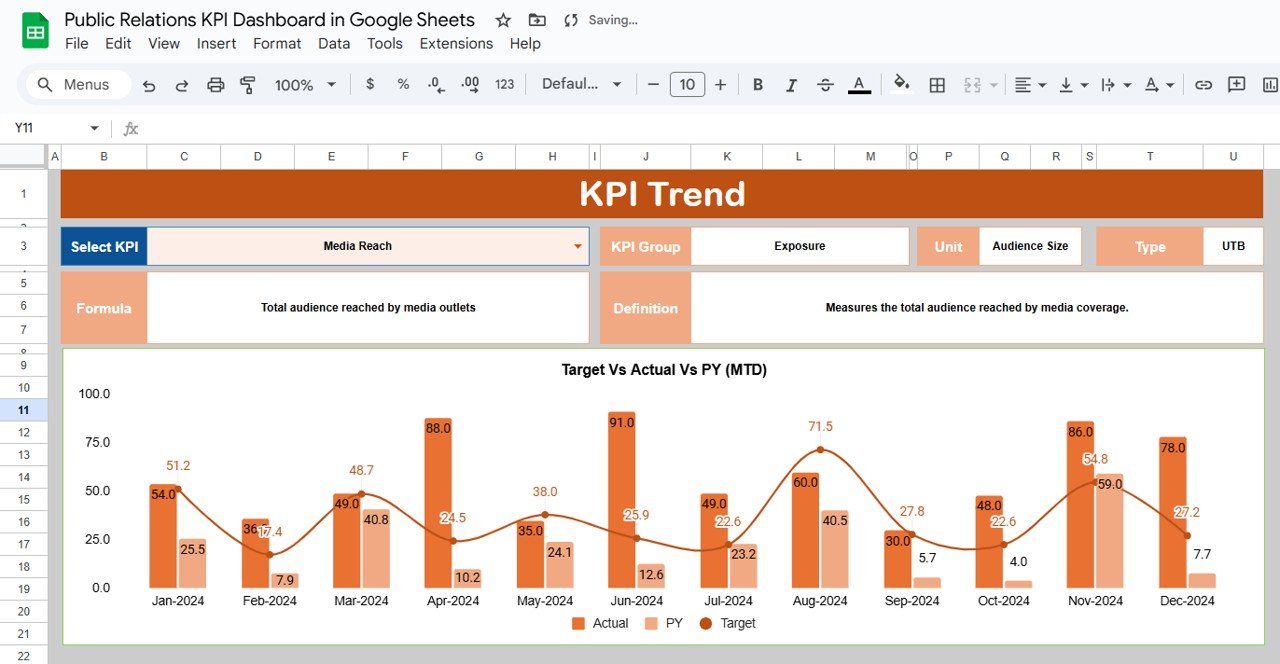
📈 KPI Trend Sheet Tab
📌 Choose any KPI and analyze historical trends over time
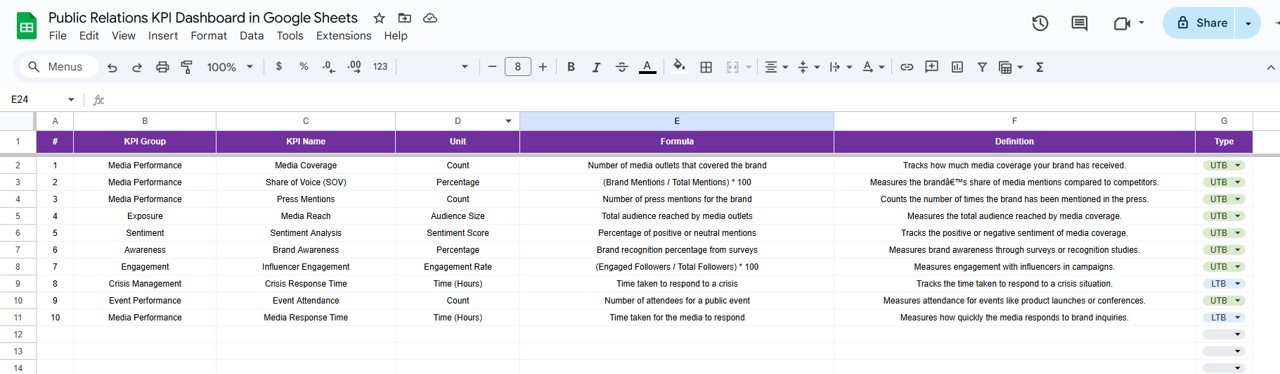
📋 See KPI Group, Unit, Formula, and whether it’s UTB (Upper the Better) or LTB (Lower the Better)
🔍 Understand metric definitions for full transparency
🧮 Data Entry Sheets
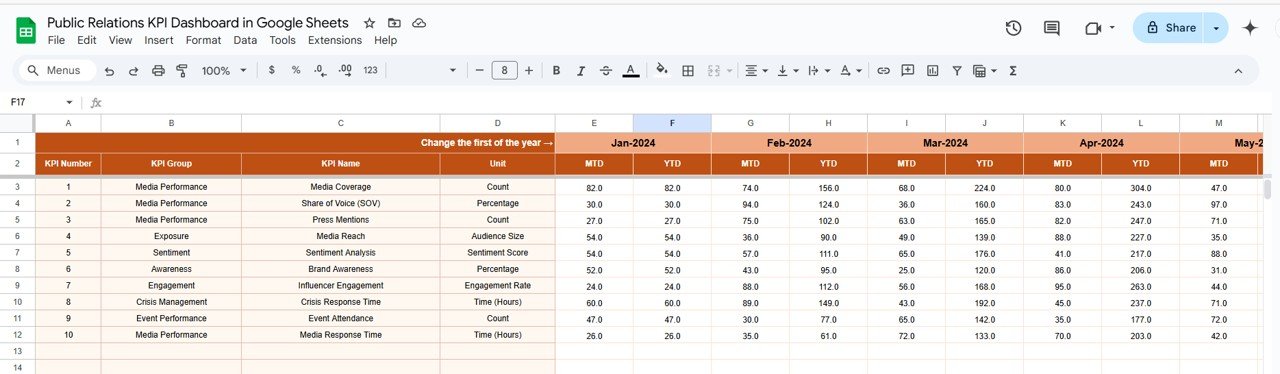
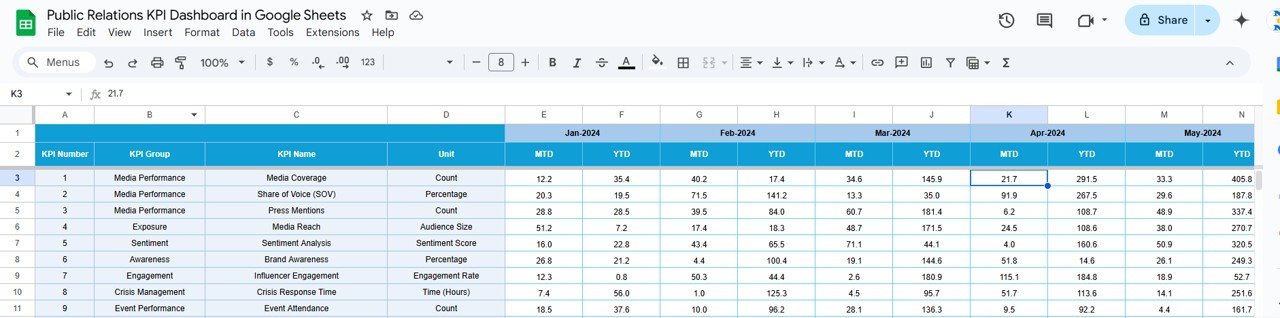
Actual Numbers Tab – Enter ongoing performance data (MTD & YTD)
Target Sheet – Set and update monthly & yearly performance goals
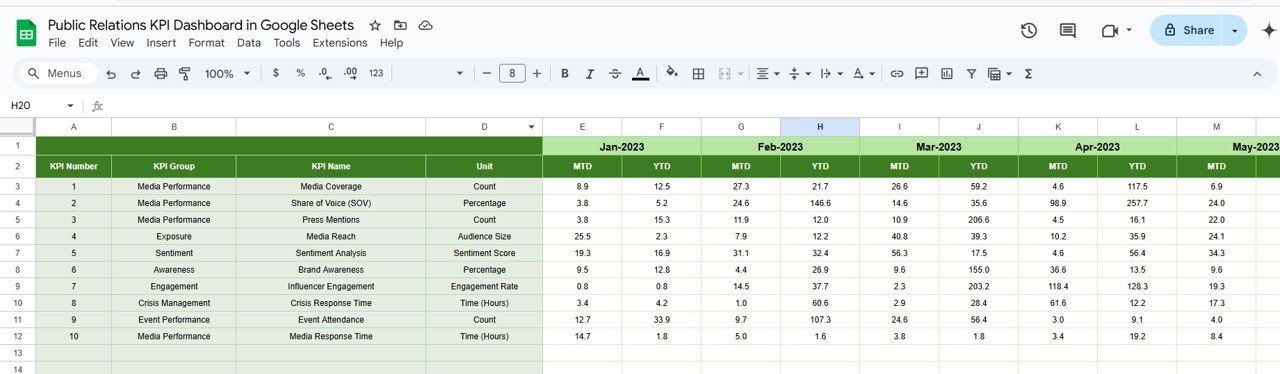
Previous Year Numbers – Store historical data for side-by-side comparisons
📖 KPI Definition Tab
Fully documented KPIs with names, formulas, groups, and measurement units for easy team reference
📦 What’s Inside the Public Relations KPI Dashboard in Google Sheets
Your dashboard includes 6 easy-to-use sheets:
1️⃣ Dashboard Sheet – Visual summary of all KPI metrics
2️⃣ KPI Trend Sheet – Analyze individual metric trends over time
3️⃣ Actual Numbers – Input your monthly and YTD PR data
4️⃣ Target Sheet – Define goals for each KPI
5️⃣ Previous Year Sheet – Store past performance data for insights
6️⃣ KPI Definition – Full reference for how each KPI is calculated and categorized
All sheets are interlinked, updating the dashboard in real-time as soon as data is entered.
🚀 How to Use the Public Relations KPI Dashboard
📝 Step 1: Enter MTD, YTD, Target, and PY data into the relevant input tabs
📅 Step 2: Select your desired month from the dropdown (cell D3)
📊 Step 3: Instantly view your performance vs. goals with up/down arrows
📈 Step 4: Dive deeper into trend data in the KPI Trend tab
📤 Step 5: Share the dashboard with stakeholders or export as a PDF
No formulas to write. No tools to install. Just insights, simplified.
👥 Who Can Benefit from This PR Dashboard?
🧑💼 PR Agencies – Track multiple clients, campaigns, or launches
🏢 Corporate Comms Teams – Monitor brand reputation and media effectiveness
📈 Marketing Teams – Align PR efforts with broader campaigns
🎯 Freelance PR Consultants – Present clear performance reports to clients
📰 Media Analysts – Evaluate campaign reach, sentiment, and ROI
Whether you’re focused on press releases, media placements, or brand visibility—this dashboard helps you stay accountable and strategic.
💡 Why This Google Sheets Dashboard is a Game-Changer
✅ 100% Google Sheets – No expensive tools or training required
✅ Real-Time Updates – Enter data and watch the metrics come to life
✅ KPI-Driven Layout – Clear structure for all core PR metrics
✅ Visual Performance Indicators – Know where you stand with arrows & color coding
✅ Customizable – Add your own KPIs, definitions, or formulas
✅ Shareable & Collaborative – Use it with clients, teams, or leadership
Manage your PR campaigns smarter—with data, not guesswork.
🔁 Click here to read the Detailed blog post
Click here to read the Detailed blog post
Watch the step-by-step video Demo:
🎥 Visit our YouTube channel to learn step-by-step video tutorials
Youtube.com/@NeotechNavigators
Compatibility and Requirements
- Works in Google Sheets with a free Google account and a web browser.
- Make a copy to your own Google Drive, then share it with your team if you want to work on it together.
- New to Sheets? Google’s guide How to use Google Sheets covers the basics.
Frequently Asked Questions
Which sheets are included in the Public Relations KPI Dashboard?
Six: Dashboard, KPI Trend, Actual Numbers, Target, Previous Year and KPI Definition.
How do I change the month on the dashboard?
Pick the month from the dropdown in cell D3. All MTD, YTD, target and previous year figures update for that month.
What do UTB and LTB mean?
Each KPI is marked UTB (Upper the Better) or LTB (Lower the Better), so the arrows show whether a change is good or bad.
Can I share the dashboard with clients?
Yes. Share the Google Sheet with stakeholders or export it as a PDF for a client report.
Related PR and Marketing Templates
- Public Relations KPI Dashboard in Excel: the same KPI layout in Excel
- Public Relations KPI Dashboard in Power BI: PR KPIs in Power BI
- Public Relations (PR) Outreach Calendar in Google Sheets: plan media outreach by date
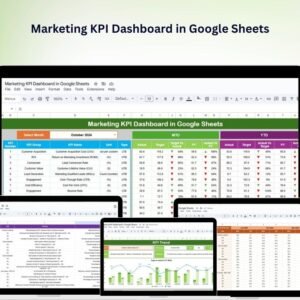
- Marketing KPI Dashboard in Google Sheets: track wider marketing KPIs
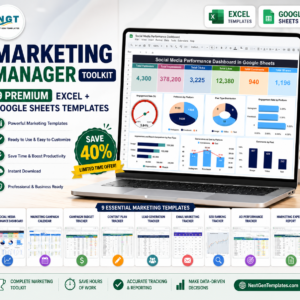
- Marketing Manager Toolkit: 9 Excel and Google Sheets marketing templates
Browse all Google Sheets KPI dashboards or the Google Sheets templates.





Reviews
There are no reviews yet.