

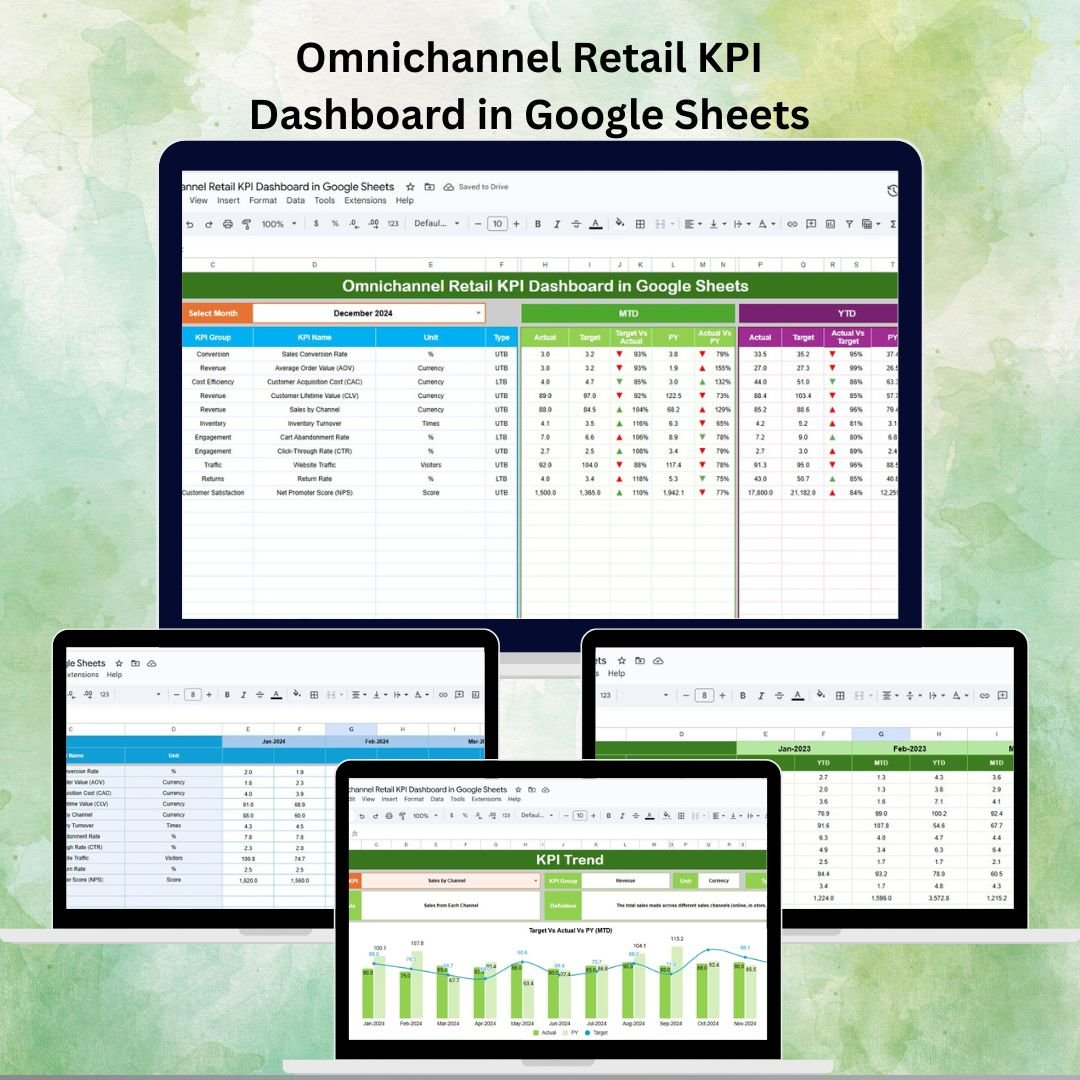

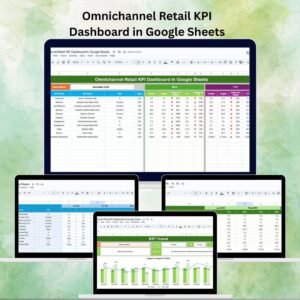
In today’s fast-paced retail landscape, businesses no longer operate in silos. Customers interact with brands through multiple touchpoints—online stores, physical outlets, marketplaces, and even social media commerce. Tracking performance across these diverse channels can be challenging without the right tools. That’s where our Omnichannel Retail KPI Dashboard in Google Sheets comes in—a ready-to-use, cloud-based solution designed to simplify monitoring and decision-making for retailers, managers, and analysts.
This dashboard consolidates sales, inventory, and customer engagement data into one central platform, giving you instant access to Month-to-Date (MTD), Year-to-Date (YTD), target comparisons, and historical performance. Whether you’re running a small retail chain or a large enterprise, this template empowers you to make data-driven decisions that boost efficiency, customer satisfaction, and profitability.
🔑 Key Features of the Omnichannel Retail KPI Dashboard
1️⃣ Dashboard Sheet Tab
The main control center of the dashboard, providing a real-time snapshot of performance:
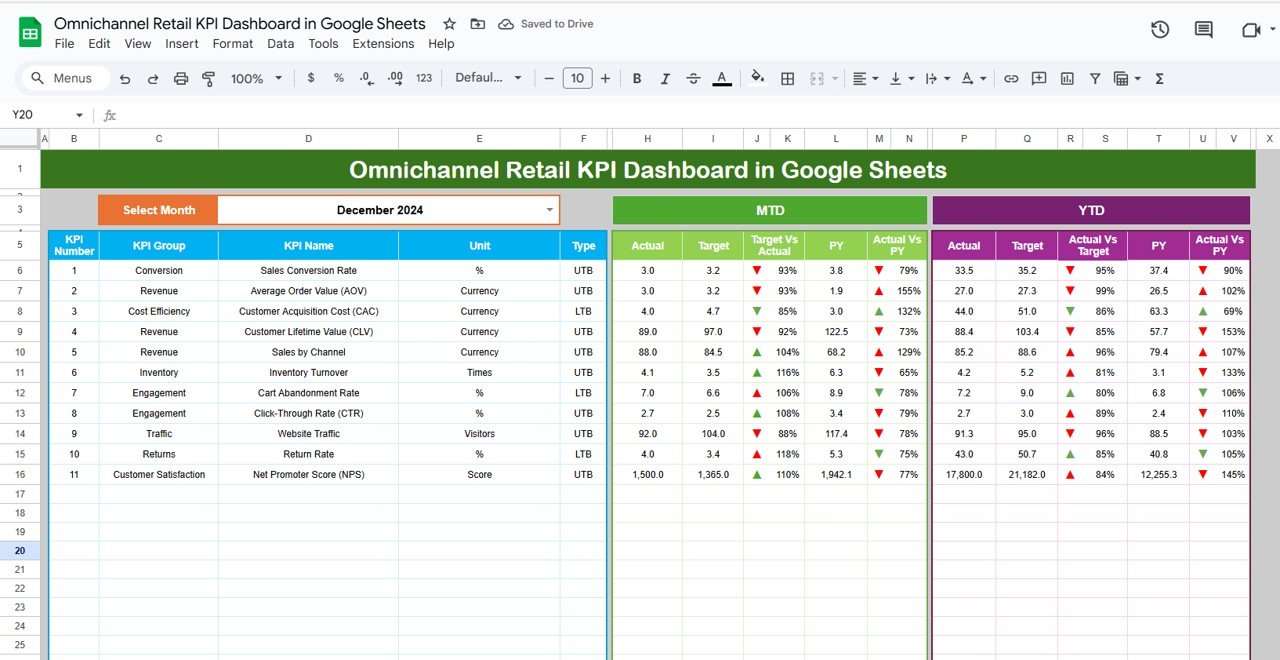
Month Selector: Choose any month from the dropdown (D3) and watch the data update instantly.
MTD & YTD Metrics: Compare Actual vs Target and Actual vs Previous Year with conditional formatting arrows.
KPIs Covered: Sales revenue, online vs offline split, Average Order Value (AOV), retention rate, conversion rate, inventory turnover, and store footfall.
Visual Indicators: Red/green arrows highlight underperformance or overachievement.
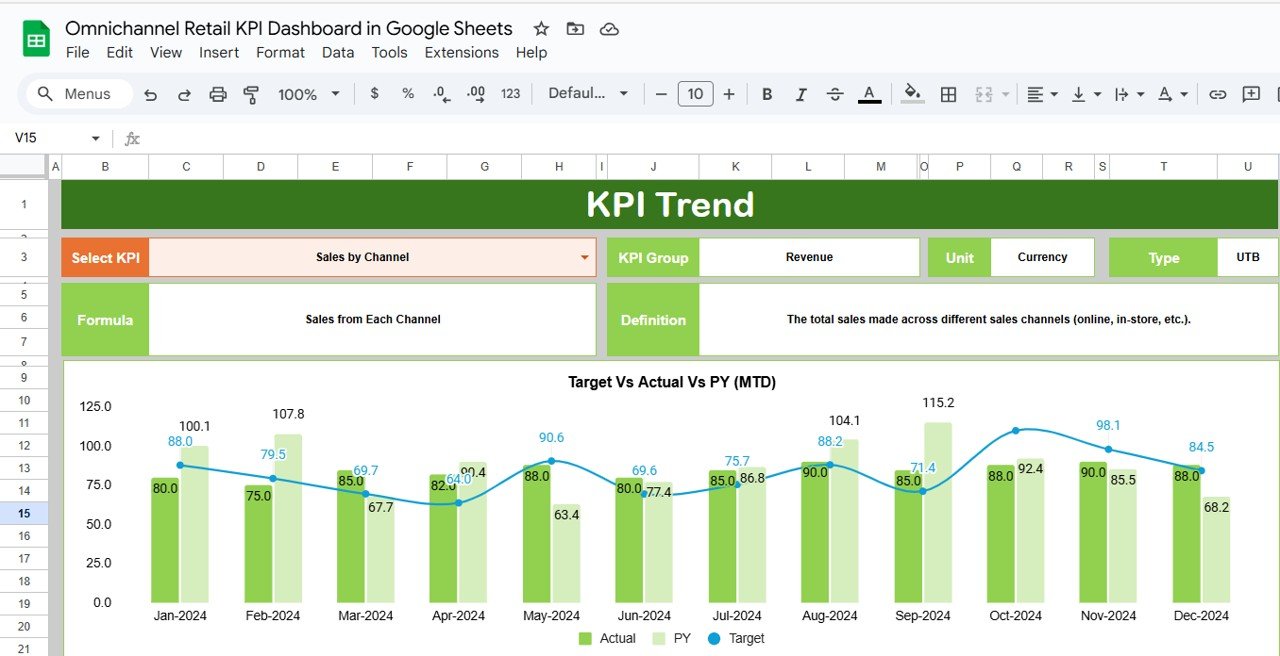
2️⃣ KPI Trend Sheet Tab
Dive deeper into individual KPIs:
Select any KPI from the dropdown in C3.
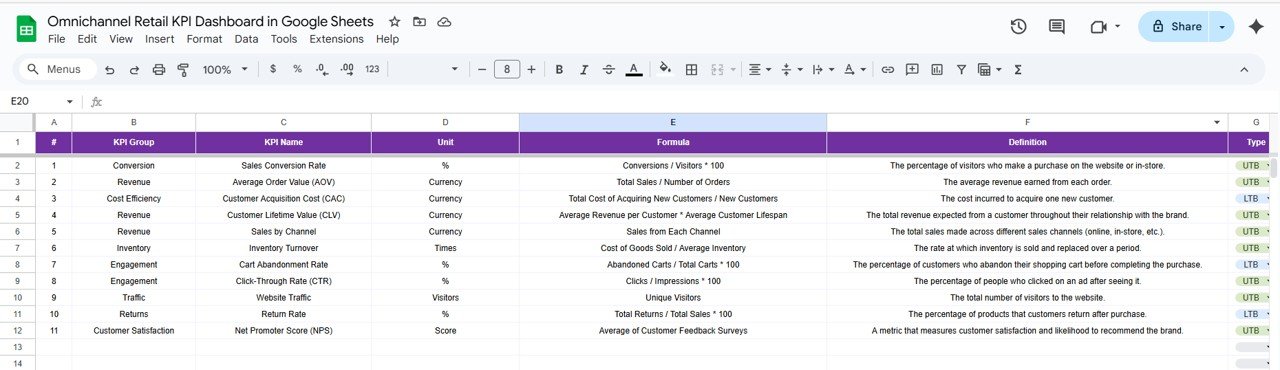
View KPI group, unit, formula, definition, and whether it’s “Upper the Better” (UTB) or “Lower the Better” (LTB).
Track historical performance to identify patterns.
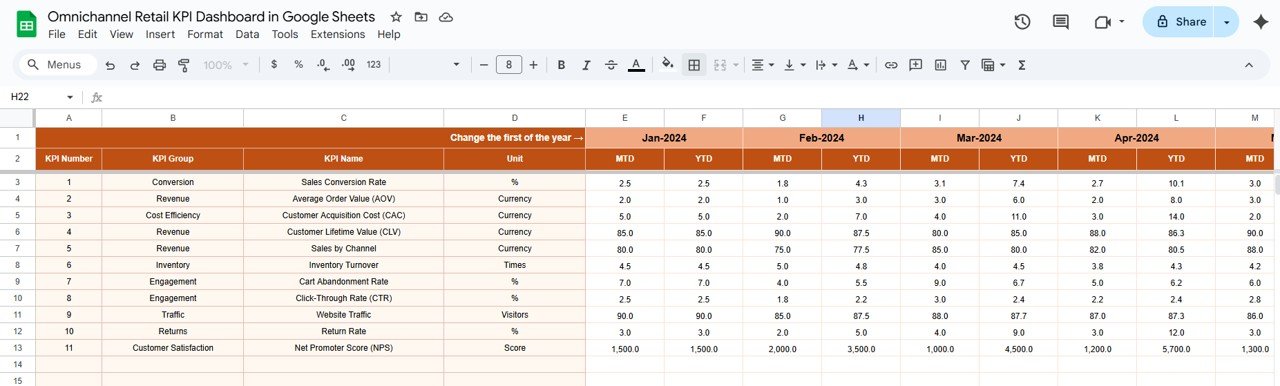
3️⃣ Actual Numbers Sheet Tab
Input MTD and YTD actuals.
Change the first month of the year in E1 to automatically adjust calculations.
Keeps data fresh and accurate.
4️⃣ Target Sheet Tab
Enter monthly and yearly KPI targets.
Align performance with business goals.
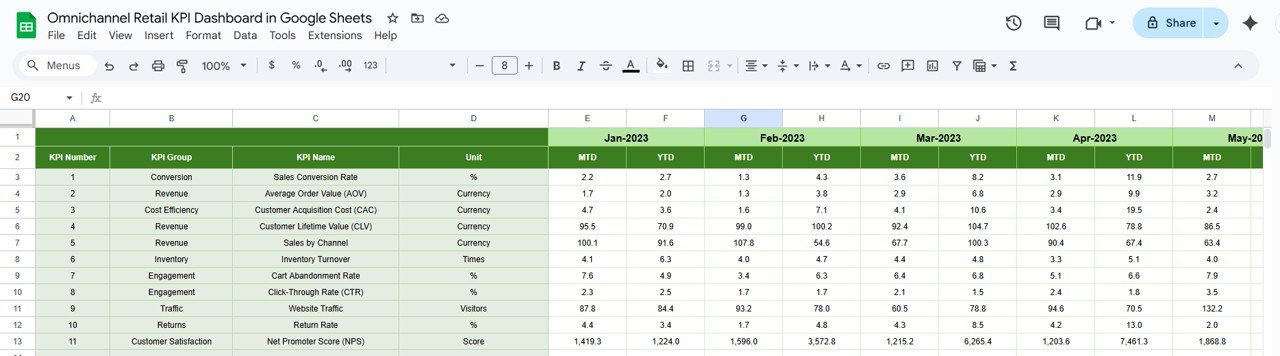
5️⃣ Previous Year Numbers Sheet Tab
Input historical data for year-over-year comparison.
Spot seasonal patterns and long-term improvements.
6️⃣ KPI Definition Sheet Tab
Maintain clarity with KPI name, group, formula, definition, and UTB/LTB classification.
Ensures consistency across the organization.
📦 What’s Inside the Dashboard
✔ Prebuilt KPI dashboard with cards, charts, and dropdown filters
✔ Editable KPI definitions for customization
✔ Data sheets for actual, target, and historical inputs
✔ Conditional formatting for quick insights
✔ Cloud-based collaboration with Google Sheets
🛠️ How to Use the Dashboard
Set Up KPIs: Define metrics in the KPI Definition sheet.
Input Data: Enter Actual, Target, and Previous Year values.
Select Month: Use the dropdown to update dashboard numbers instantly.
Analyze Trends: Explore KPI performance using the Trend Sheet.
Share Insights: Collaborate with your team by sharing the Google Sheet.
👥 Who Can Benefit from This Dashboard?
Retailers: Monitor online and offline performance in one place.
Store Managers: Gain insights into footfall, sales, and staff efficiency.
Marketing Teams: Track conversion rates and customer retention.
Inventory Managers: Manage stock levels and turnover effectively.
Executives & Analysts: Make strategic decisions backed by real data.
✅ Advantages of Using This Dashboard
Centralized Data Monitoring – Consolidate sales, inventory, and customer KPIs.
Cloud-Based Collaboration – Share real-time insights across teams.
Data-Driven Decisions – Compare current vs target vs historical performance.
Cost-Effective – No need for expensive BI software.
Customizable – Add new KPIs, change formulas, and personalize the layout.
📌 Best Practices
Update Actuals monthly for accurate results.
Set realistic, achievable targets.
Use dropdowns to standardize inputs.
Review trends regularly to spot opportunities.
Share findings with cross-functional teams for alignment.
🎯 Conclusion
The Omnichannel Retail KPI Dashboard in Google Sheets is a must-have for retailers seeking to streamline performance tracking across multiple sales channels. With its intuitive layout, real-time insights, and flexible customization, this dashboard empowers businesses to stay agile, customer-focused, and profitable.
Click here to read the detailed blog post
Visit our YouTube channel to learn step-by-step video tutorials
Compatibility and Requirements
- Works in Google Sheets. You need a free Google account and a web browser.
- You pick the month and the KPI from dropdowns. Google explains dropdowns in Create an in-cell dropdown list.
Frequently Asked Questions
Which sheets are included?
Six sheets: Dashboard, KPI Trend, Actual Numbers, Target, Previous Year Numbers and KPI Definition.
How do I update the dashboard?
Enter your MTD and YTD actuals in the Actual Numbers sheet and your goals in the Target sheet. Then choose a month in cell D3 on the Dashboard sheet and the numbers update.
Can I compare this year with last year?
Yes. Add last year’s figures to the Previous Year Numbers sheet. The Dashboard shows Actual vs Target and Actual vs Previous Year, with red and green arrows for the difference.
Can I change which month the year starts in?
Yes. Change the first month of the year in cell E1 of the Actual Numbers sheet and the calculations adjust.
Is there an Excel or Power BI version?
Yes. See the Omnichannel Retail KPI Dashboard in Excel and the Omnichannel Retail KPI Dashboard in Power BI.
Related Retail Templates
- Omnichannel Retail KPI Dashboard in Excel: the same KPIs in Excel
- Omnichannel Retail KPI Dashboard in Power BI: the Power BI edition
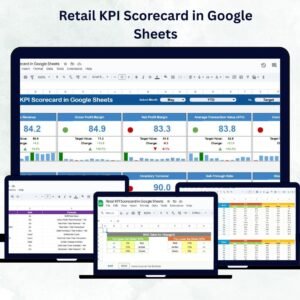
- Retail KPI Dashboard in Google Sheets: a general retail KPI view
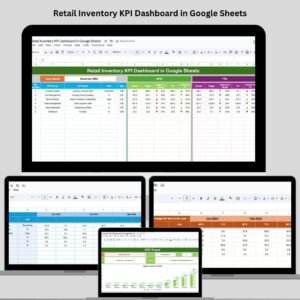
- Retail Inventory KPI Dashboard in Google Sheets: a closer look at stock
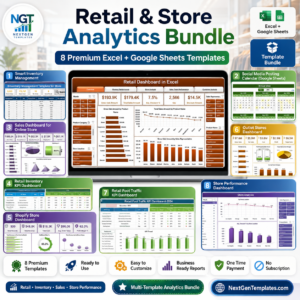
- Retail & Store Analytics Bundle: 8 retail templates in one download
Browse all Google Sheets KPI dashboards.


Reviews
There are no reviews yet.